Fix common two-factor authentication login failures, expired codes, and lost device recovery.
Error codes
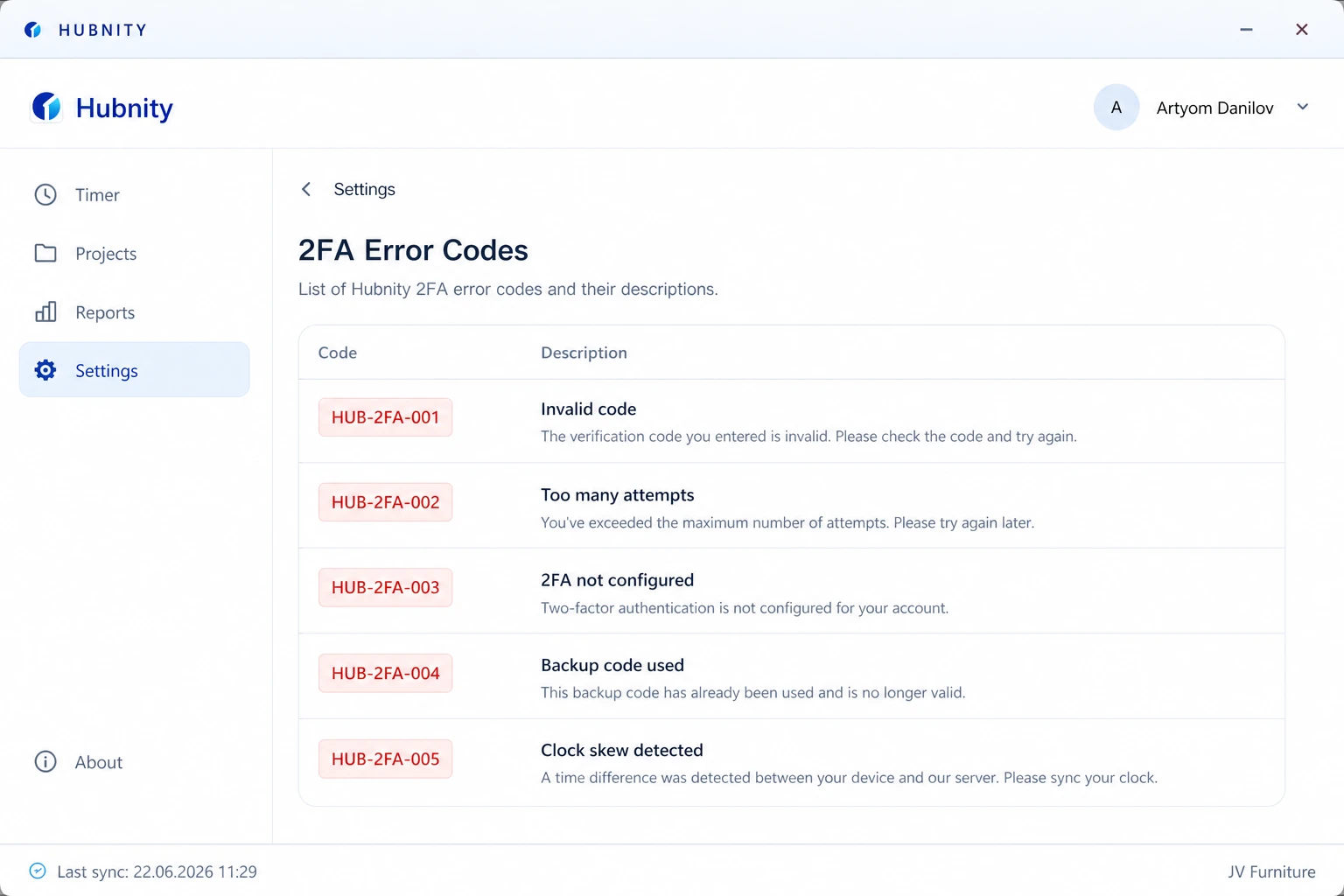
HUB-2FA-001: Invalid code. The 6-digit code is incorrect or expired (codes rotate every 30 seconds).
HUB-2FA-002: Too many attempts. Wait 15 minutes before retrying.
HUB-2FA-003: 2FA not configured but required by organization policy.
HUB-2FA-004: Backup code already used. Try another code or contact support.
HUB-2FA-005: Clock skew detected. Sync your device clock.
Authenticator code not working
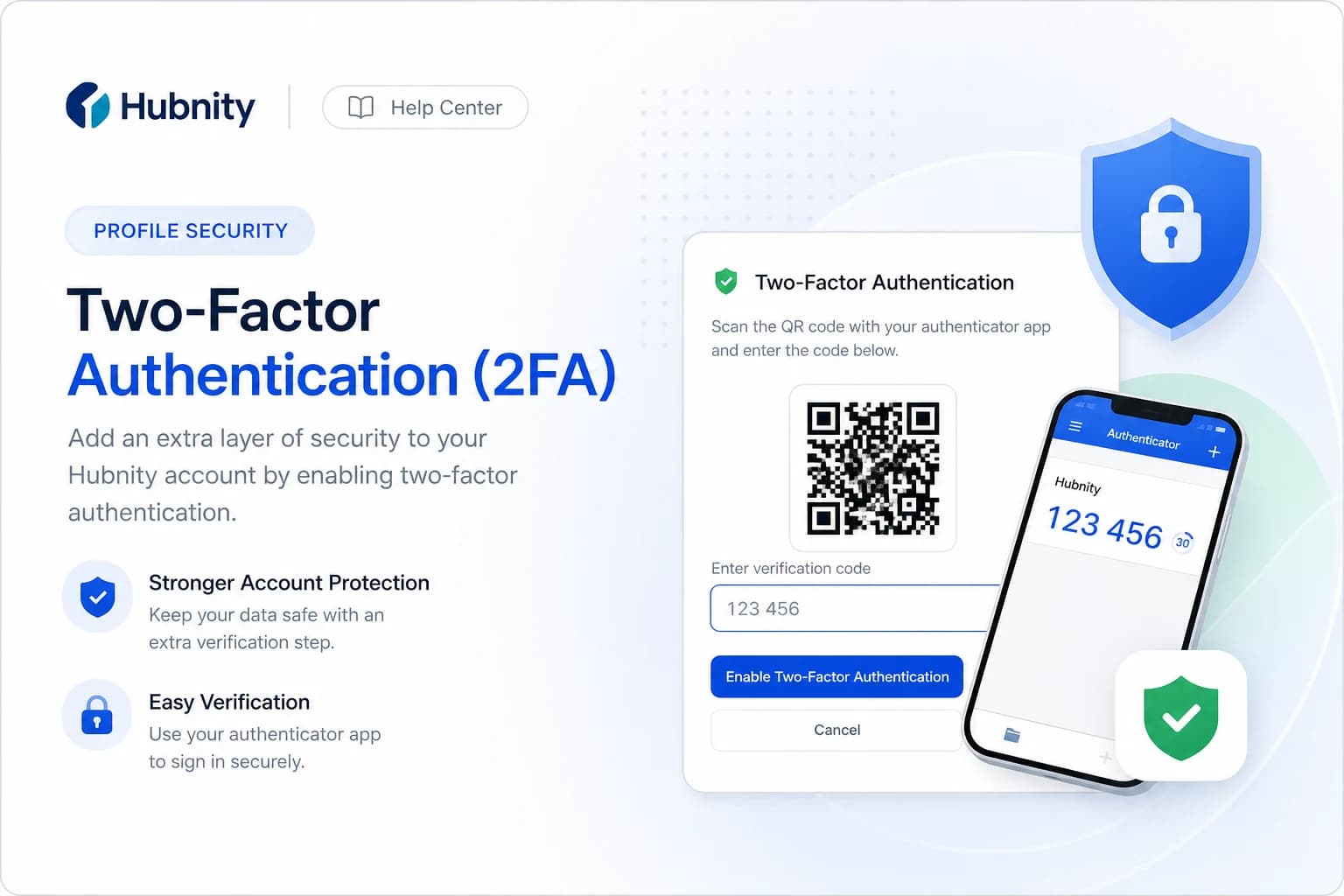
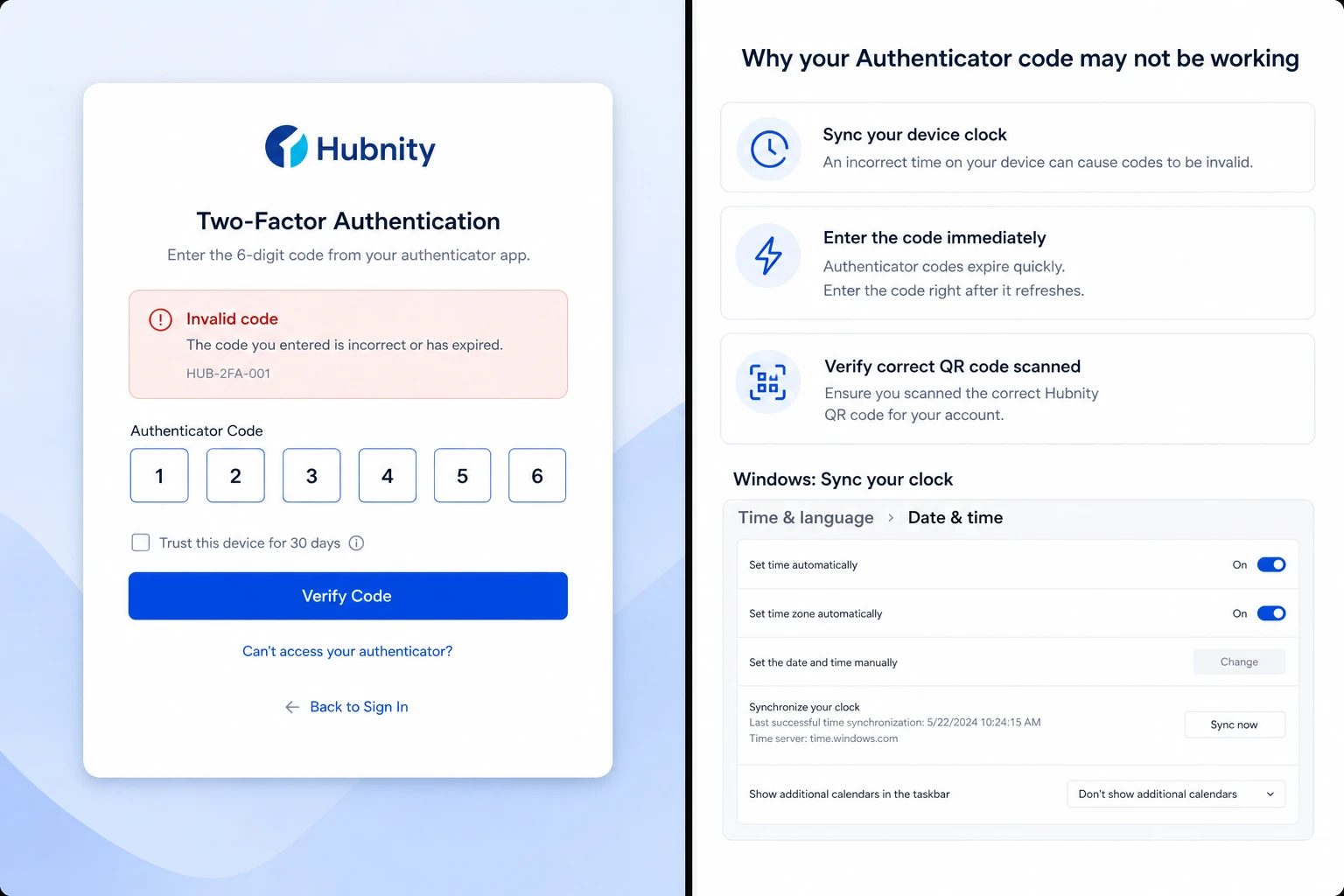
Ensure your device clock is synchronized. TOTP codes depend on accurate time.
Windows: Settings → Time & Language → Sync now. macOS: System Settings → General → Date & Time → automatic.
Enter the code immediately after it refreshes. Wait for a new code if the current one is about to expire.
Verify you scanned the correct QR code for your Hubnity account (not another service).
Use a backup code
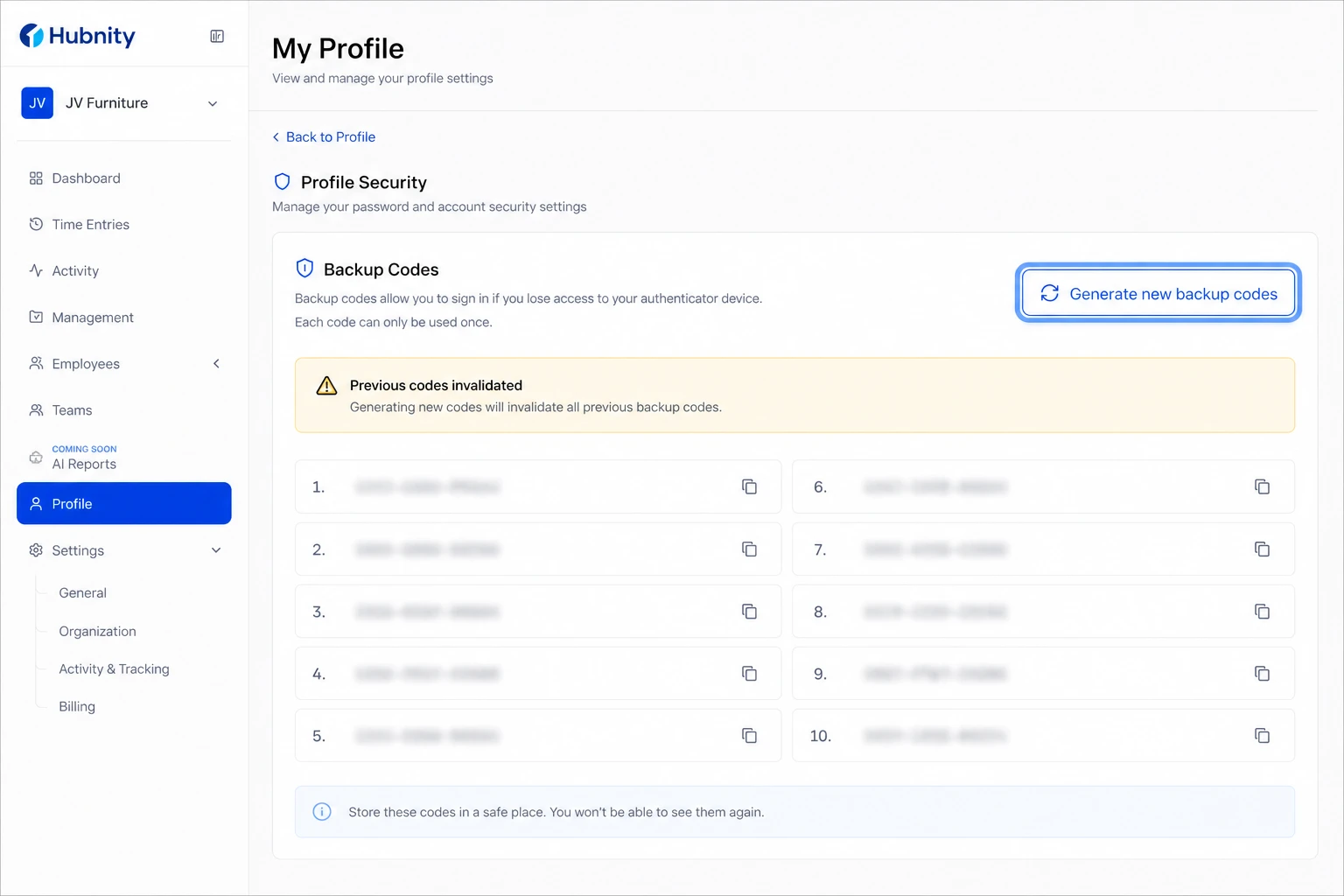
Backup codes are single-use. Generate new ones after signing in.
- 1
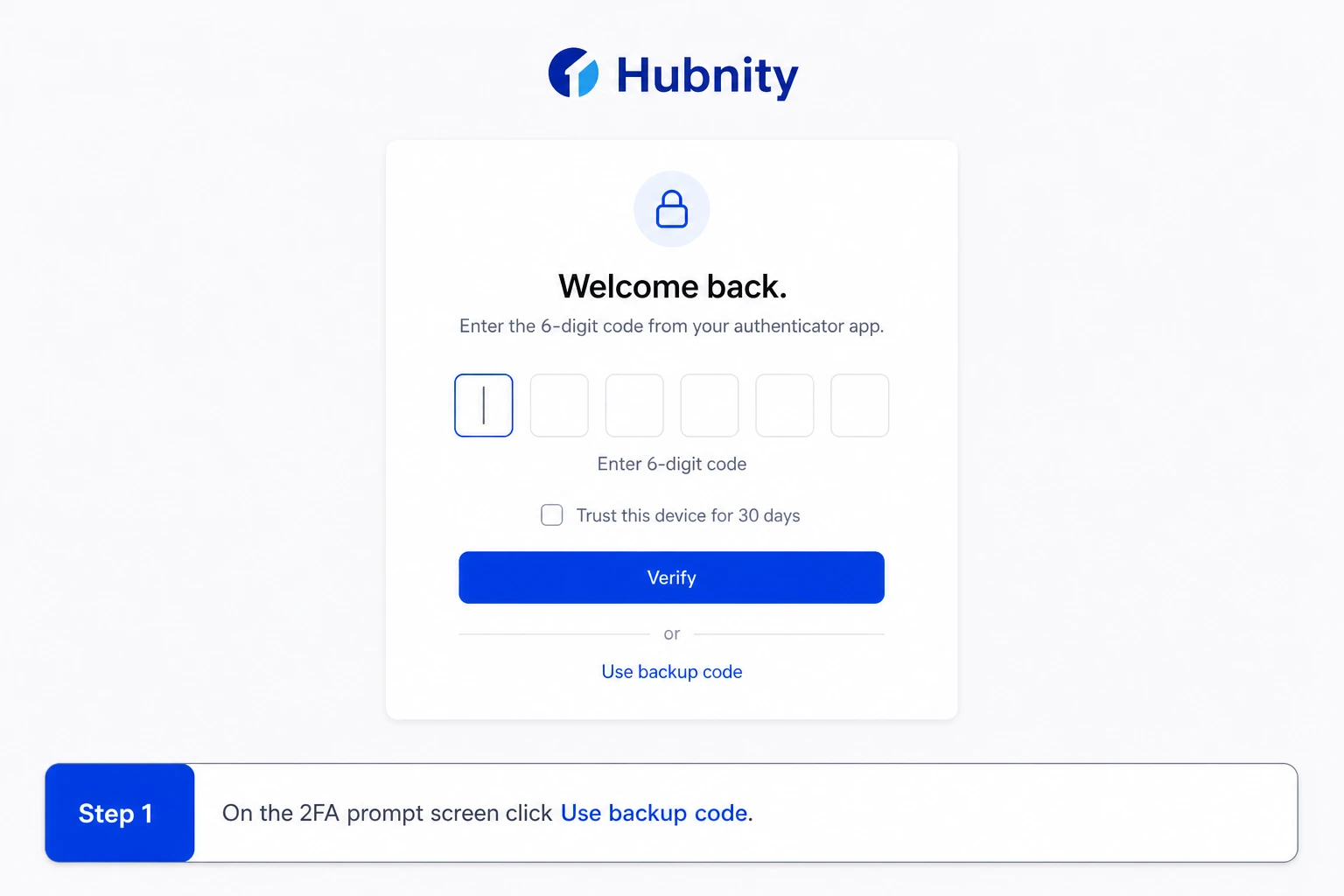
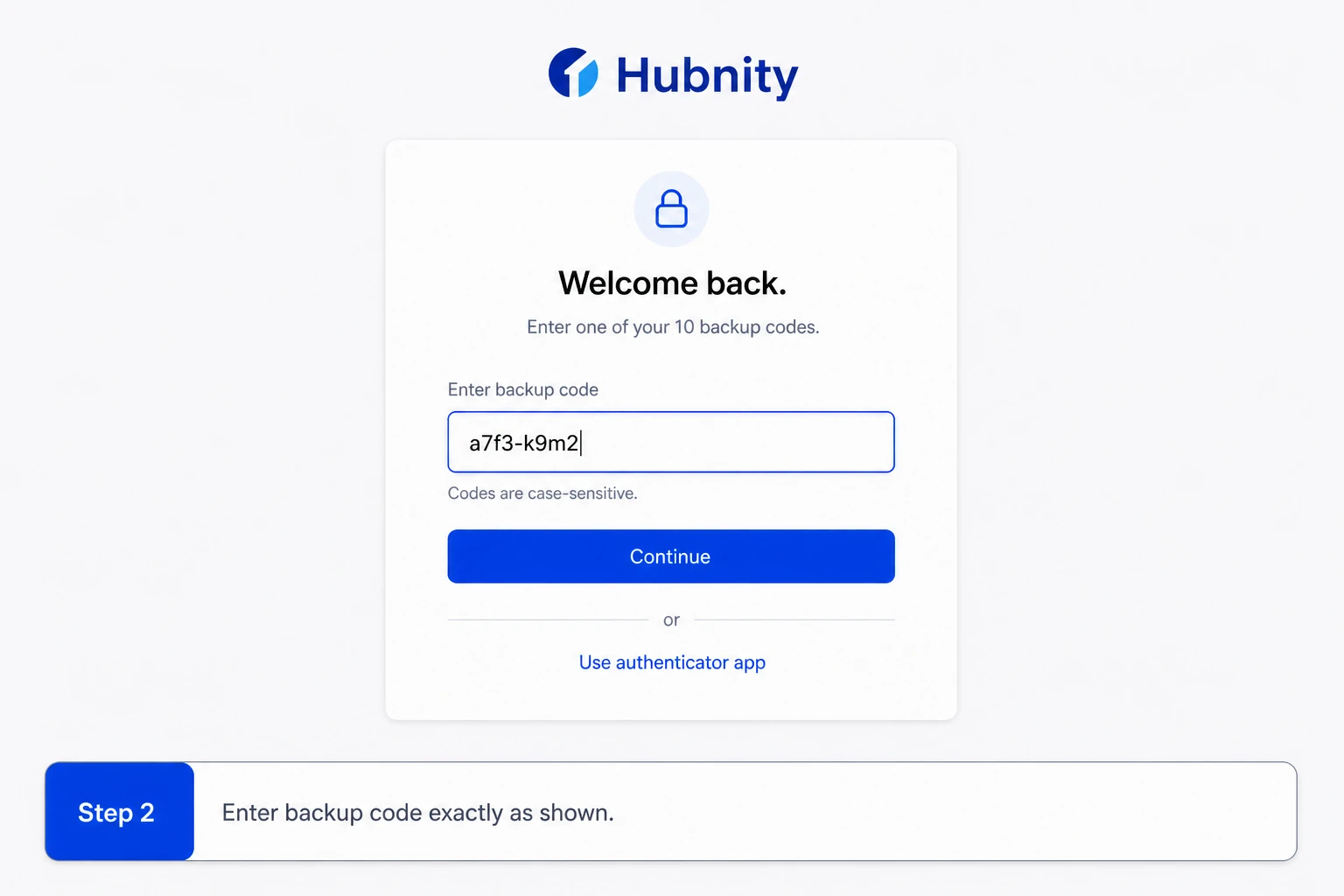
On the 2FA prompt screen, click Use backup code
- 2
Enter one of your 10 backup codes exactly as shown (case-sensitive)
- 3
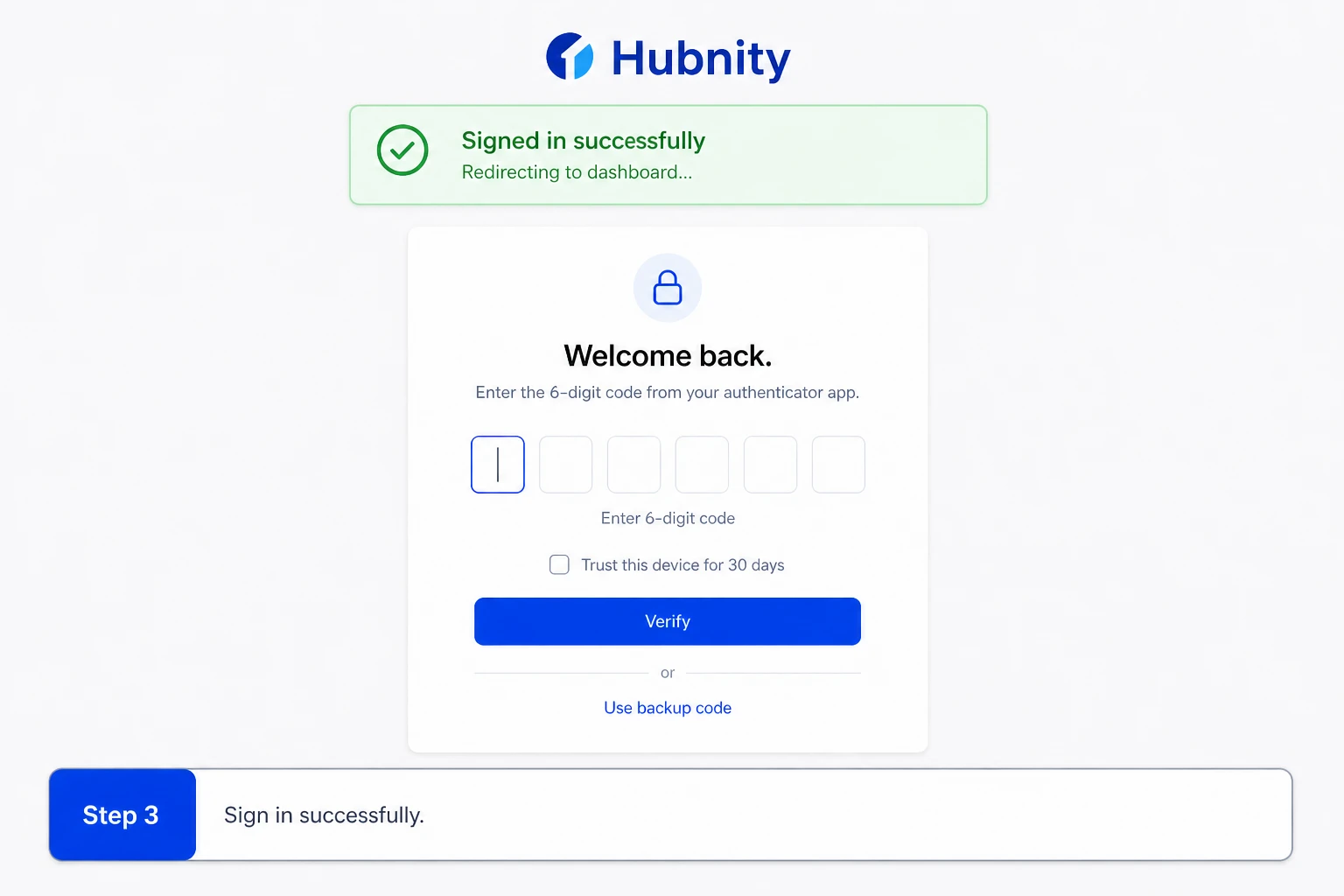
Sign in successfully
- 4
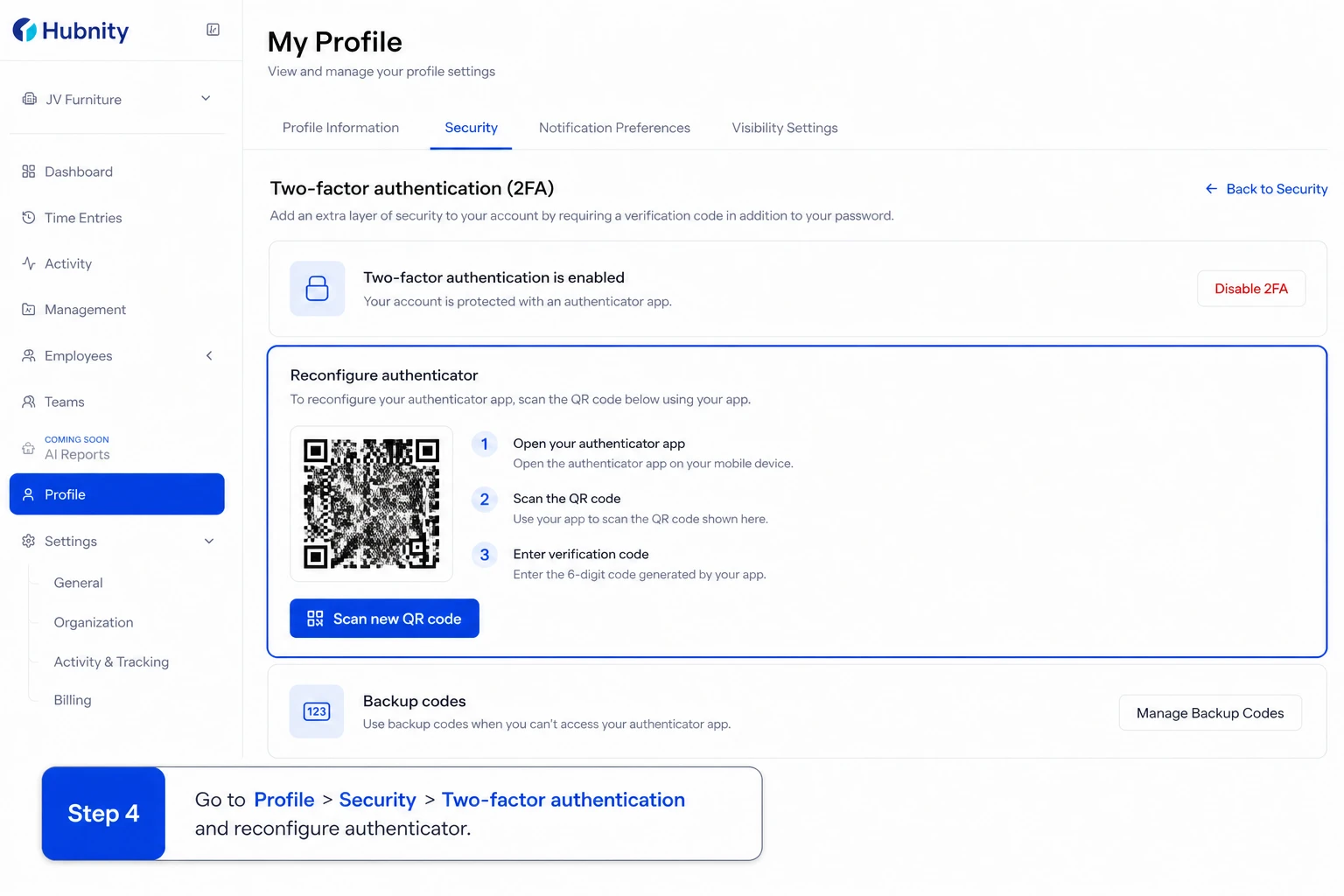
Go to Profile → Security → Two-factor authentication and reconfigure your authenticator
- 5
Generate new backup codes from Profile → Security → Backup codes
Lost authenticator device
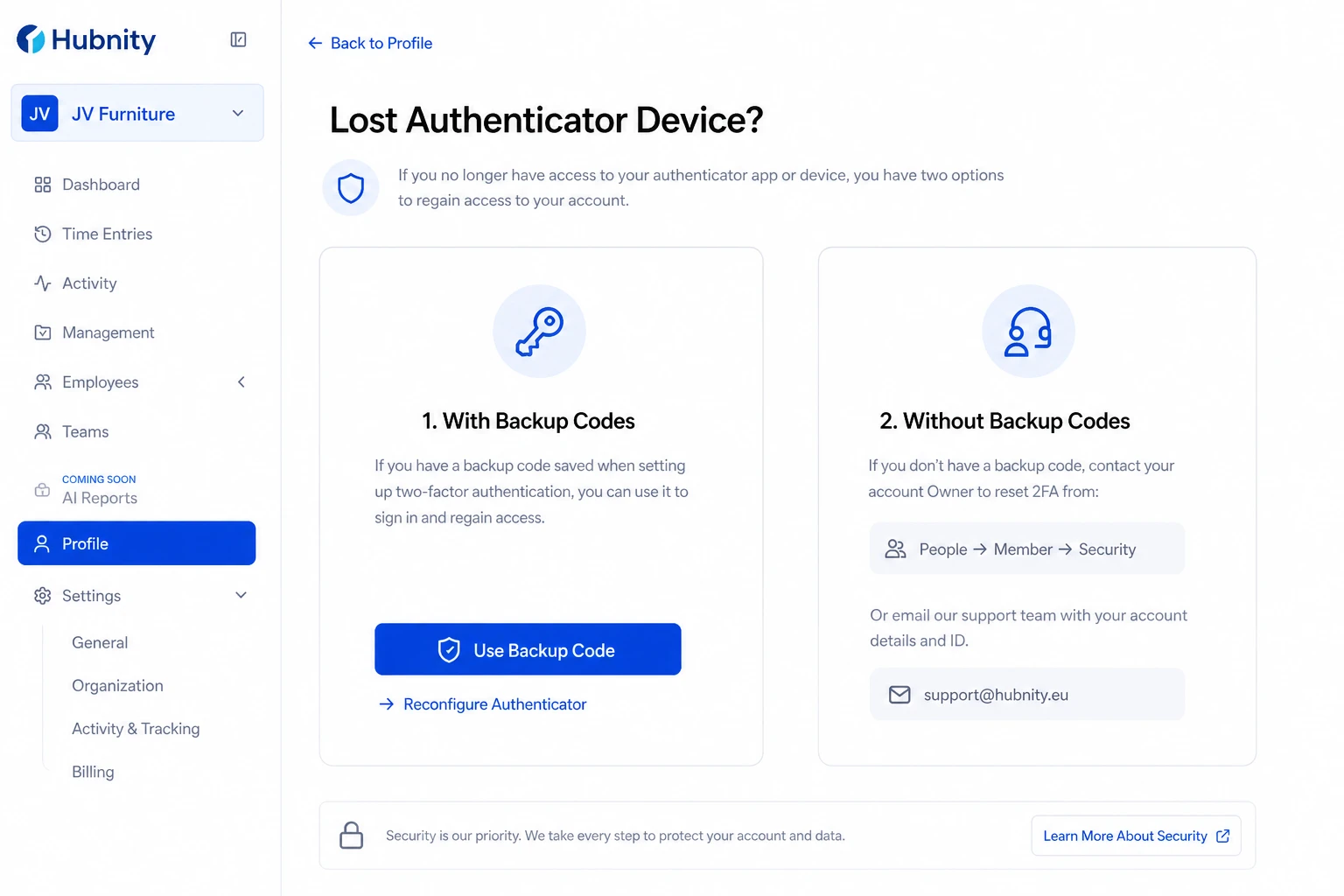
With backup codes: use a backup code to sign in, then set up a new authenticator.
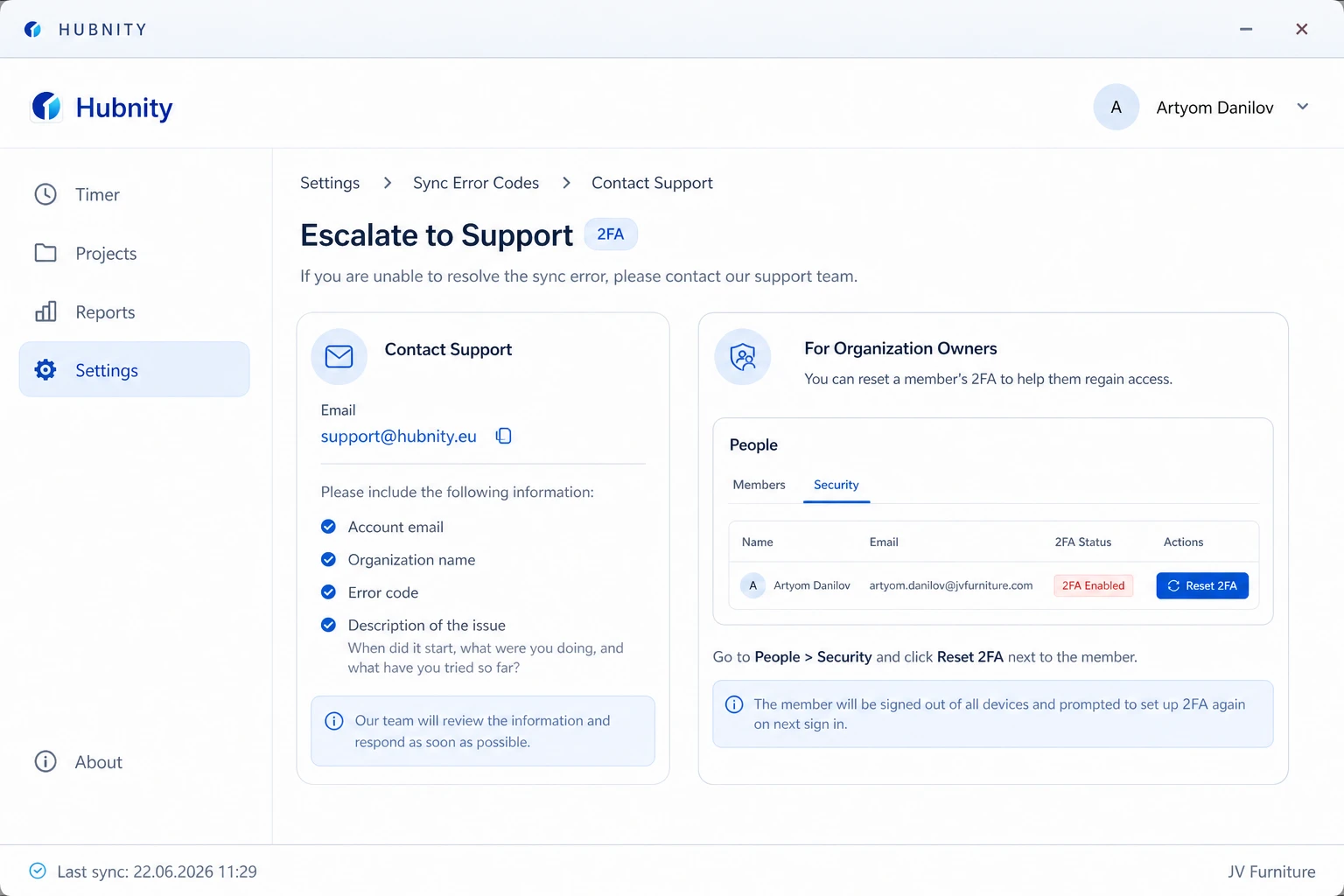
Without backup codes: contact your organization Owner to temporarily disable 2FA from People → [Member] → Security → Reset 2FA.
If you are the Owner with no backup codes: email support@hubnity.eu with government-issued ID for identity verification.
SMS 2FA issues
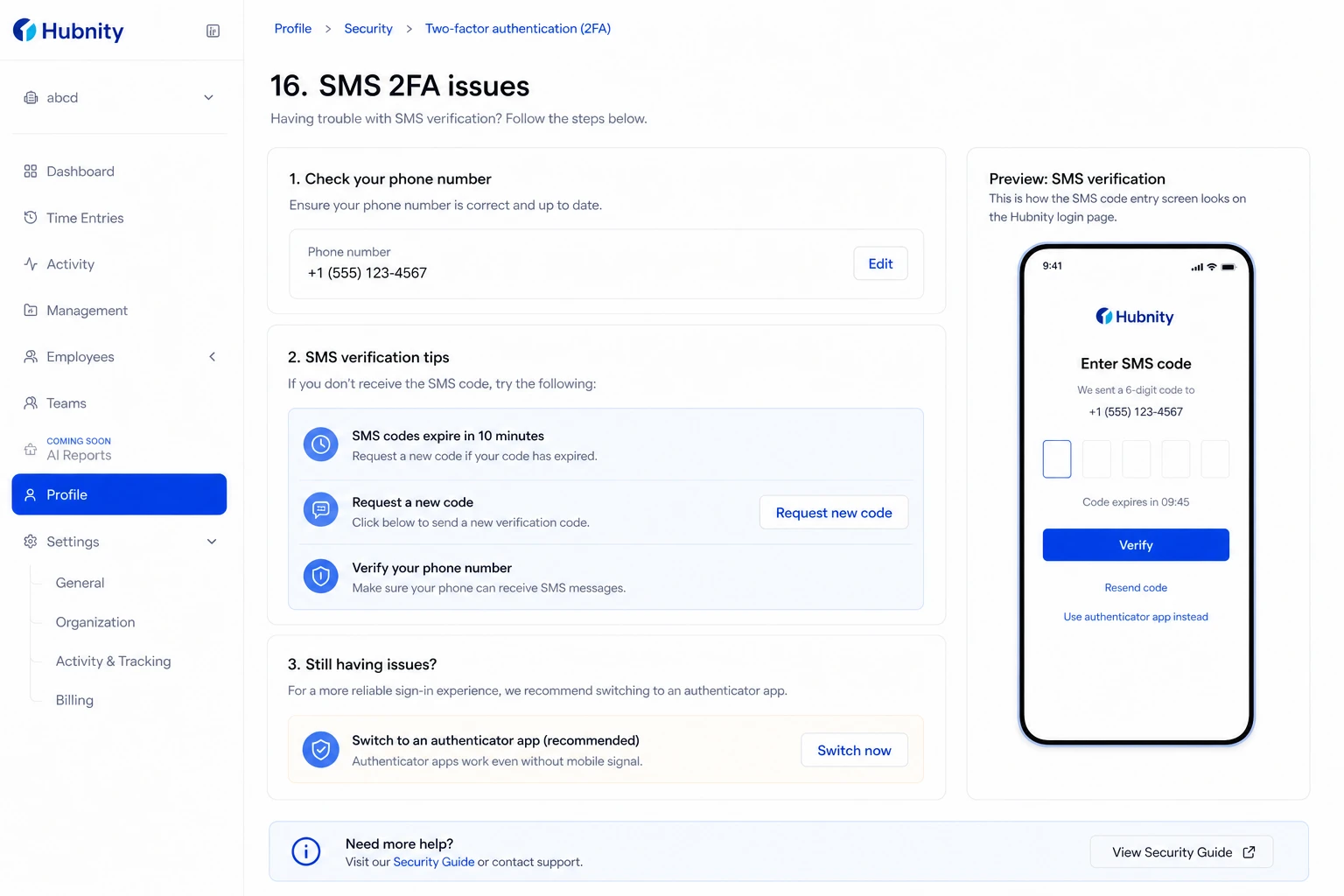
SMS codes expire after 10 minutes. Request a new code if expired.
Verify your phone number in Profile → Security → Phone number.
International SMS may be delayed. Switch to authenticator app 2FA for reliability.
Organization-enforced 2FA
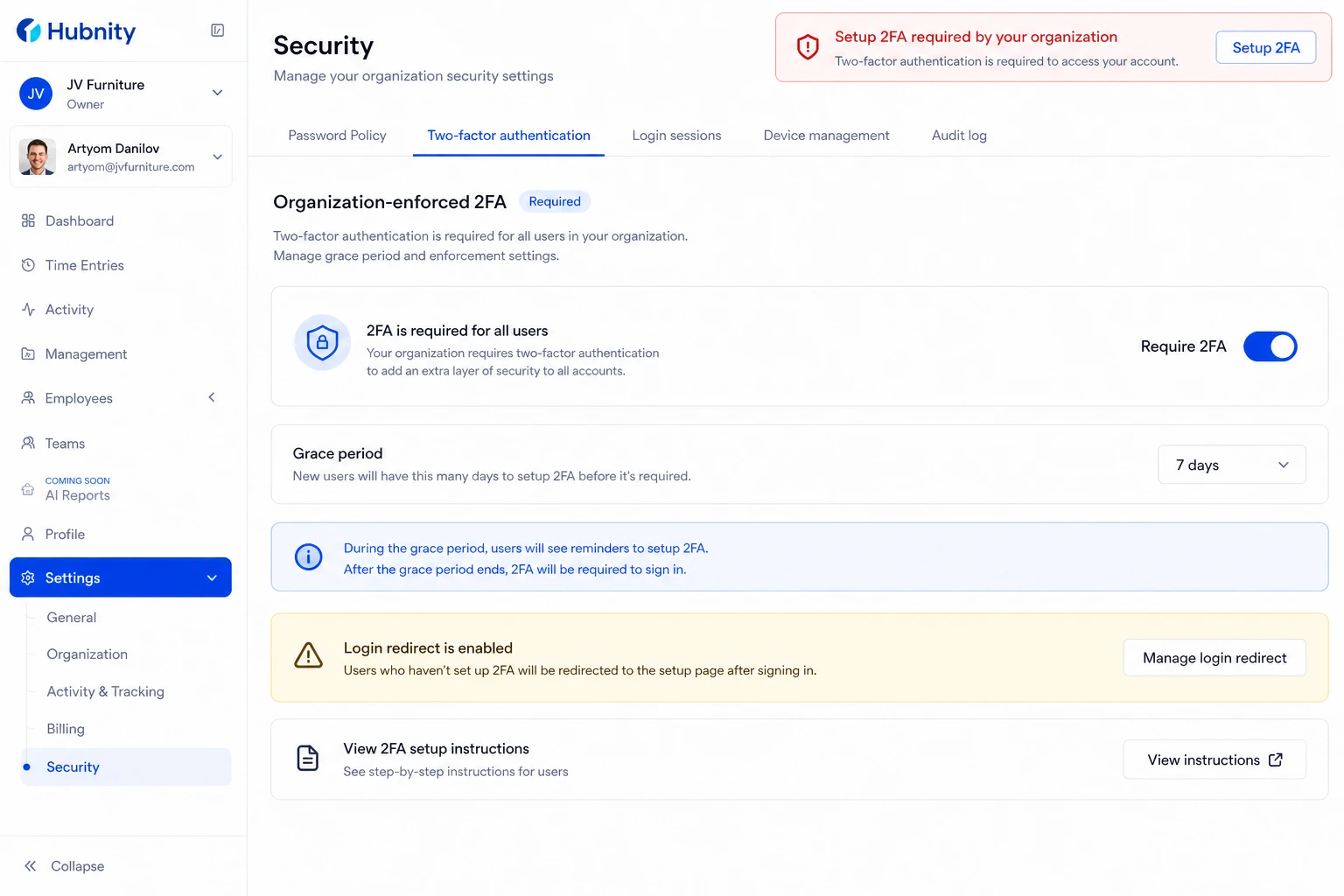
If your organization requires 2FA and you have not set it up, you are redirected to the setup page on login.
Grace period: Owners can configure 0–14 days from Settings → Security → Require 2FA → Grace period.
During grace period, you can access the workspace but see a persistent setup reminder.
Escalation to support
Email support@hubnity.eu with: account email, organization name, error code, and description.
Owners can reset member 2FA from People → [Member] → Security → Reset 2FA without contacting support.