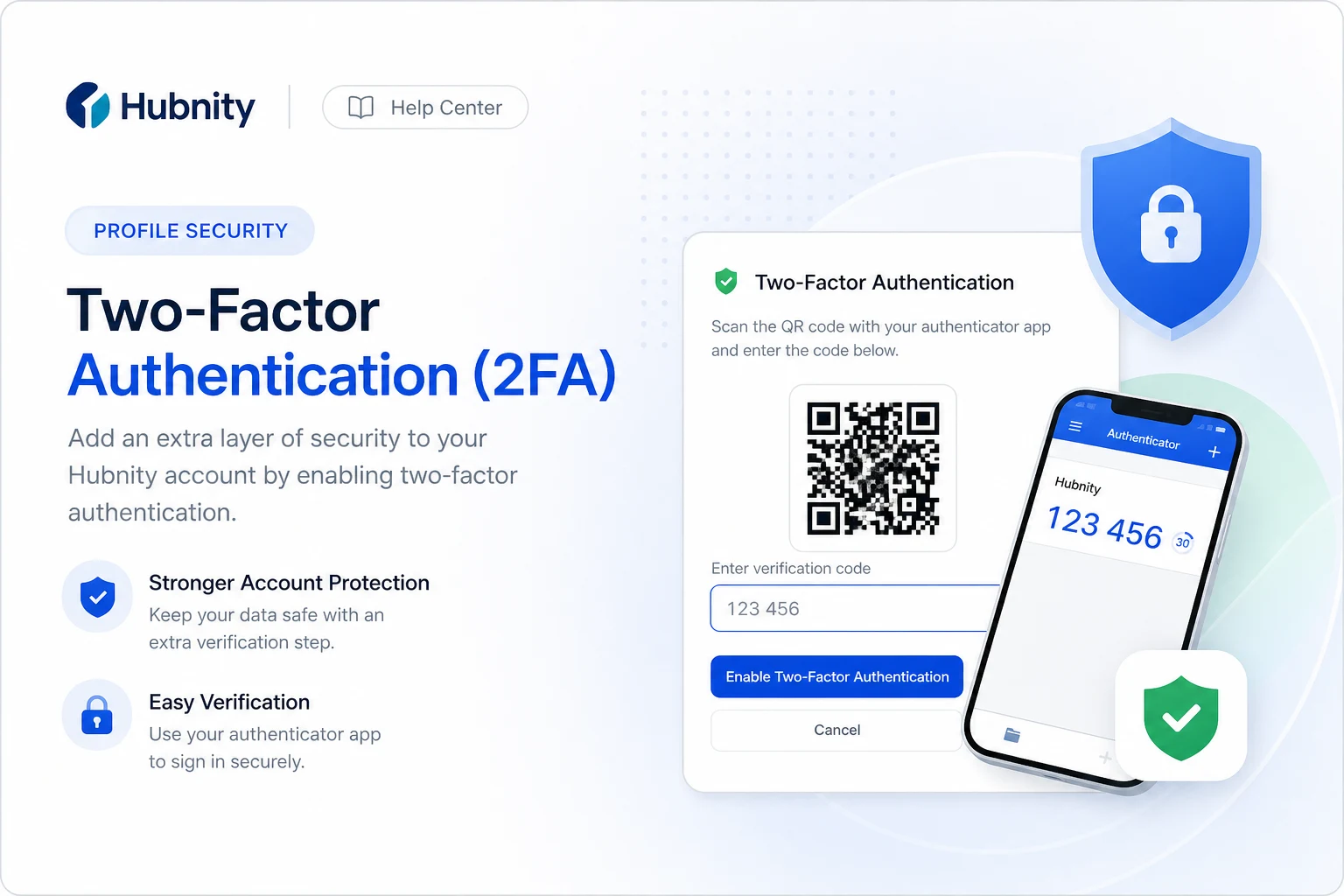
Secure your Hubnity account with two-factor authentication using an authenticator app or SMS.
2FA methods
Authenticator app (recommended): Google Authenticator, Authy, 1Password, or any TOTP-compatible app.
SMS: verification code sent to your registered phone number. Less secure than authenticator apps.
Organization SSO (Enterprise): 2FA may be enforced by your identity provider instead.
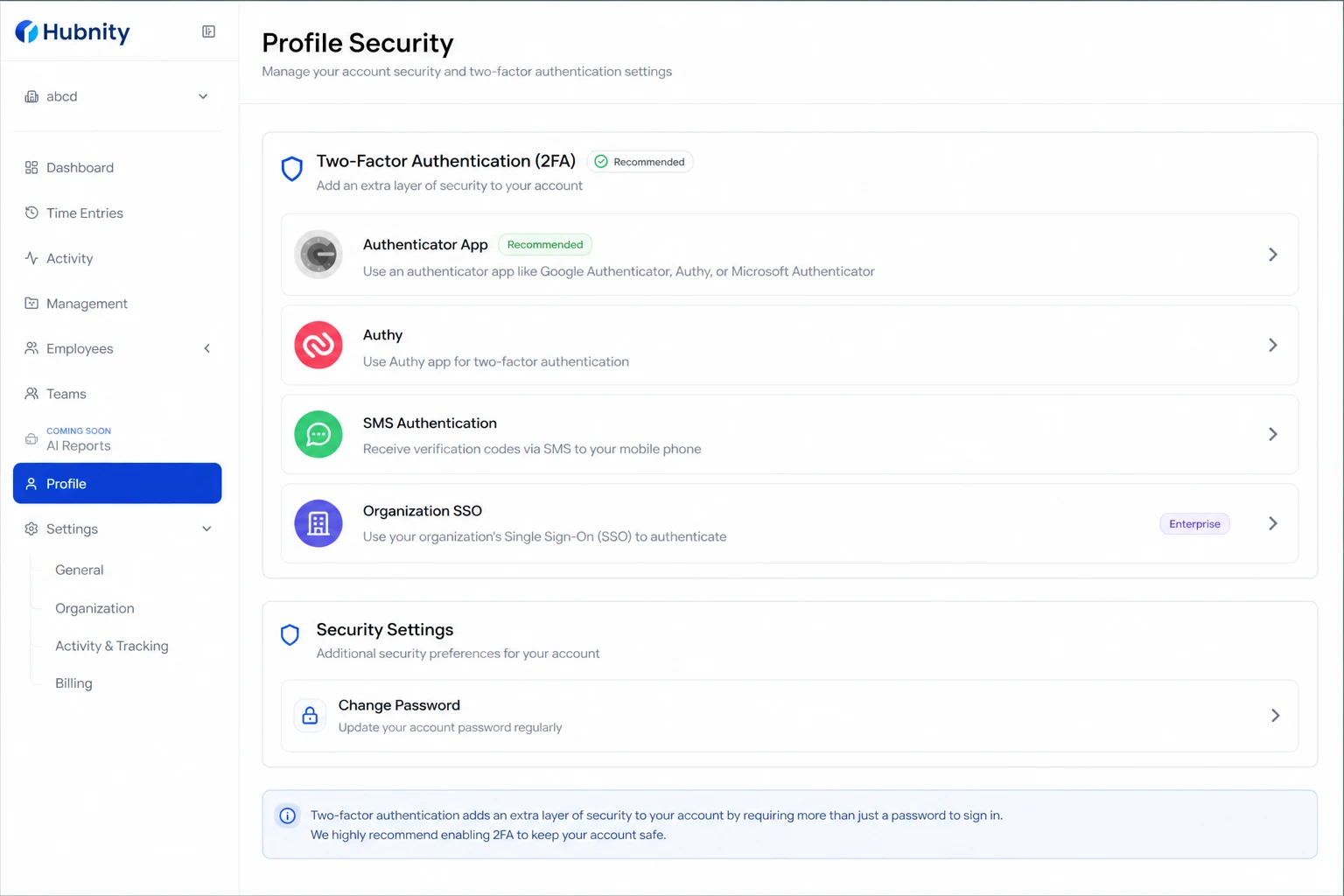
Enable authenticator app 2FA
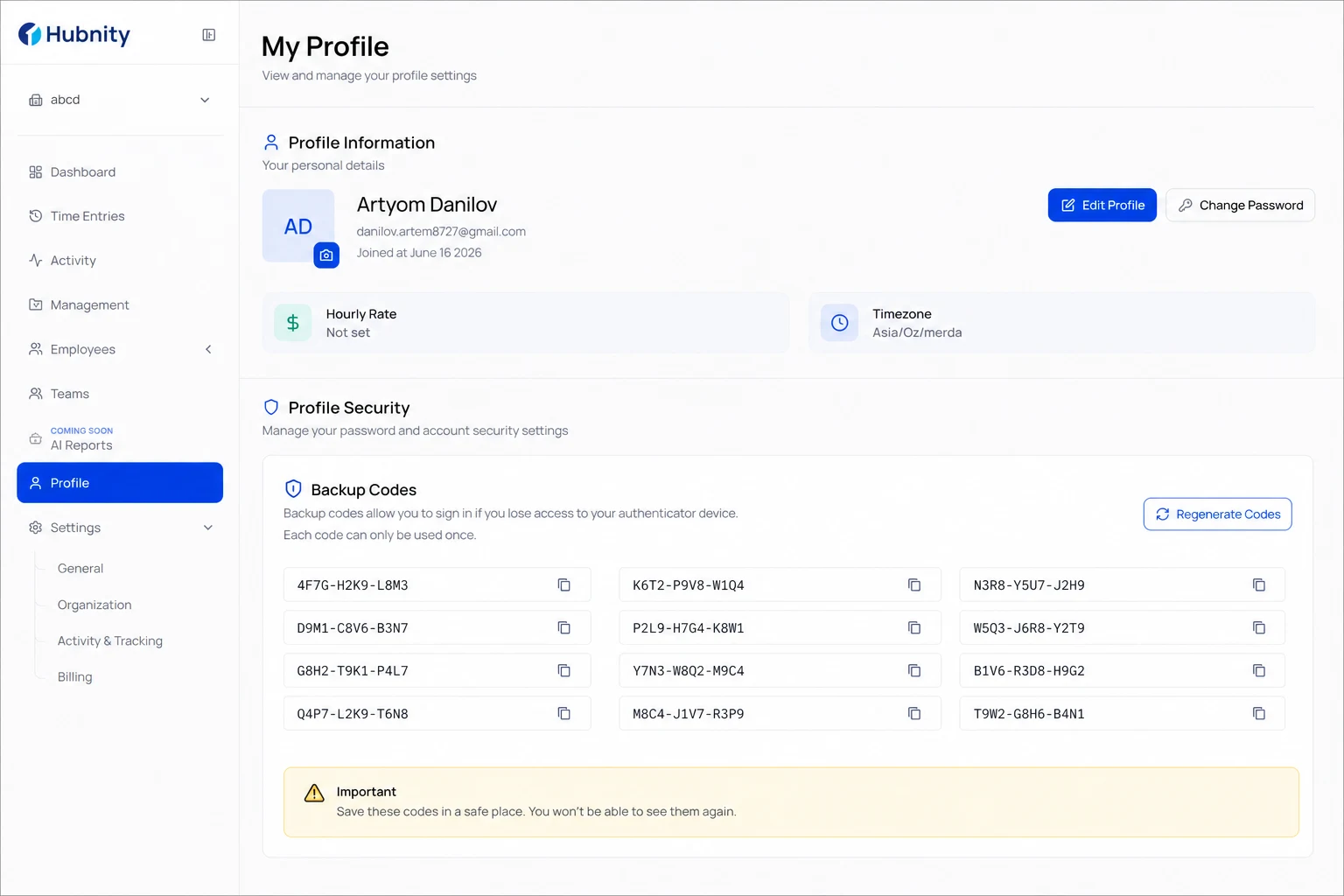
Save backup codes immediately after setup. They are shown only once.
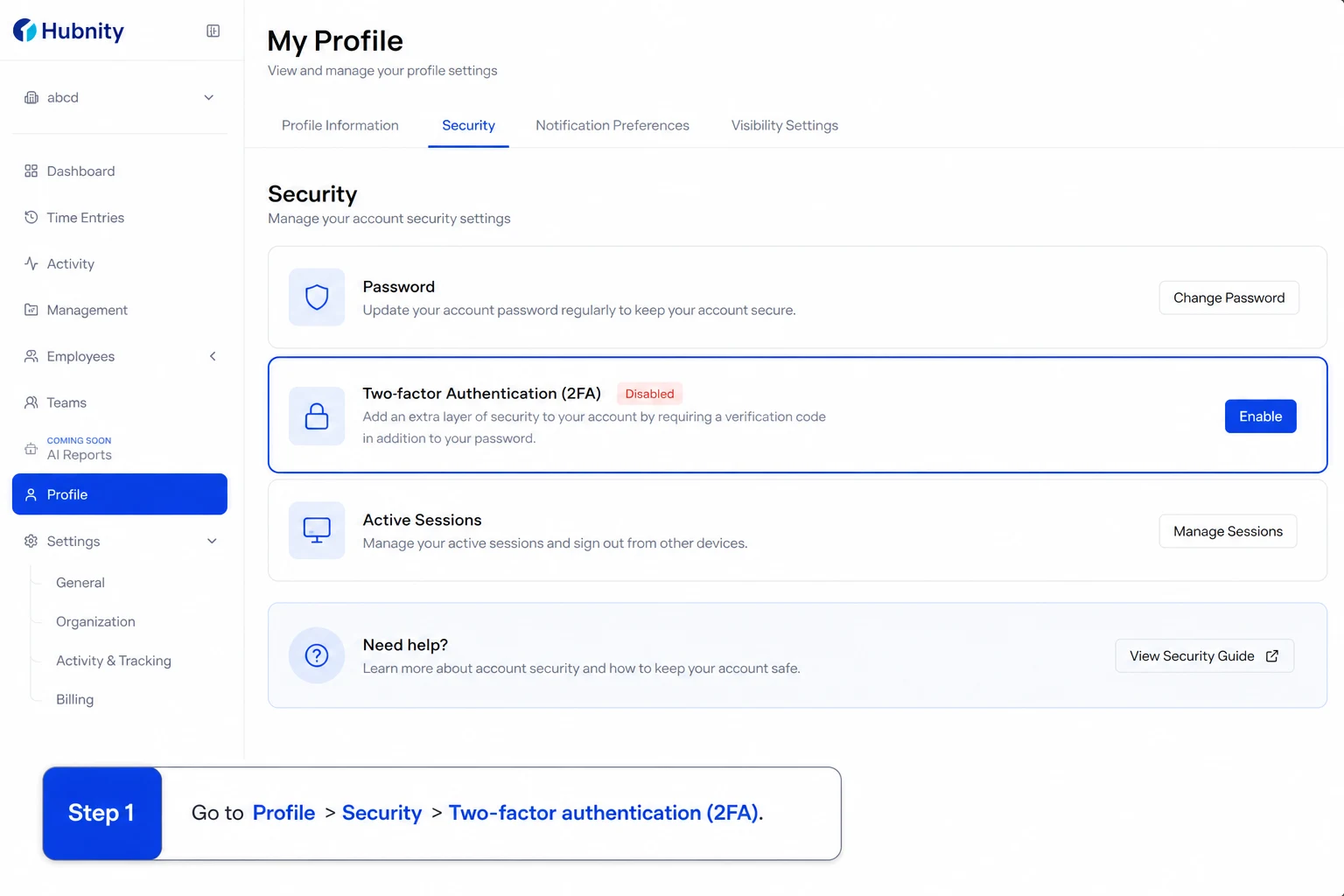
- 1
Go to Profile → Security → Two-factor authentication
- 2
Click Enable 2FA → Authenticator app
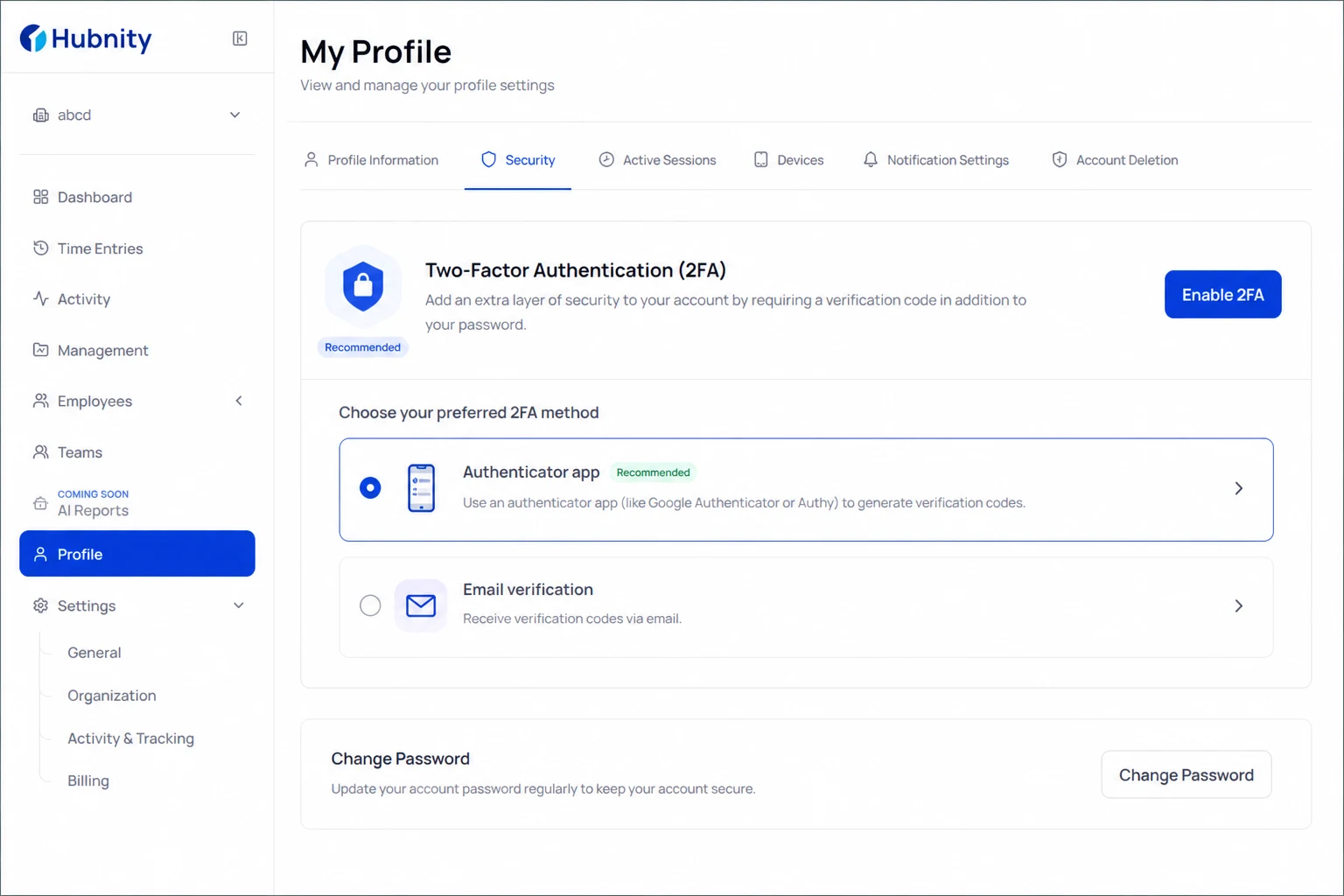
- 3
Scan the QR code with your authenticator app
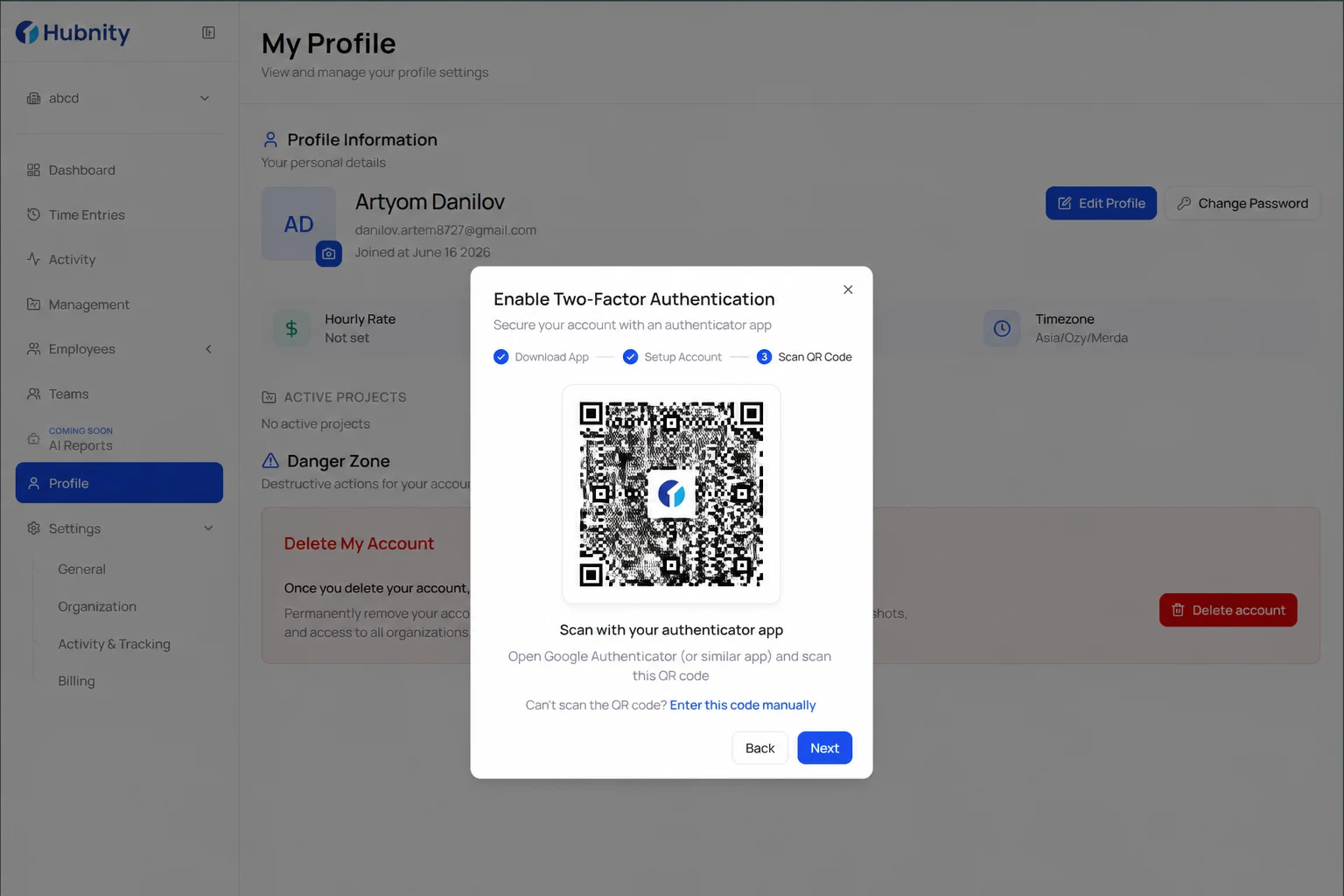
- 4
Enter the 6-digit code to verify
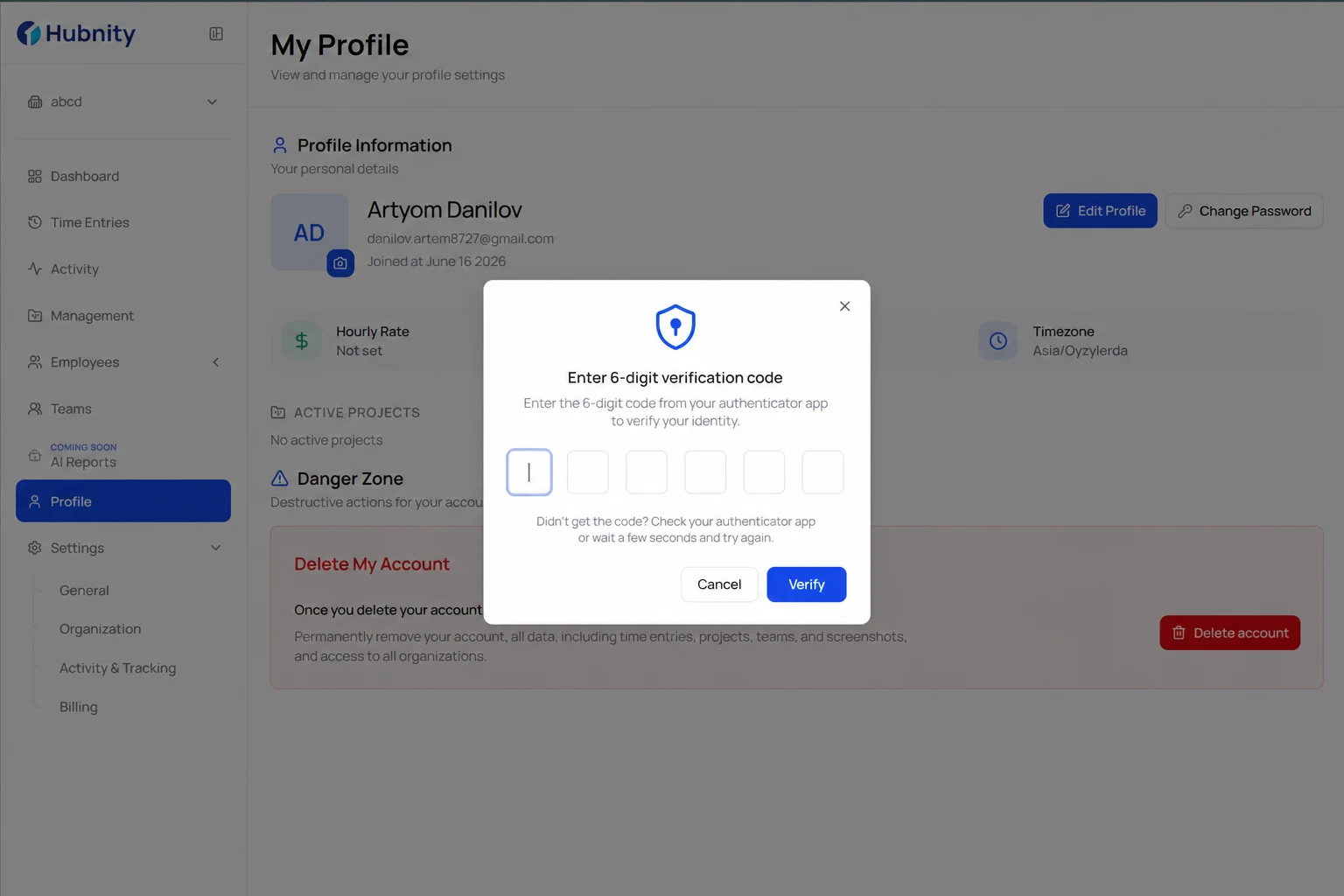
- 5
Download and store your 10 backup codes securely
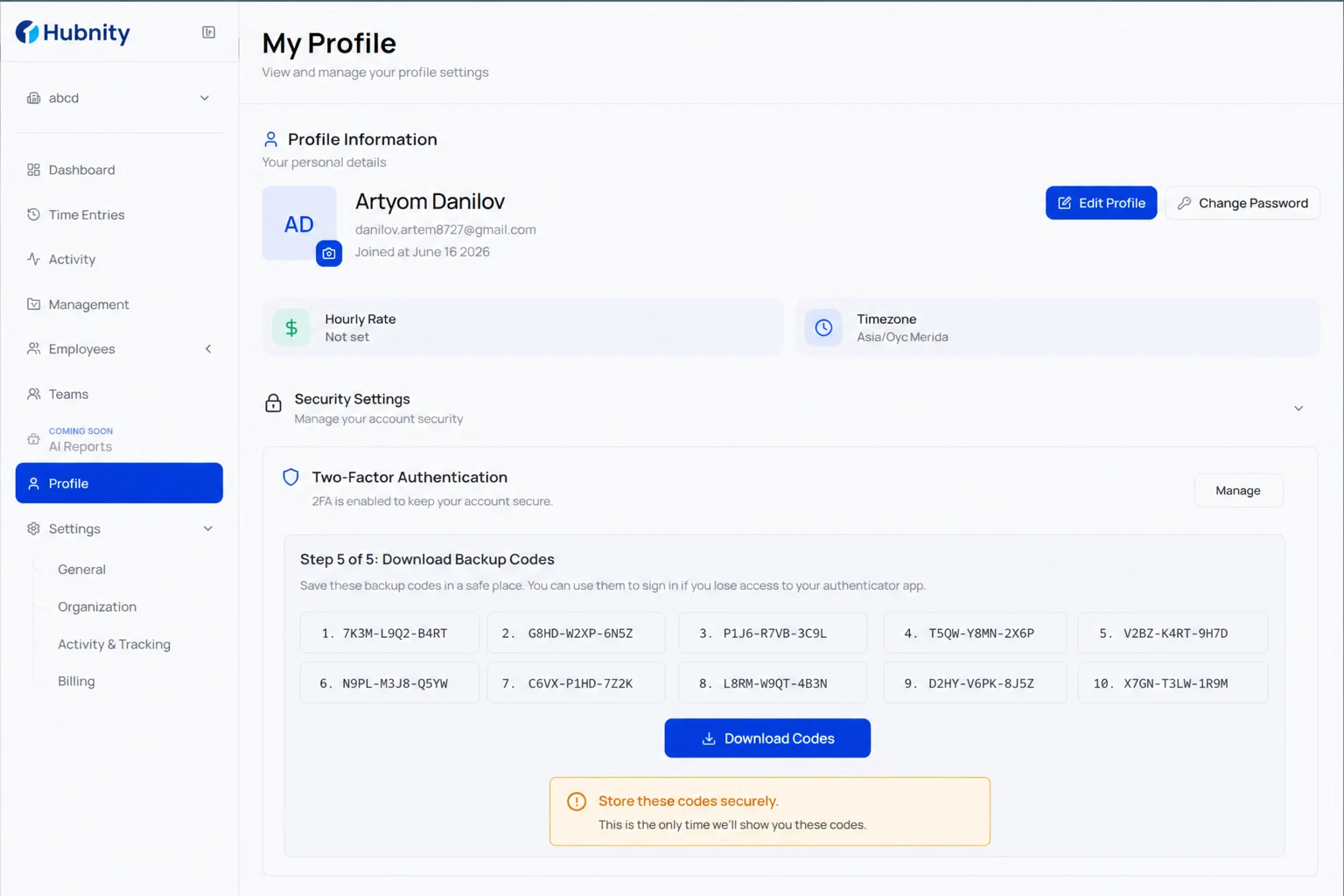
- 6
Click Finish
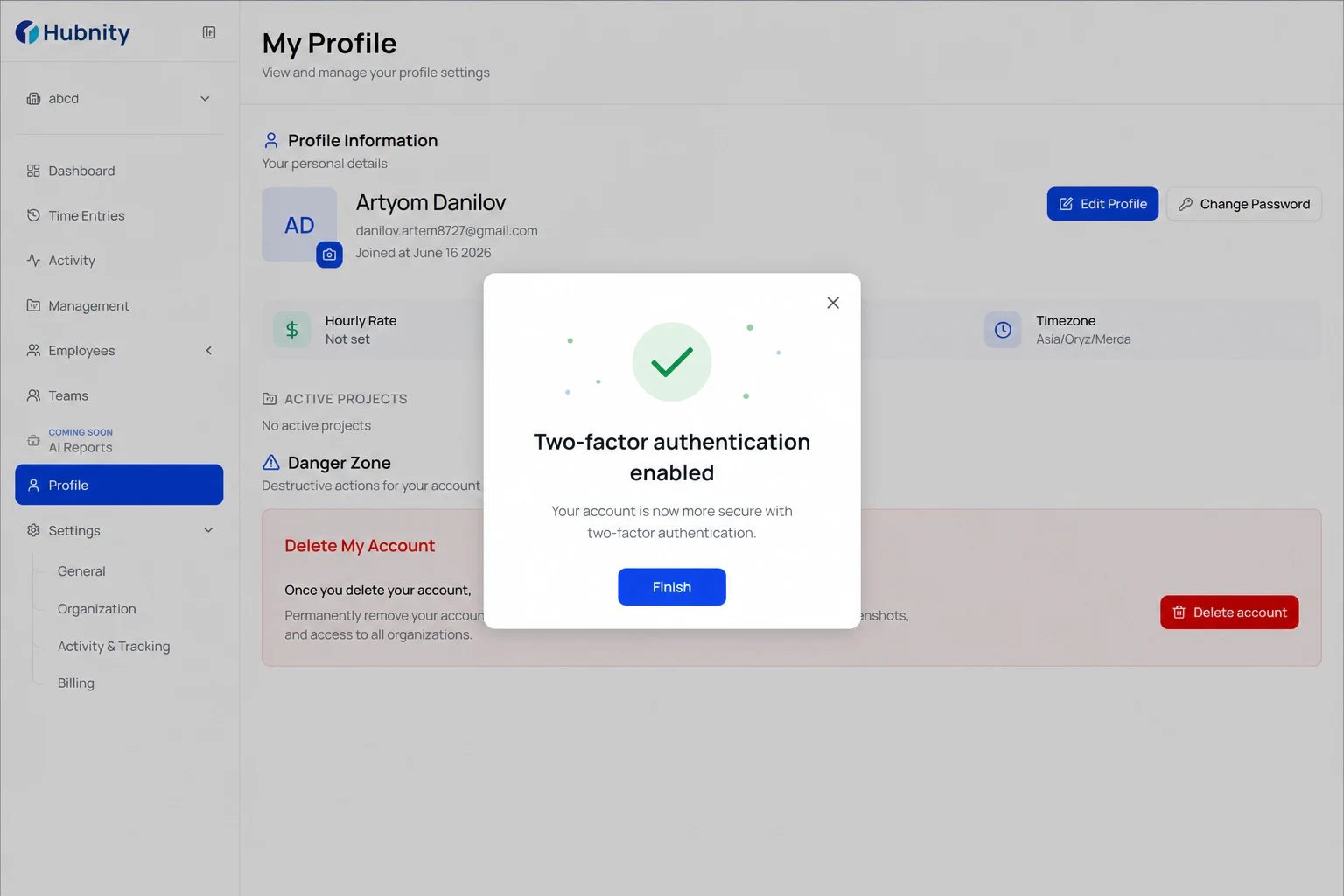
Organization 2FA enforcement
Owners can require 2FA for all members from Settings → Security → Require 2FA.
Members without 2FA are prompted at next login and cannot access the workspace until configured.
Grace period: configurable 0–14 days for existing members to set up 2FA.
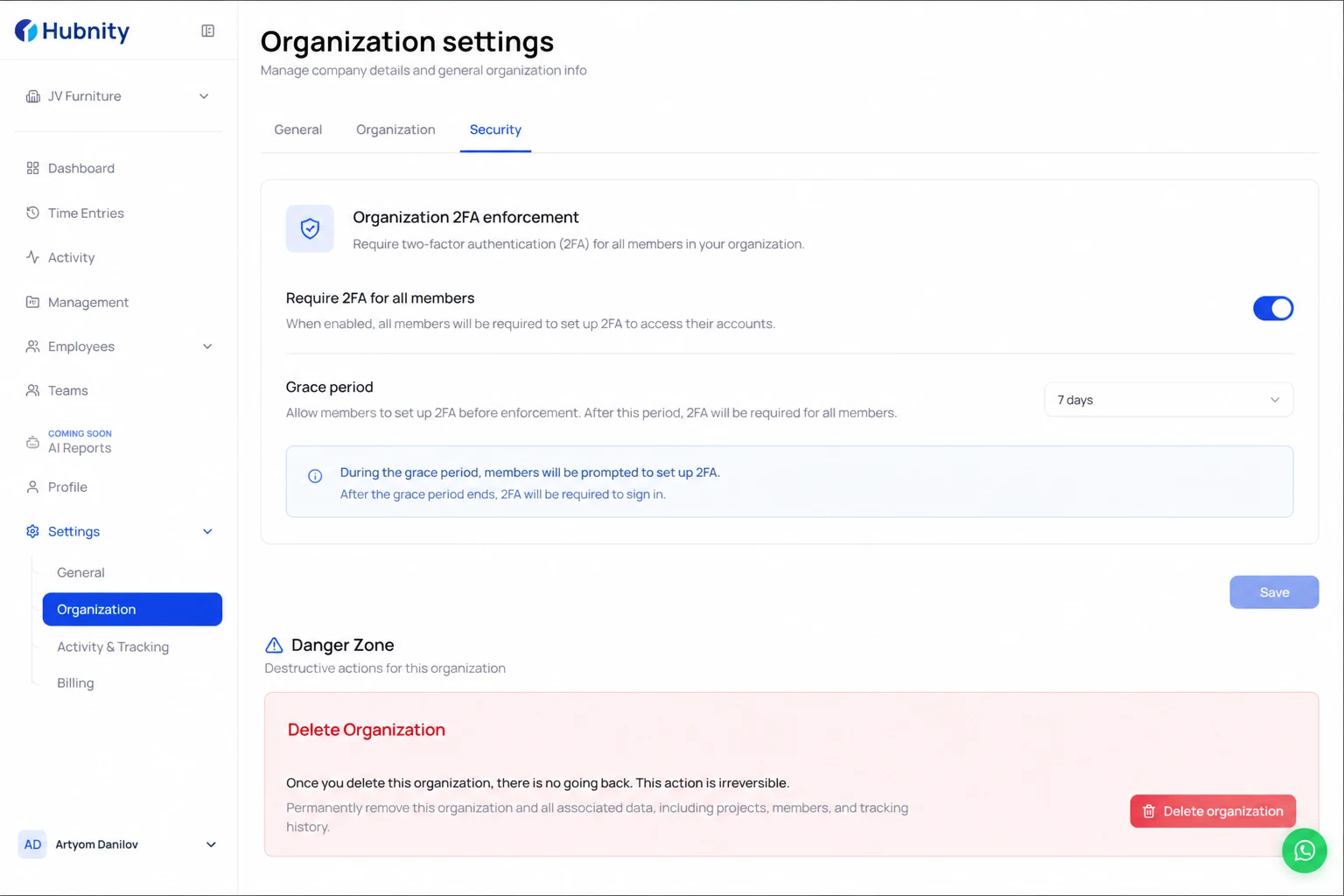
Backup codes
Each backup code works once. Generate new codes from Profile → Security → Backup codes → Regenerate.
Regenerating invalidates all previous backup codes.
Lost authenticator device
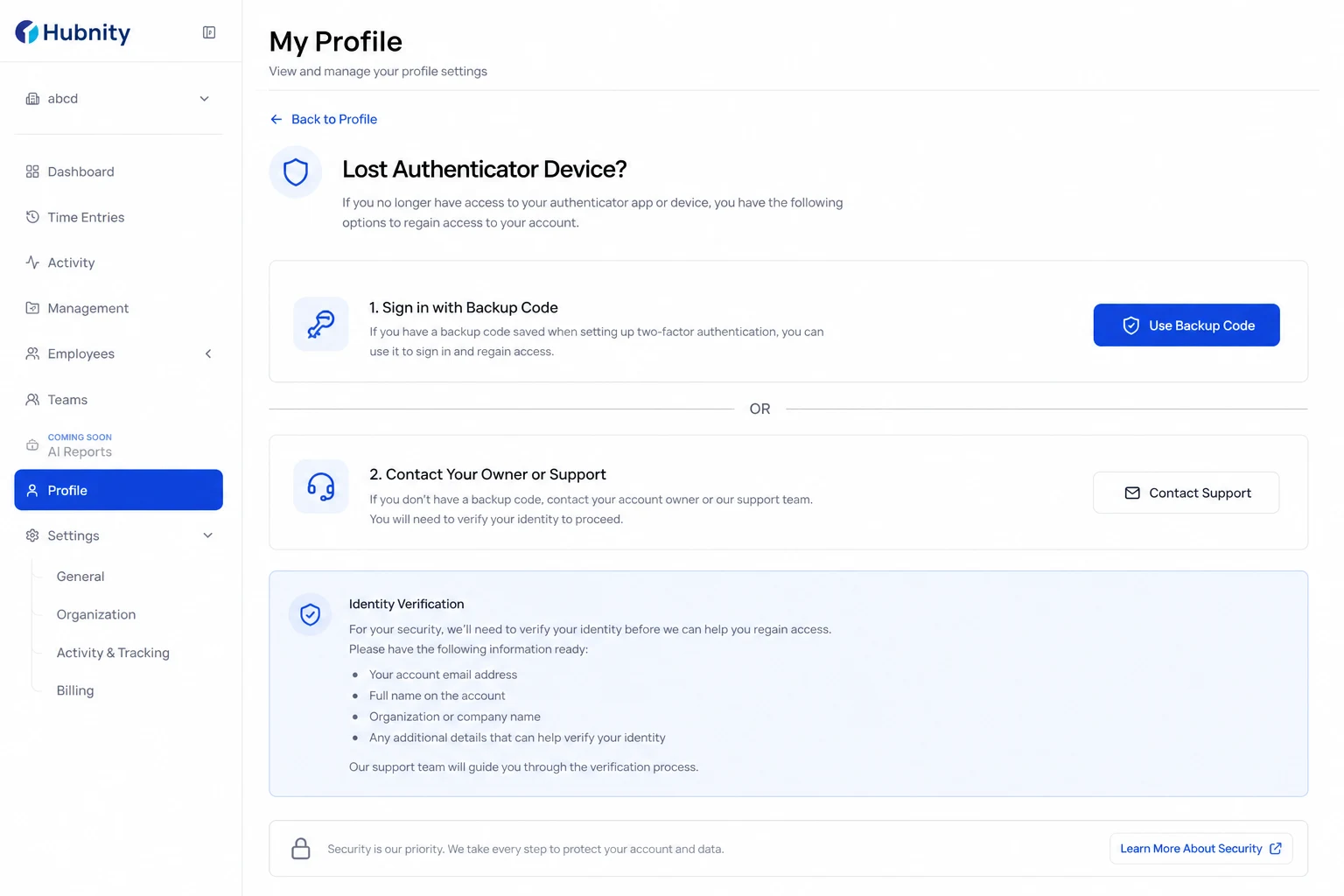
Use a backup code to sign in, then reconfigure 2FA immediately.
No backup codes: contact your organization Owner or Hubnity support with identity verification.