Hubnity automatically aggregates your tracked time into visual dashboards and timesheets. You can filter data by user, project, or date rang
Timesheets and reporting on hubnity.eu
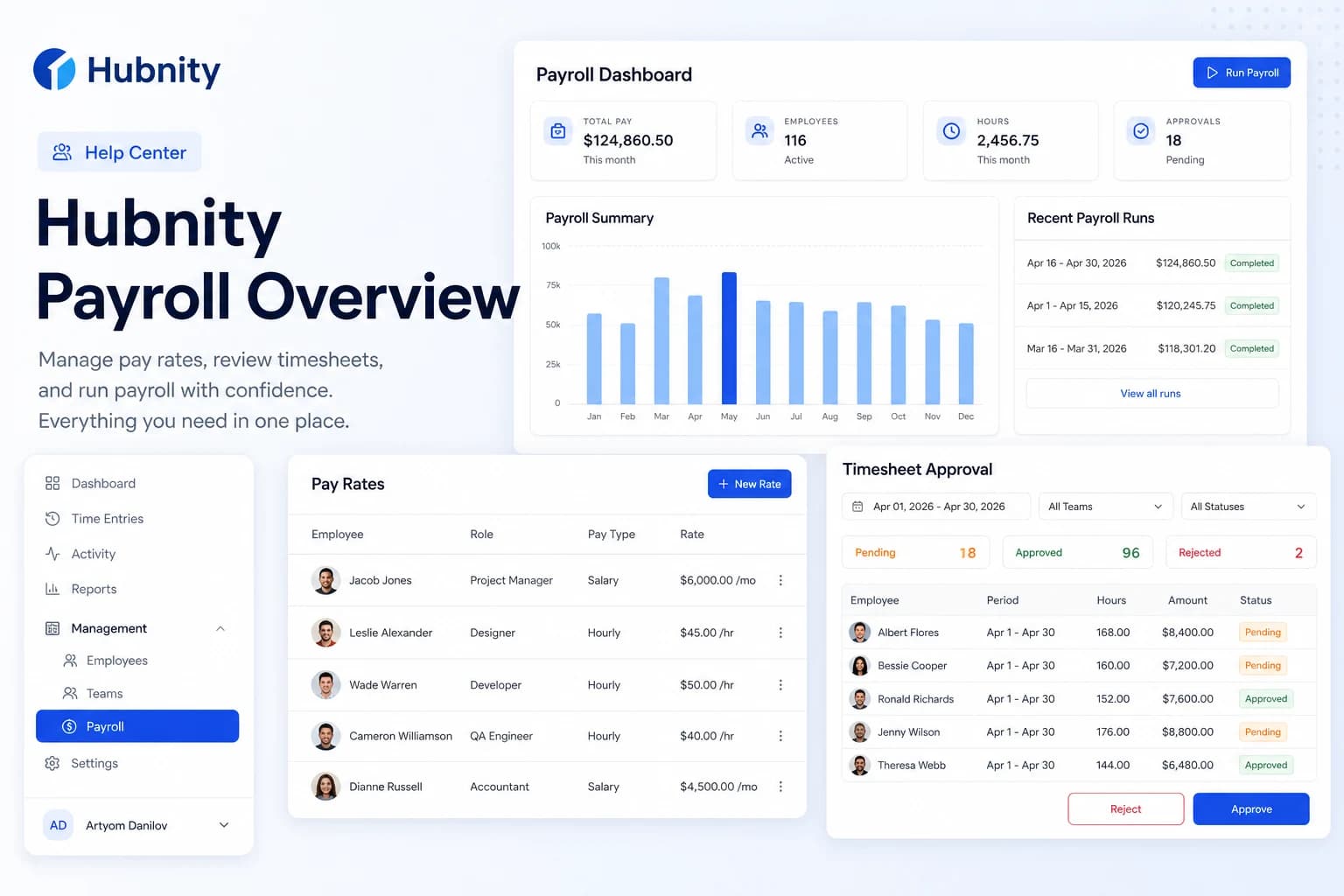
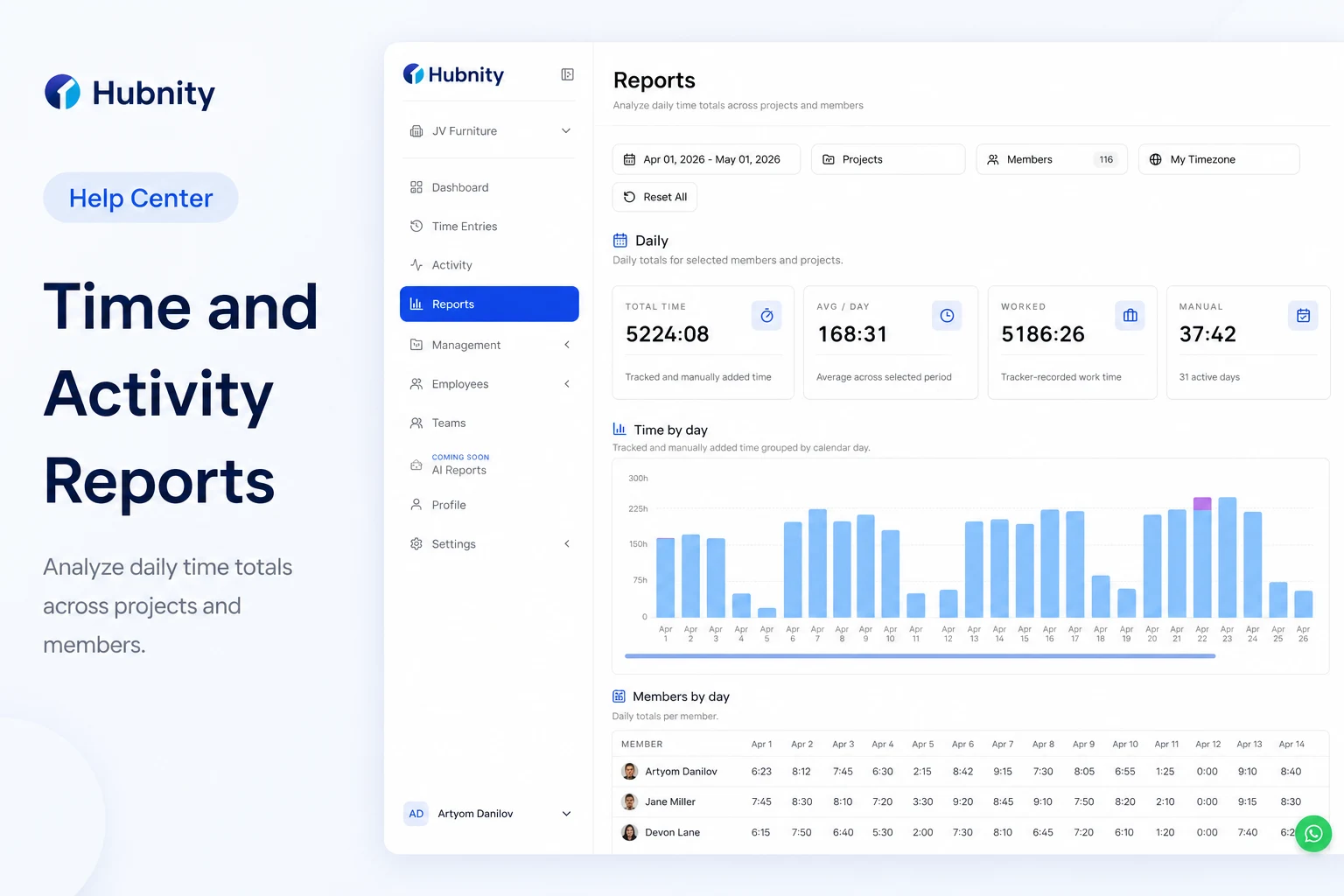
Hubnity automatically aggregates your tracked time into visual dashboards and timesheets. You can filter data by user, project, or date range, and export reports to CSV or PDF for payroll processing.
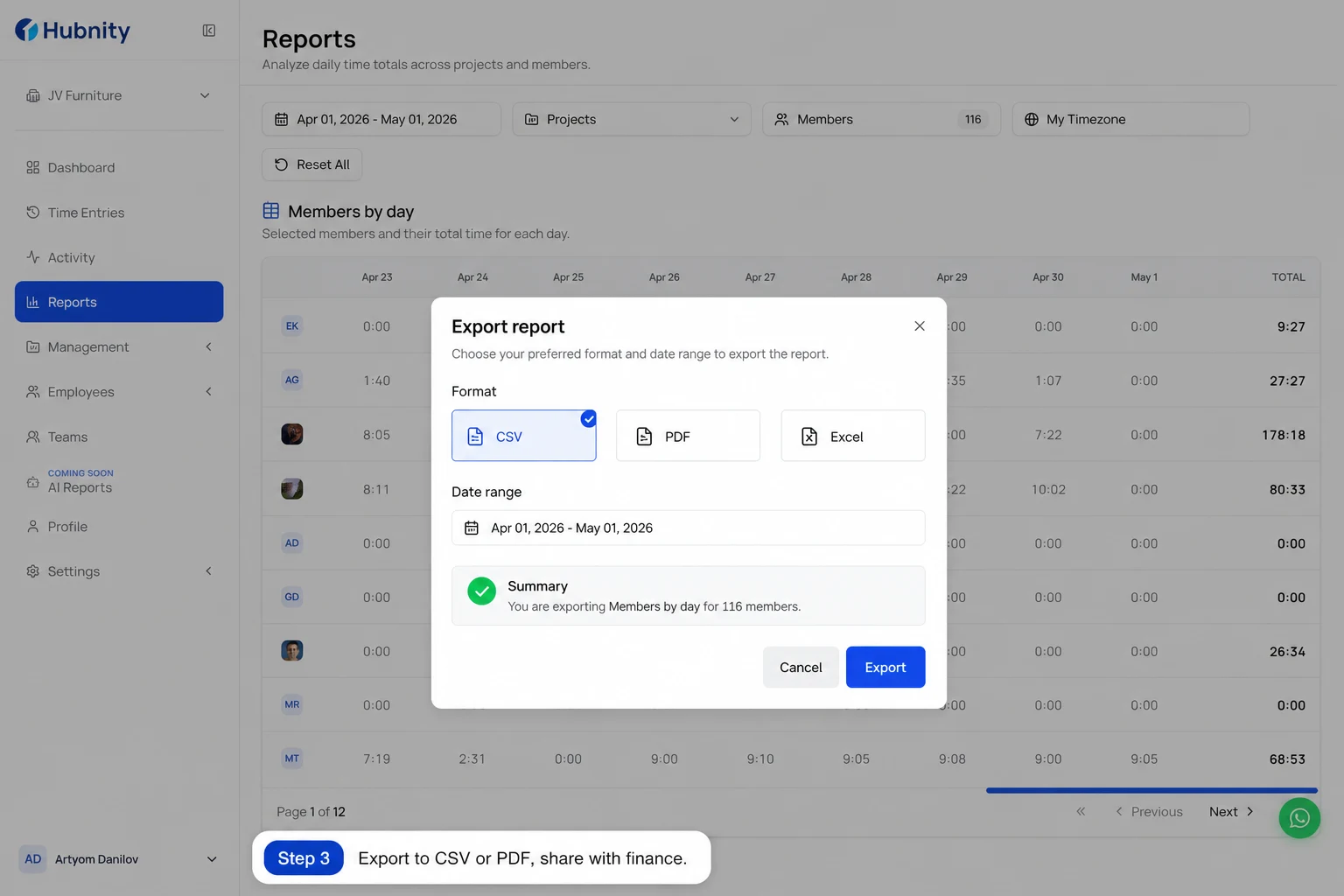
Export reports to PDF, Excel, CSV for payroll, clients, or finance.
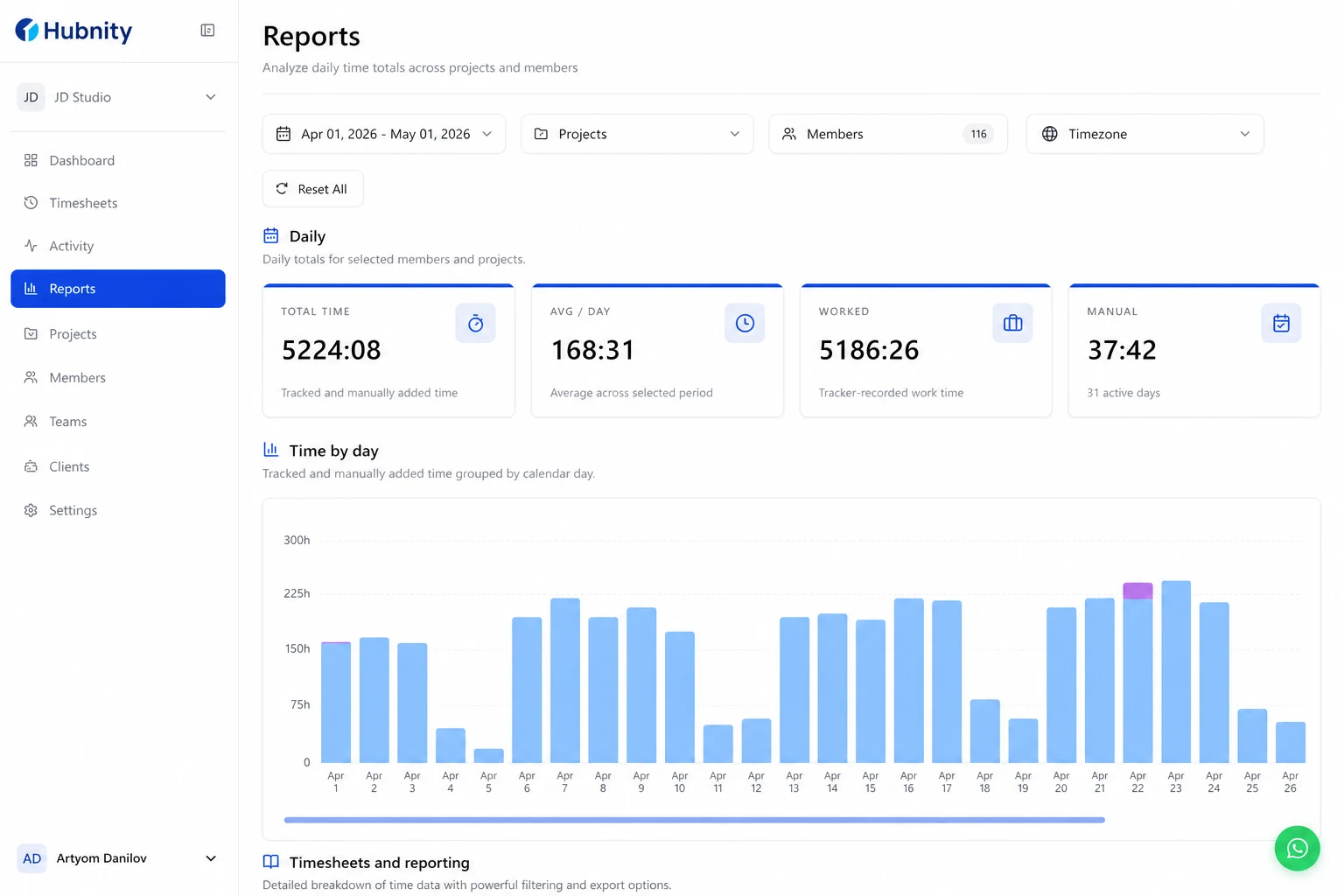
Analytics and reports
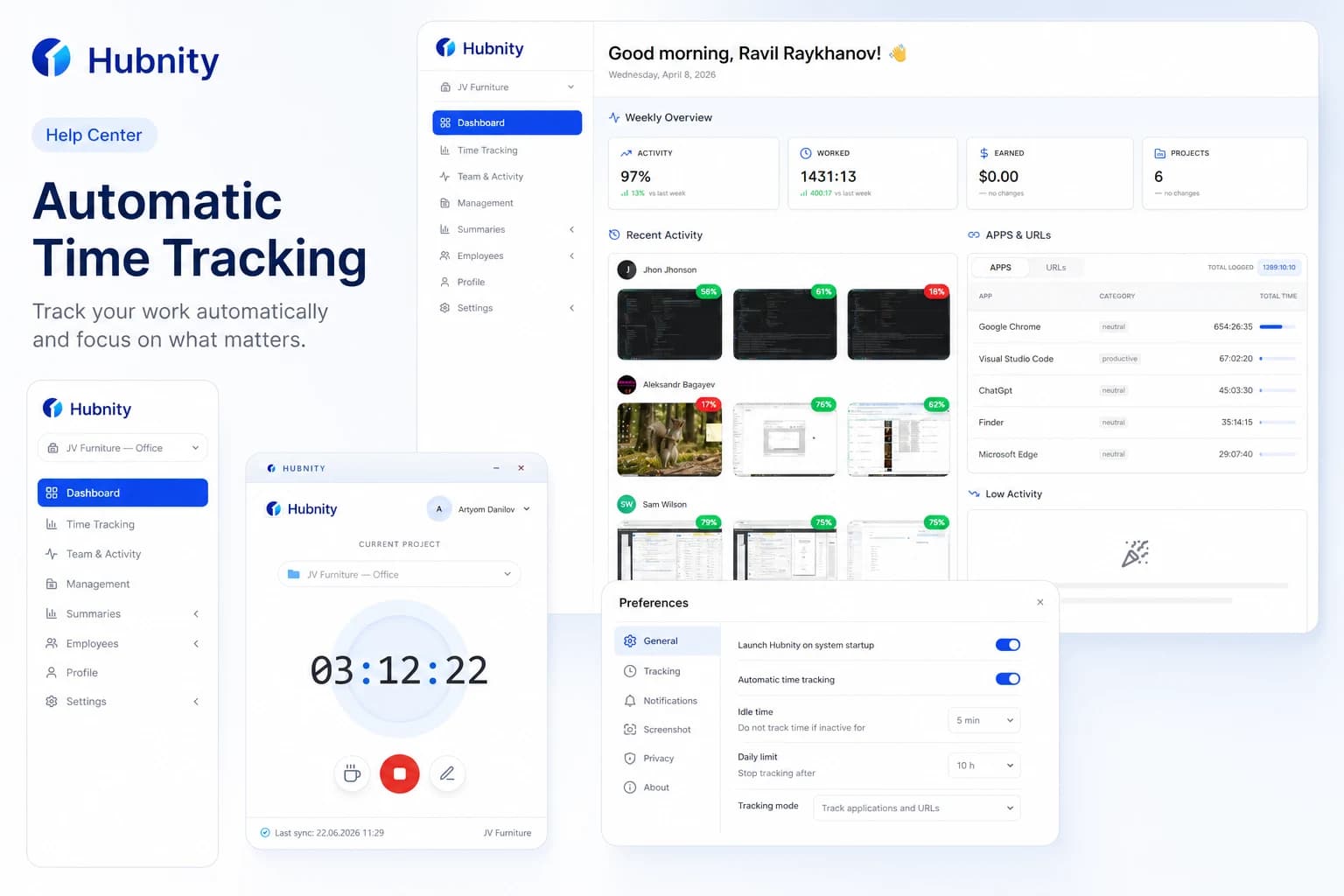
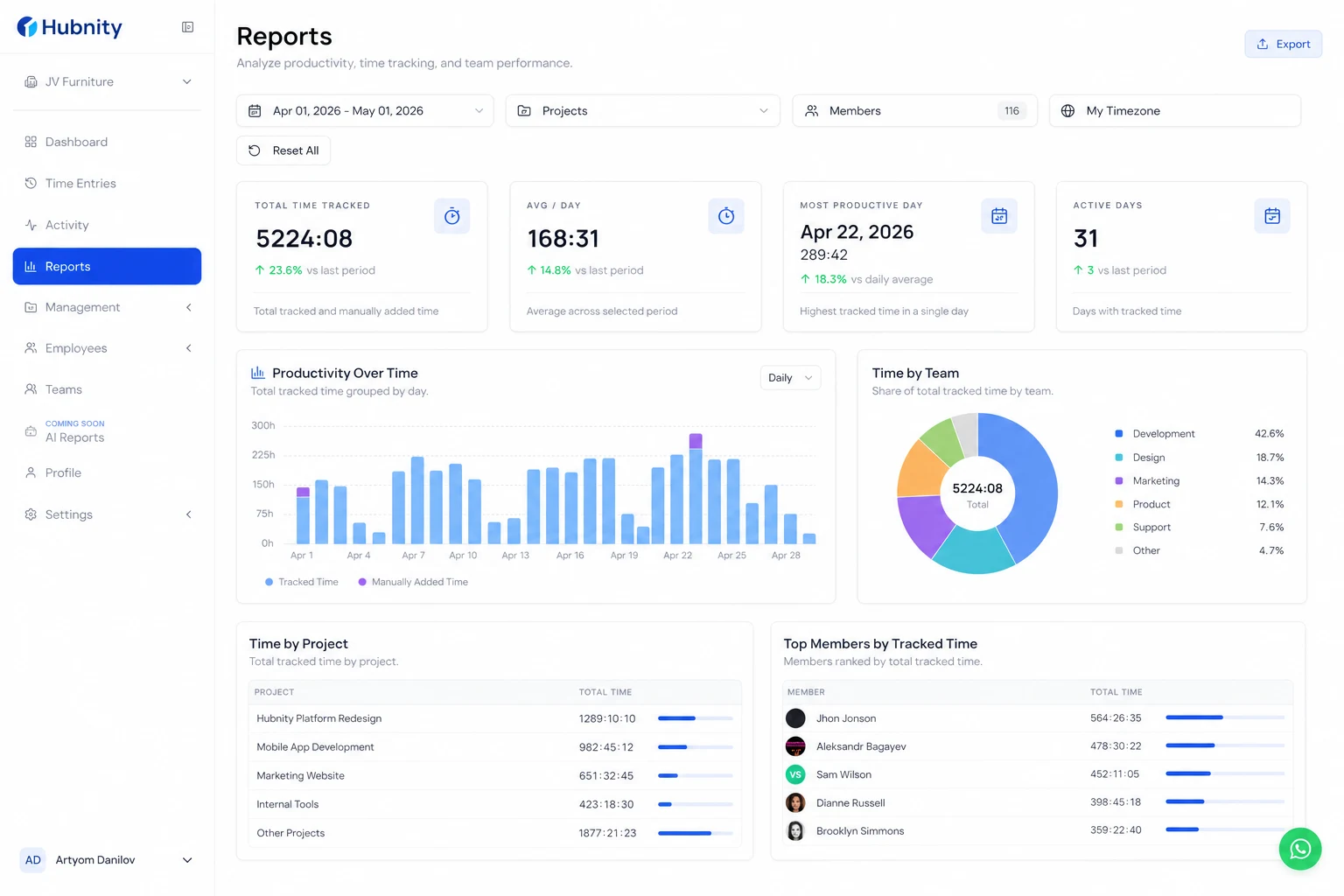
Visual dashboards and analytics show how your team spends time so managers can make faster decisions.
A clean dashboard puts hours tracked, goals, and key metrics at your fingertips.
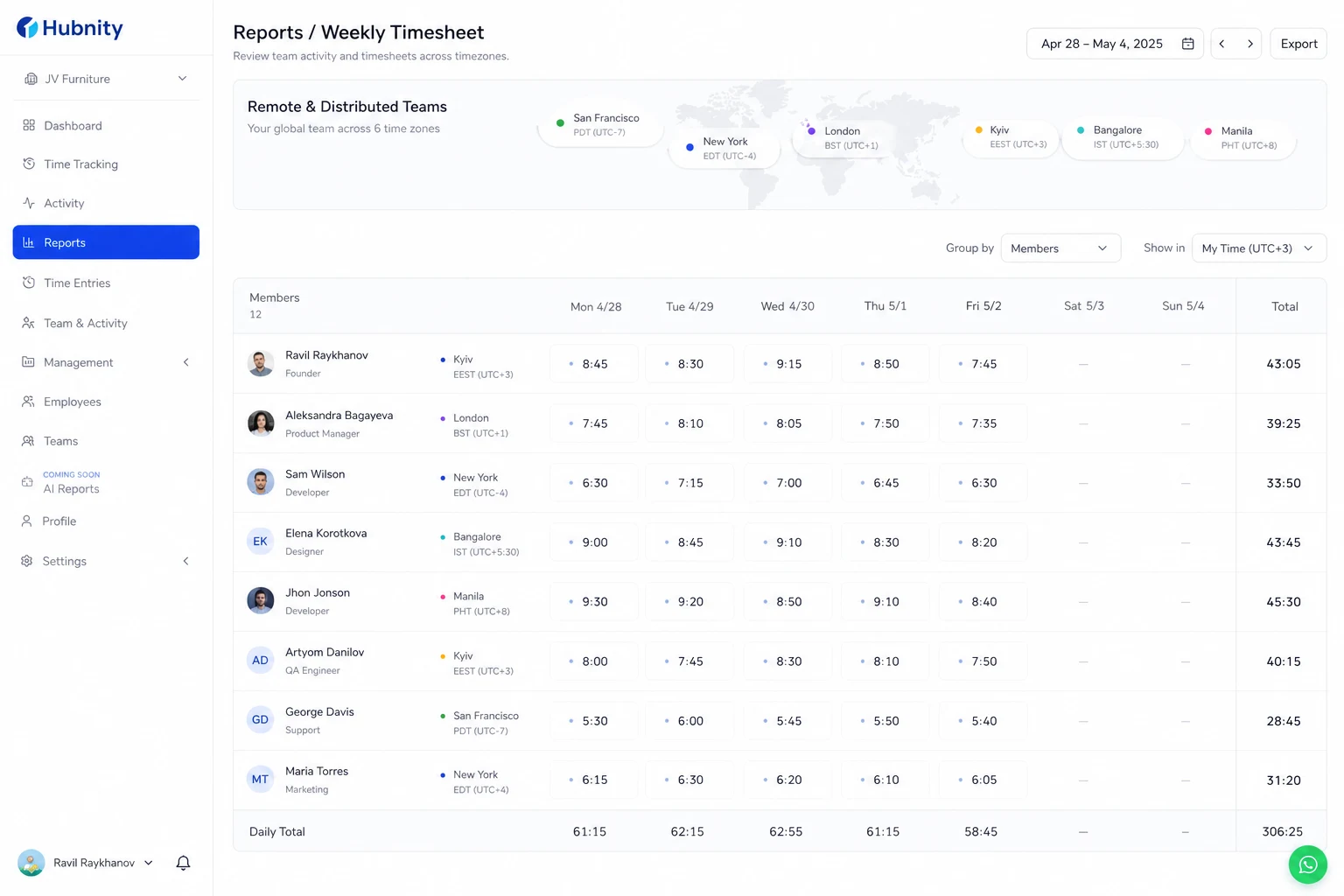
Remote and distributed teams
Yes! Hubnity is built with remote teams in mind. It provides managers with clear visibility into team workloads and attendance, helping prevent burnout while maintaining accountability across different time zones.
Use weekly timesheet reviews in standups rather than real-time monitoring.
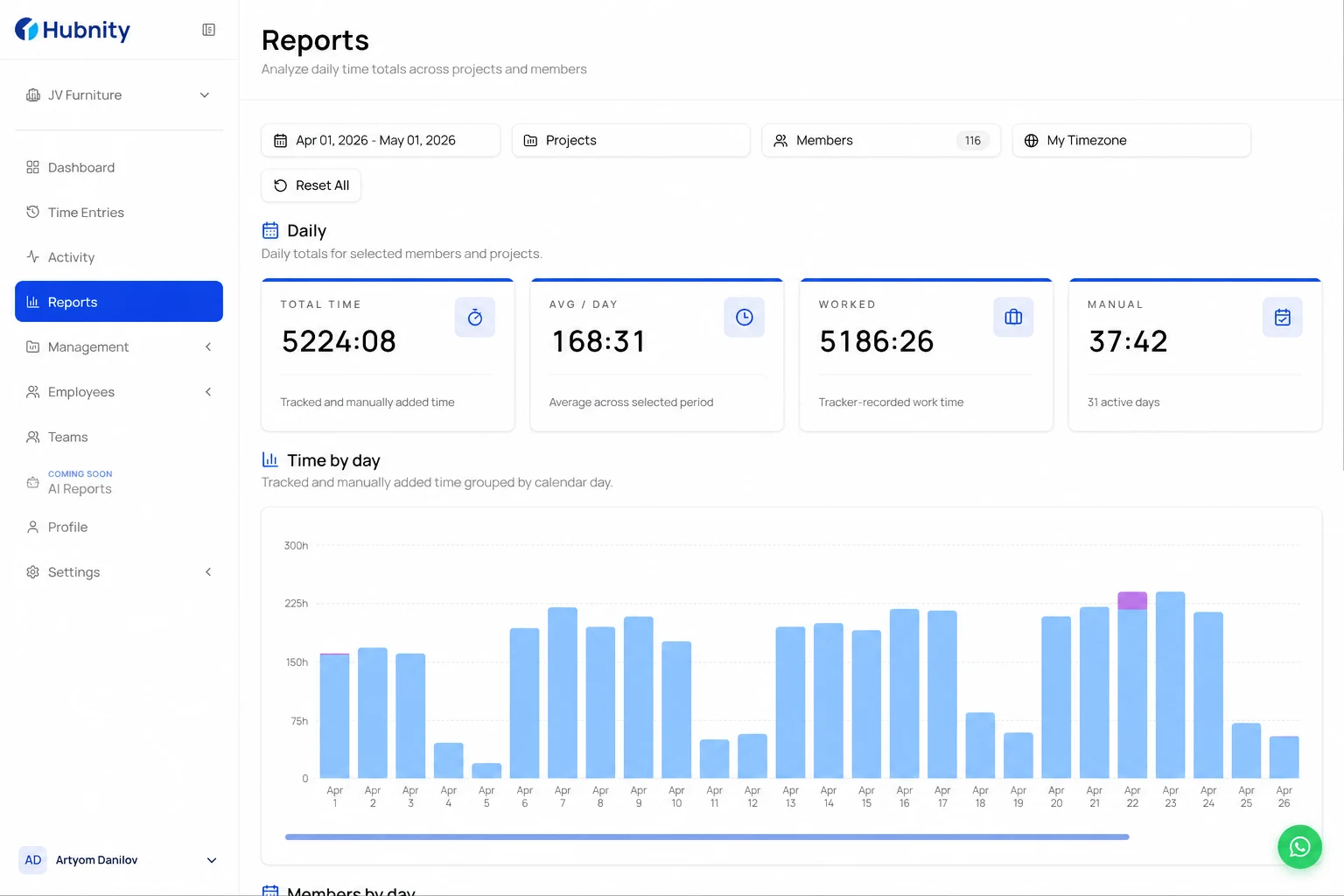
Run a timesheet report
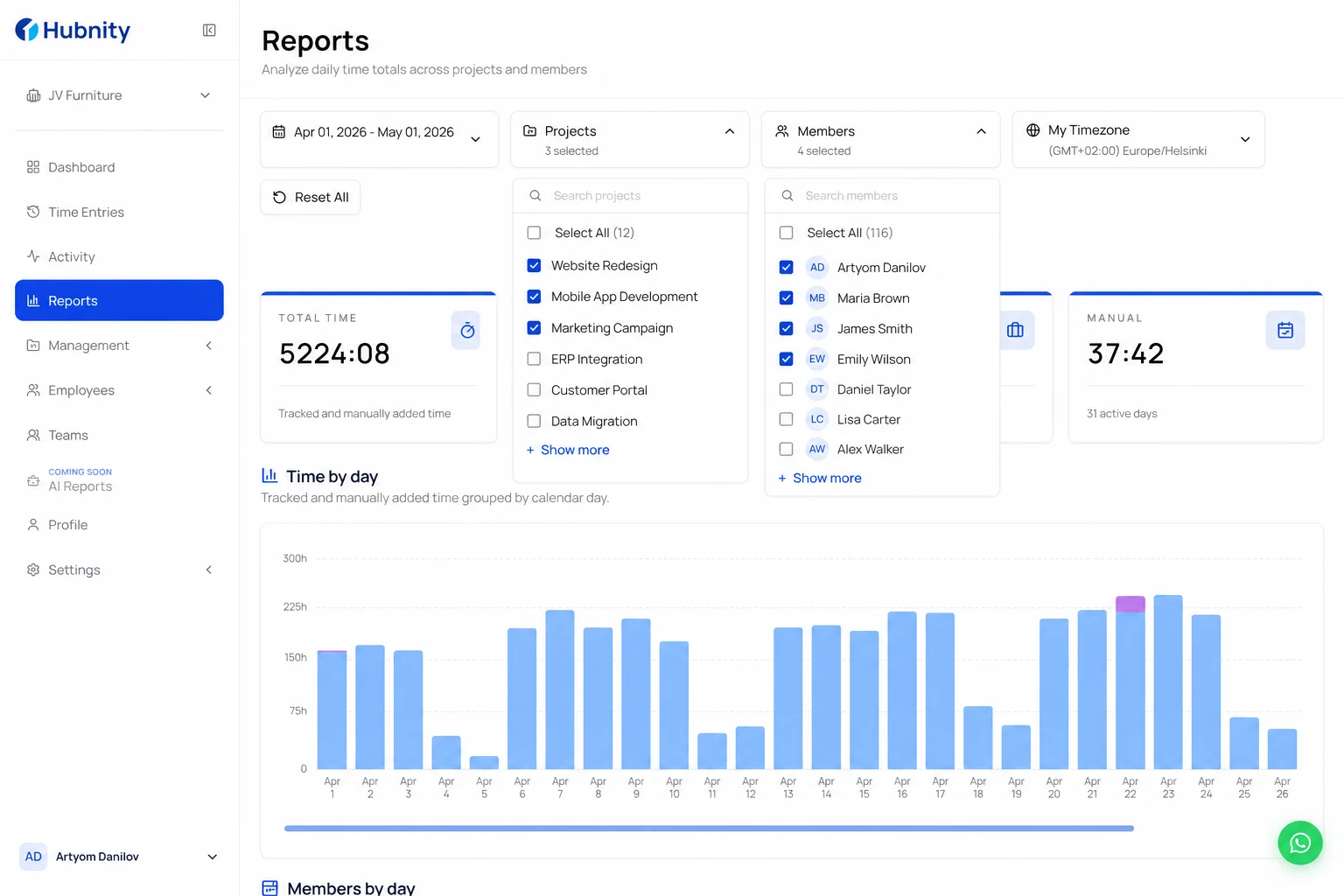
Filter before exporting so payroll and client reports include only the right projects and dates.
- 1
Open Reports in your Hubnity workspace
- 2
Filter by project, member, and date range
- 3
Export to CSV or PDF, or share a summary with finance
Scheduled and custom reports
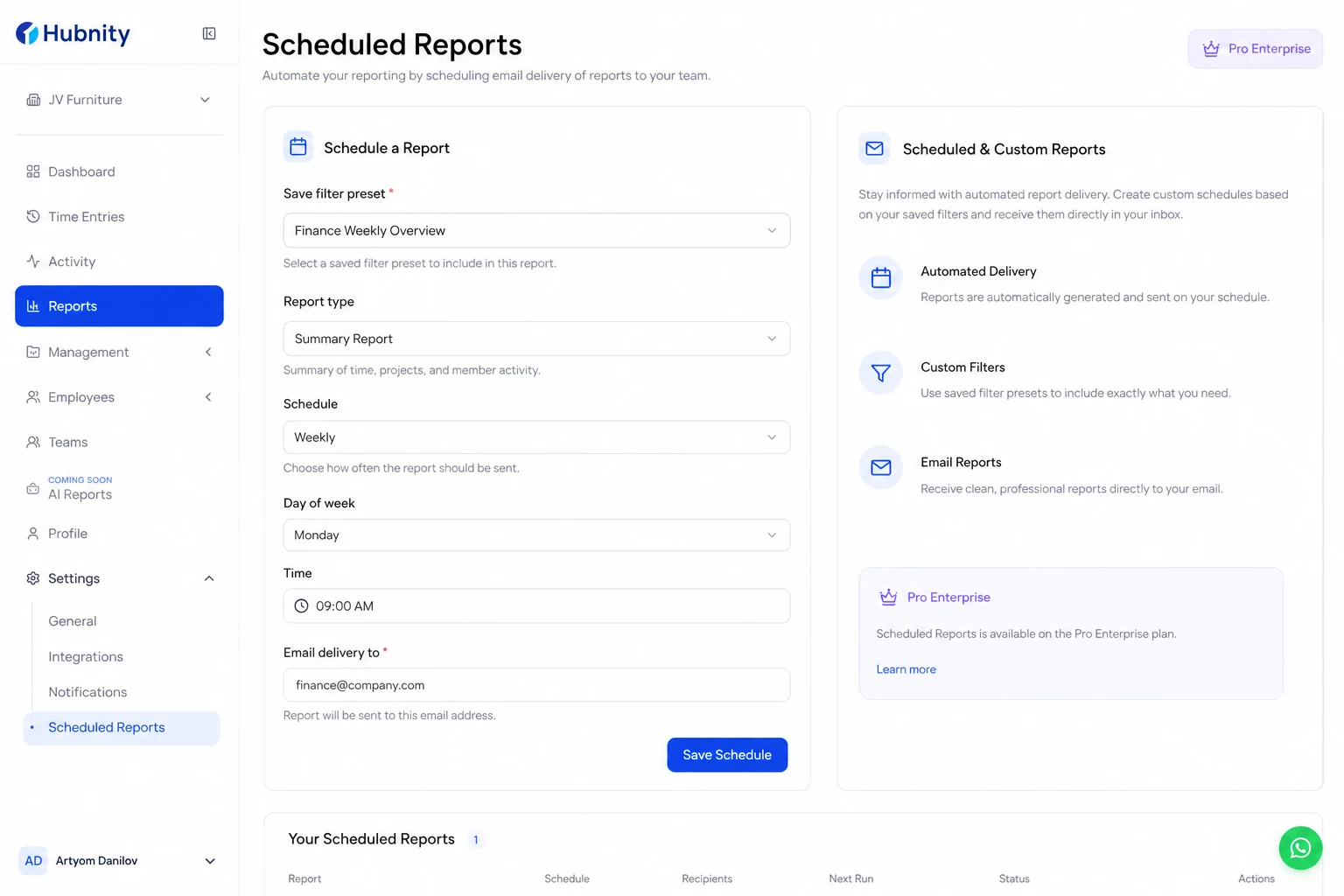
Save filter presets for recurring payroll or client billing cycles.
Schedule email delivery on Pro and Enterprise plans so stakeholders receive reports automatically.