Invite colleagues after organization setup—the second step in the hubnity.eu onboarding flow.
After organization setup
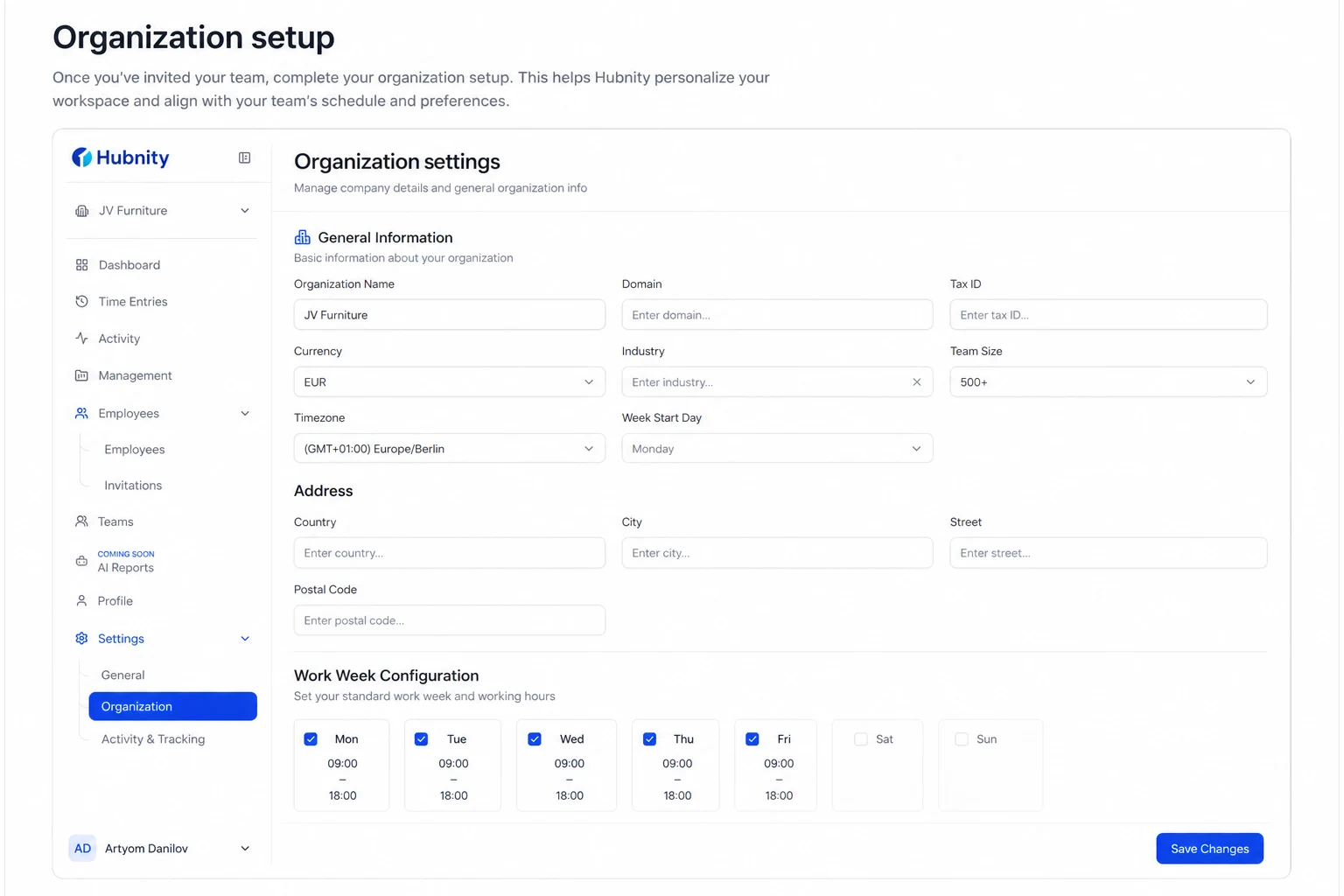
Create your organization profile and configure tracking settings to fit your team's workflow.
Once your workspace is configured, invite members so everyone tracks time in the same organization.
Seat limits from hubnity.eu pricing
Starter: up to 3 team members.
Pro: up to 15 team members.
Enterprise: unlimited team members.
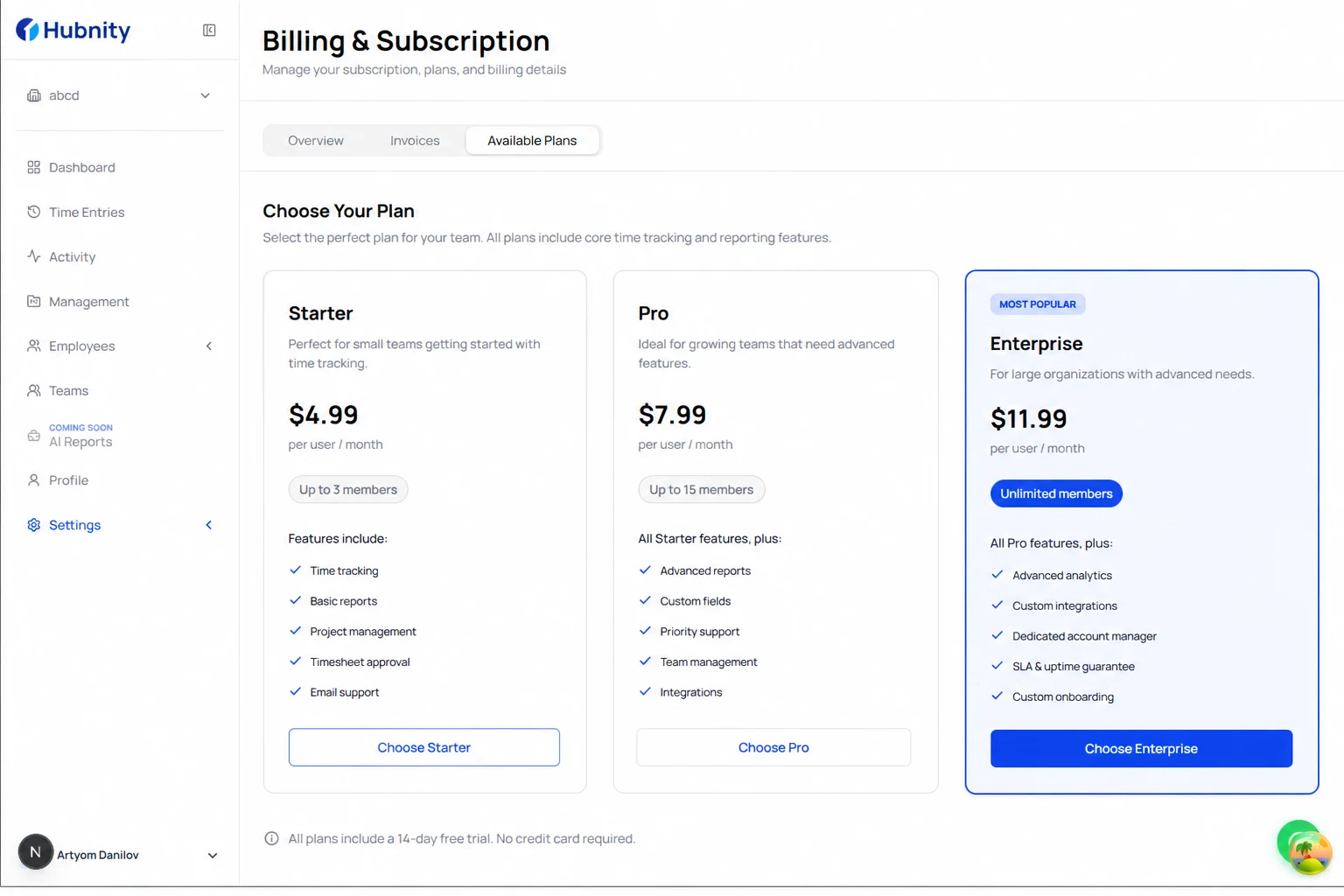
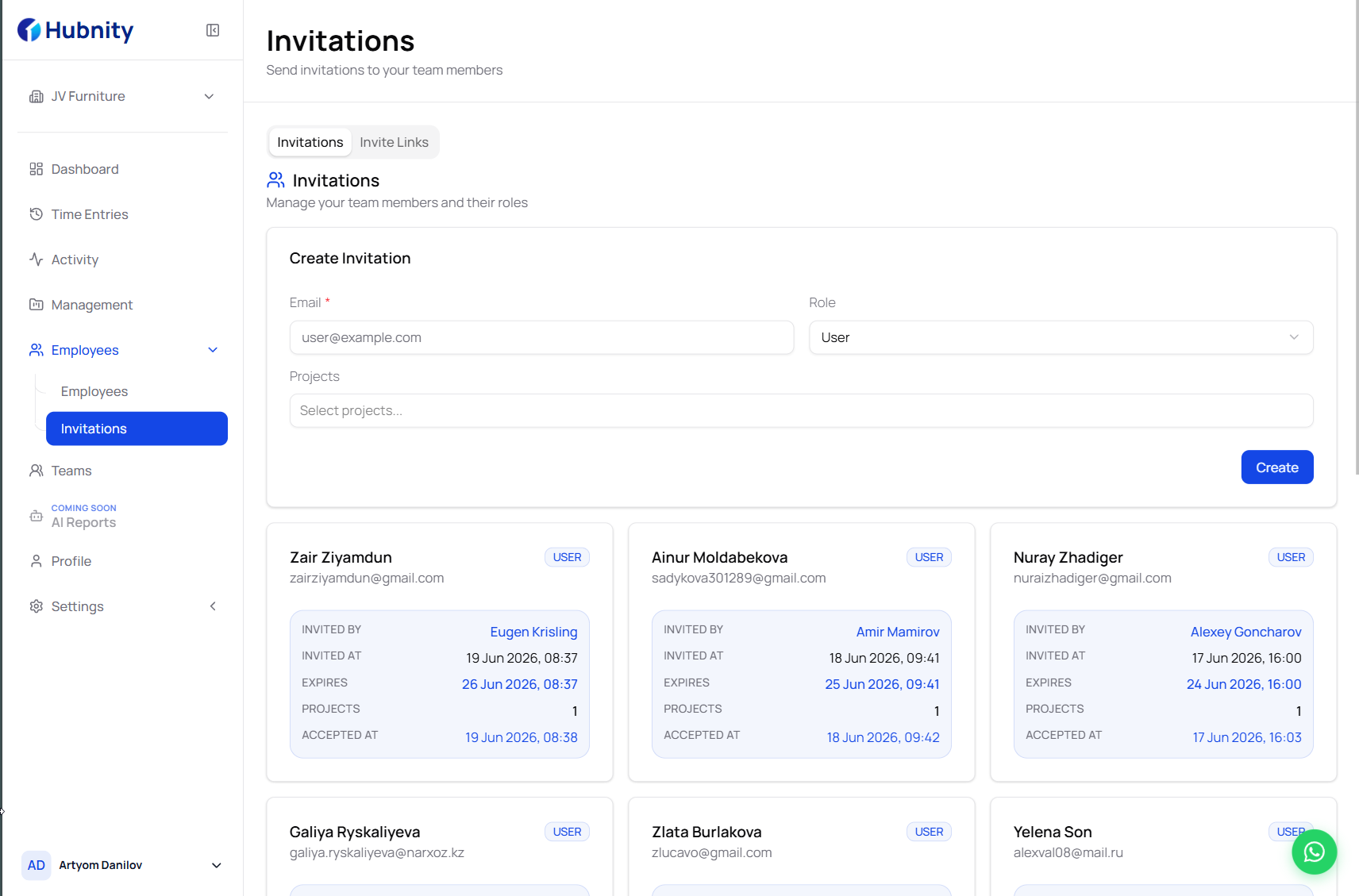
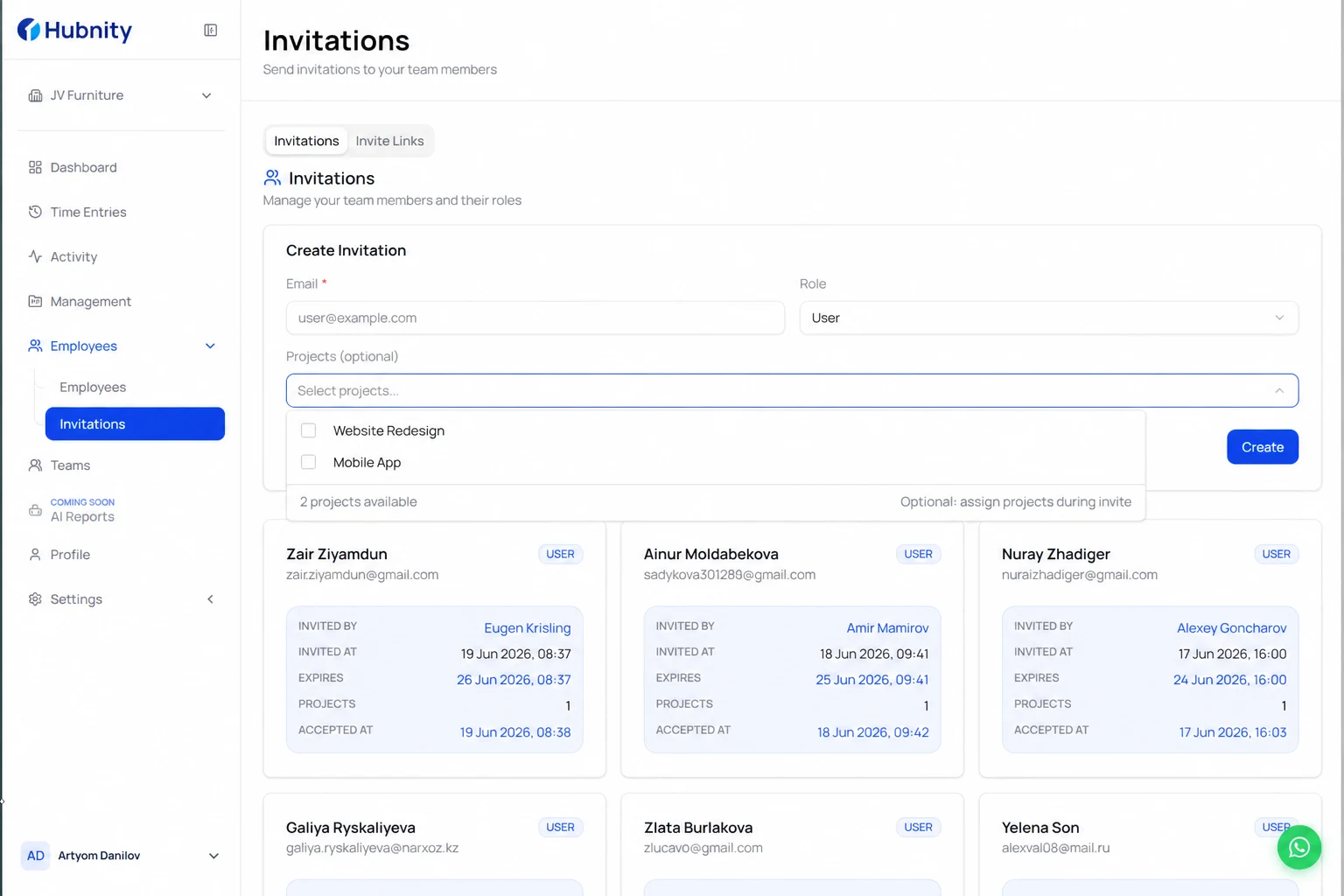
Send an email invite
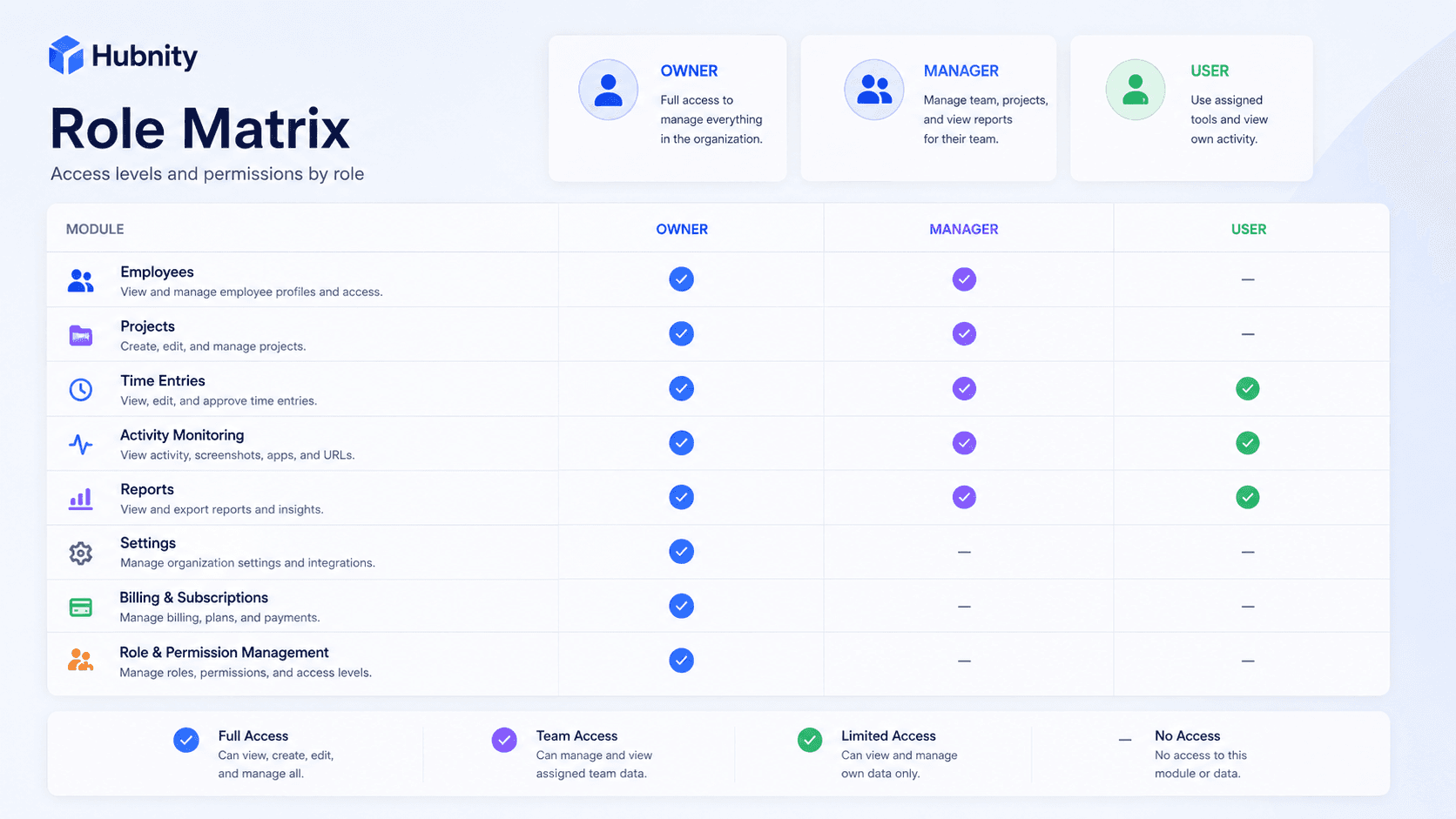
Invite colleagues from your Hubnity workspace and assign roles when they join.
- 1
Open People or Members in your workspace
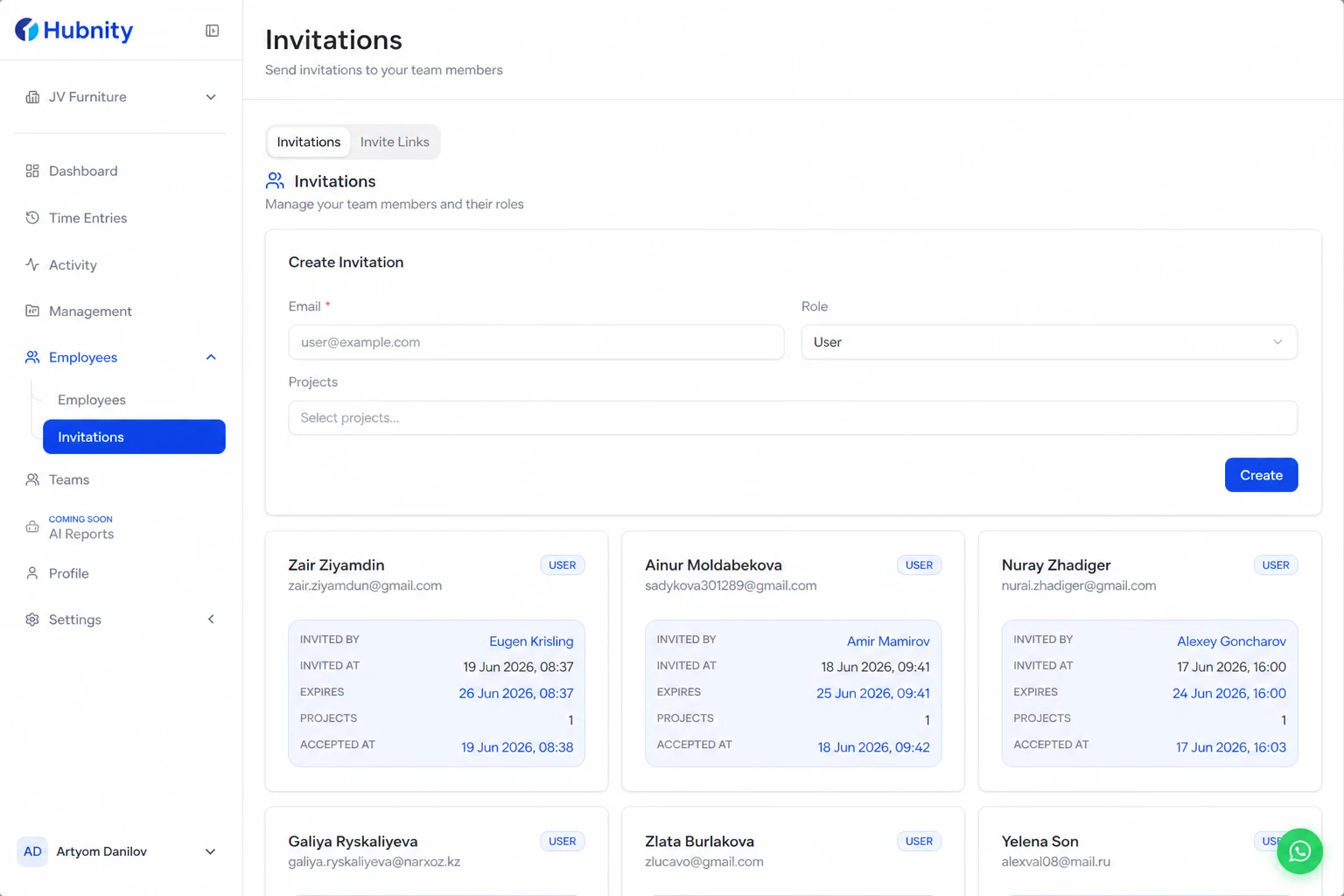
- 2
Enter email addresses for new teammates
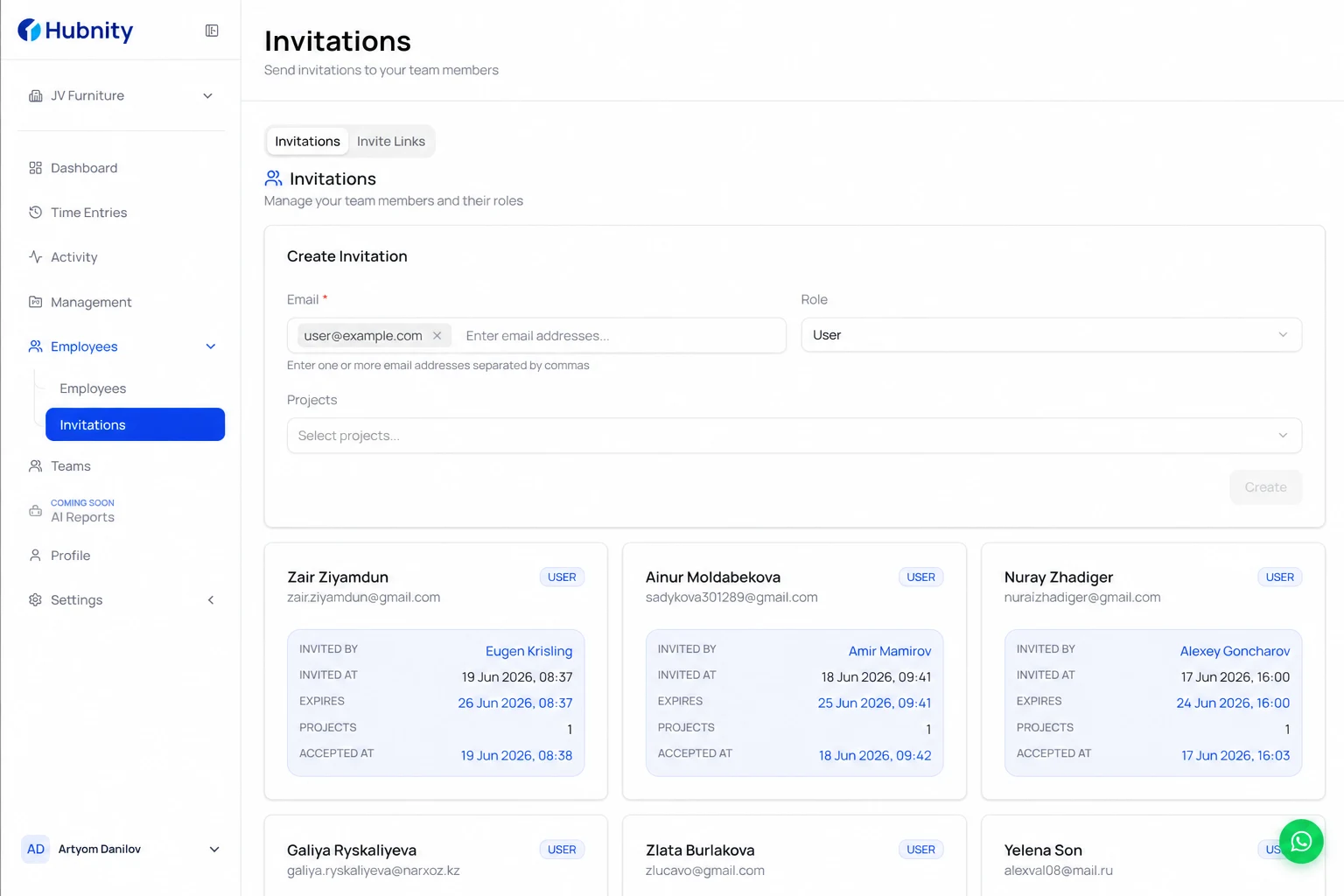
- 3
Select a role and send invites
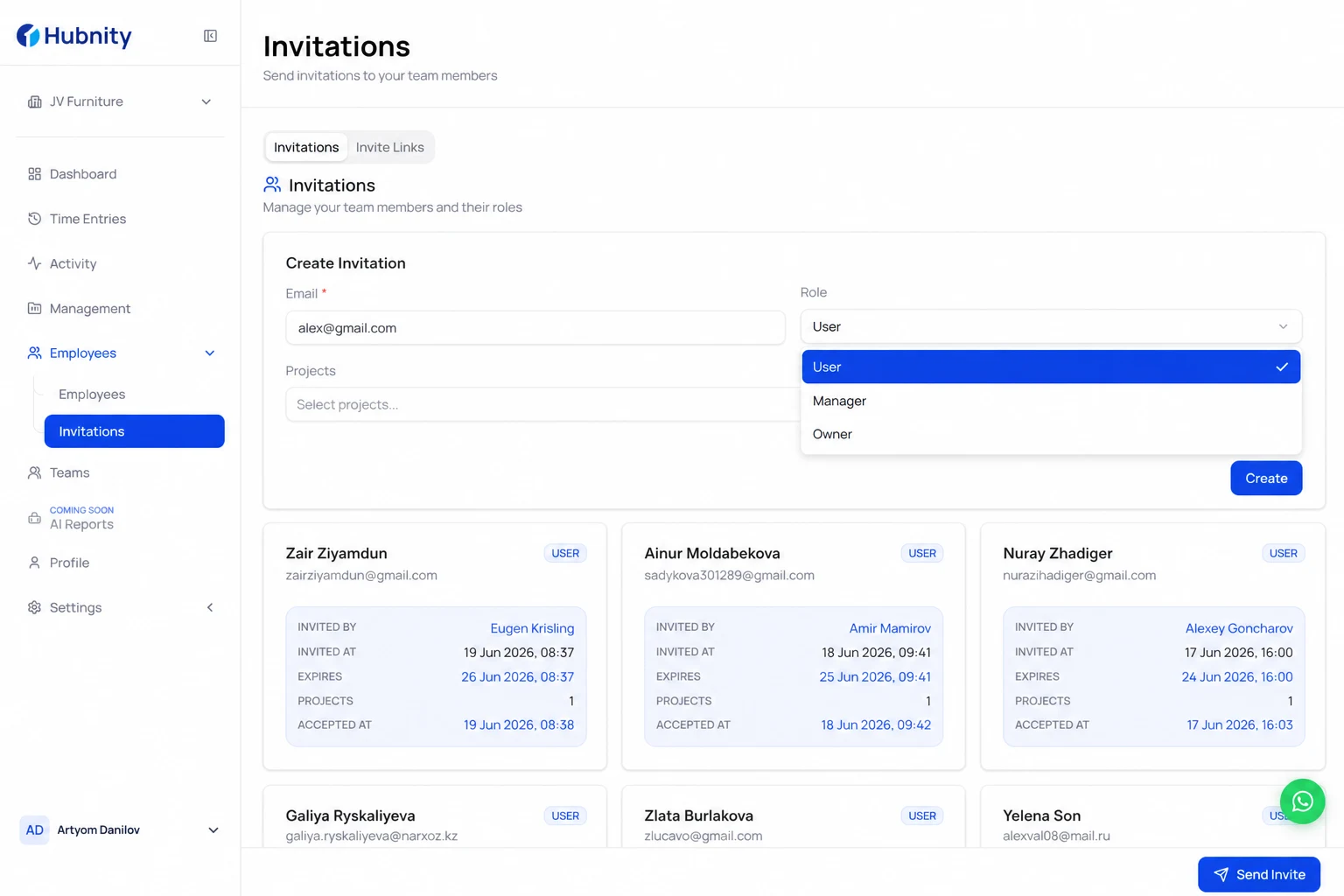
- 4
Optionally assign projects during invite
What invitees experience
Invitees create or sign in to a Hubnity account and land in your organization.
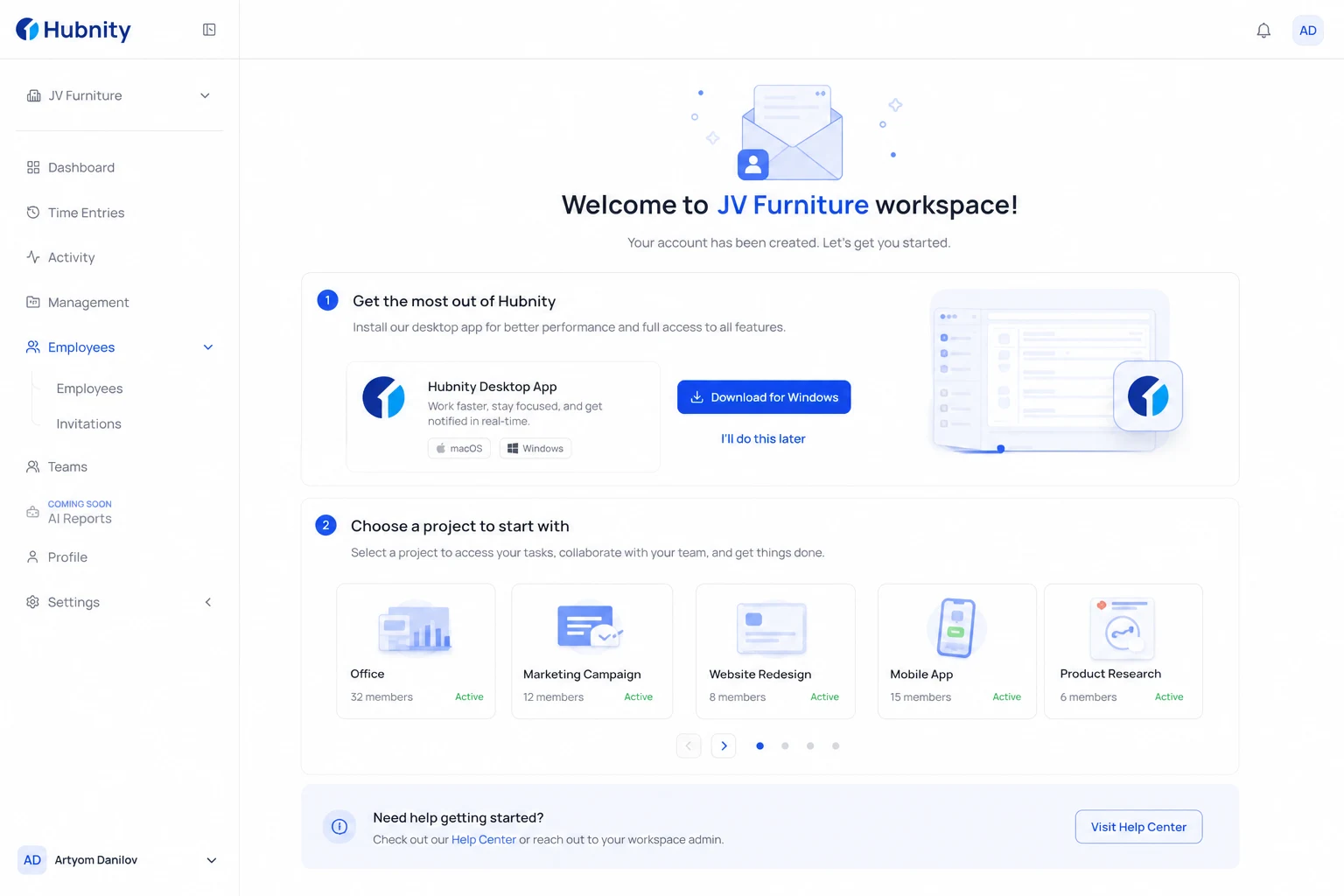
First-login prompts guide them to install the desktop or mobile app and pick a project.