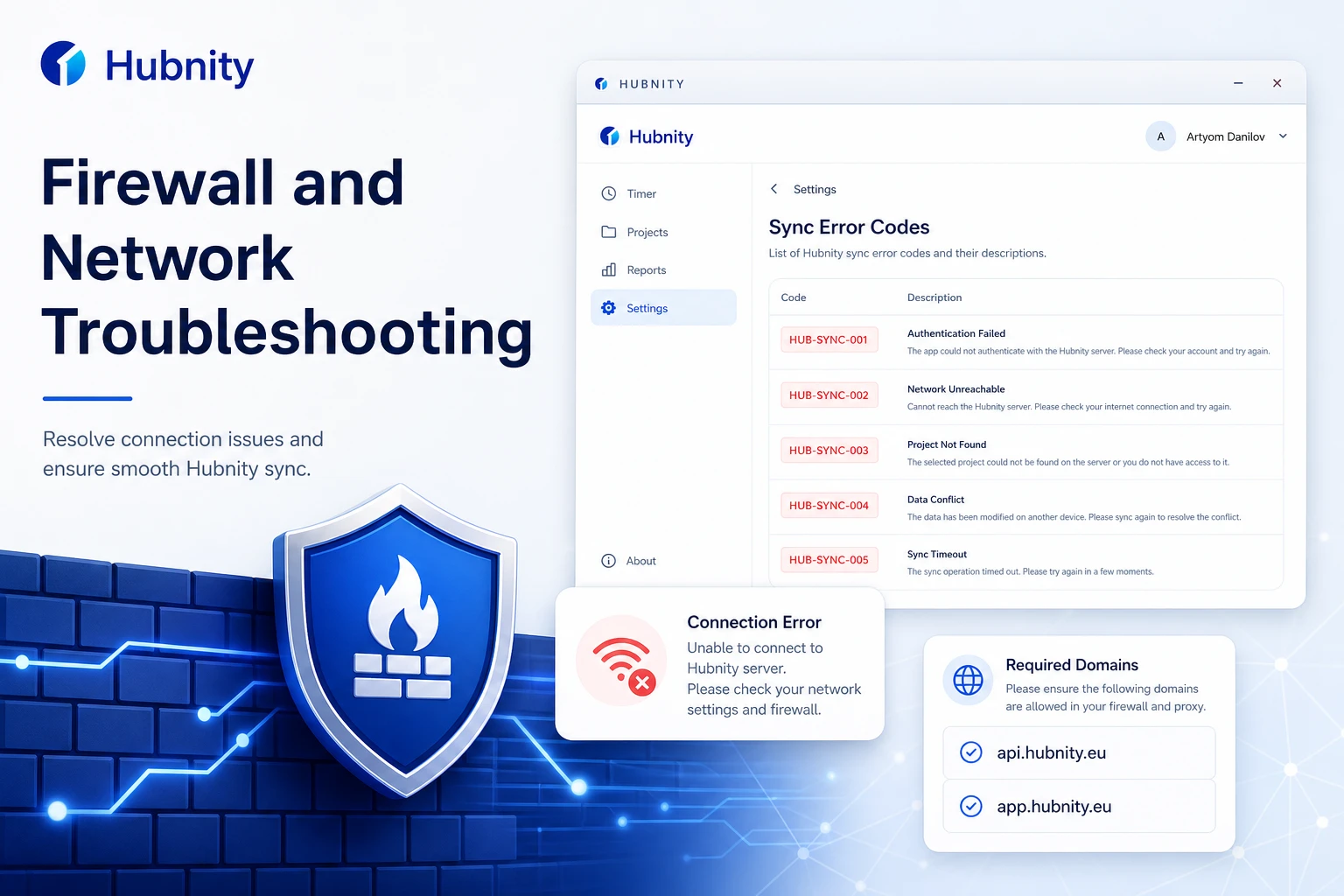
Resolve network and firewall issues that block Hubnity desktop, mobile, and API connectivity.
Required endpoints
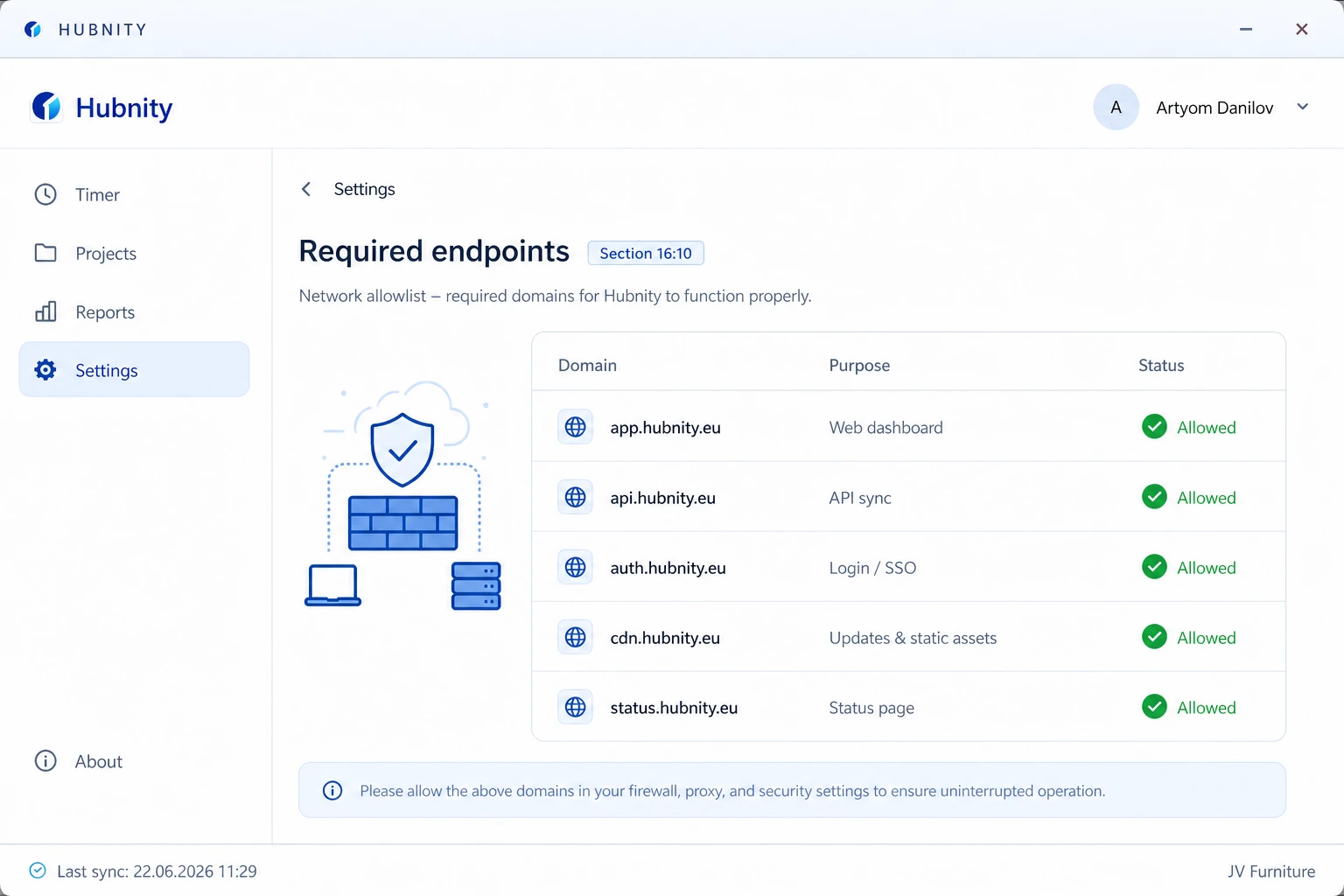
Hubnity apps connect to these domains. Ensure they are allowlisted on your firewall and proxy:
app.hubnity.eu (web dashboard), api.hubnity.eu (API and sync), status.hubnity.eu (status page).
CDN: cdn.hubnity.eu (app updates and assets). Auth: auth.hubnity.eu (login and SSO).
Required ports and protocols
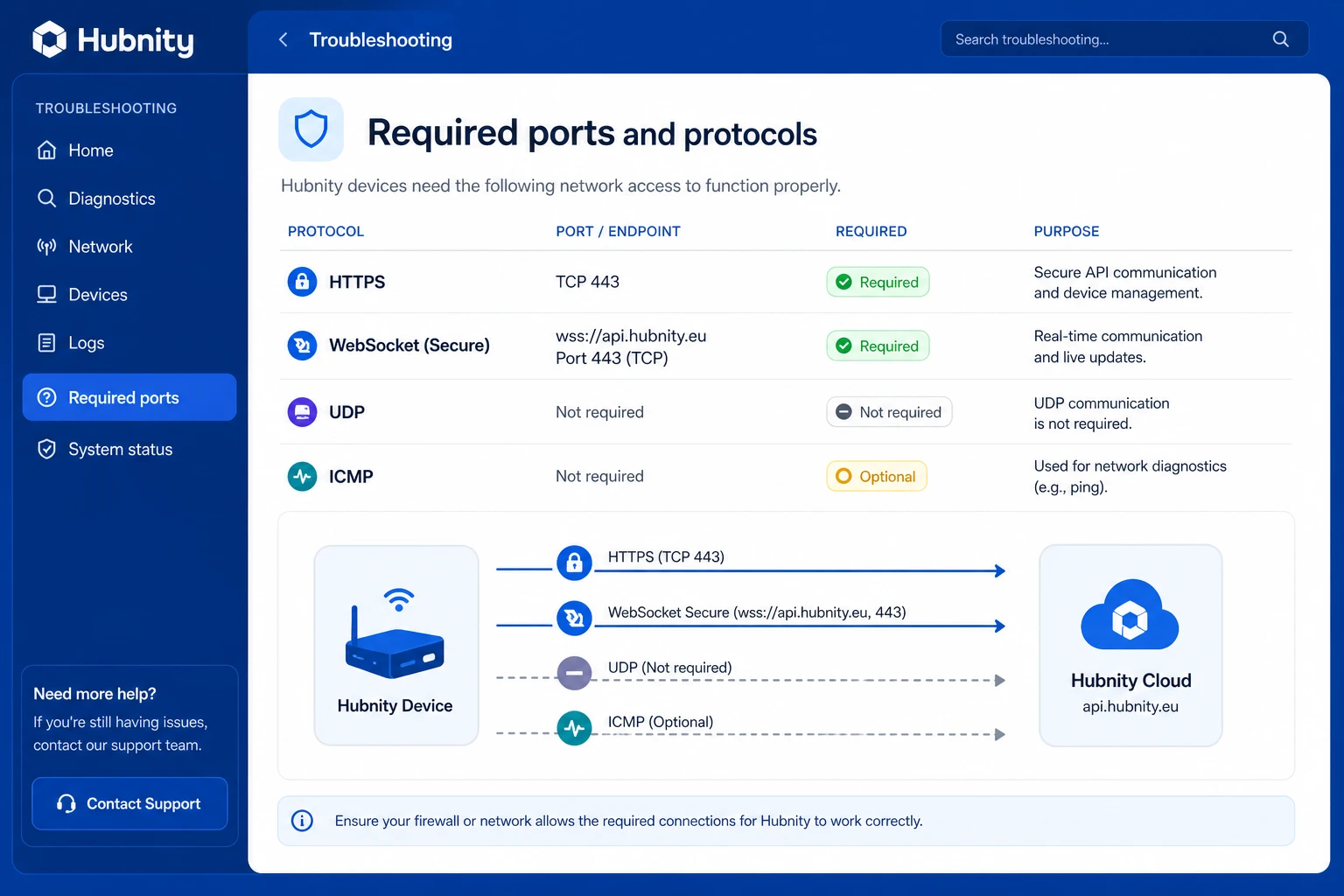
HTTPS (TCP 443) to all endpoints above. No other ports required.
WebSocket connections on port 443 for real-time sync (wss://api.hubnity.eu).
UDP not required. ICMP (ping) is optional for diagnostics.
Error codes
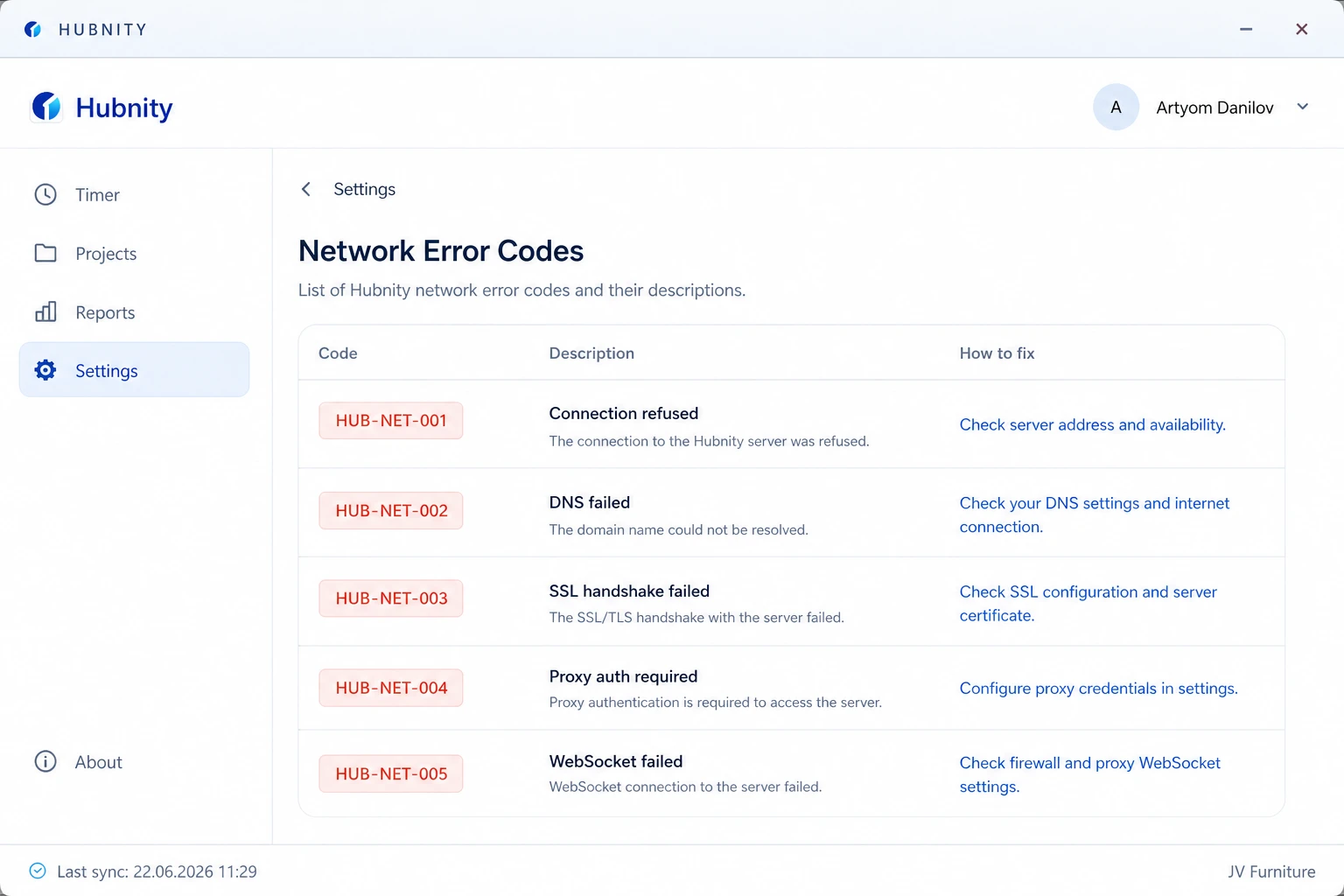
HUB-NET-001: Connection refused. Firewall blocking outbound HTTPS.
HUB-NET-002: DNS resolution failed. Check DNS settings or try 8.8.8.8 / 1.1.1.1.
HUB-NET-003: SSL/TLS handshake failed. Inspect proxy SSL inspection settings.
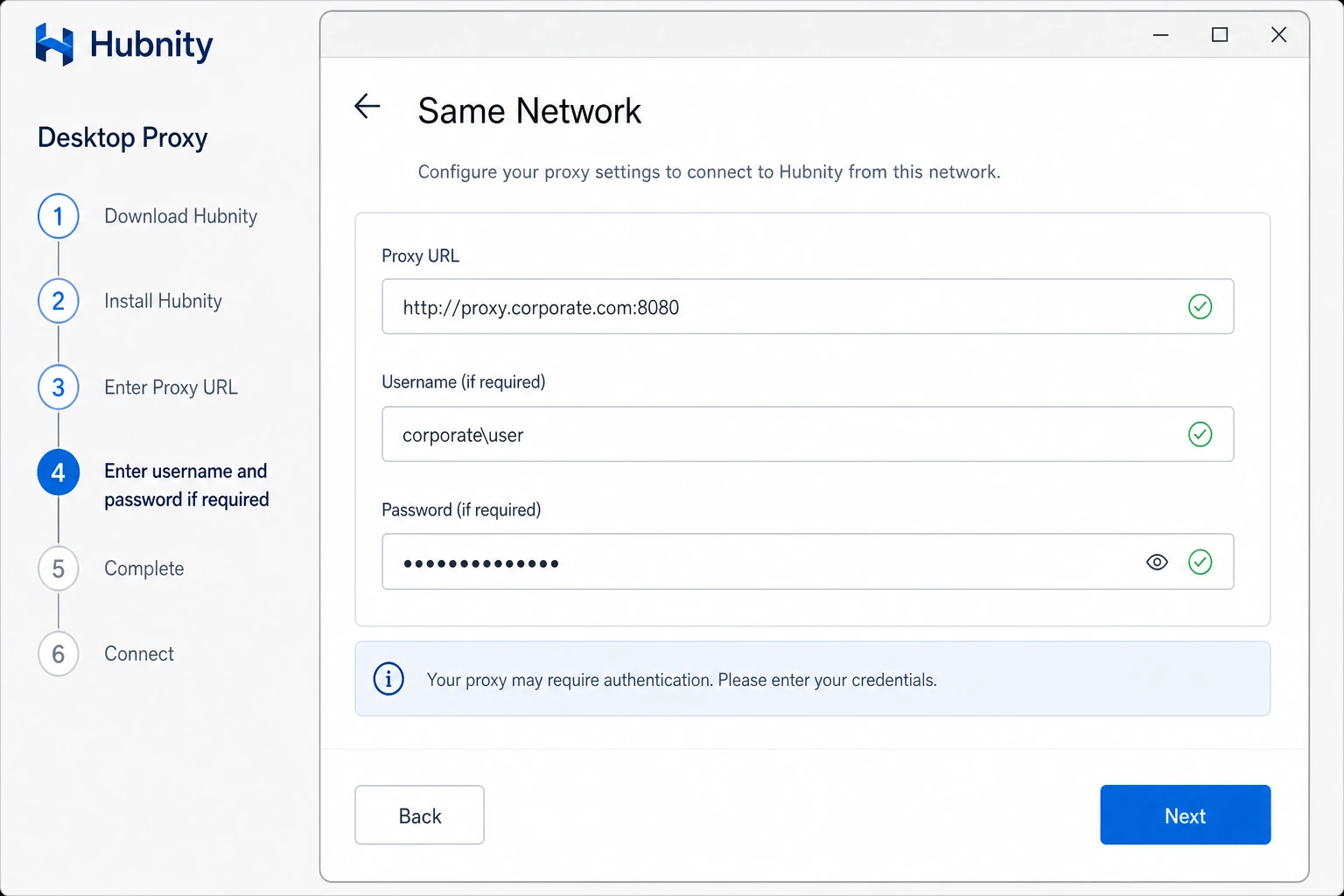
HUB-NET-004: Proxy authentication required. Configure proxy credentials in app settings.
HUB-NET-005: WebSocket connection failed. Allow wss:// through firewall.
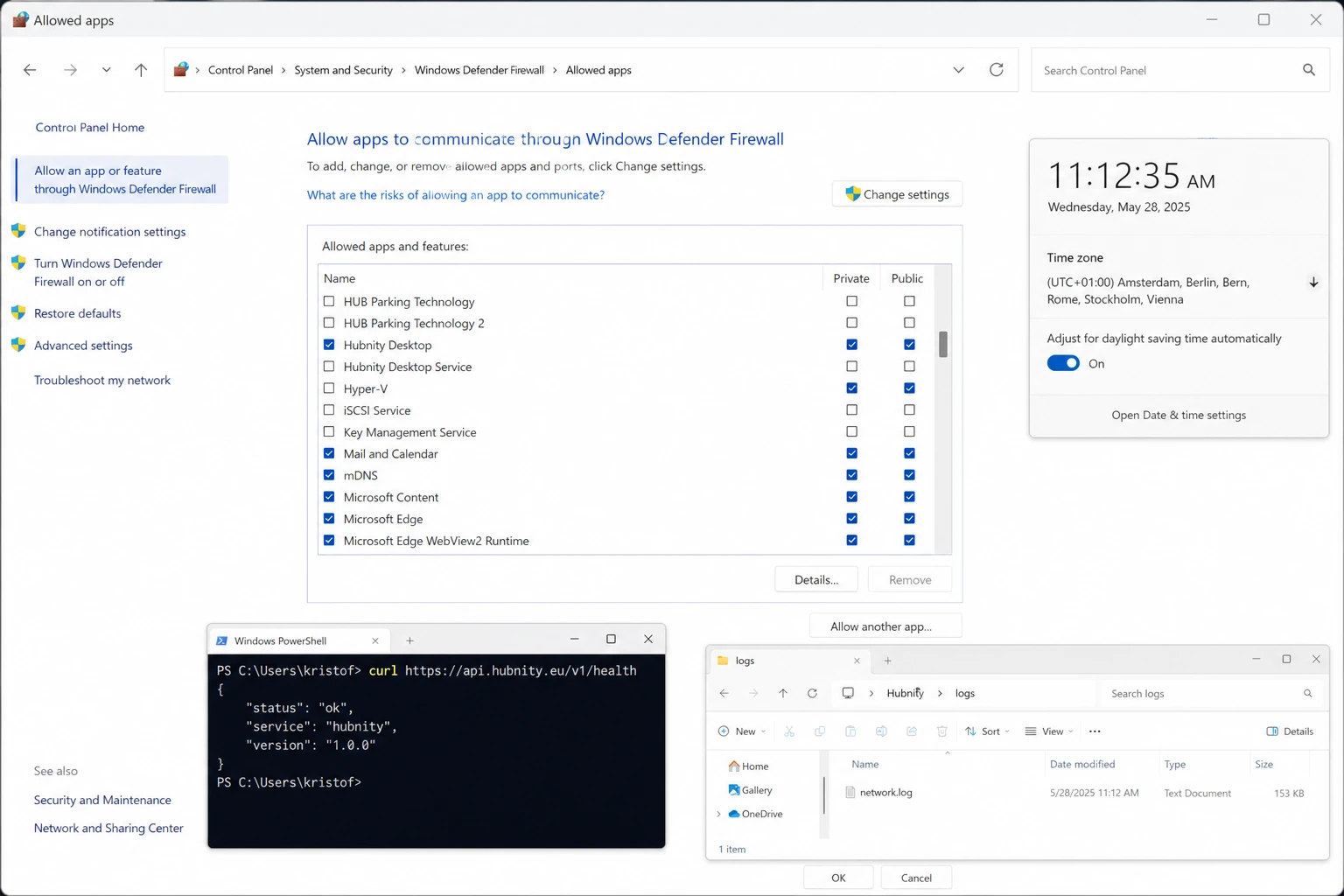
Windows firewall
Allow Hubnity through: Windows Security → Firewall & network protection → Allow an app → Hubnity (Private and Public).
Corporate environments: ask IT to allowlist *.hubnity.eu on the network firewall.
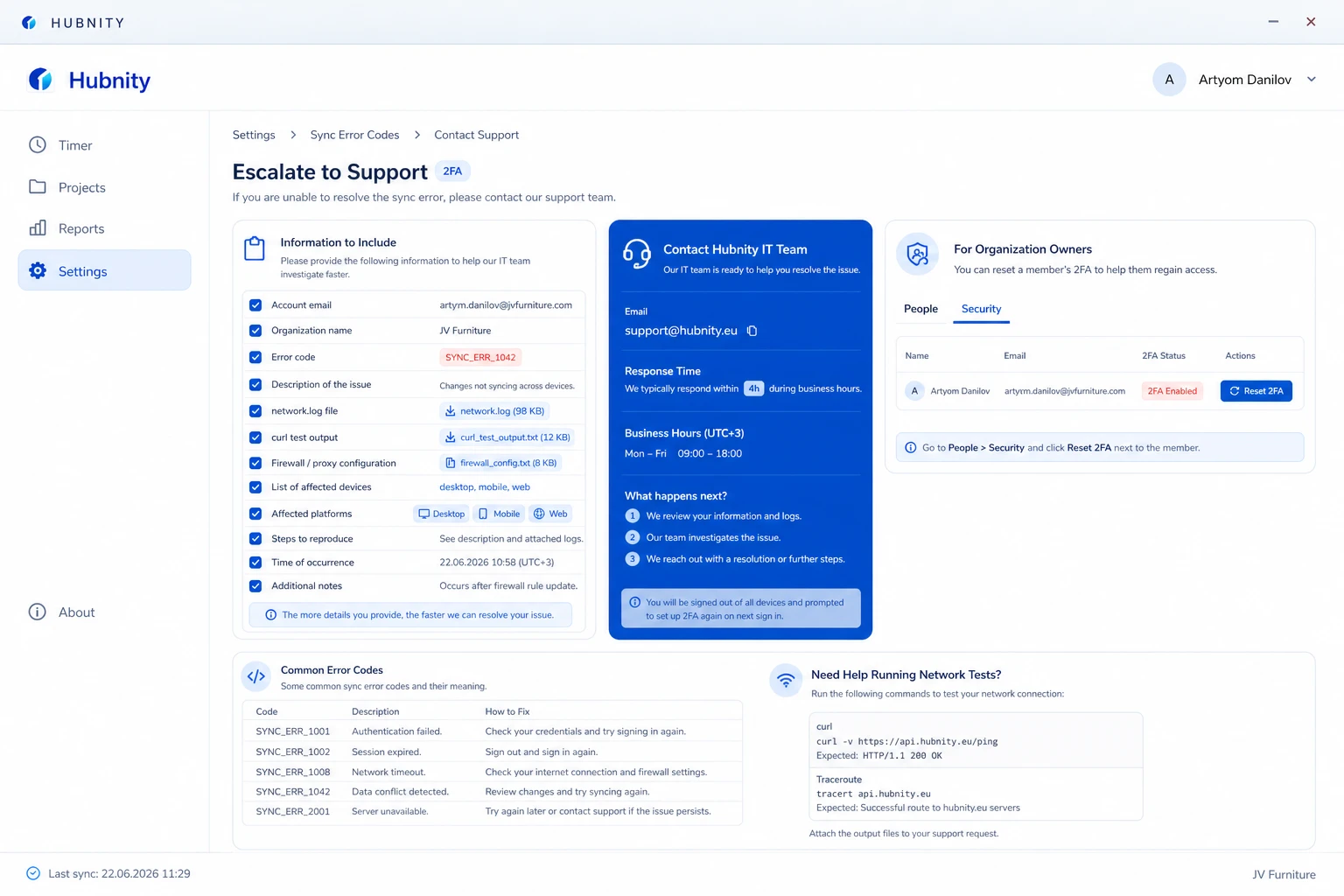
Test connectivity: curl https://api.hubnity.eu/v1/health in PowerShell. Expected: {"status":"ok"}.
Log location: %APPDATA%\Hubnity\logs\network.log
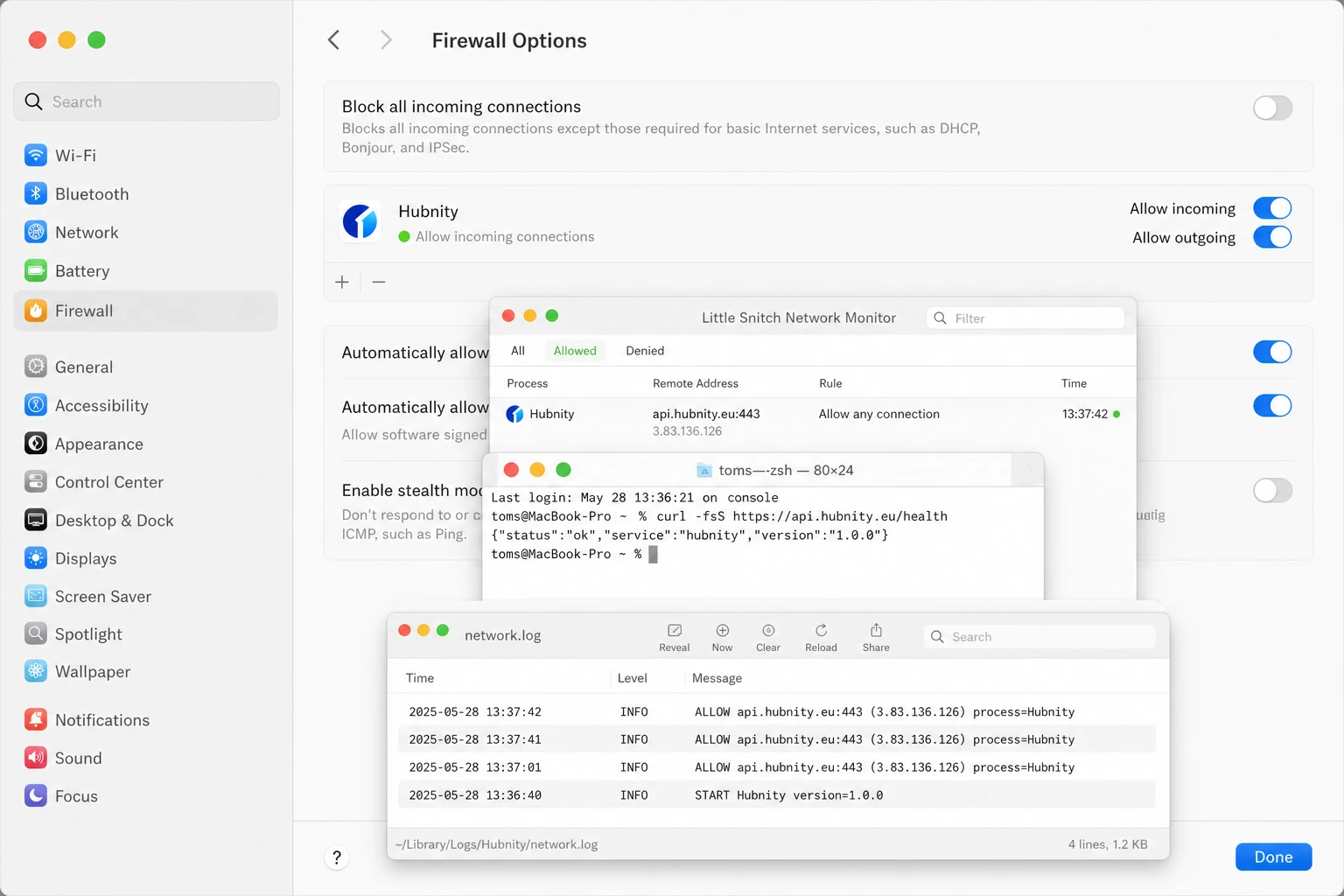
macOS firewall
System Settings → Network → Firewall → Options → allow Hubnity incoming and outgoing.
If using Little Snitch or similar: allow api.hubnity.eu and app.hubnity.eu.
Test: curl https://api.hubnity.eu/v1/health in Terminal.
Log location: ~/Library/Logs/Hubnity/network.log
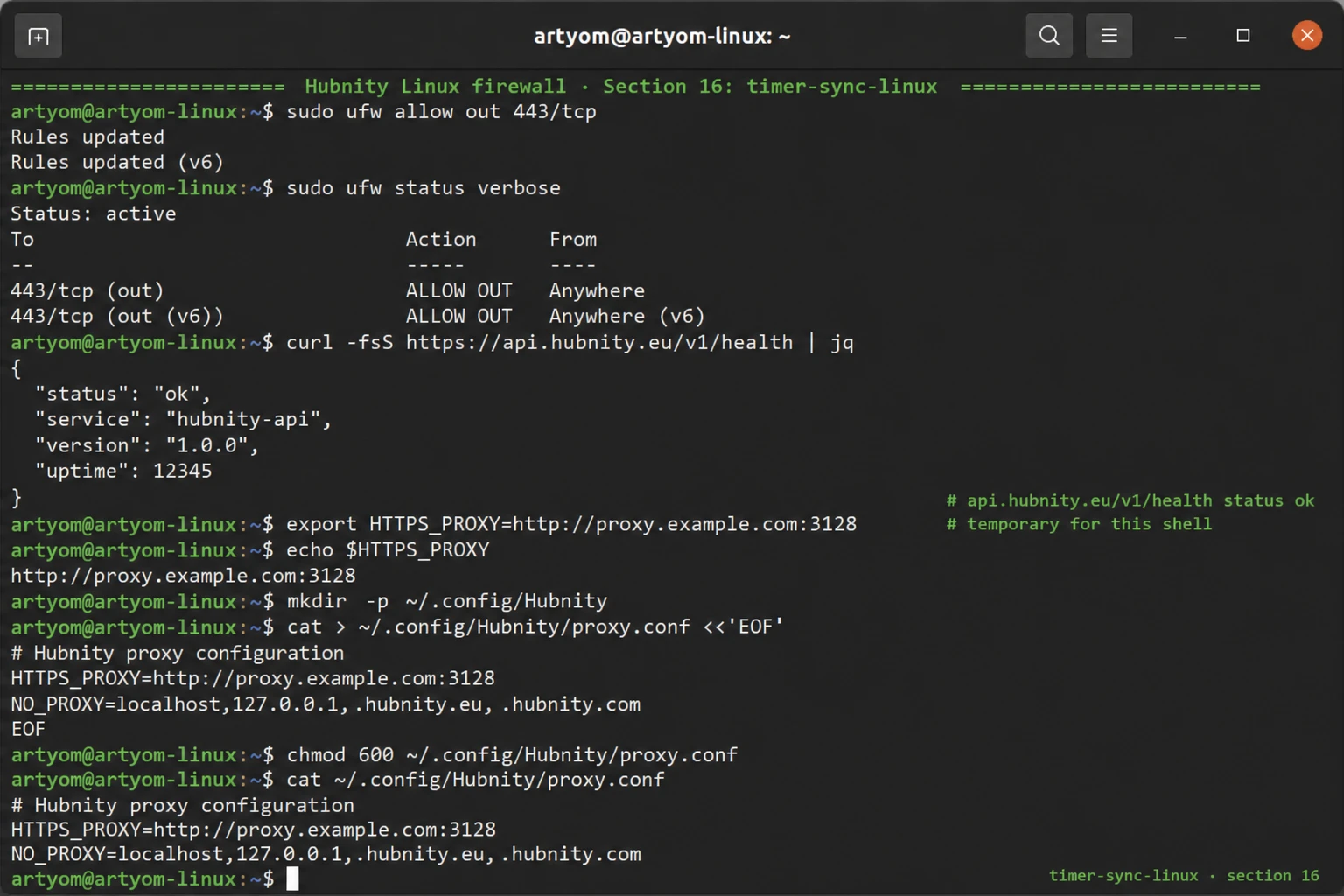
Linux firewall
ufw: sudo ufw allow out 443/tcp. iptables: allow OUTPUT -p tcp --dport 443.
Proxy: export HTTPS_PROXY=https://user:pass@proxy:port before launching the app.
Configure persistent proxy in ~/.config/Hubnity/proxy.conf.
Log location: ~/.config/Hubnity/logs/network.log
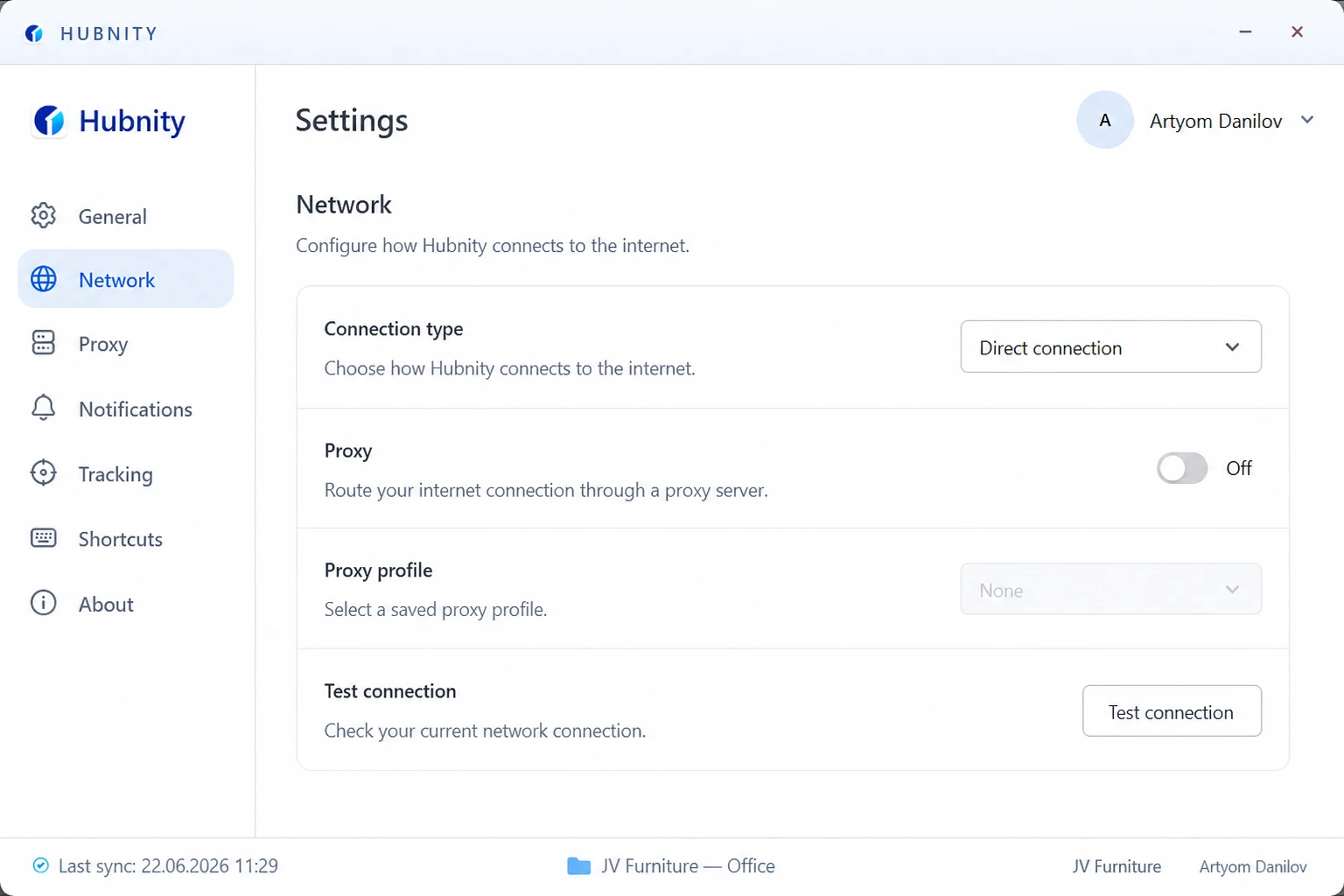
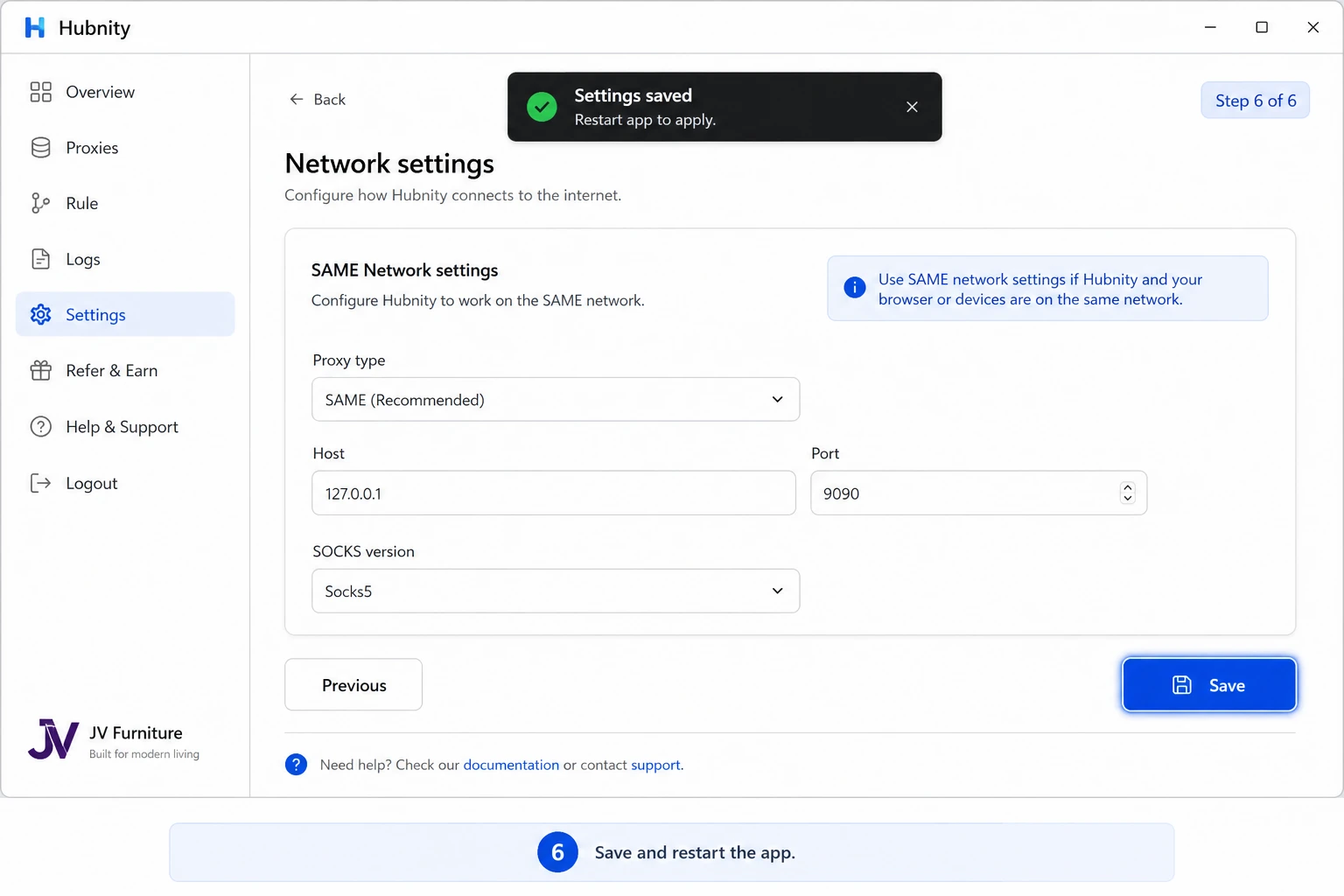
Configure proxy in Hubnity desktop
Required in corporate networks with mandatory proxy servers.
- 1
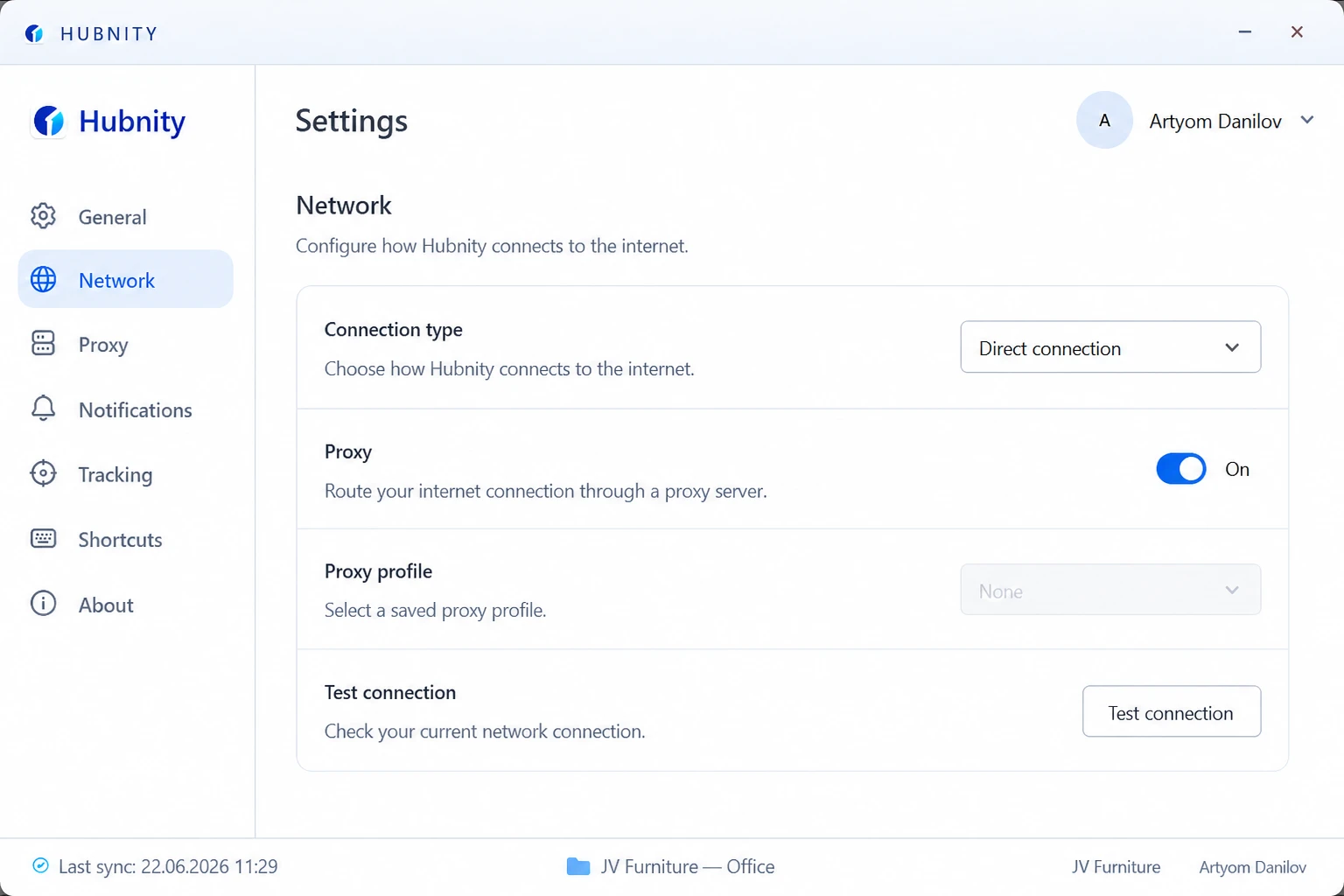
Open desktop app → Settings → Network
- 2
Enable Use proxy server
- 3
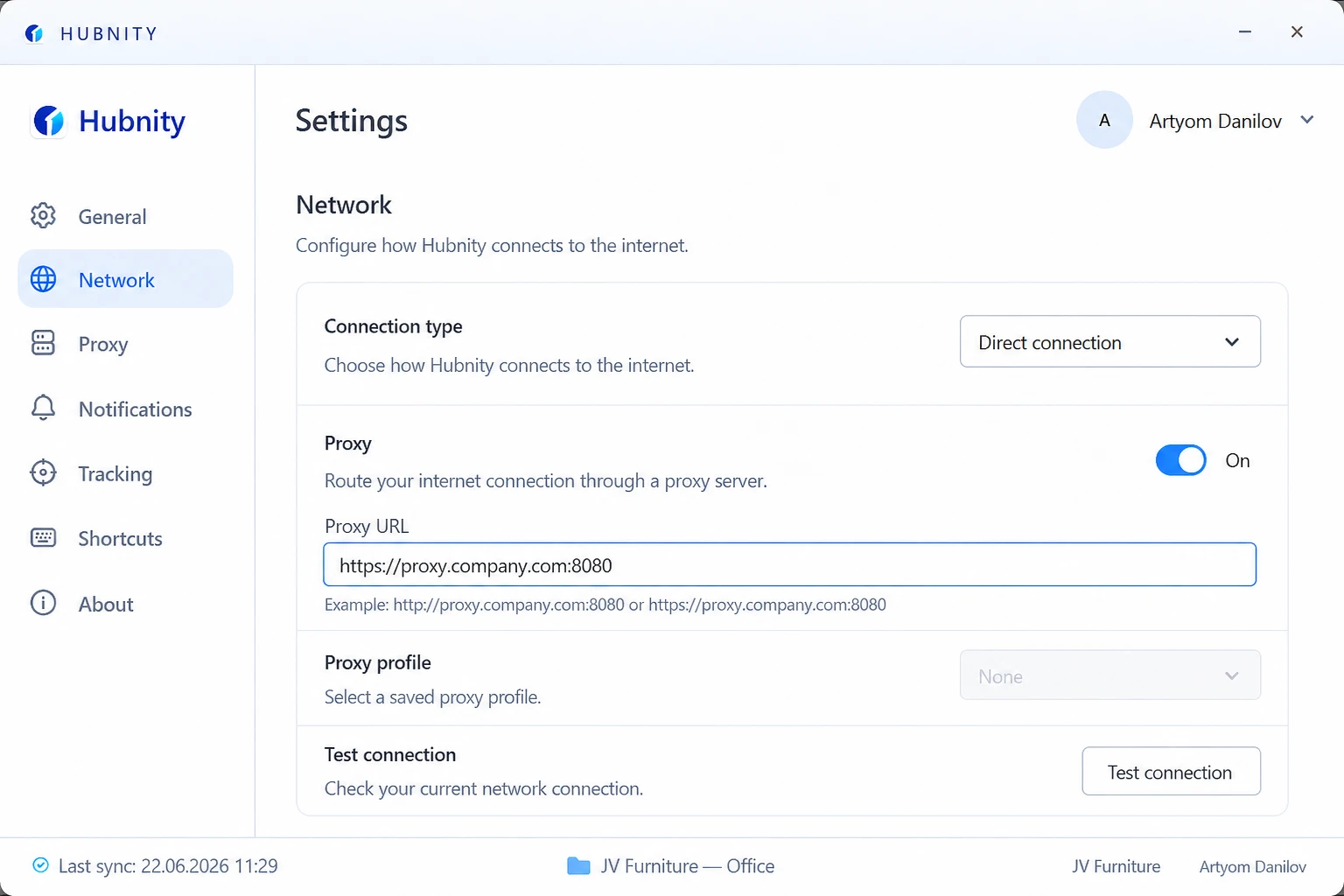
Enter proxy URL (e.g., https://proxy.company.com:8080)
- 4
Enter username and password if required
- 5
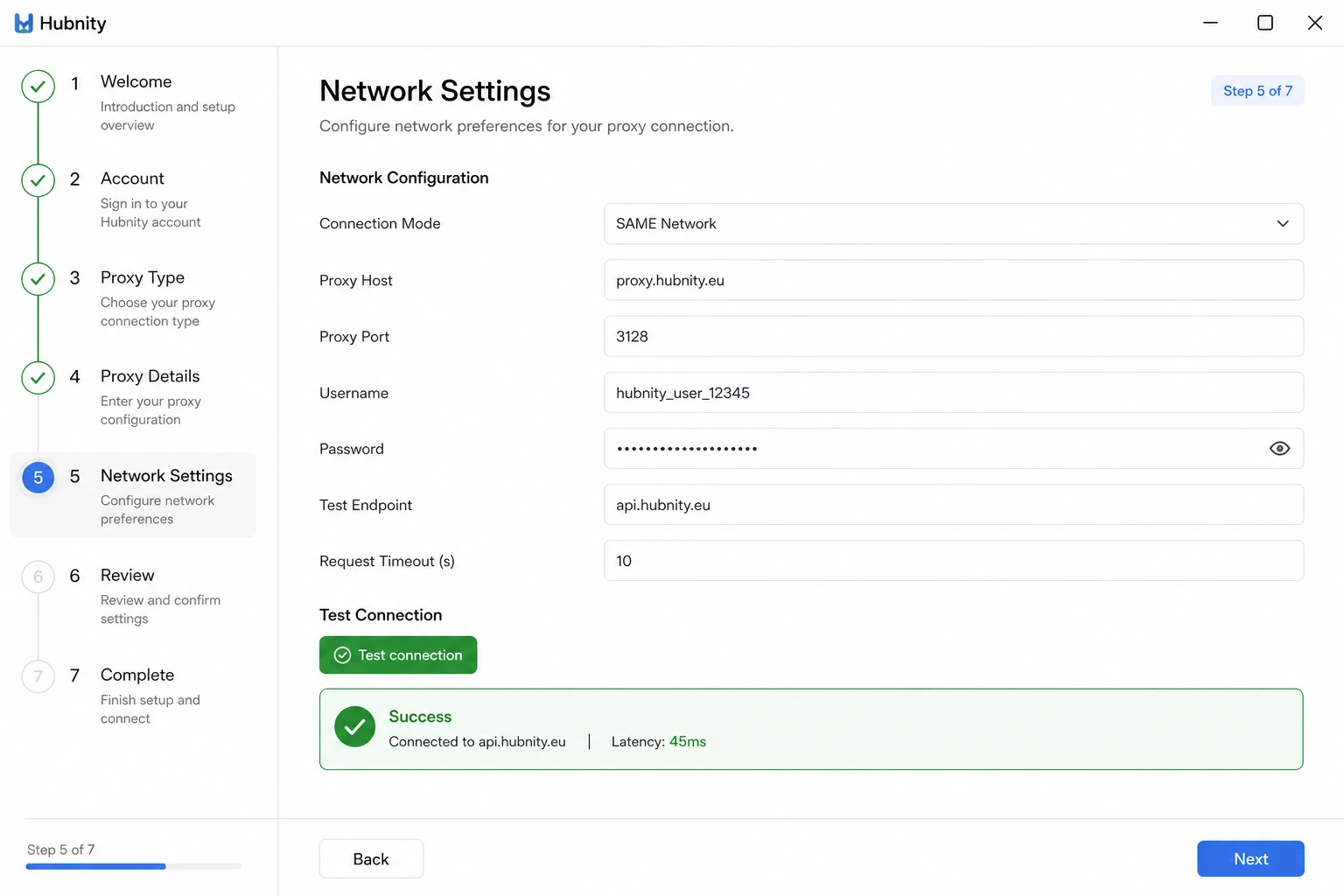
Click Test connection
- 6
Save and restart the app
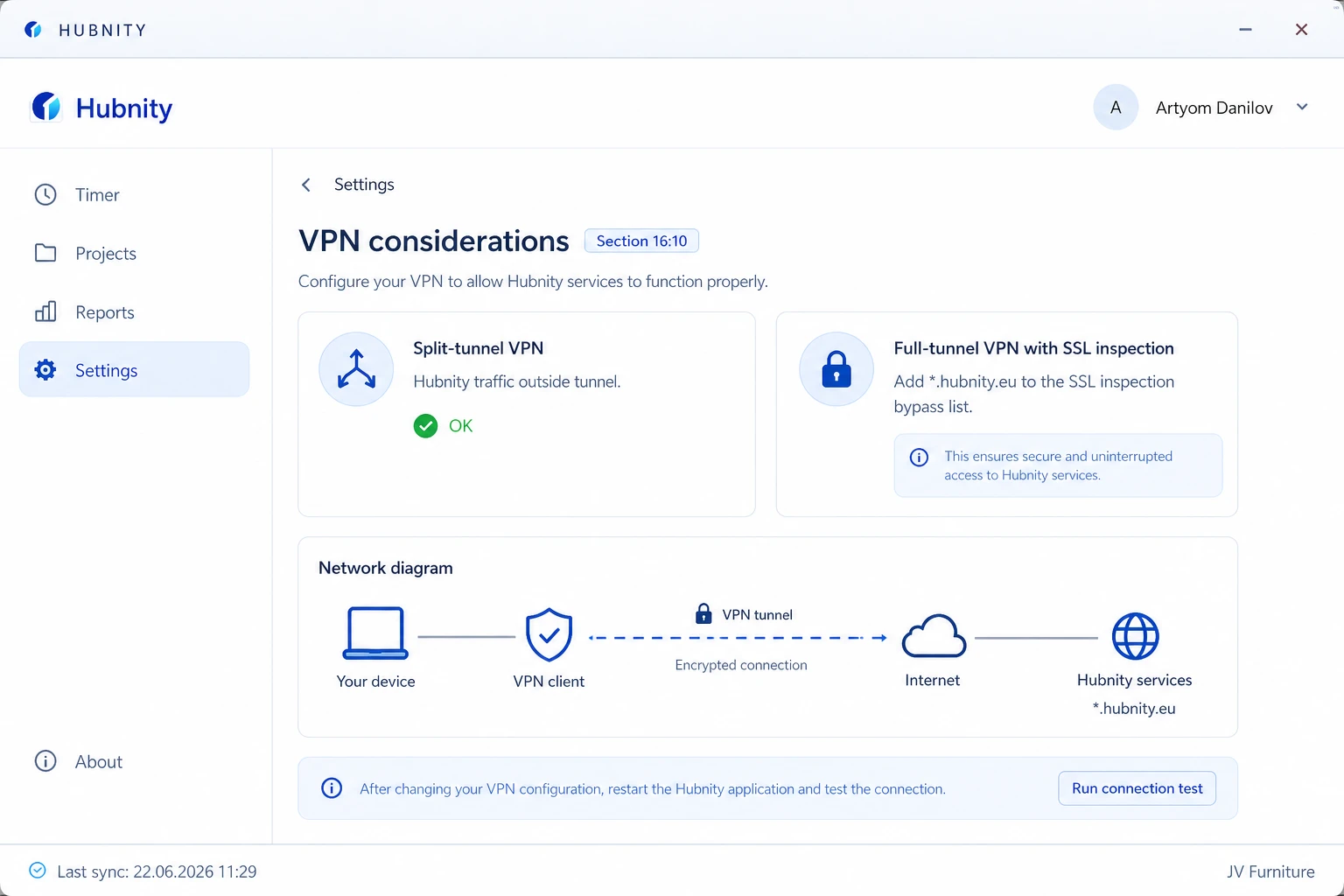
VPN considerations
Most VPNs work without configuration. Split-tunnel VPNs may route Hubnity traffic outside the tunnel — this is fine.
Full-tunnel VPNs with SSL inspection can break certificate validation. Add *.hubnity.eu to the inspection bypass list.
Escalation to support
Contact support@hubnity.eu or your IT team with: network.log, output of curl test, firewall/proxy configuration, and error codes.
Include whether the issue affects desktop, mobile, or web (or all three).