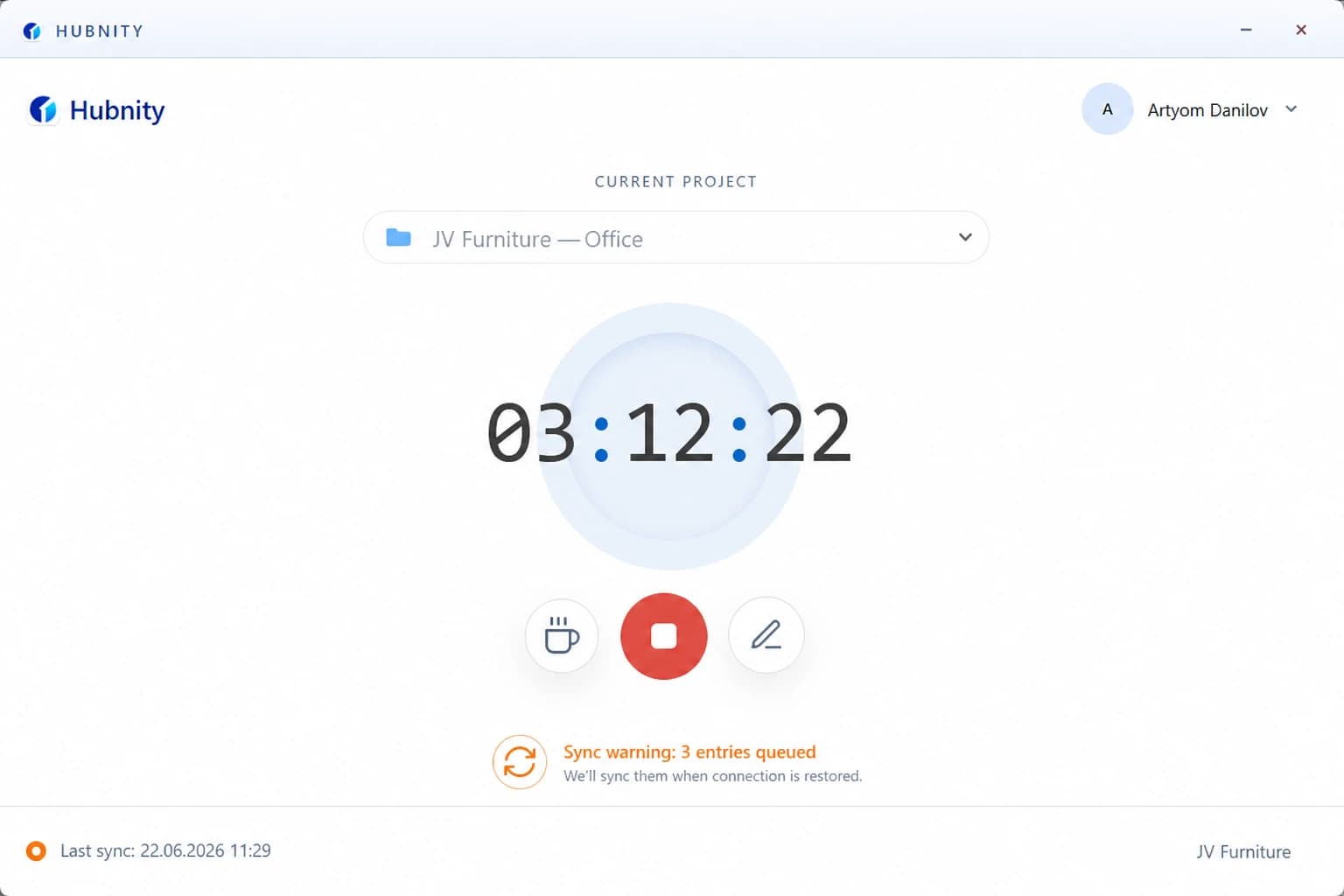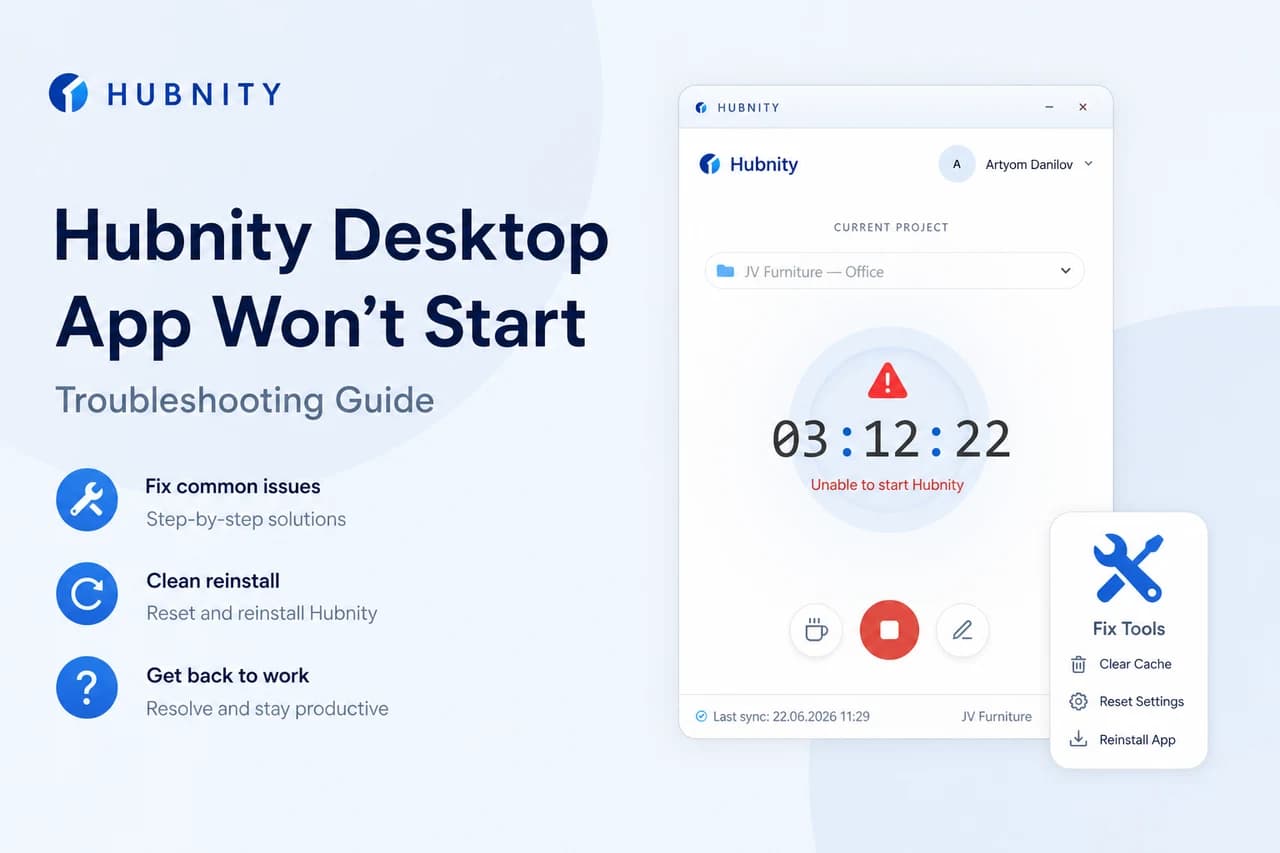
Reset corrupted local sync cache on desktop or mobile when persistent sync errors occur.
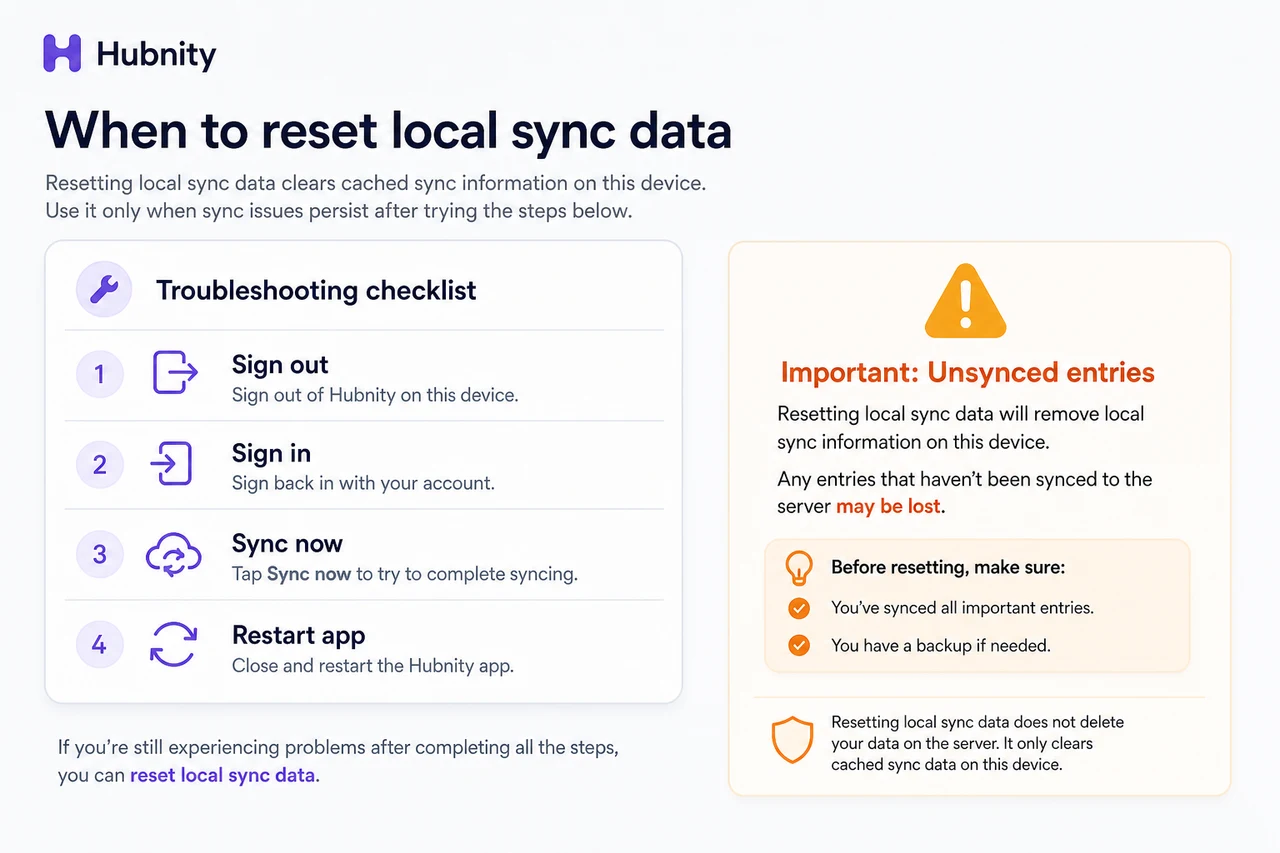
When to reset
Reset local data only after trying: Sign out/in, Sync now, and restarting the app.
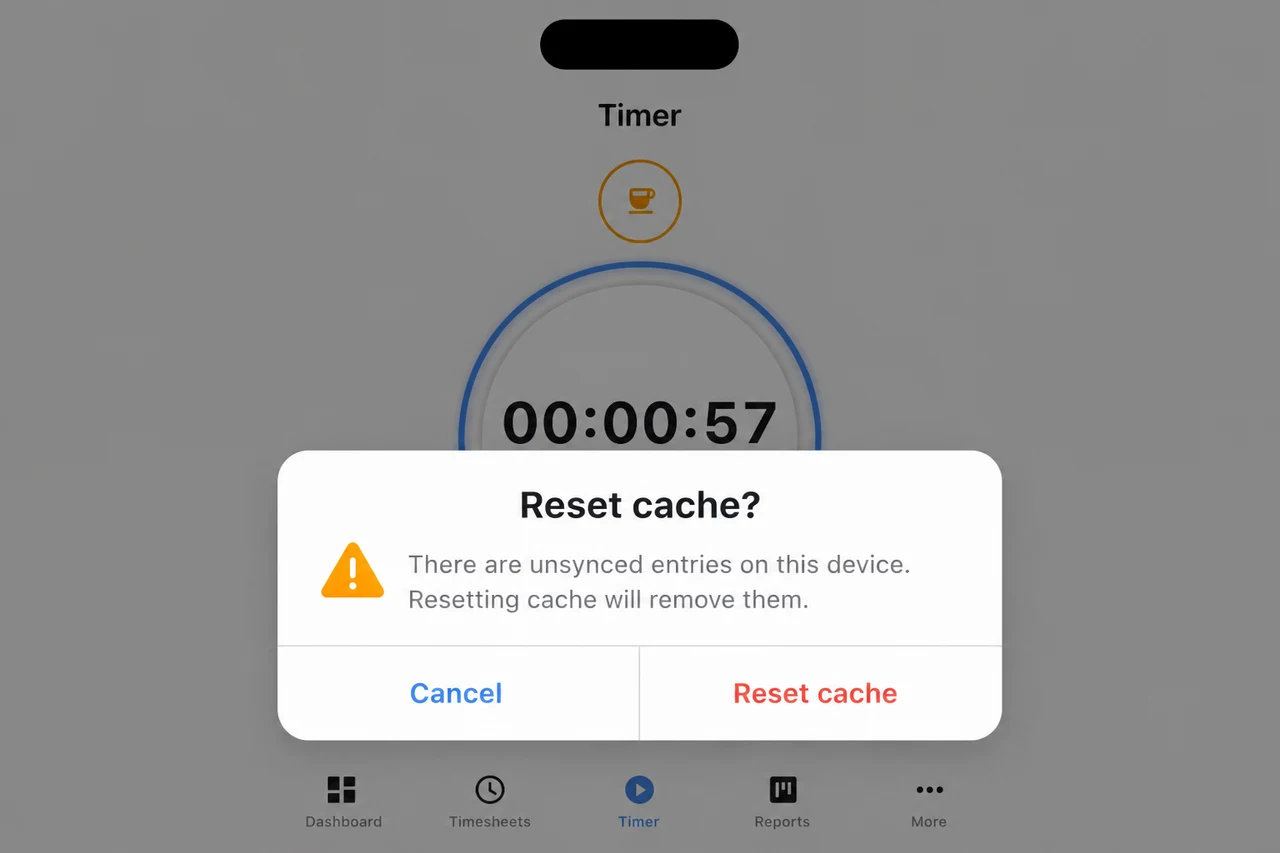
Reset clears all unsynced offline entries. Export or screenshot pending time before proceeding.
What reset does
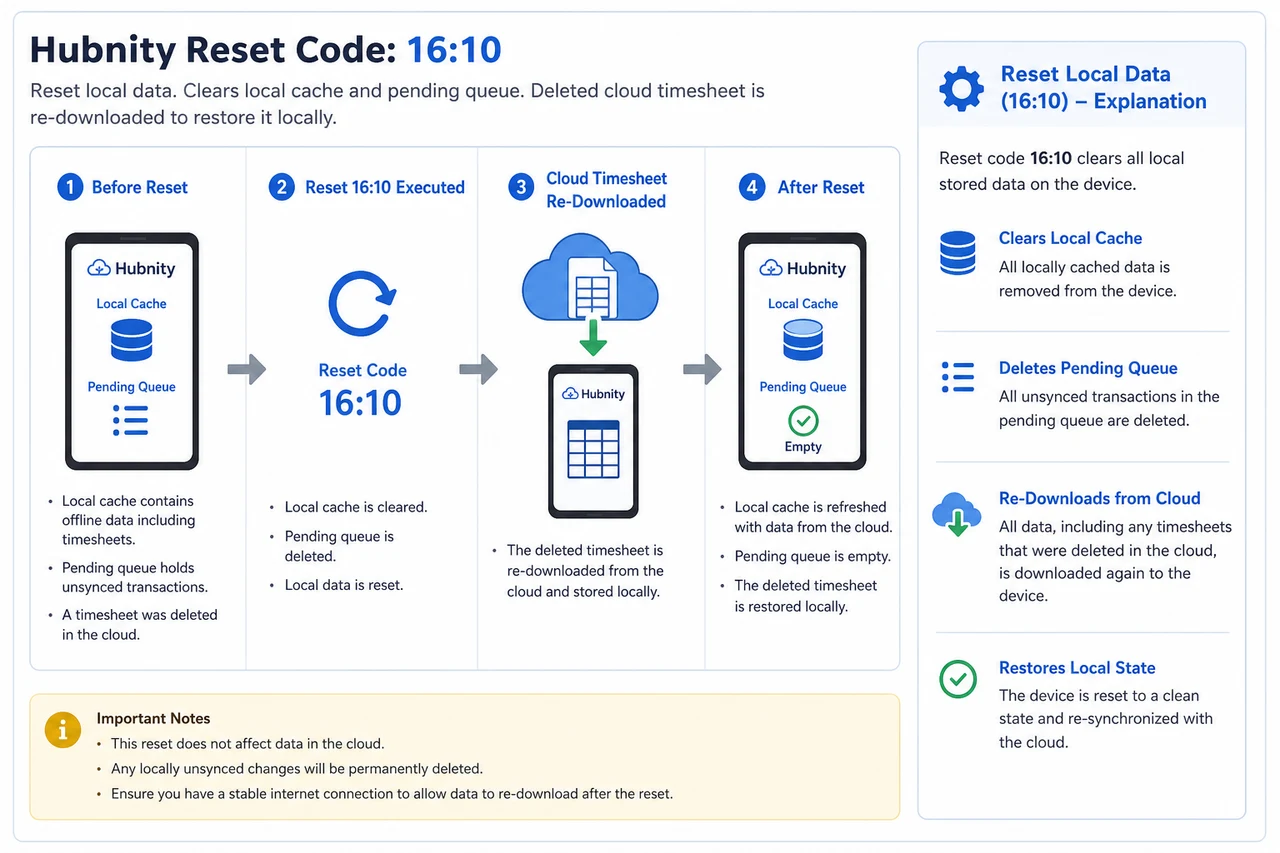
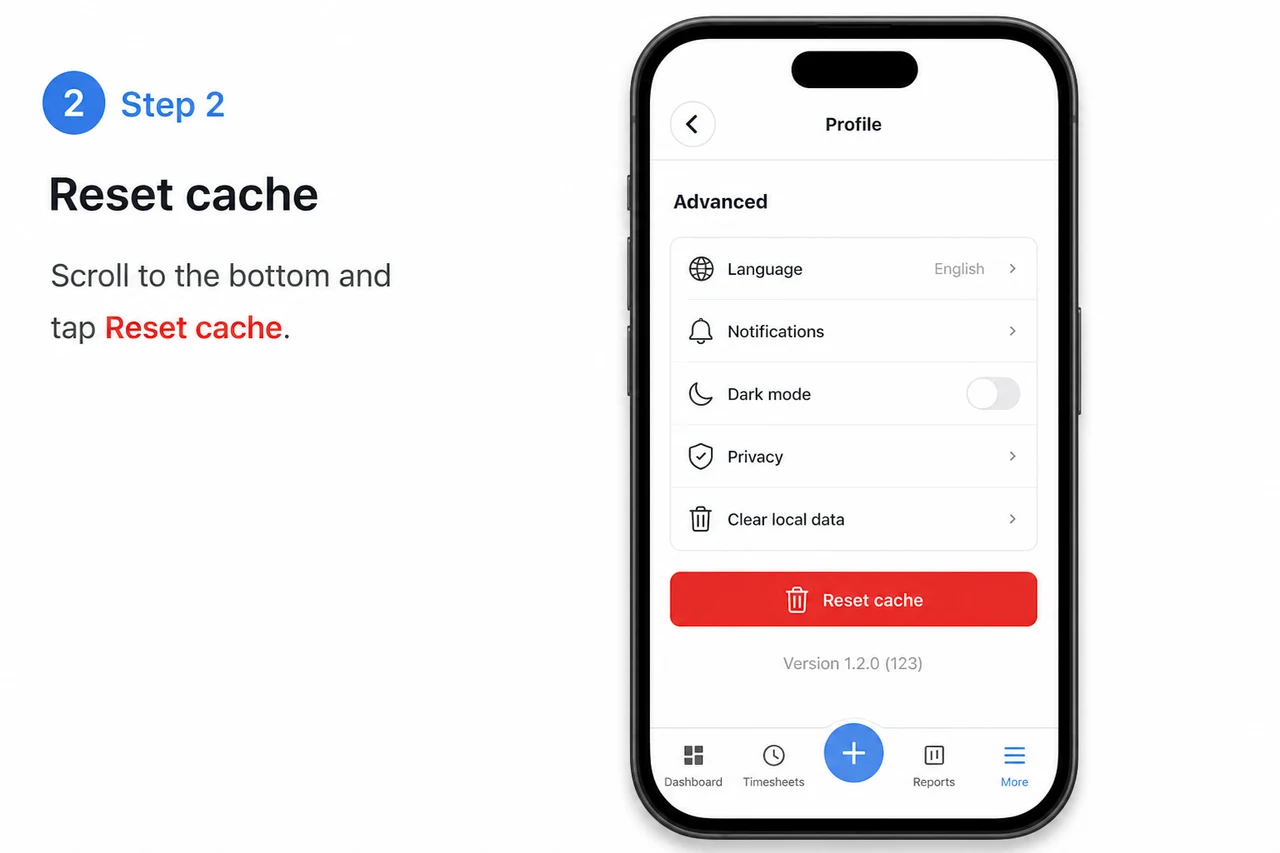
Deletes local cache, pending upload queue, and conflict records. Re-downloads your cloud timesheet.
Does not delete any data already synced to the server. Does not affect other devices.
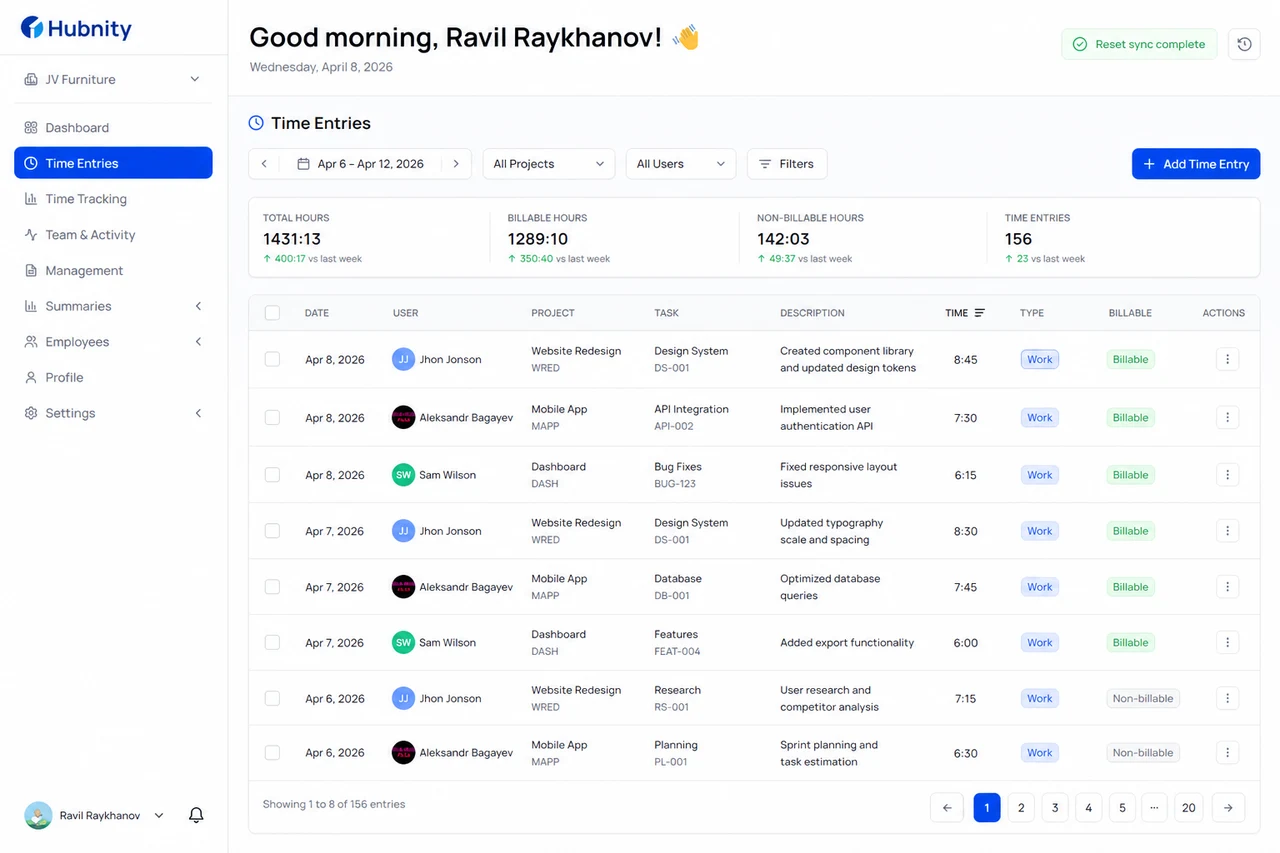
Reset on desktop
Available on Windows, macOS, and Linux desktop apps.
- 1
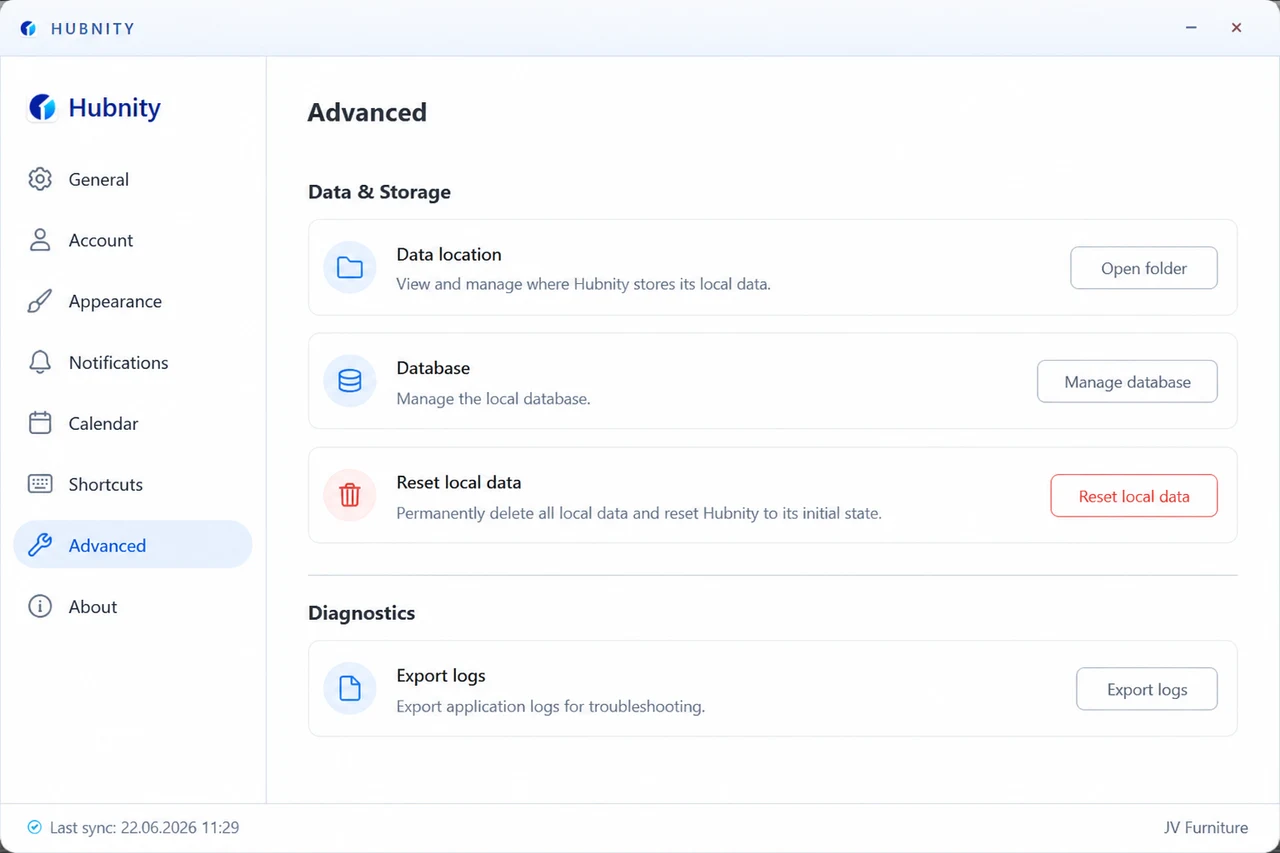
Open the desktop app → Settings → Advanced
- 2
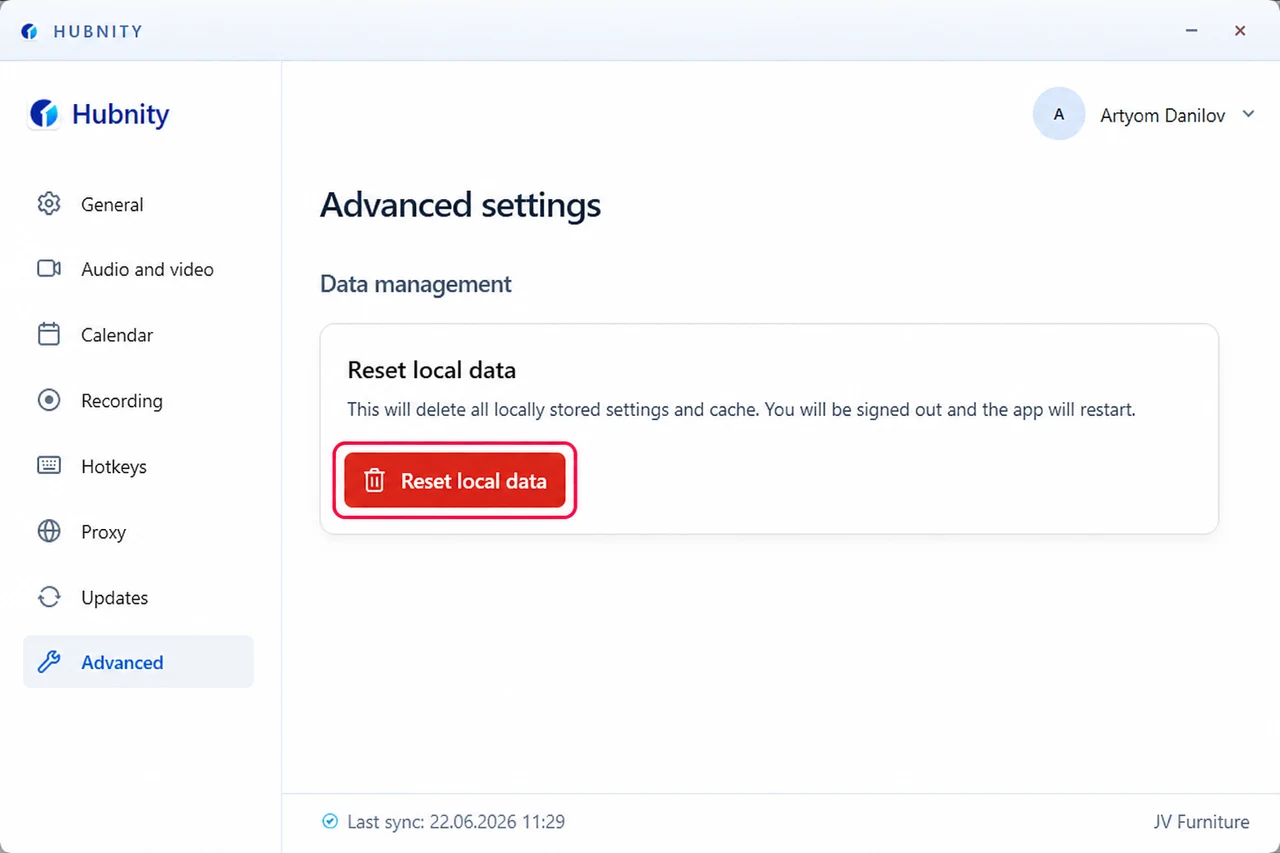
Click Reset local data
- 3
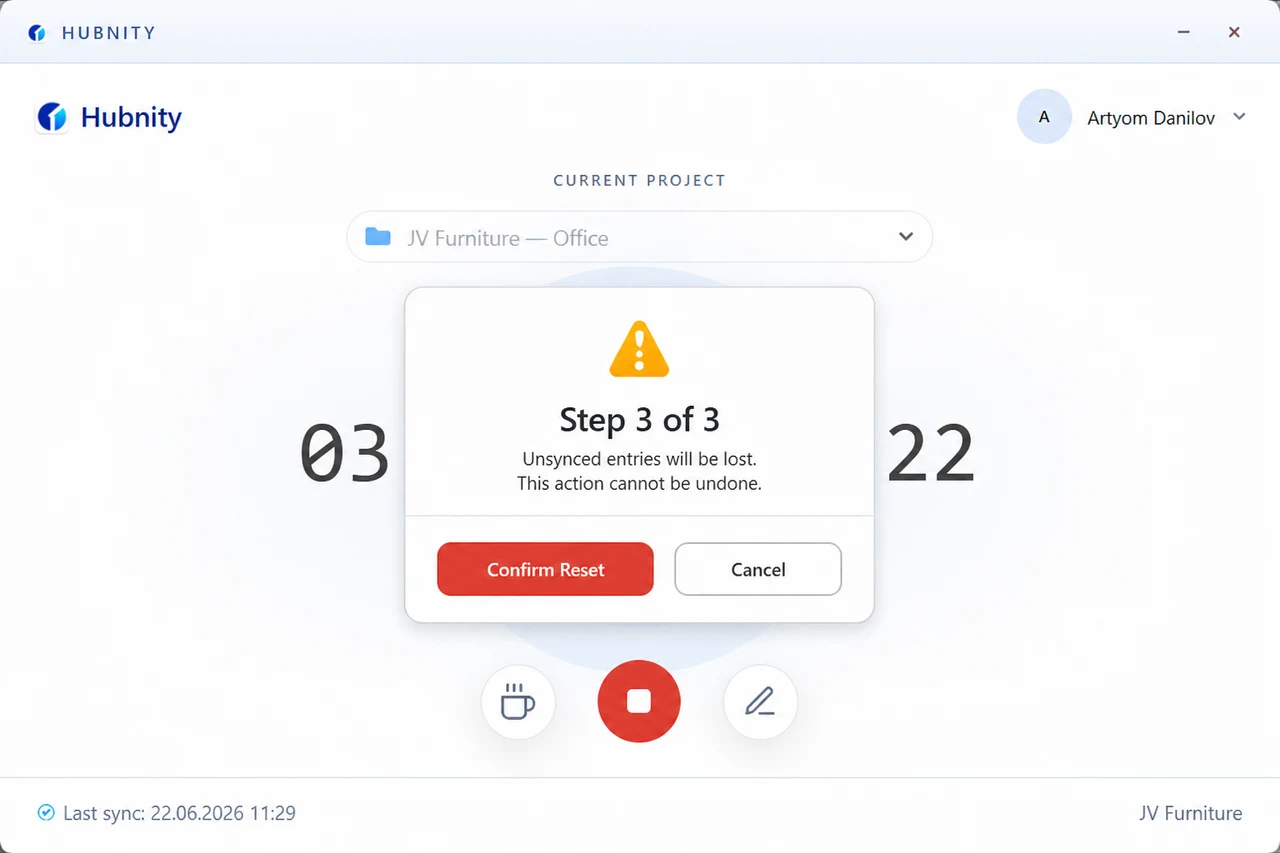
Confirm the warning about unsynced entries
- 4
The app restarts automatically

- 5
Sign in if prompted and verify your timesheet loaded correctly
Reset on mobile
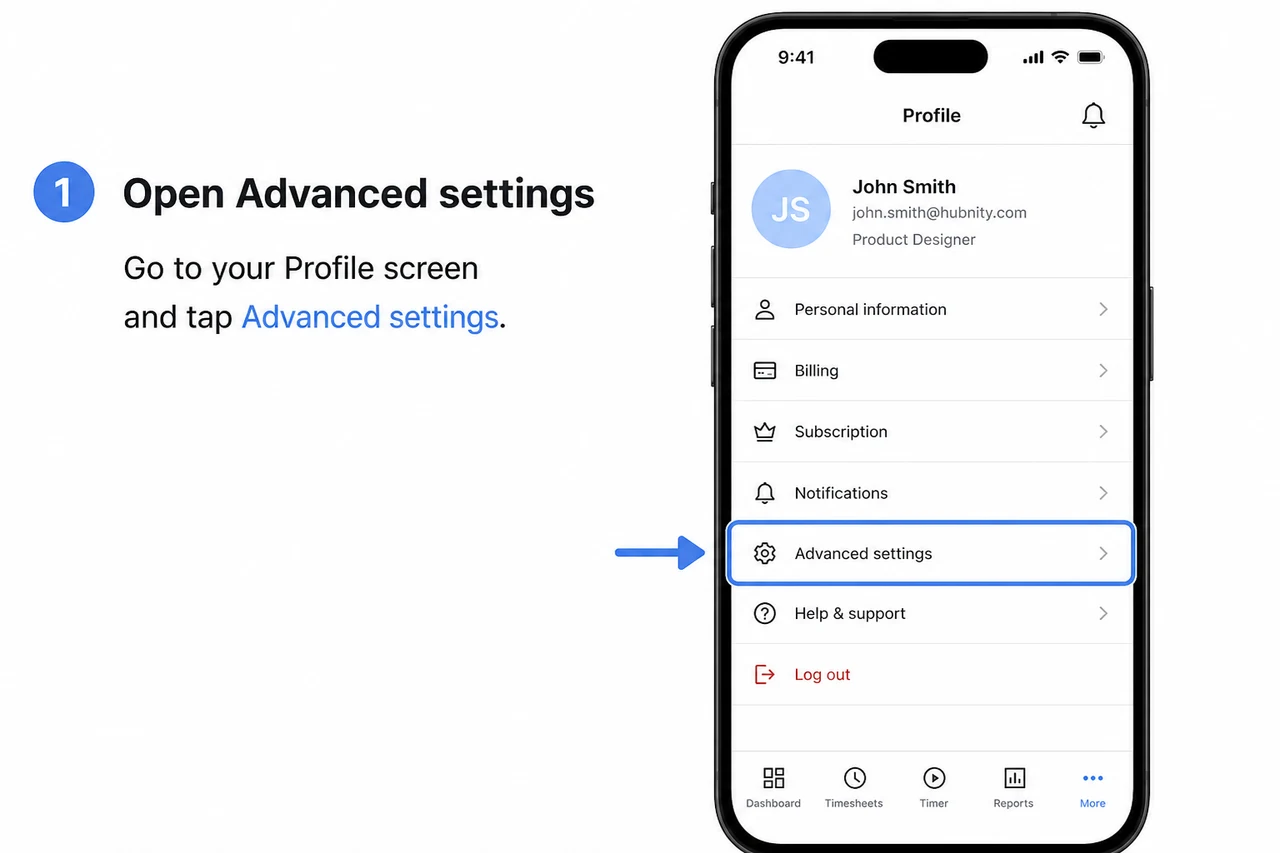
Mobile reset clears cache but preserves sign-in credentials.
- 1
Open the app → Profile → Advanced
- 2
Tap Reset cache
- 3
Confirm
- 4
Pull down on the timesheet to force refresh
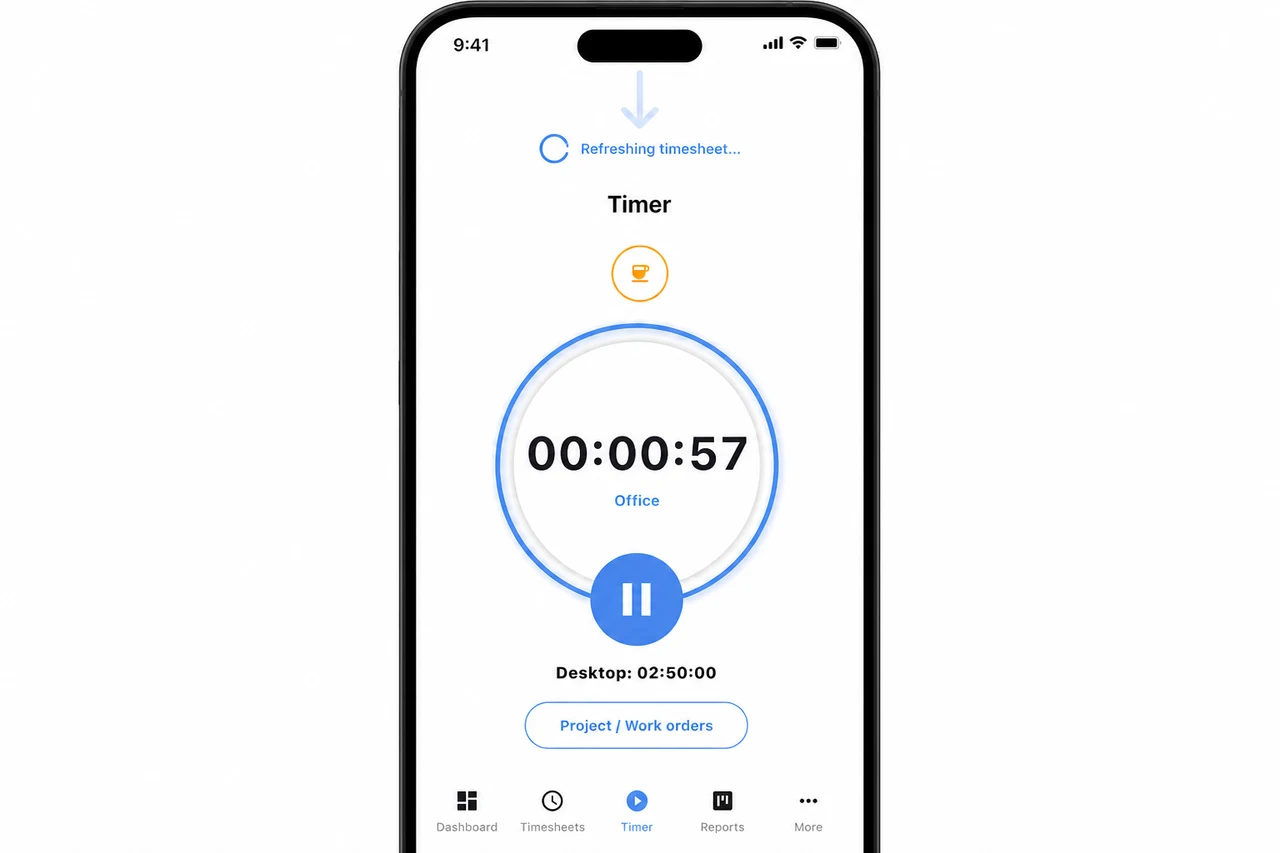
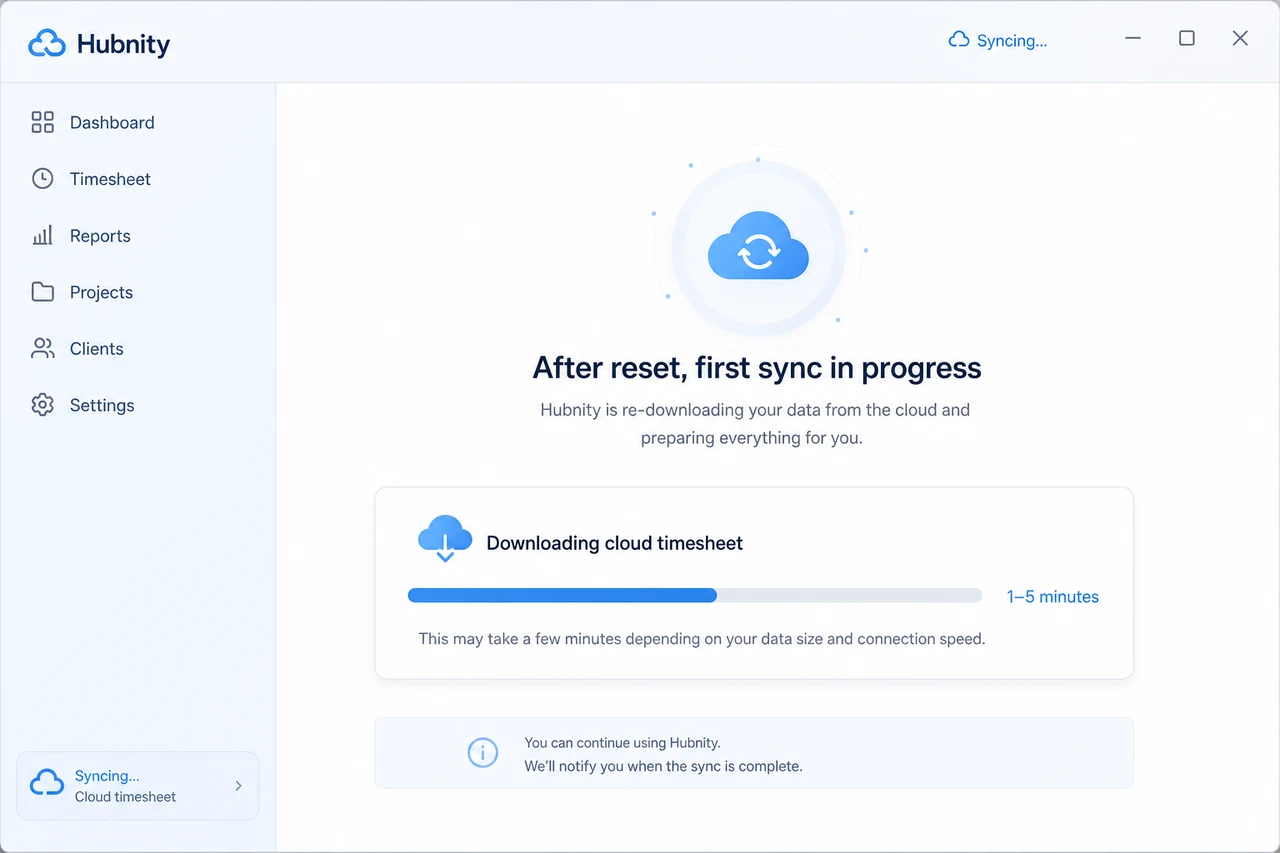
After reset
First sync may take 1–5 minutes depending on timesheet history size.
If sync errors persist after reset, the issue is likely server-side or network-related. See timer-not-syncing.
Escalation
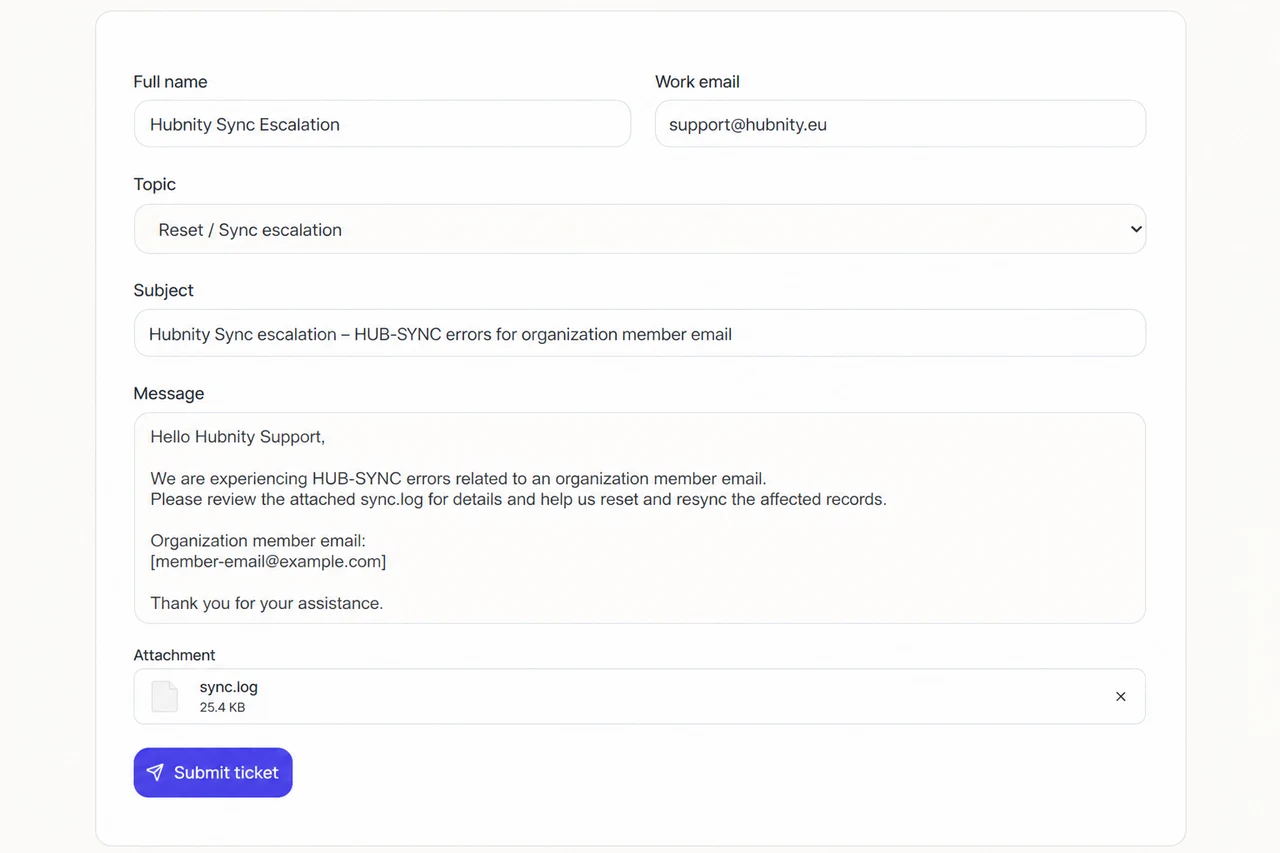
If reset does not resolve HUB-SYNC errors, send sync.log to support@hubnity.eu with your organization and member email.