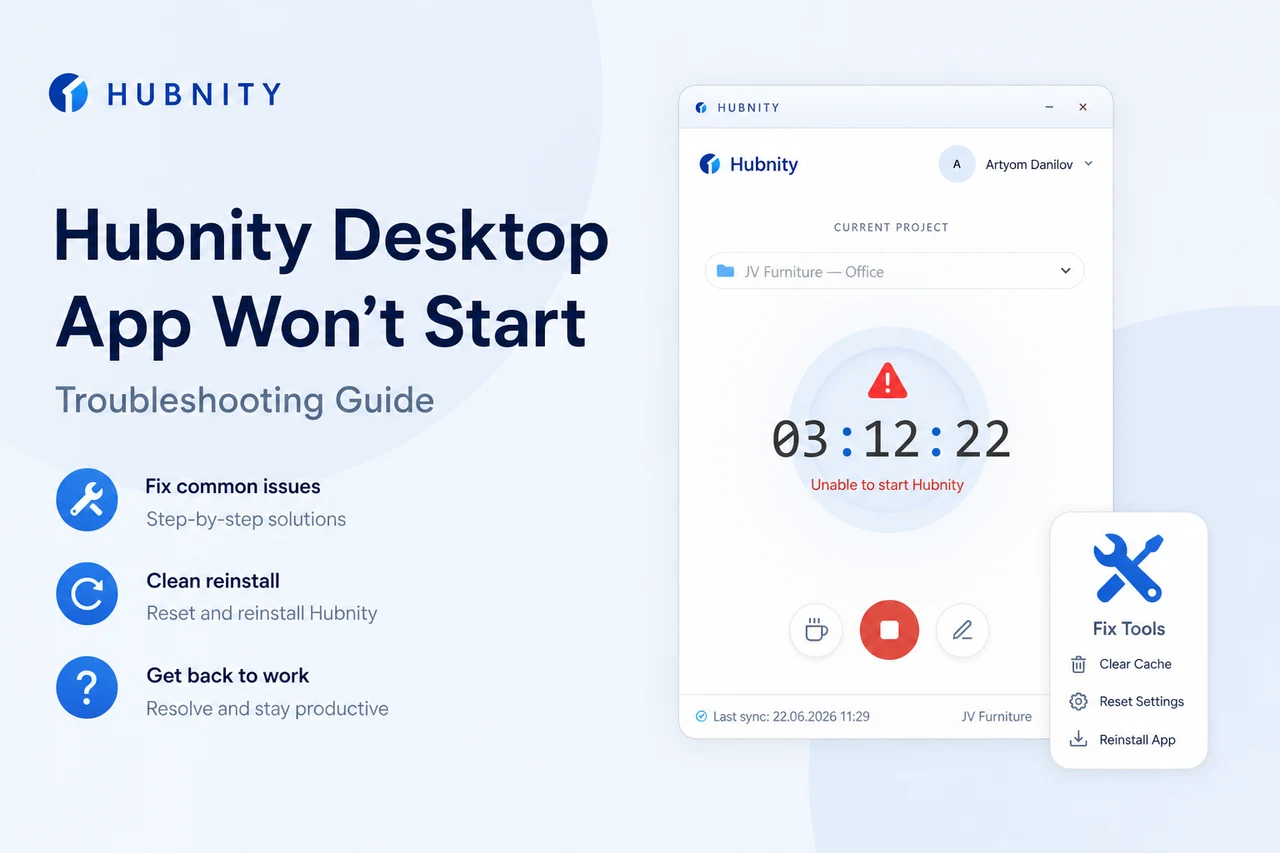
Troubleshoot Hubnity desktop app startup failures, crashes, and permission errors.
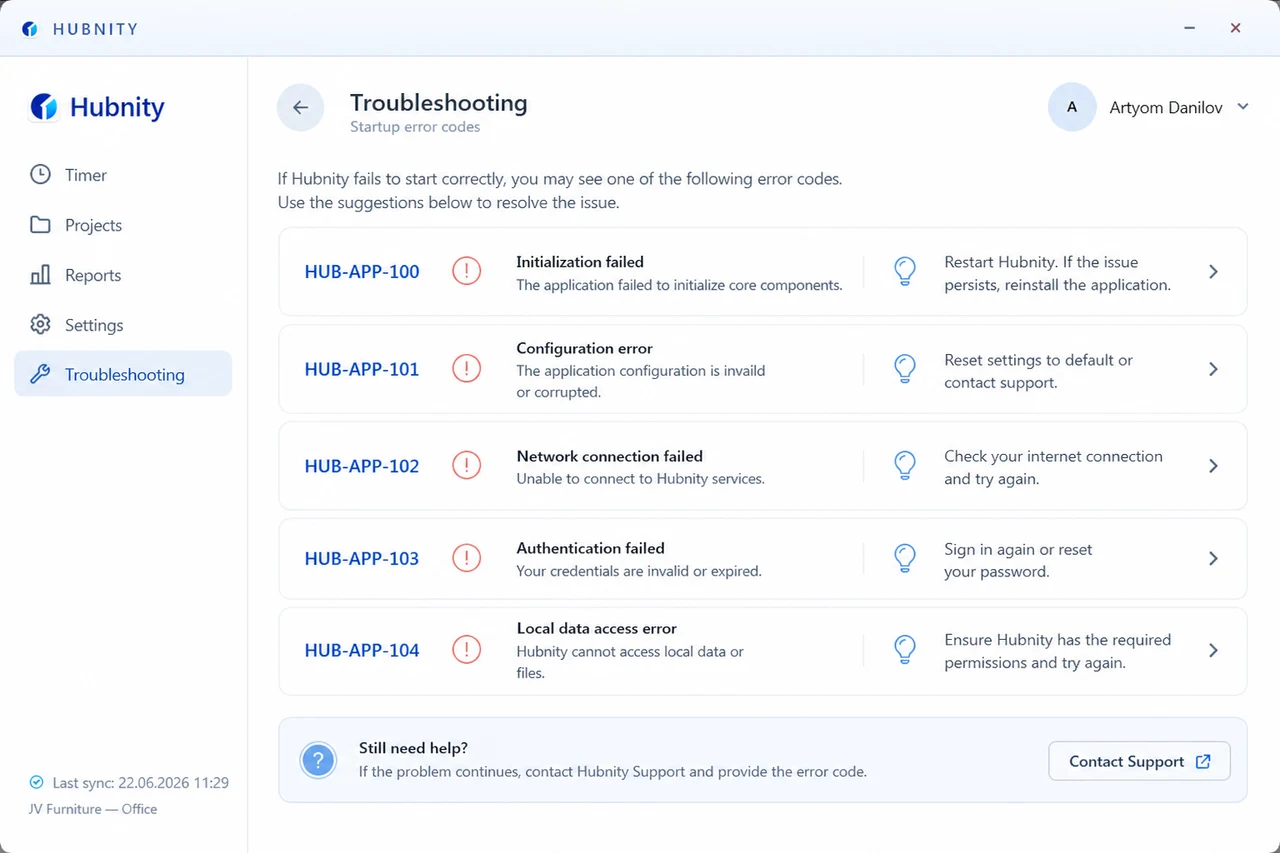
Error codes
HUB-APP-100: Another instance is running. End existing process and relaunch.
HUB-APP-101: Corrupted local cache. Reset from Settings → Advanced → Reset local data.
HUB-APP-102: Insufficient disk space. Free at least 500 MB and retry.
HUB-APP-103: Permission denied (macOS). Grant Accessibility and Screen Recording permissions.
HUB-APP-104: Unsupported OS version. Update your operating system.
Windows fixes
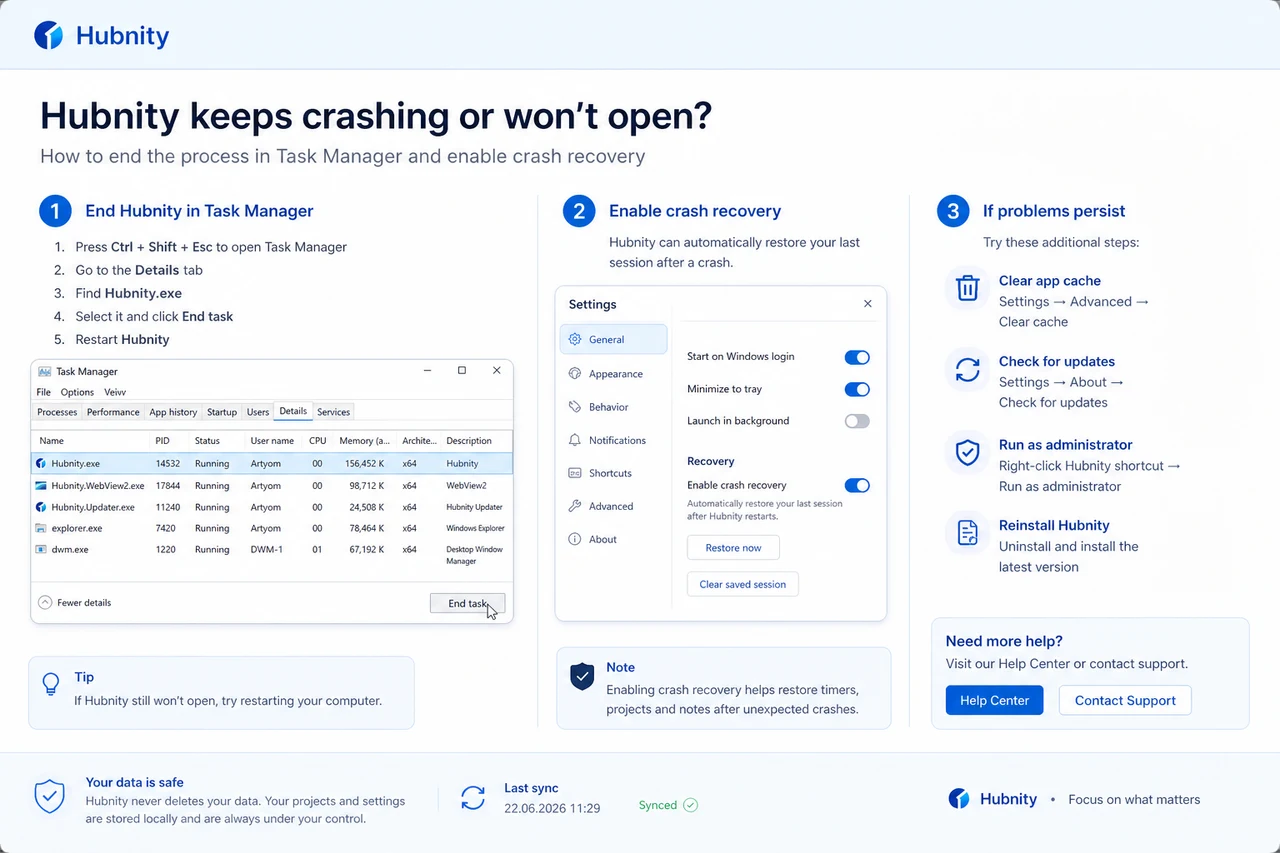
End all Hubnity processes: Task Manager → Details → end Hubnity.exe.
Run as administrator once if install failed to write to Program Files.
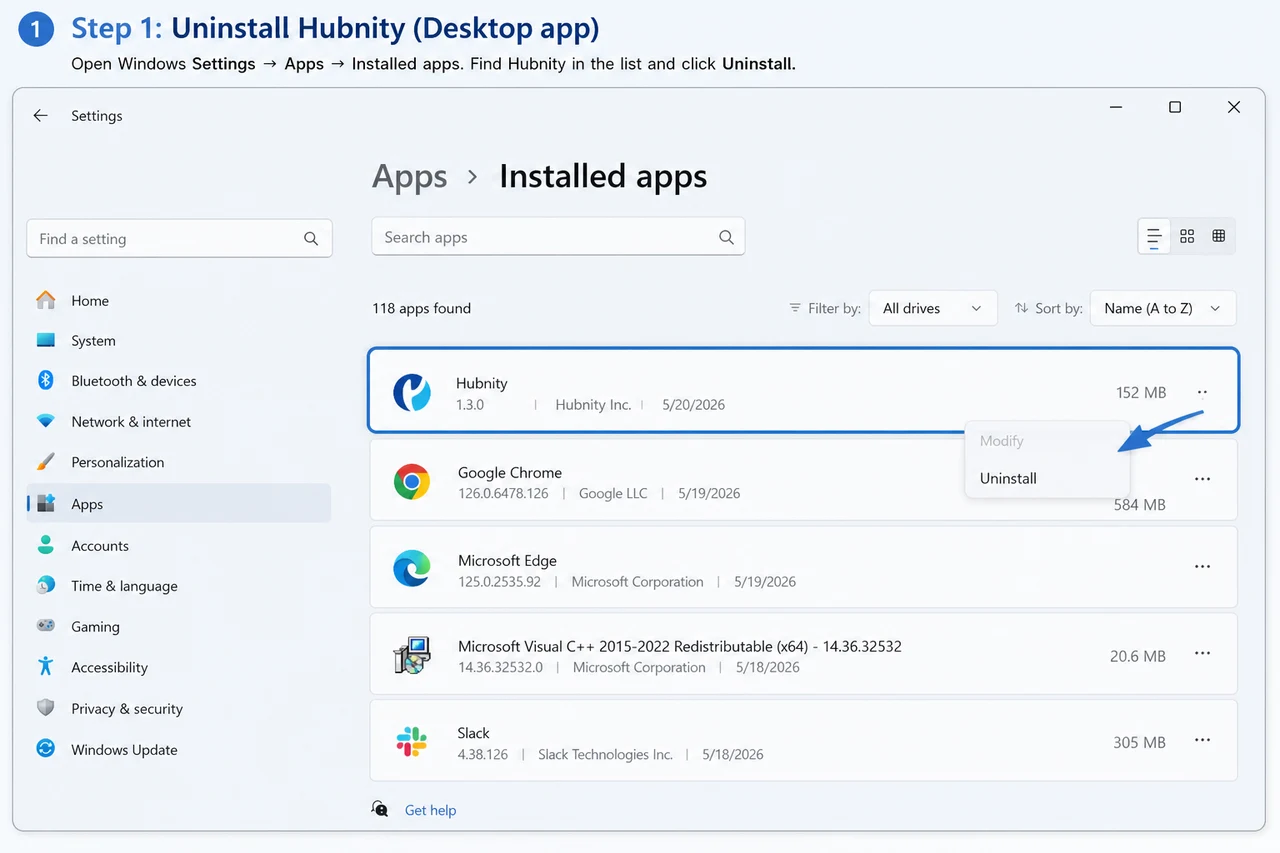
Reinstall: Settings → Apps → Installed apps → Hubnity → Uninstall. Download fresh installer from Settings → Apps → Desktop.
Log location: %APPDATA%\Hubnity\logs\app.log
macOS fixes
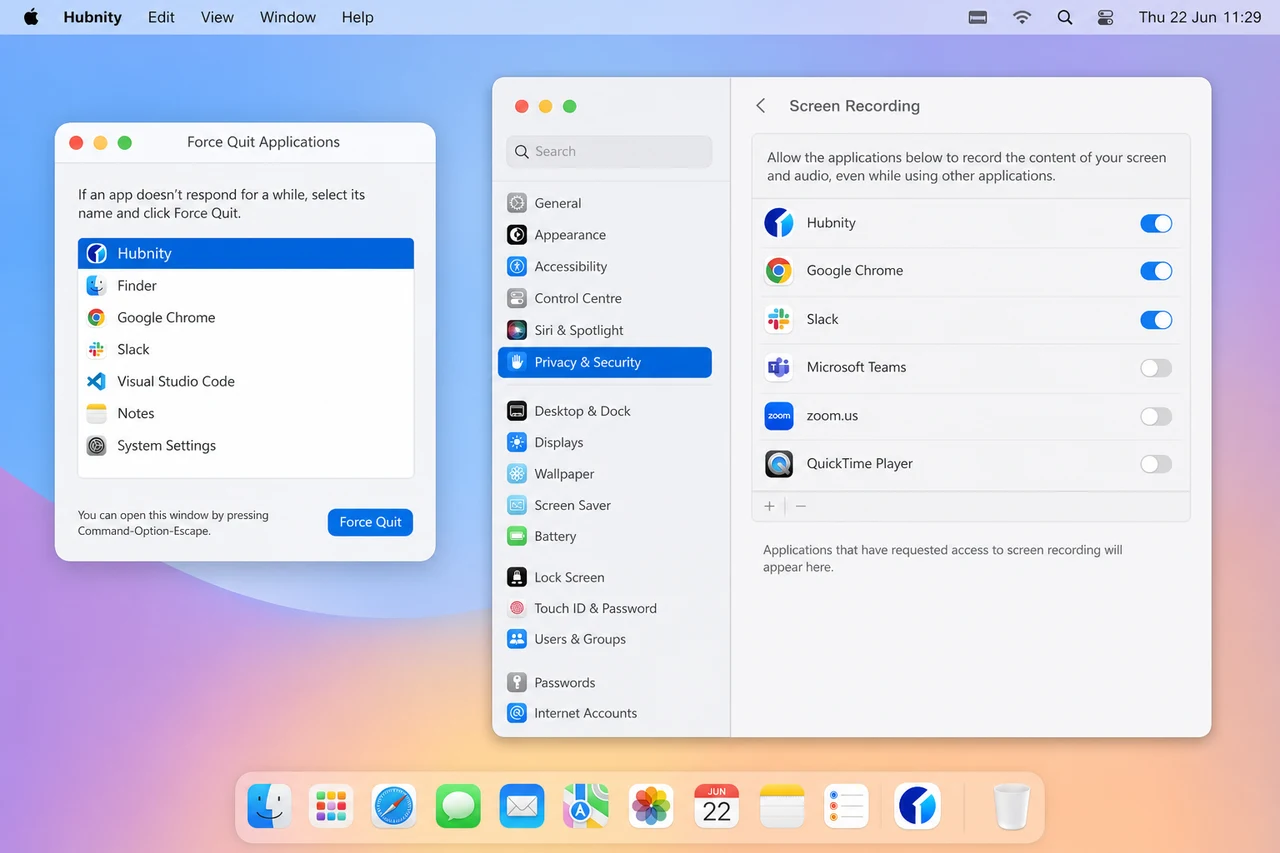
Force quit: Cmd+Option+Esc → Hubnity → Force Quit.
Clear cache: rm -rf ~/Library/Application\ Support/Hubnity/Cache. Relaunch.
Re-grant permissions: System Settings → Privacy & Security → Accessibility and Screen Recording.
Log location: ~/Library/Logs/Hubnity/app.log
Linux fixes
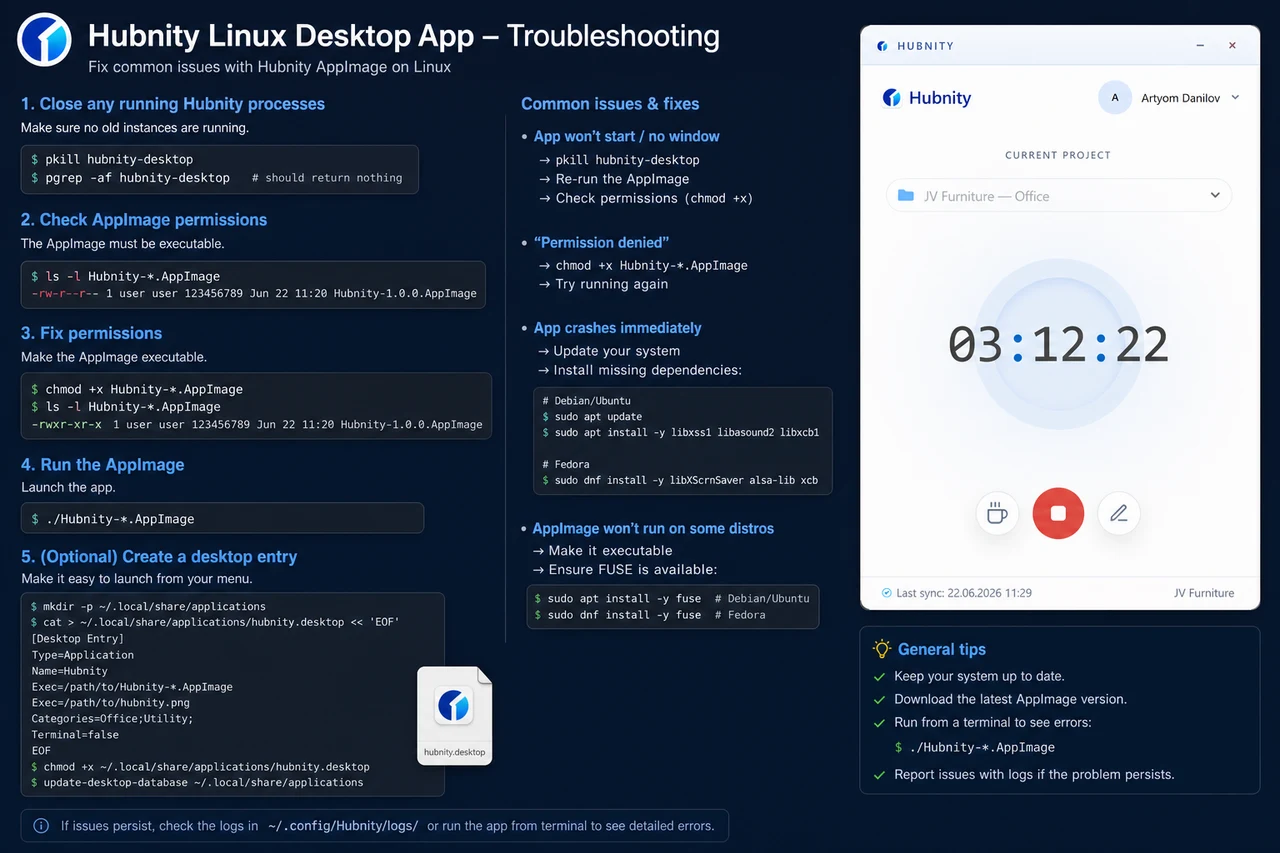
Kill stale process: pkill -f hubnity-desktop.
Clear config: rm -rf ~/.config/Hubnity/Cache.
AppImage permission: chmod +x Hubnity.AppImage.
Missing libraries: ldd Hubnity.AppImage — install reported missing packages.
Log location: ~/.config/Hubnity/logs/app.log
Clean reinstall
Synced time entries are safe in the cloud. Only unsynced offline entries are lost.
- 1
Uninstall the app using your OS standard method
- 2
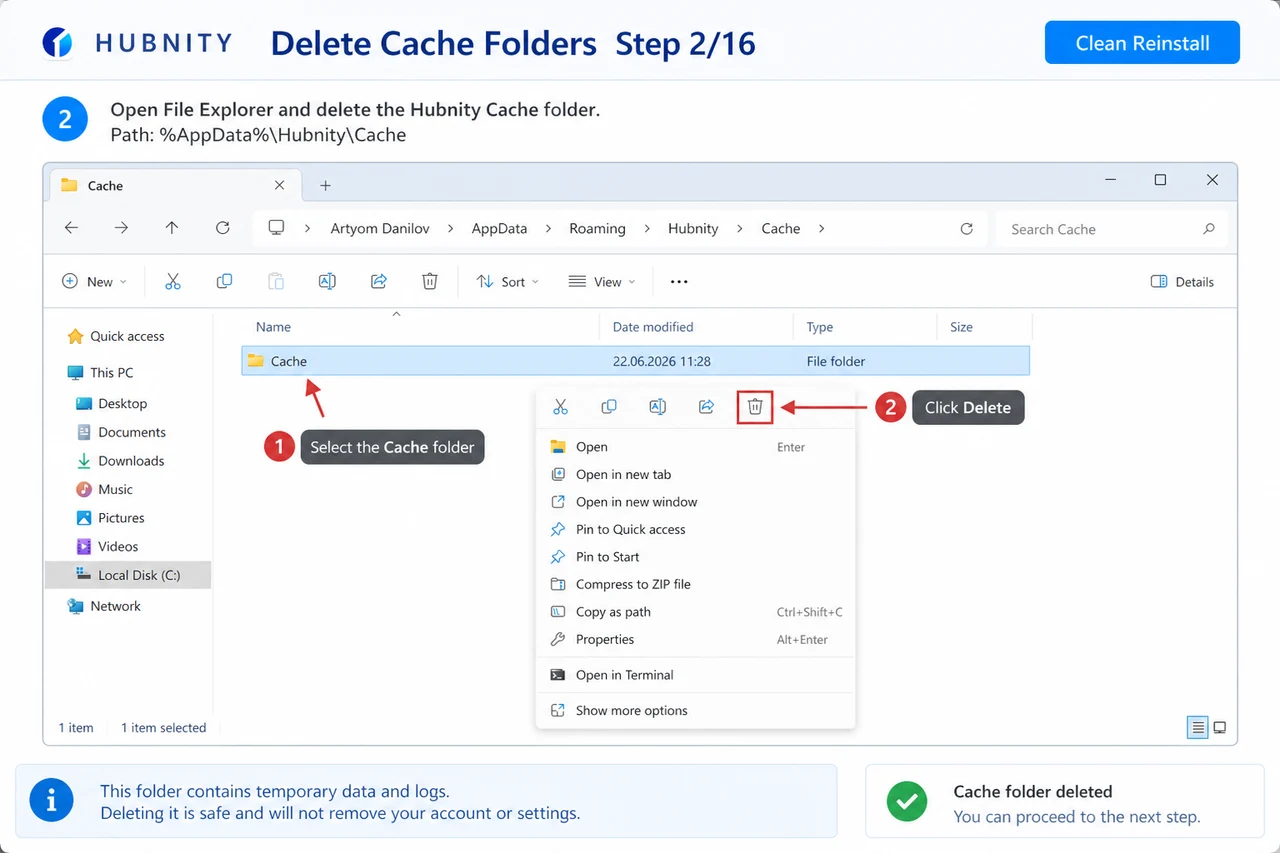
Delete cache folders listed above for your OS
- 3
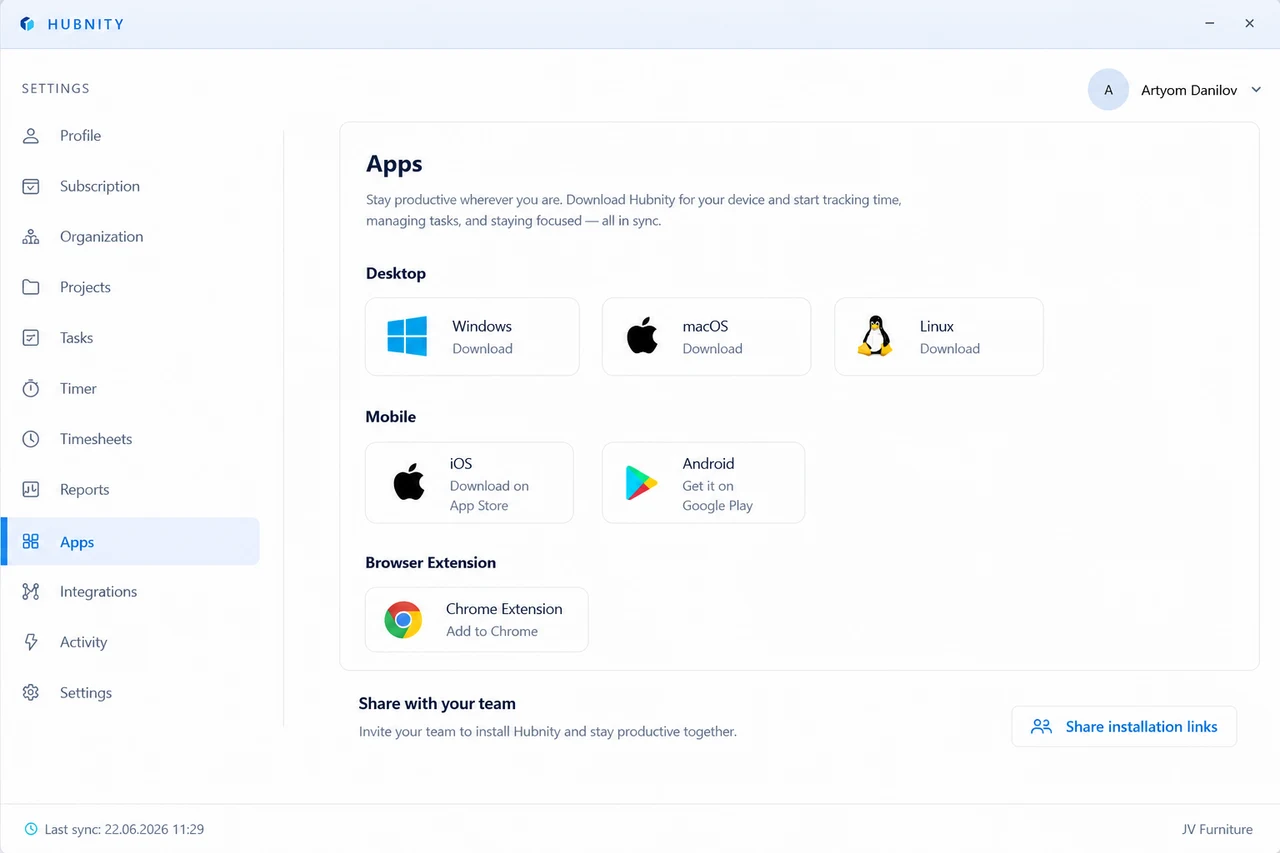
Download the latest version from Settings → Apps → Desktop
- 4
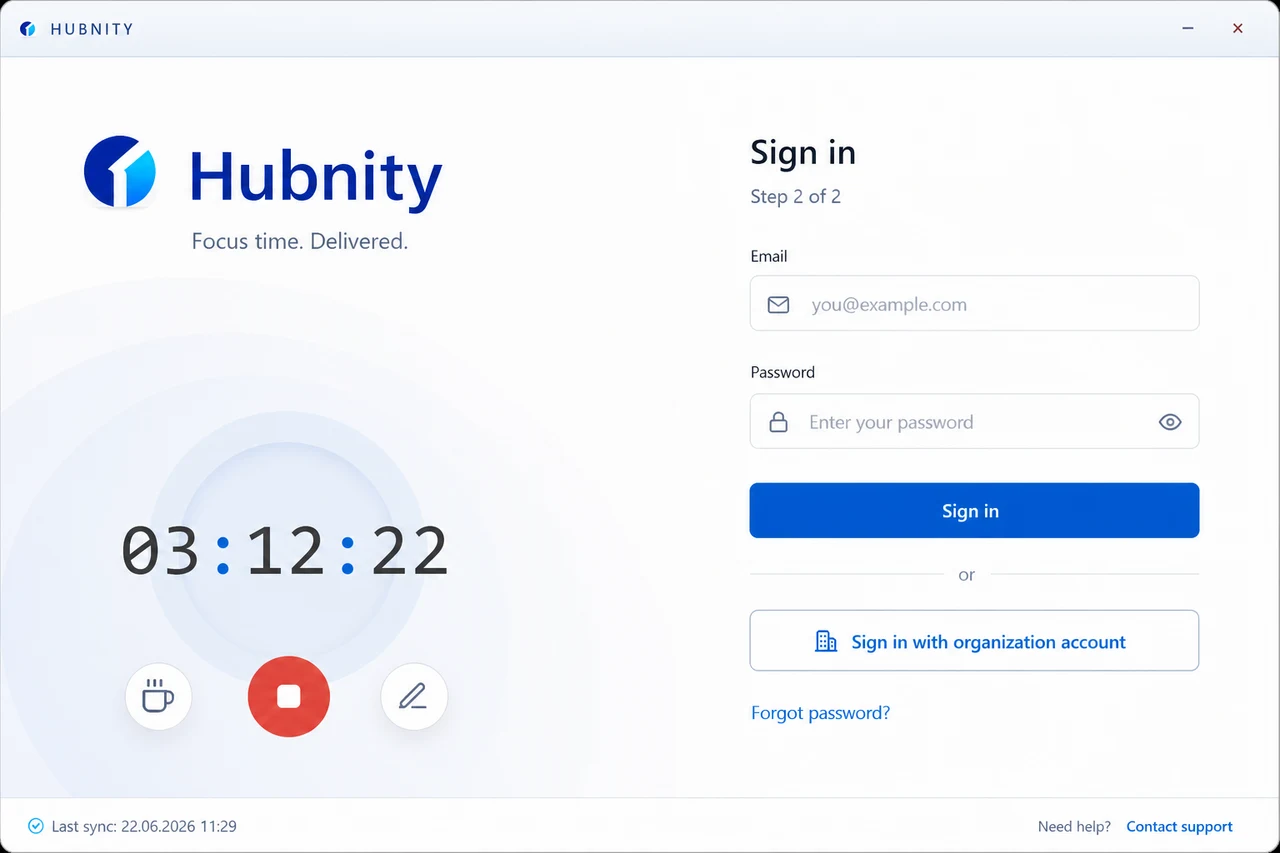
Install and sign in
- 5
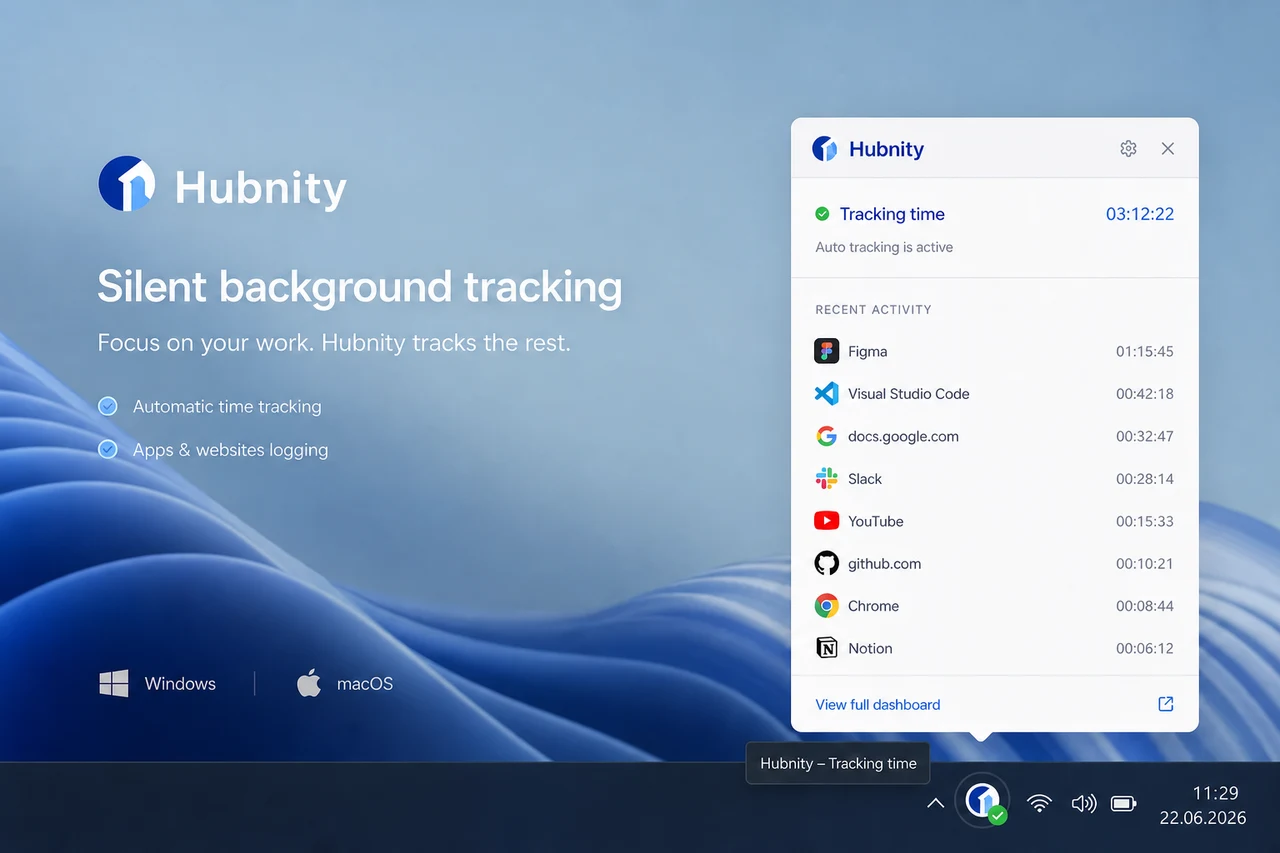
Verify sync from the system tray icon
Escalation to support
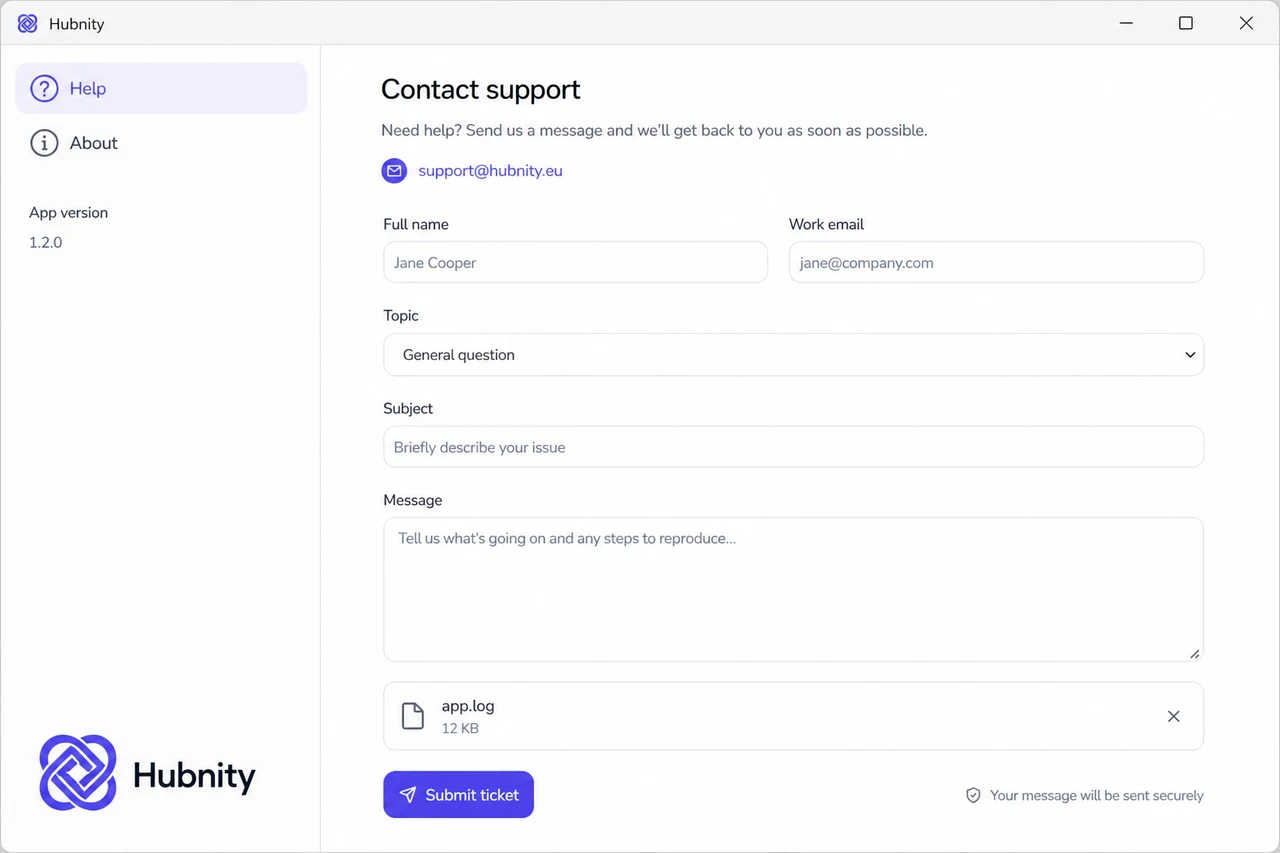
Contact support with: OS version, app version (Help → About), error code, and app.log (last 100 lines).
Email support@hubnity.eu or use Help → Contact support.