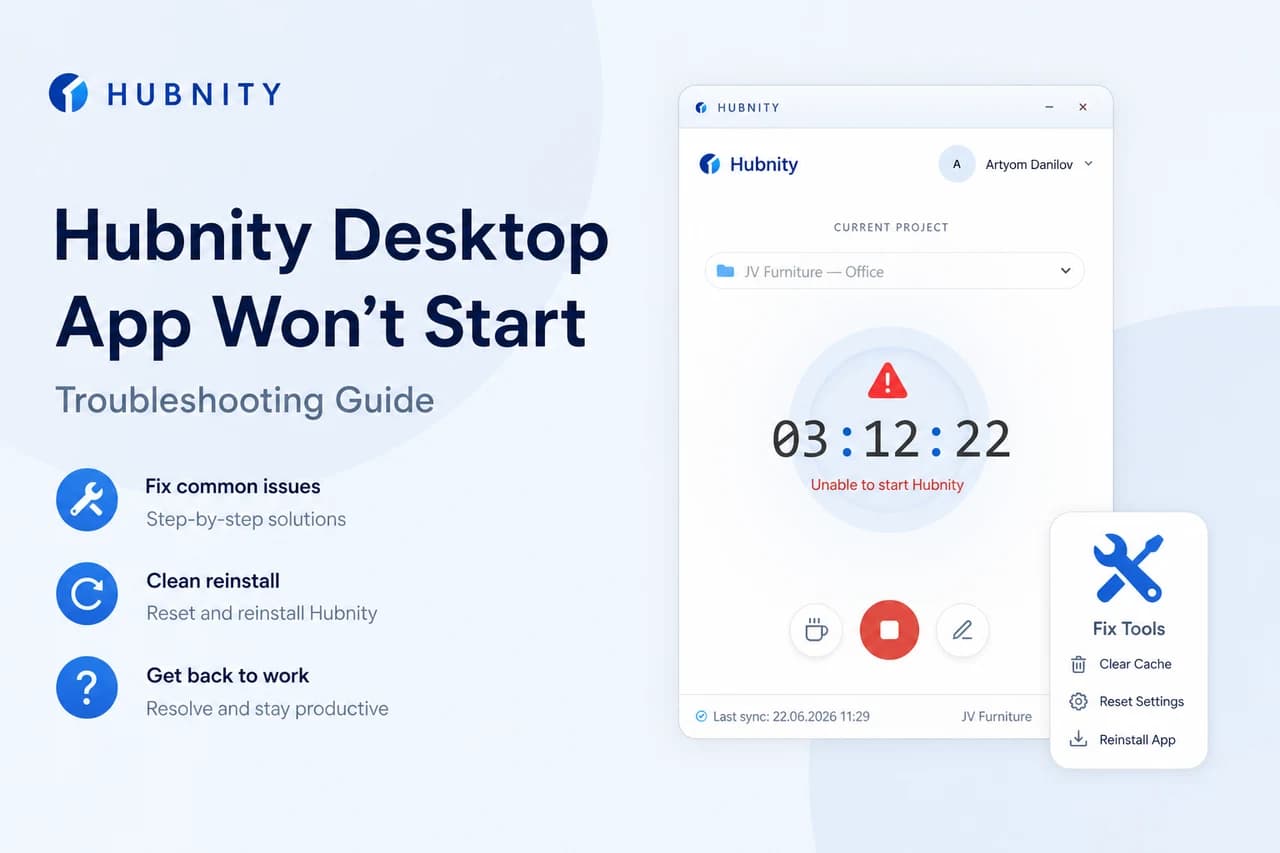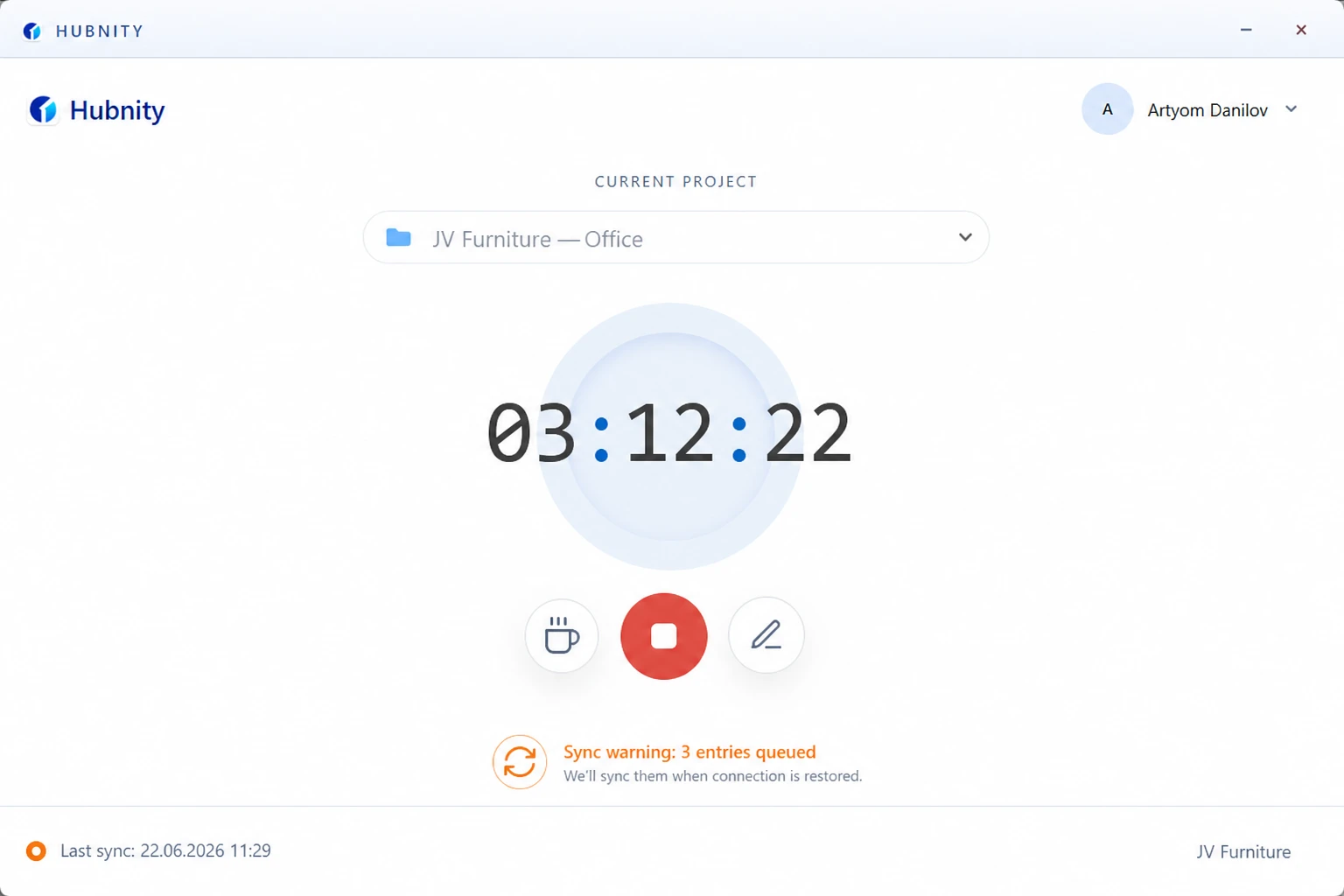
Fix timer sync issues when tracked time does not appear in the dashboard or uploads are delayed.
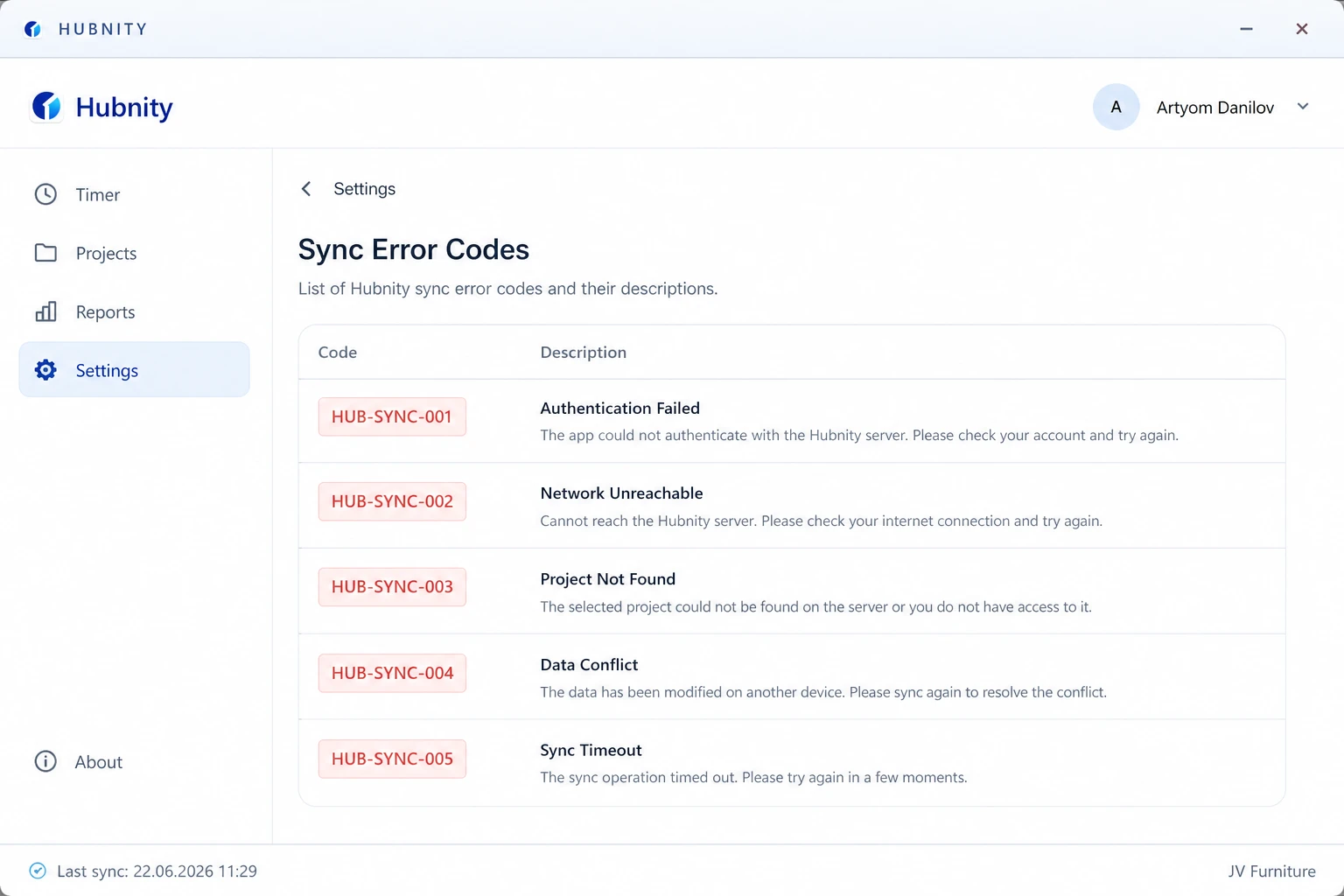
Error codes
HUB-SYNC-001: No internet connection. Entries queue locally and upload when online.
HUB-SYNC-002: Authentication expired. Sign out and sign back in.
HUB-SYNC-003: Server unreachable. Check status.hubnity.eu for outages.
HUB-SYNC-004: Conflict — entry modified on server and client. Open Sync conflicts in the app to resolve.
HUB-SYNC-005: Payload too large (screenshot). Retry without screenshot or reduce capture quality.
Quick fixes (all platforms)
Try these steps before deeper troubleshooting.
- 1
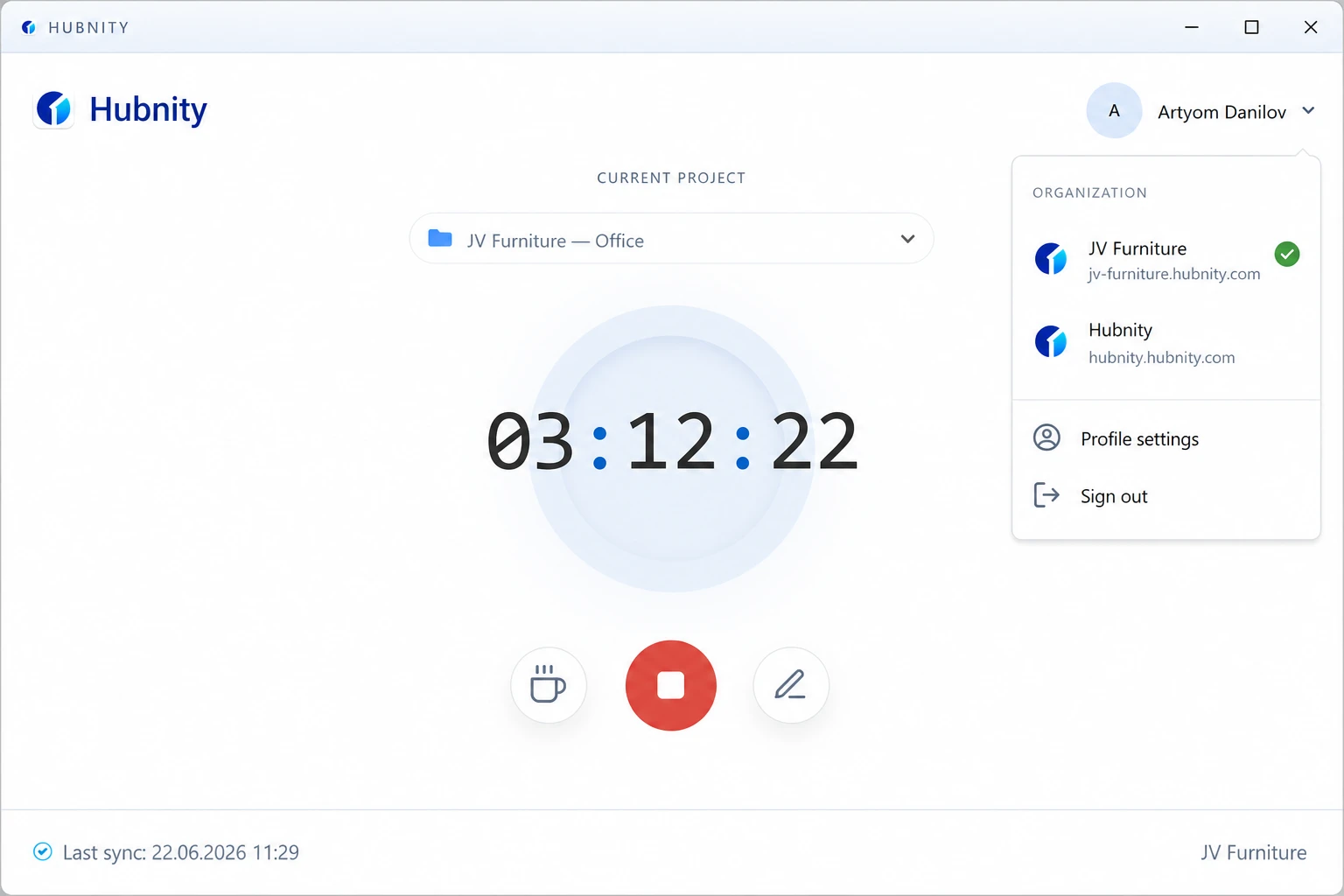
Verify you are signed in to the correct organization
- 2
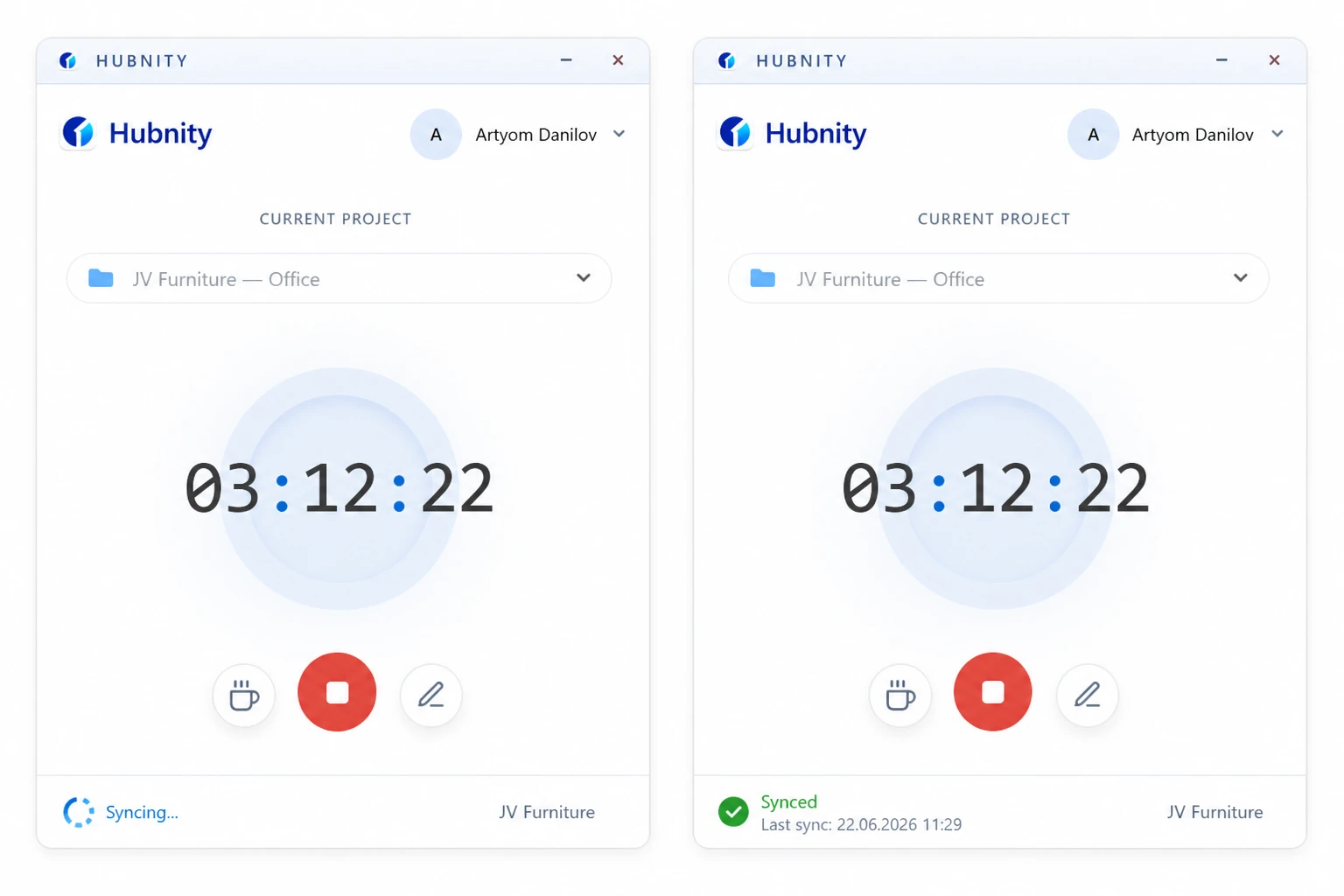
Check the system tray or app header for sync status icon
- 3
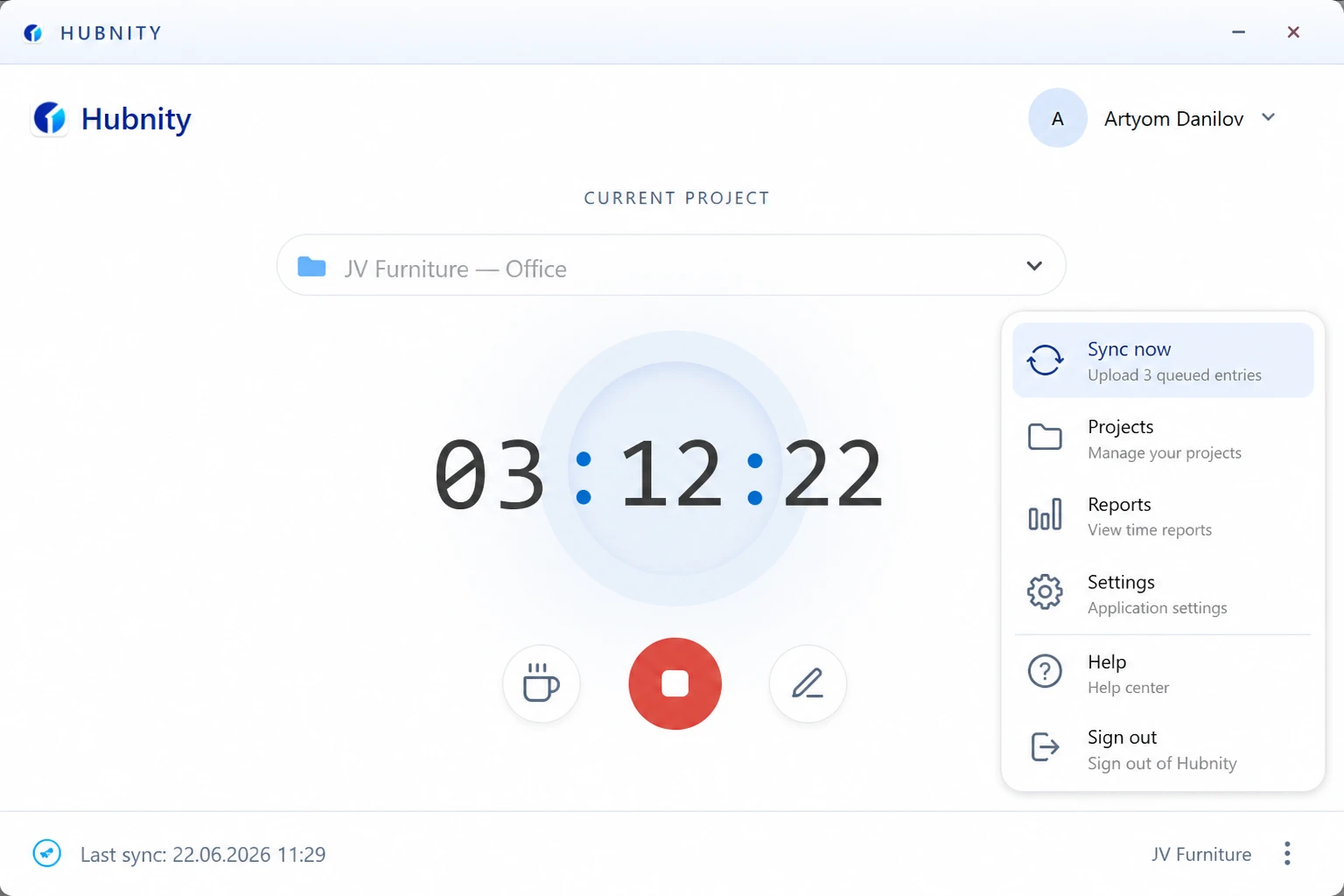
Click Sync now from the app menu
- 4
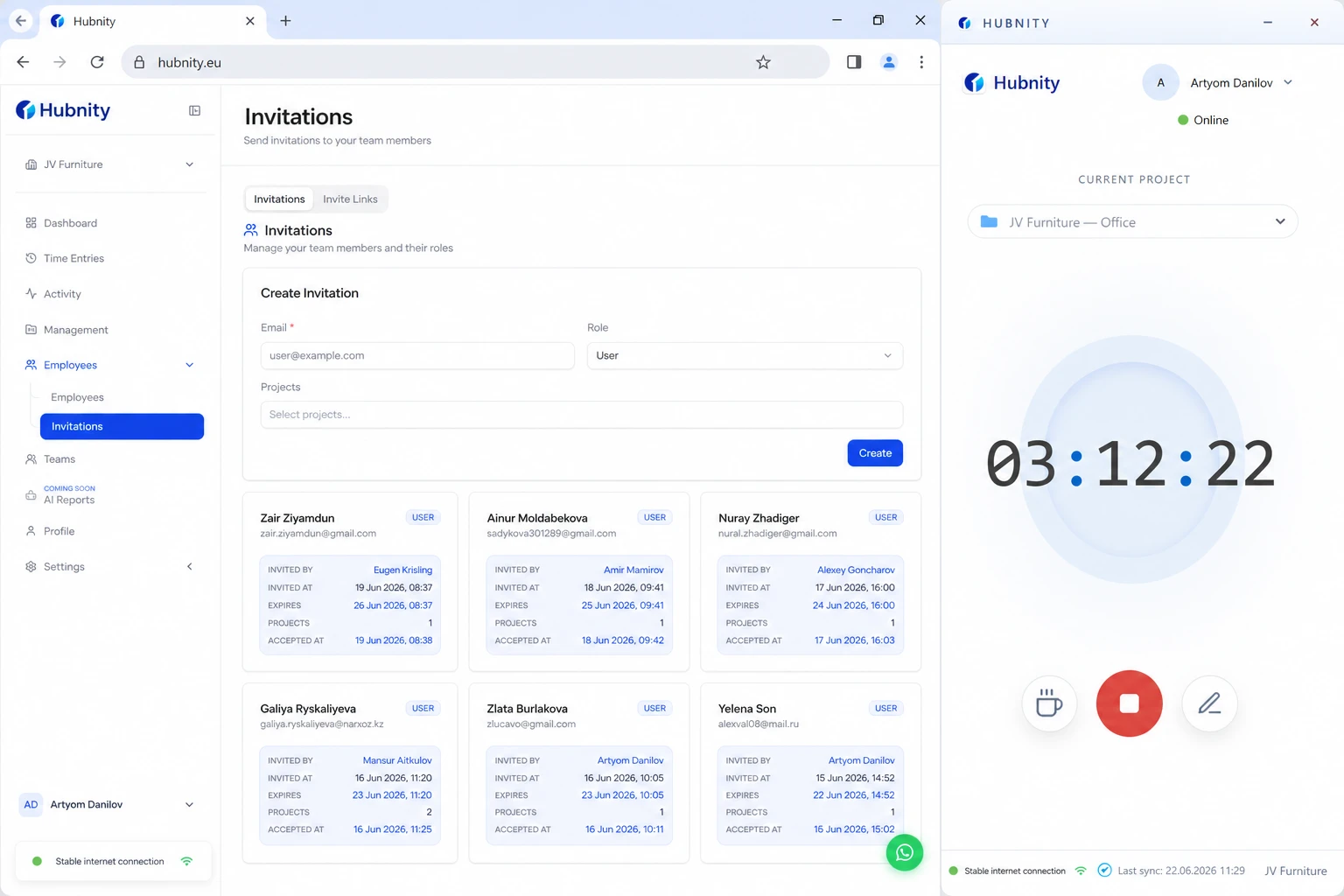
Confirm stable internet (try loading hubnity.eu in a browser)
- 5
Wait 15 minutes — queued entries upload in batches
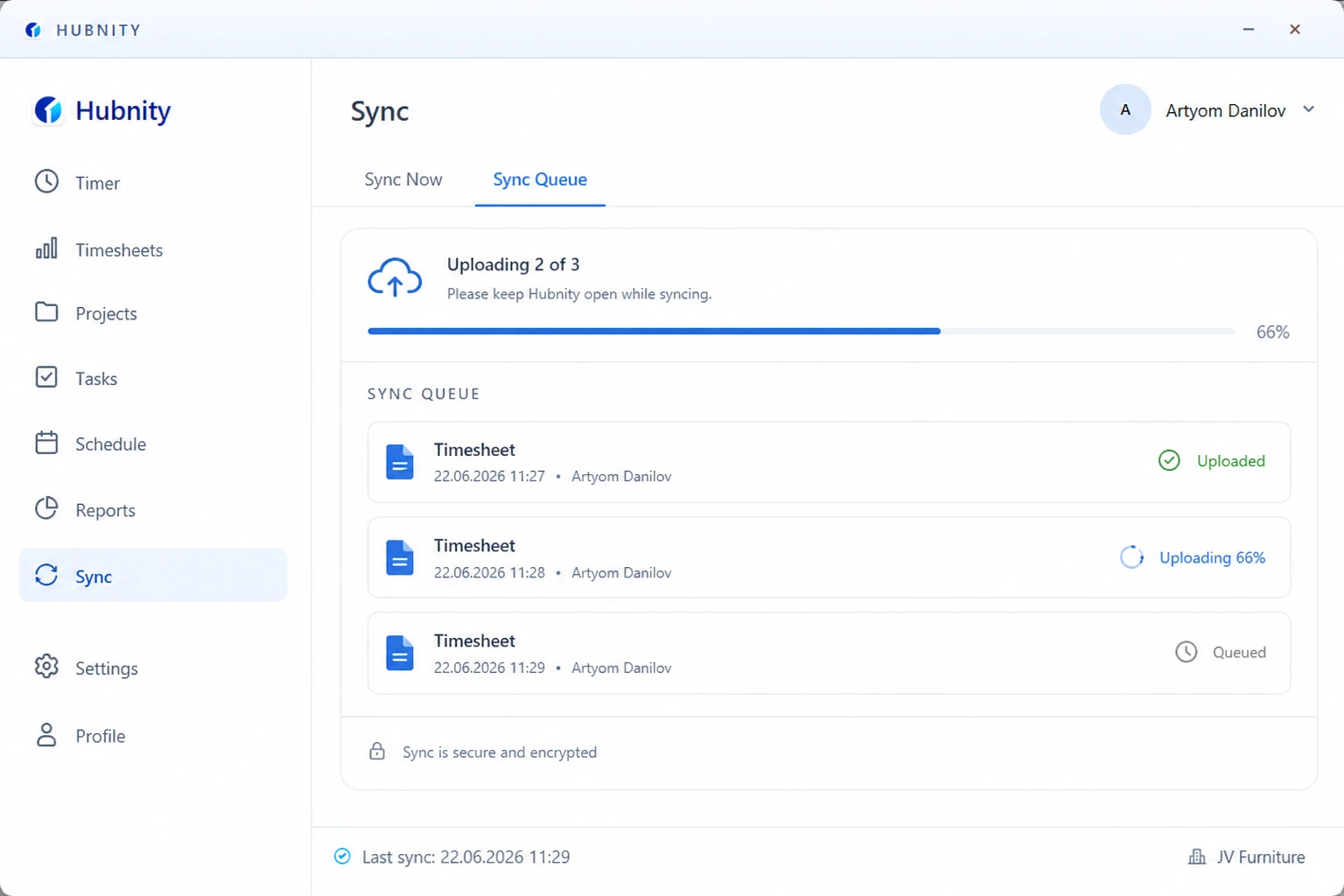
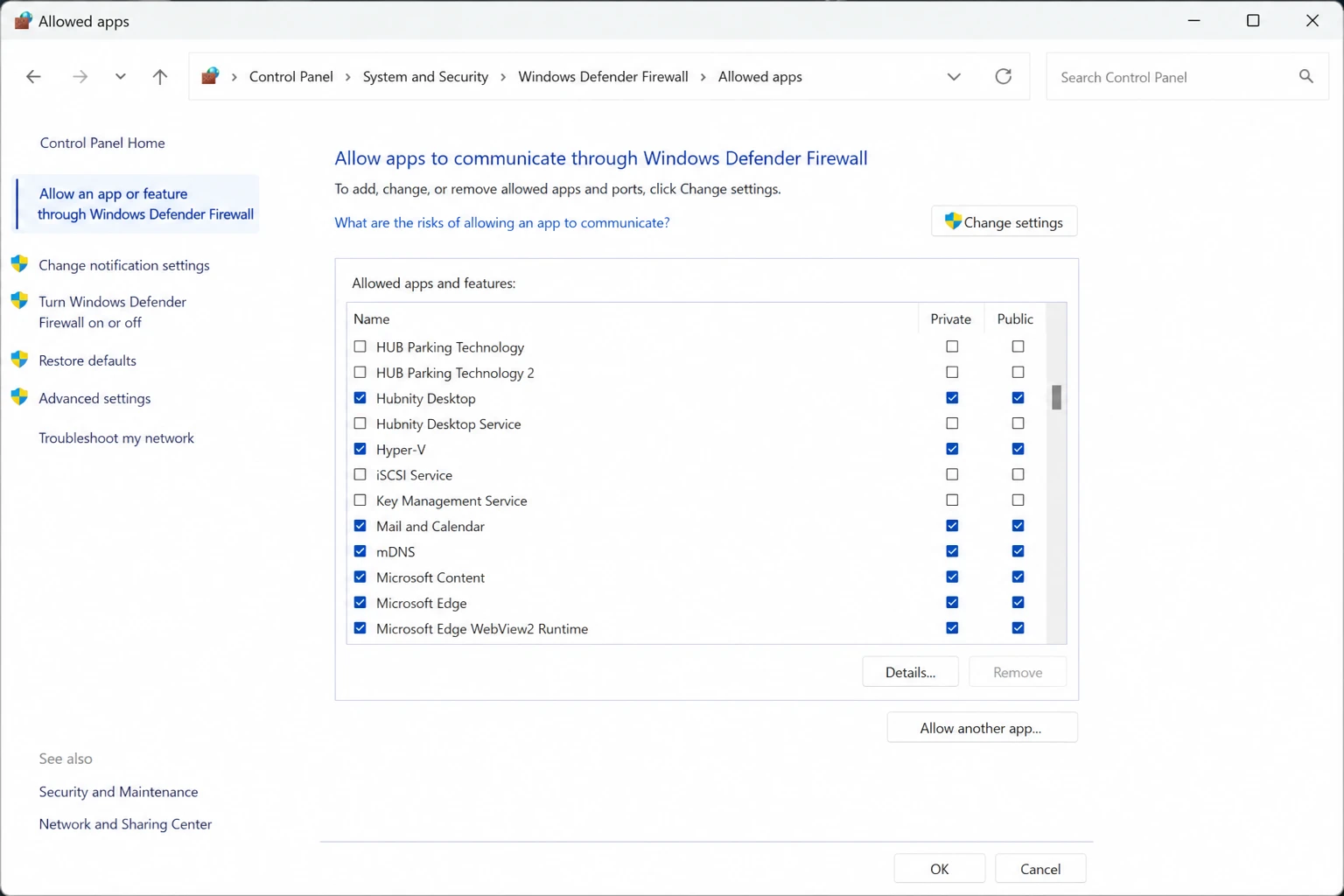
Windows troubleshooting
Check Windows Firewall: allow Hubnity through Settings → Privacy & Security → Windows Security → Firewall → Allow an app.
Corporate proxy: configure proxy in Hubnity desktop → Settings → Network → Proxy URL.
Log location: %APPDATA%\Hubnity\logs\sync.log
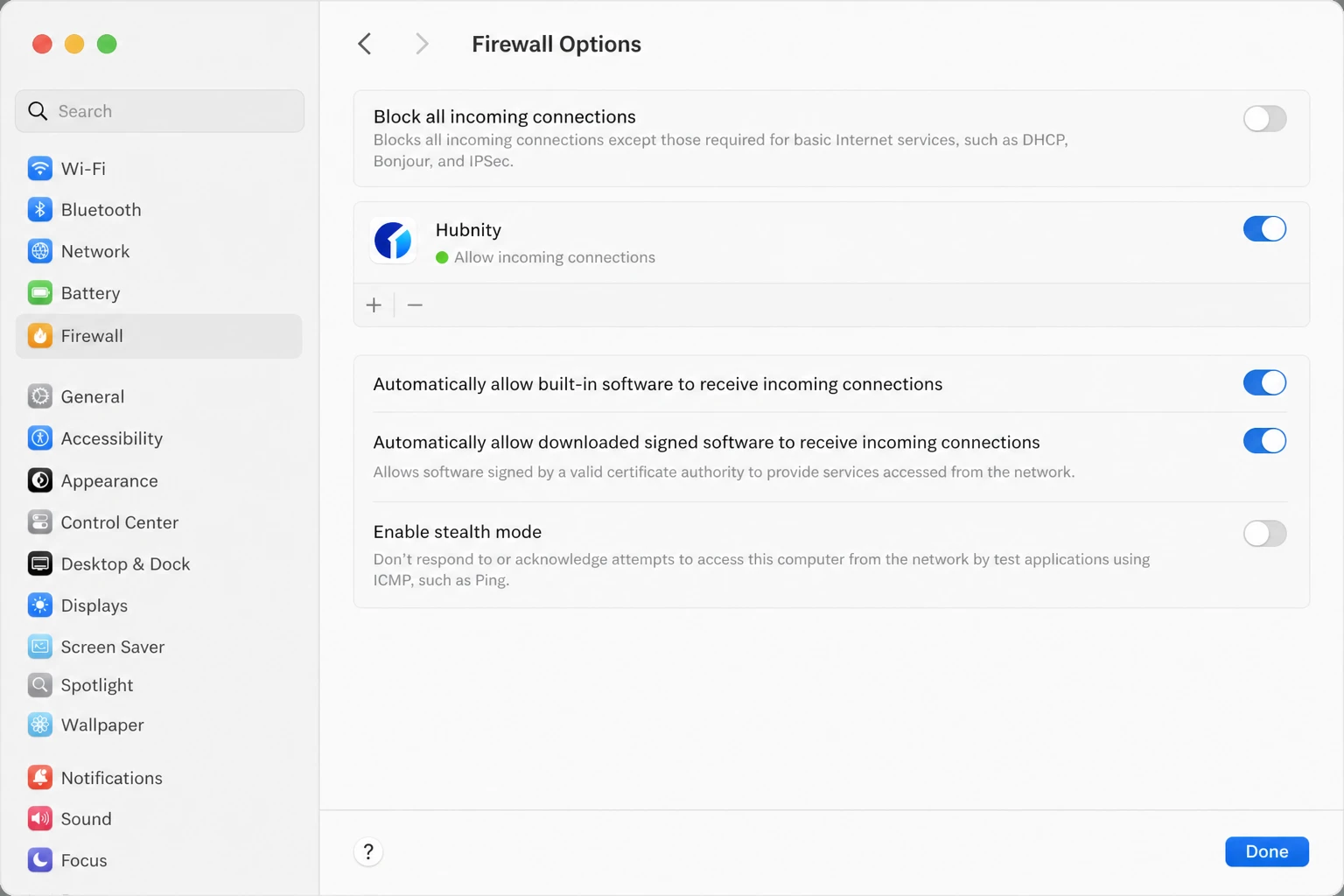
macOS troubleshooting
Check firewall: System Settings → Network → Firewall → Options → allow Hubnity.
VPN interference: disconnect VPN and retry sync. Split-tunnel if VPN is required.
Log location: ~/Library/Logs/Hubnity/sync.log
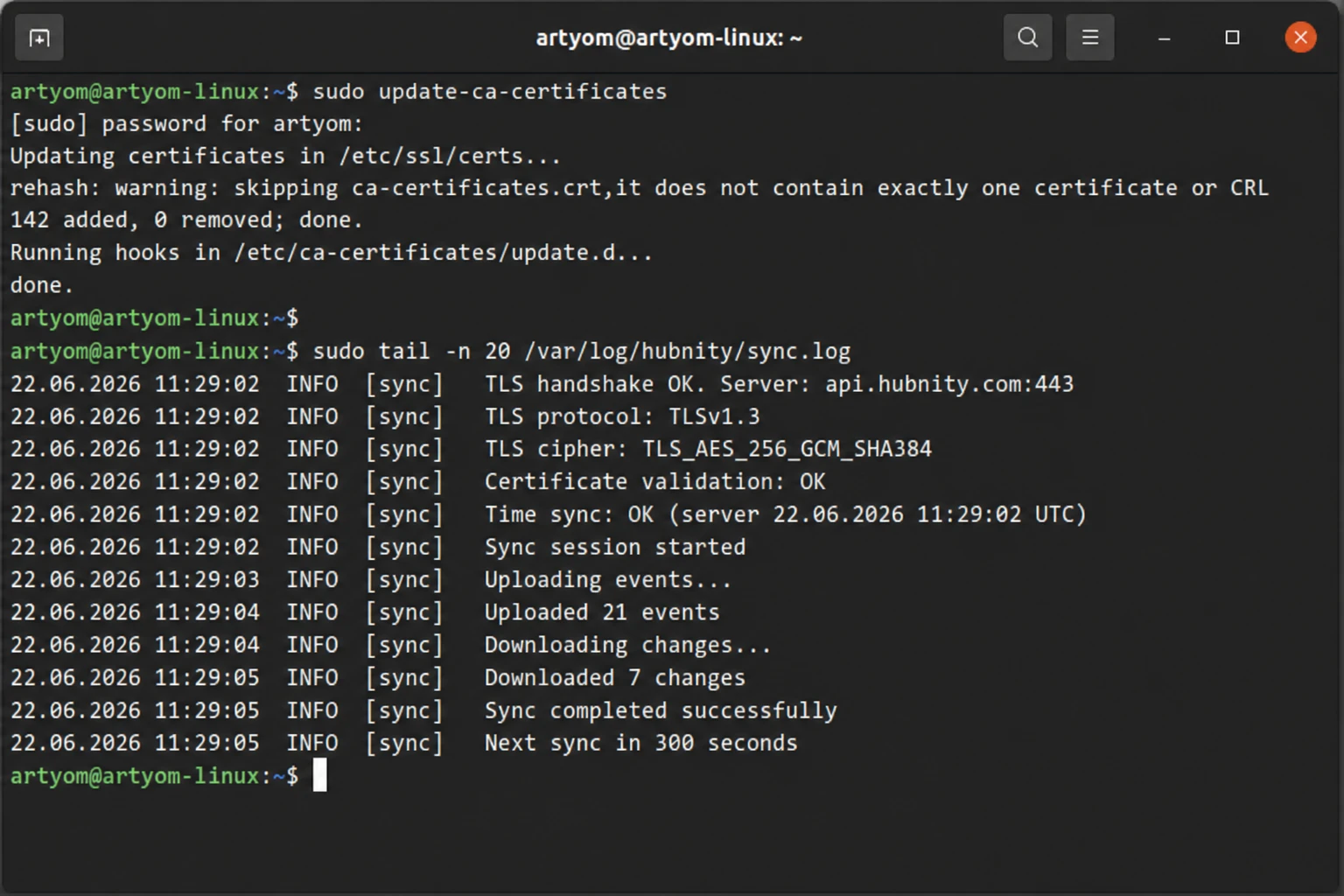
Linux troubleshooting
Verify TLS certificates are up to date: sudo update-ca-certificates.
Proxy: export HTTPS_PROXY=https://proxy:port before launching the app.
Log location: ~/.config/Hubnity/logs/sync.log
Escalation to support
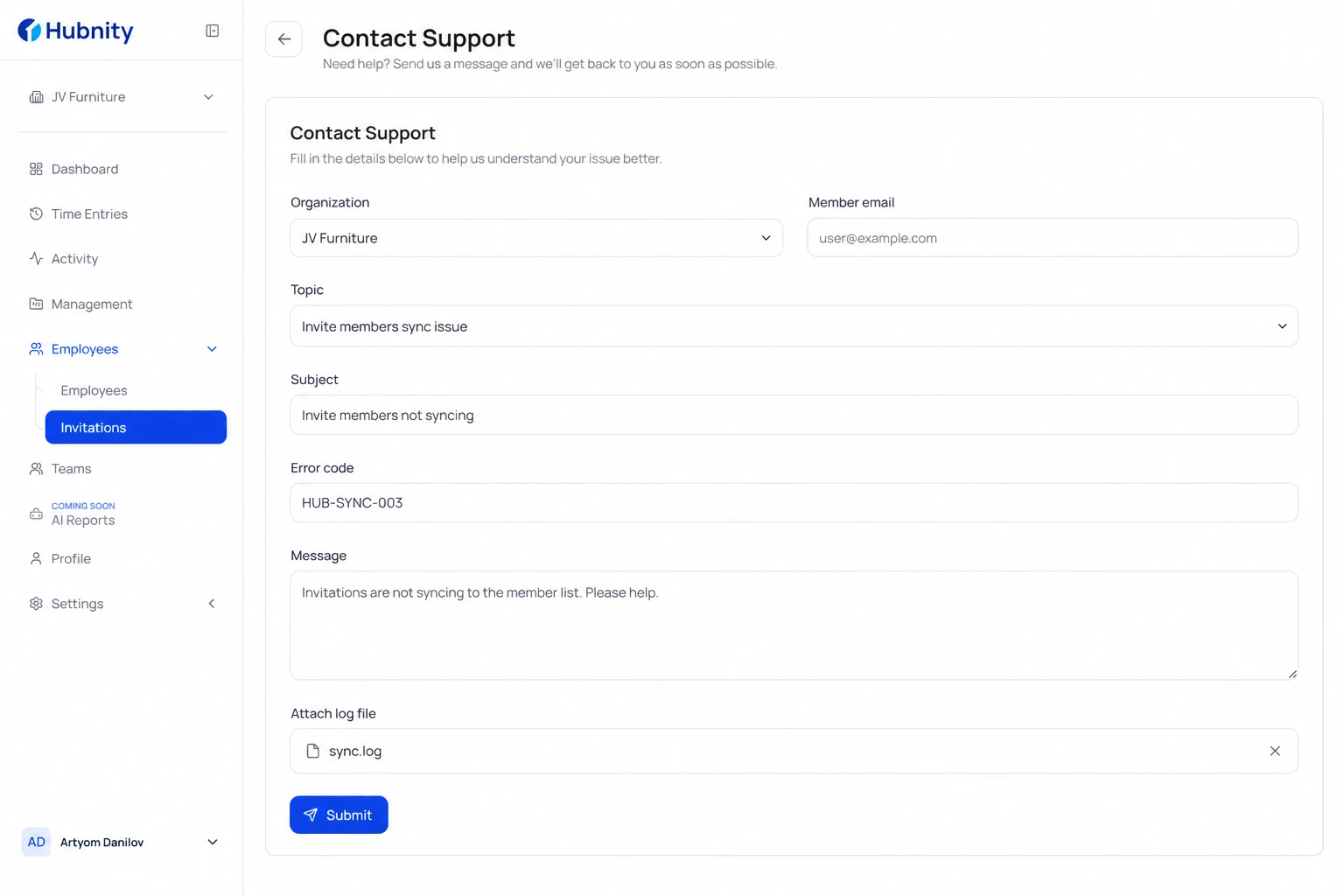
If sync fails after all steps, contact support with: organization name, member email, error code, sync.log (last 50 lines), and approximate time of failure.
Submit via Help → Contact support in the dashboard or email support@hubnity.eu.