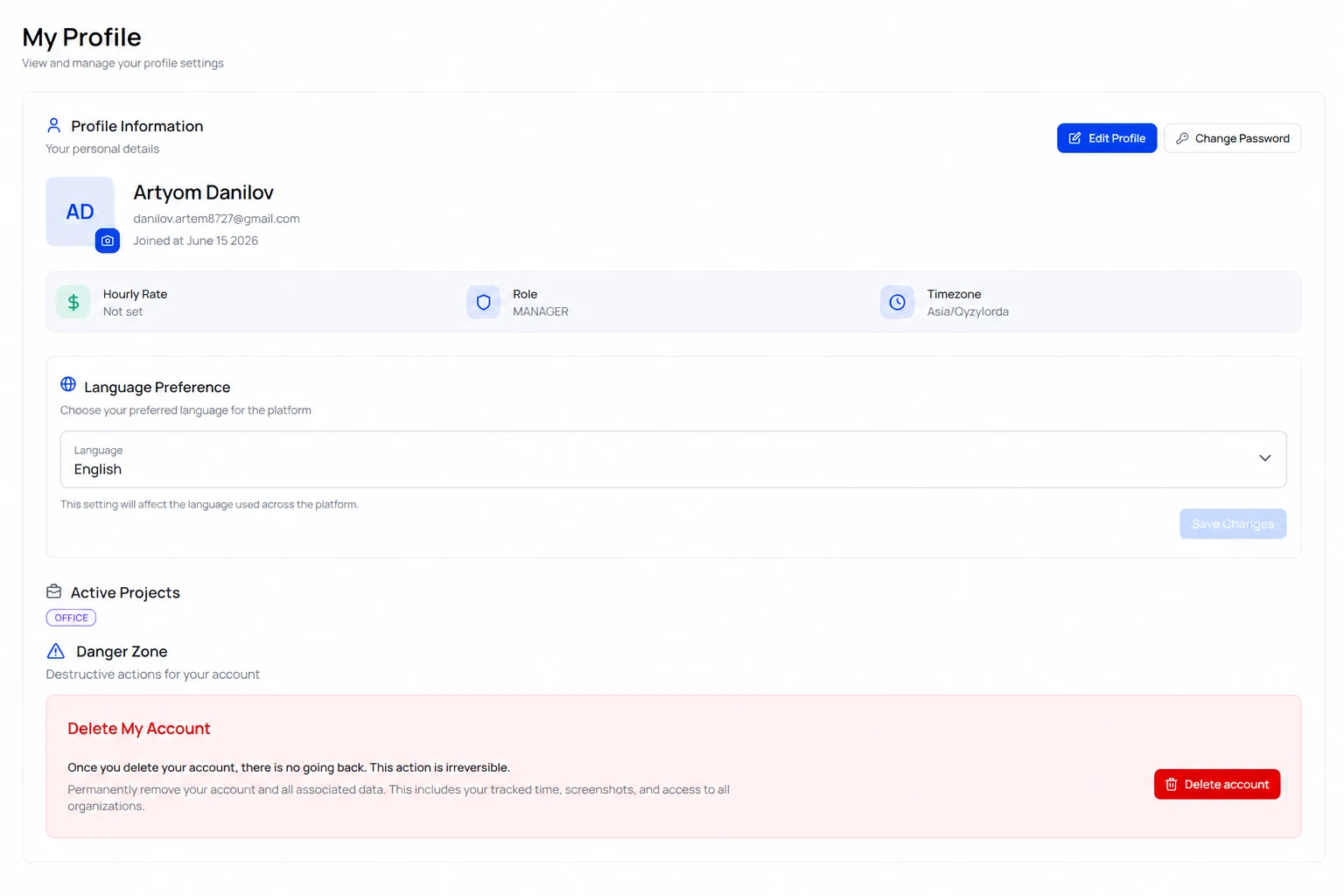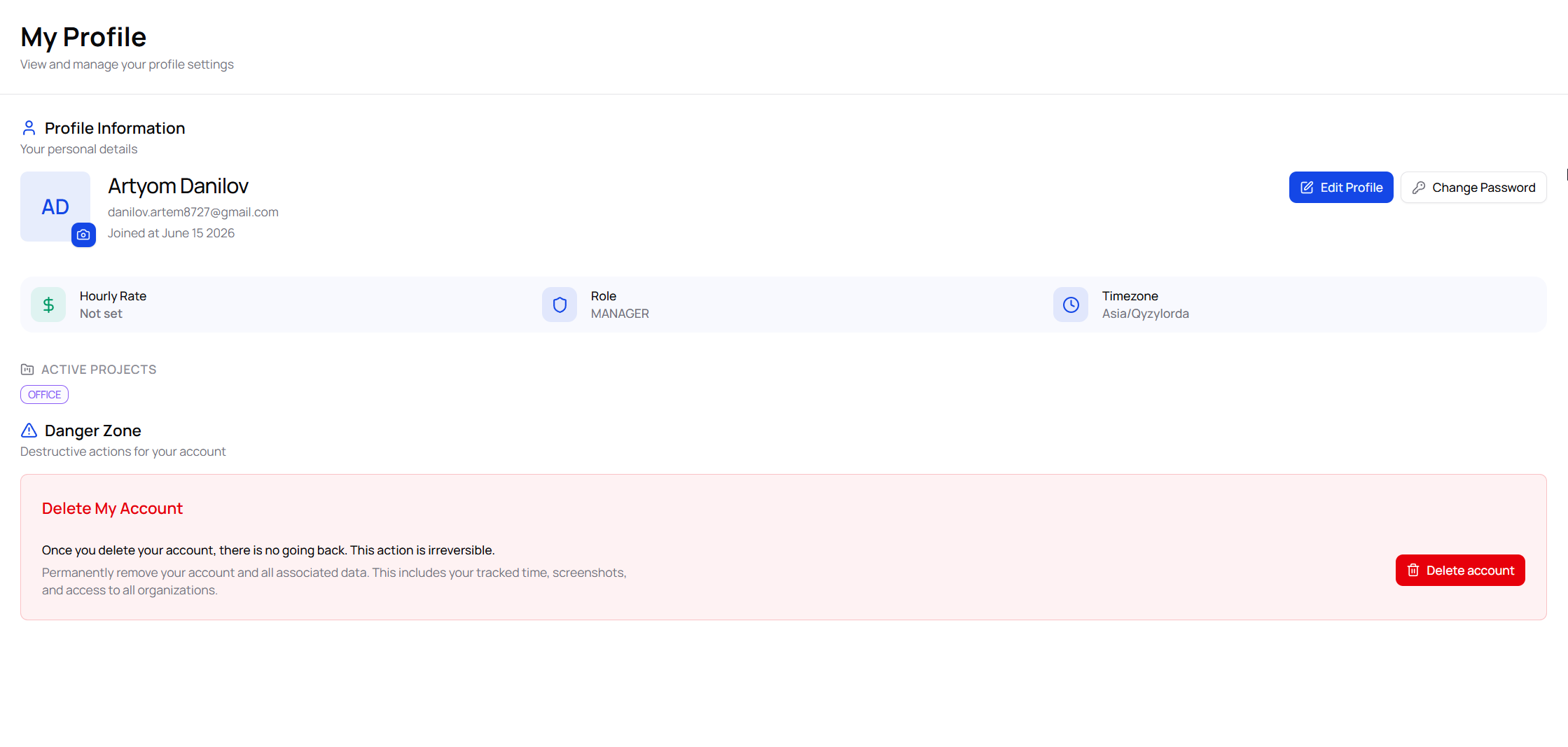
Update your Hubnity profile name, photo, time zone, and display preferences.
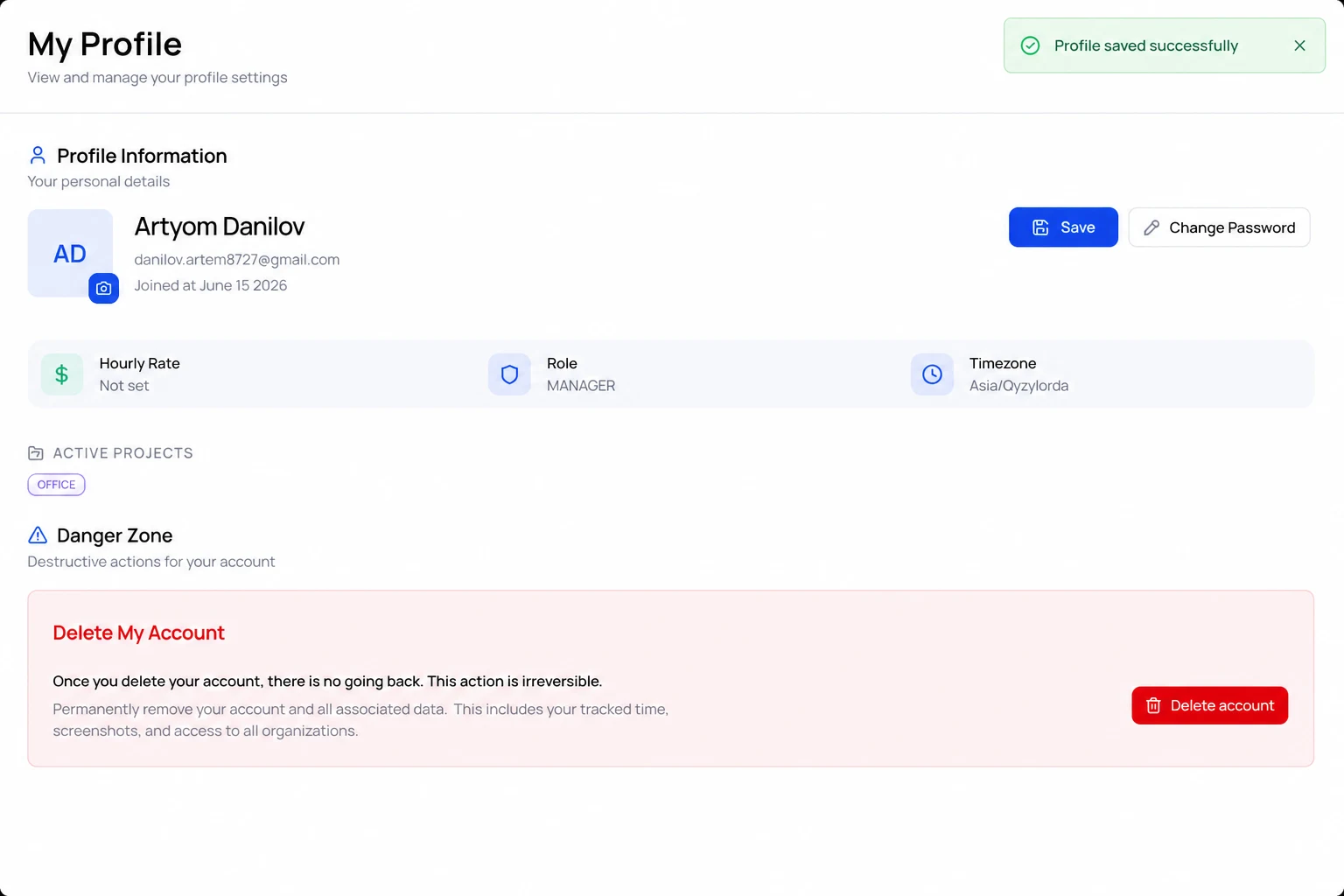
Update your profile
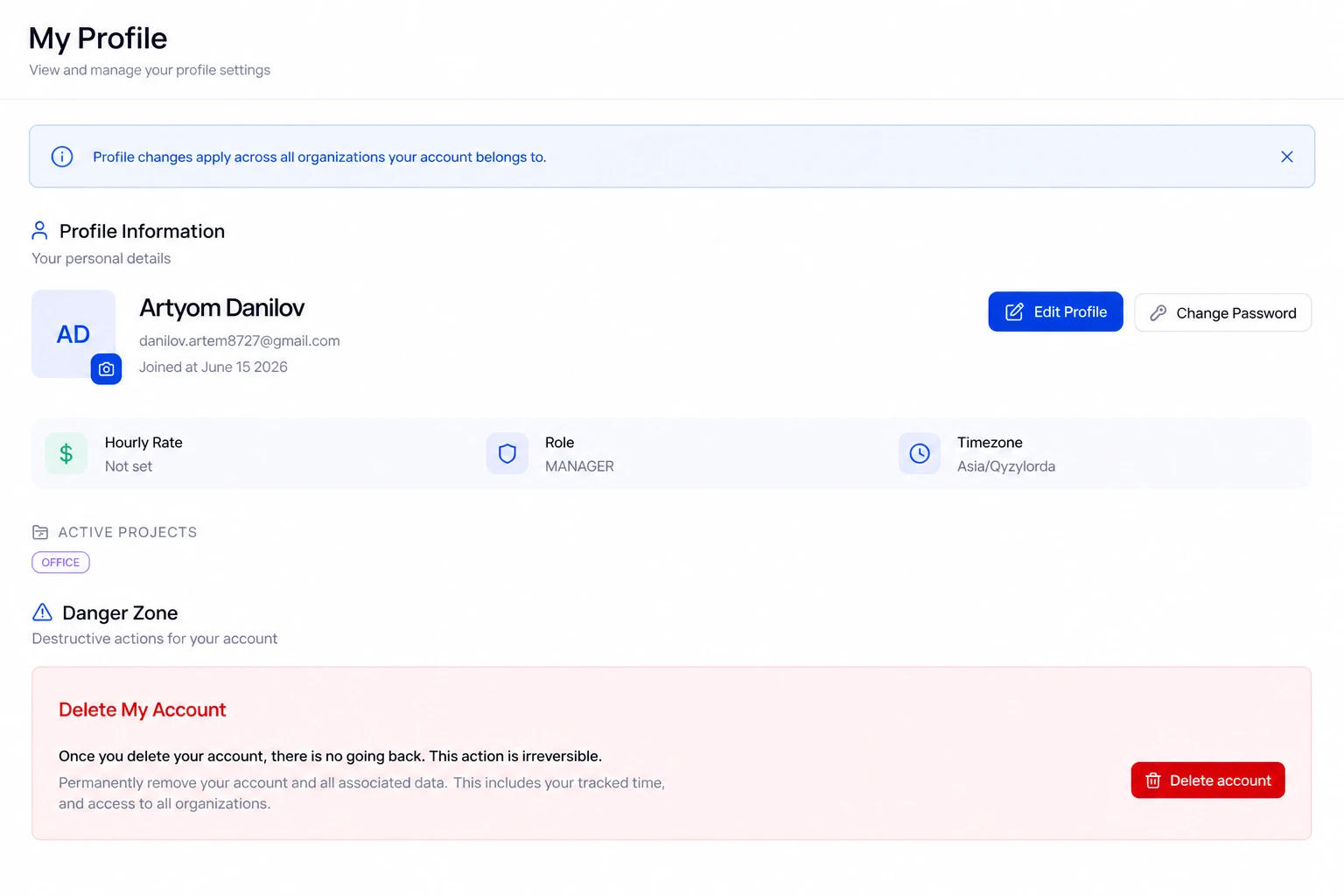
Profile changes apply across all organizations your account belongs to.
- 1
Click your avatar → Profile settings
- 2
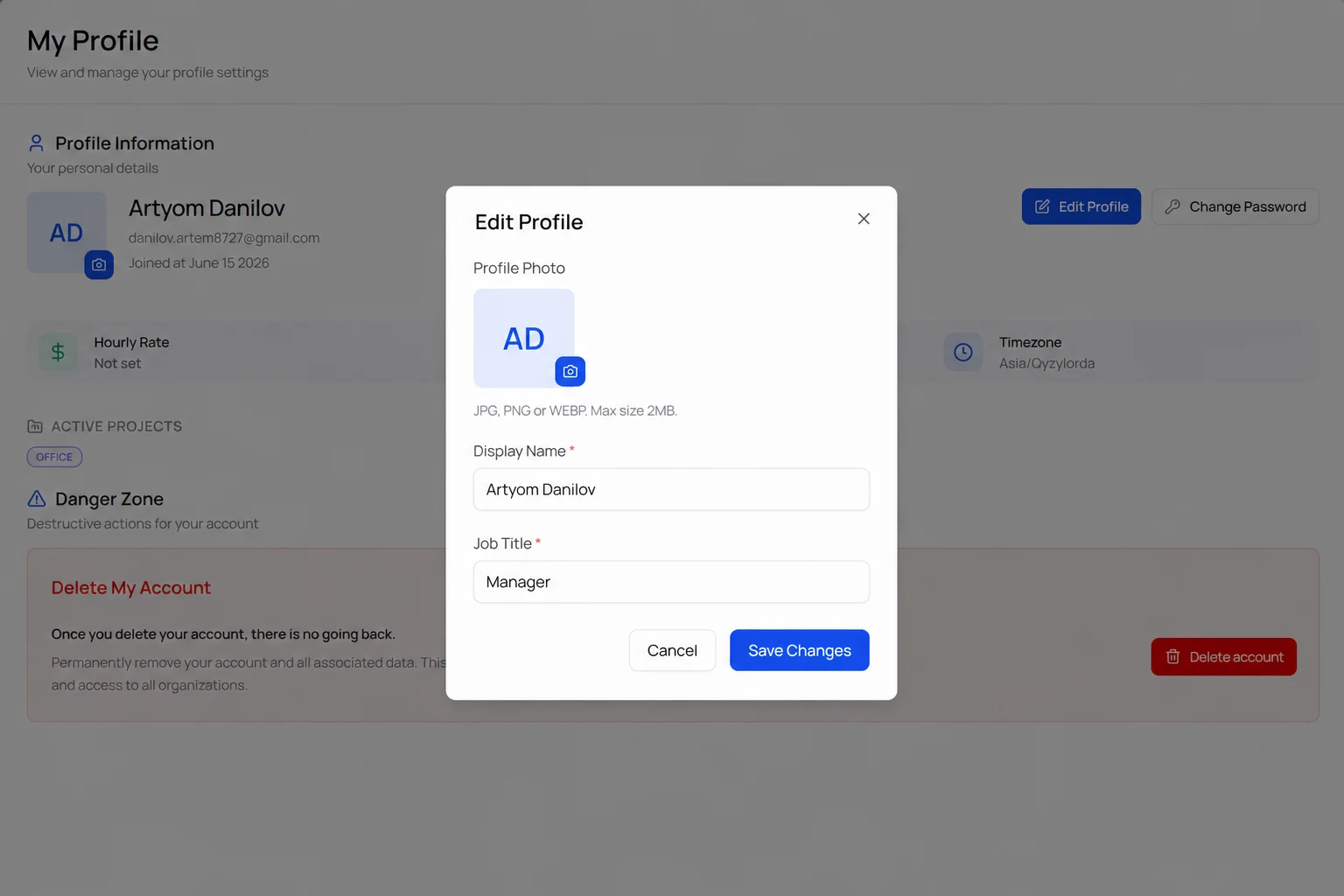
Update display name, job title, and profile photo
- 3
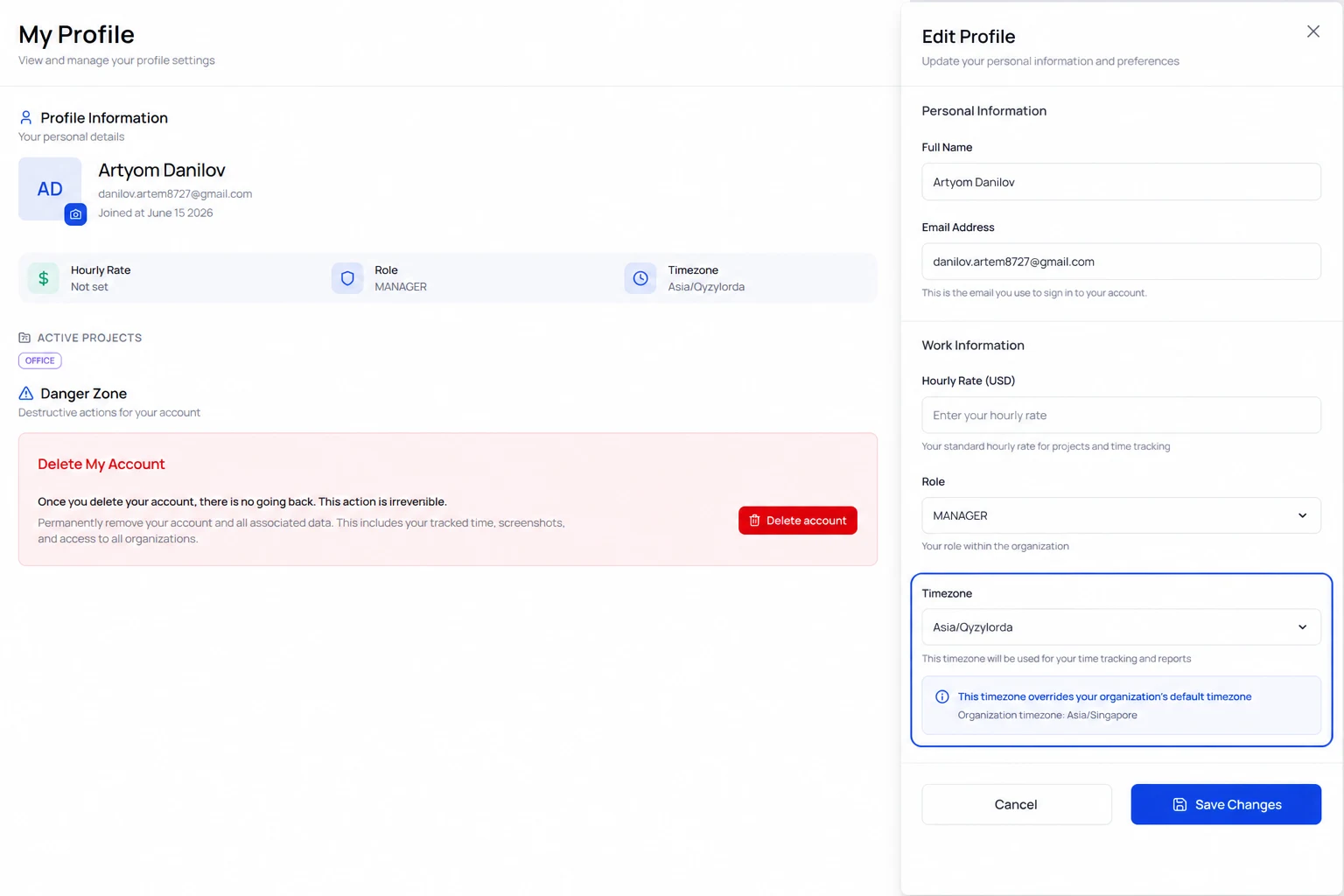
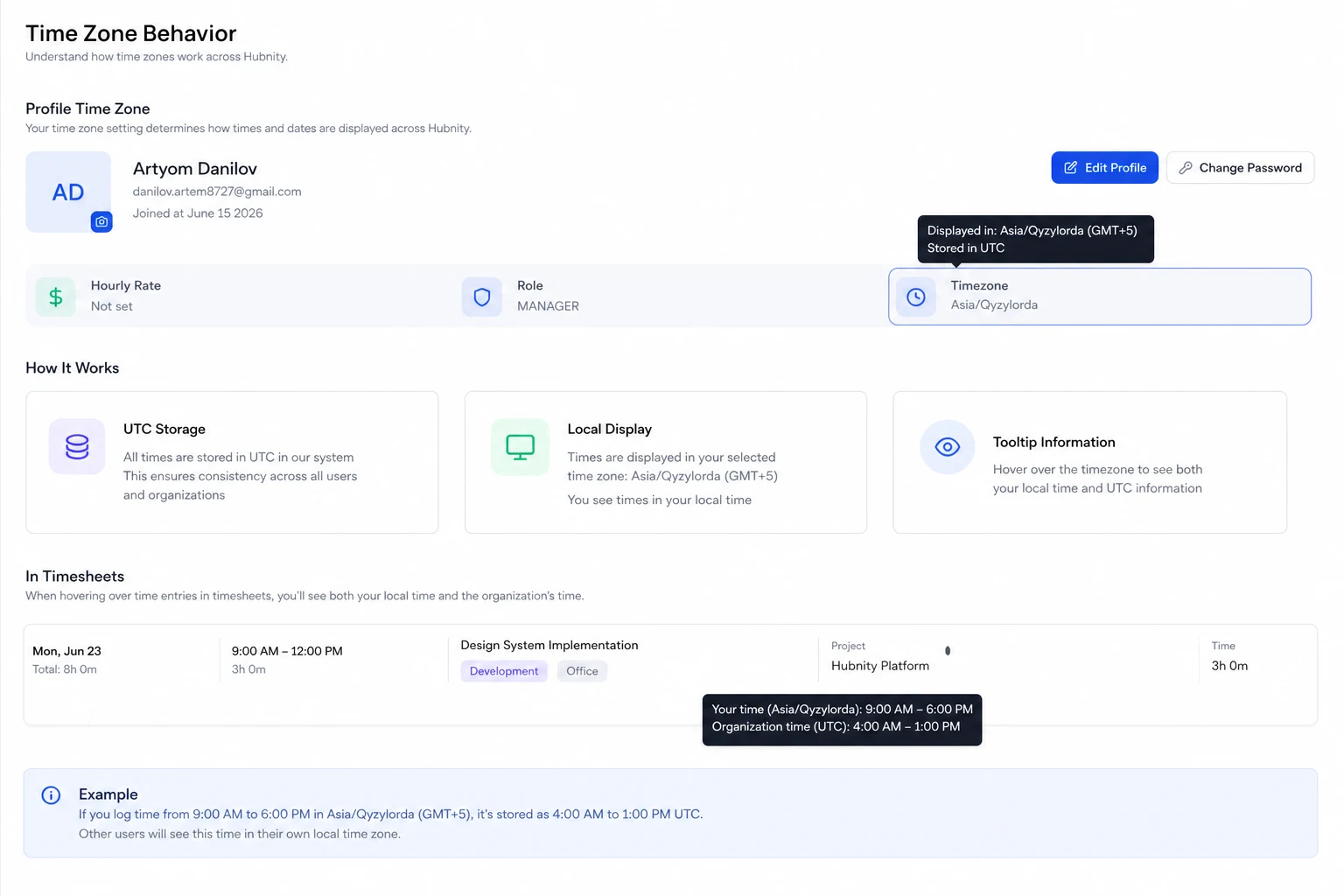
Set your personal time zone (overrides org default for your reports)
- 4
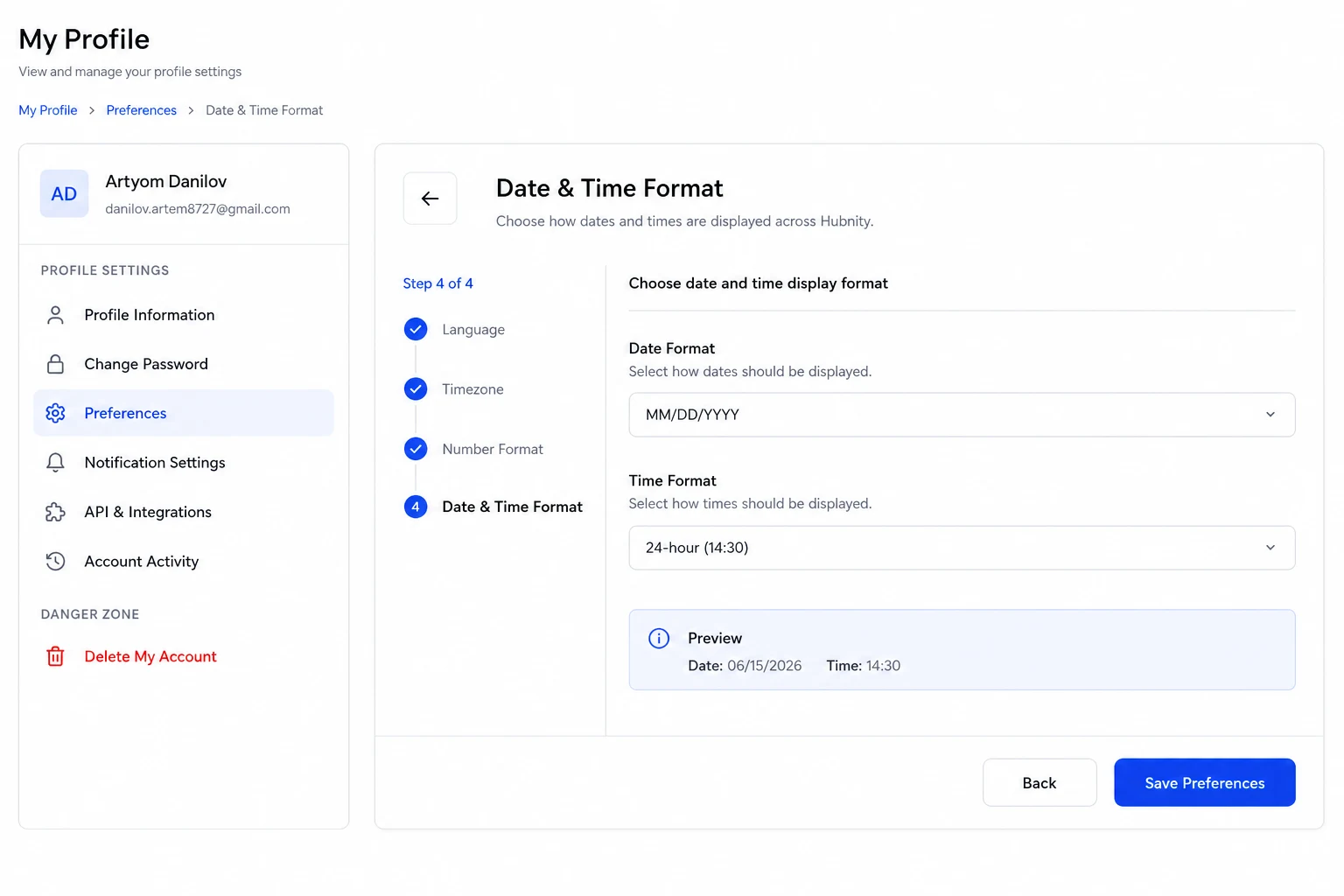
Choose date and time display format
- 5
Click Save
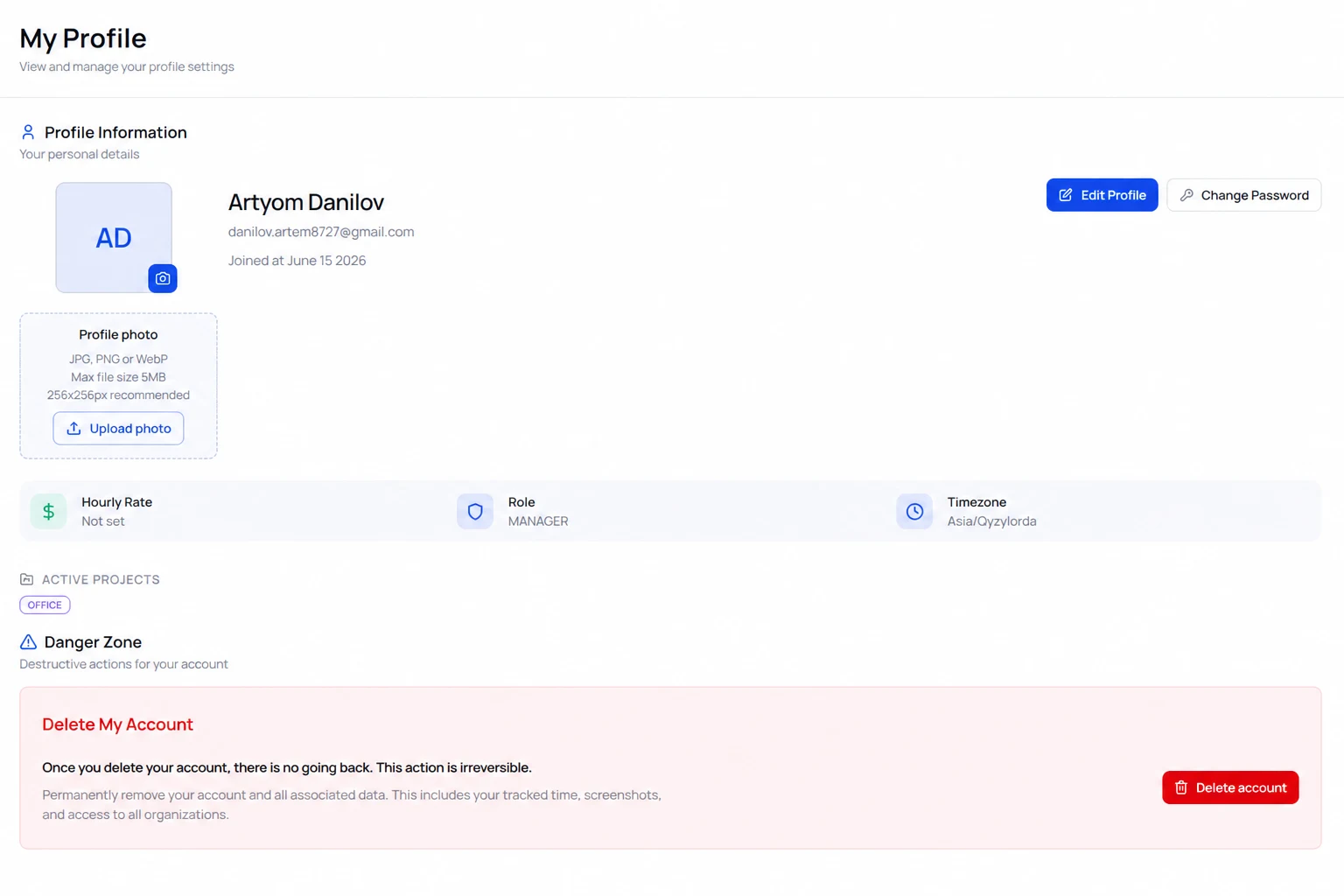
Profile photo requirements
Accepted formats: JPG, PNG, WebP. Max size: 5 MB. Recommended: 256×256 px square.
Photos appear in reports, team directories, and approval workflows.
Time zone behavior
Your personal time zone affects how your timesheet displays daily boundaries. Tracked time is stored in UTC.
If your time zone differs from the organization, reports show both local and org time on hover.
Language preference
Set display language from Profile settings → Language. Currently supported: English.
Additional languages are planned; your selection is saved for when they become available.