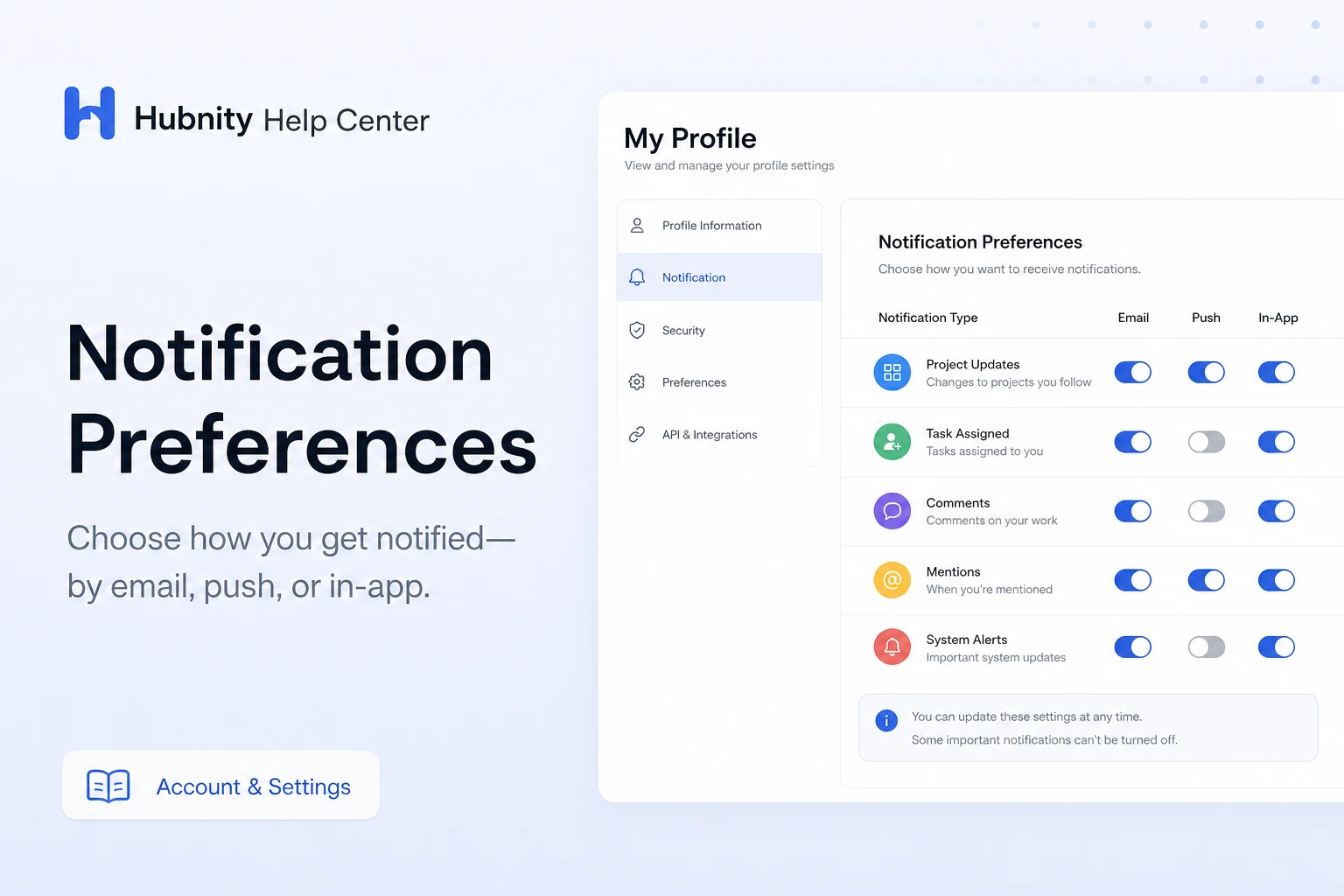
Control which Hubnity email, push, and in-app notifications you receive.
Configure notifications
Some organization-mandated notifications (security alerts, policy changes) cannot be disabled.
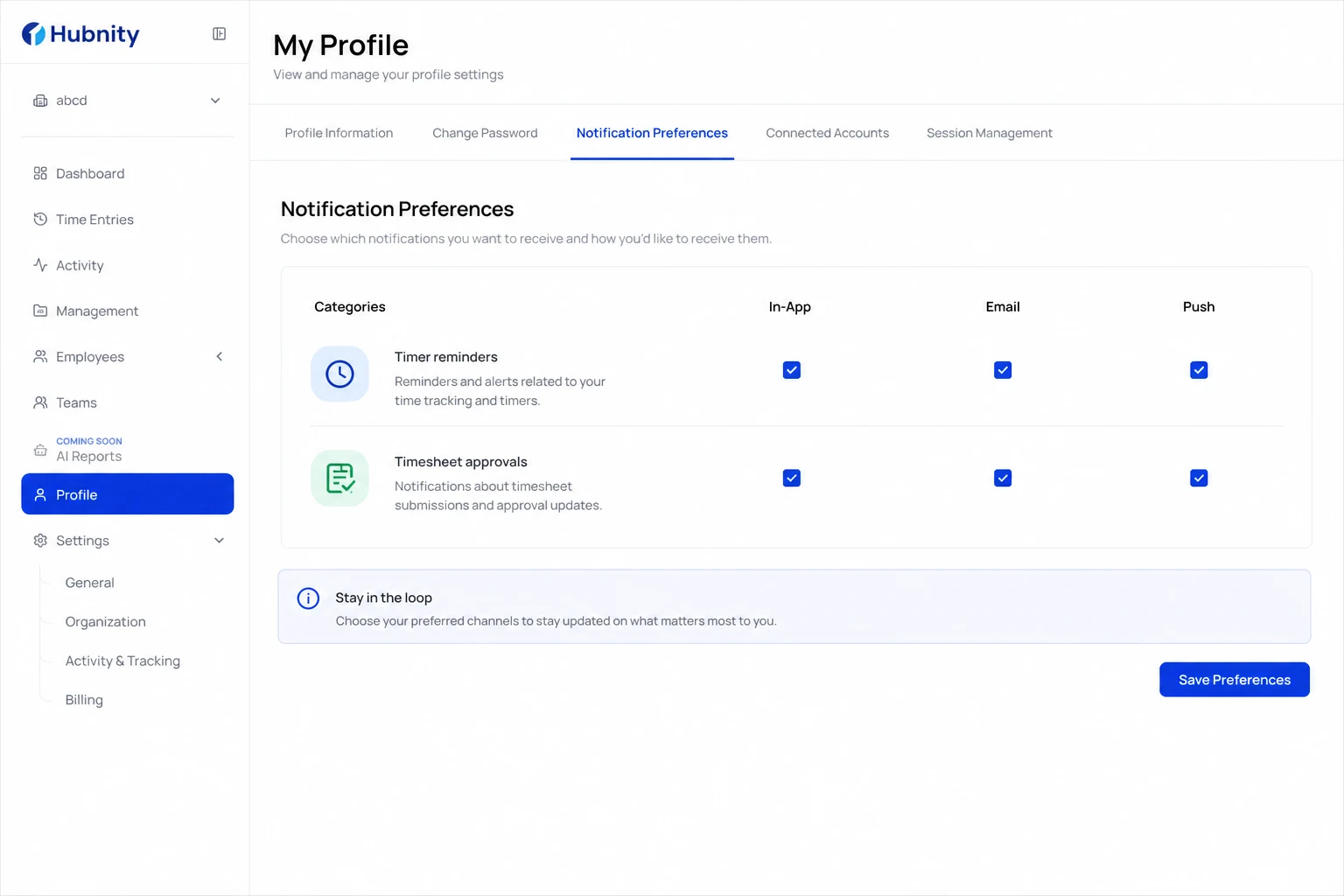
- 1
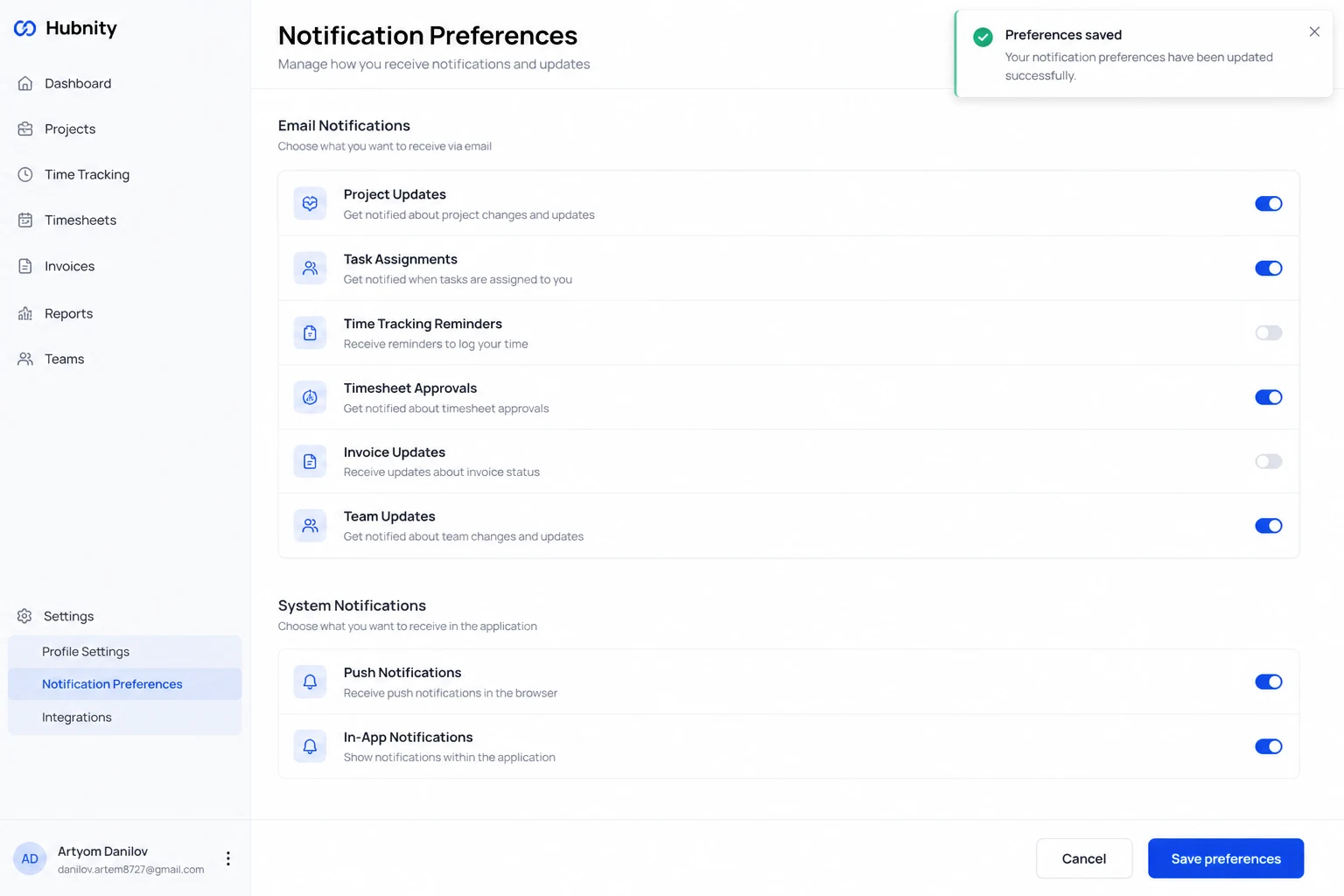
Go to Profile → Notification preferences
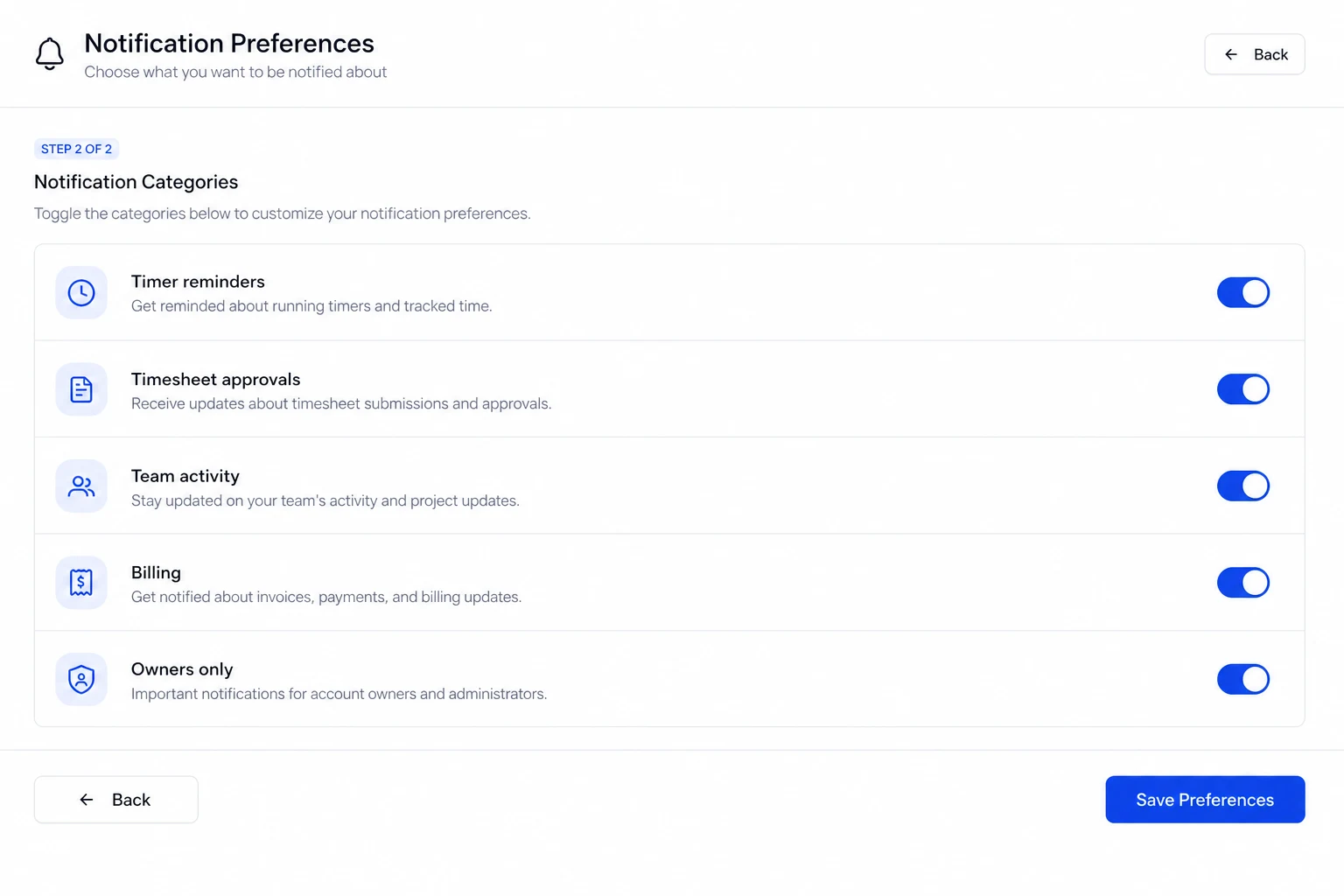
- 2
Toggle categories: Timer reminders, Timesheet approvals, Team activity, Billing (Owners only)
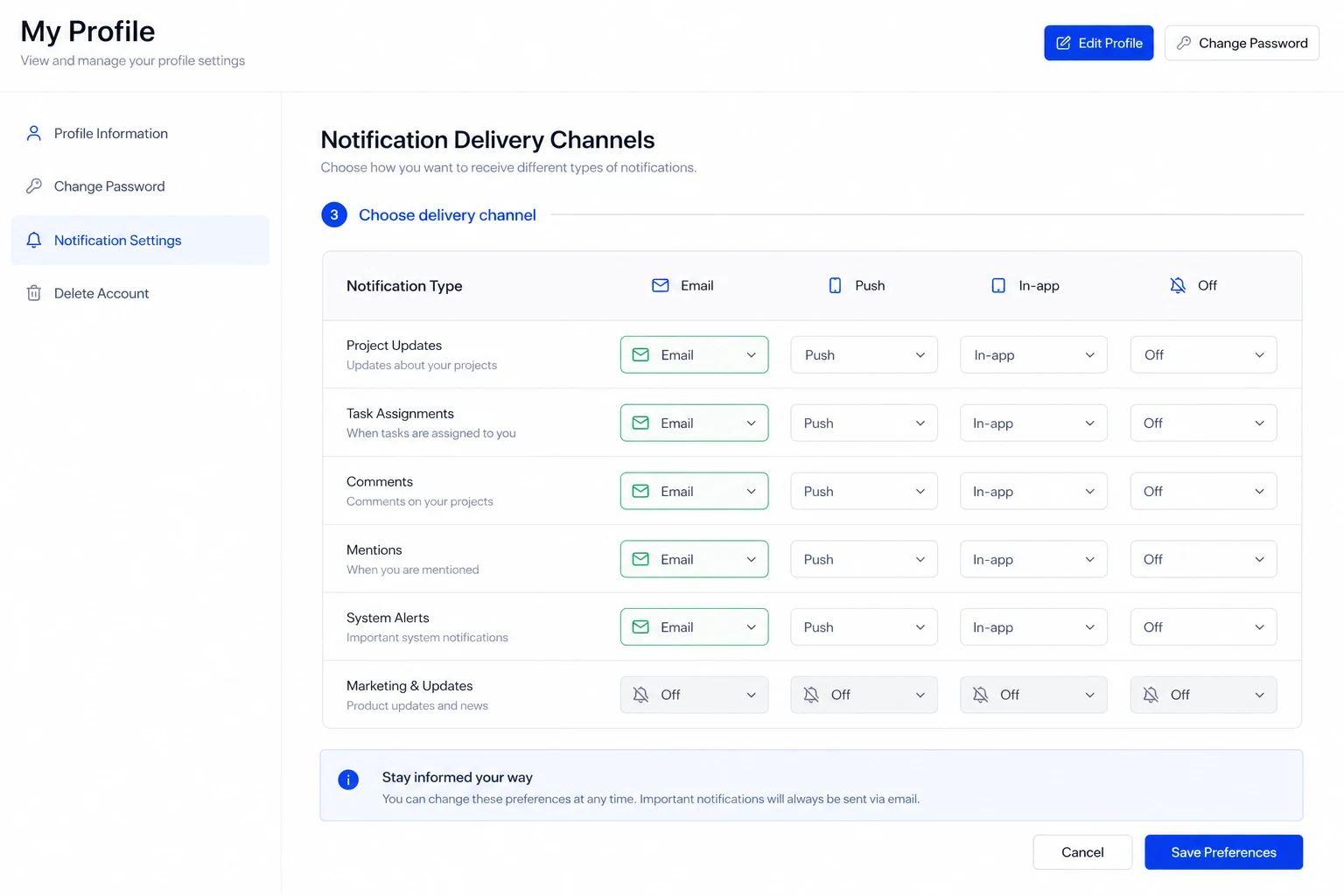
- 3
Choose delivery channel per category: Email, Push, In-app, or Off
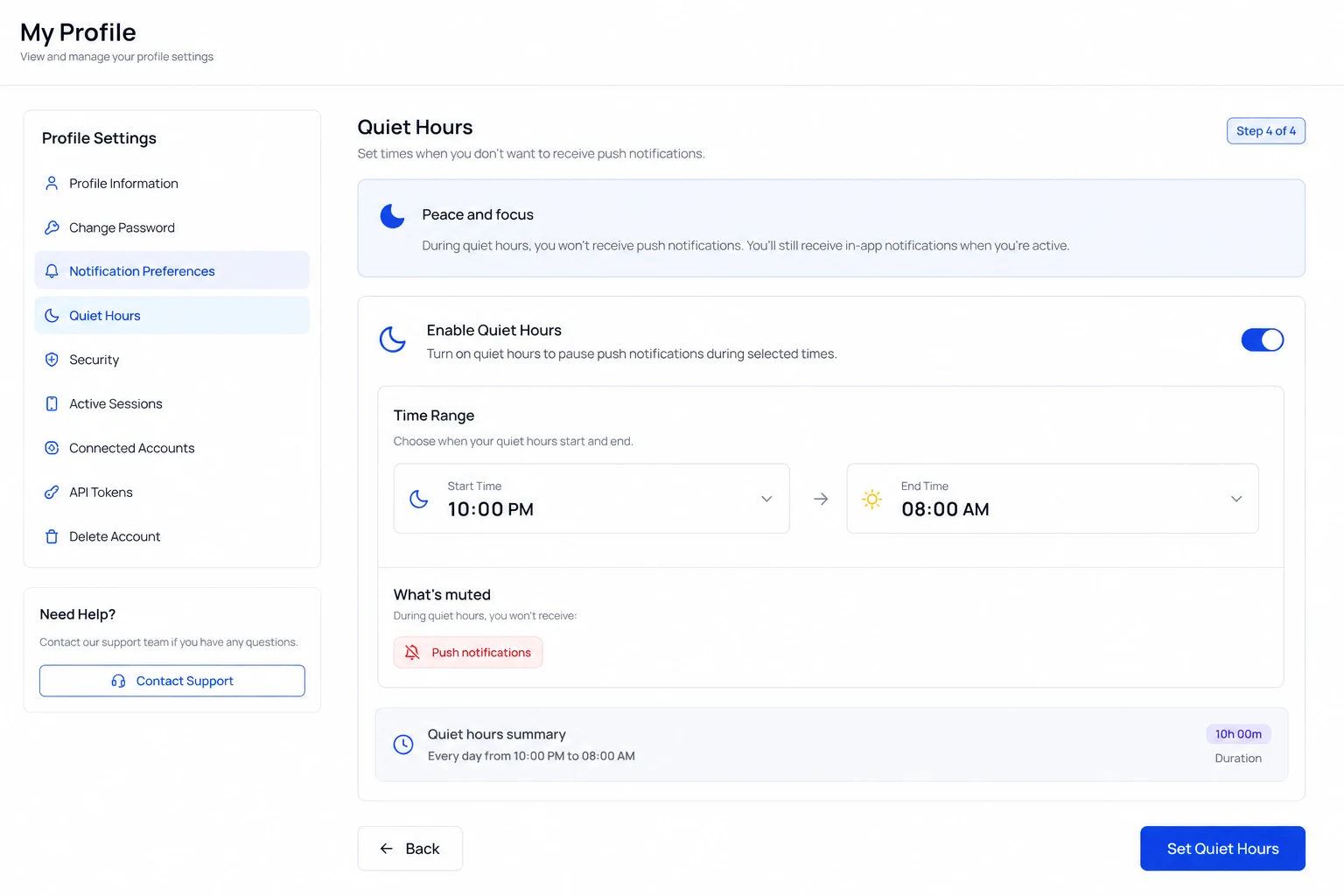
- 4
Set quiet hours (no push notifications during specified times)
- 5
Save preferences
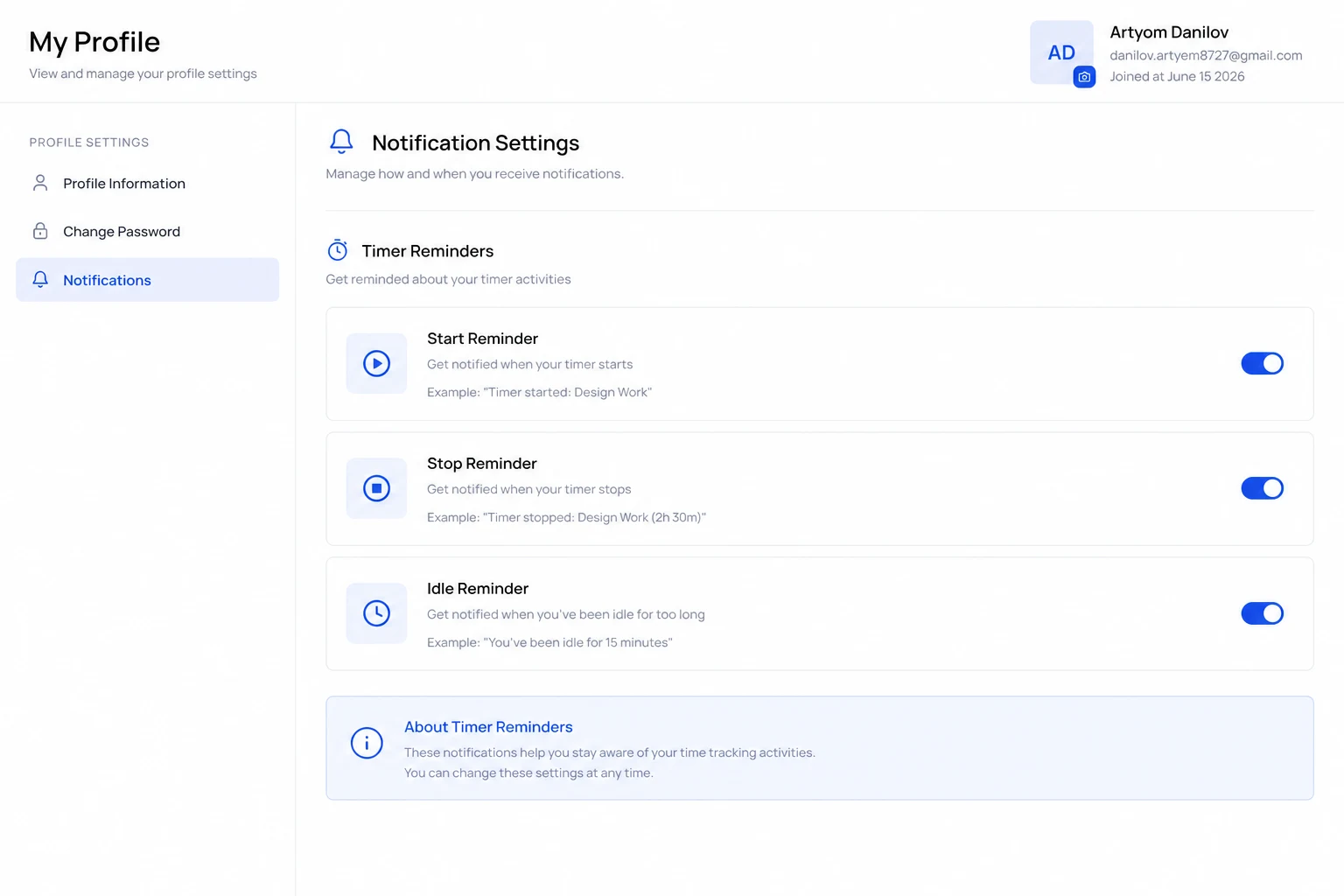
Timer reminders
Start reminder: nudge if no timer active during scheduled work hours.
Stop reminder: alert if timer runs past scheduled end or exceeds daily limit.
Idle reminder: prompt when no input detected for the configured threshold.
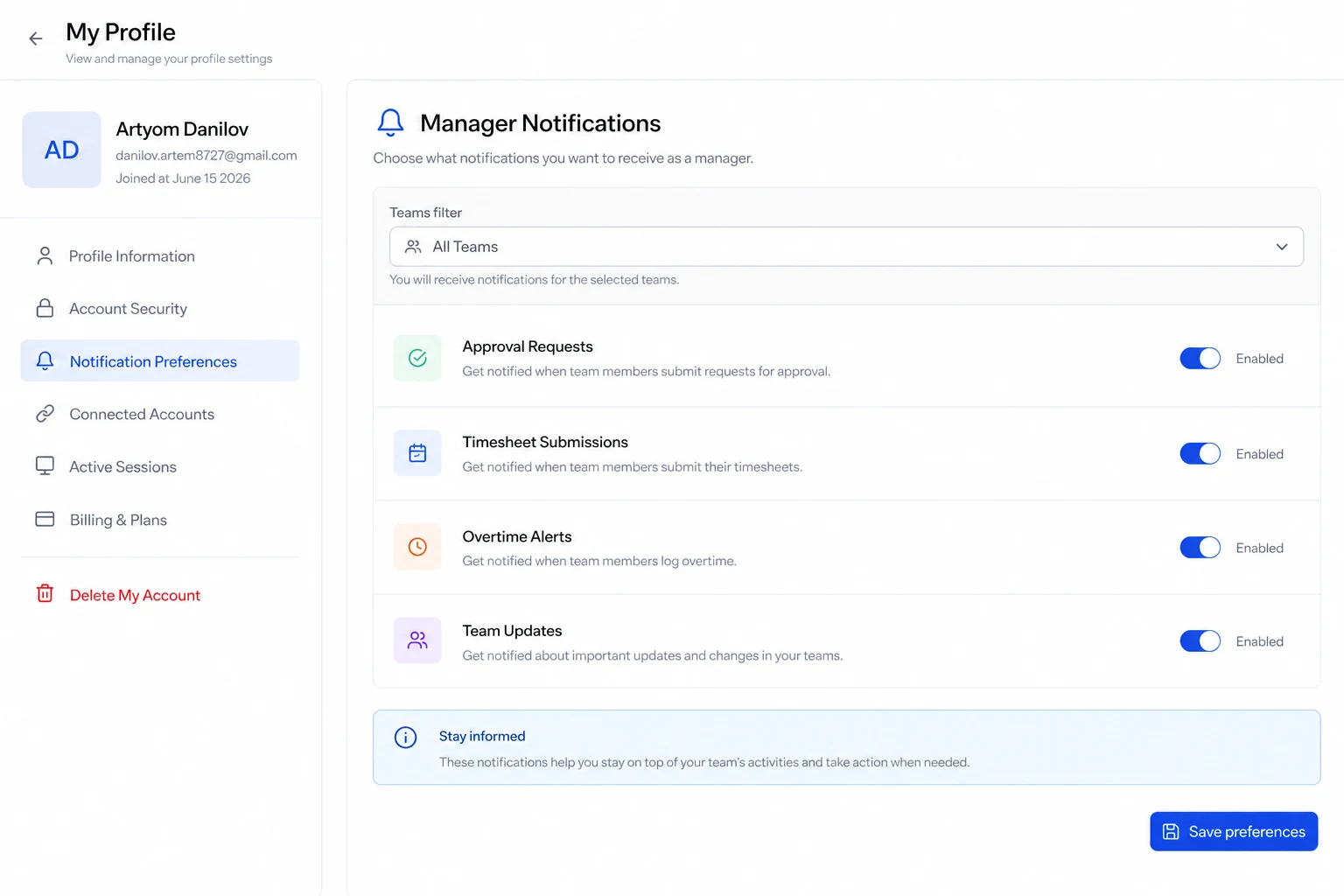
Manager notifications
Approval requests, timesheet submissions, and overtime alerts (if enabled by Admin).
Managers can scope notifications to specific teams from the Teams filter on this page.
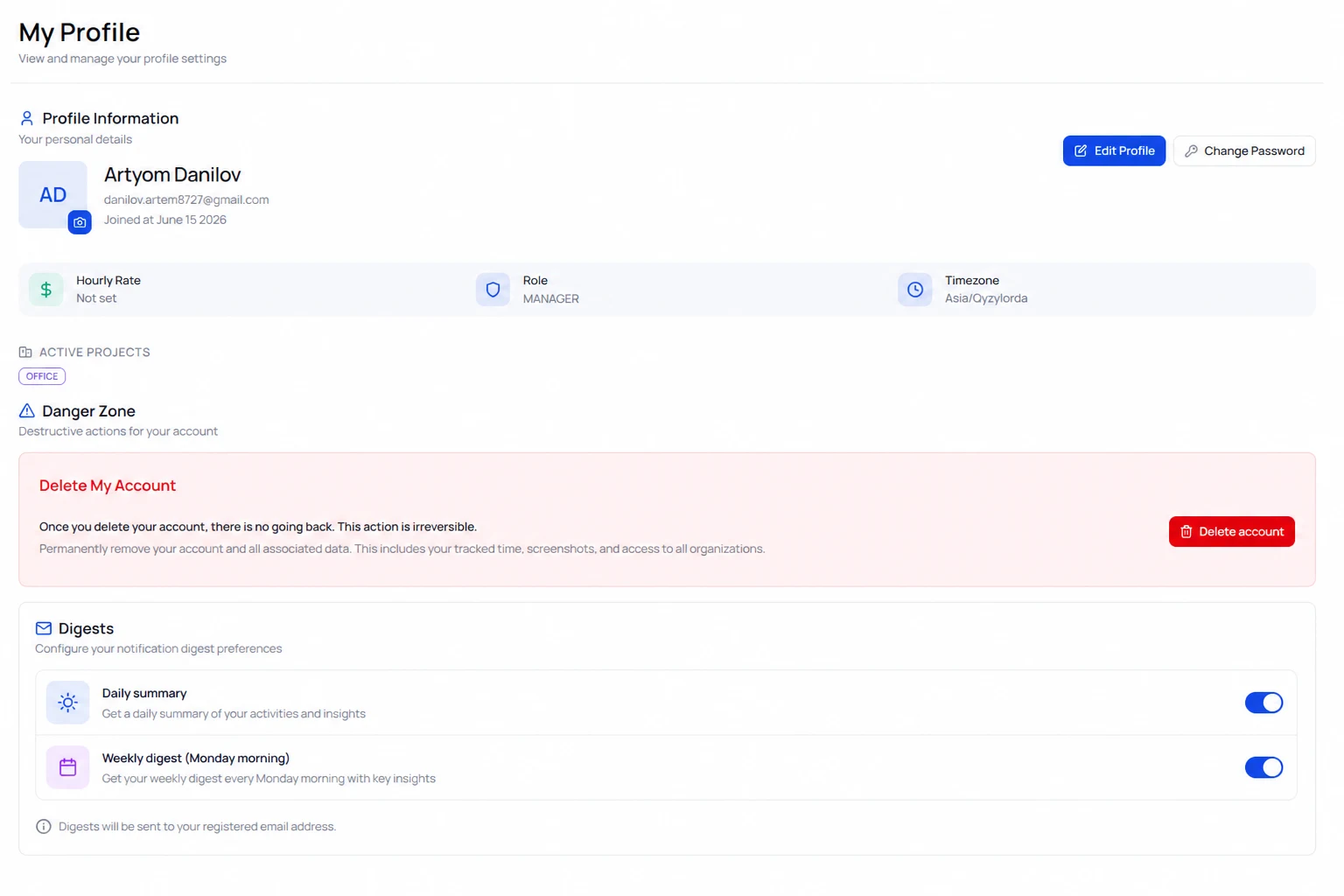
Digest options
Daily summary: one email at end of day with hours tracked and pending items.
Weekly digest: Monday morning summary of previous week. Enable from Notification preferences → Digests.