Create and apply project templates to standardize project structure, tasks, and settings.
Create a project template
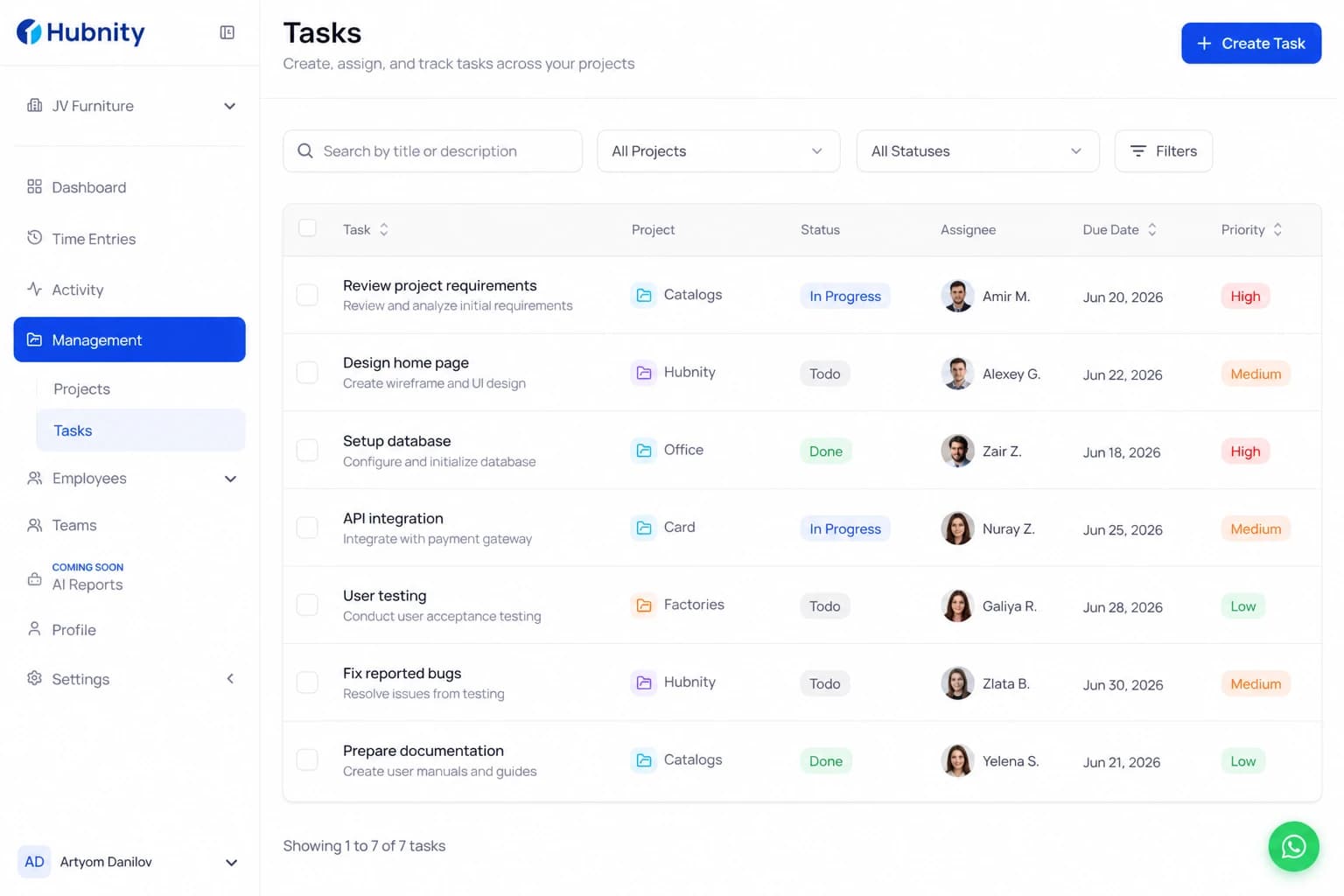
Templates save project settings, task lists, and rate configurations.
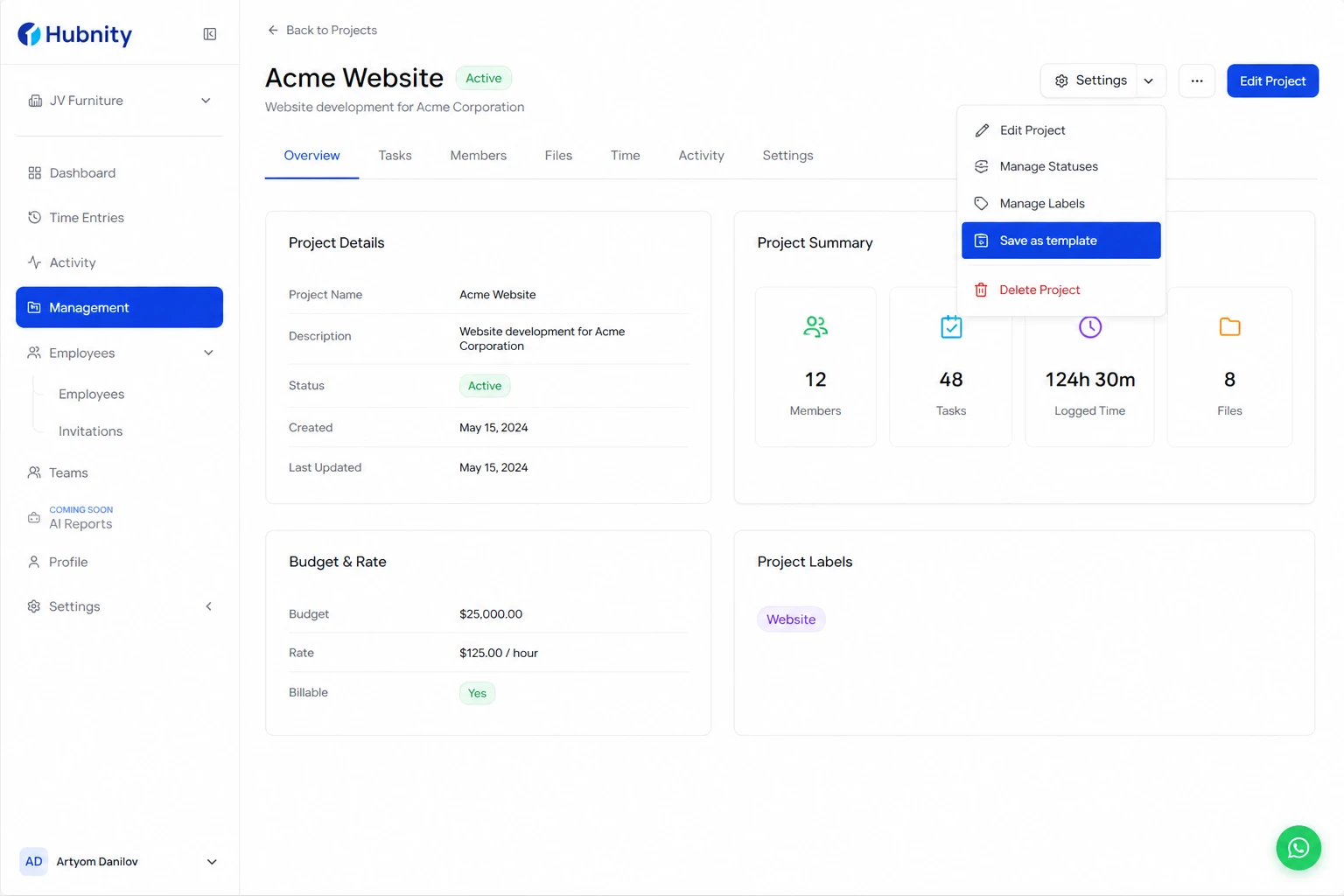
- 1
Open an existing project → Settings → Save as template
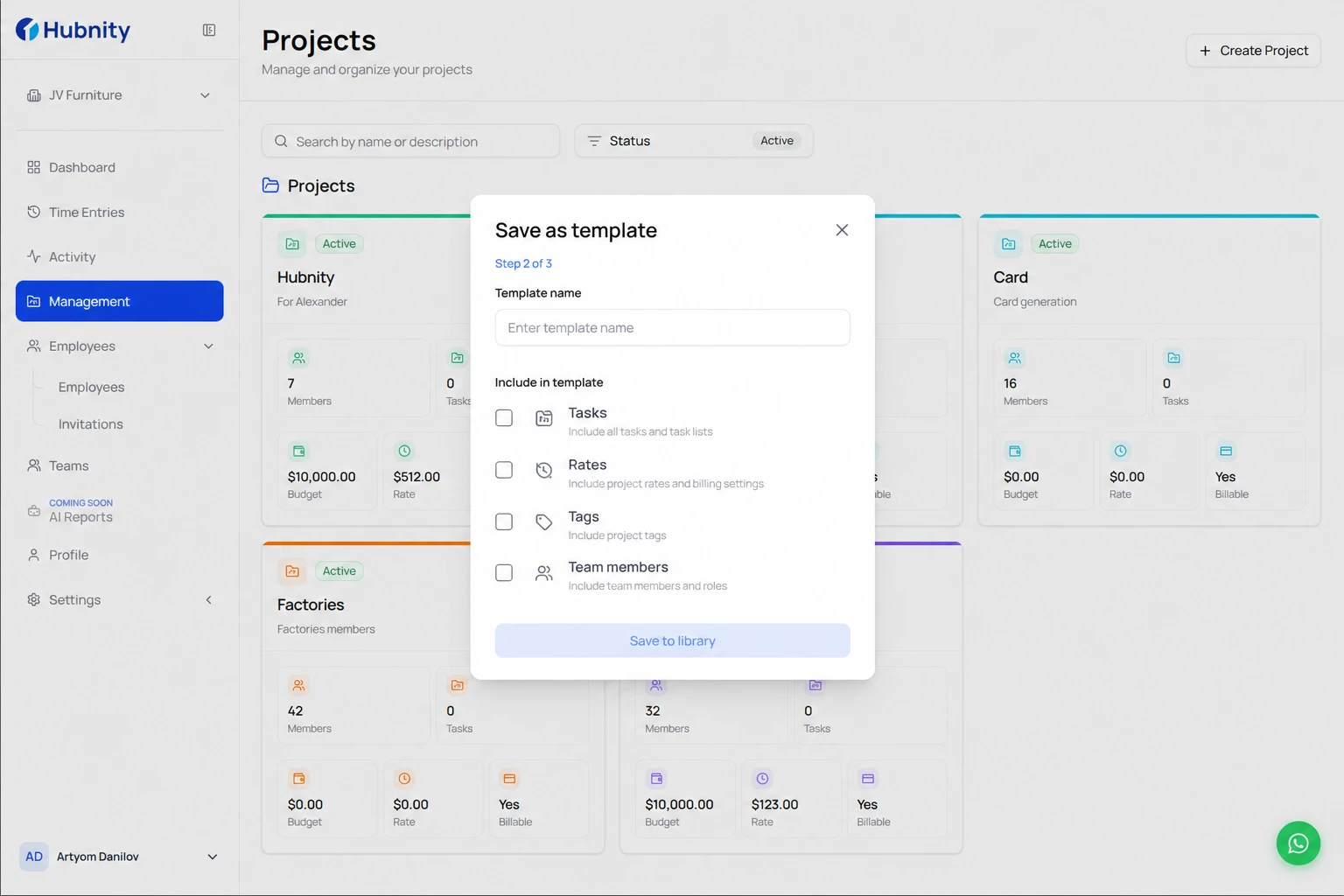
- 2
Name the template and choose what to include (tasks, rates, tags, team members)
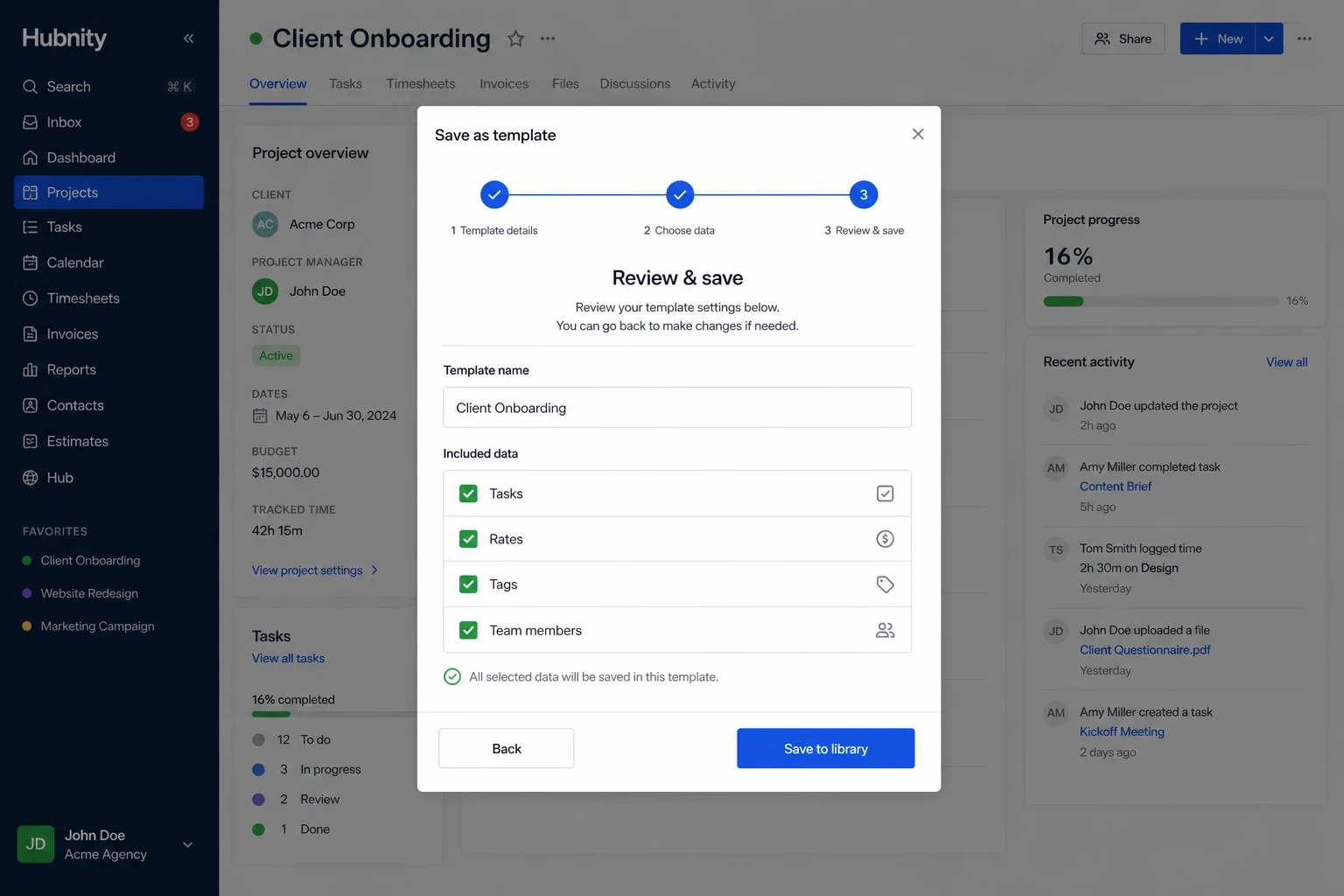
- 3
Save to the template library
Create a project from a template
Templates speed up onboarding for recurring client or project types.
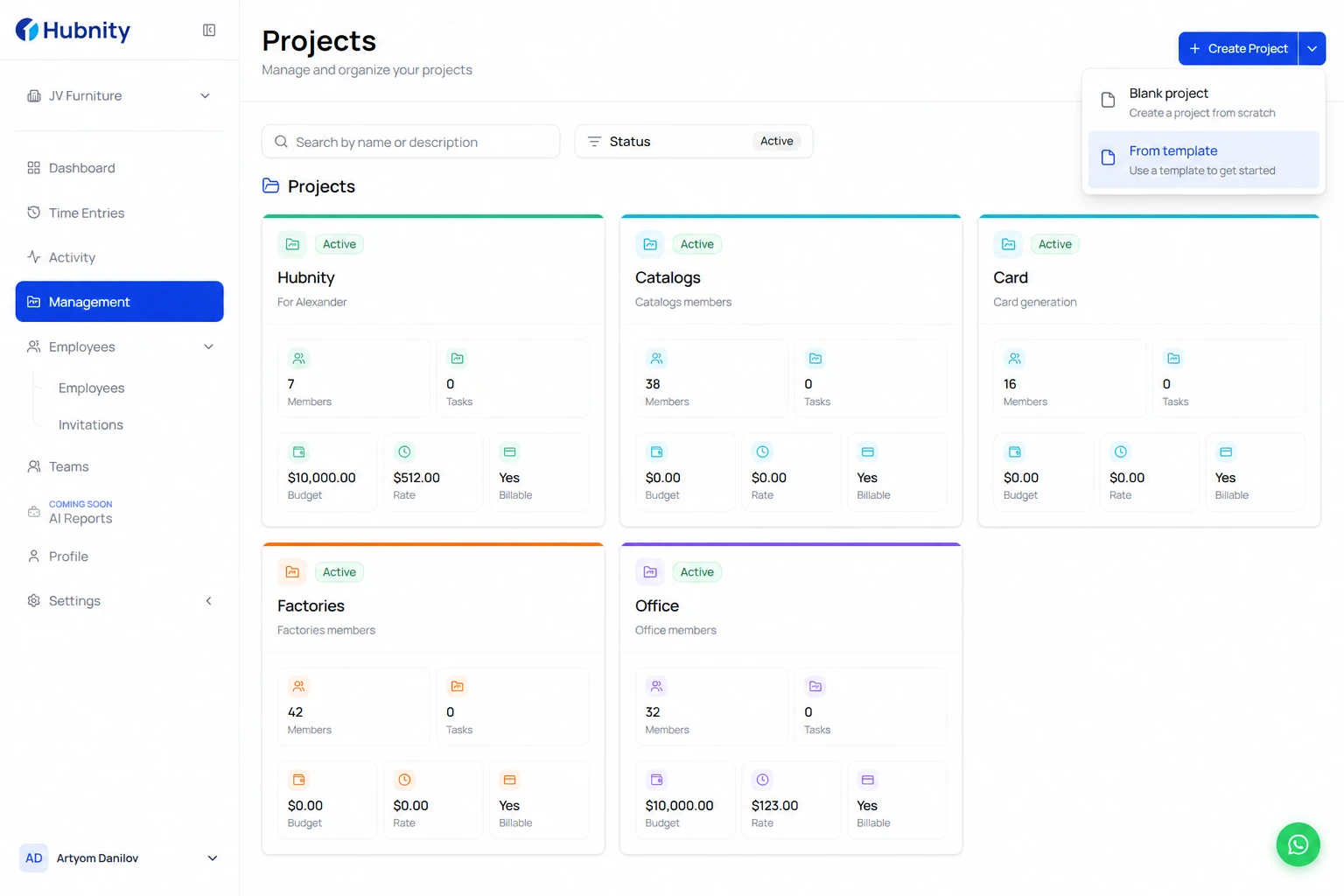
- 1
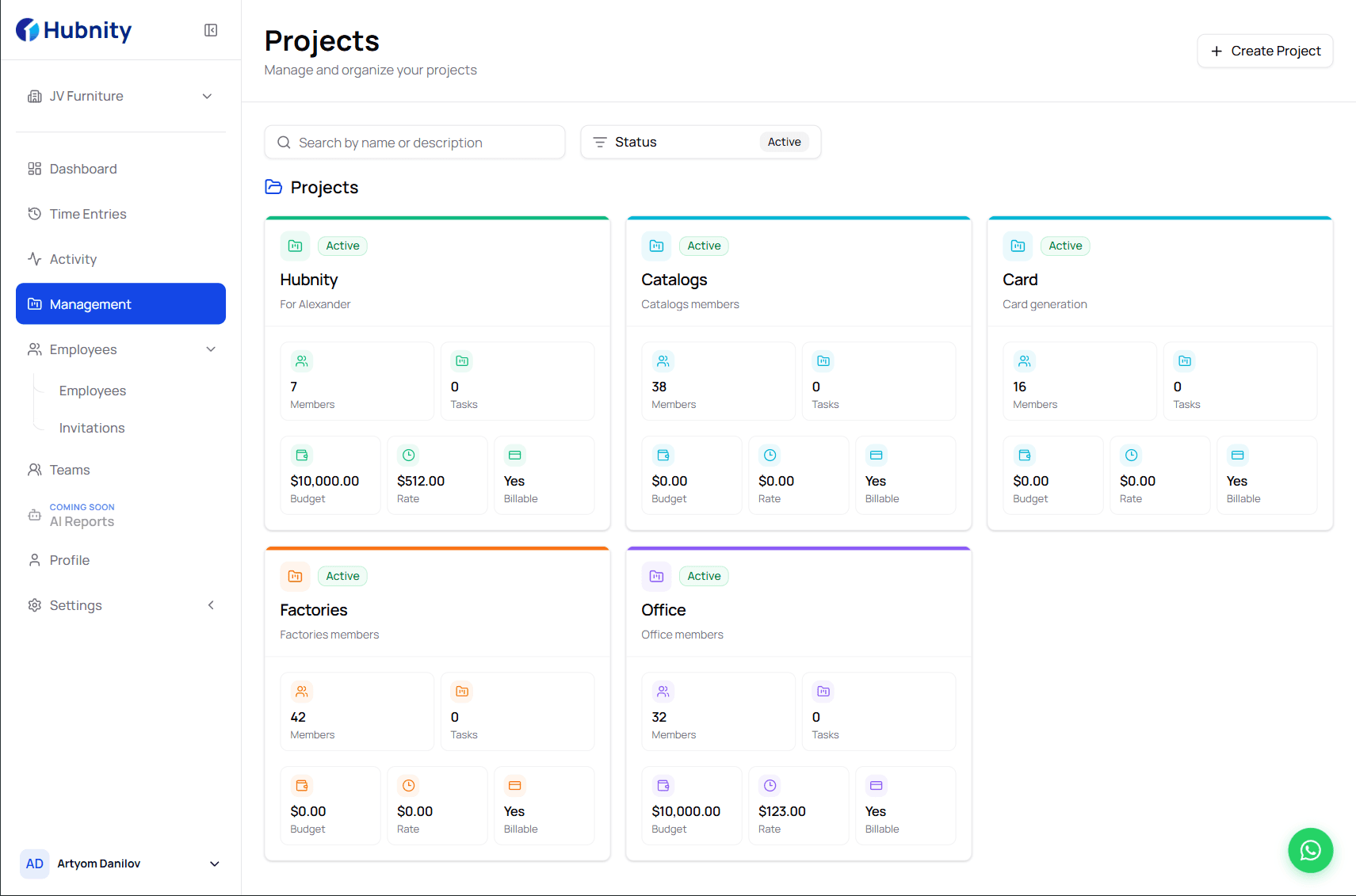
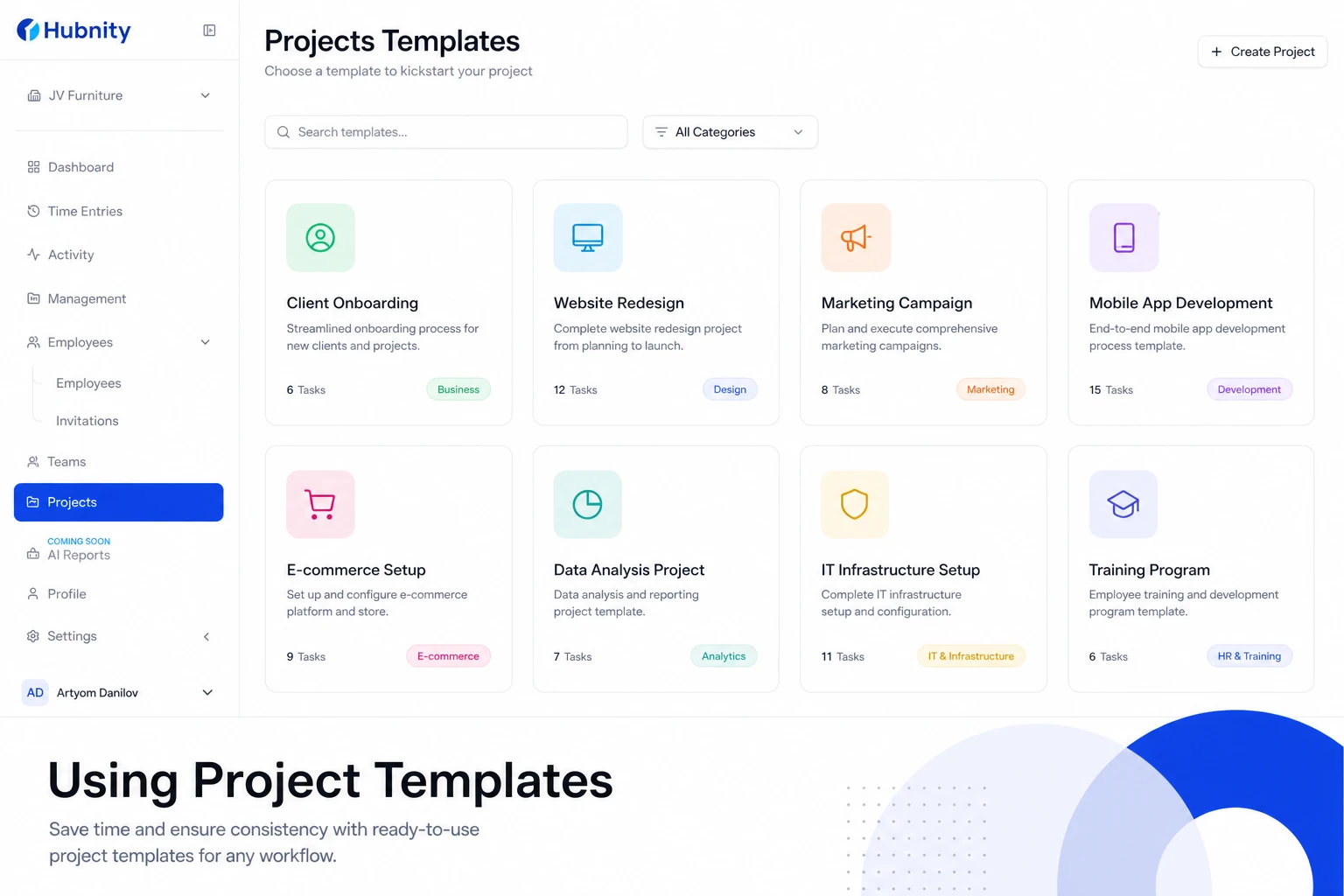
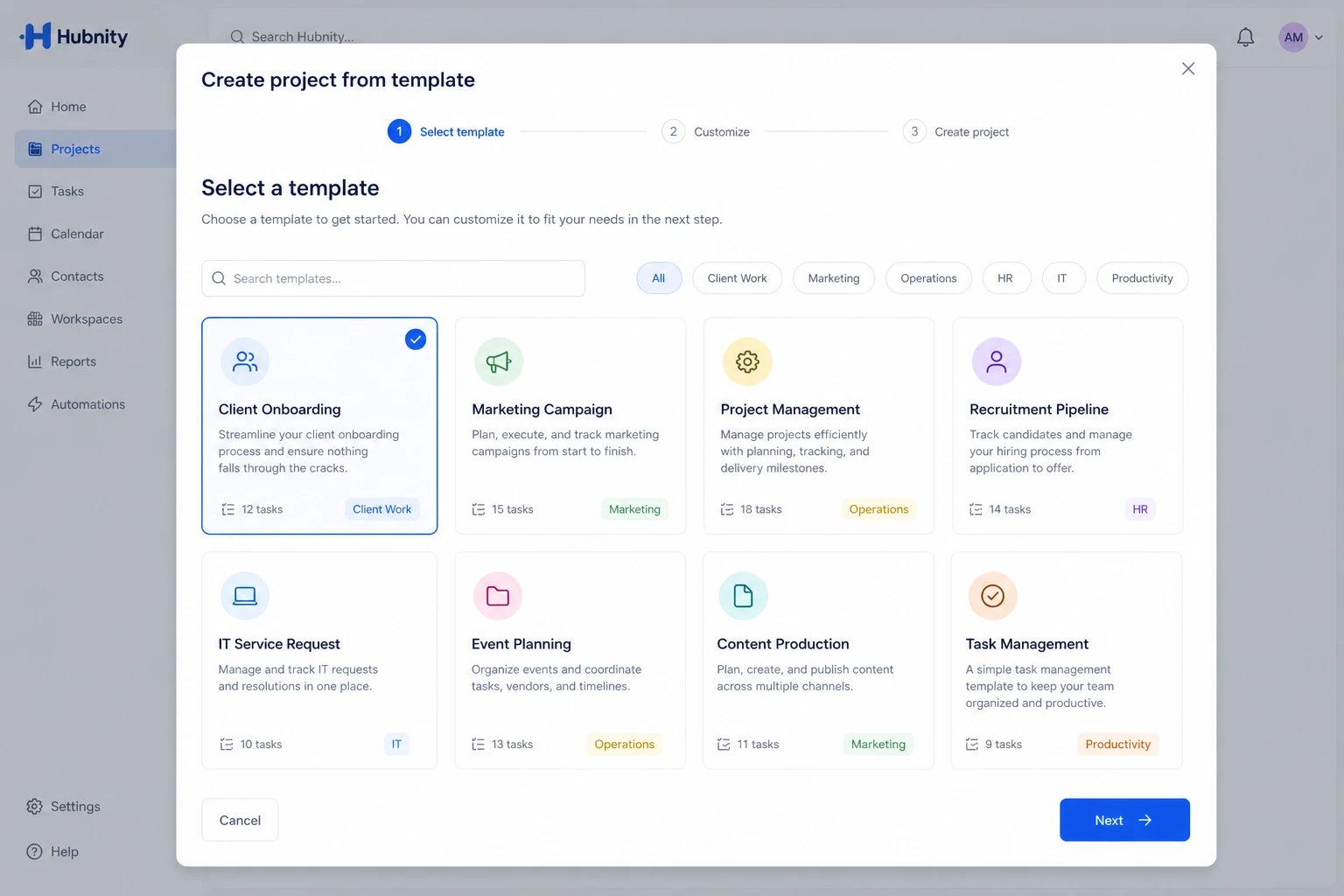
Go to Projects → New project → From template
- 2
Select the template
- 3
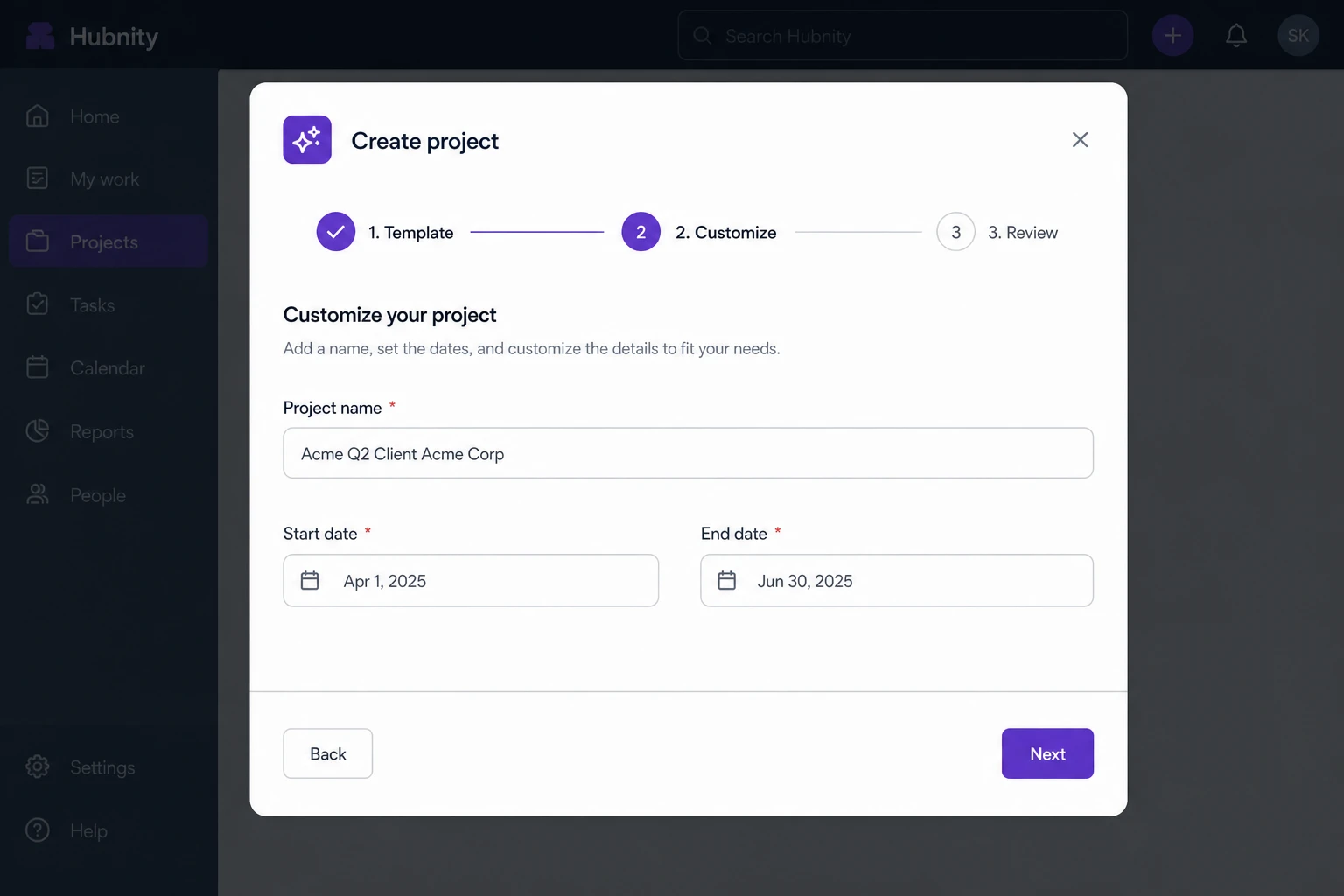
Customize name, client, and dates
- 4
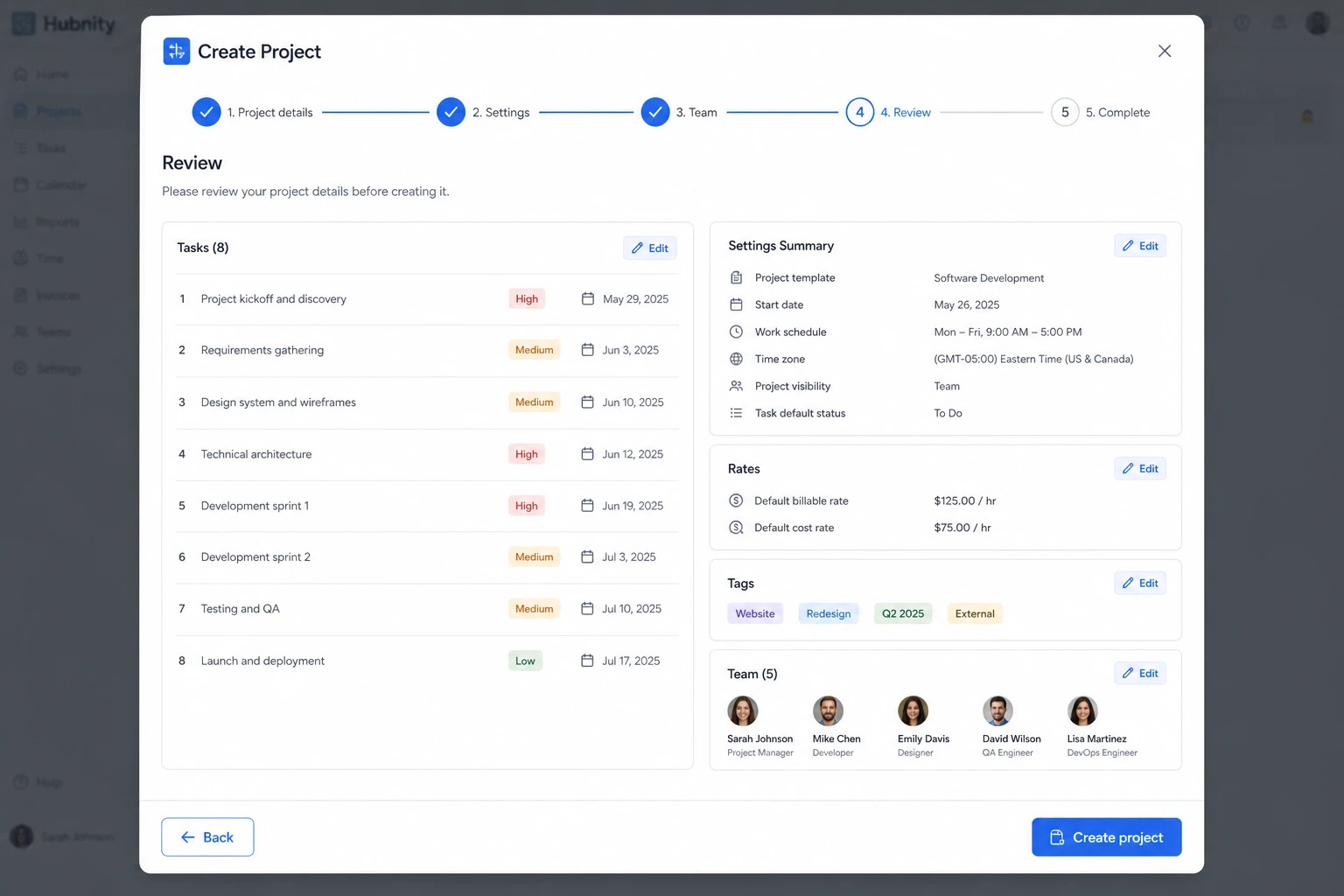
Review pre-populated tasks and settings
- 5
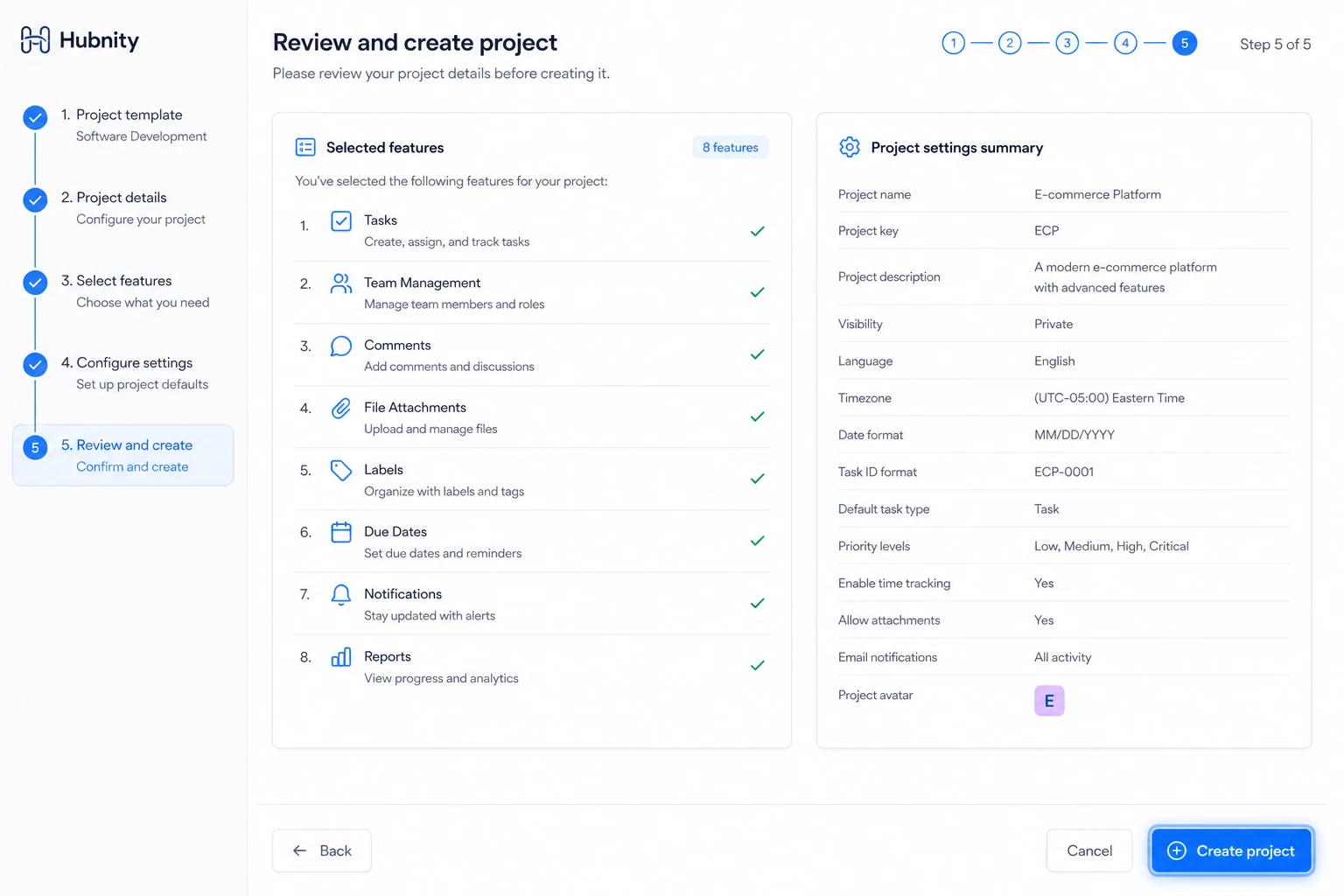
Click Create project
Template management
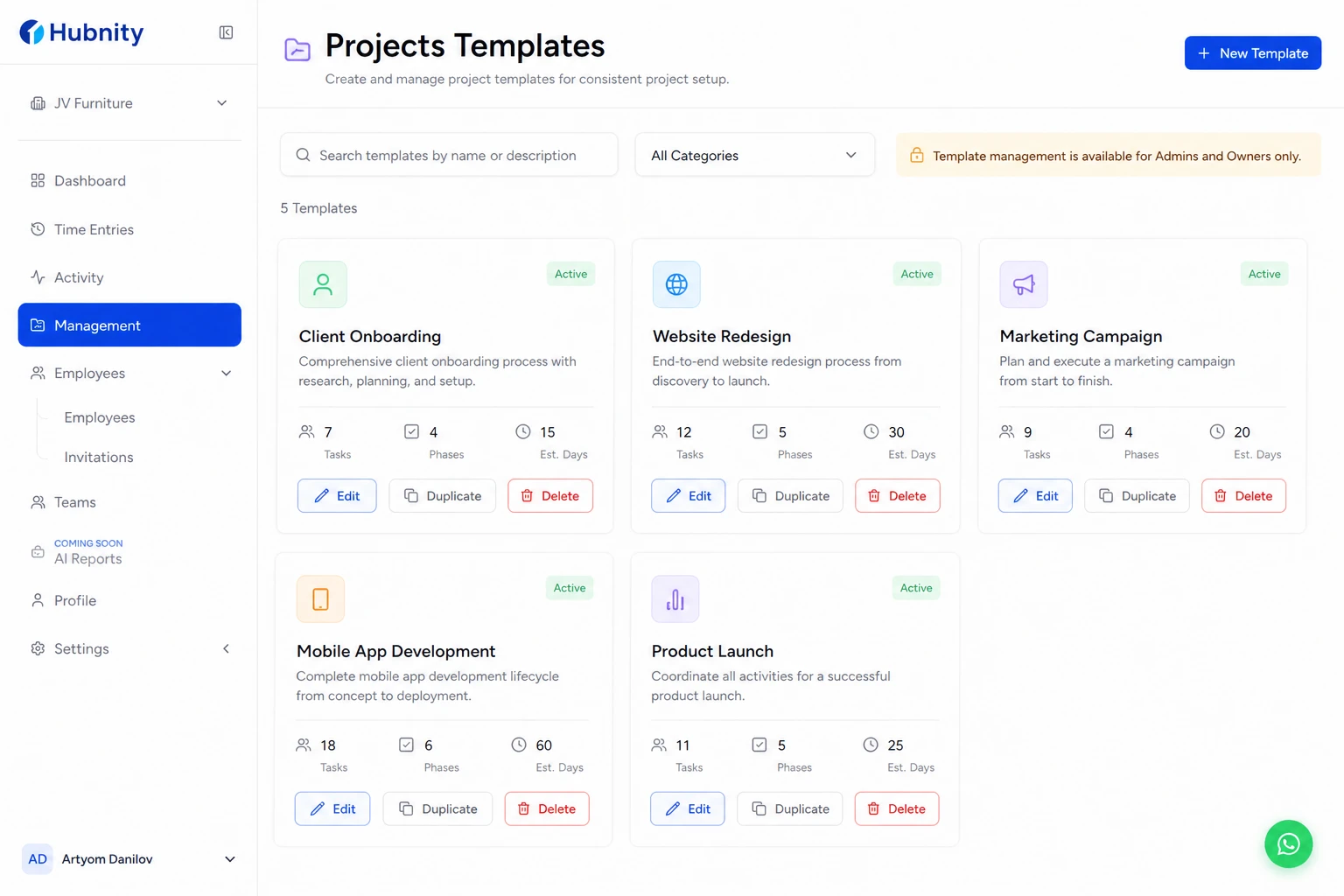
View all templates: Projects → Templates. Edit, duplicate, or delete from the template detail page.
Only Admins and Owners can create and manage templates.
What templates include
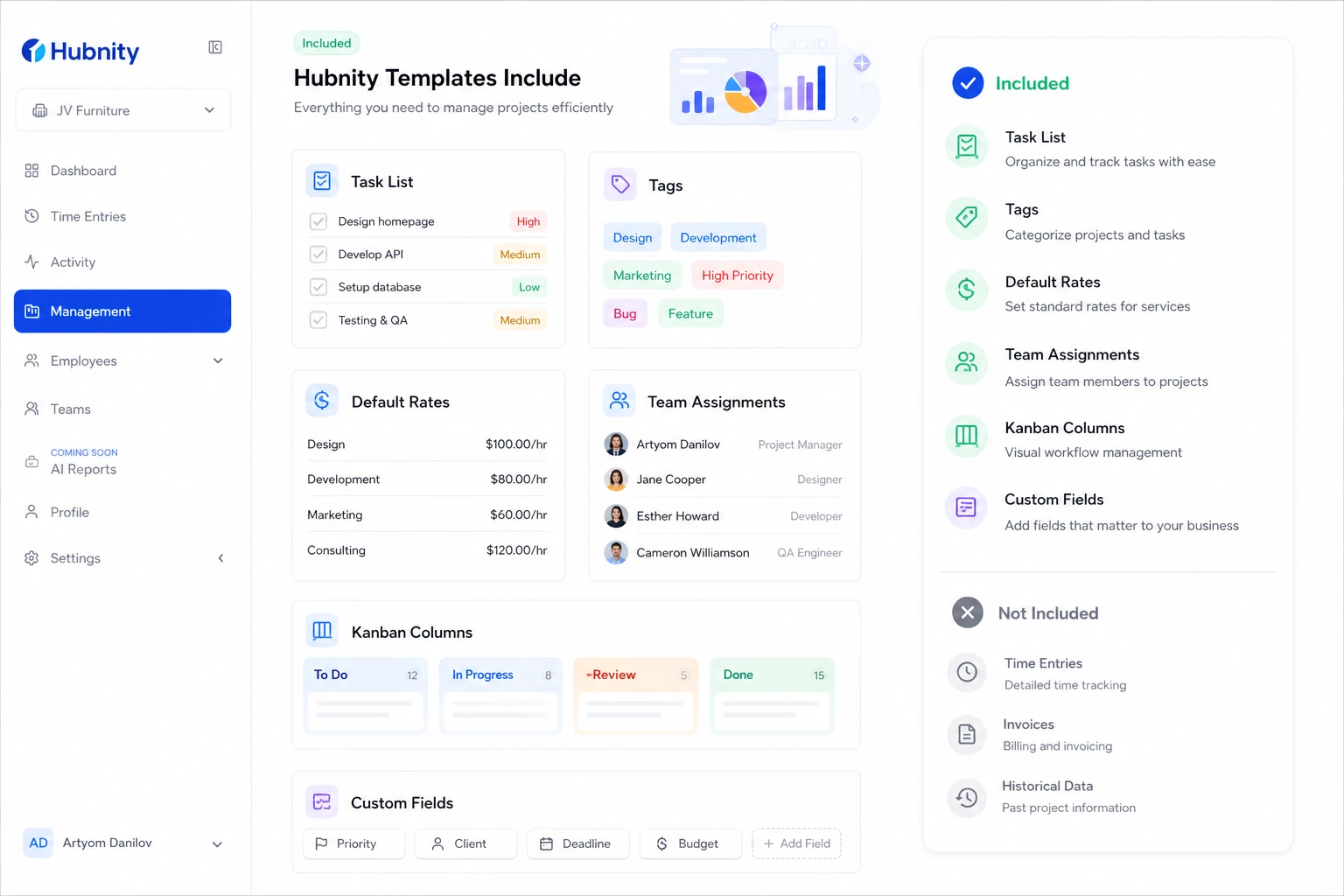
Configurable: task list, tags, default rates, team assignments, kanban columns, custom fields.
Not included: time entries, invoices, and historical data.