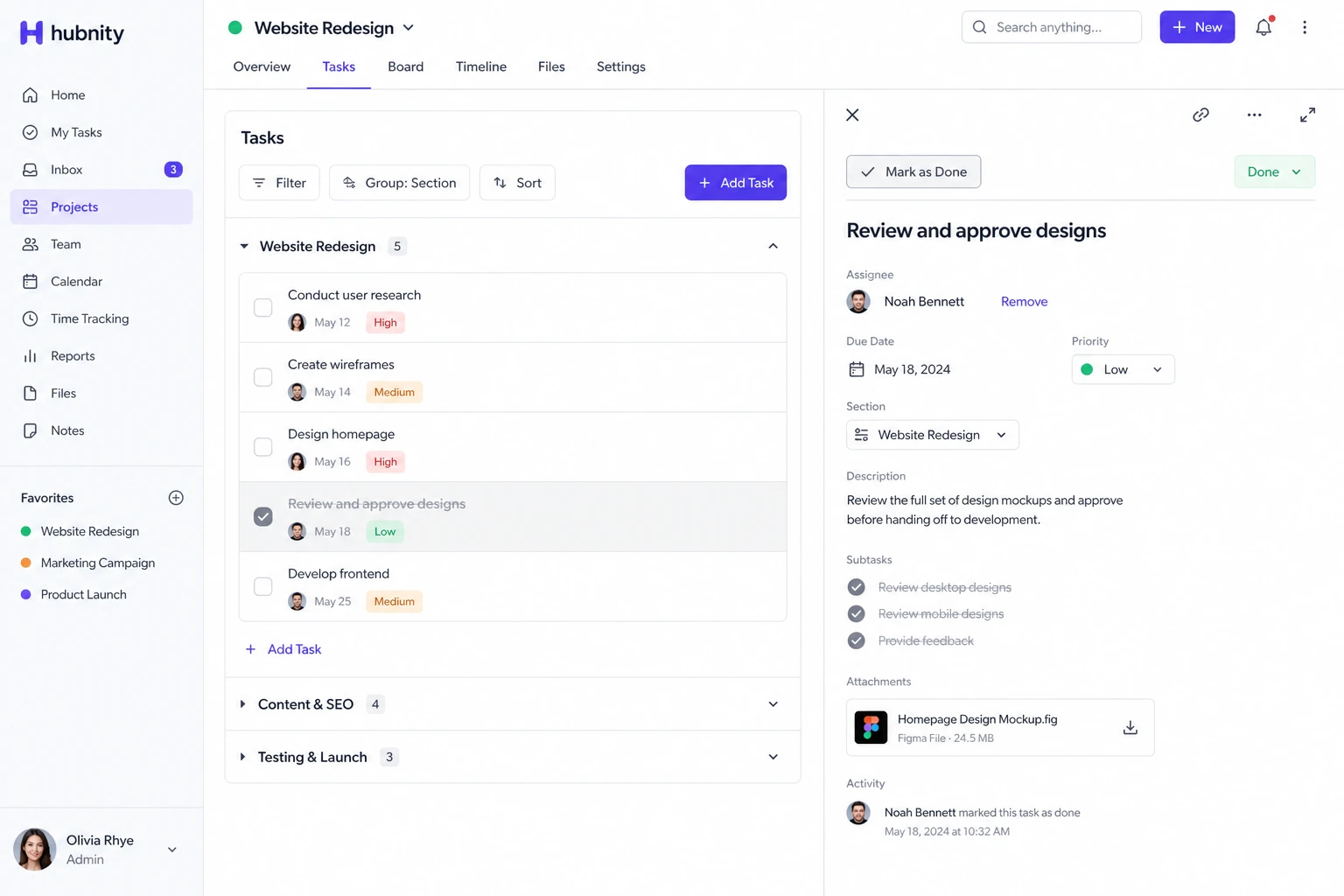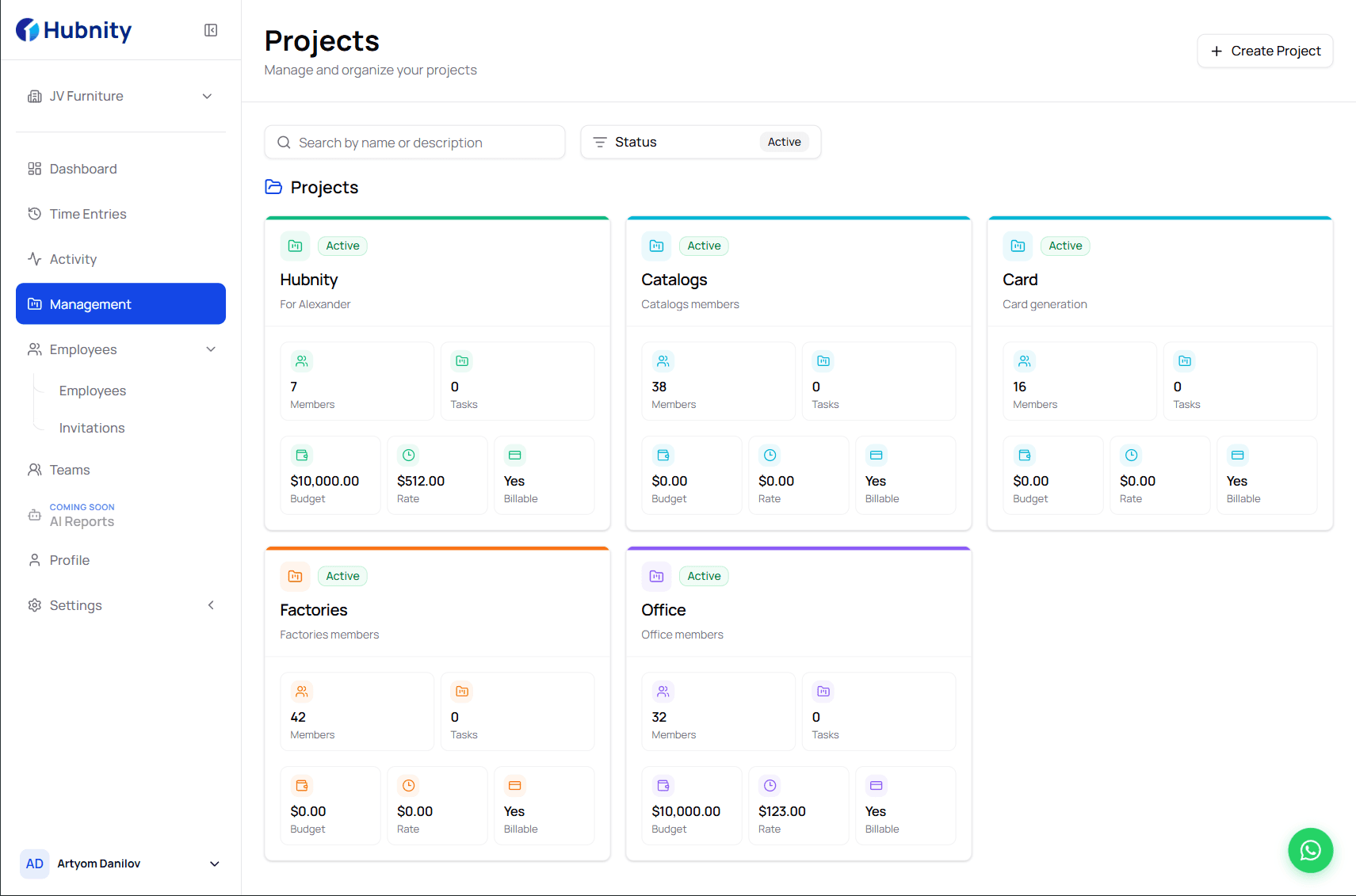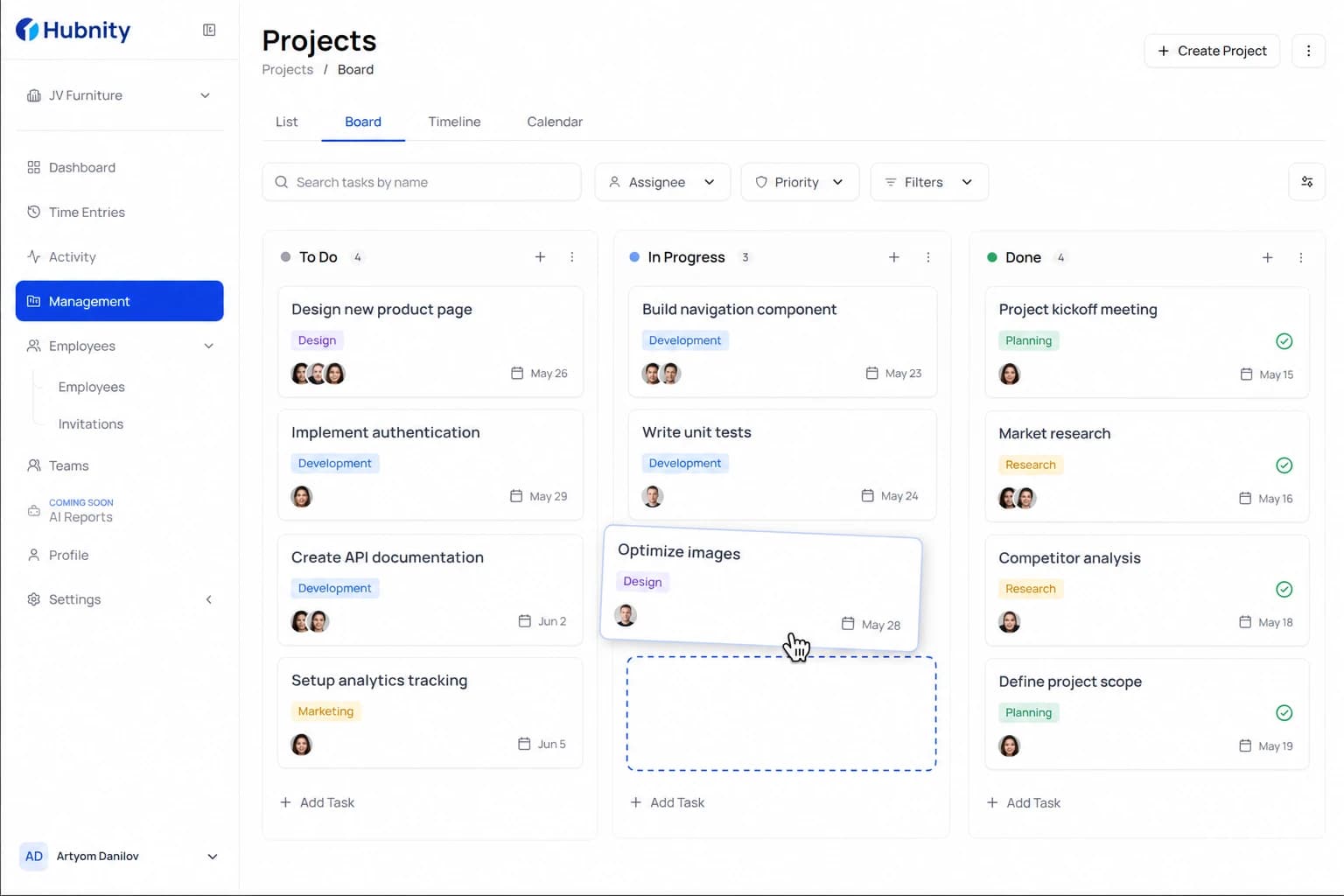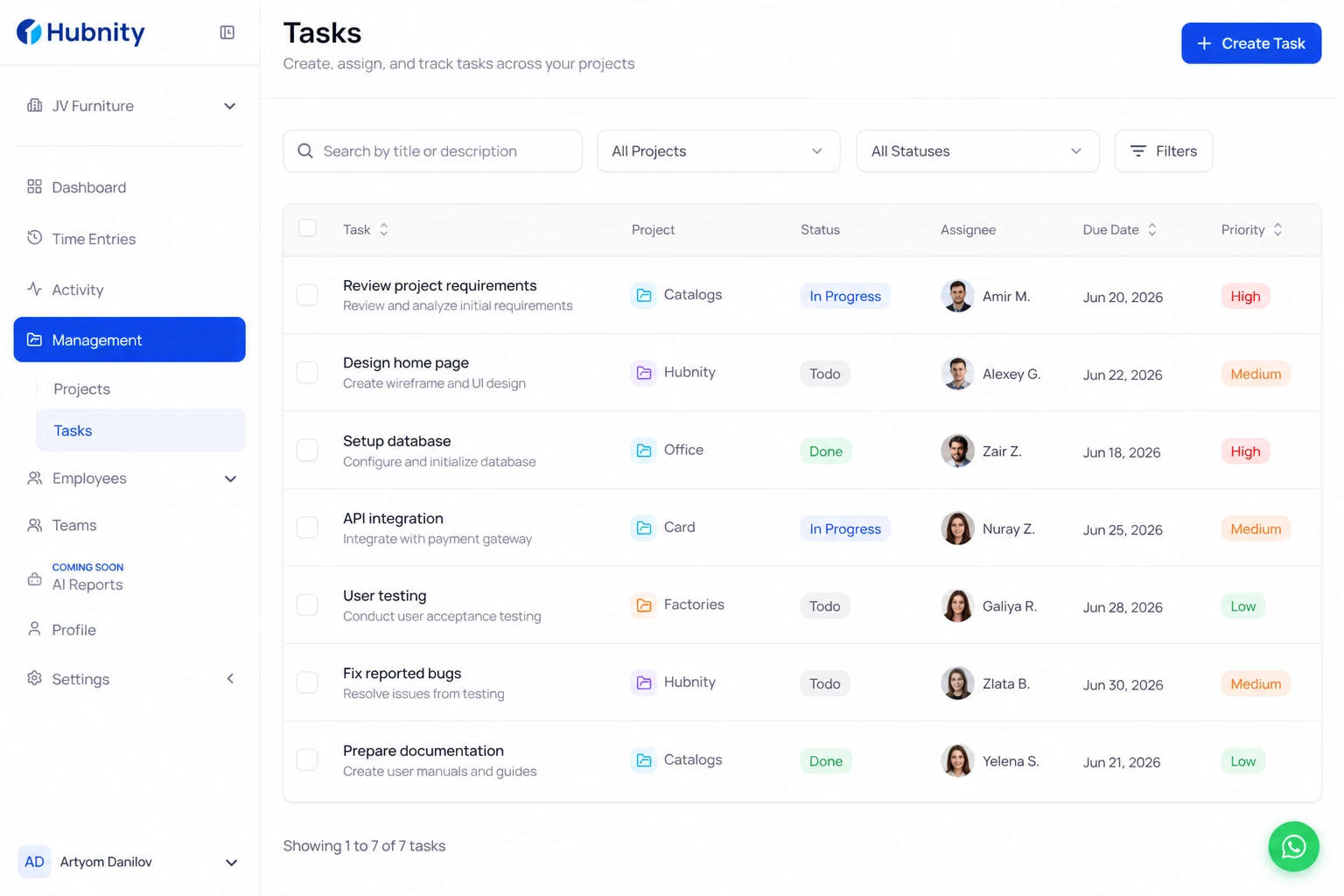
Assign tasks to team members and track progress across projects.
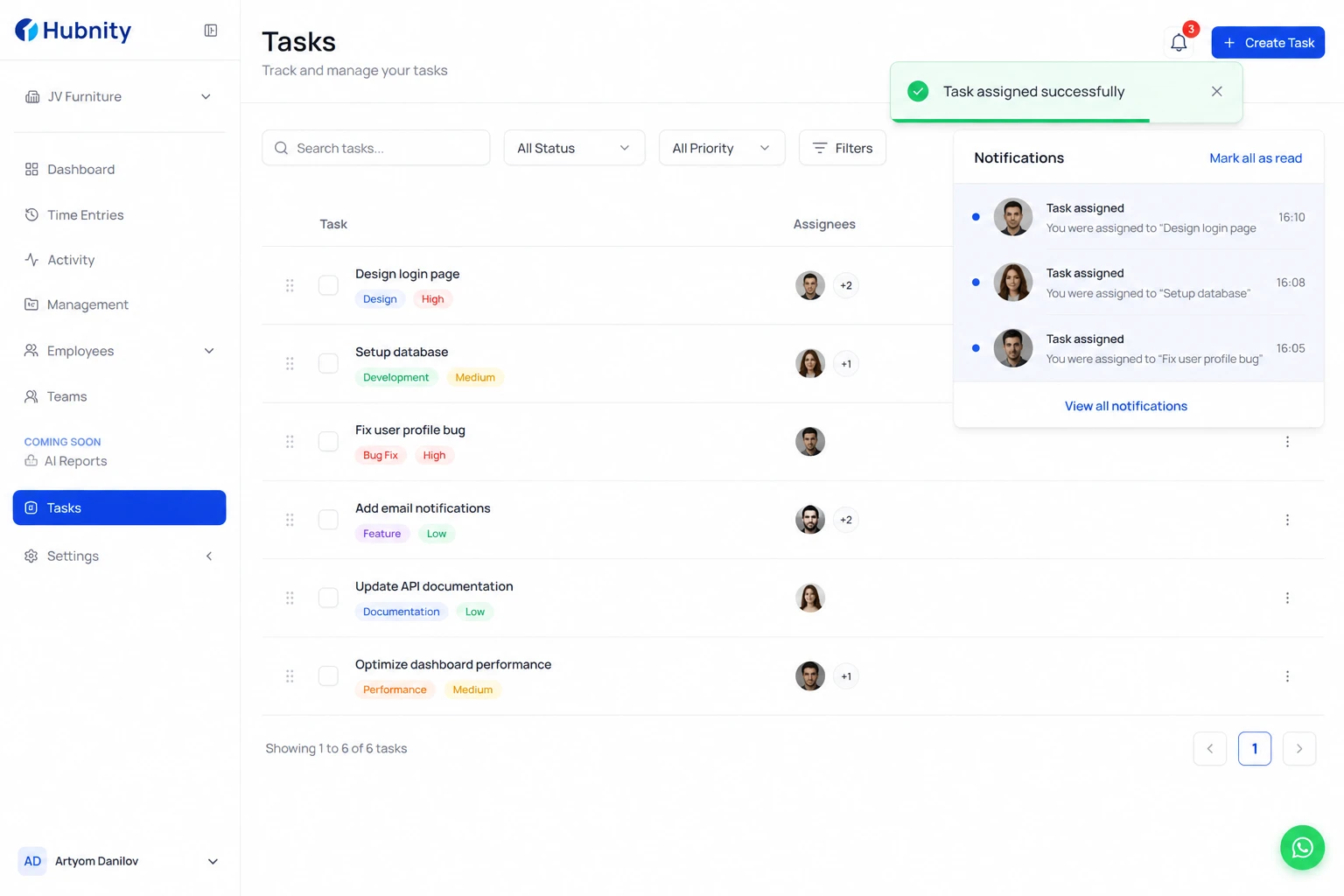
Assign a task to a member
Assignees see the task in their timer picker and task list.
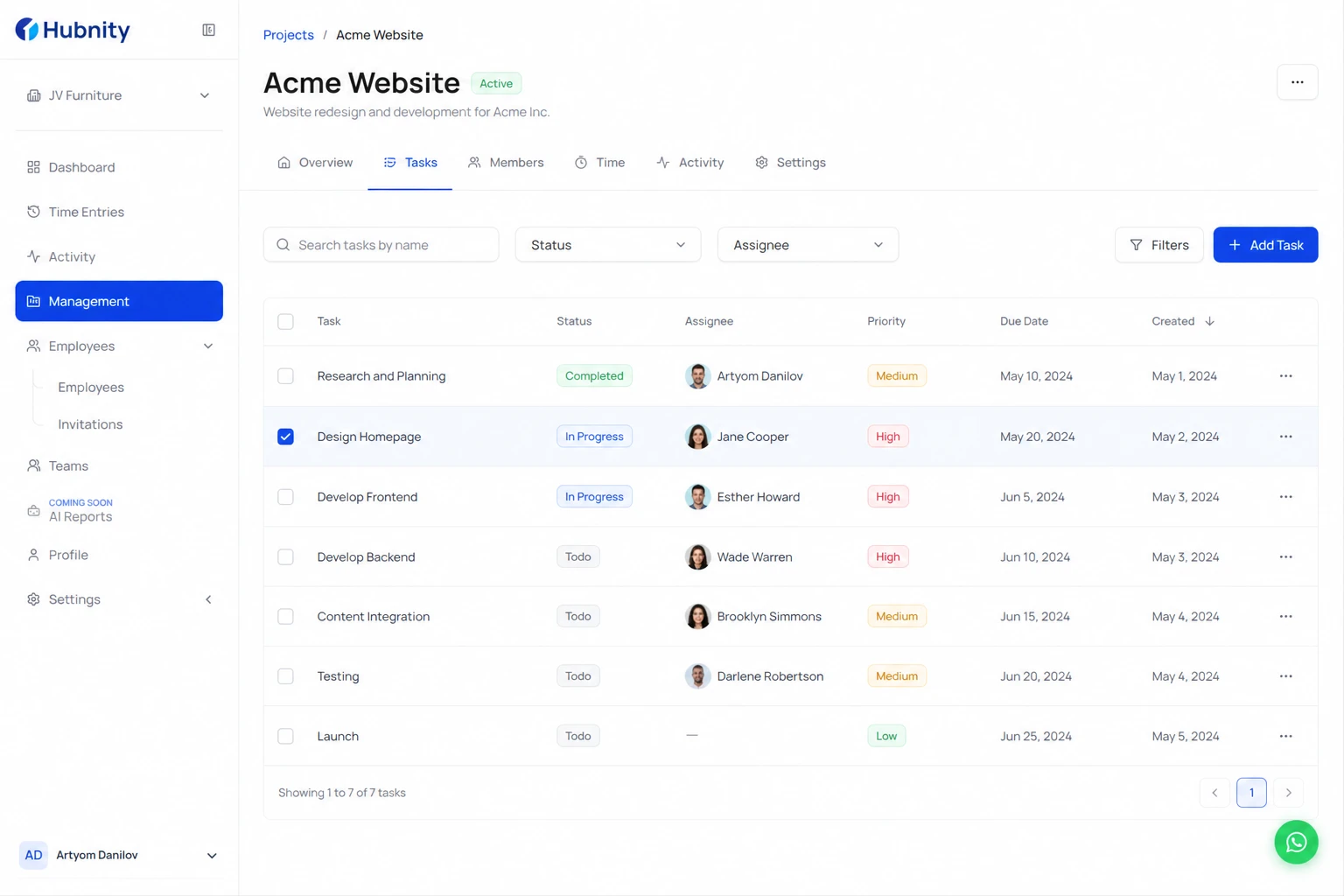
- 1
Open the project → Tasks tab
- 2
Click the task or create a new one
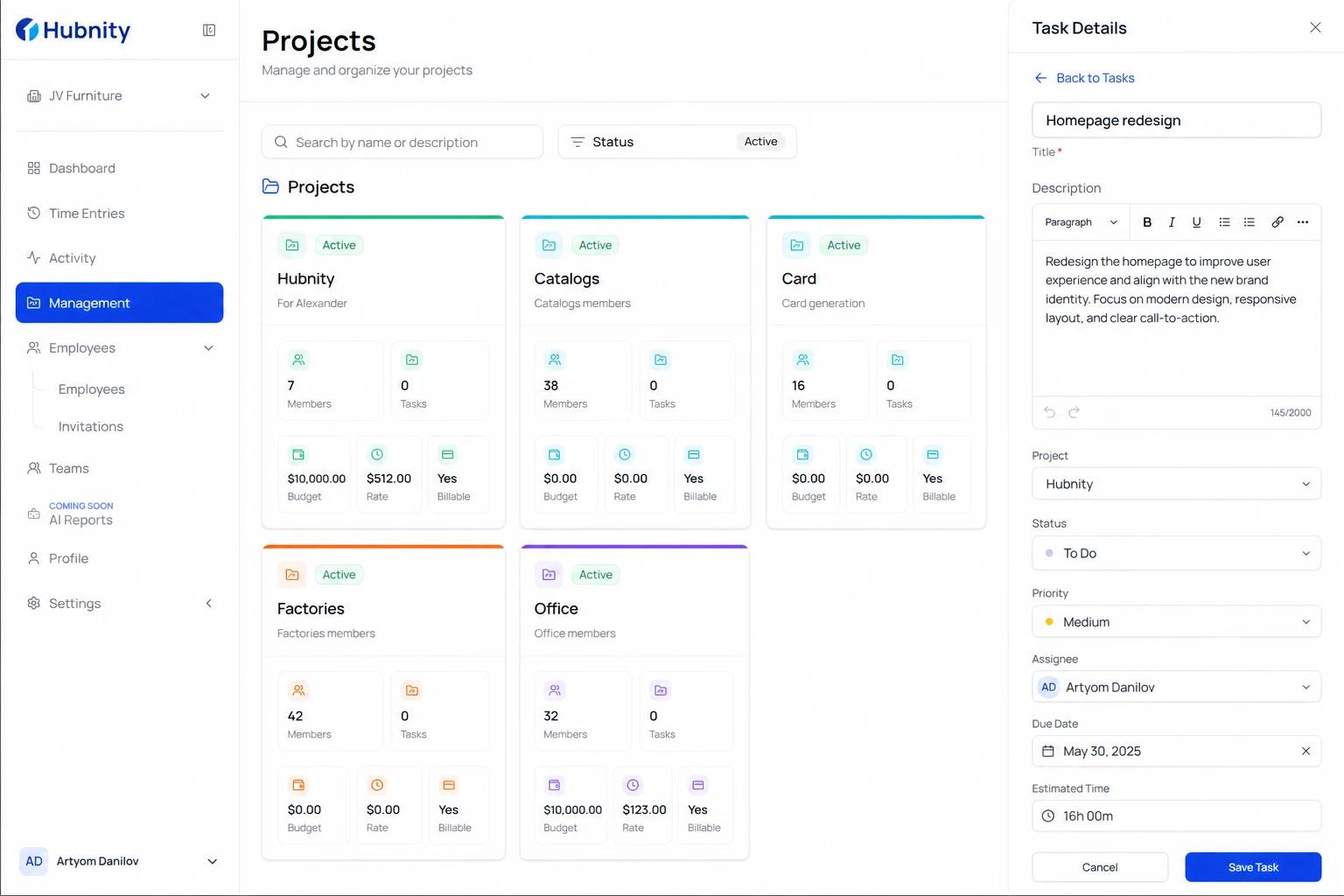
- 3
In the Assignee field, select one or more members
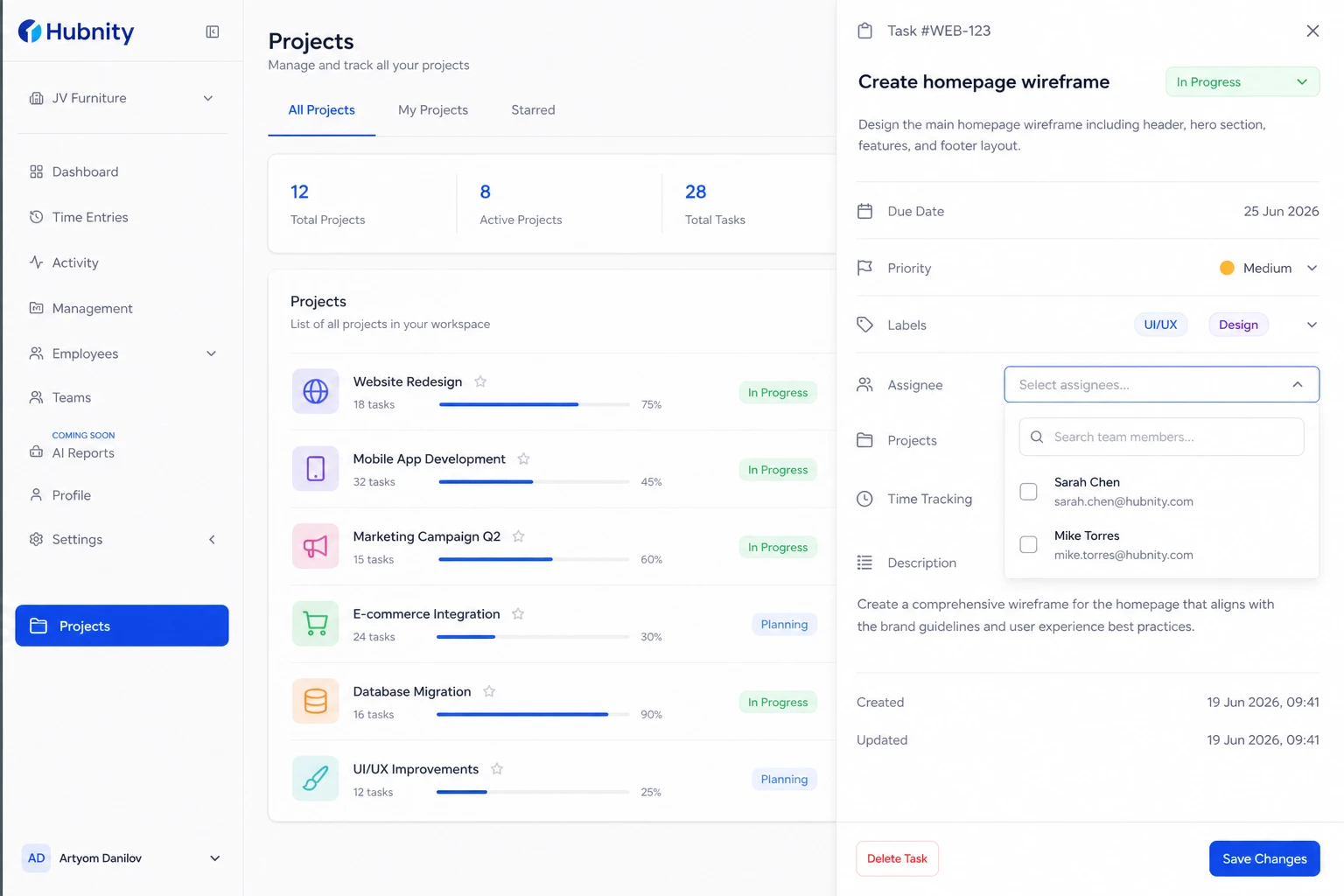
- 4
Set due date and priority
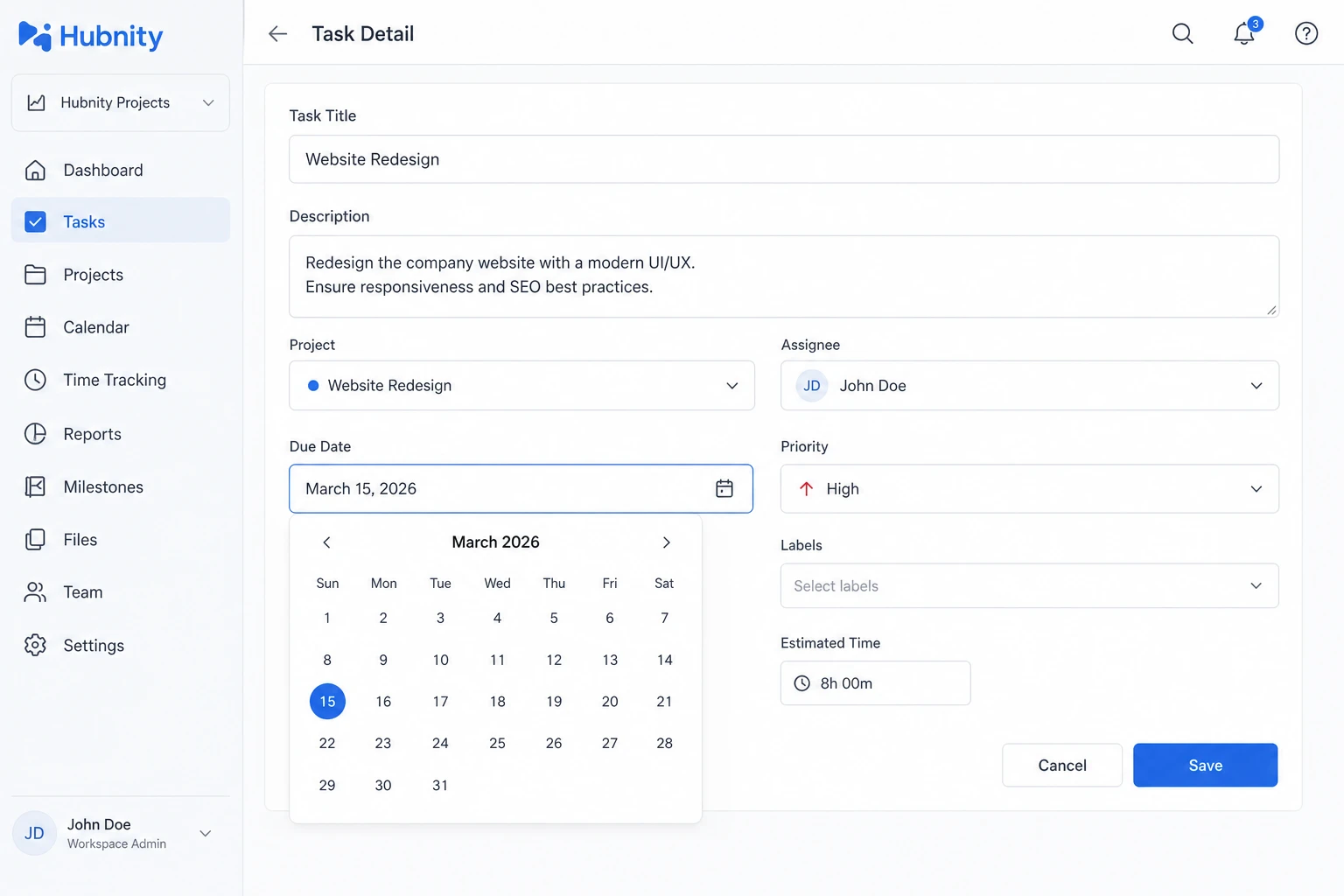
- 5
Save — assignees receive a notification
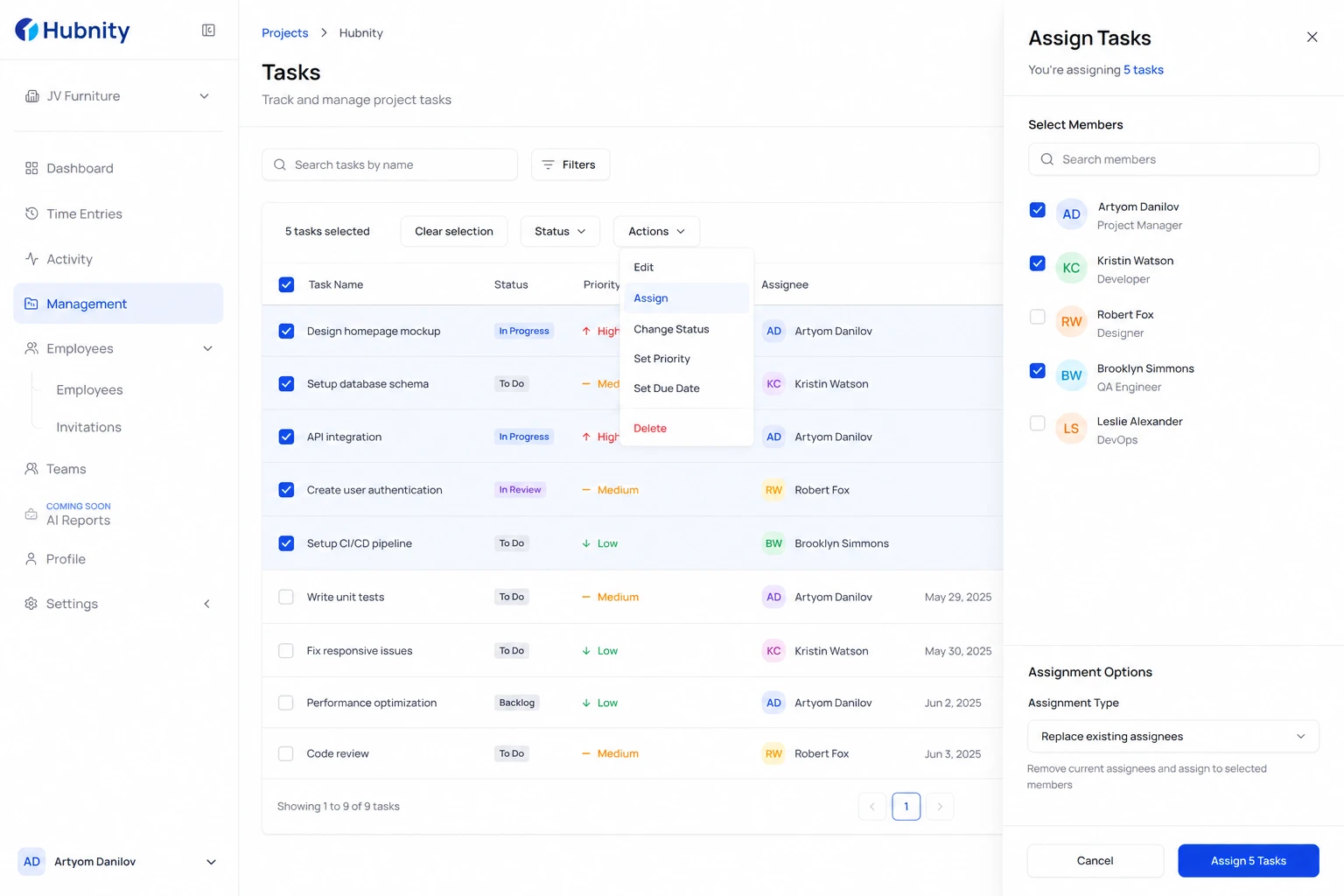
Bulk assignment
Select multiple tasks (checkbox) → Actions → Assign → choose member(s).
Bulk assign is available to Managers, Admins, and Owners.
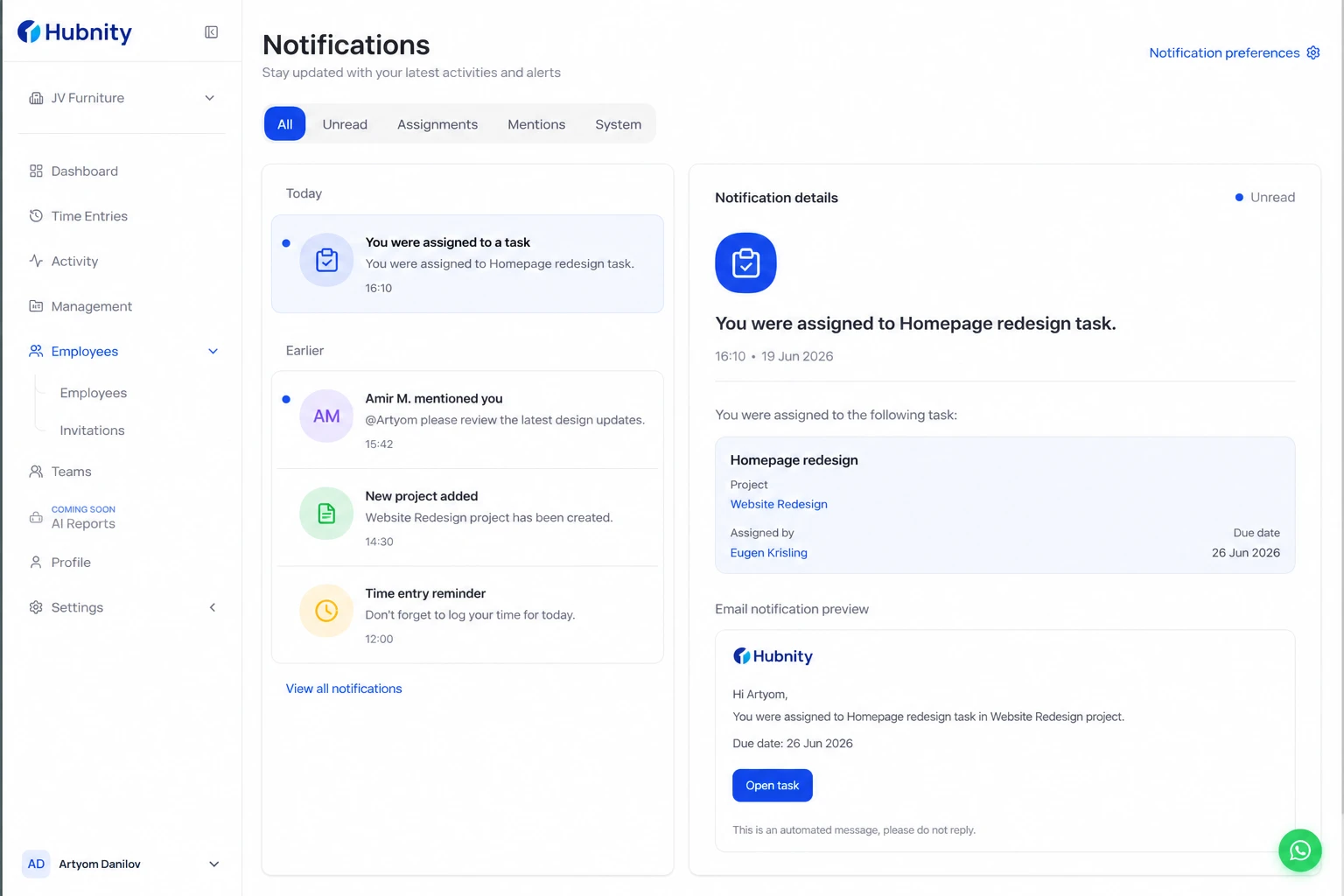
Assignment notifications
Assignees receive in-app and email notifications (configurable in Profile → Notification preferences).
Reassigning a task notifies both the old and new assignee.
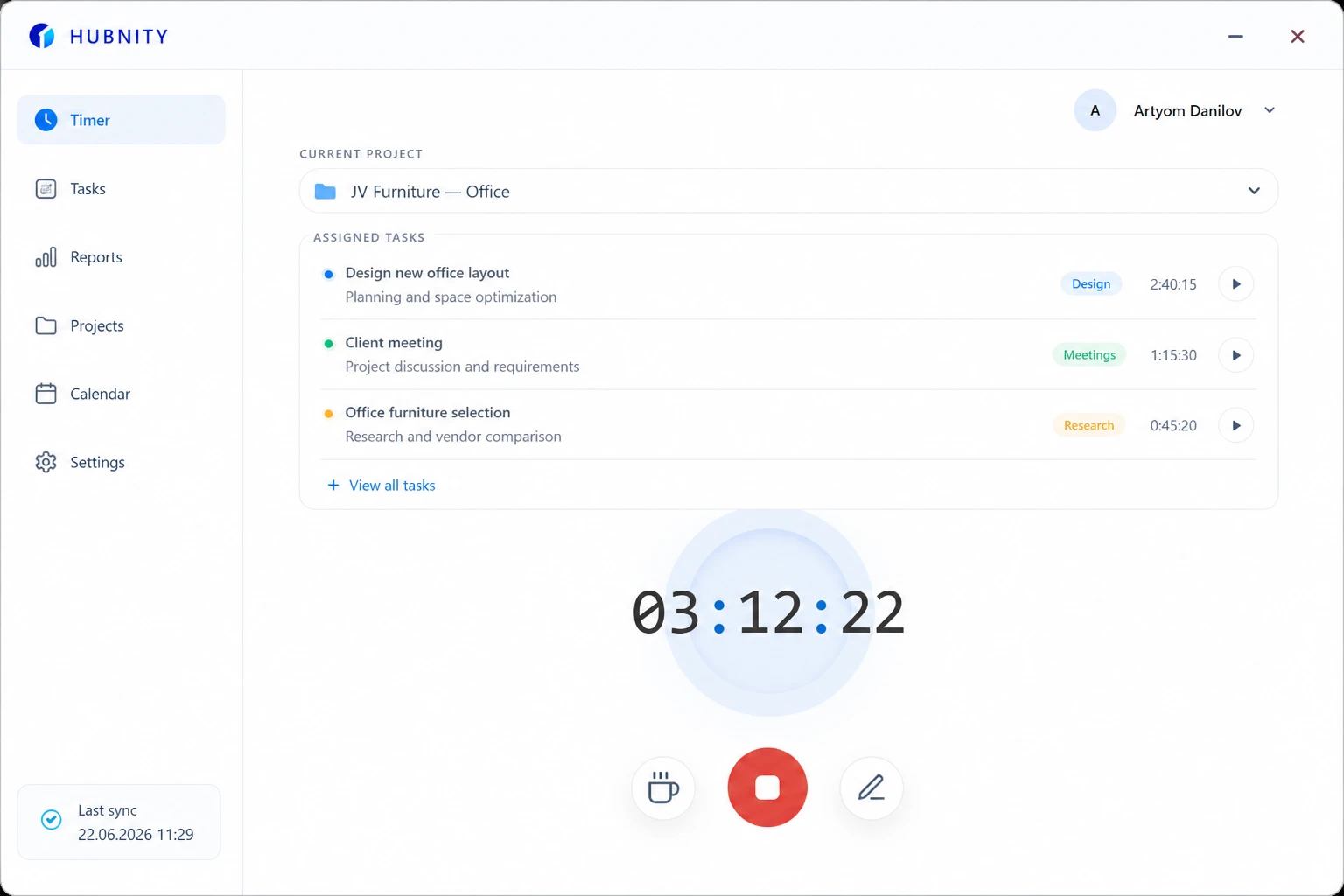
Tracking time on assigned tasks
Assigned tasks appear at the top of the timer task picker on all apps.
Time tracked to an assigned task counts toward the assignee's timesheet, regardless of who started the timer (if shared project access).
Unassigning and completion
Mark task as Done to remove from active picker. Time entries already tracked are preserved.
Unassign from the task detail panel → Assignee → Remove.