Use Hubnity kanban boards to visualize task workflow and move work through stages.
Board overview
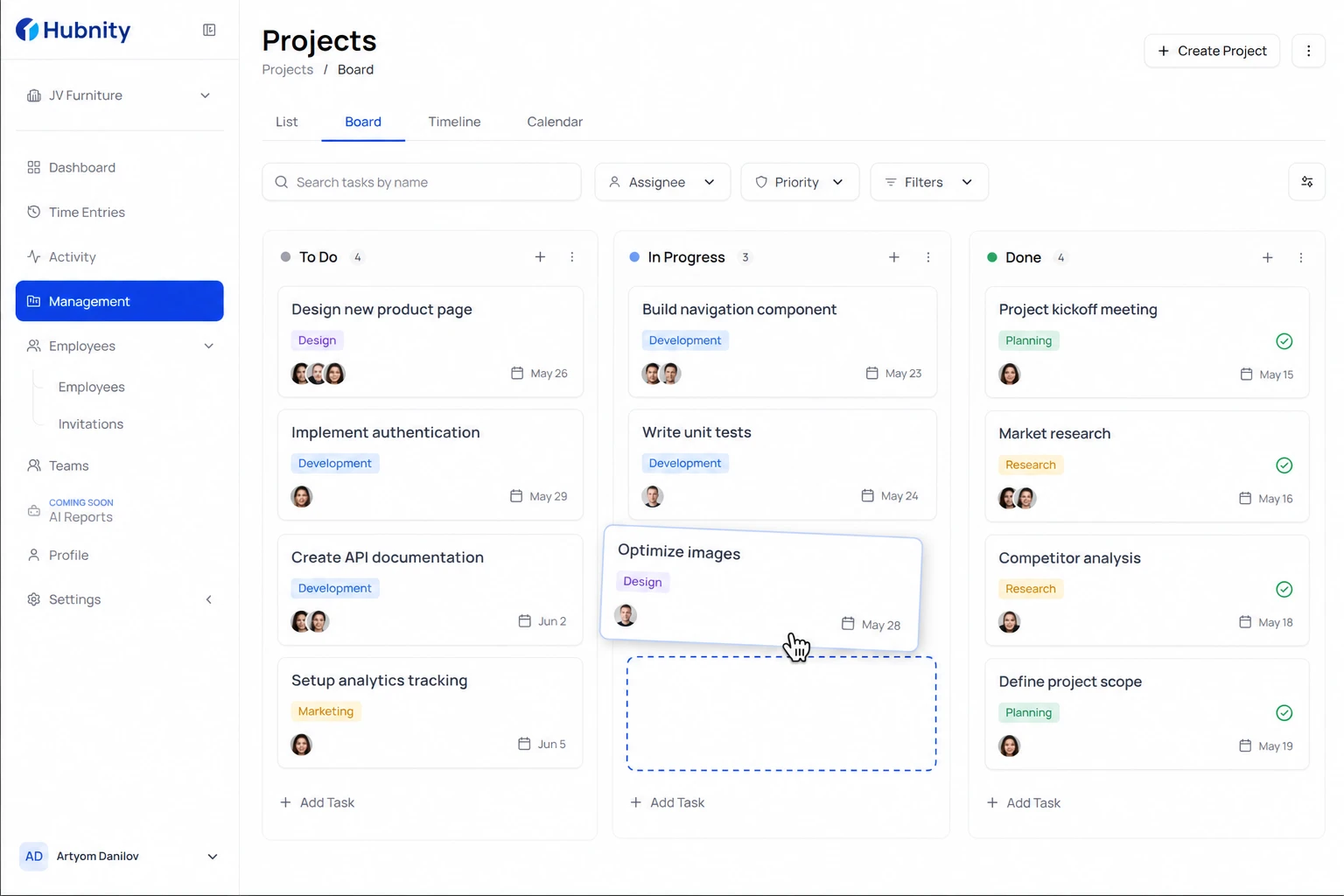
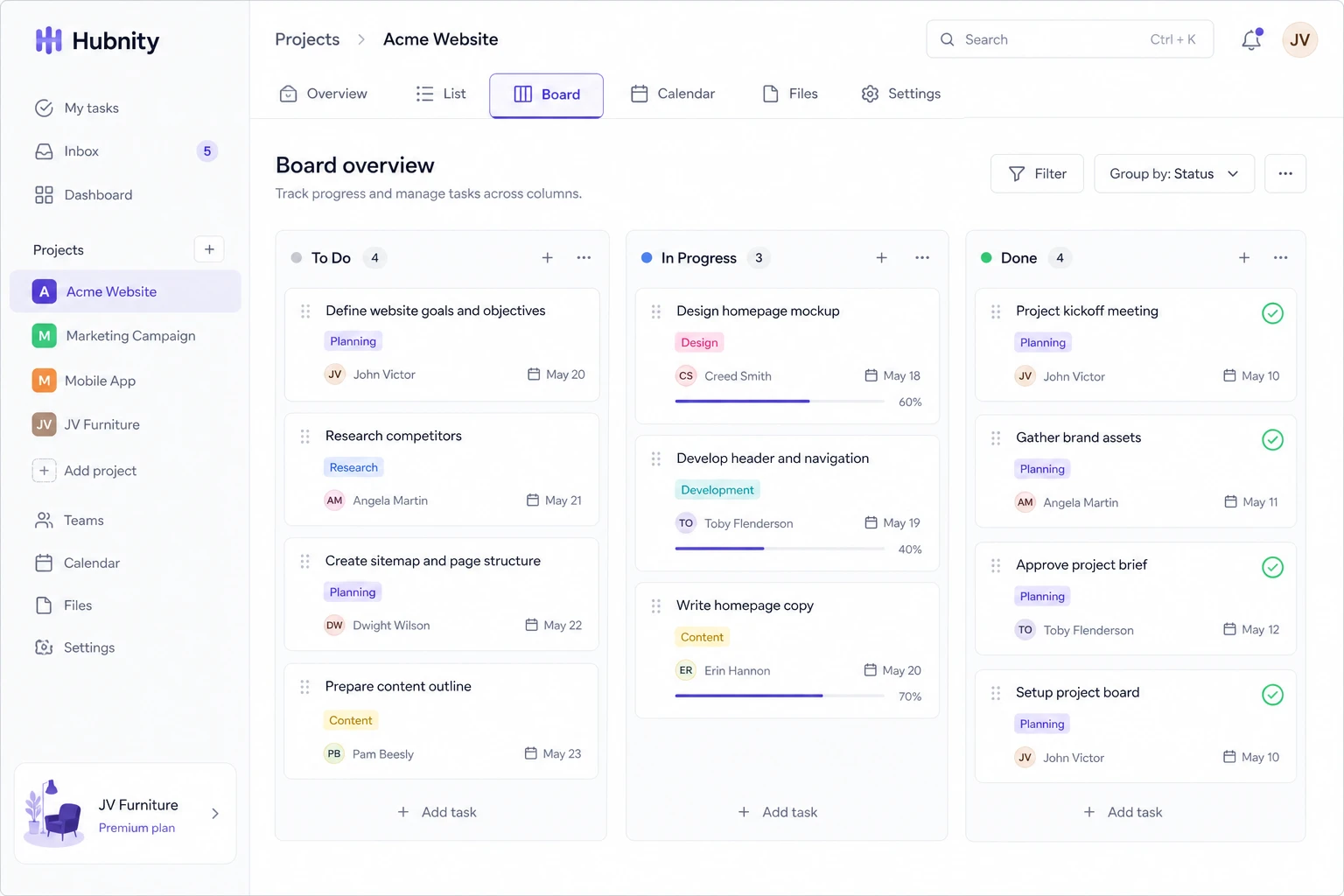
Each project has a kanban board view showing tasks as cards in columns. Default columns: To Do, In Progress, Done.
Access from Projects → [Project] → Board tab.
Customize board columns
Column names and order are per-project.
- 1
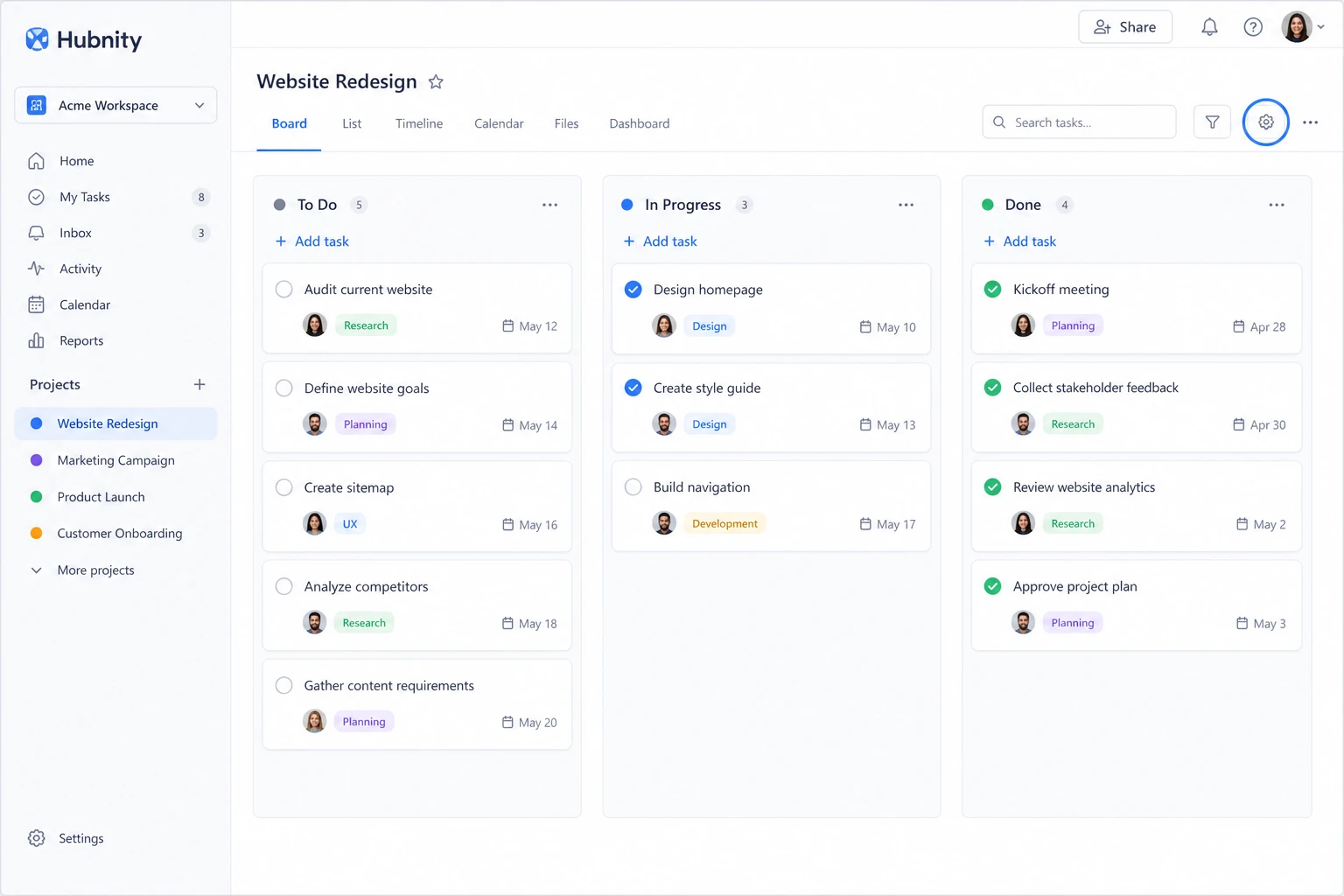
Open the project board → Settings (gear icon)
- 2
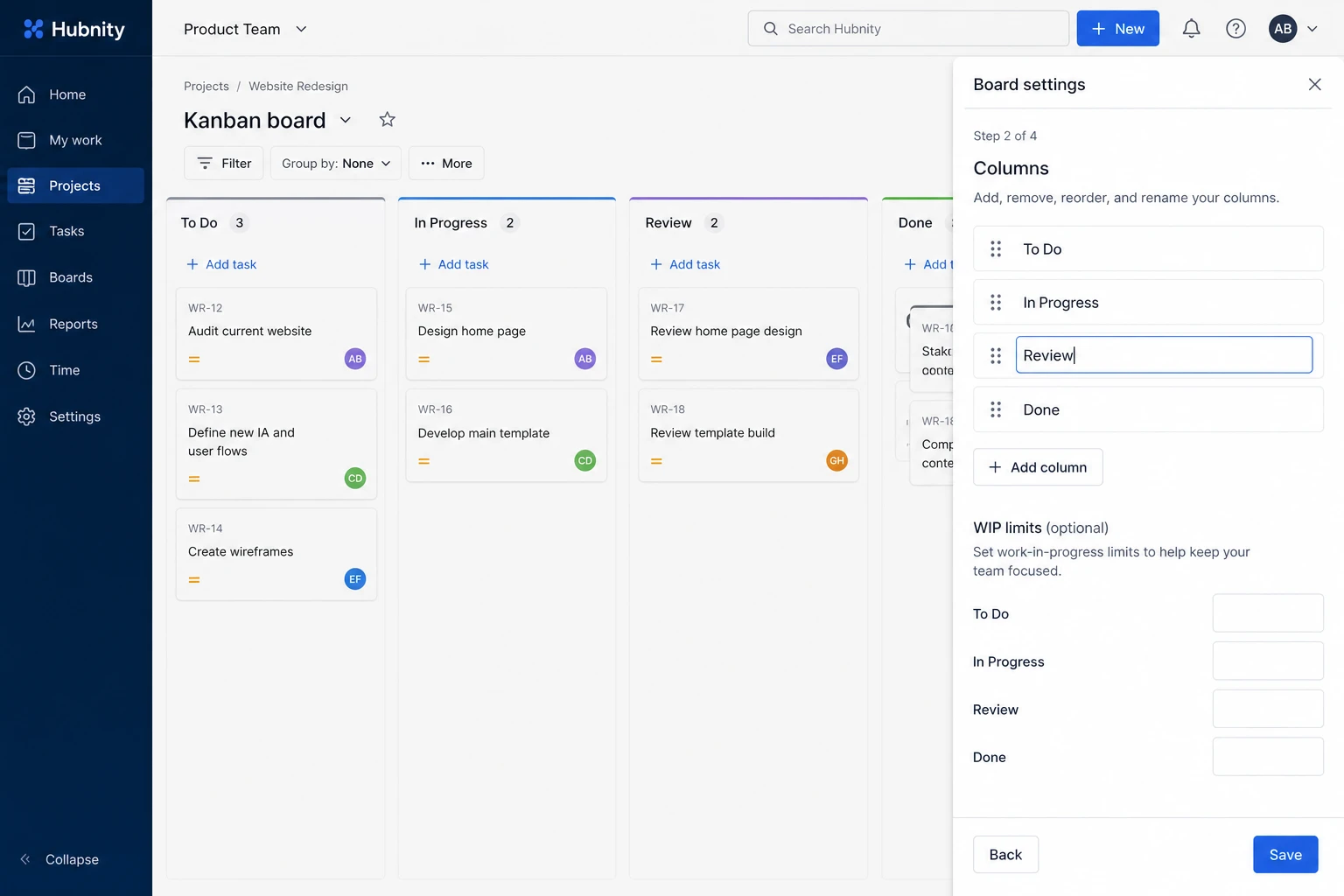
Add, rename, or reorder columns
- 3
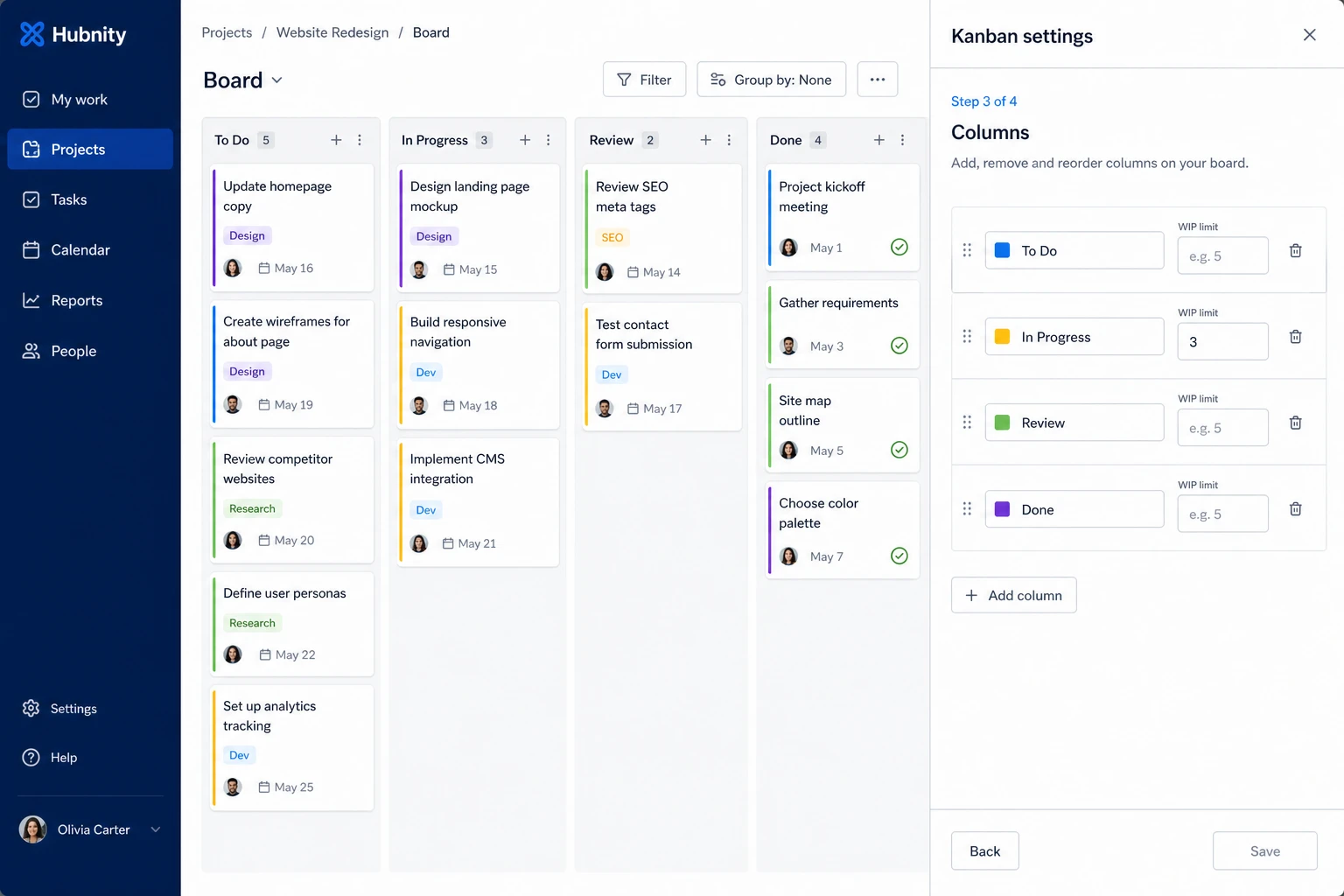
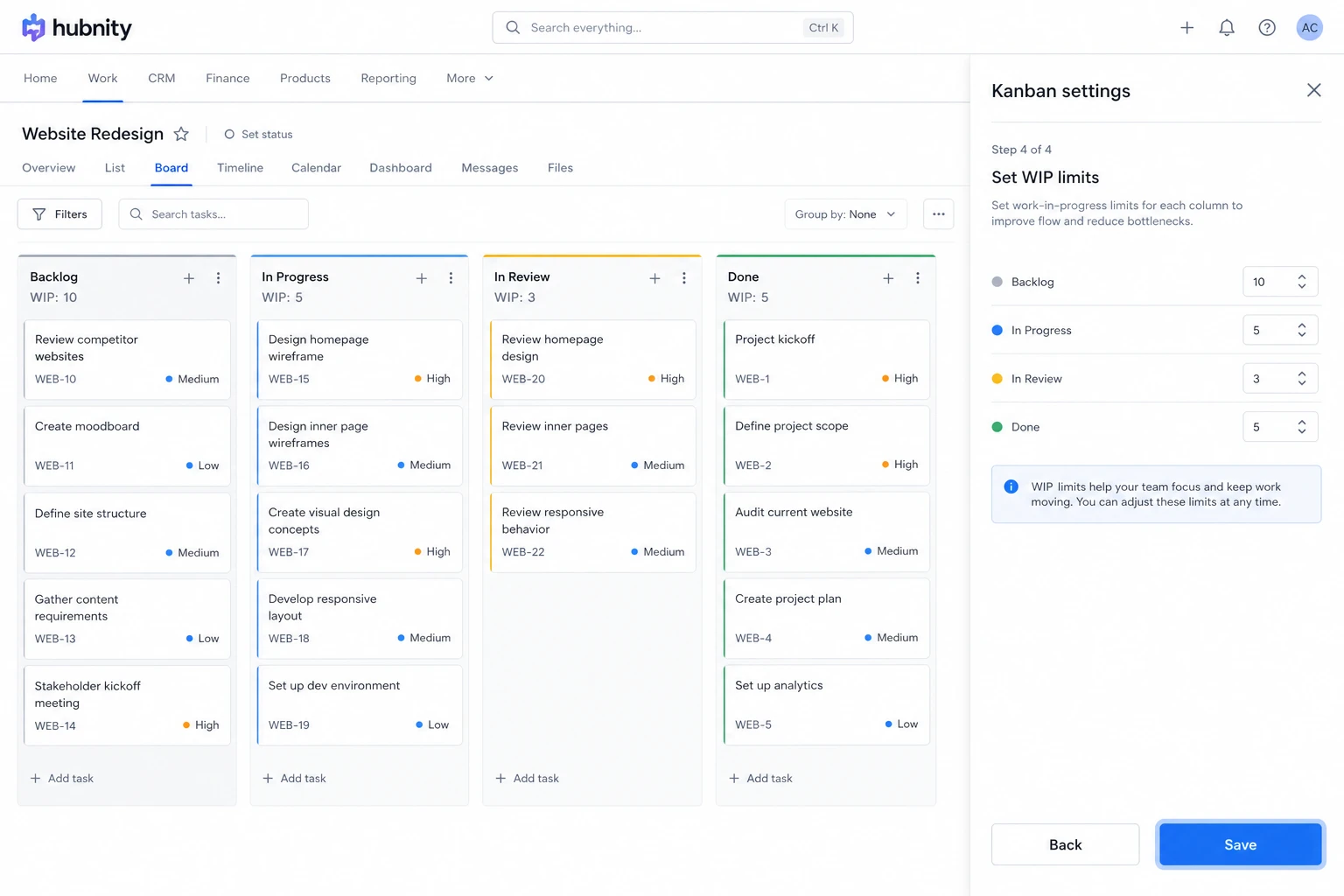
Set WIP (work-in-progress) limits per column (optional)
- 4
Save
Moving tasks
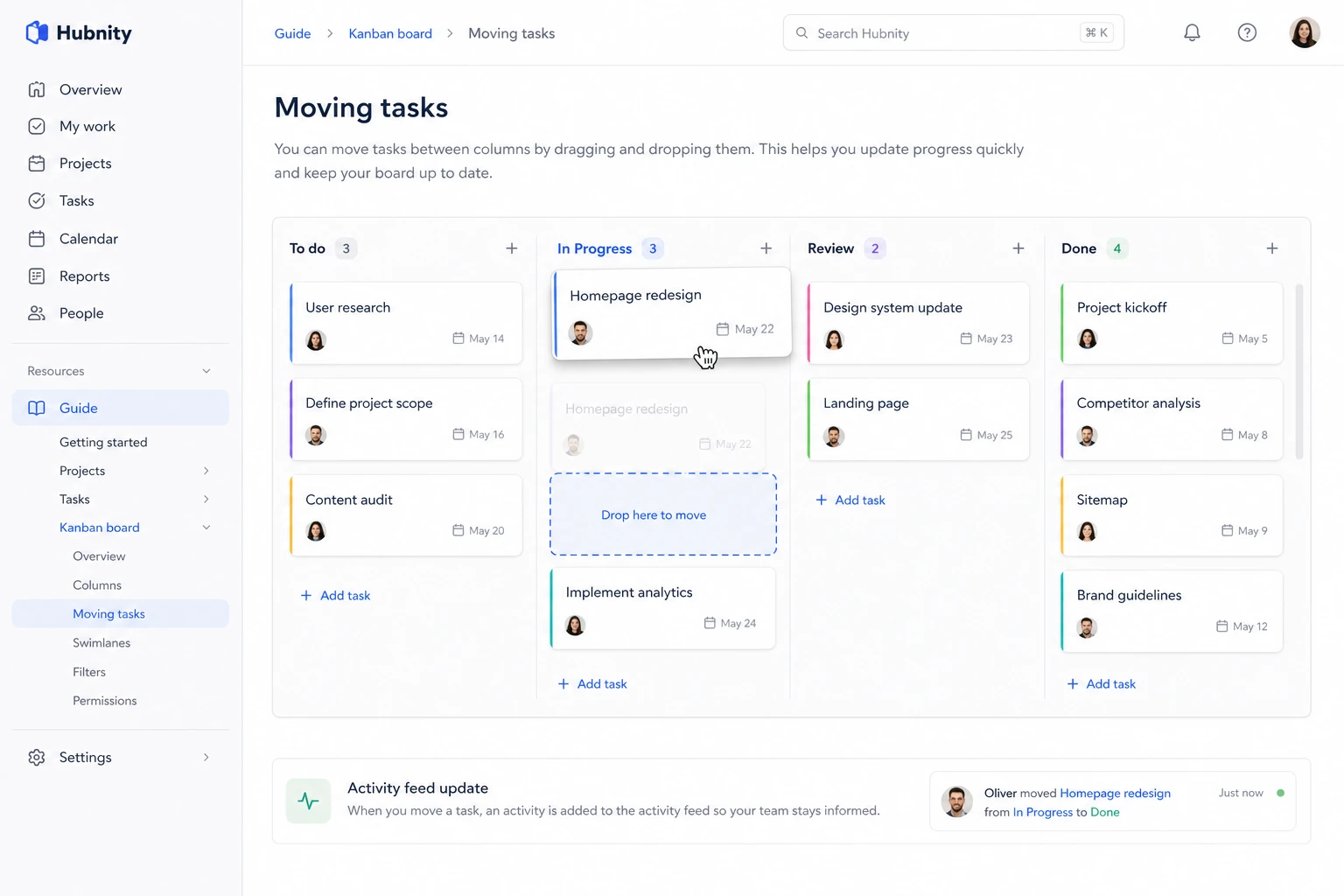
Drag and drop cards between columns to update task status. Status change is logged in the task activity feed.
Moving to Done closes the task to new time entries.
Board filters
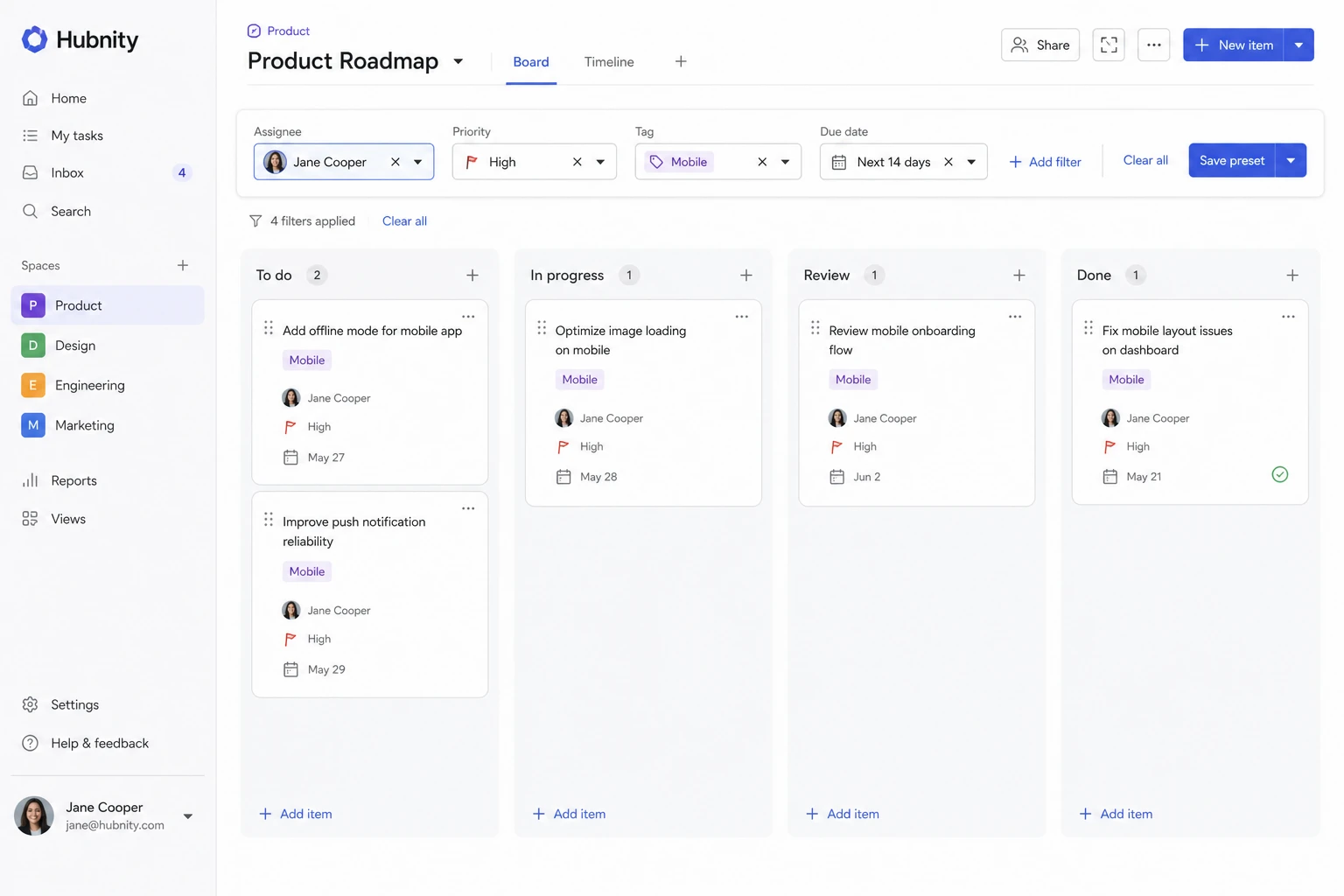
Filter by assignee, priority, tag, or due date using the filter bar above the board.
Save filter presets for recurring views.
Swimlanes
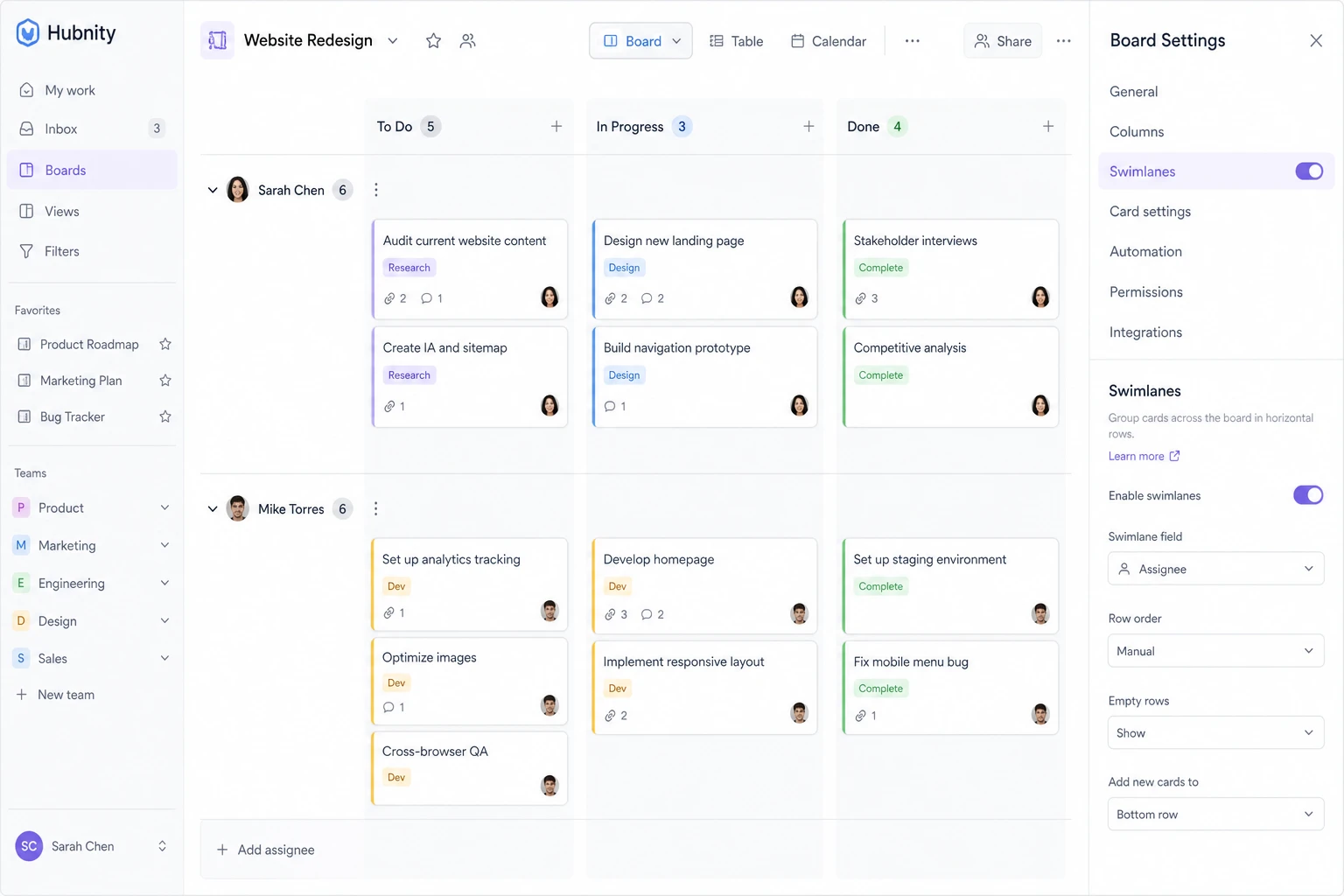
Enable swimlanes by assignee or priority from Board → Settings → Swimlanes.
Swimlanes group cards horizontally for cross-column visibility.