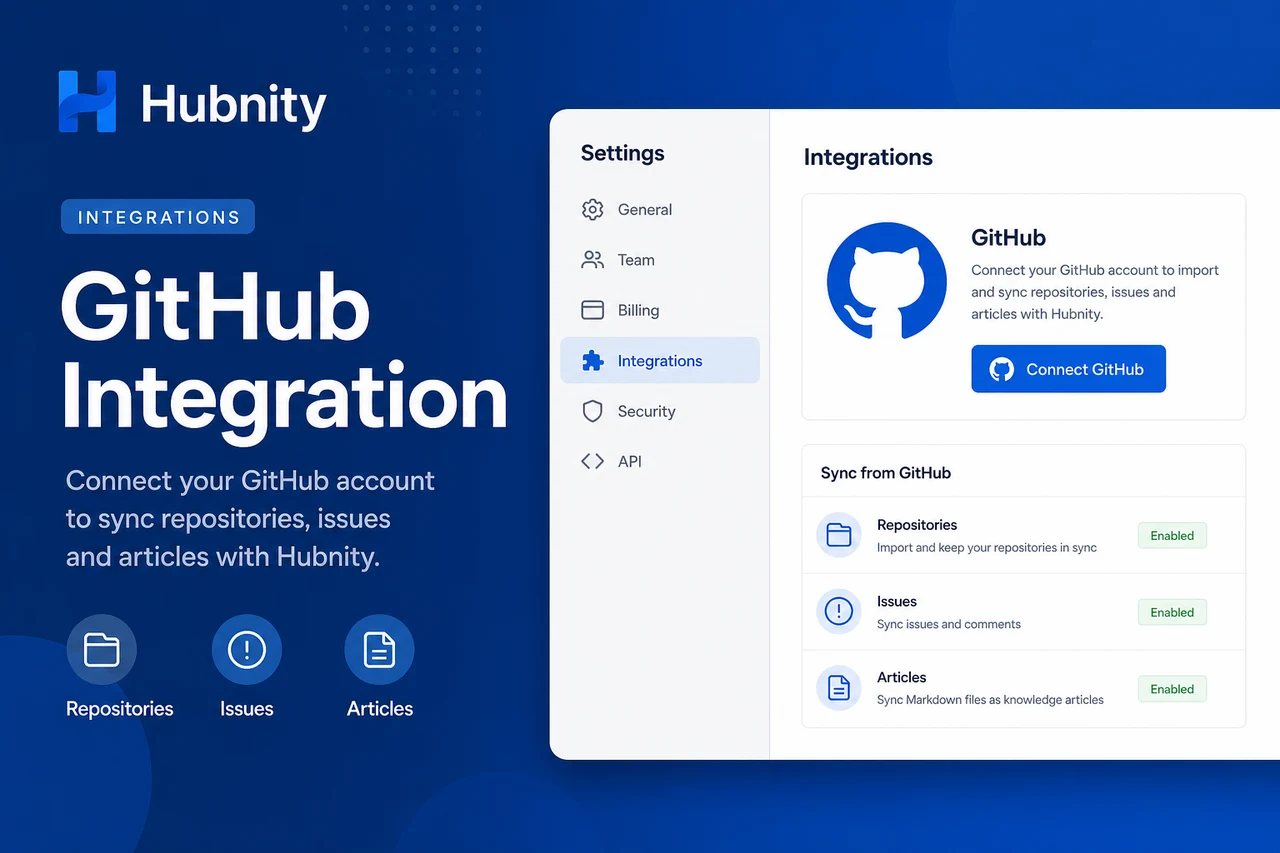
Connect GitHub to Hubnity to sync repositories and issues, and track development time against GitHub work items.
Why connect this tool
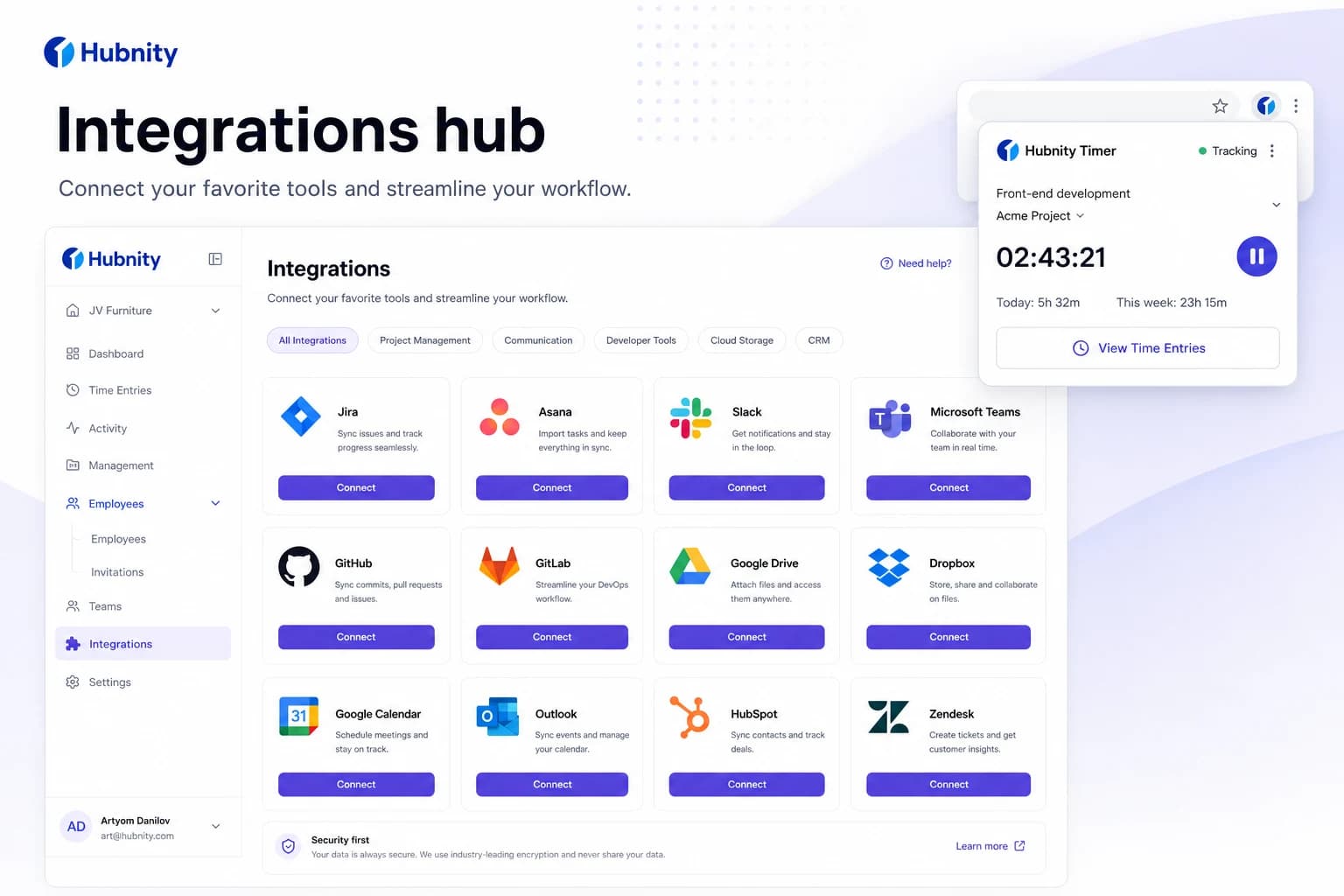
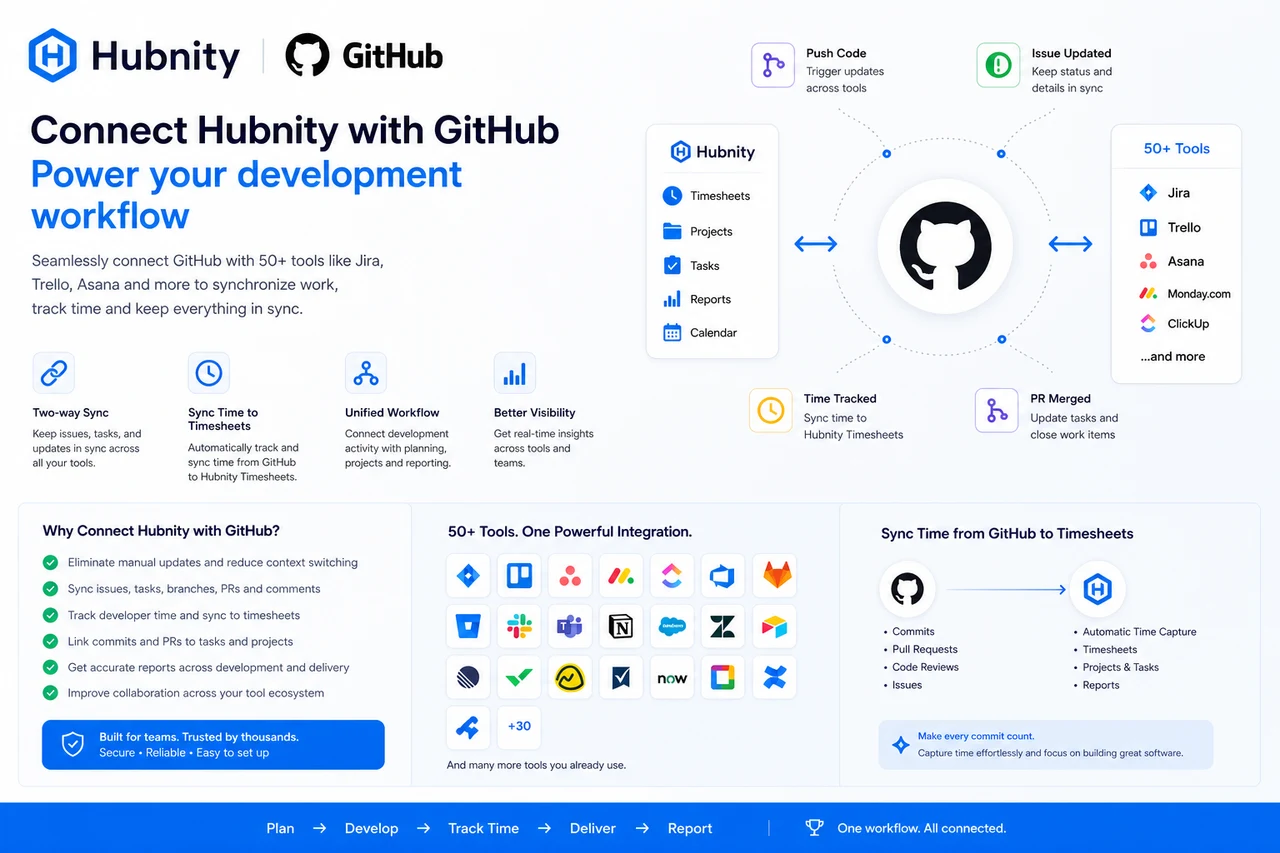
Yes, Hubnity seamlessly integrates with over 50 popular project management and communication tools, including Jira, Trello, Asana, Slack, and Notion.
Connecting github reduces duplicate entry—time syncs back to Hubnity timesheets.
Connect GitHub
Requires GitHub organization admin or repository admin permissions to install the Hubnity GitHub App.
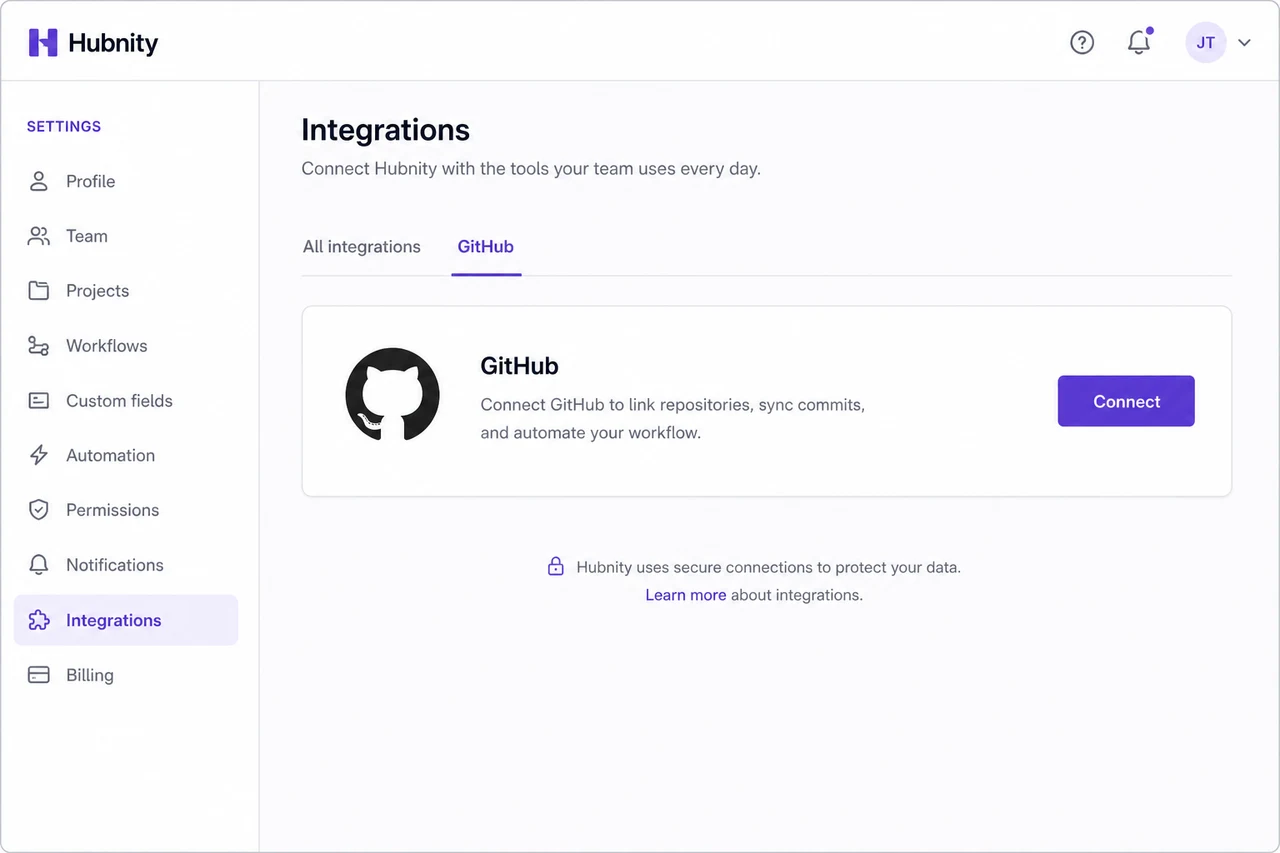
- 1
Go to Settings → Integrations → GitHub
- 2
Click Connect to GitHub
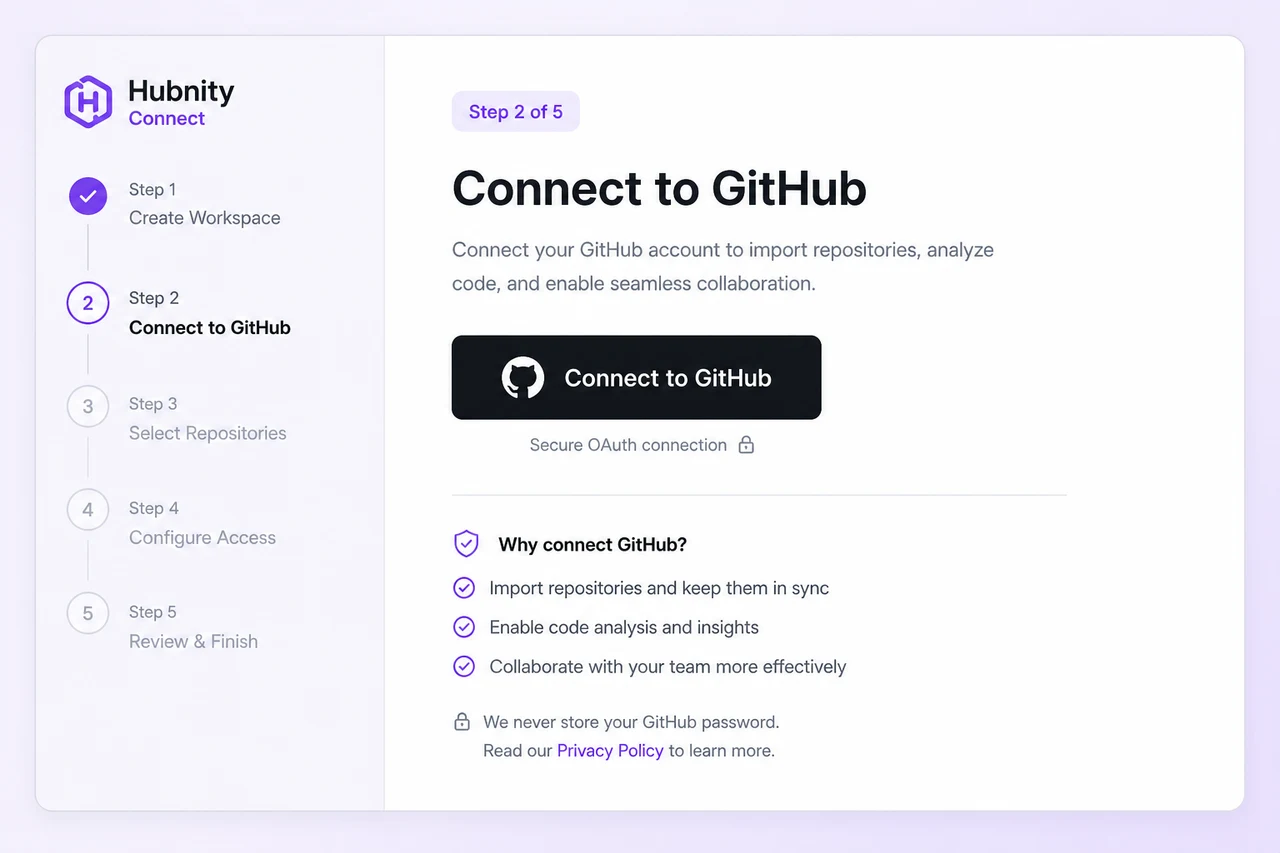
- 3
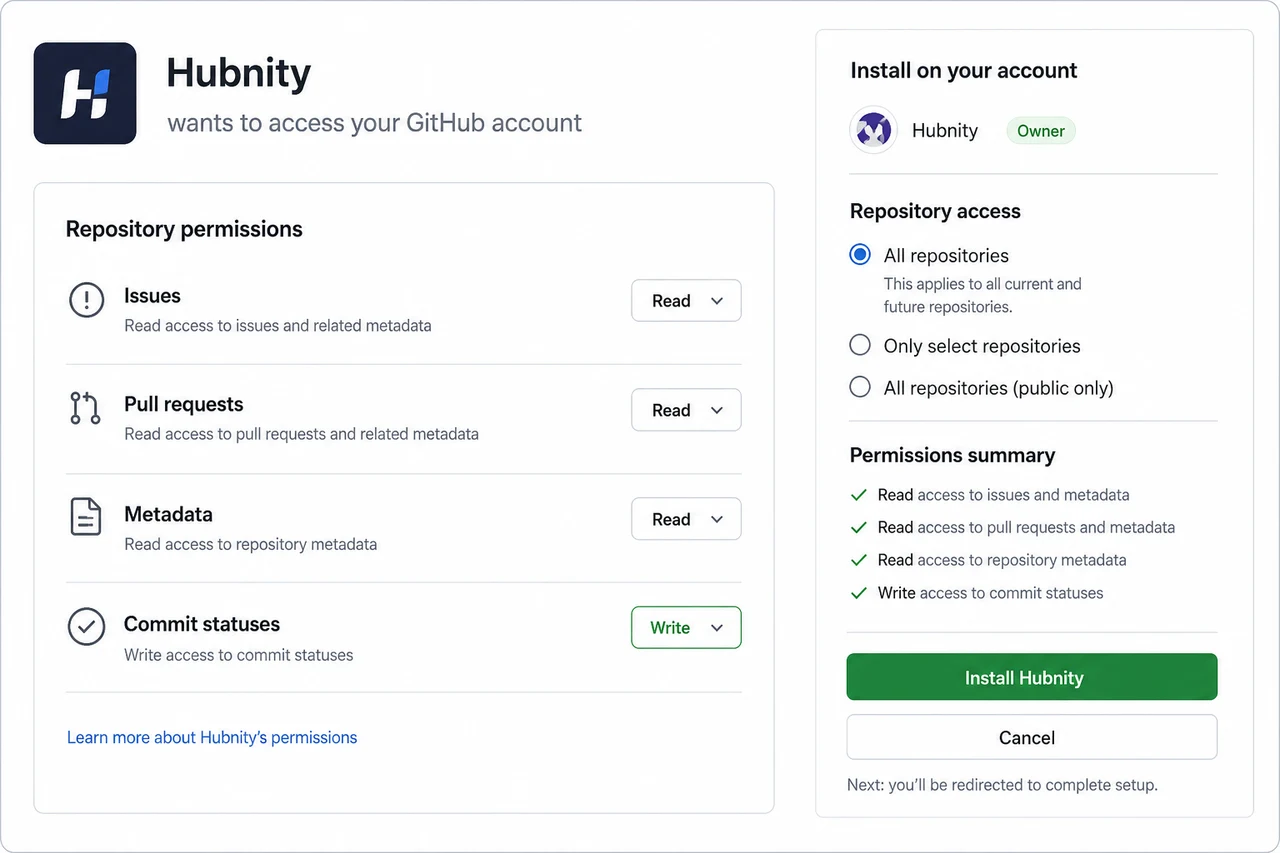
Authorize the Hubnity GitHub App for your organization or personal account
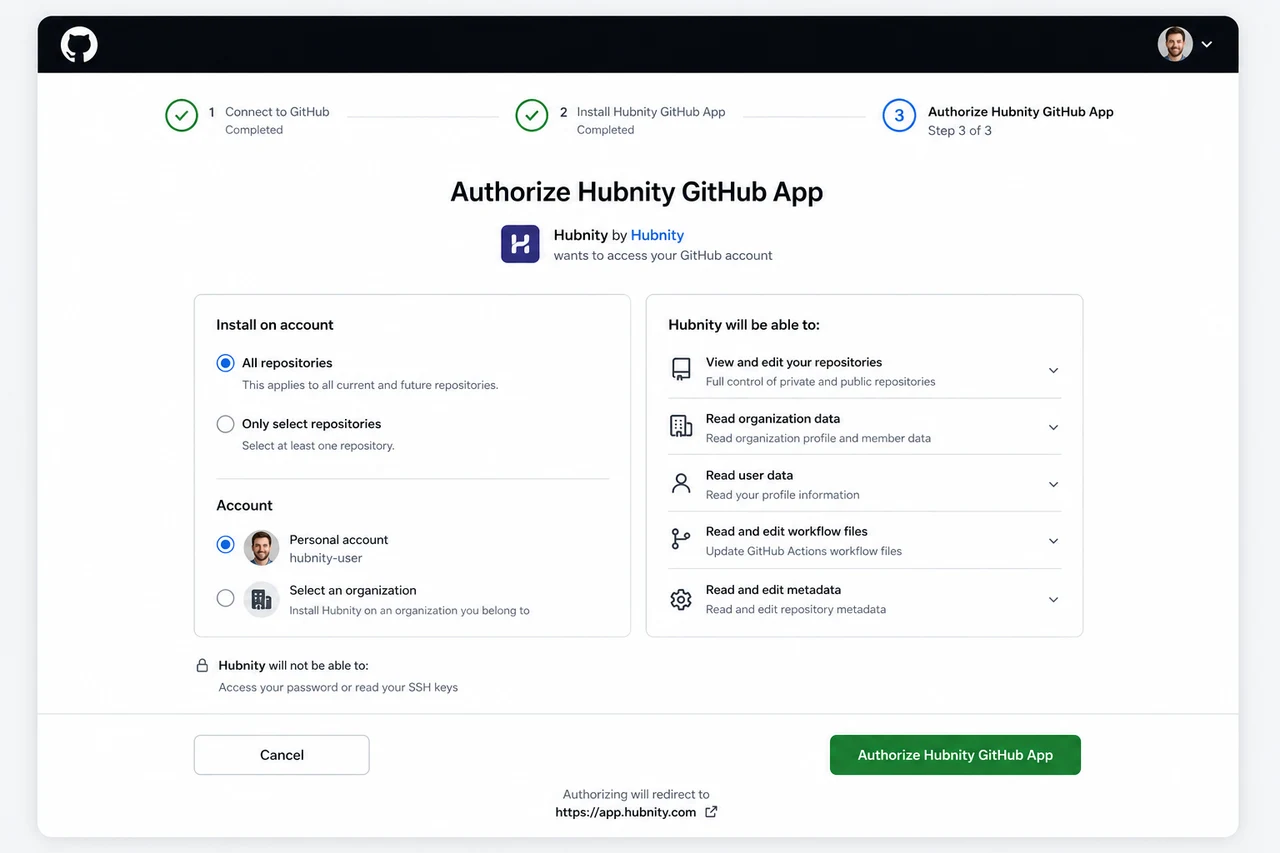
- 4
Select repositories to sync
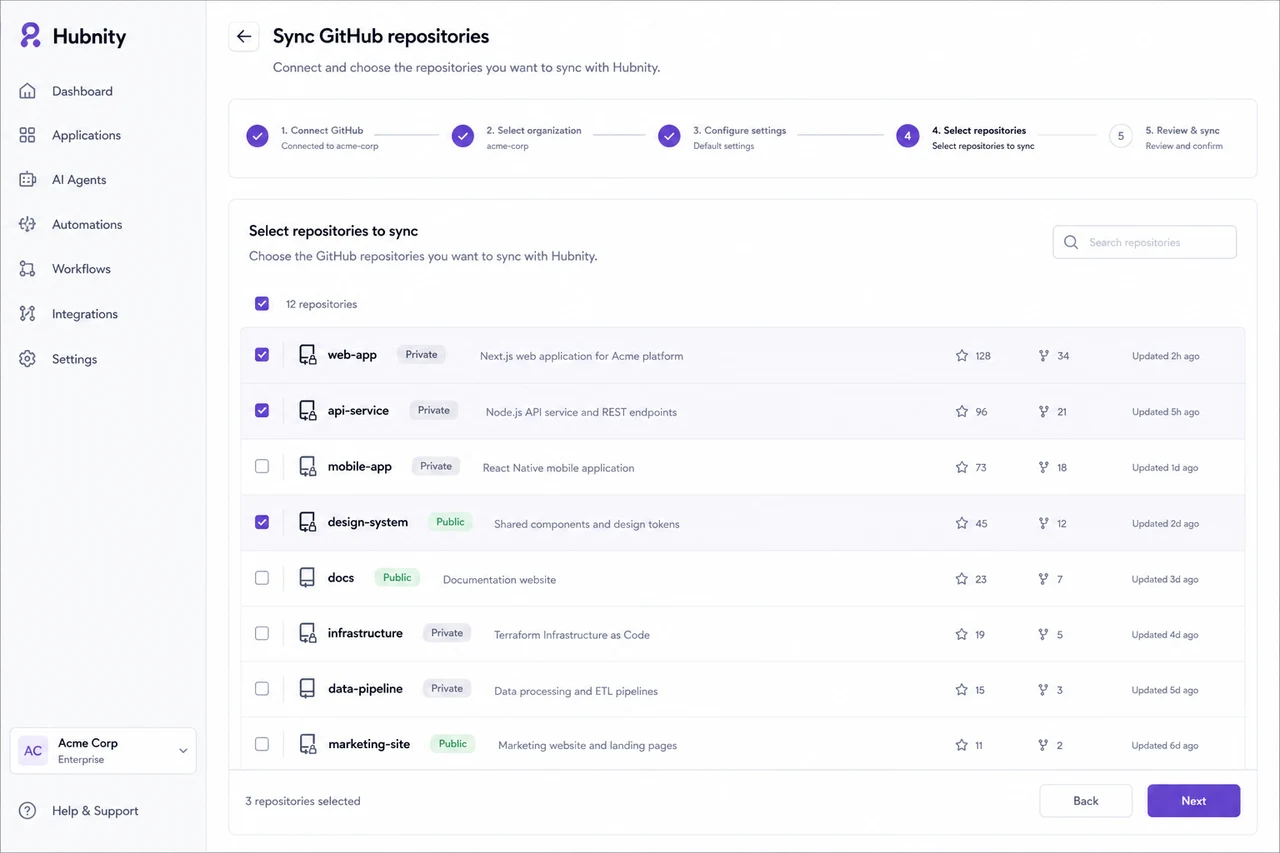
- 5
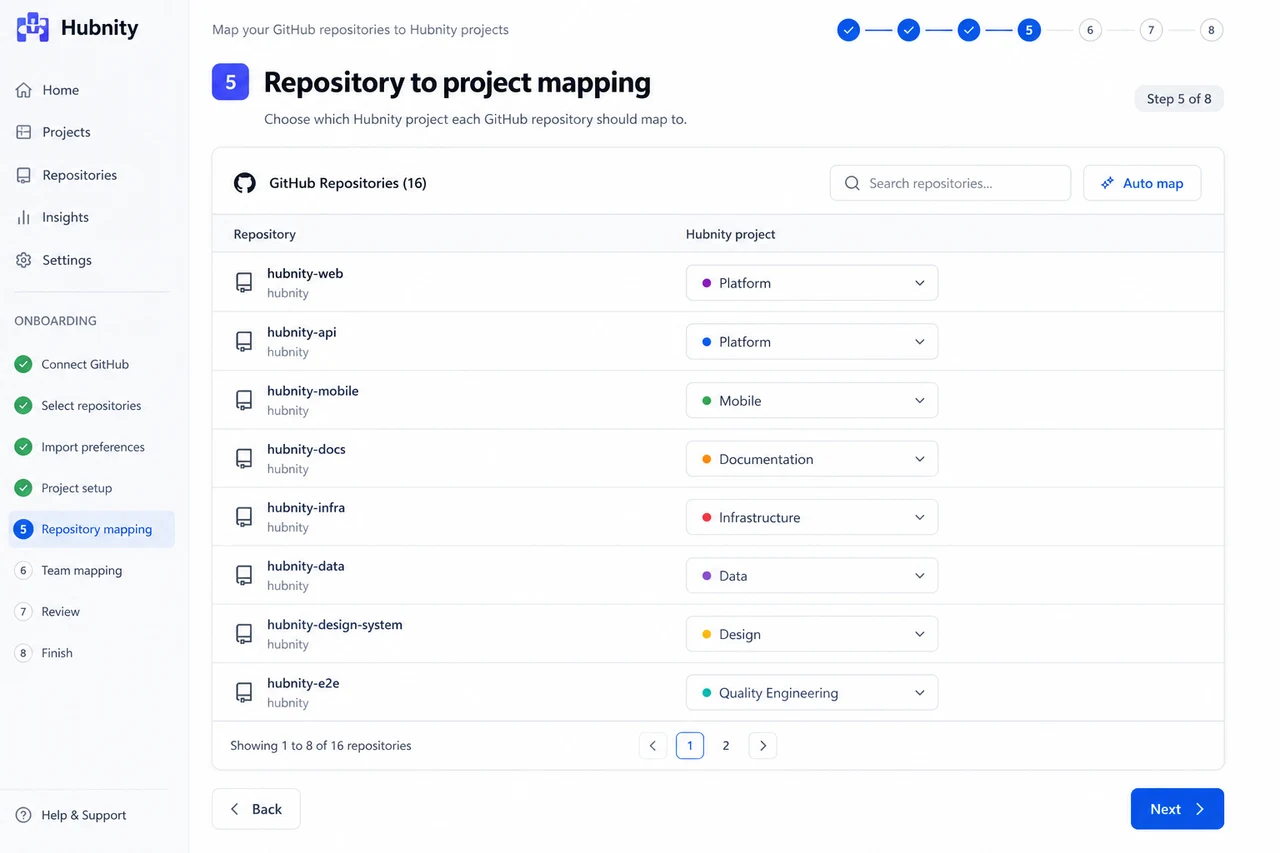
Map each repository to a Hubnity project
- 6
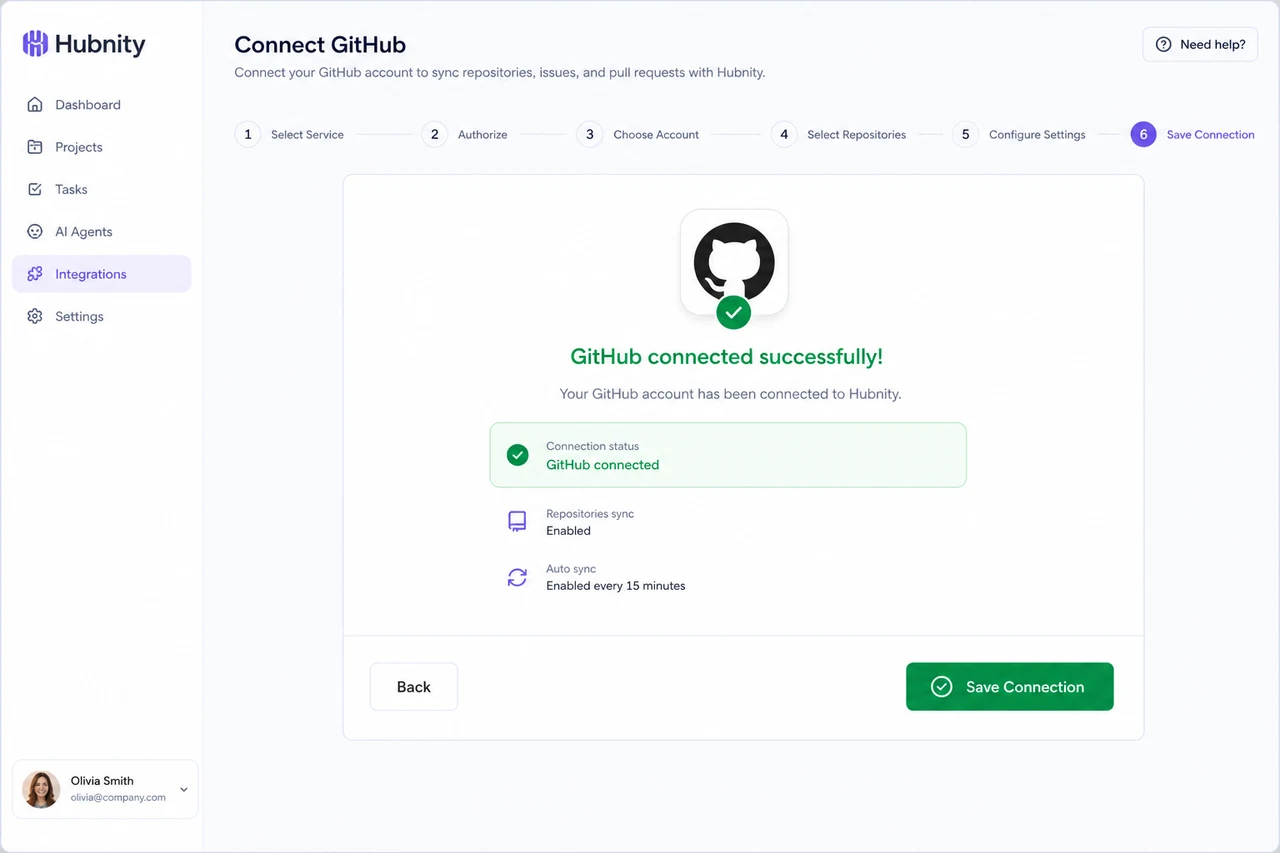
Save connection
Field mapping
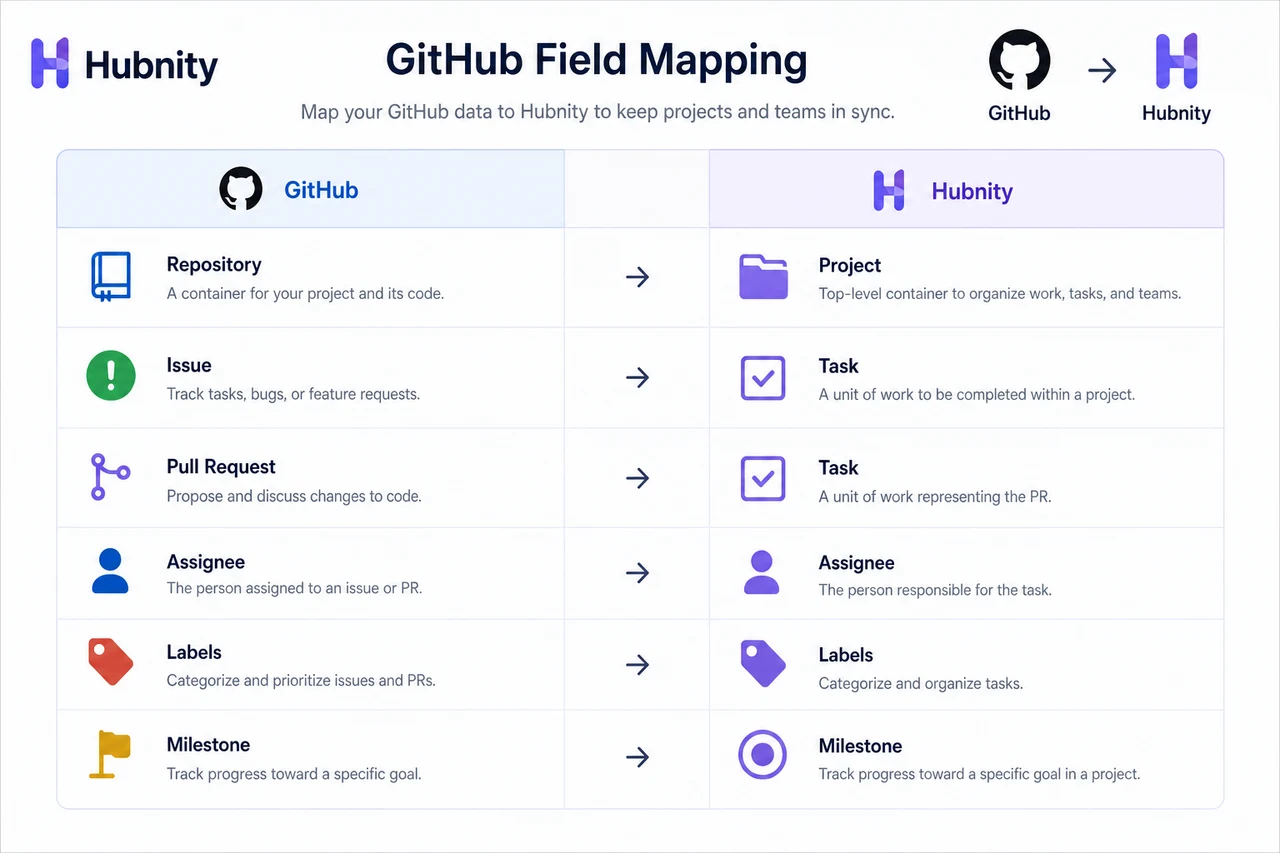
GitHub Repository → Hubnity Project: required for issues to appear in the timer.
GitHub Issue/PR → Hubnity Task: auto-created with issue/PR title. PRs are tagged with pull-request label.
GitHub Assignee → Hubnity Member: matched by email or GitHub username (configure mapping in integration settings).
GitHub Labels → Hubnity Tags: optional mapping for report filtering.
GitHub Milestone → Hubnity Project phase: optional, for milestone-based reporting.
Permissions needed
GitHub: read access to issues, pull requests, and repository metadata. Write access to commit statuses (optional, for time-entry badges).
Hubnity: Owner or Admin to install. Members use synced issues via the timer.
Sync frequency
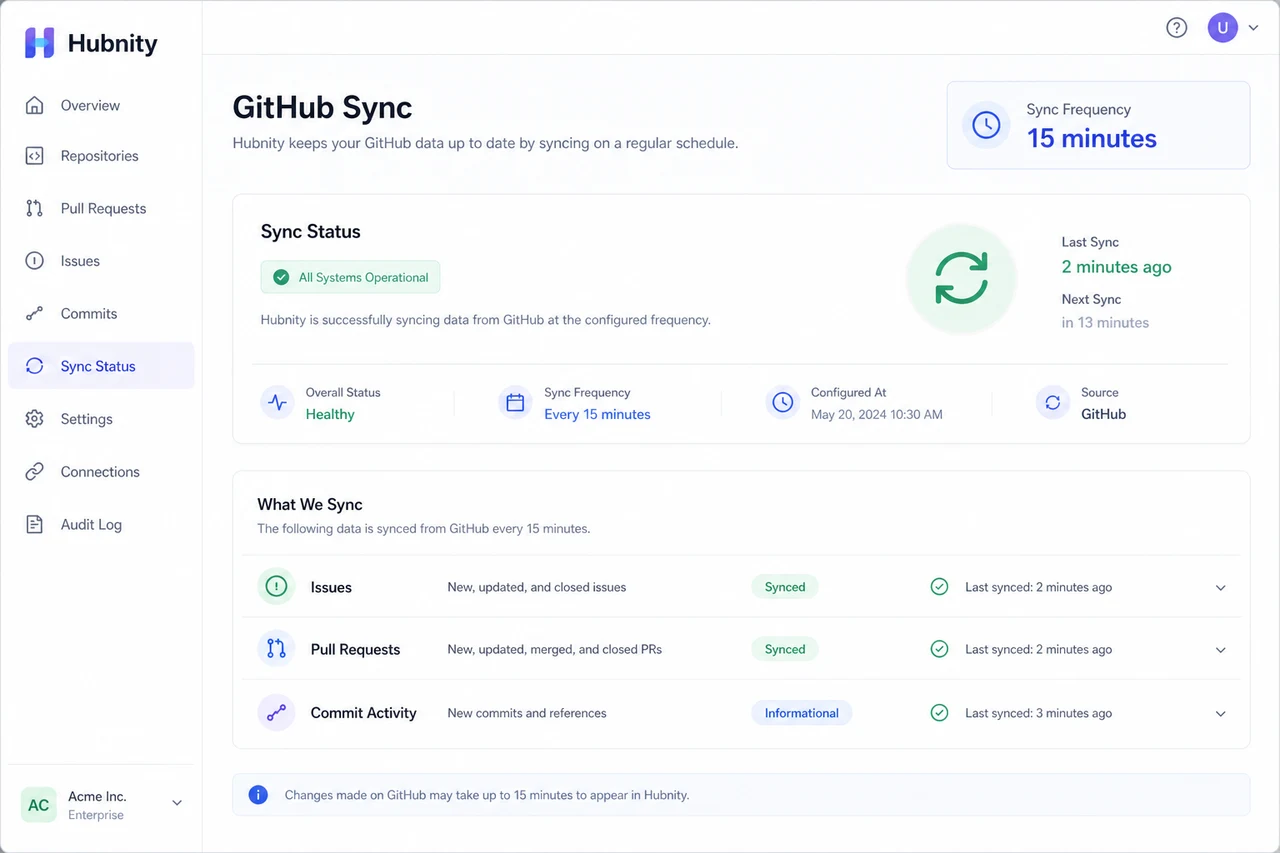
Issues and PRs sync every 15 minutes. New items appear in the timer task picker after the next sync.
Commit activity is informational only (shown in activity reports) and does not create time entries.
Common errors
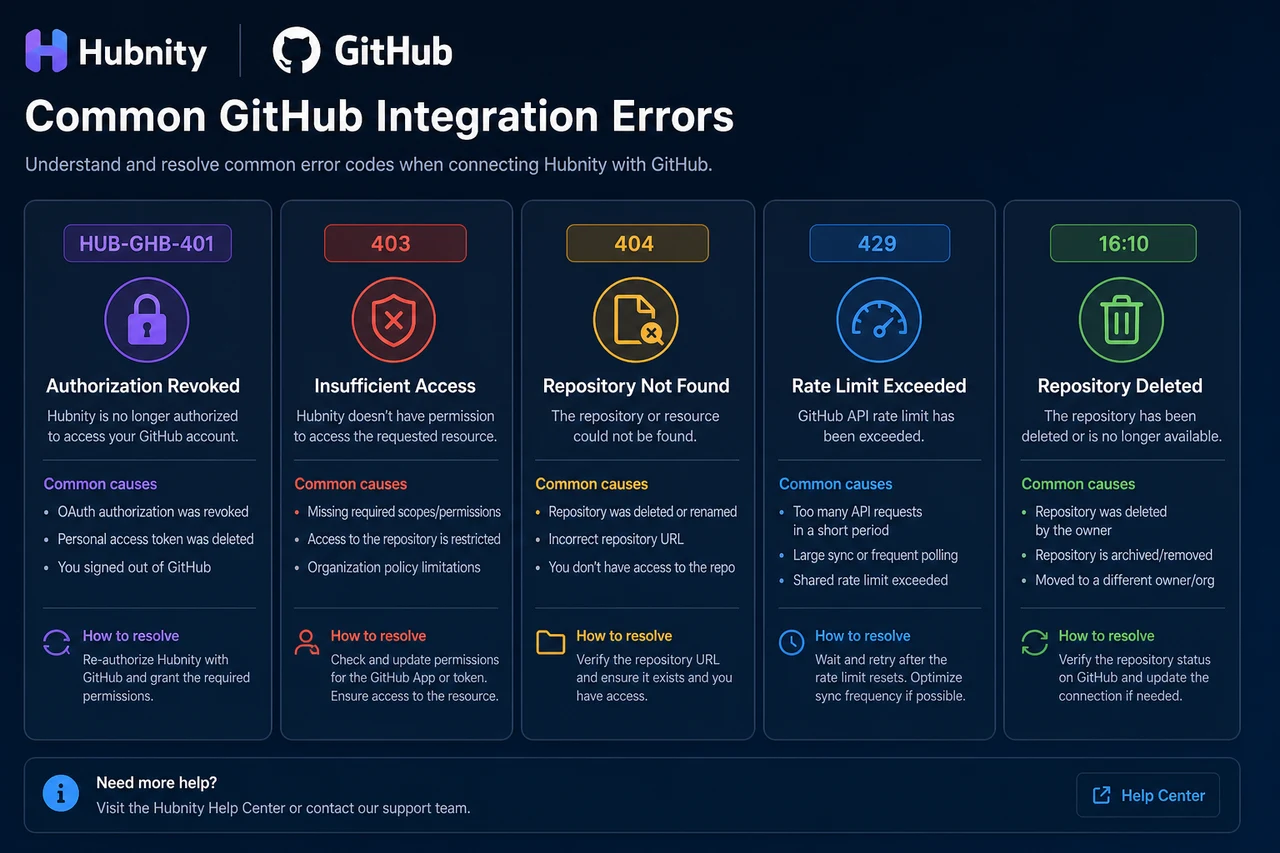
HUB-GHB-401: GitHub App authorization revoked. Reinstall from Settings → Integrations → GitHub.
HUB-GHB-403: Insufficient repository access. Verify the Hubnity app has access to the repository.
HUB-GHB-404: Repository deleted or renamed. Update mapping in integration settings.
HUB-GHB-429: GitHub API rate limit. Hubnity retries with backoff.
Tracking time on GitHub issues
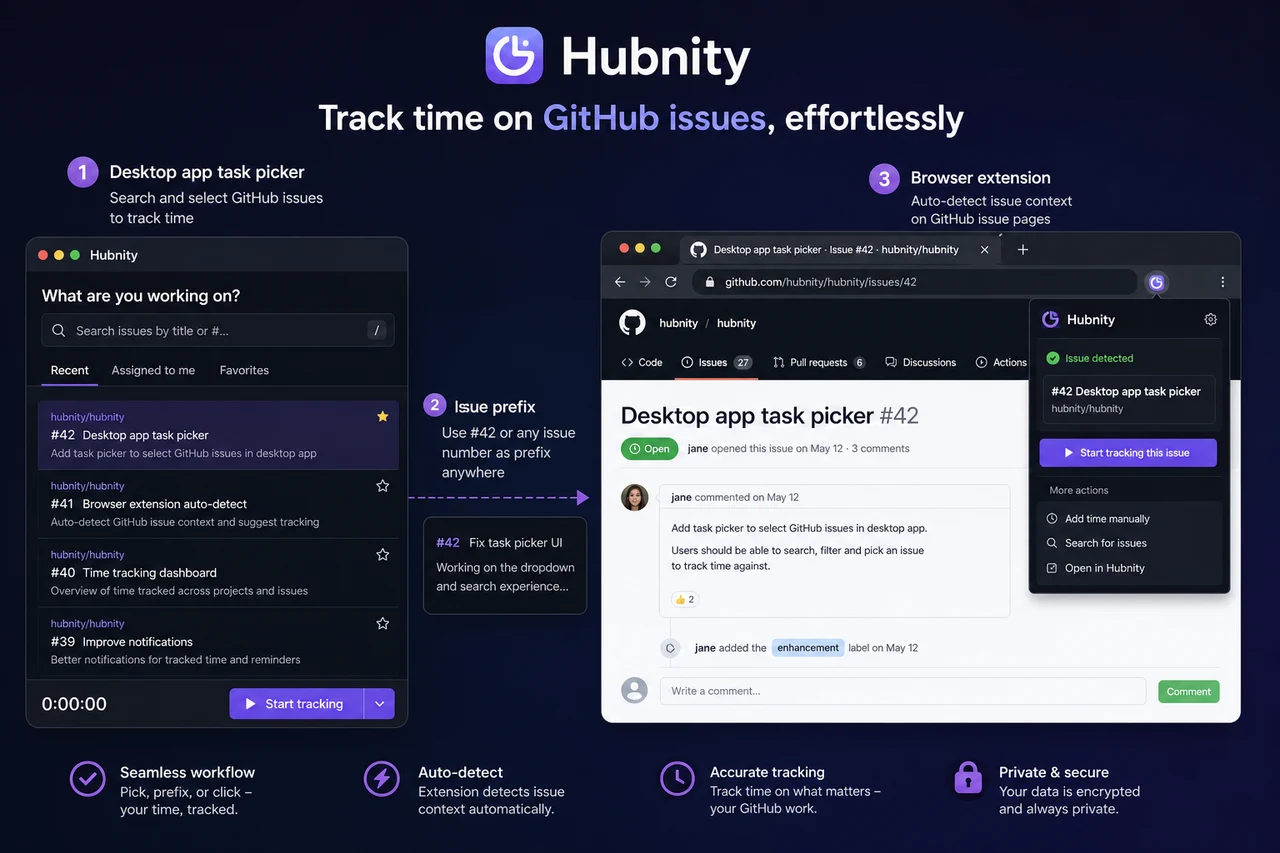
Synced issues and PRs appear in the desktop app task picker with the #number prefix.
Browser extension auto-detects GitHub issue and PR pages and suggests the matching task.