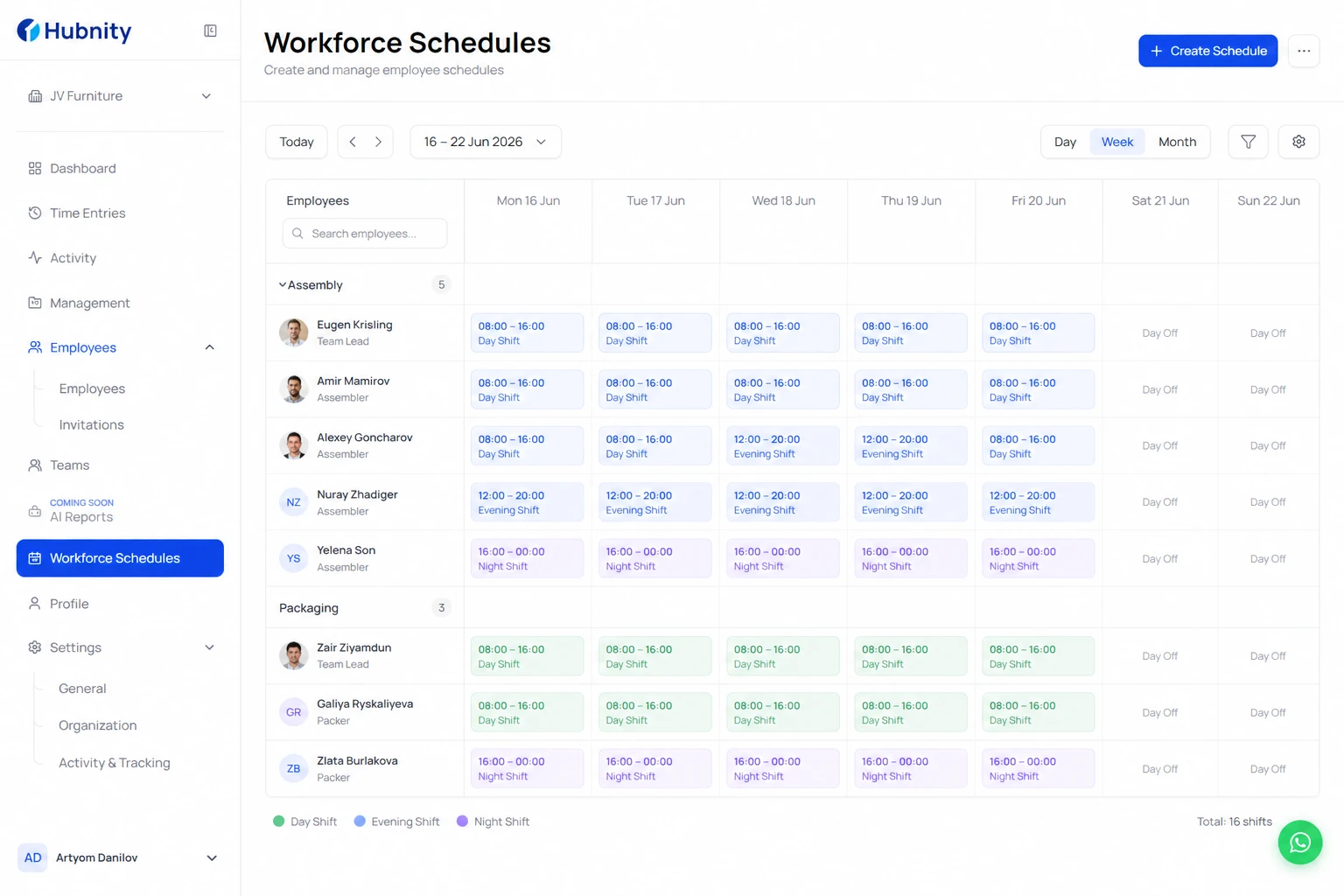
Create work schedules for employees to enable schedule-based tracking and shift management.
Create a schedule
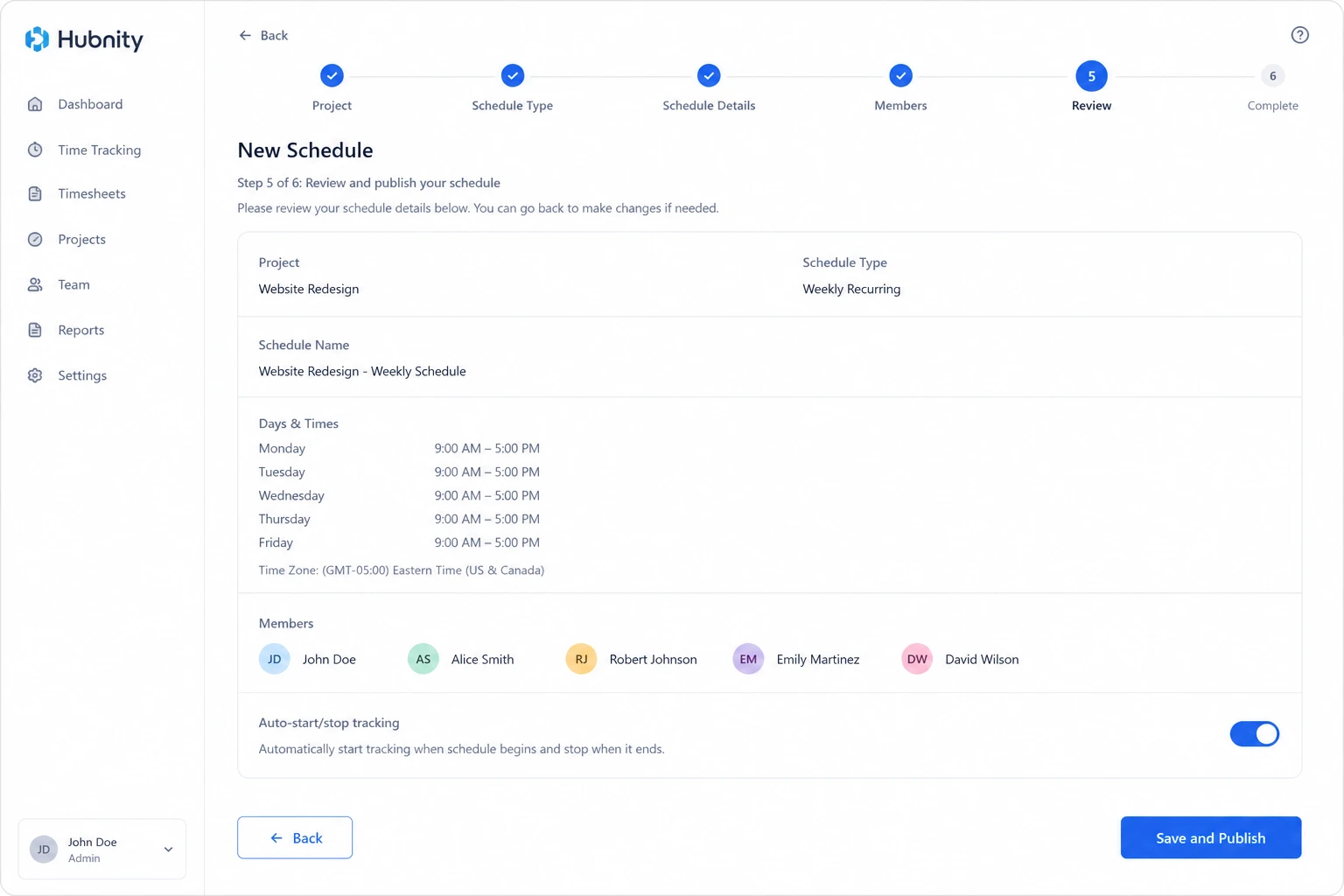
Schedules define expected work hours and enable auto-start/stop tracking.
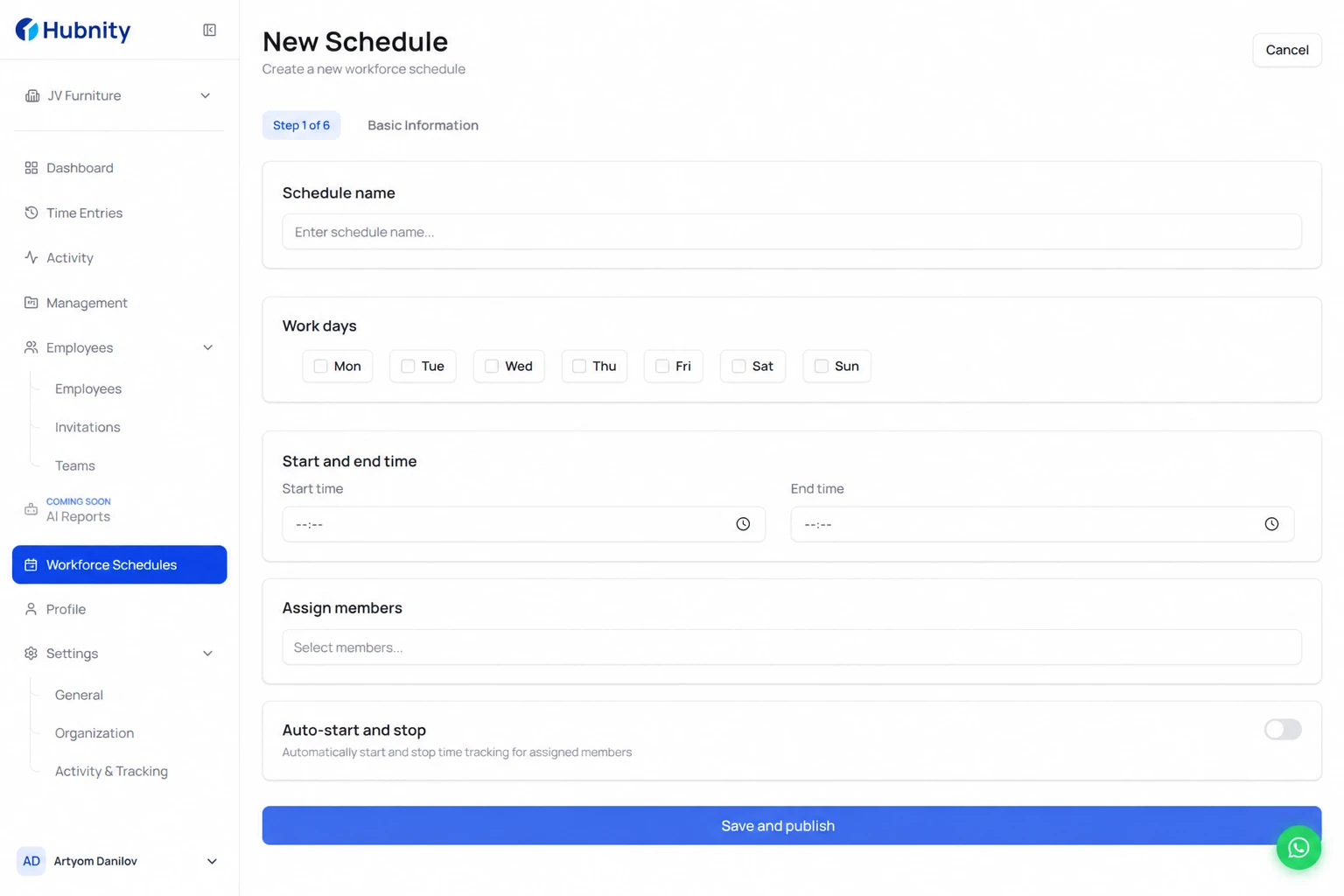
- 1
Go to Workforce → Schedules → New schedule
- 2
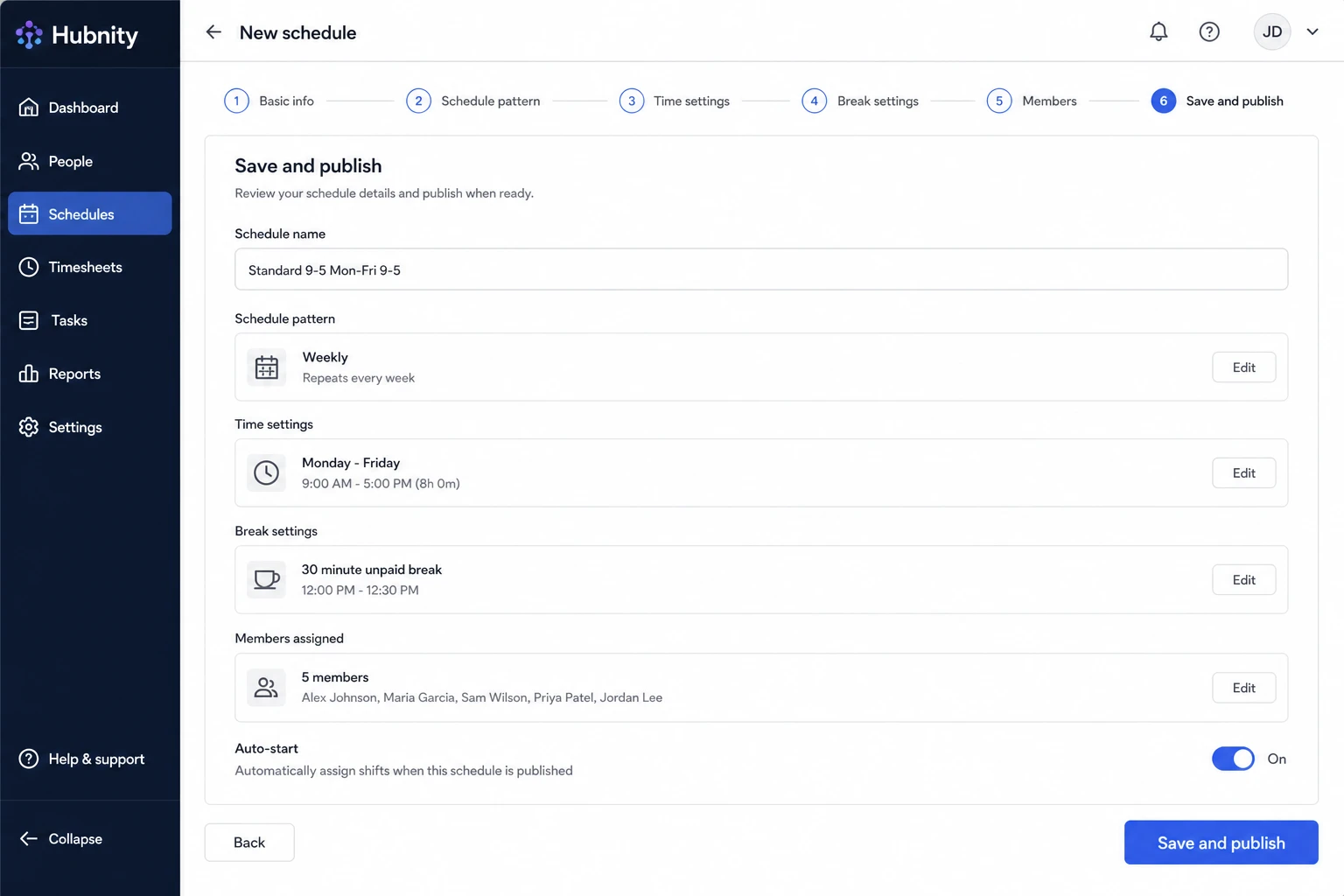
Name the schedule (e.g., Standard 9-5, Field Mon-Fri)
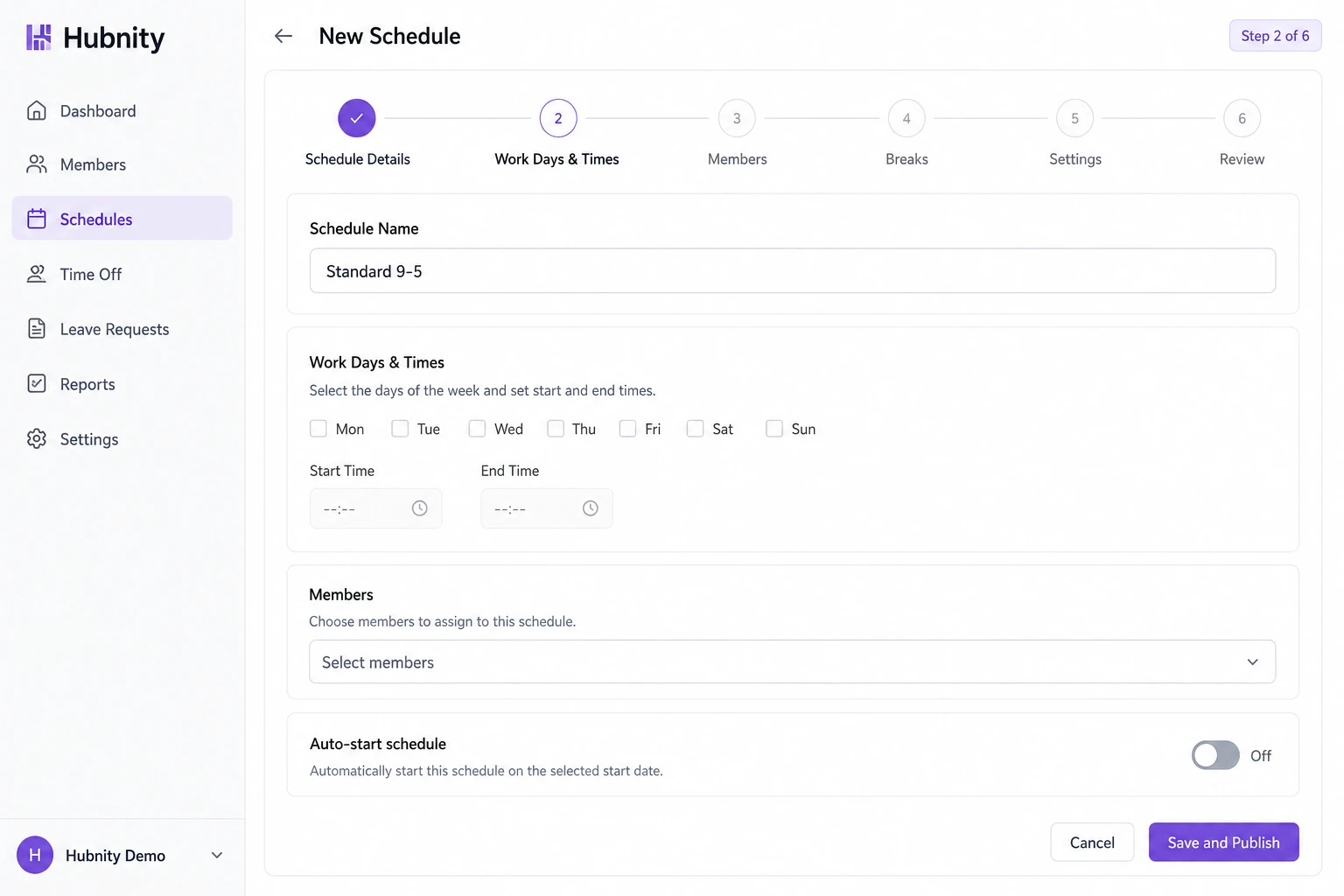
- 3
Set work days and start/end times
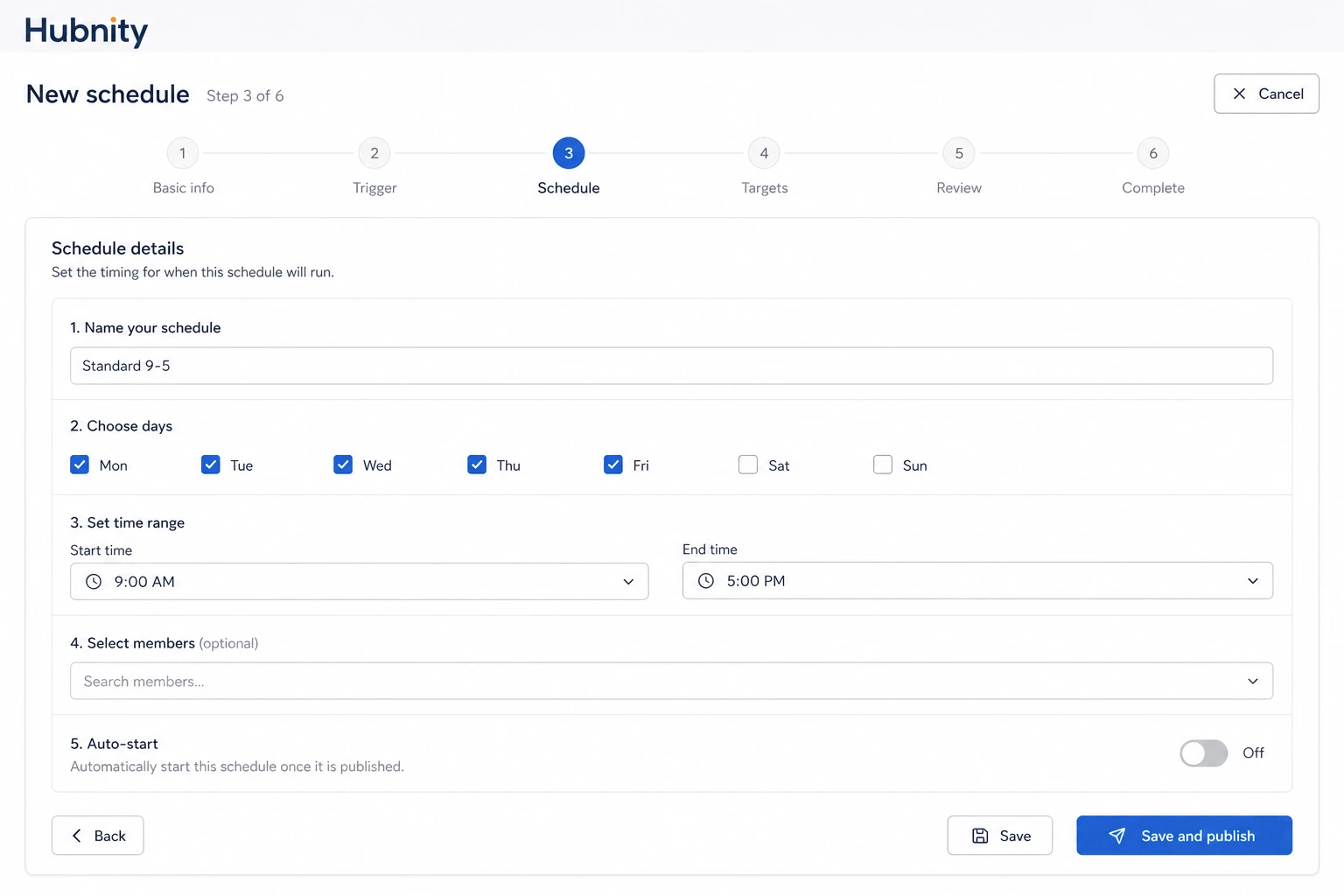
- 4
Assign members or teams
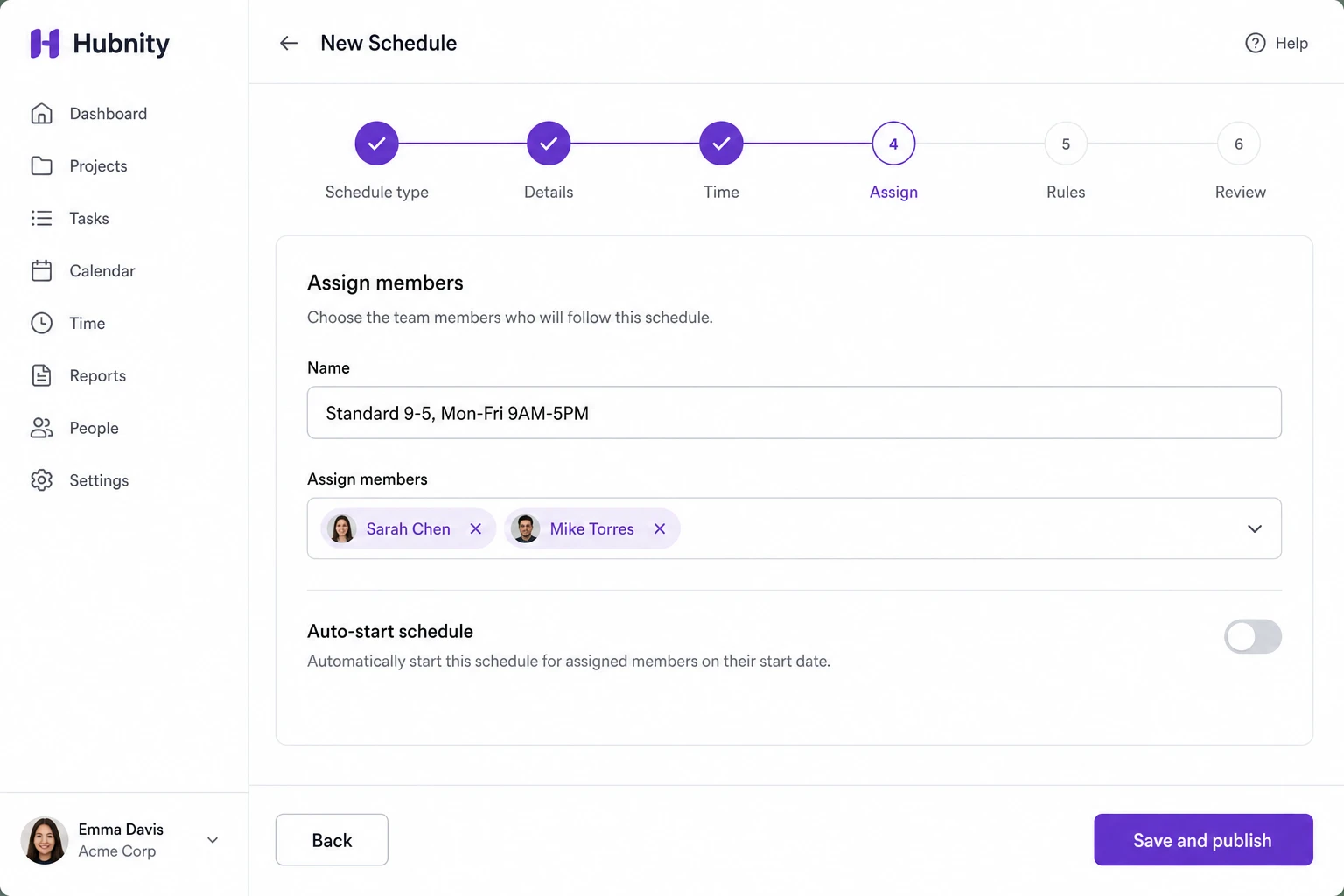
- 5
Enable Auto-start/stop tracking (optional)
- 6
Save and publish
Schedule types
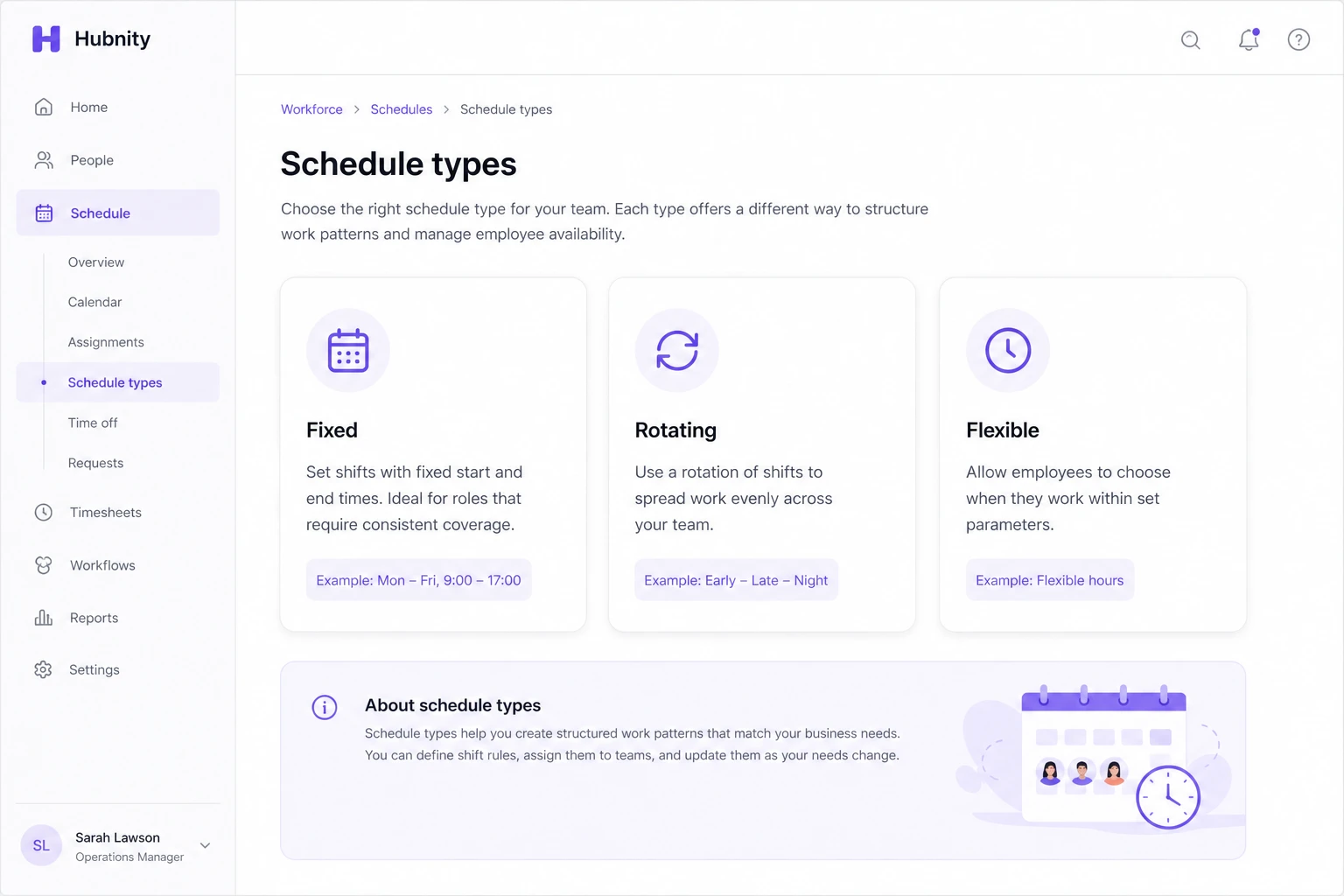
Fixed: same hours every work day (e.g., Mon–Fri 9:00–17:00).
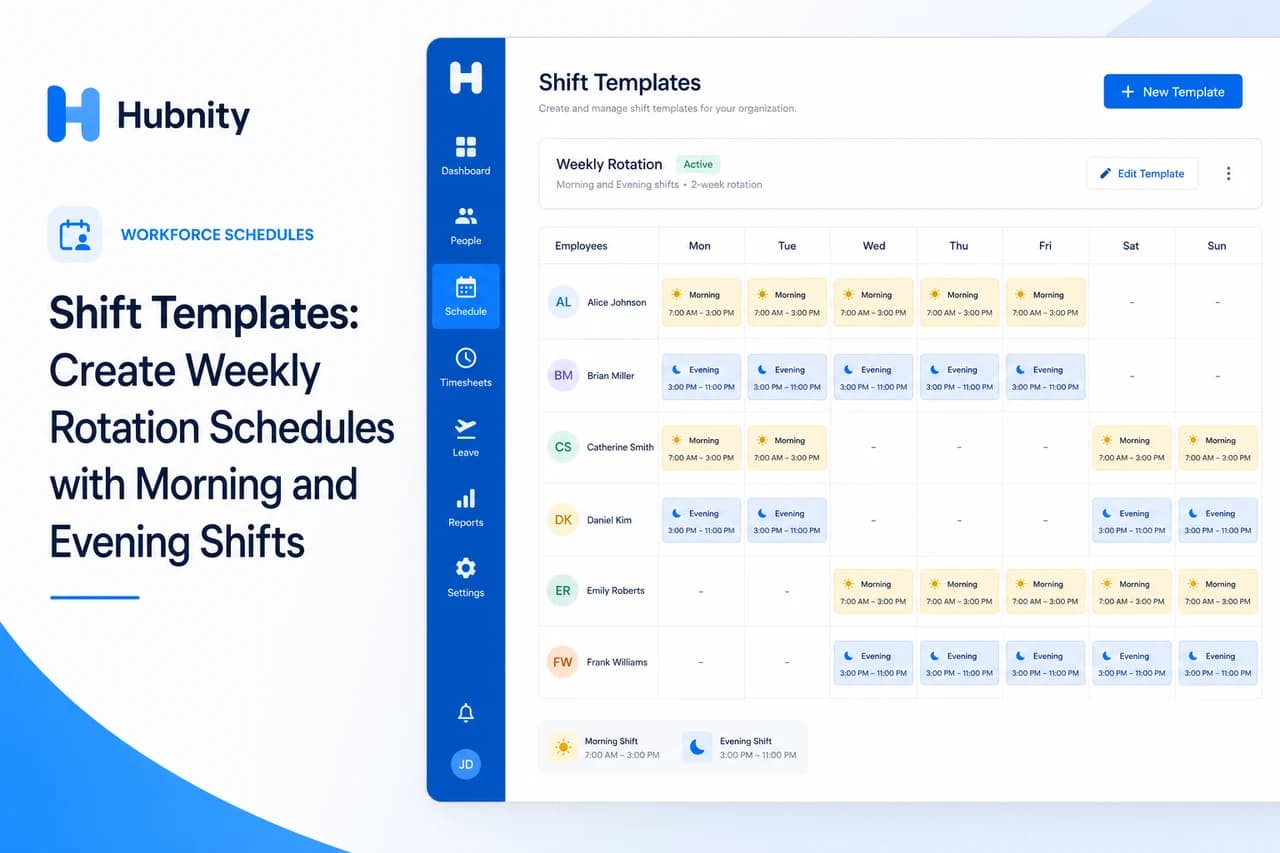
Rotating: cycles through shift patterns over weeks. Use with shift-templates.
Flexible: expected hours per day without fixed start/end. Tracks total hours only.
Schedule vs actual reporting
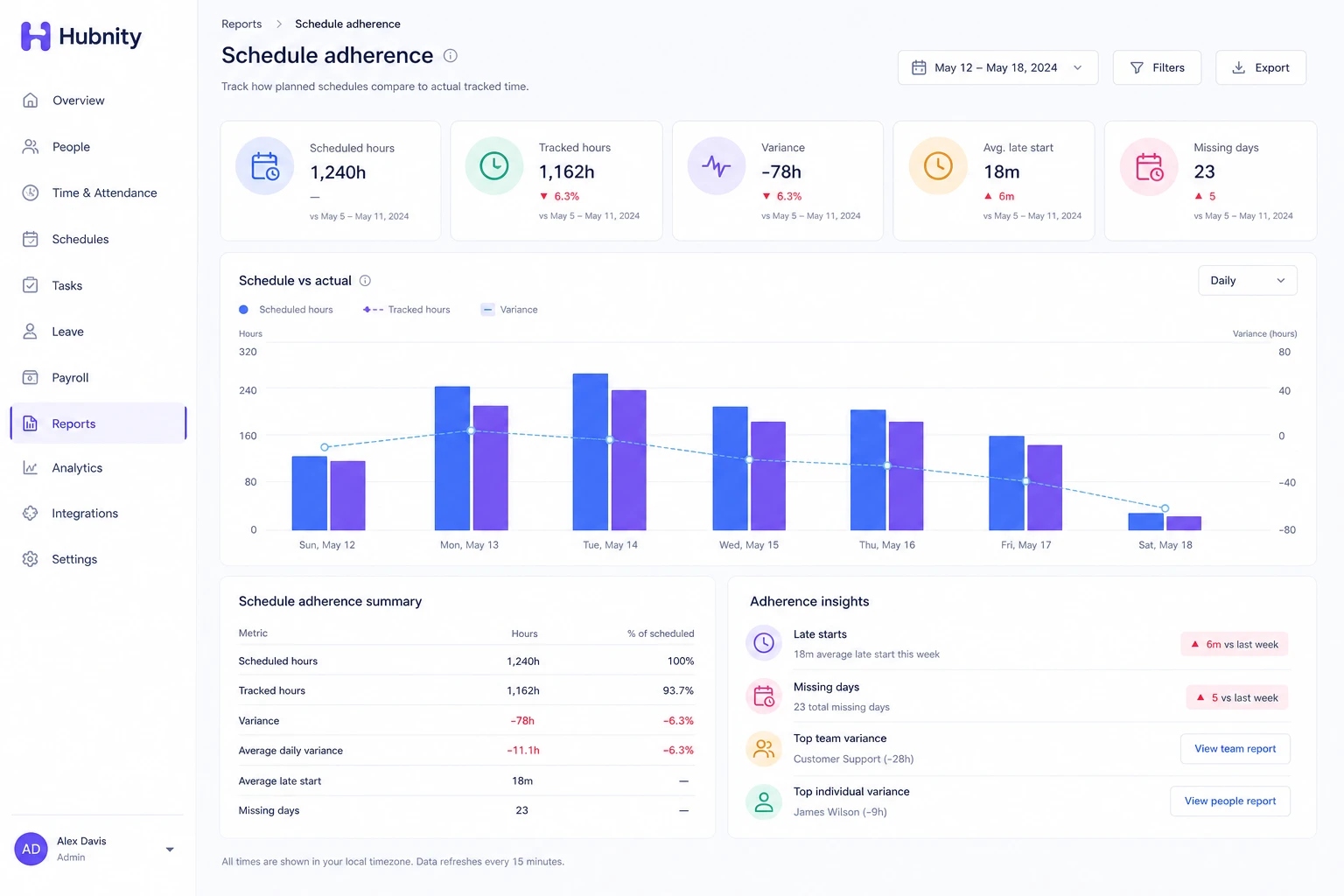
Reports → Schedule adherence compares scheduled hours vs tracked hours.
Variance highlights late starts, early stops, and missing days.
Notifications
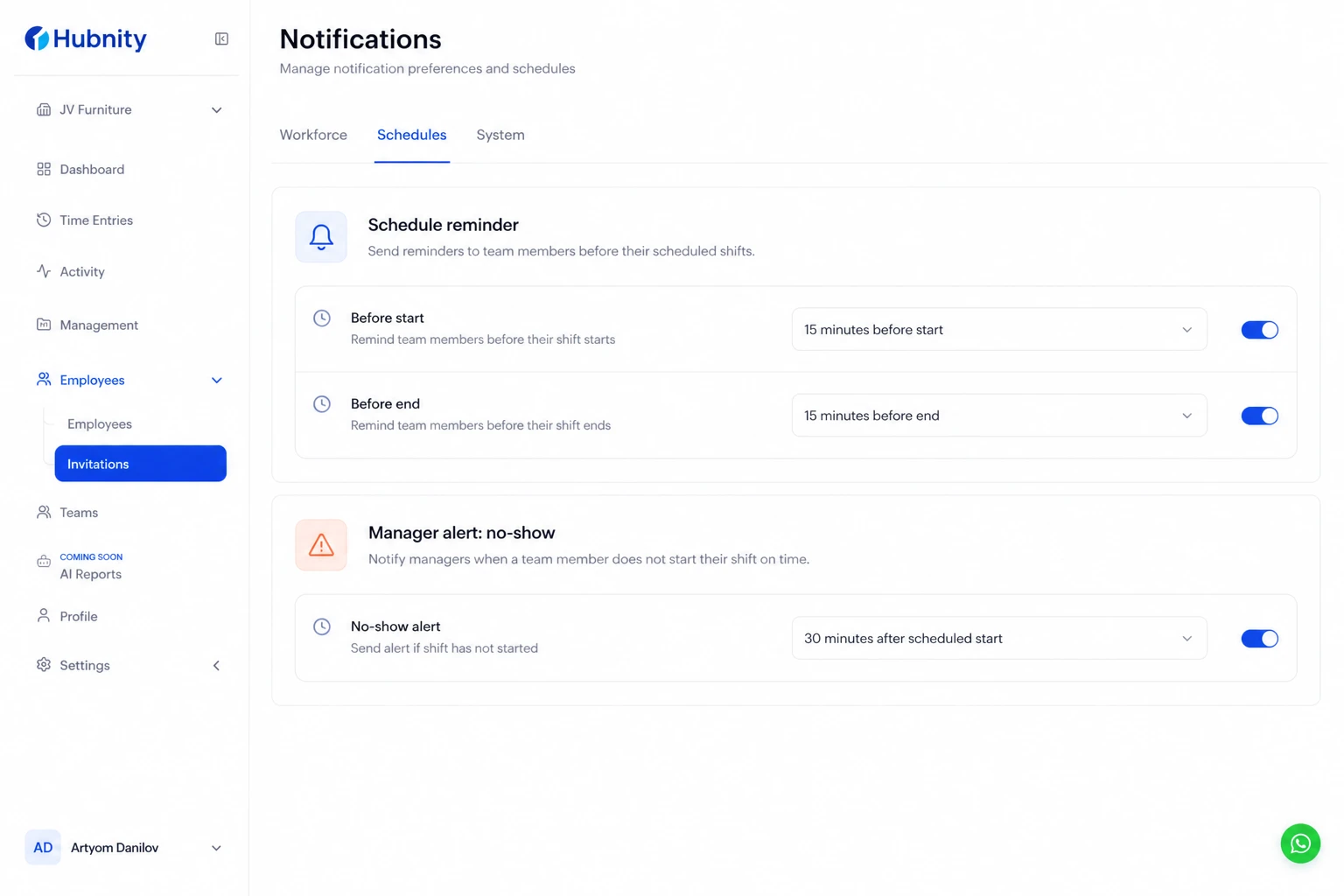
Members receive reminders 15 minutes before scheduled start and at scheduled end.
Managers receive alerts for no-show (no timer started 30 minutes after scheduled start).