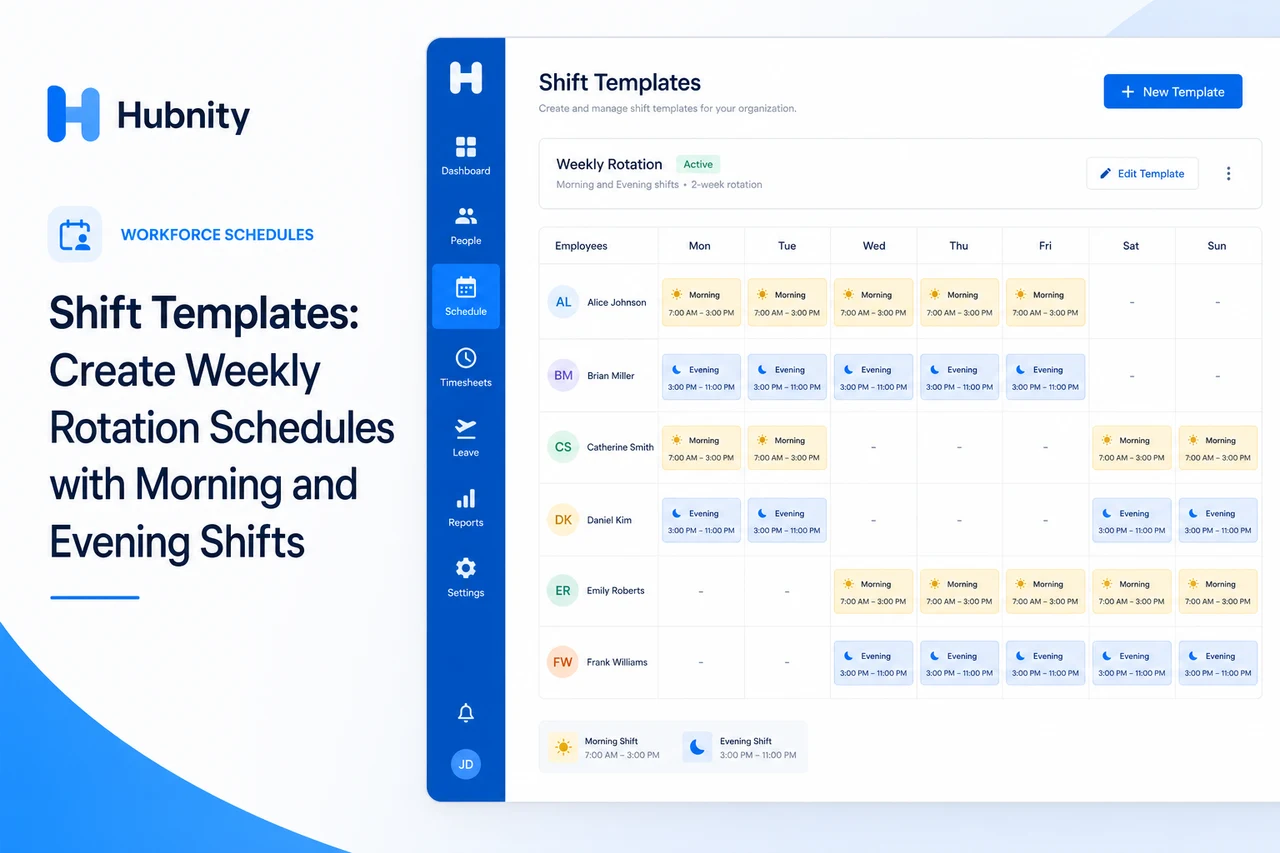
Create reusable shift templates for rotating schedules and field team deployments.
Create a shift template
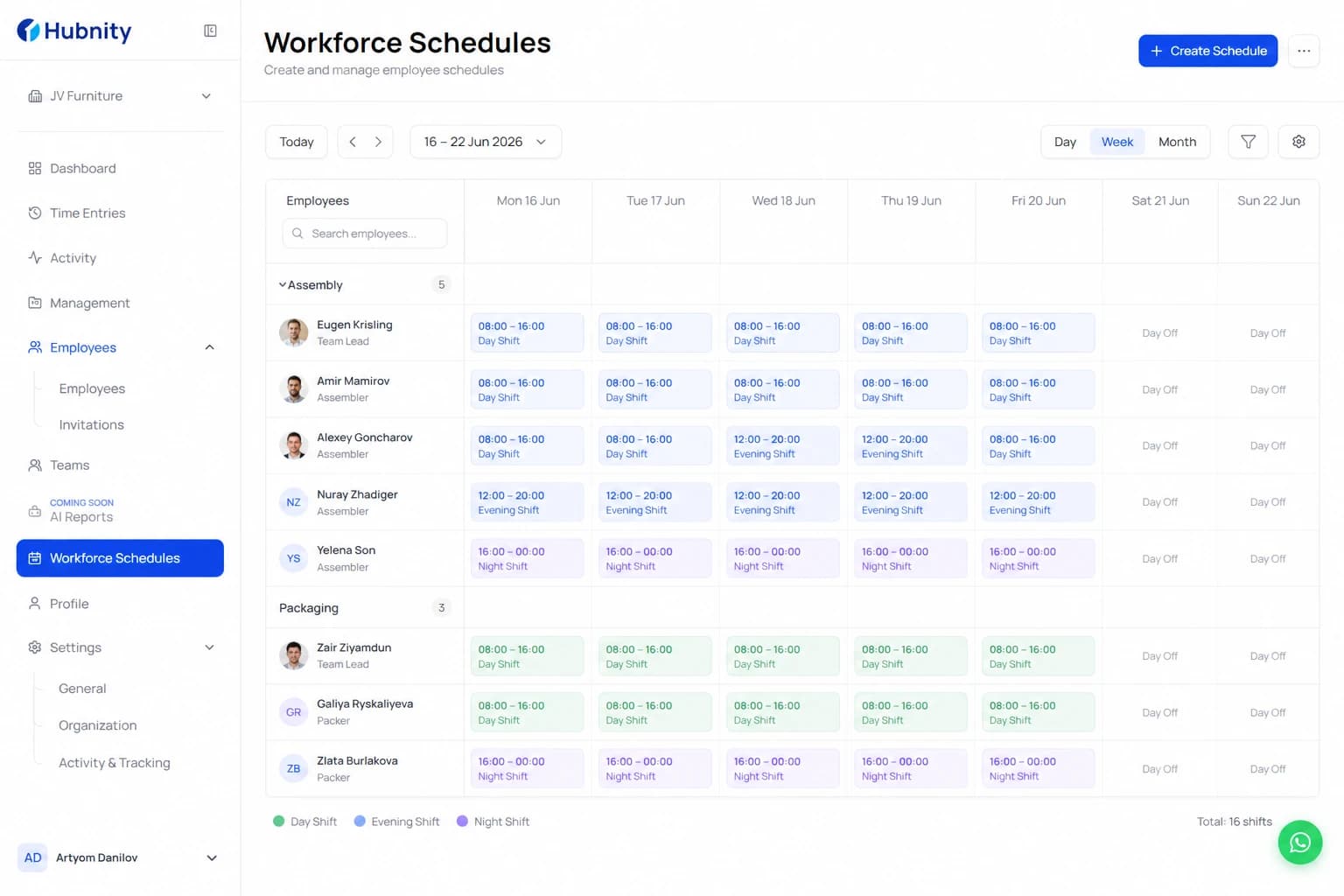
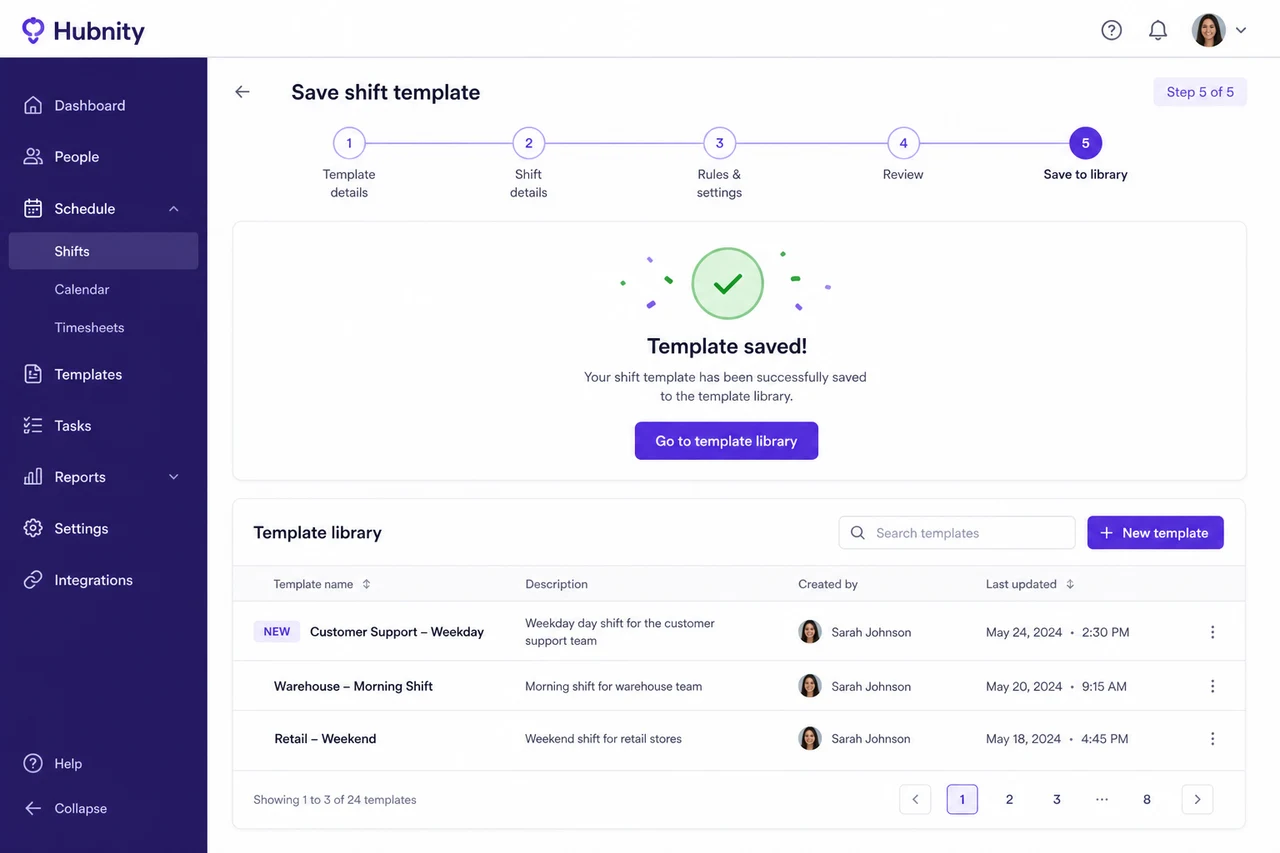
Templates define reusable shift blocks that can be applied to schedules.
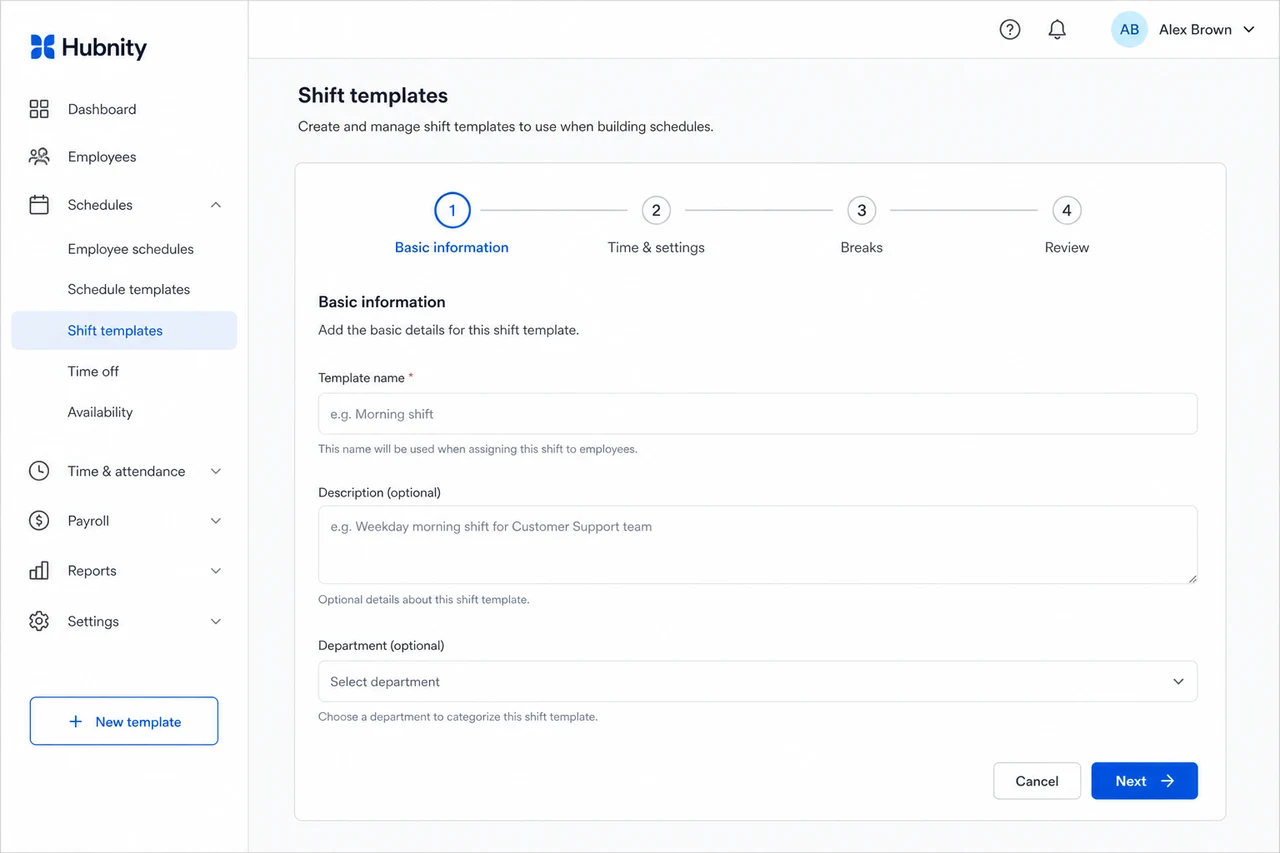
- 1
Go to Workforce → Schedules → Shift templates → New template
- 2
Name the template (e.g., Morning 6-14, Evening 14-22)
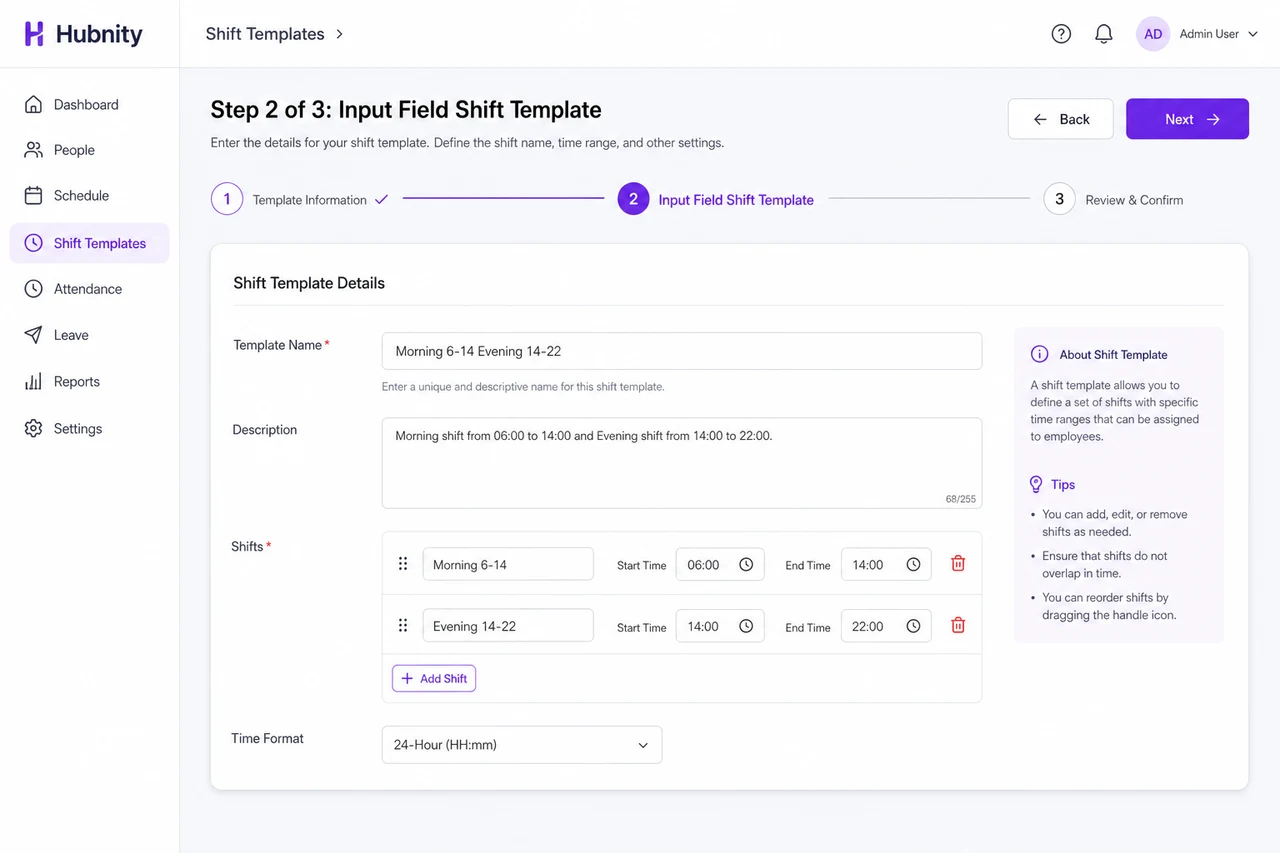
- 3
Set shift start and end times
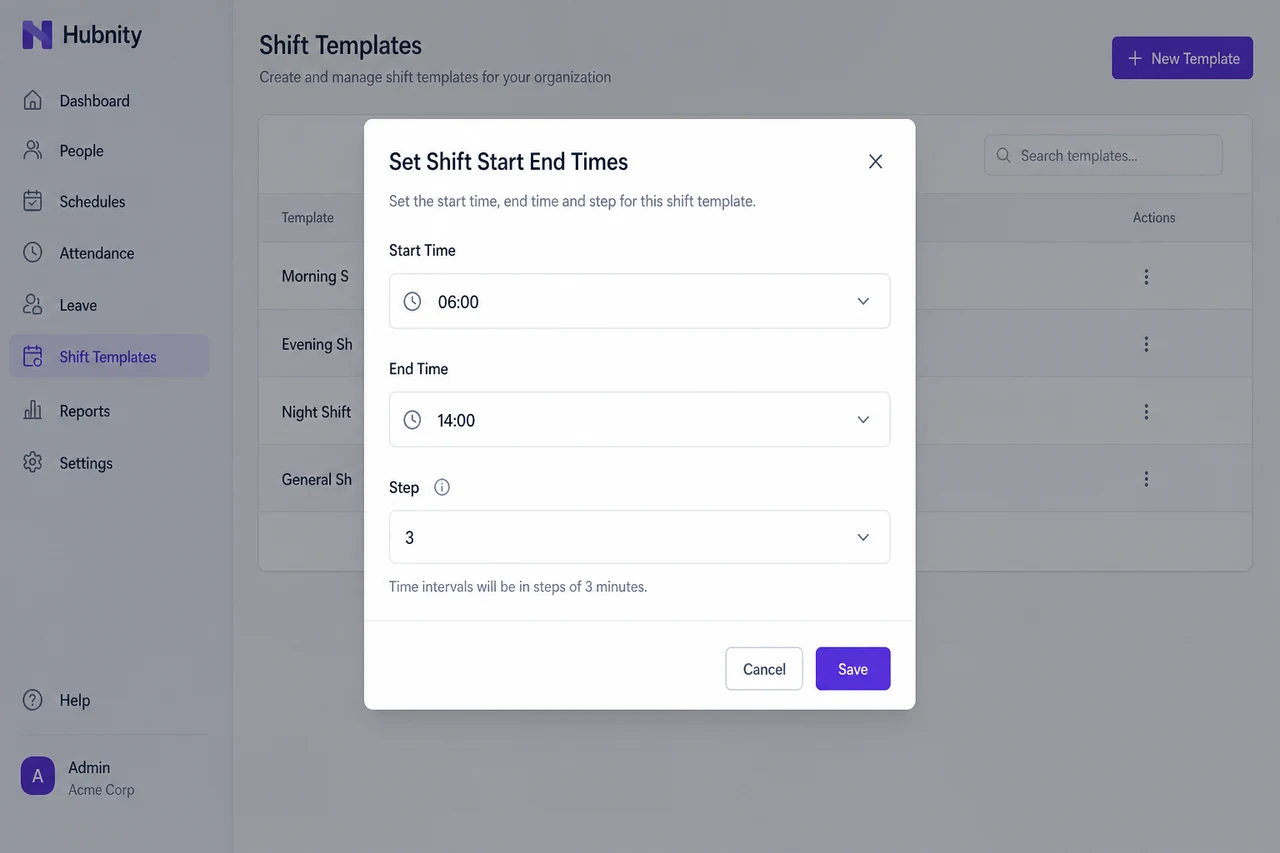
- 4
Configure break periods (optional)
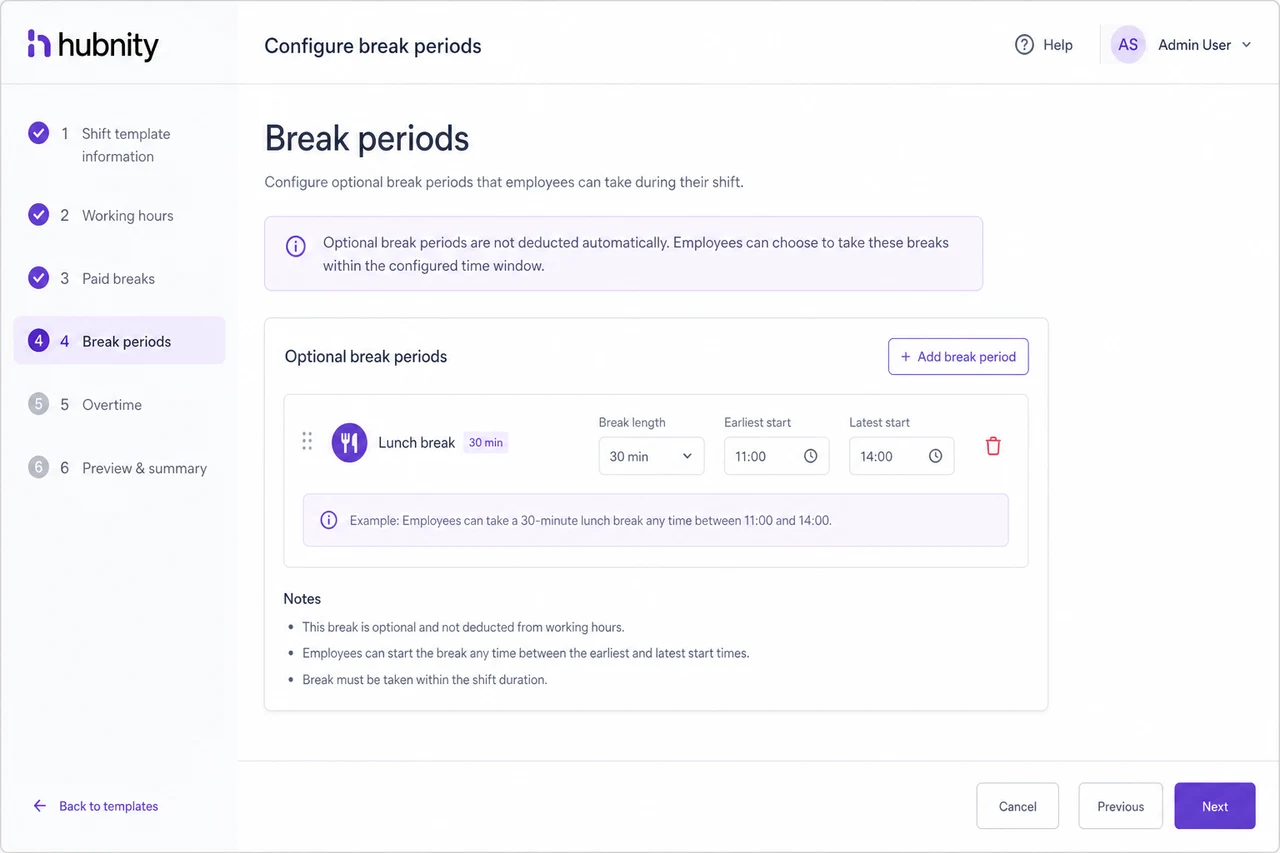
- 5
Save to template library
Apply templates to a schedule
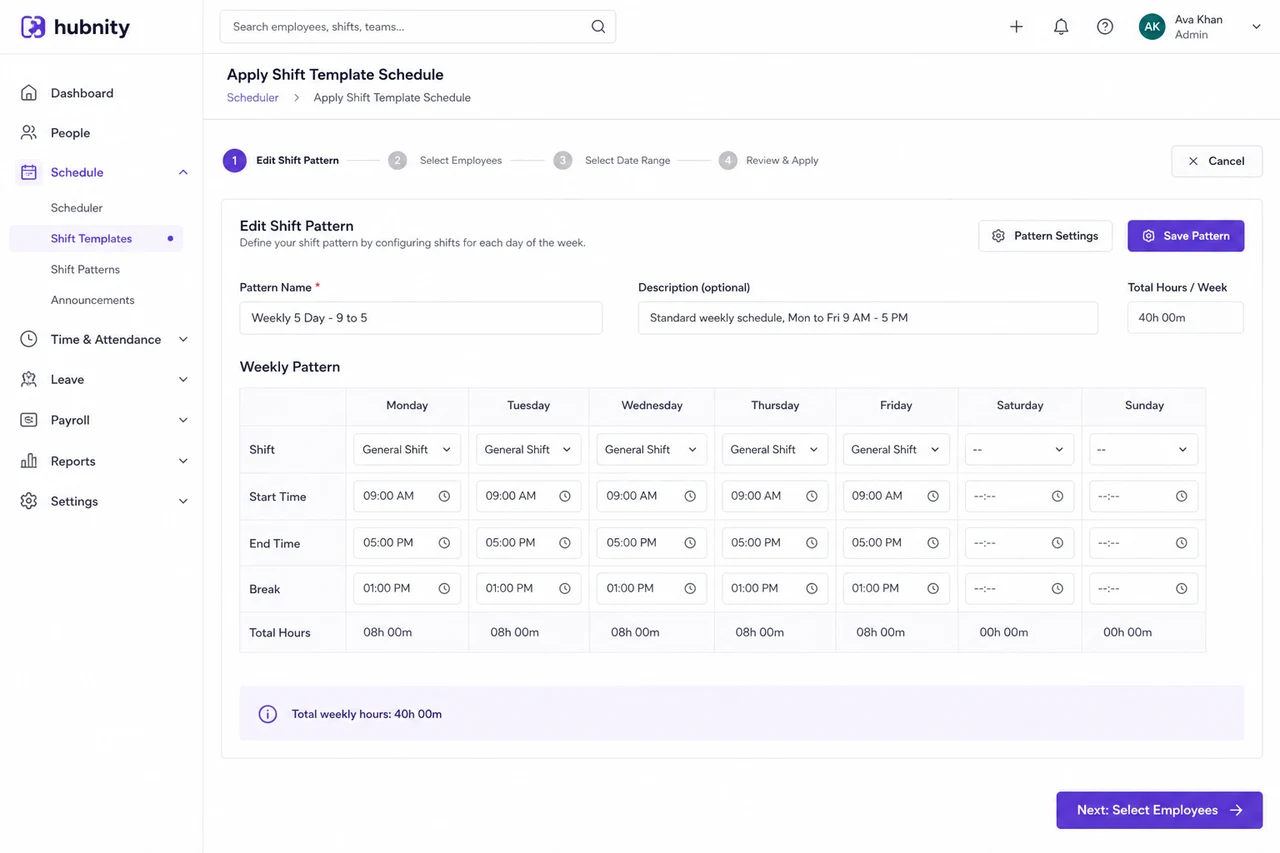
Combine templates into rotating patterns.
- 1
Open a schedule → Edit → Shift pattern
- 2
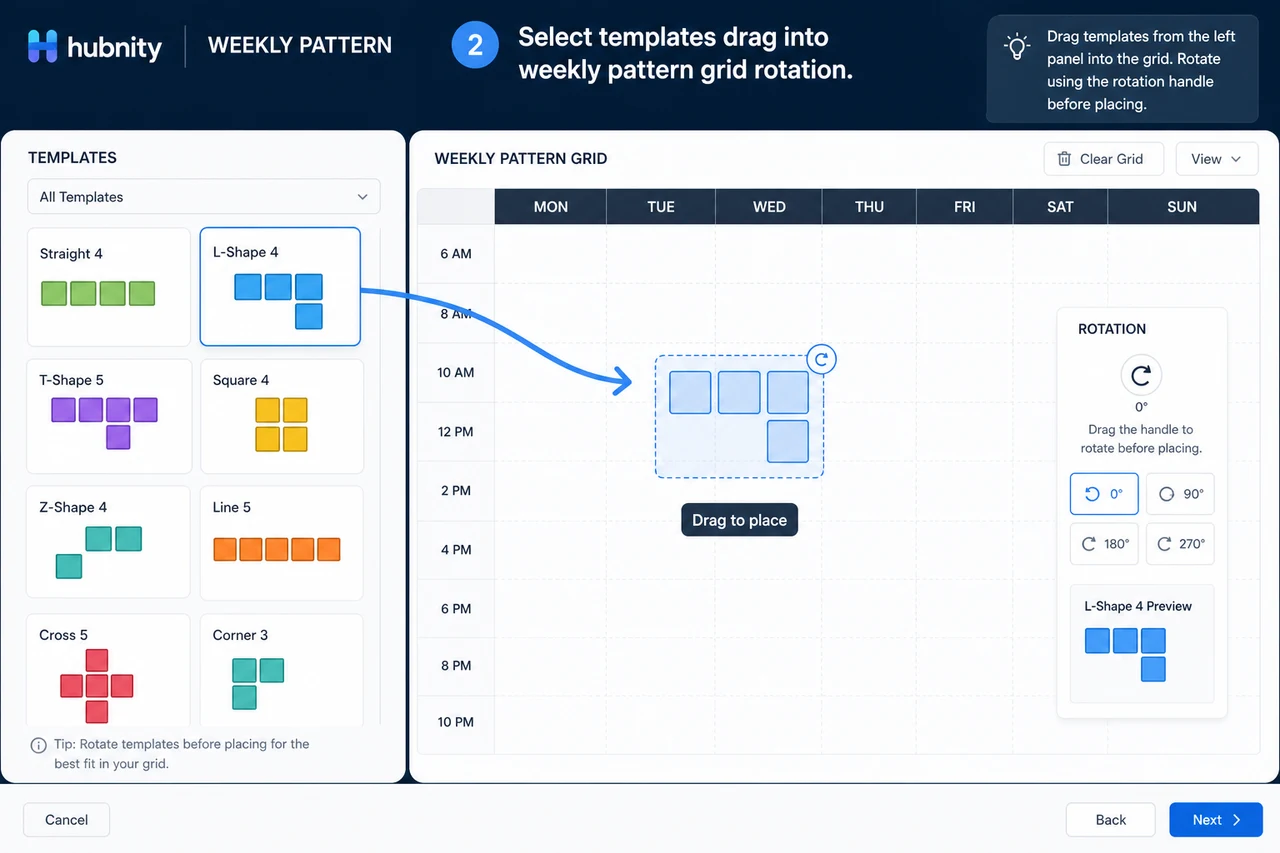
Select template(s) and drag into the weekly pattern grid
- 3
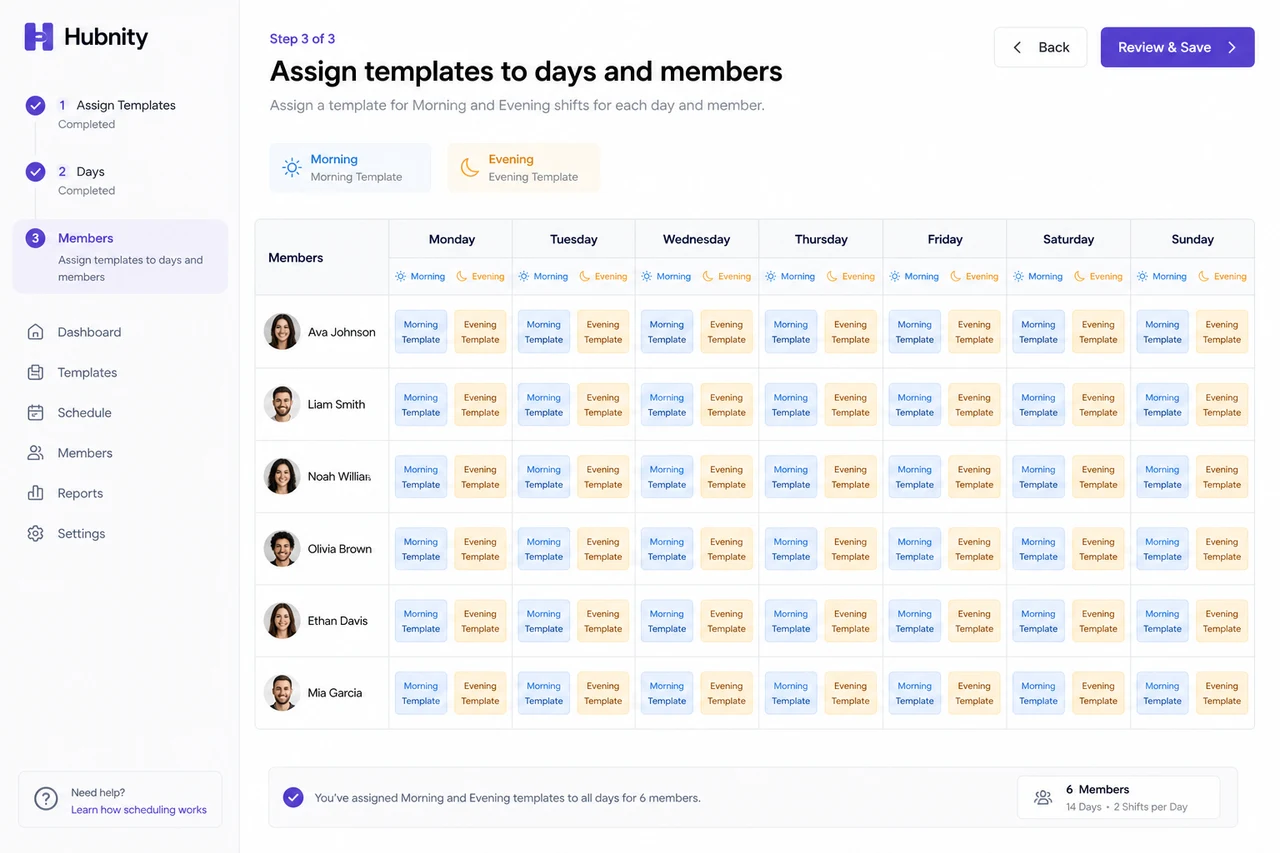
Assign templates to specific days and members
- 4
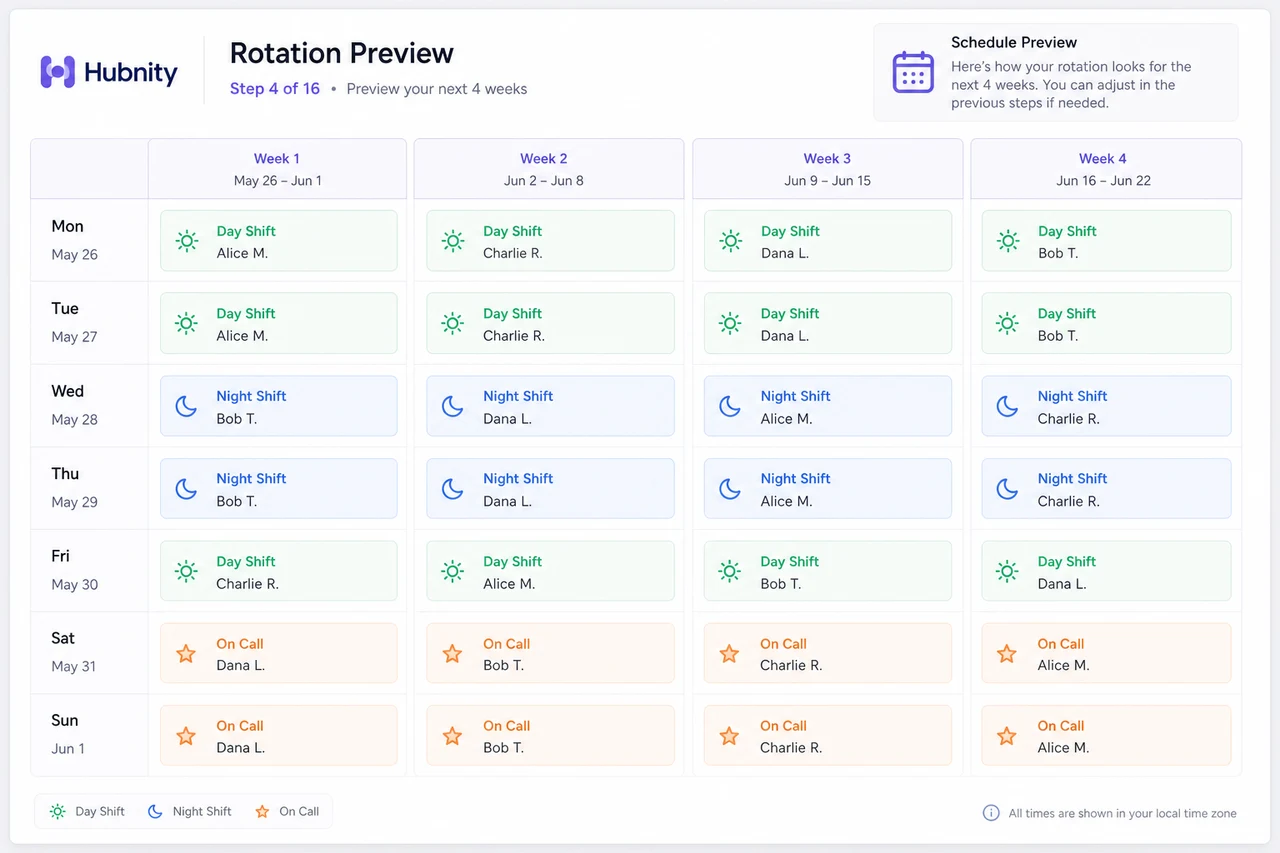
Preview the rotation for the next 4 weeks
- 5
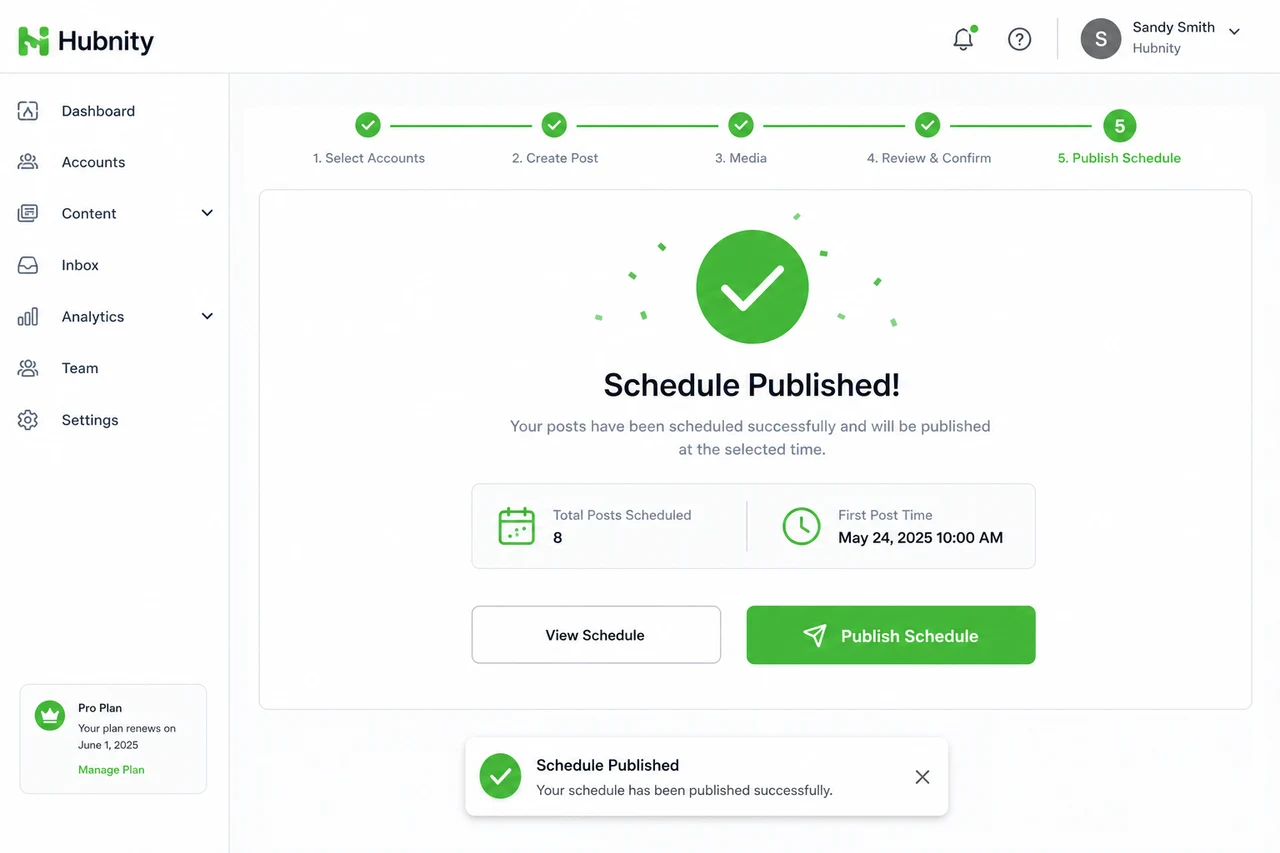
Publish the schedule
Template library
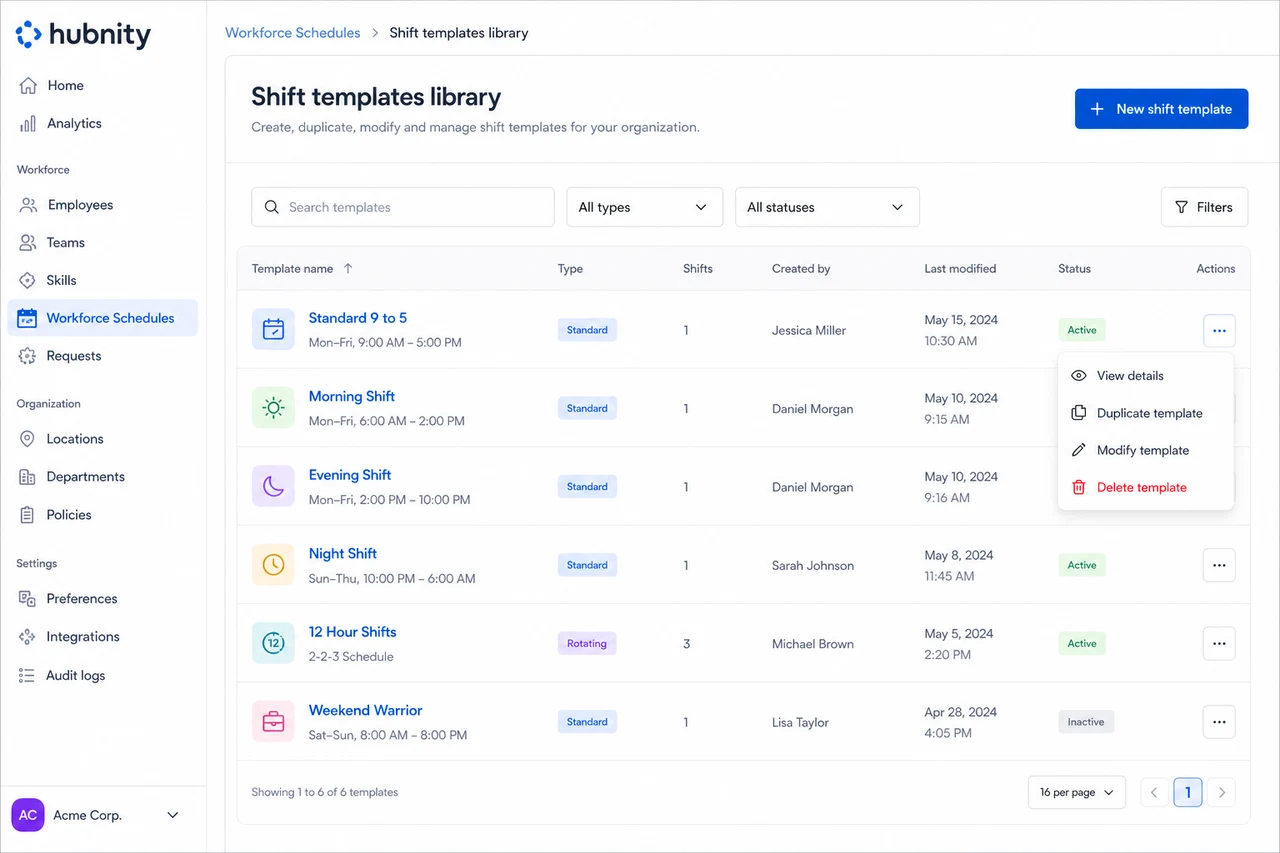
Manage all templates from Workforce → Schedules → Shift templates.
Duplicate and modify existing templates. Changes to a template do not retroactively alter published schedules.
Overtime and shift differentials
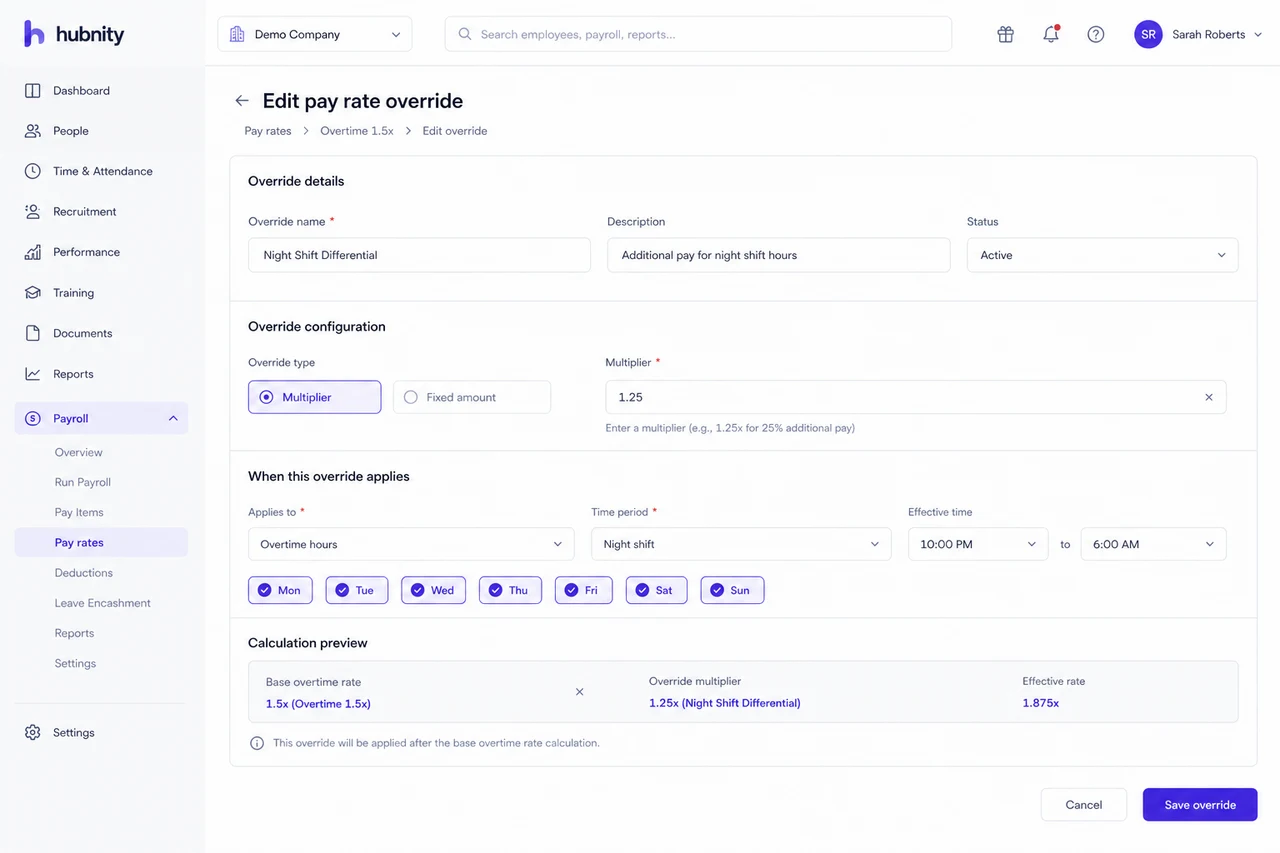
Assign pay rate multipliers to shift templates from the template edit page → Pay rate override.
Overtime rules apply across shift boundaries based on Payroll → Pay rates → Overtime rules.