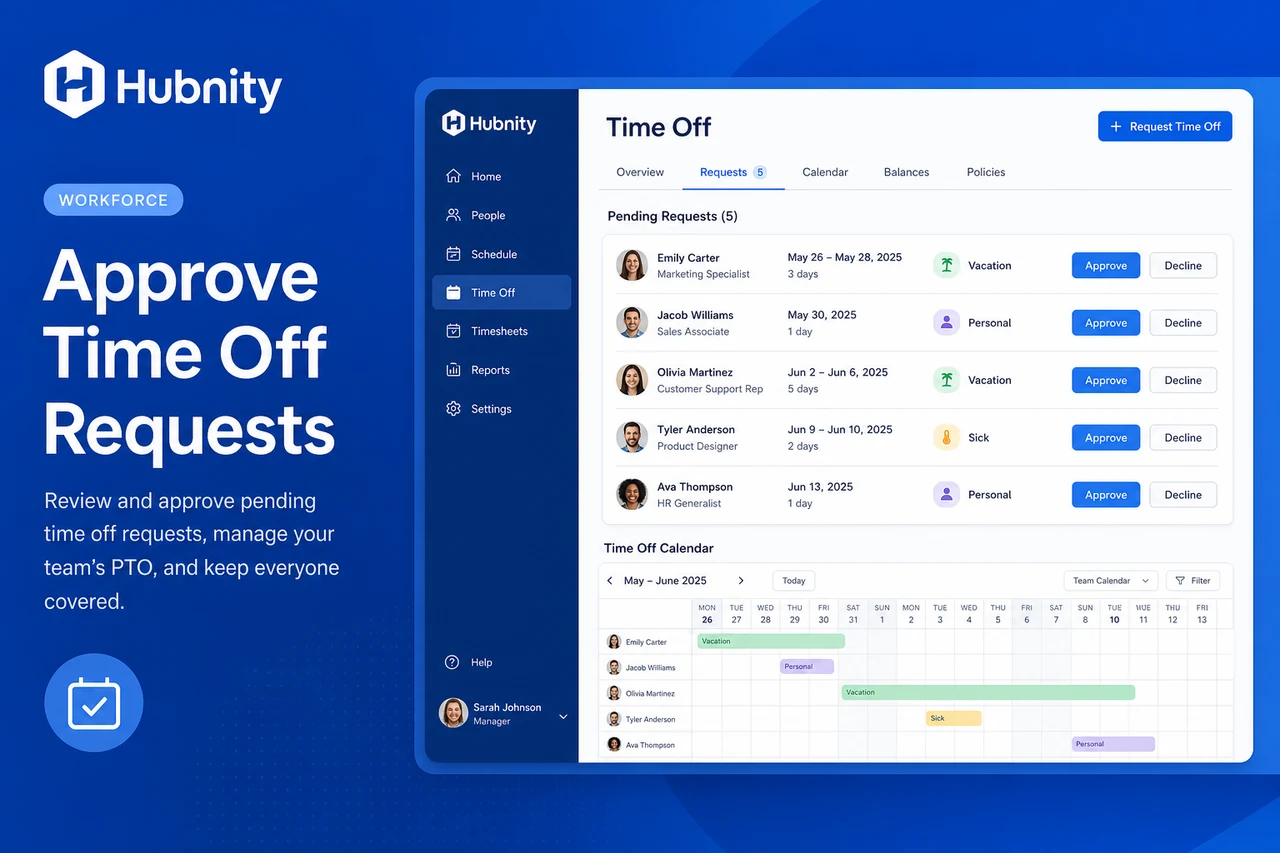
Review and approve or deny team member time-off requests in Hubnity.
Time-off workflow
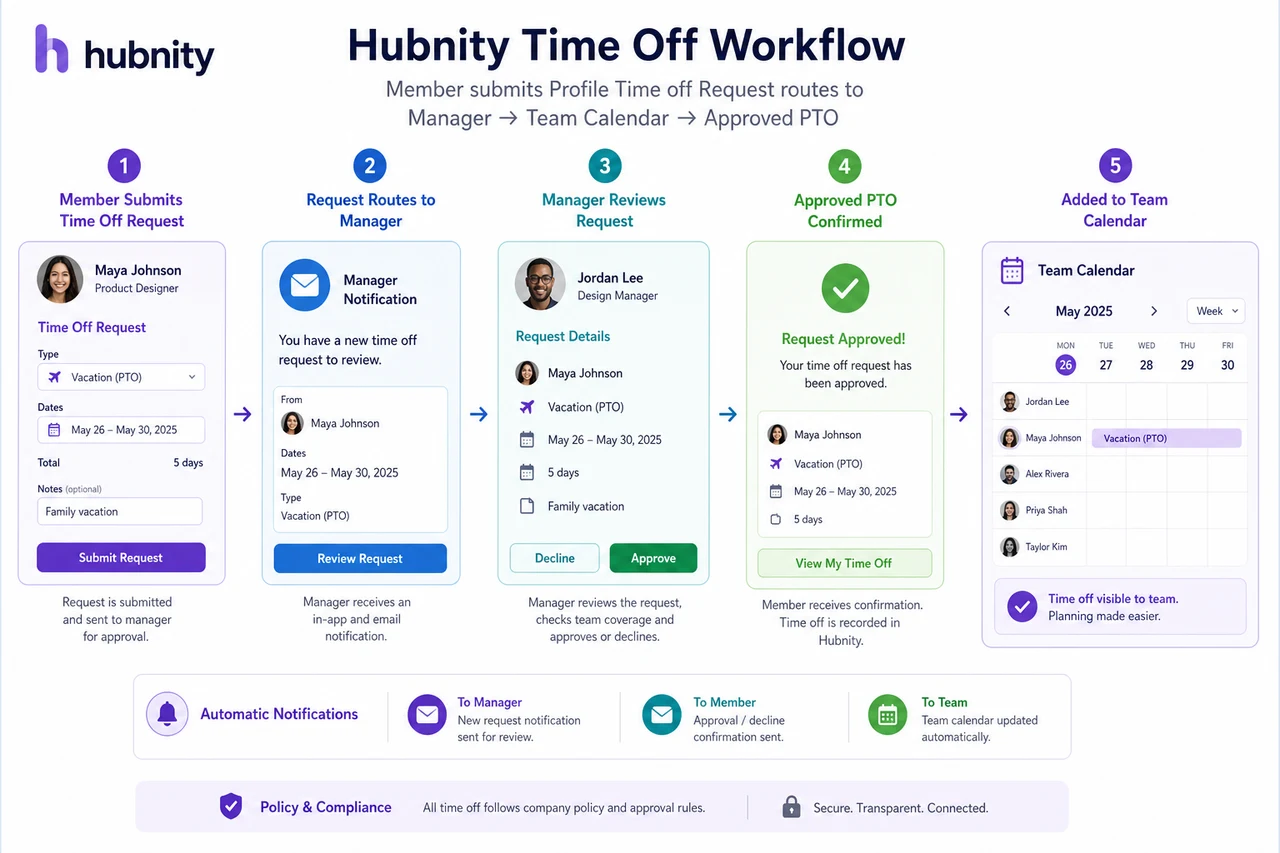
Members submit time-off requests from Profile → Time off → Request time off.
Requests route to the member's team manager or department head for approval.
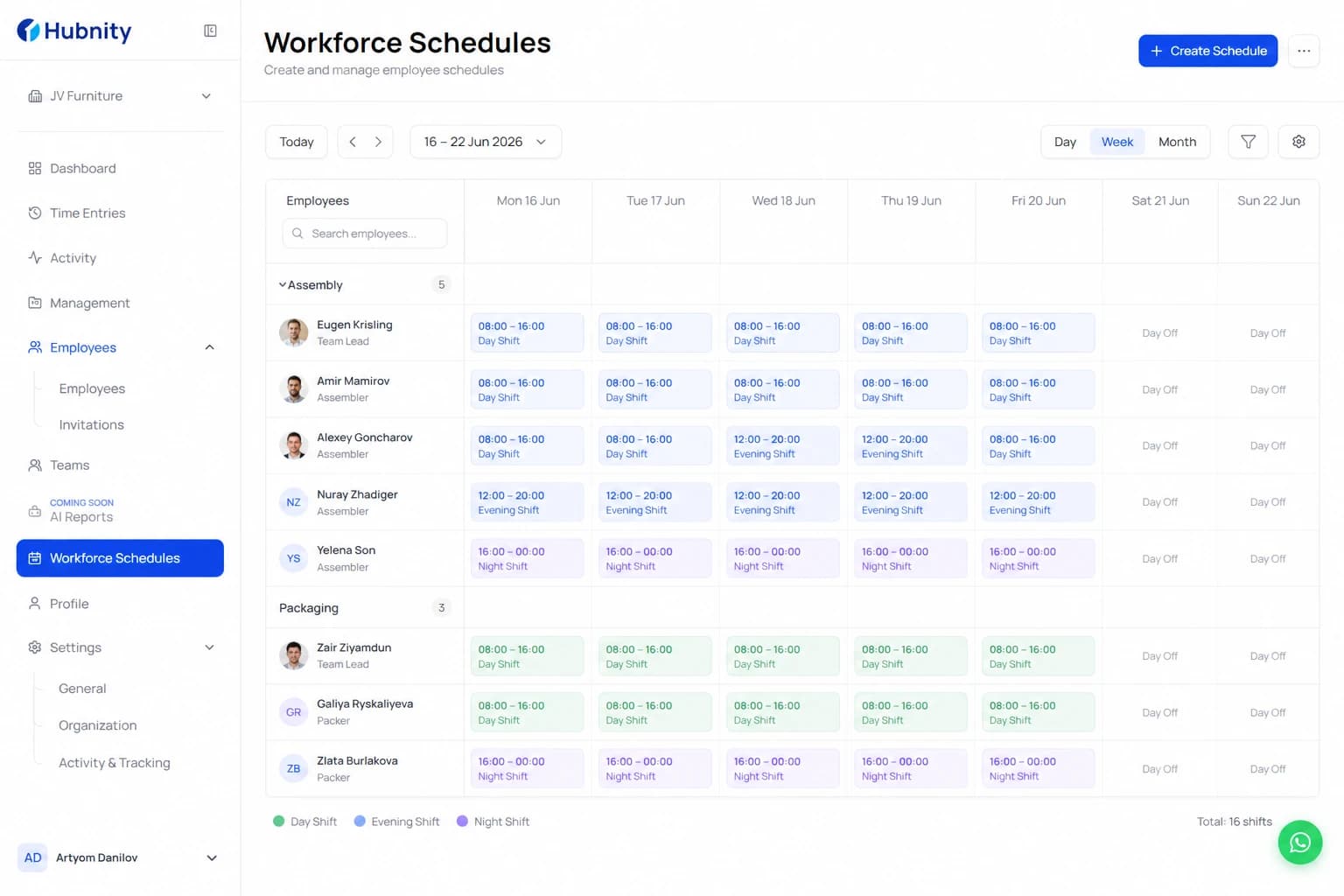
Approved time off blocks schedule expectations and appears on the team calendar.
Approve or deny a request
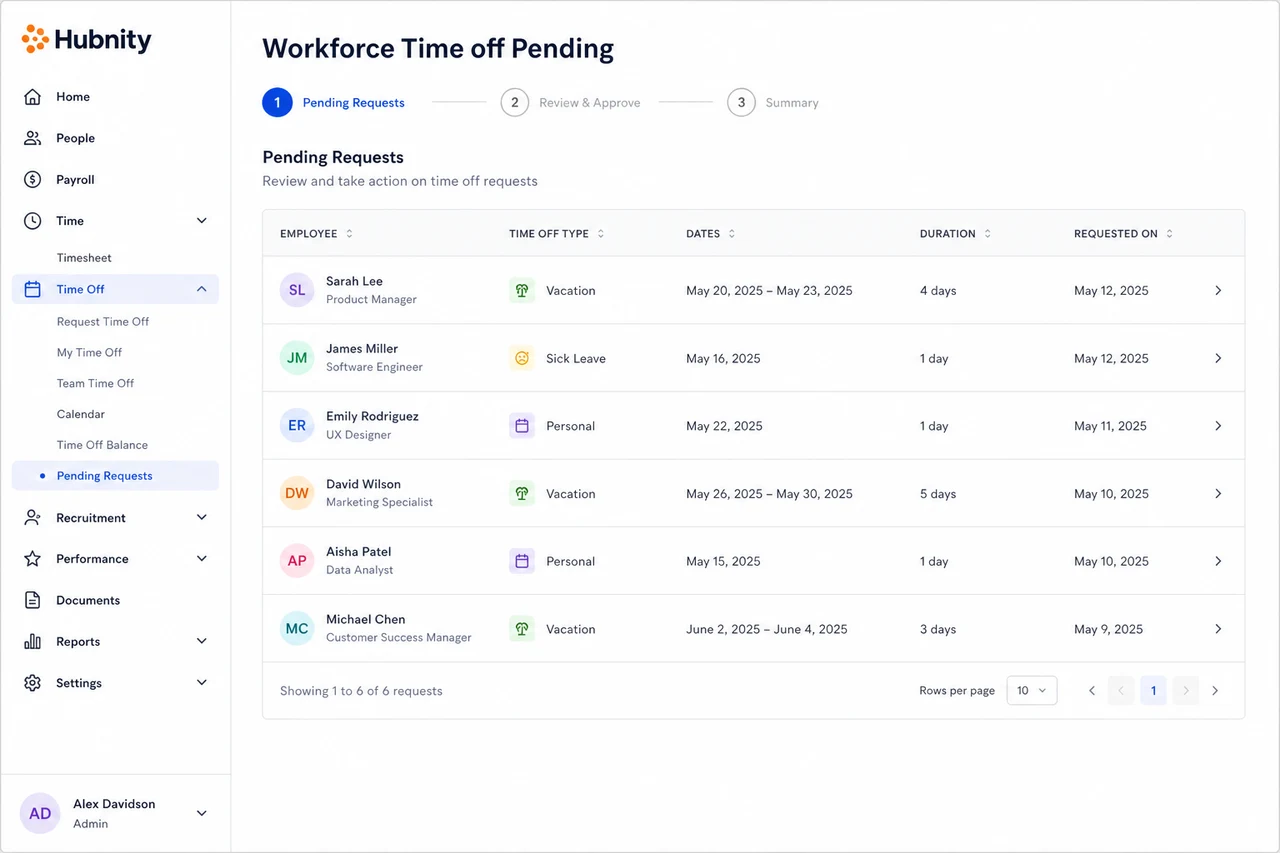
Managers see pending requests in their dashboard and via email notification.
- 1
Go to Workforce → Time off → Pending
- 2
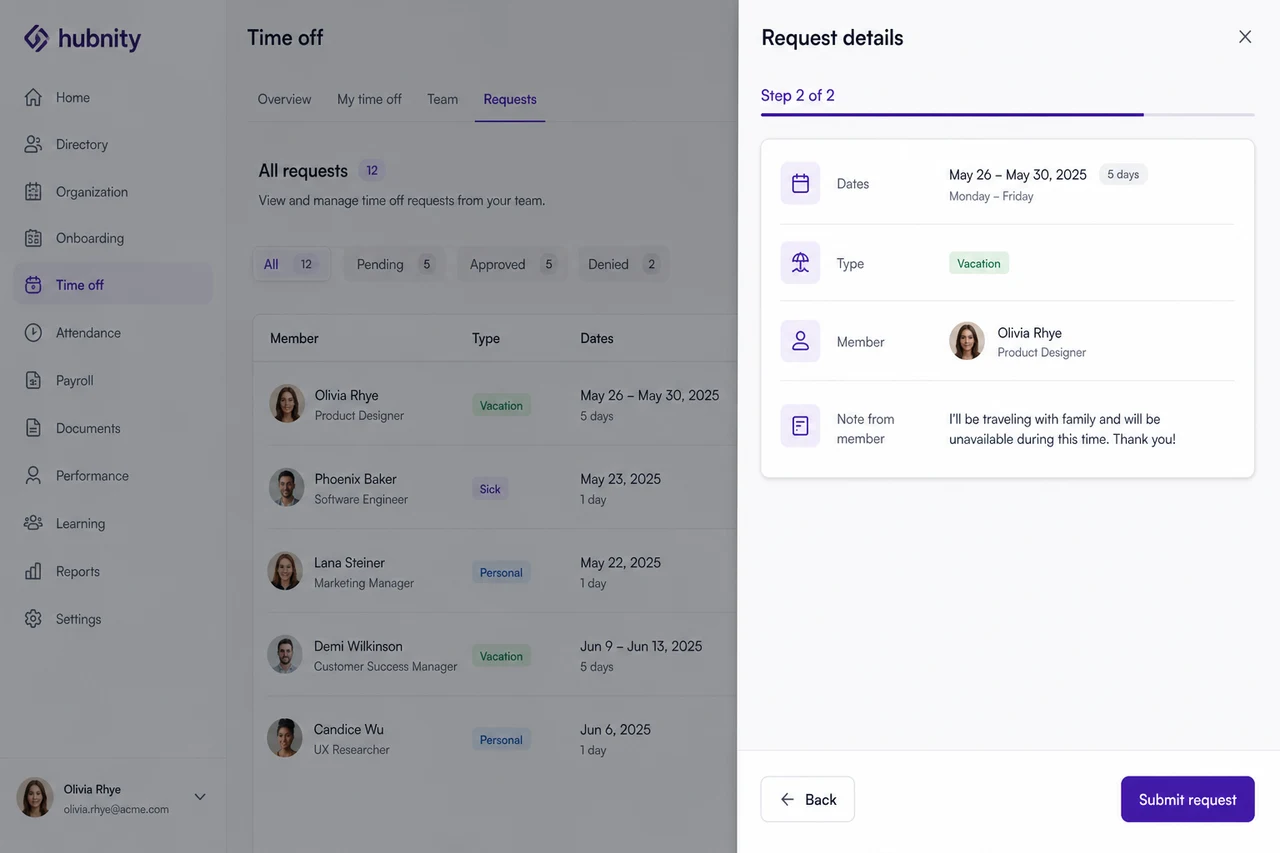
Click the request to view dates, type (vacation, sick, personal), and member note
- 3
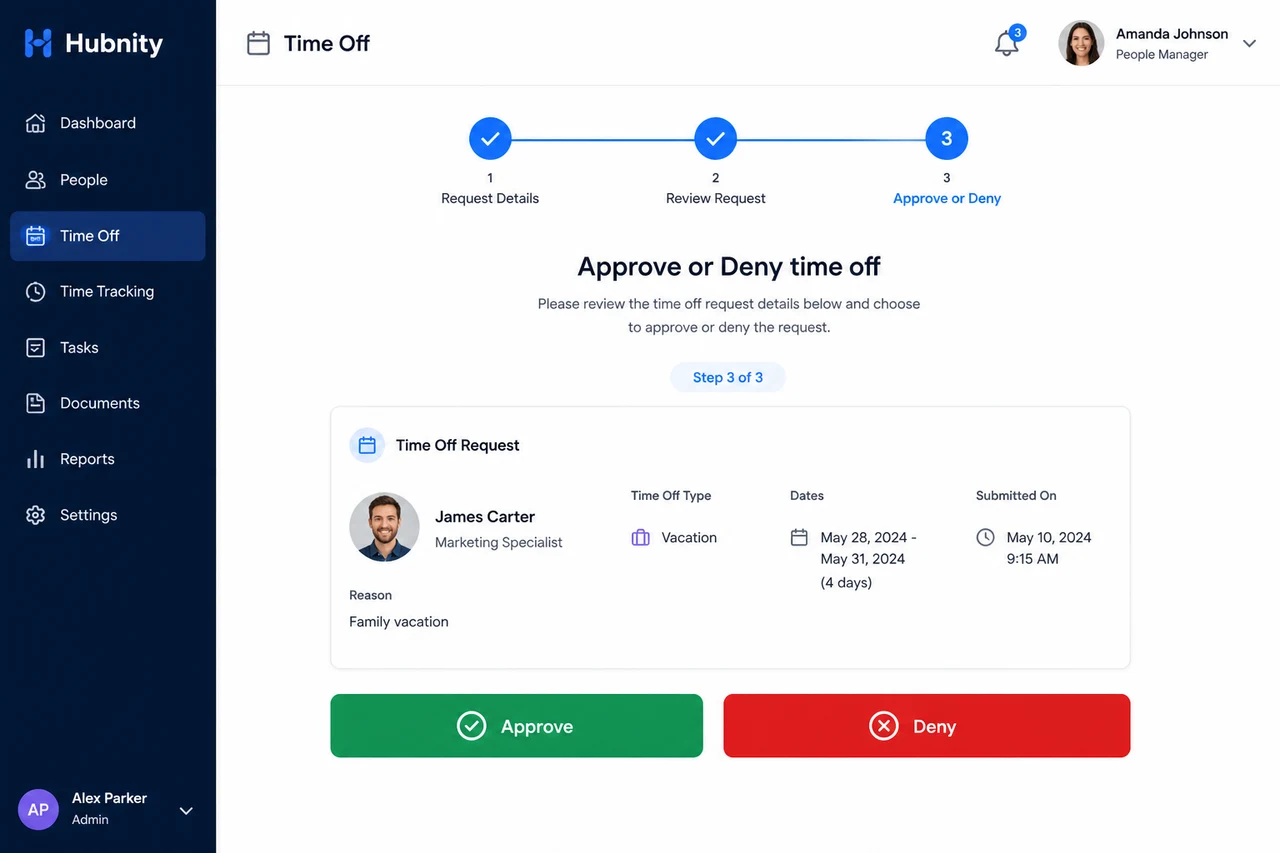
Click Approve or Deny
- 4
Add a note (required for denials)
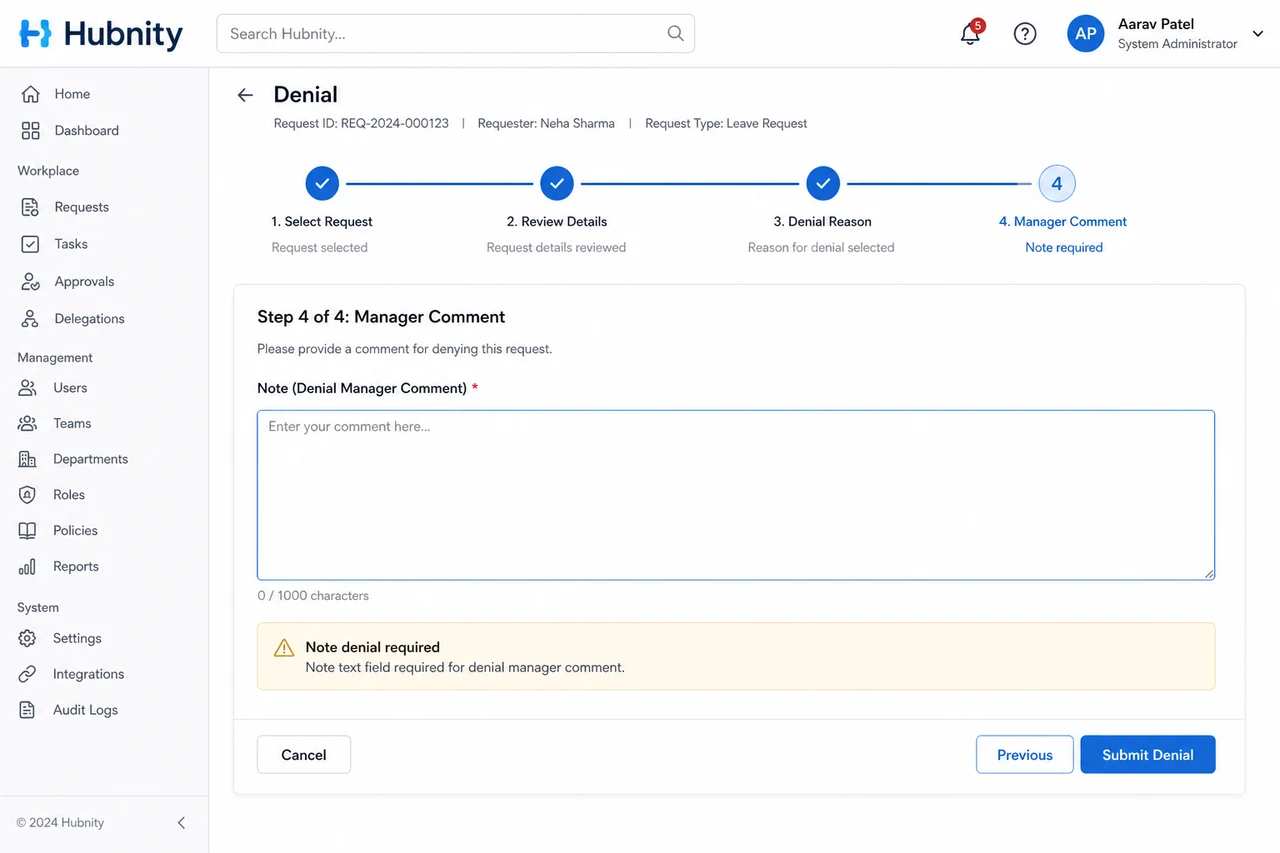
- 5
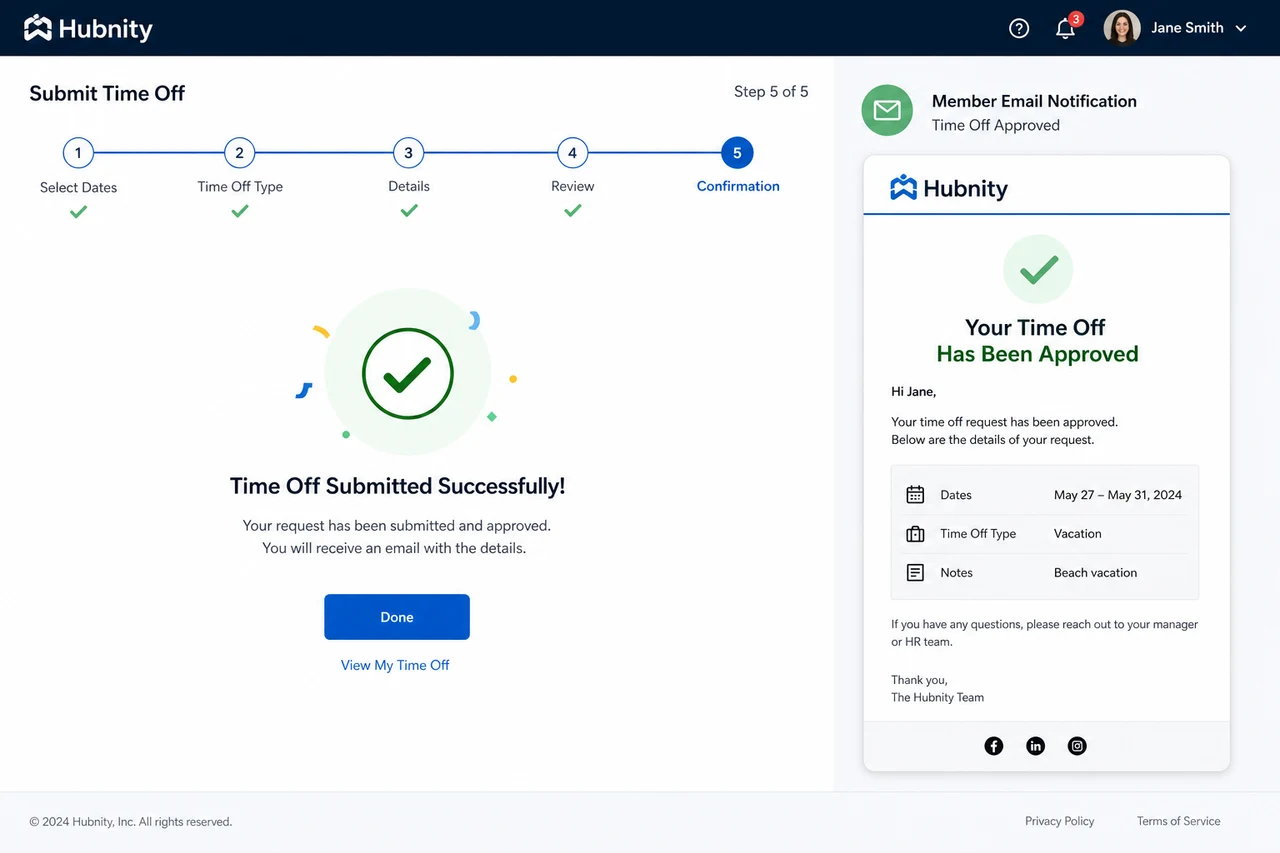
Submit — member receives notification
Time-off types
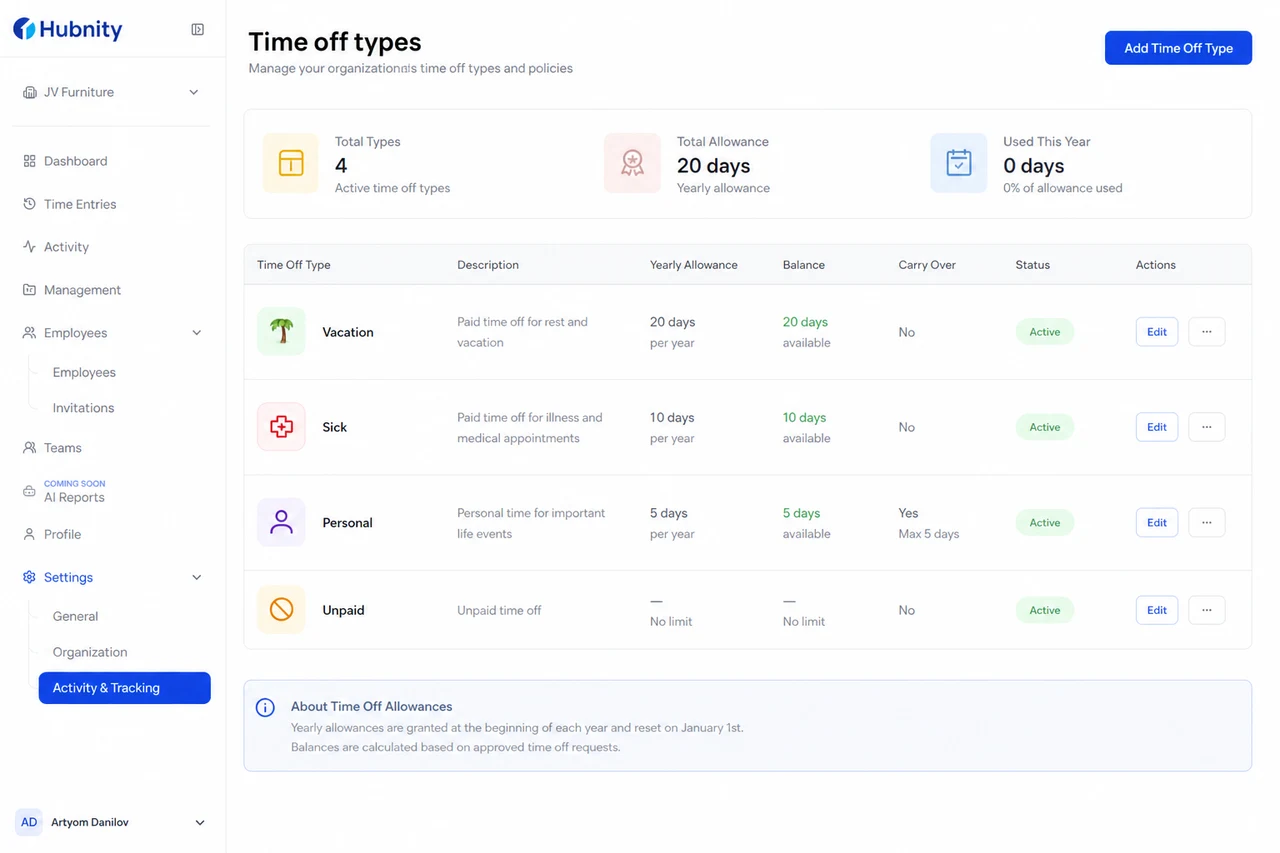
Configurable from Settings → Workforce → Time off types. Defaults: Vacation, Sick, Personal, Unpaid.
Each type can have a yearly allowance (e.g., 20 vacation days). Hubnity tracks remaining balance.
Calendar integration
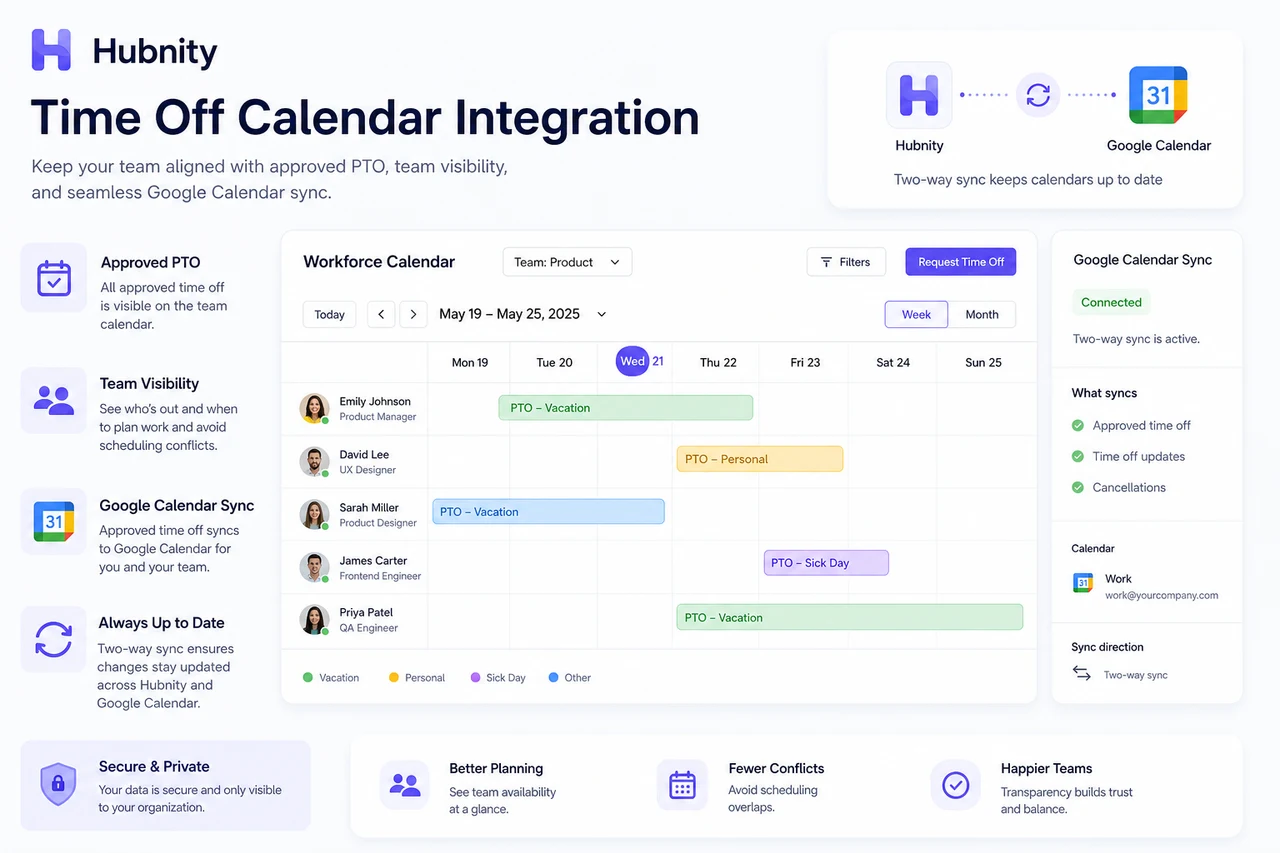
Approved time off syncs to the team calendar view in Workforce → Calendar.
Optional: export to Google Calendar from Settings → Integrations → Google Calendar → Time off sync.
Impact on tracking
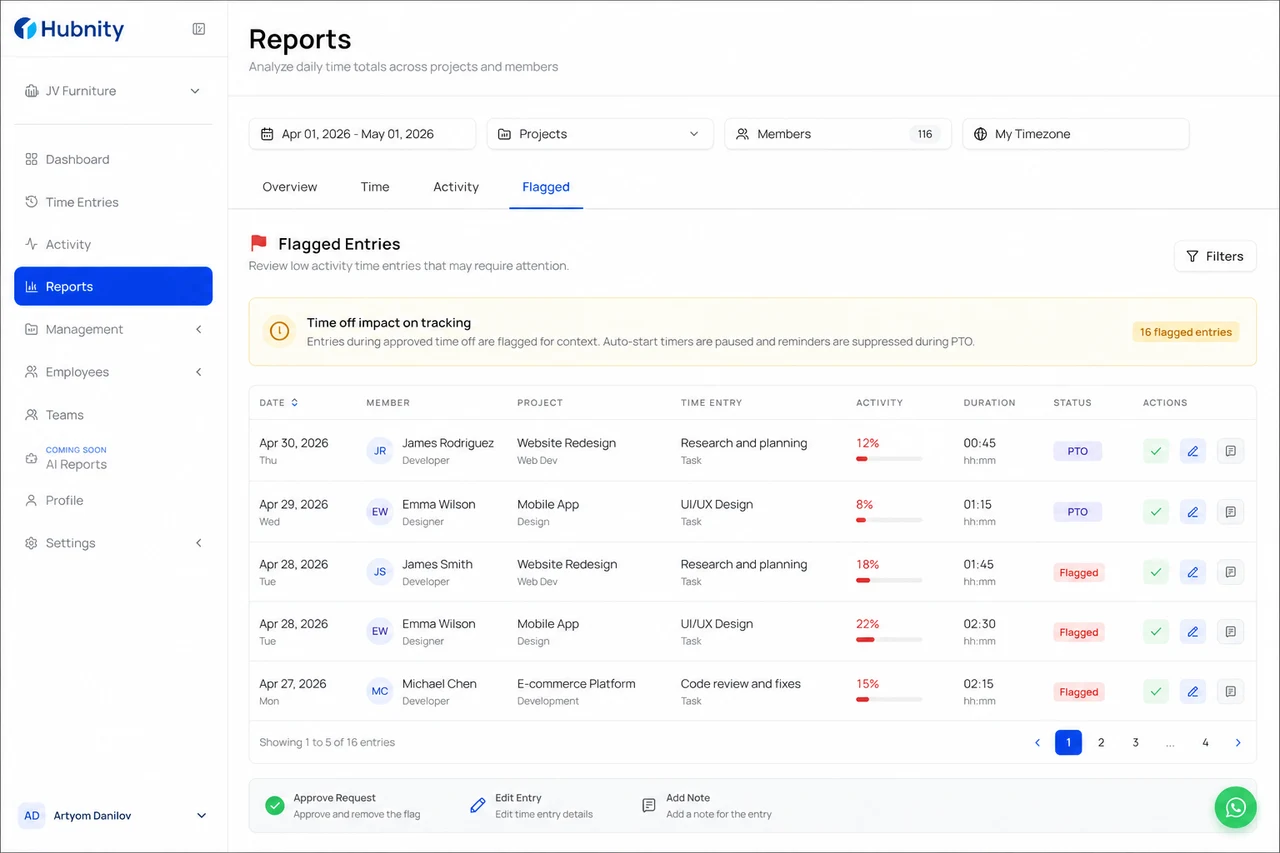
During approved time off, auto-start tracking is suppressed. Timer reminders are paused.
If a member tracks time during approved PTO, managers receive a flag for review.