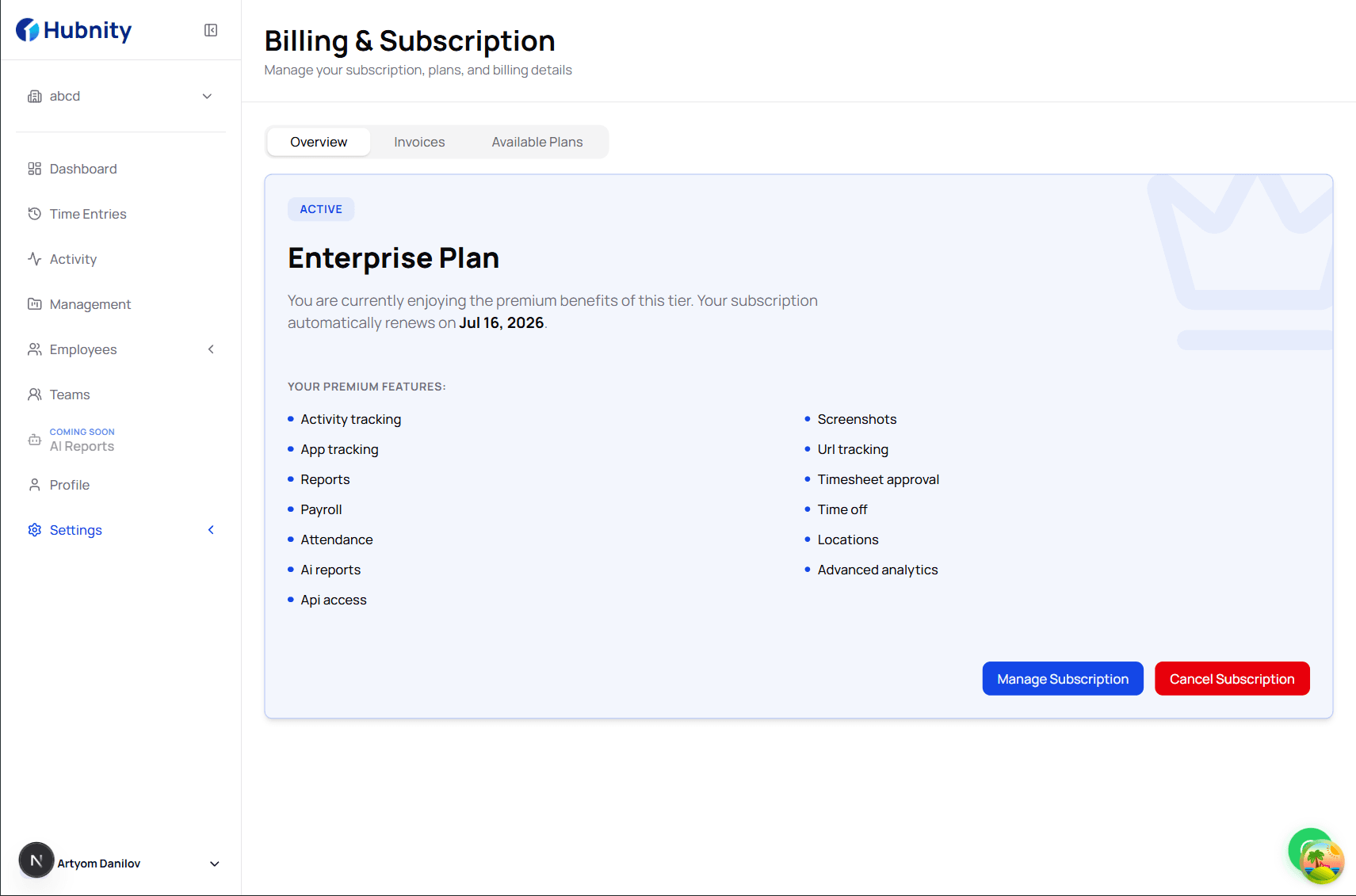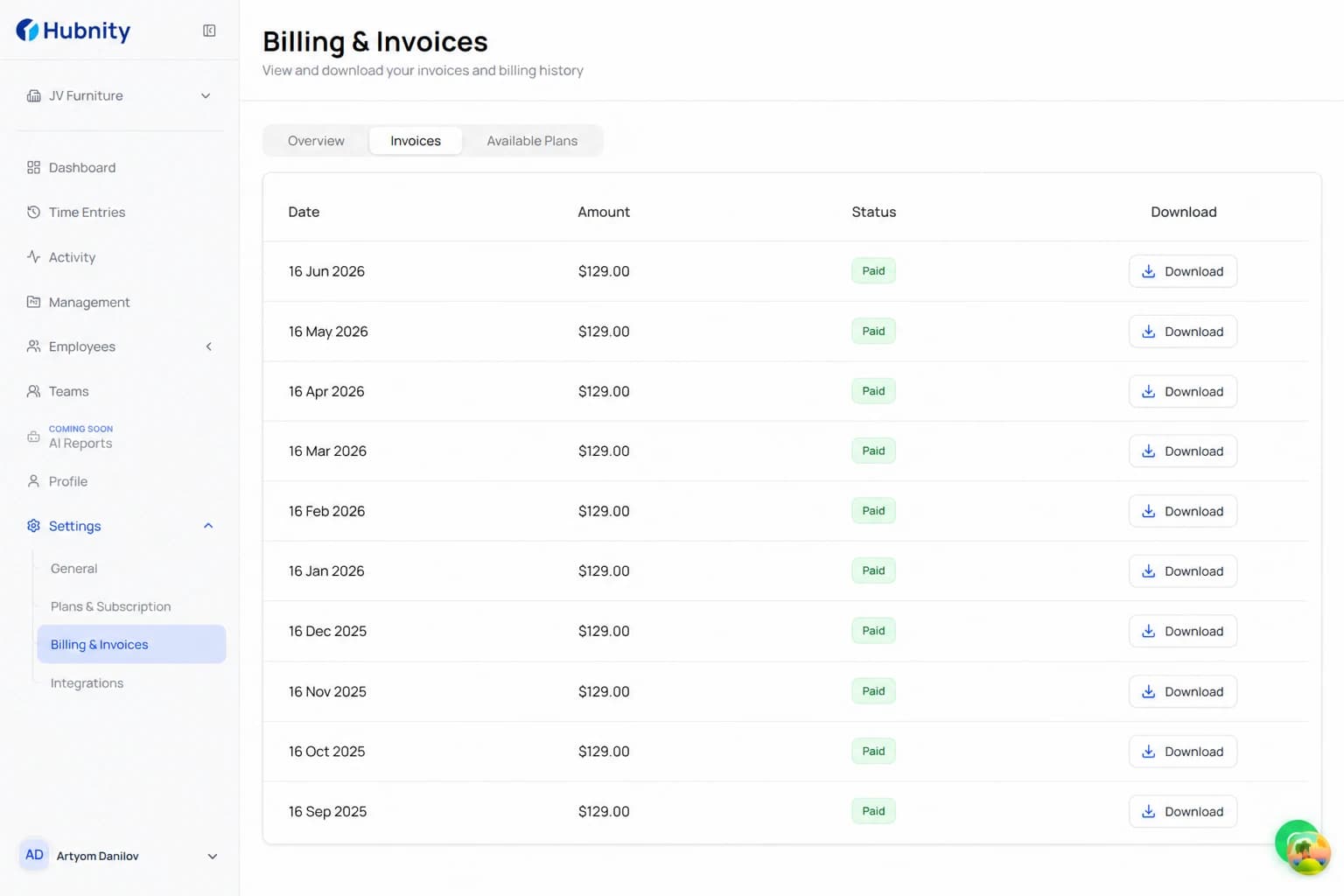
Add, update, or remove the credit card or payment method on your Hubnity subscription.
Update your payment method
Owner role required. Changes apply to the next billing cycle unless paying an overdue balance.
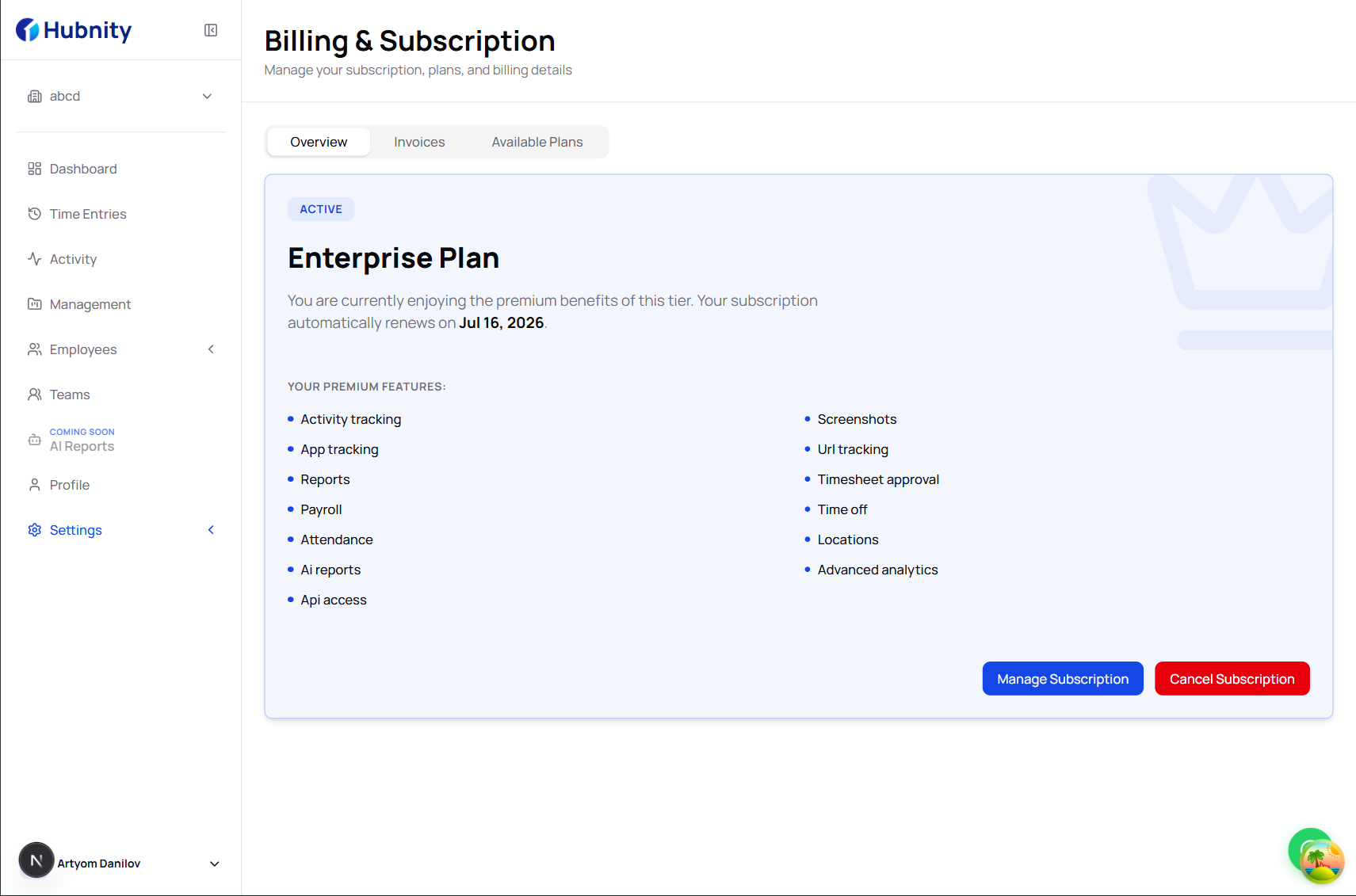
- 1
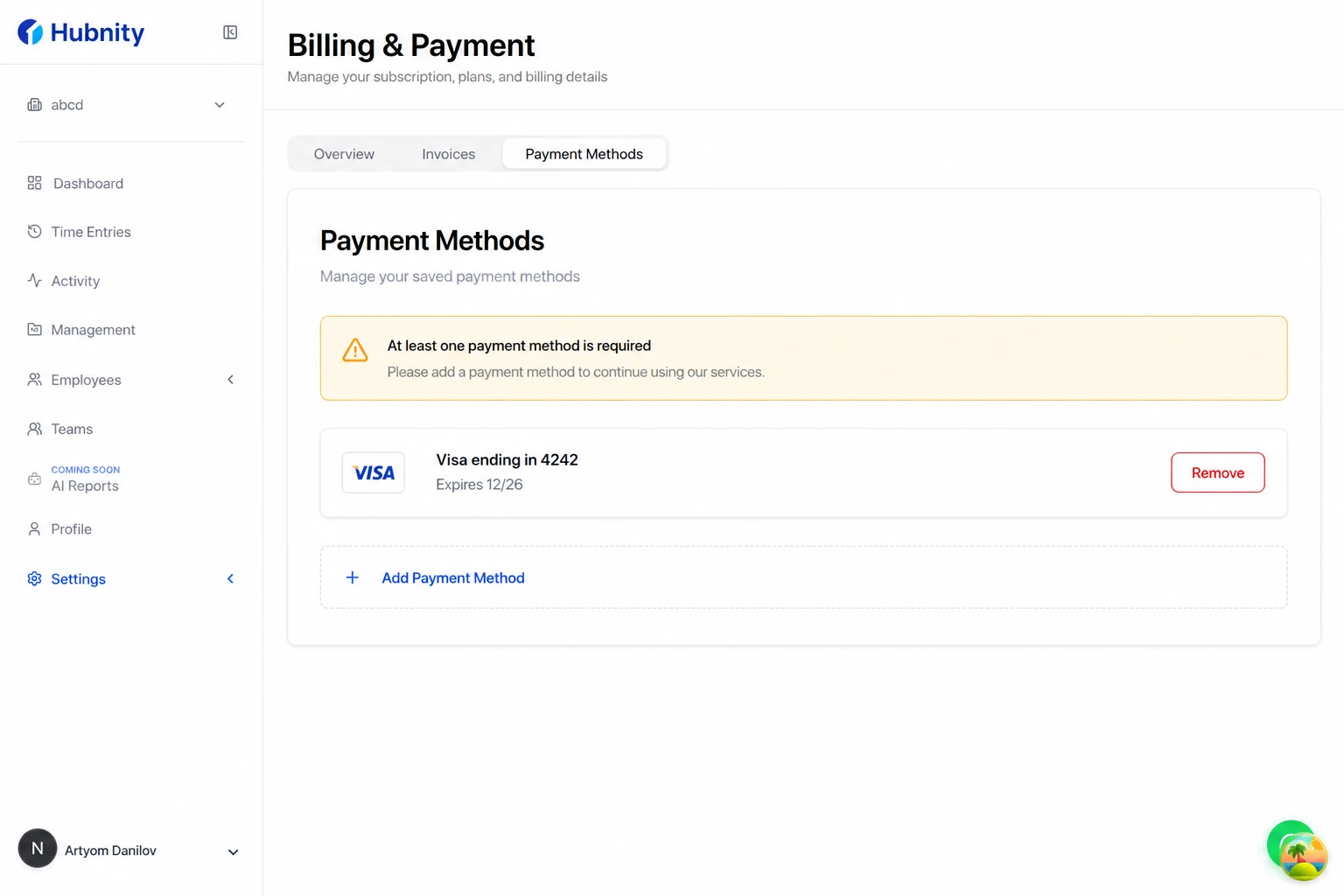
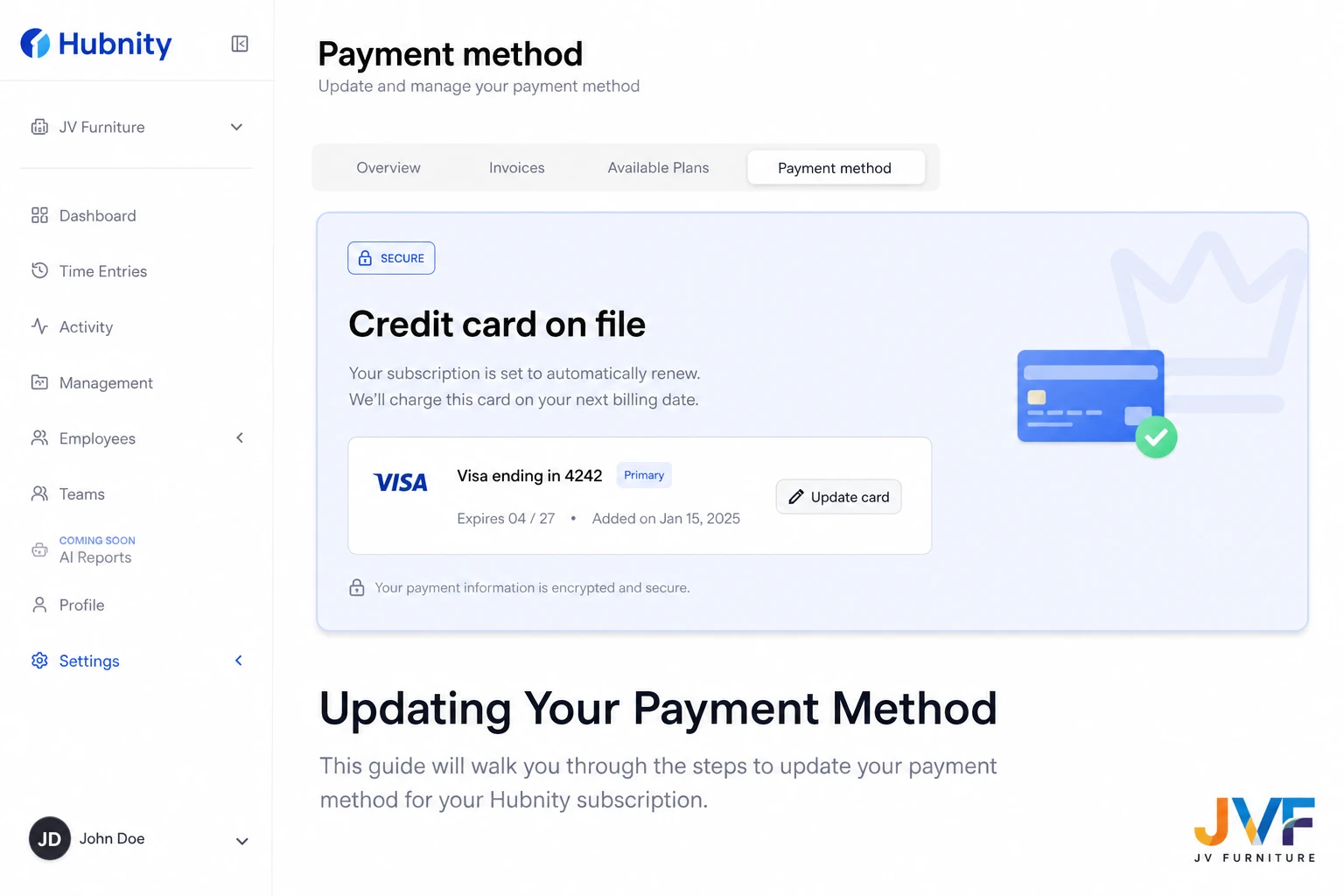
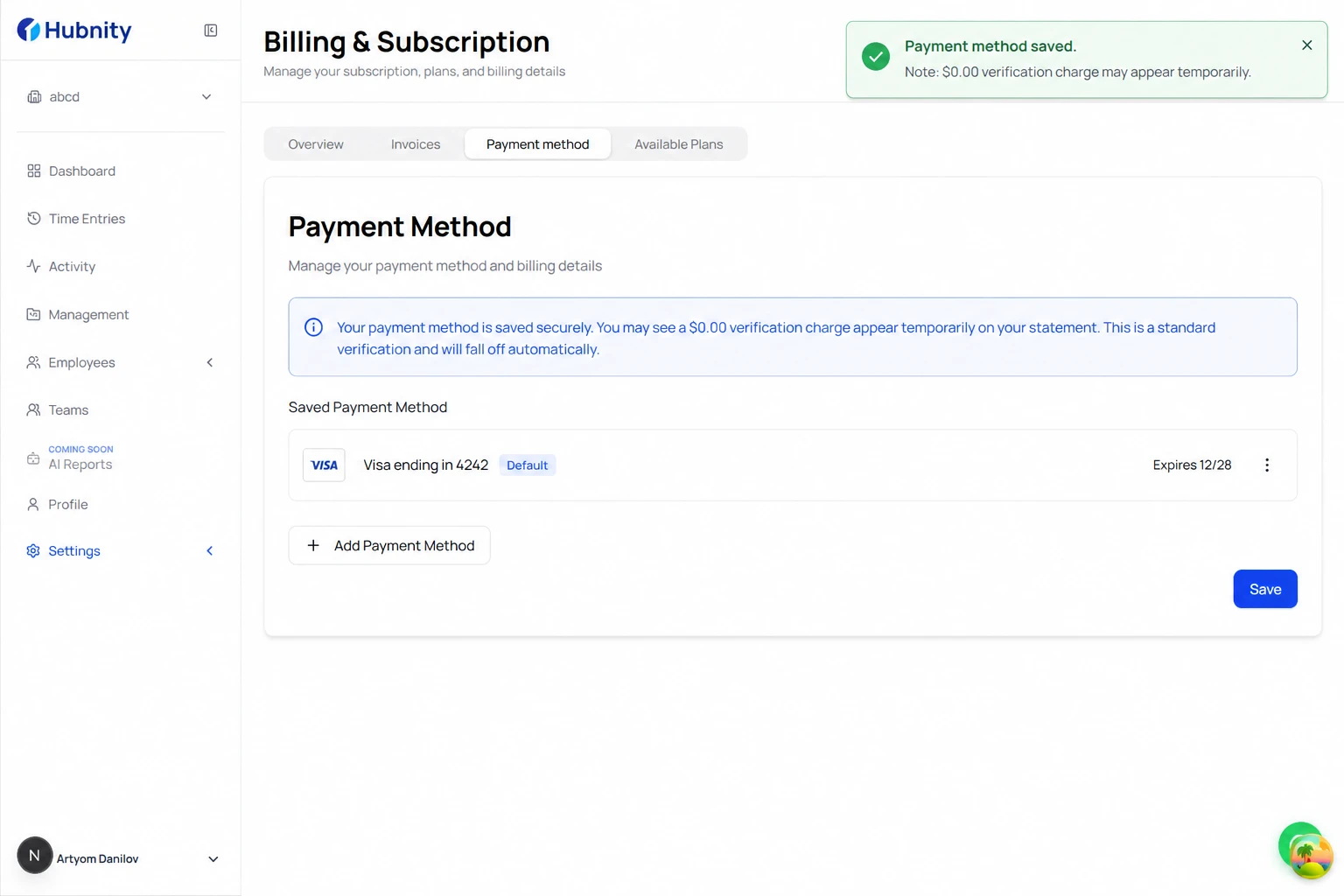
Go to Billing → Payment method
- 2
Click Add payment method or Edit existing
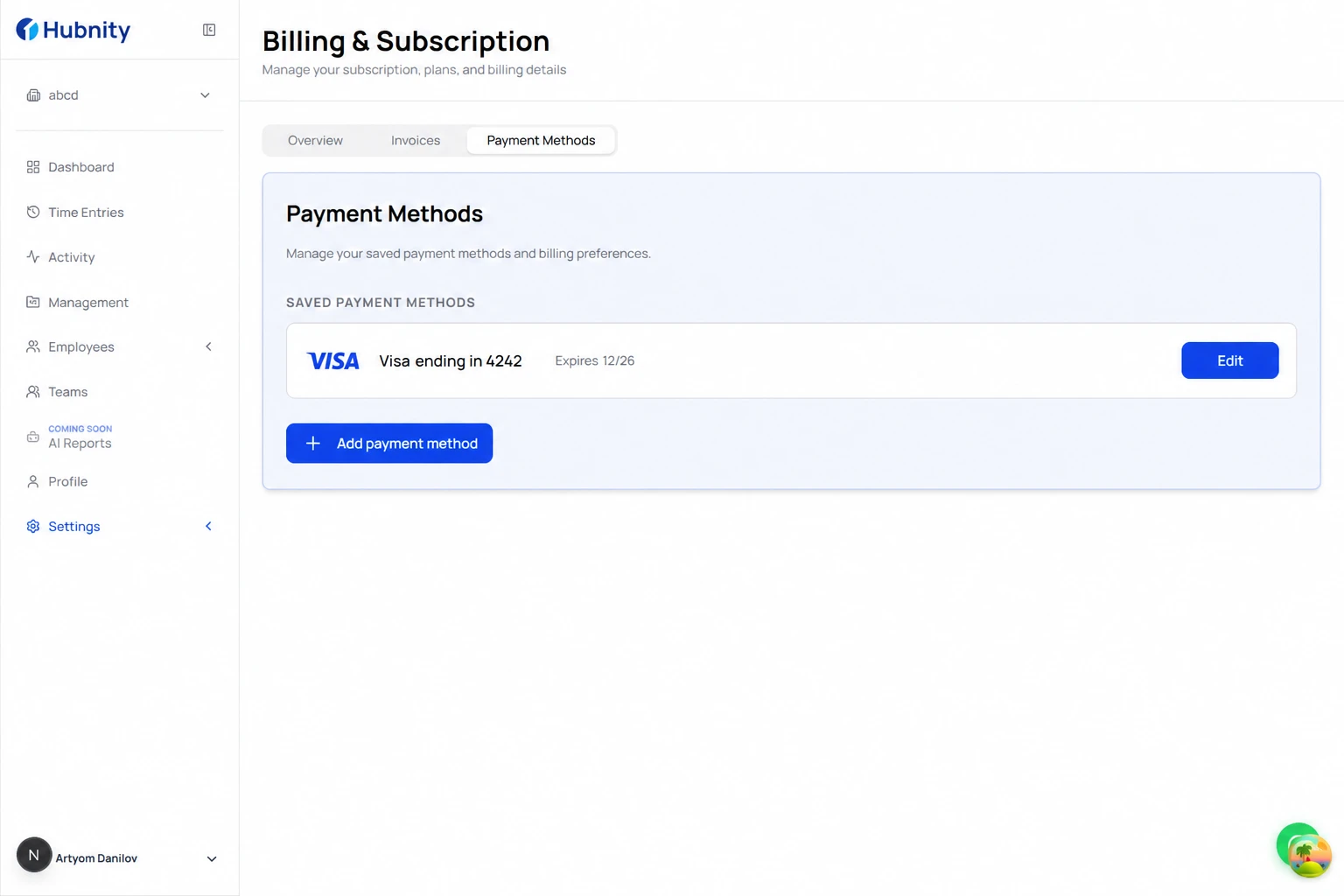
- 3
Enter card details or select PayPal
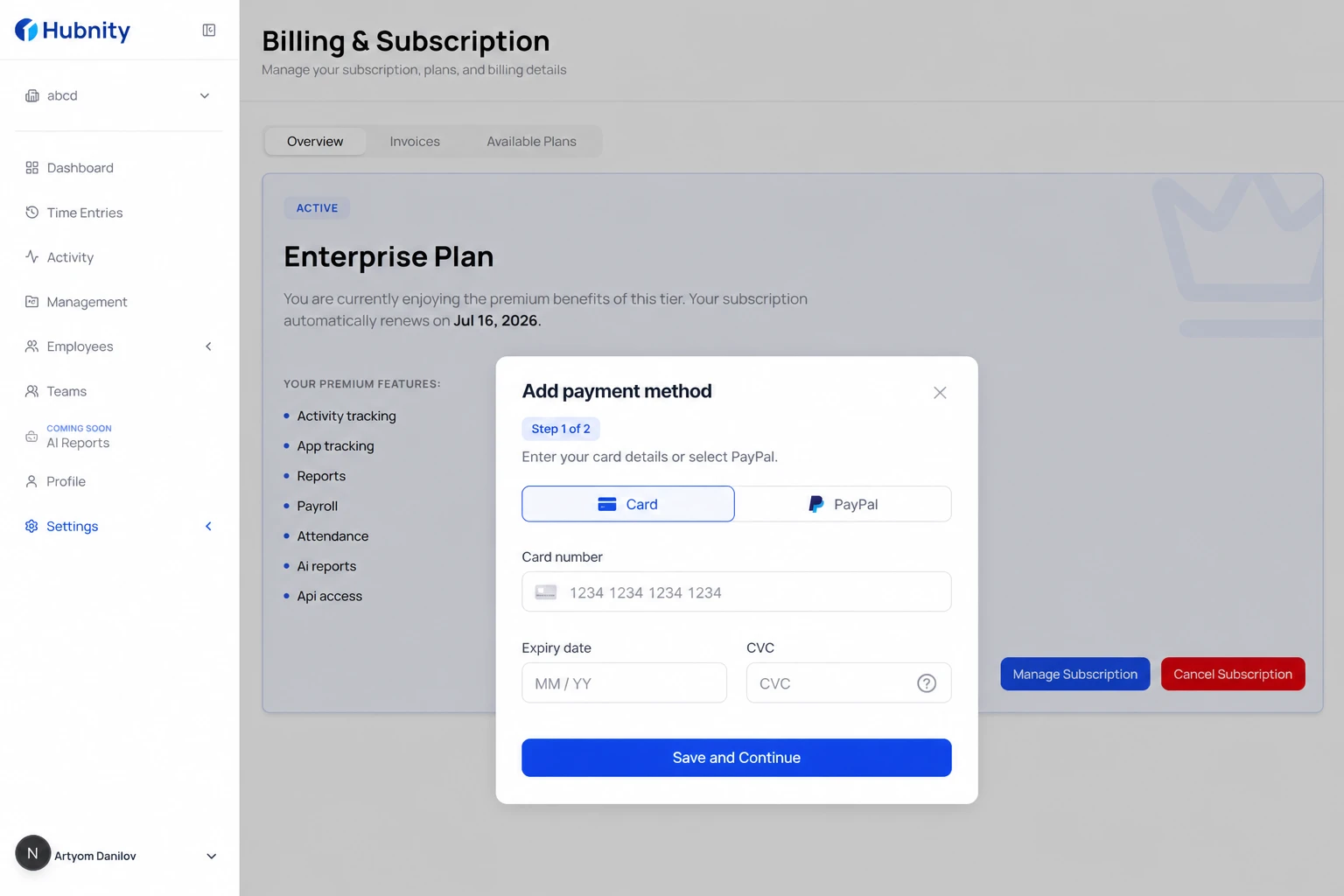
- 4
Set as default if adding a new method
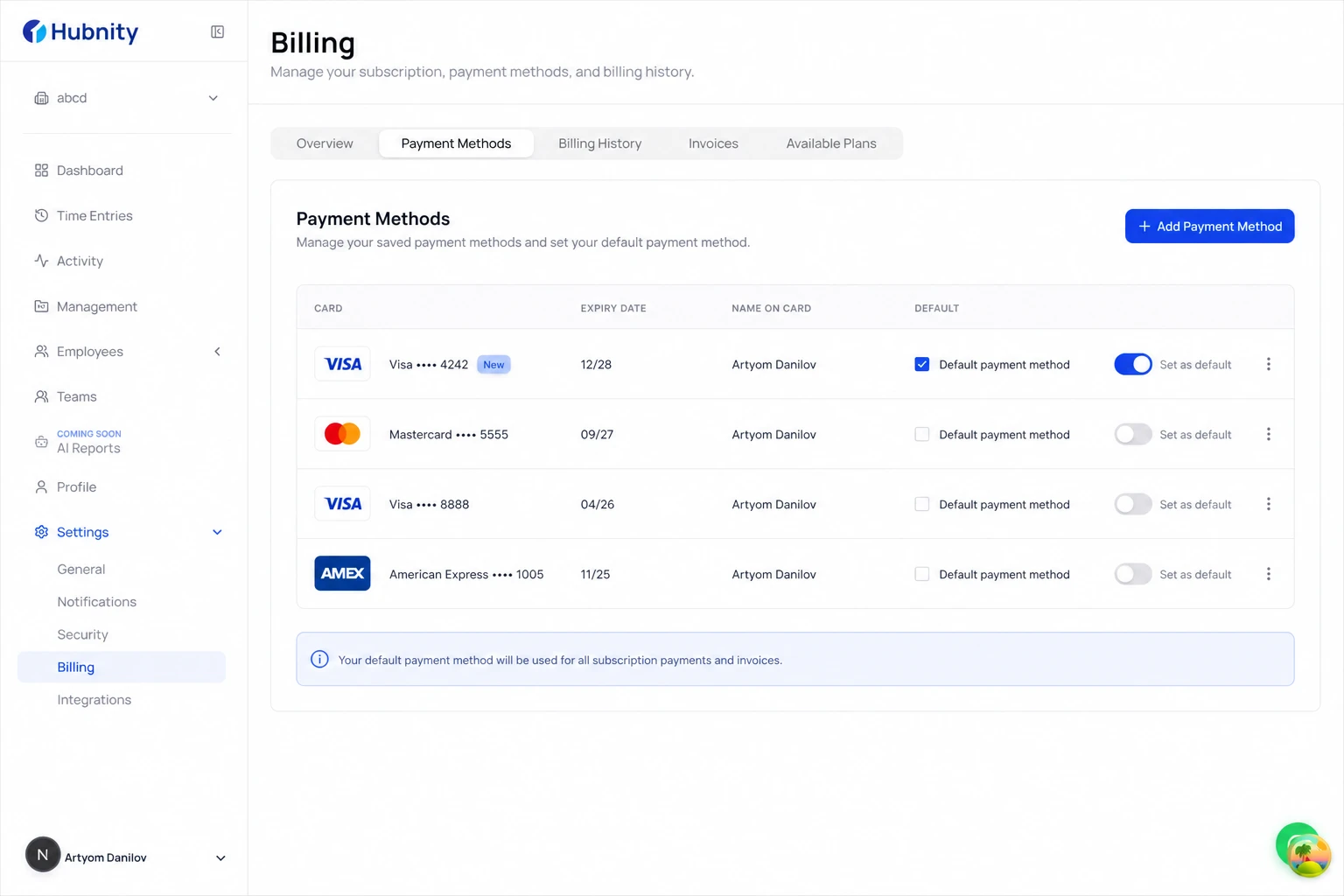
- 5
Save — a $0.00 verification charge may appear temporarily
Supported methods
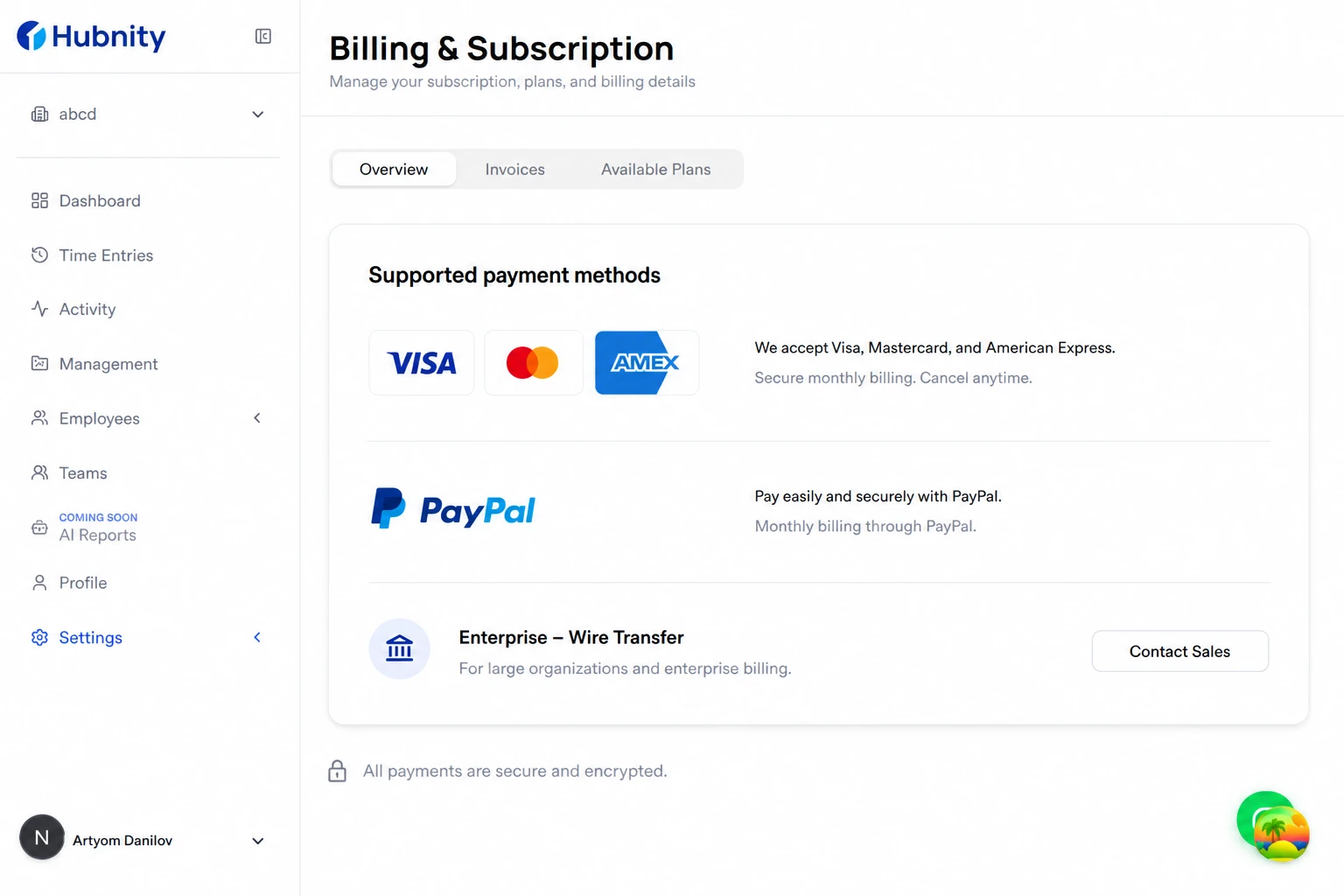
Credit/debit cards: Visa, Mastercard, American Express. PayPal (monthly billing only).
Enterprise annual contracts: wire transfer invoicing available. Contact sales@hubnity.eu.
Failed payments
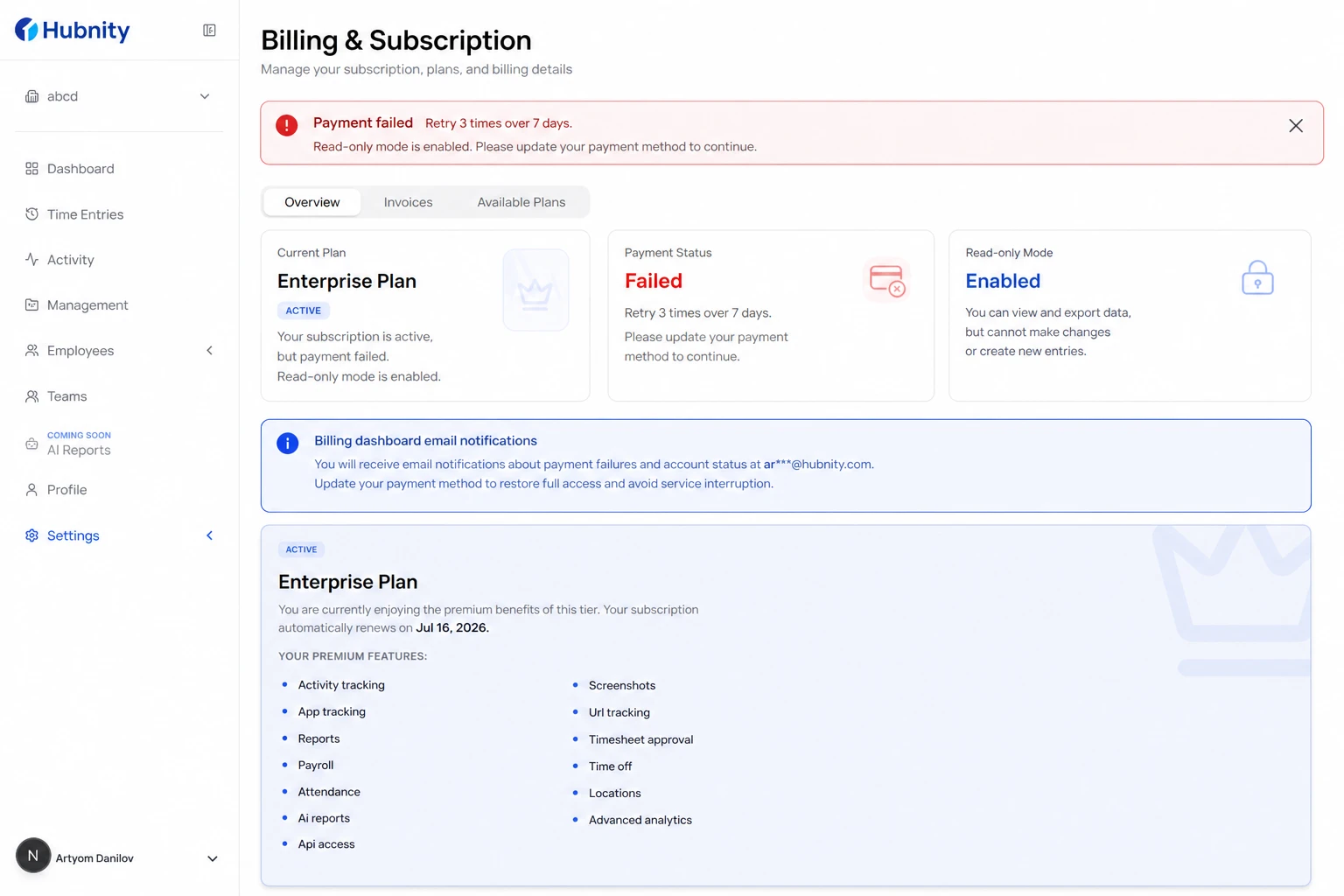
If a payment fails, Hubnity retries 3 times over 7 days. You receive email notifications after each attempt.
After 3 failures, the workspace enters read-only mode. Update payment method to restore full access.
Remove a payment method
At least one valid payment method must remain on file for active subscriptions.
Remove old cards from Billing → Payment method → [Card] → Remove.