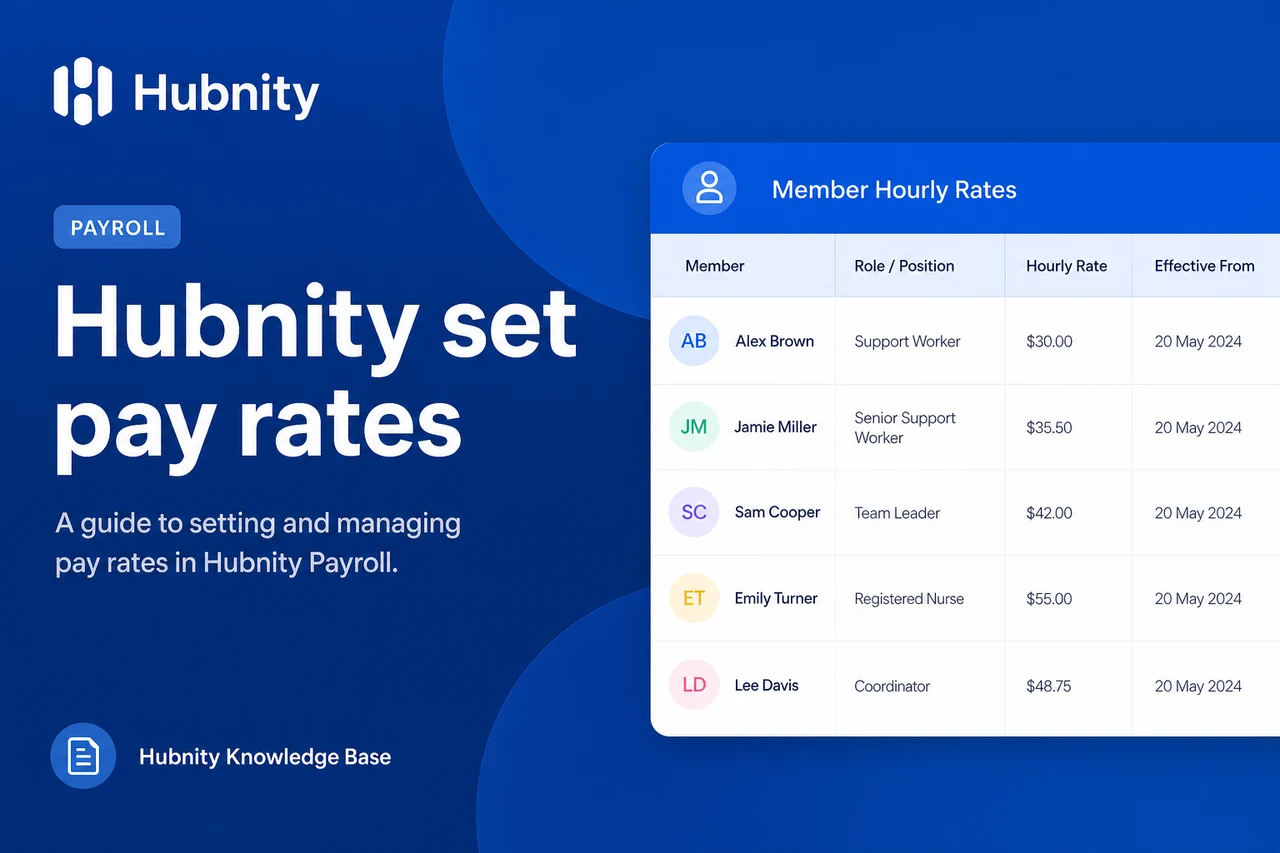
Assign hourly pay rates, bill rates, and currency settings for members and projects.
Set a member's default pay rate
Default rates apply to all projects unless overridden.
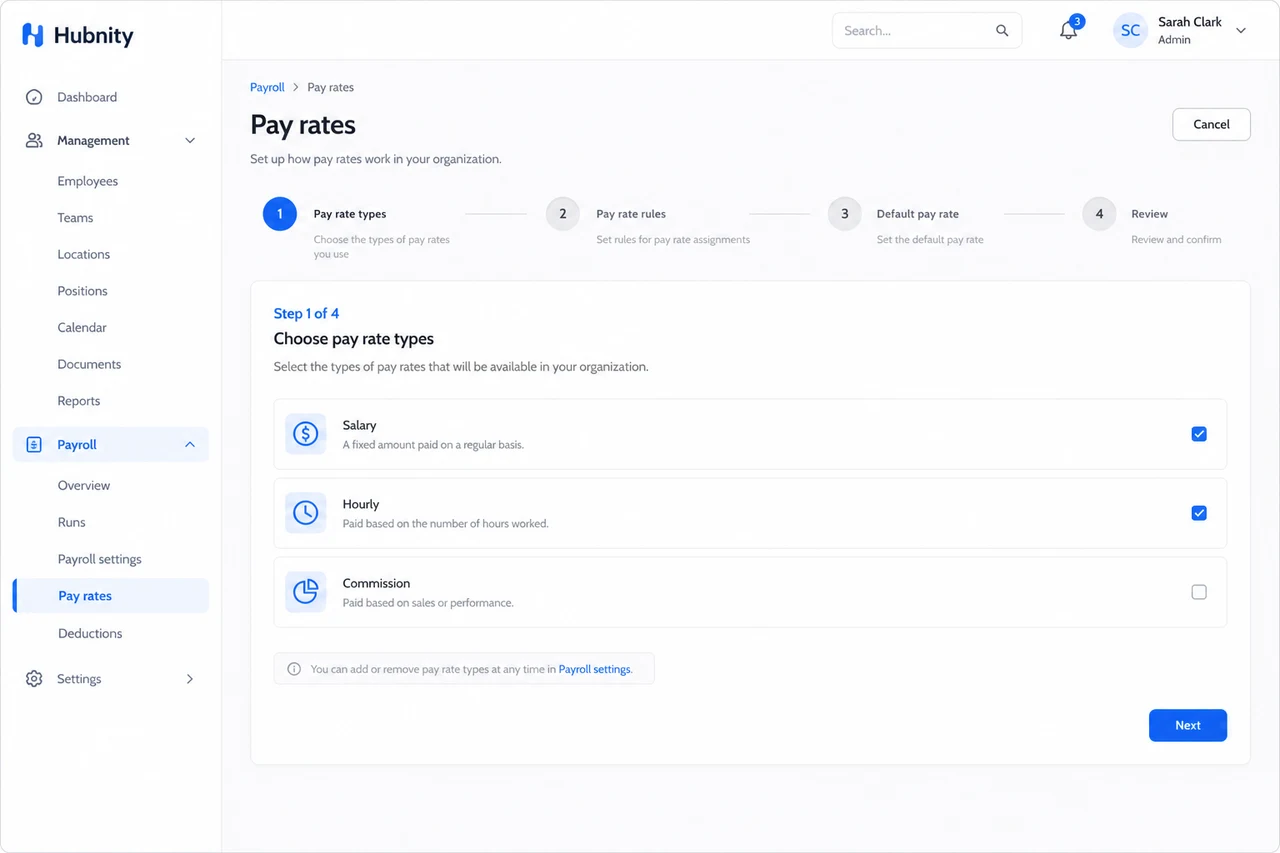
- 1
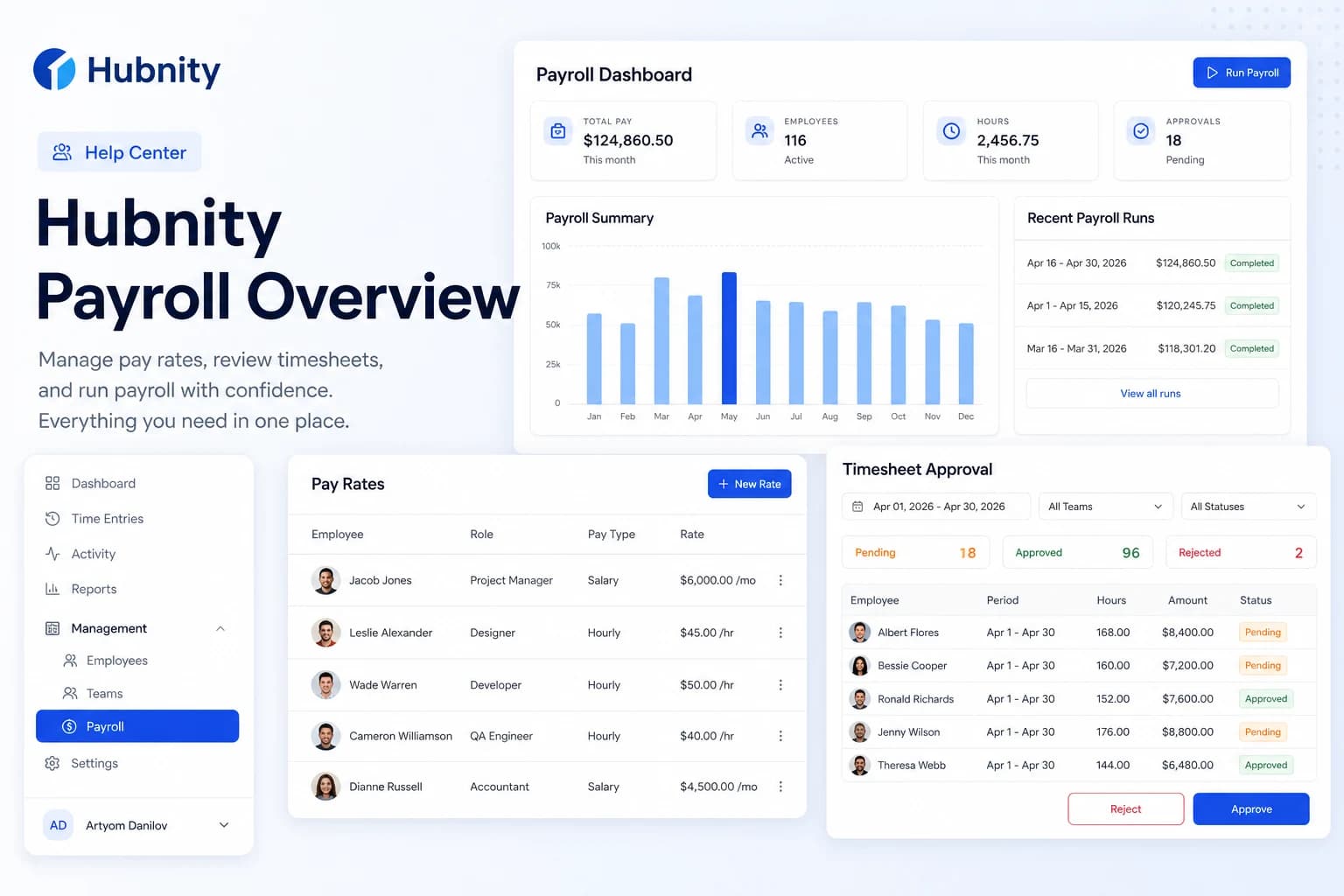
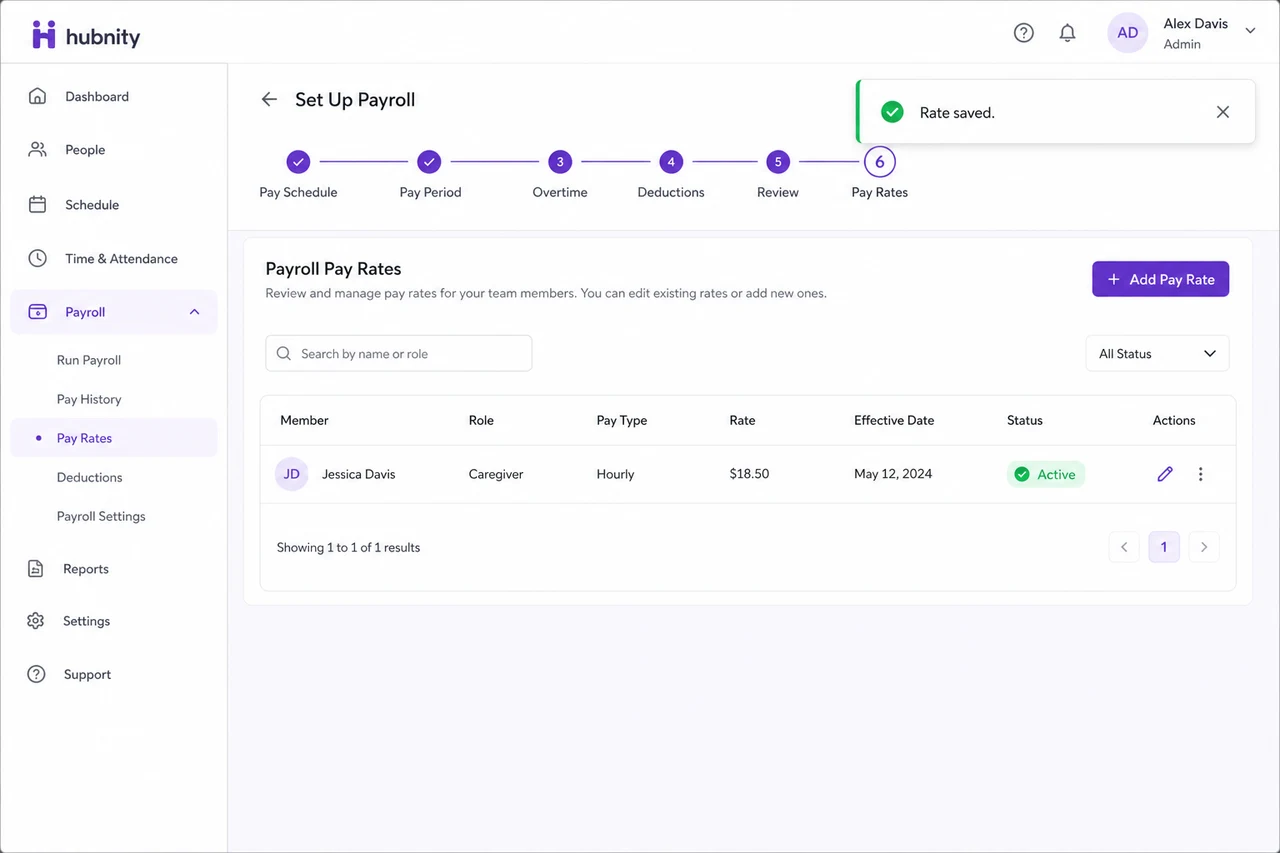
Go to Payroll → Pay rates
- 2
Select the member or click Add rate
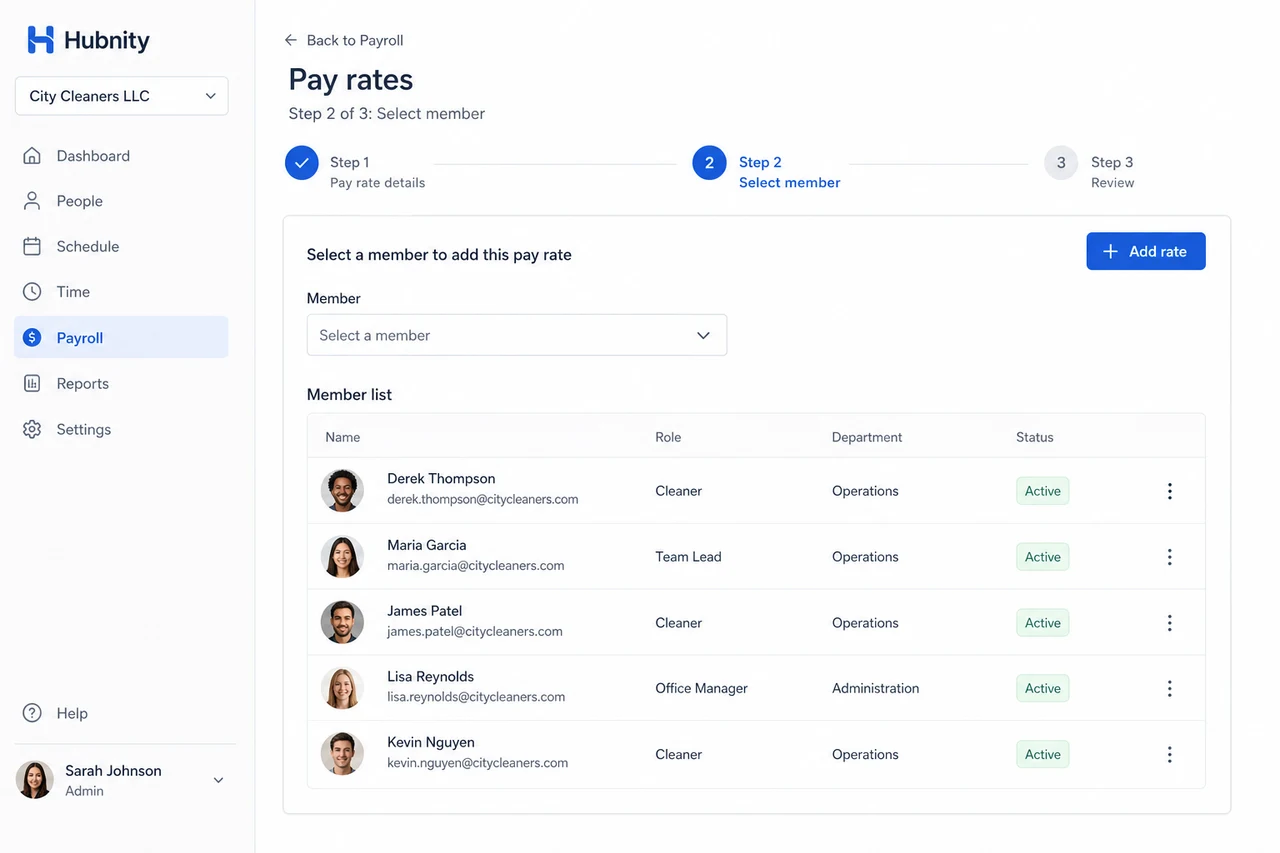
- 3
Enter hourly pay rate and currency
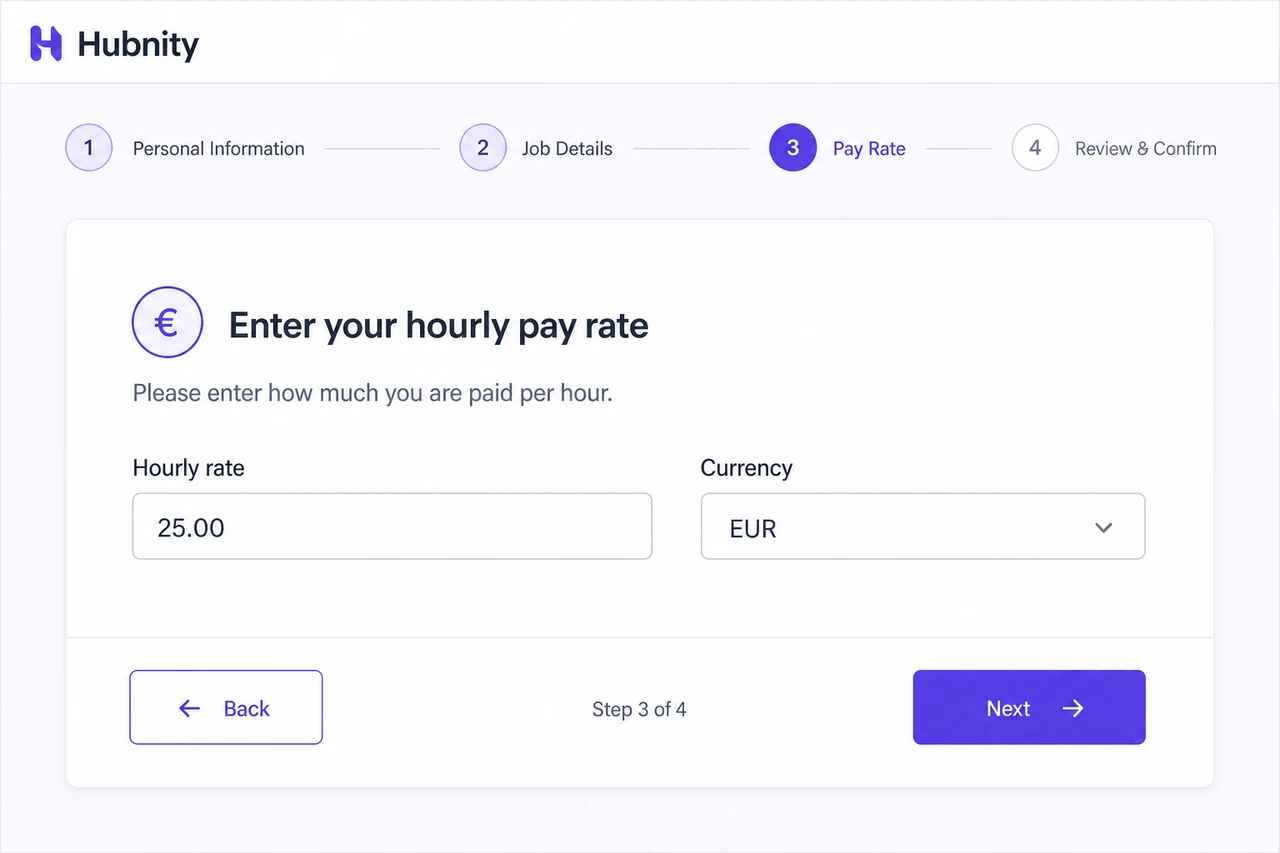
- 4
Set effective date (defaults to today)
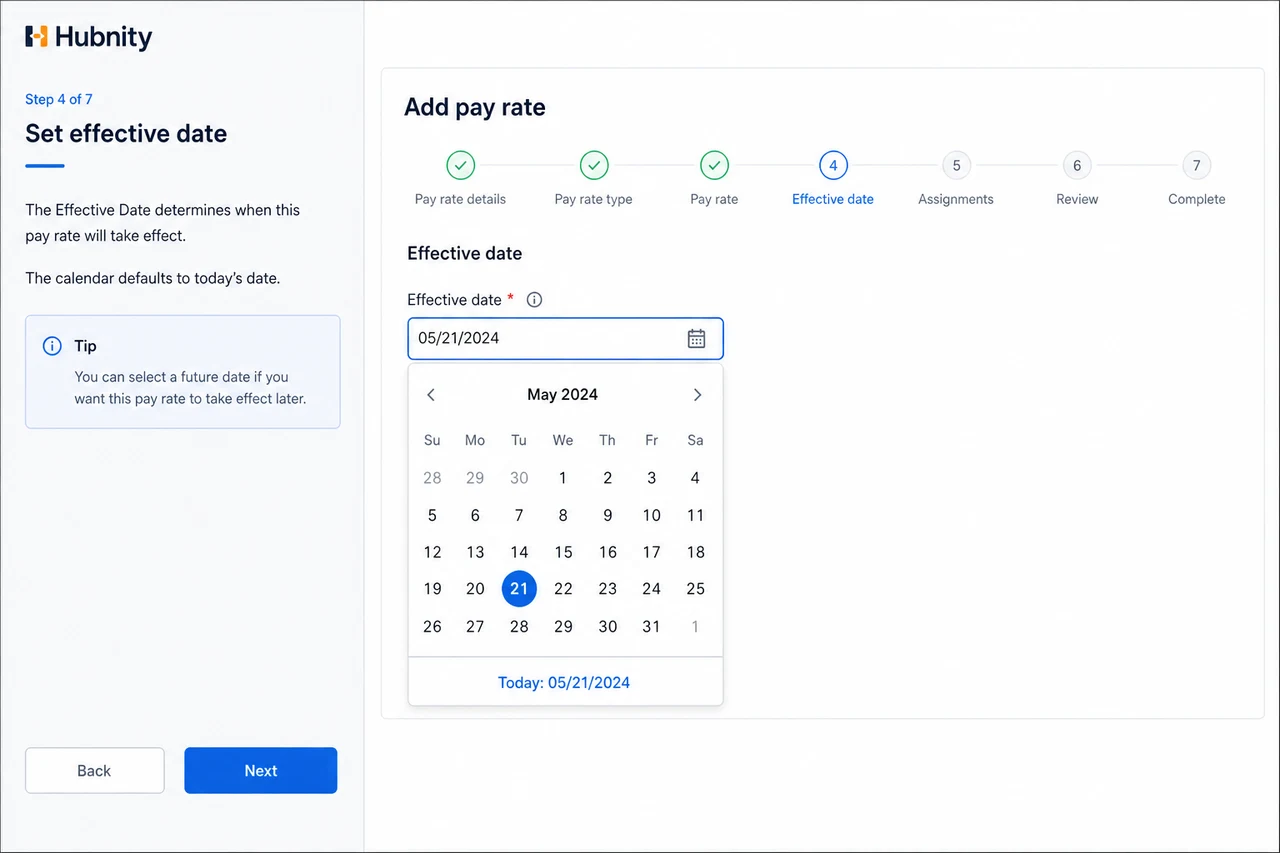
- 5
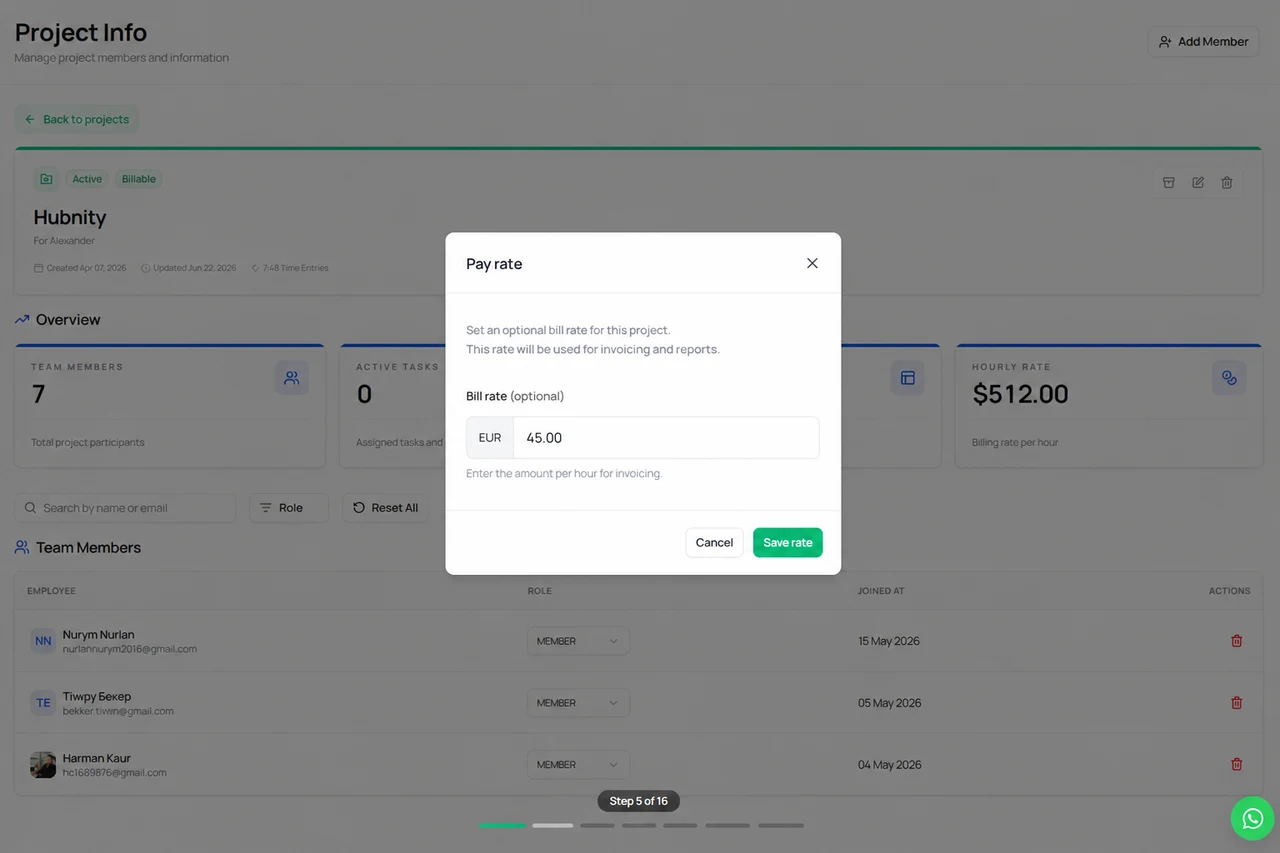
Optionally enter bill rate for invoicing
- 6
Save
Rate types
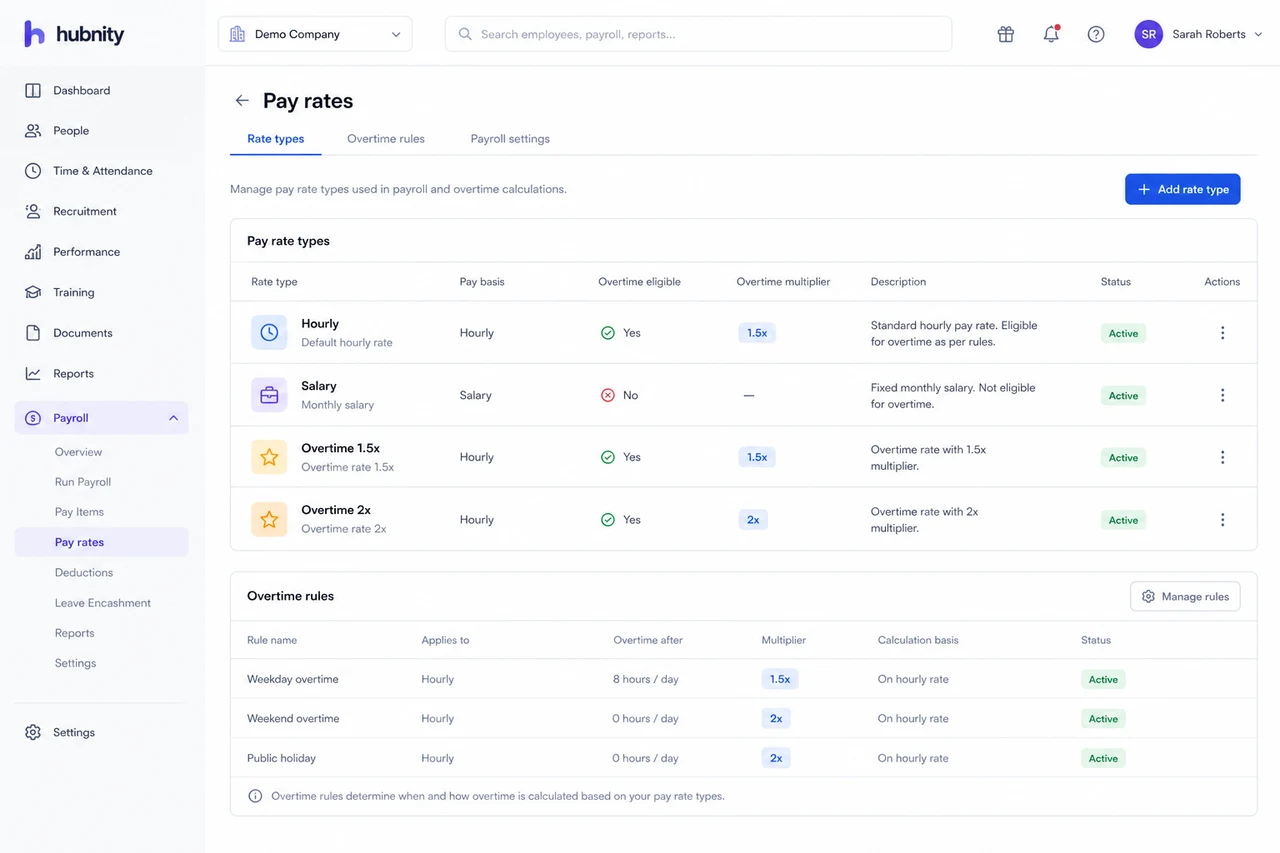
Hourly: standard rate × approved hours.
Salary: fixed monthly amount. Hubnity prorates based on approved hours vs expected monthly hours.
Overtime multiplier: 1.5× or 2× for hours beyond daily/weekly threshold. Configure from Payroll → Pay rates → Overtime rules.
Project-level overrides
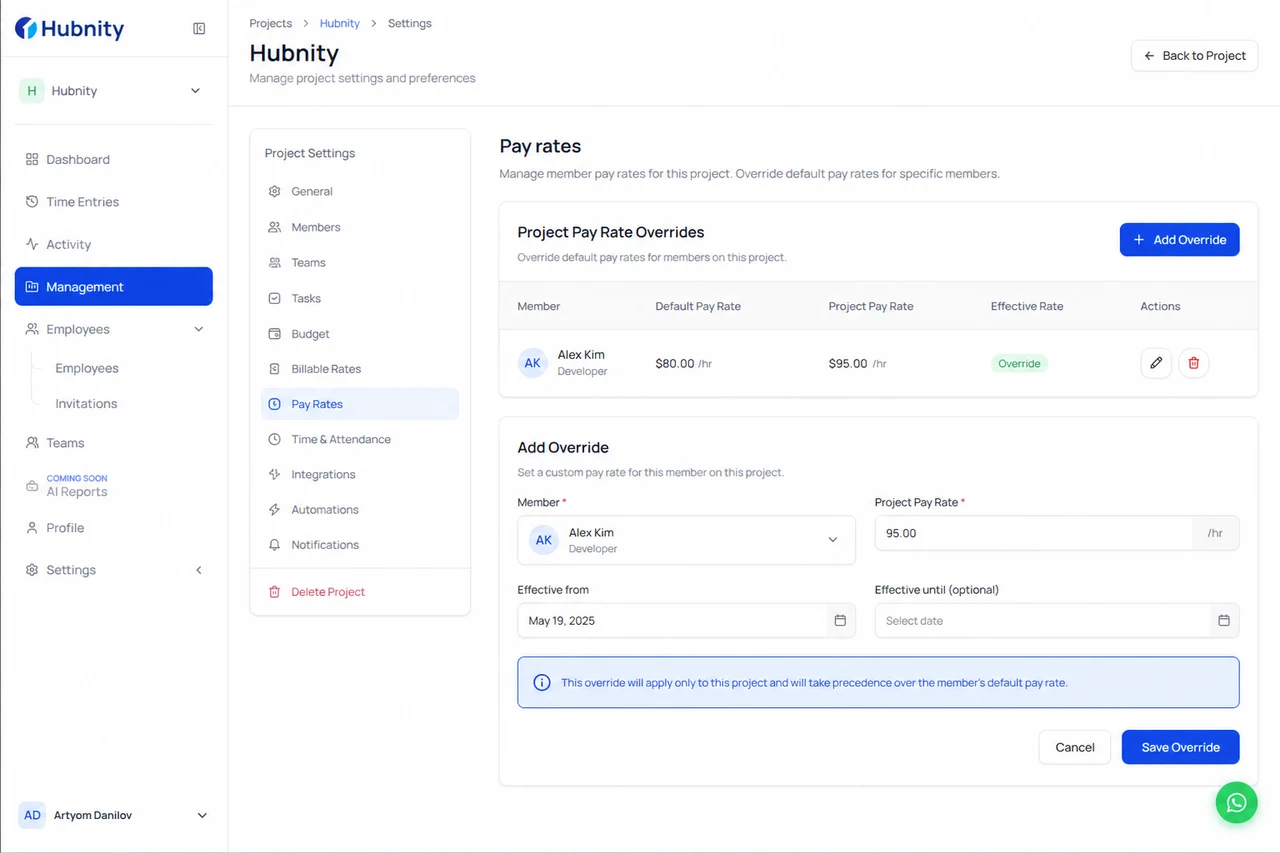
Override a member's rate for a specific project: Projects → [Project] → Settings → Pay rates → Add override.
Project overrides take precedence over member defaults for entries on that project.
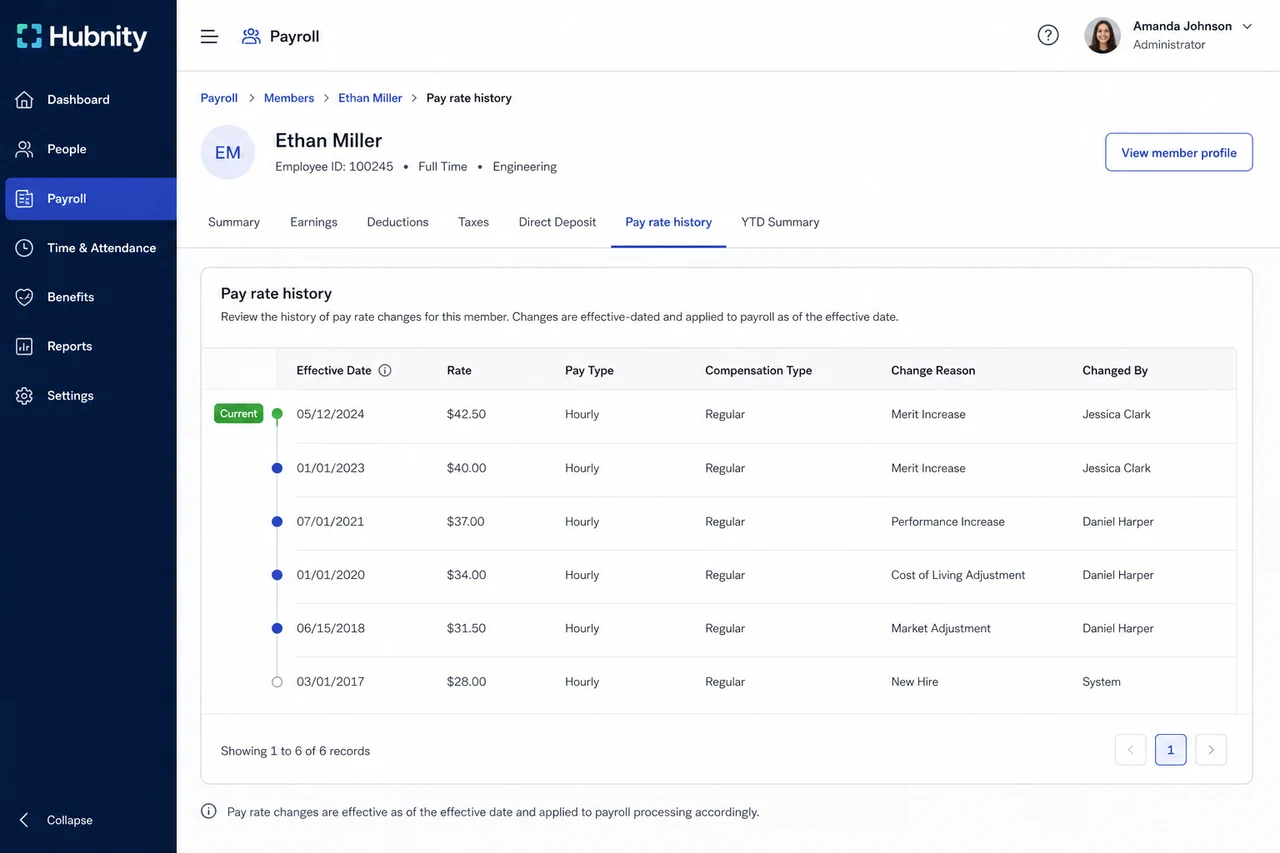
Rate history
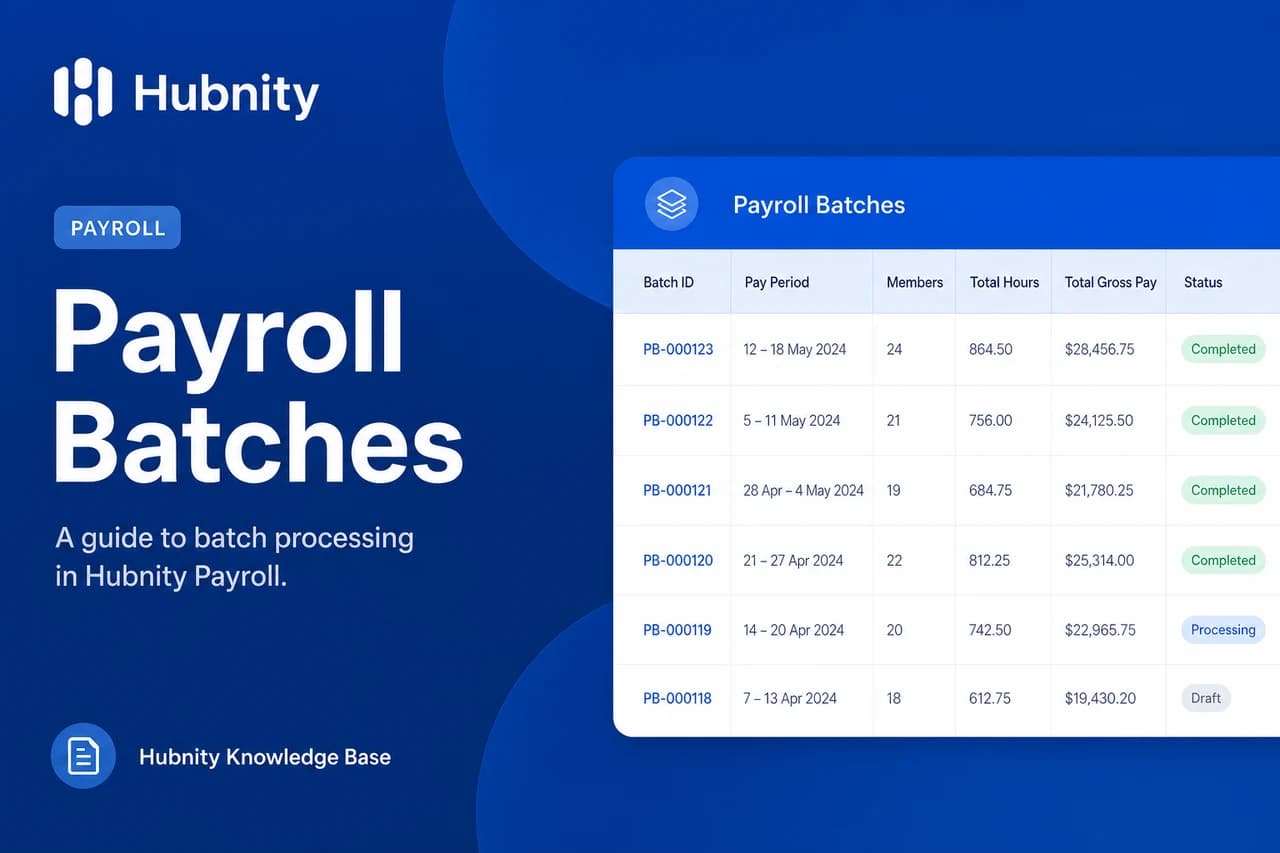
Rate changes are effective-dated. Past payroll batches use the rate active at the time of tracking.
View rate history from Payroll → Pay rates → [Member] → History tab.
Bulk import
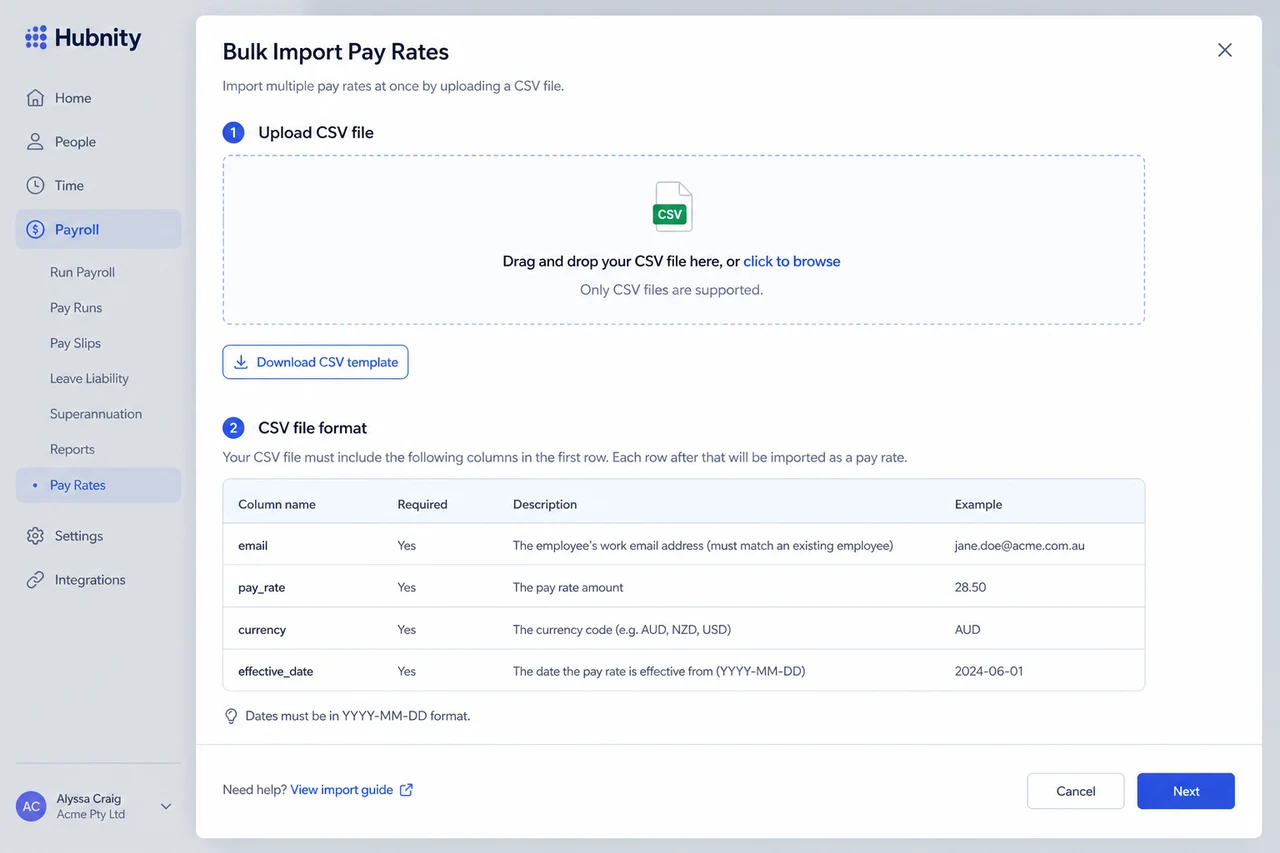
Import rates from CSV: Payroll → Pay rates → Import. Required columns: email, pay_rate, currency, effective_date.
Download the template CSV from the import dialog.