Connect Monday.com to Hubnity to sync boards and items, and track time against Monday work.
Why connect this tool
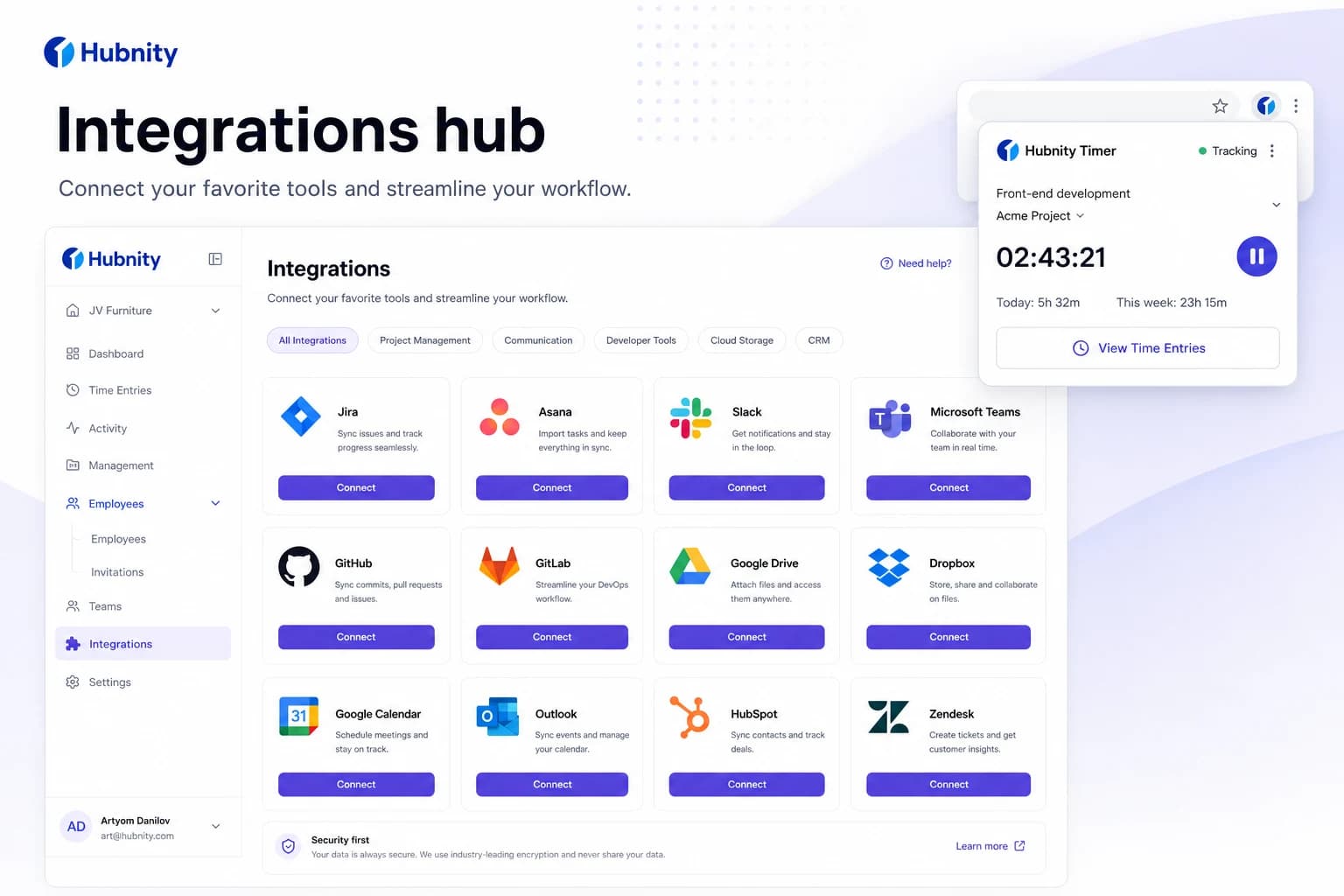
Yes, Hubnity seamlessly integrates with over 50 popular project management and communication tools, including Jira, Trello, Asana, Slack, and Notion.
Connecting monday reduces duplicate entry—time syncs back to Hubnity timesheets.
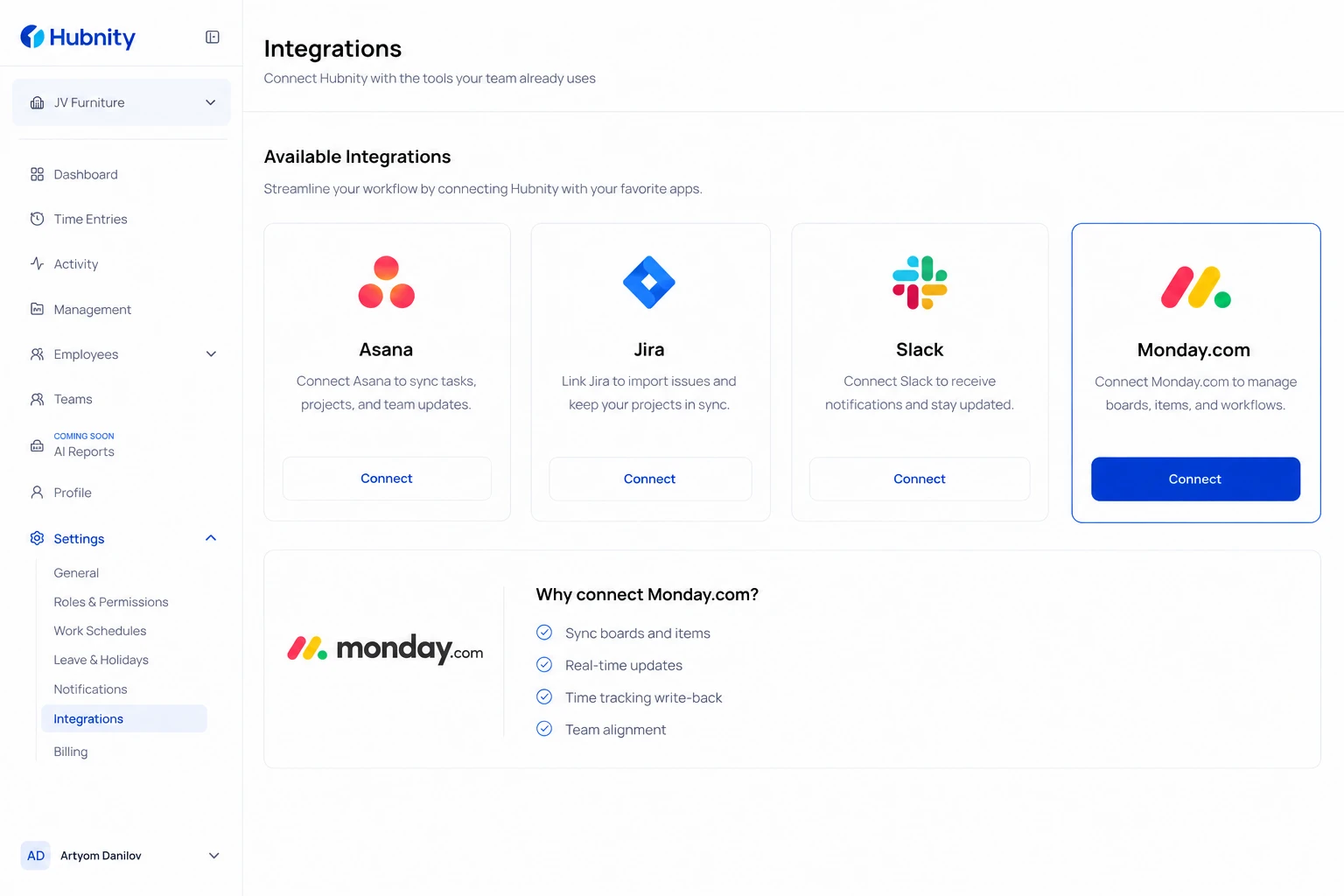
Connect Monday.com
Requires Monday.com account with access to the boards you want to sync.
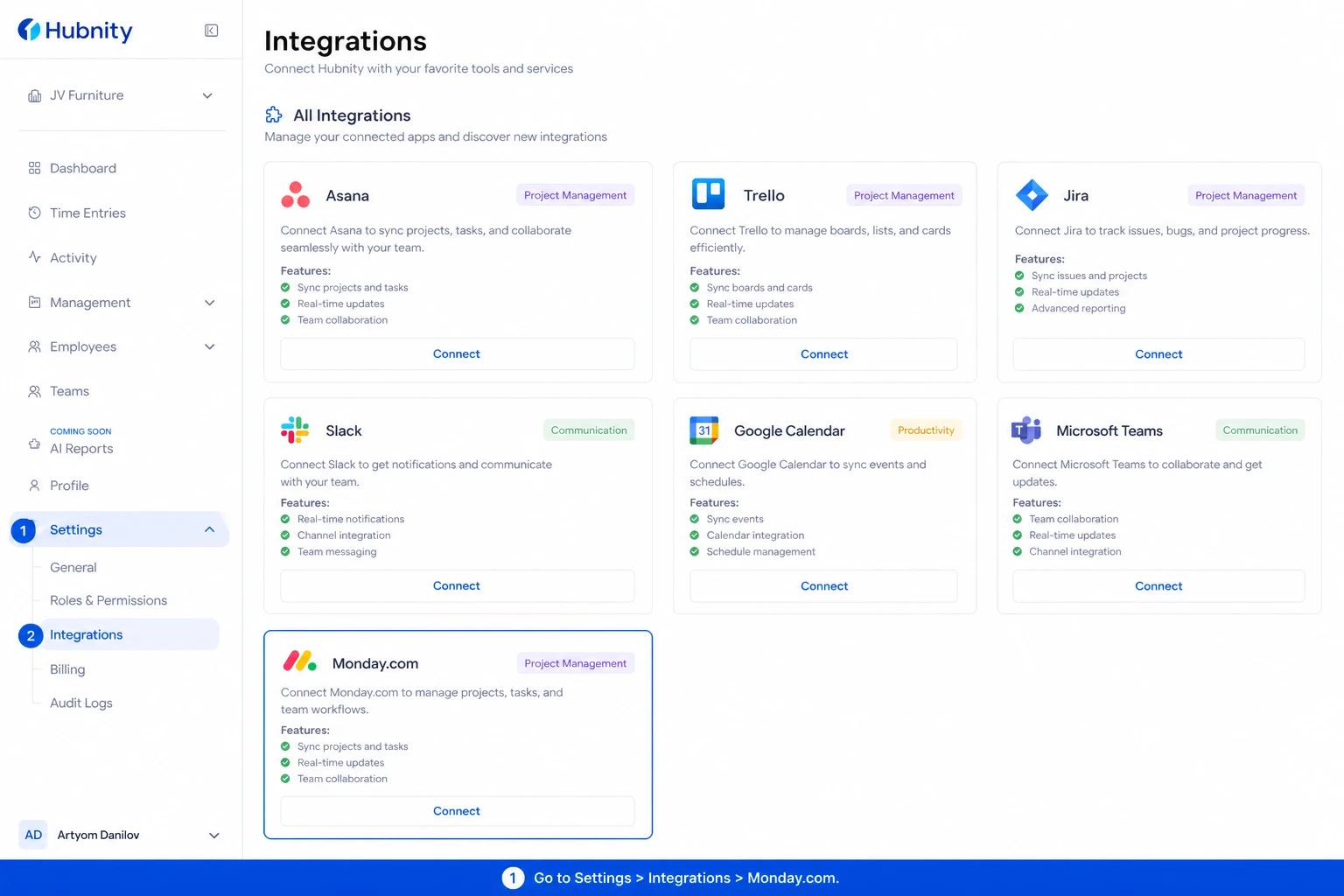
- 1
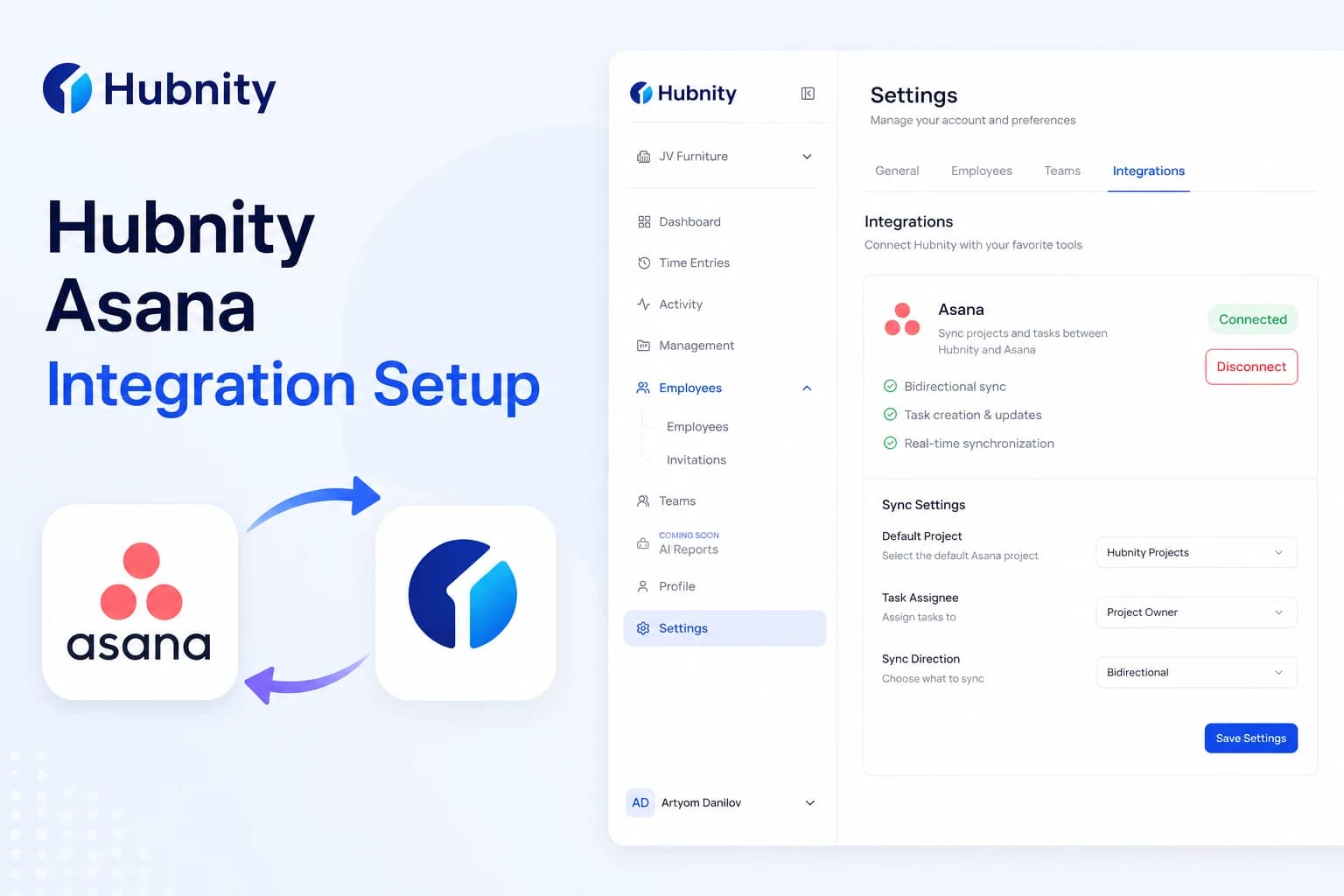
Go to Settings → Integrations → Monday.com
- 2
Click Connect and sign in to Monday.com
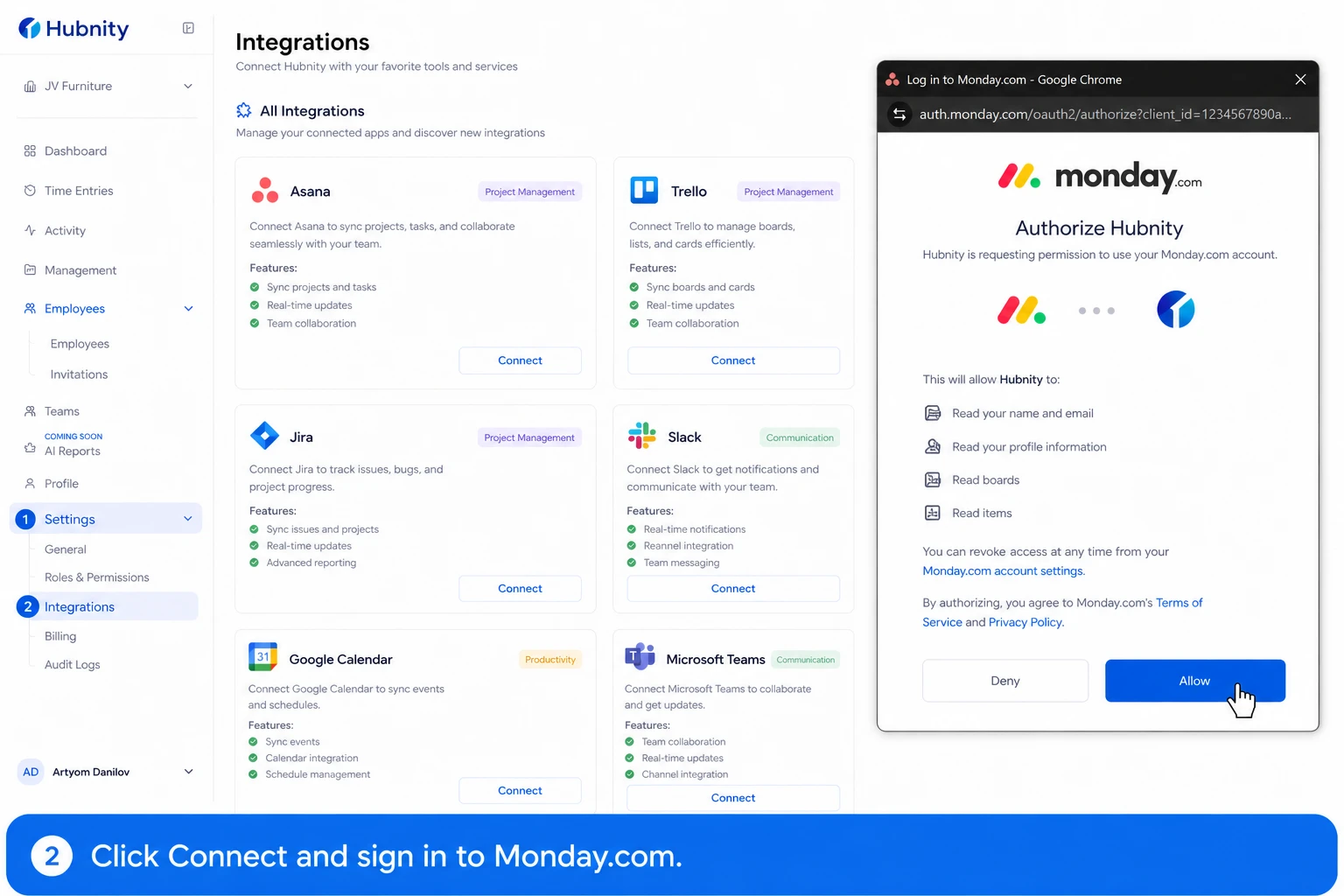
- 3
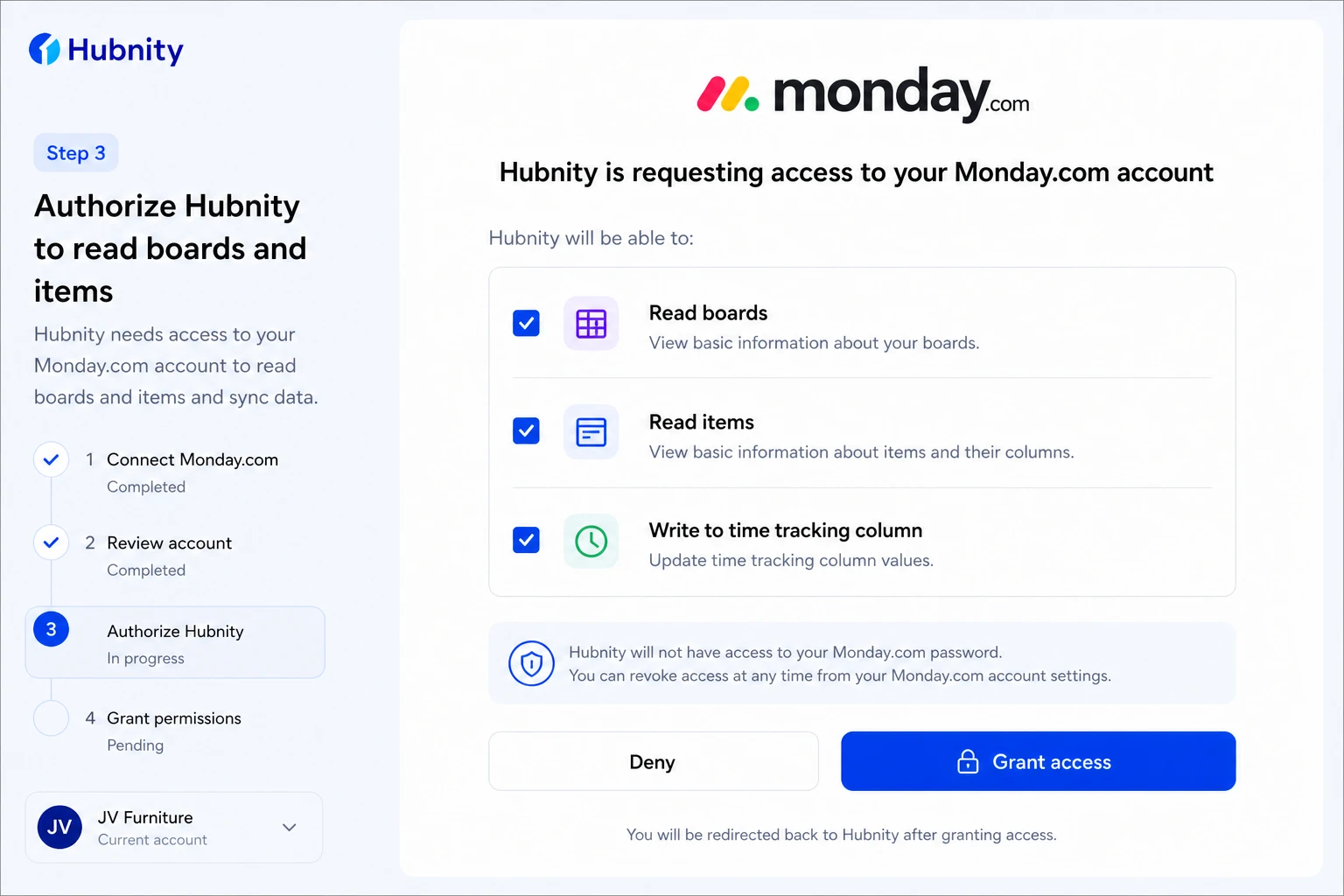
Authorize Hubnity to read boards and items
- 4
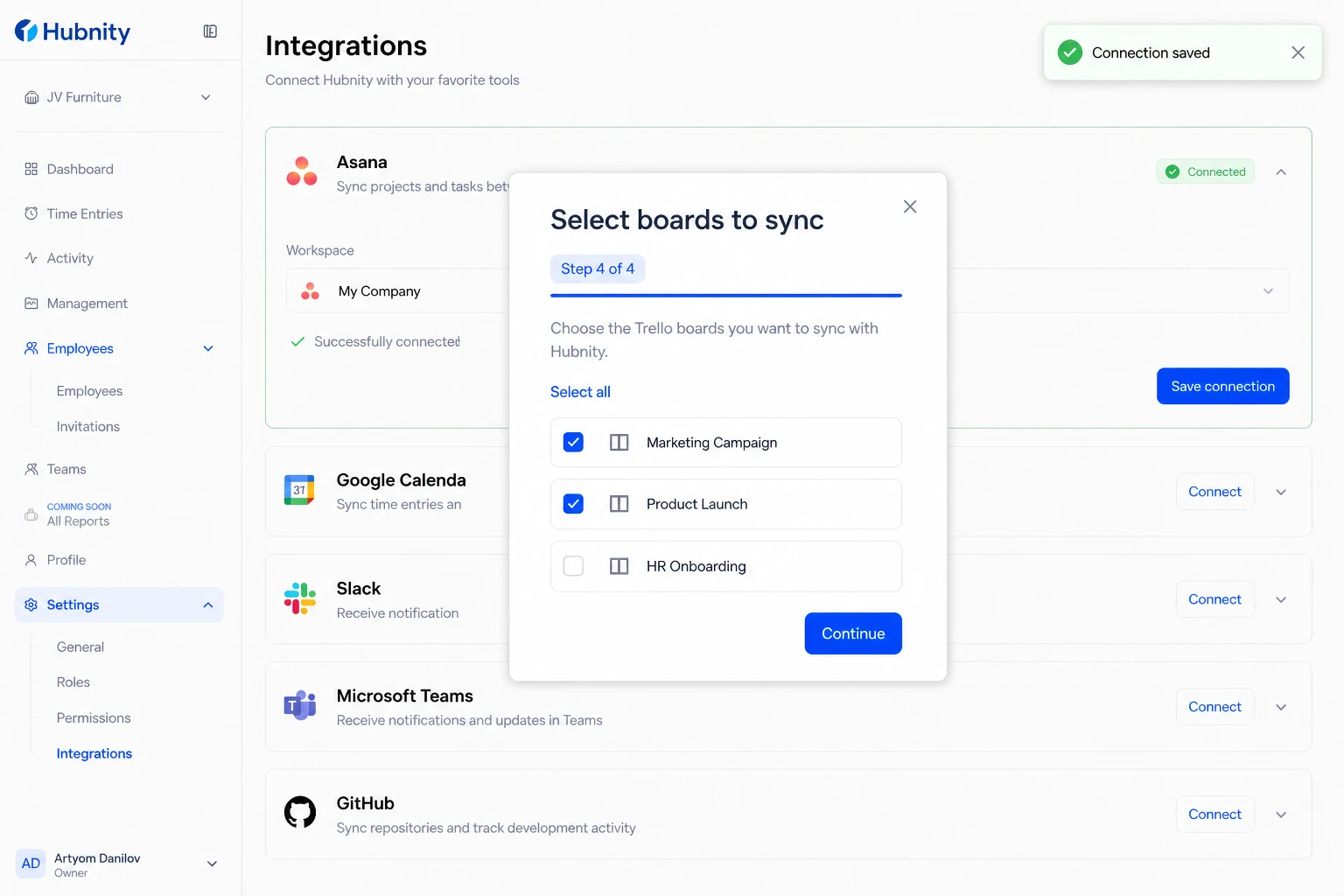
Select boards to sync
- 5
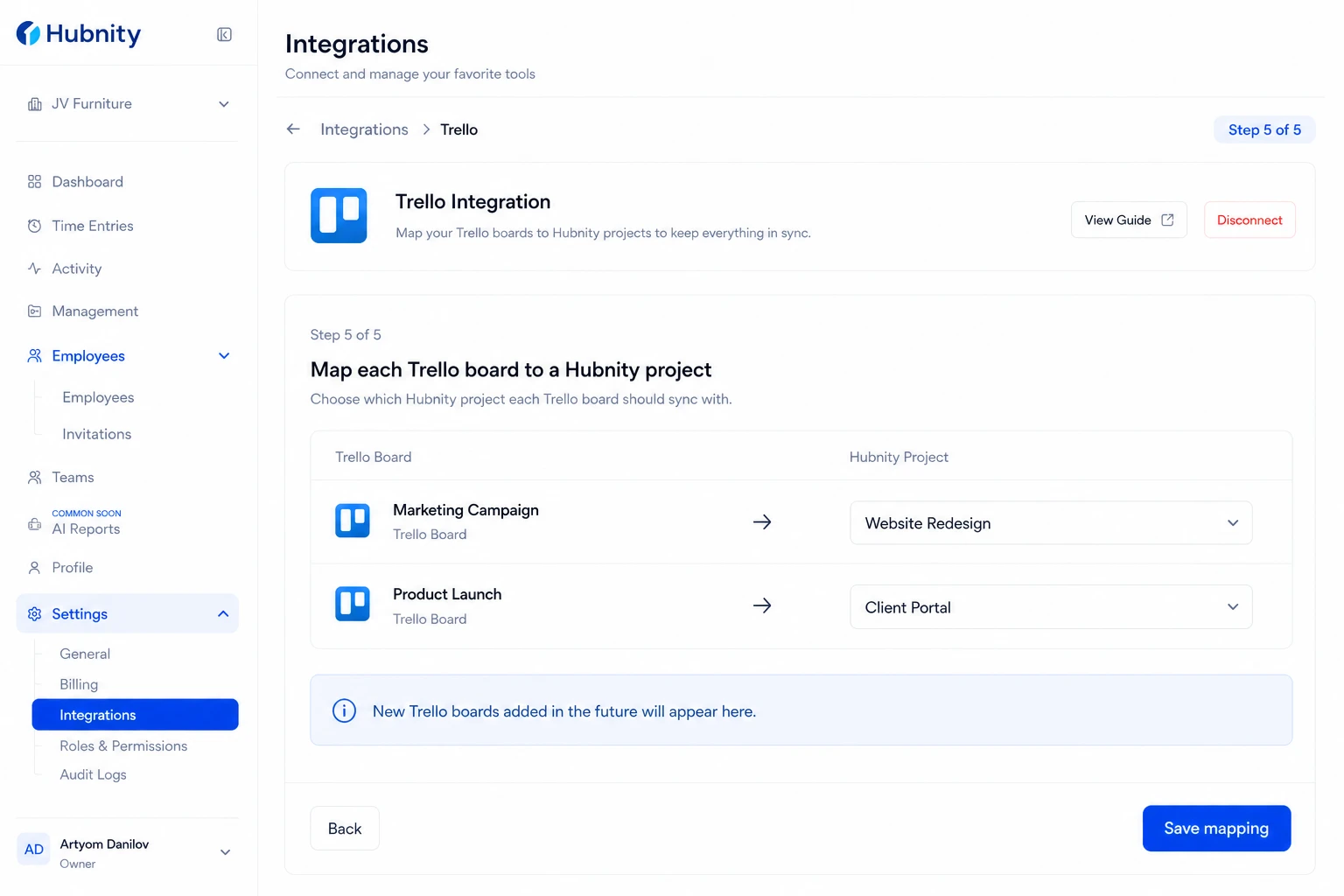
Map each board to a Hubnity project
- 6
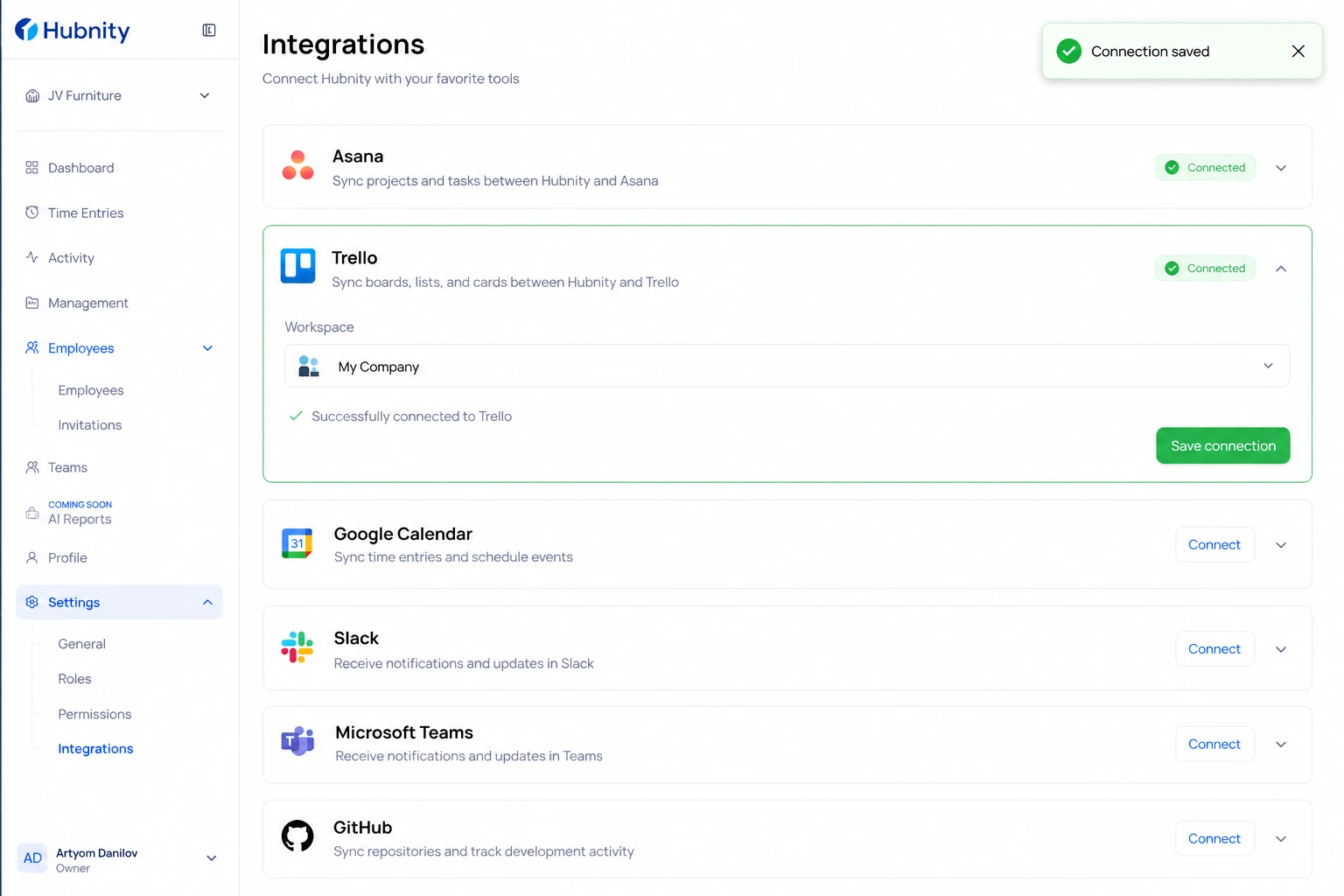
Save connection
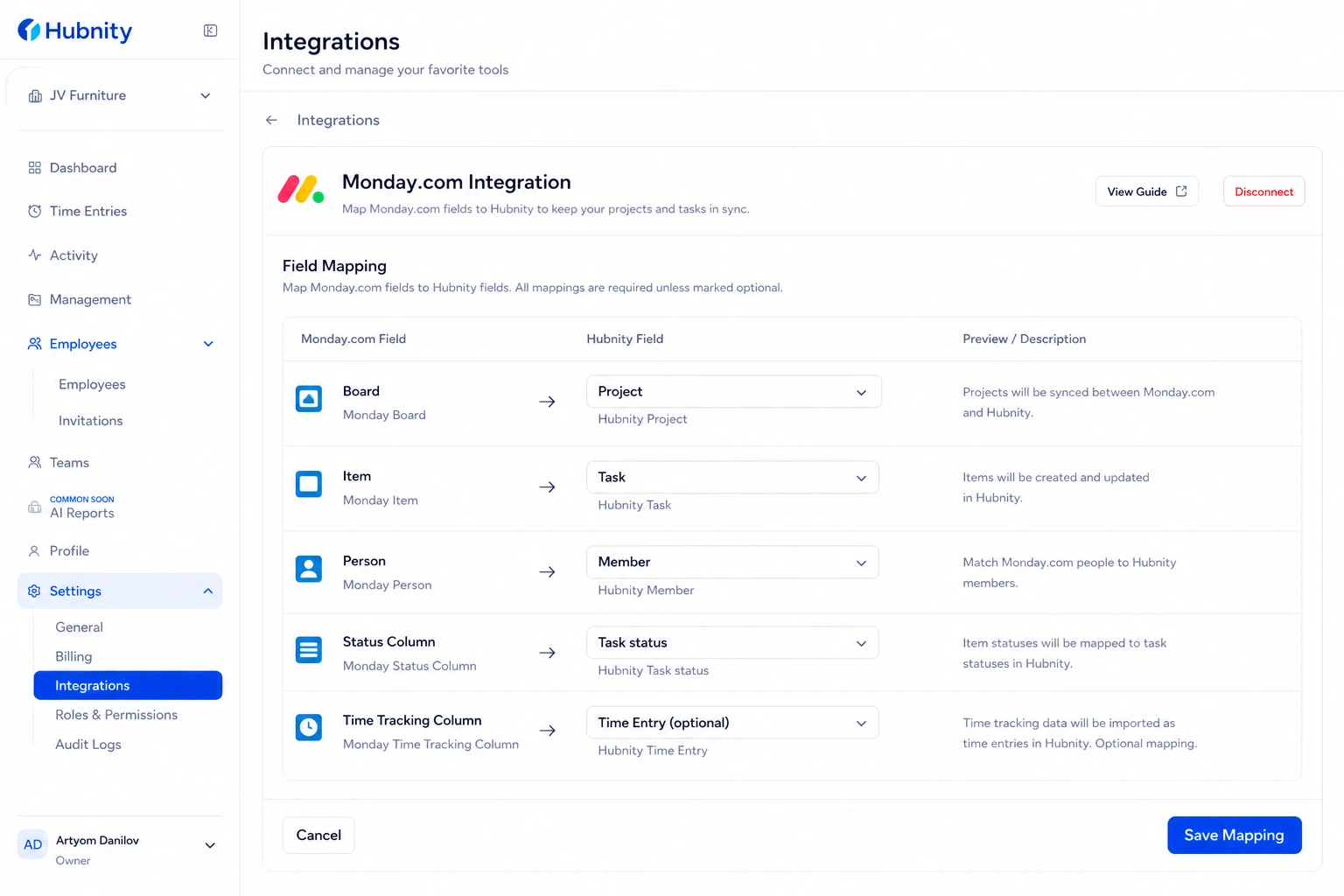
Field mapping
Monday Board → Hubnity Project: required.
Monday Item → Hubnity Task: auto-created with item name.
Monday Person → Hubnity Member: matched by email.
Monday Status Column → Hubnity Task status: mapped by status label (e.g., Working on it → In Progress).
Monday Time Tracking Column → Hubnity Time Entry: optional write-back on sync.
Permissions needed
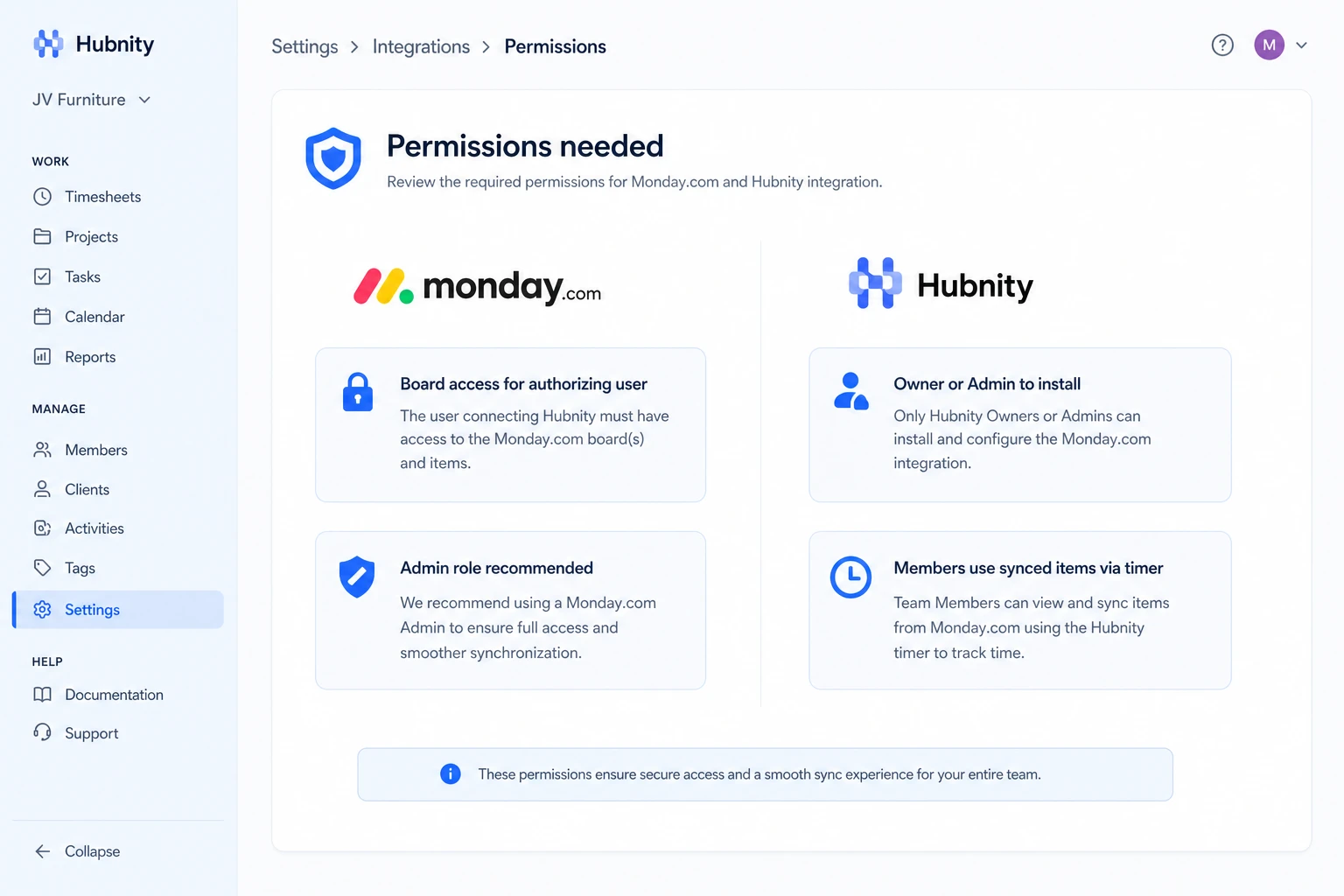
Monday.com: board access for the authorizing user. Admin role recommended for initial setup.
Hubnity: Owner or Admin to install.
Sync frequency
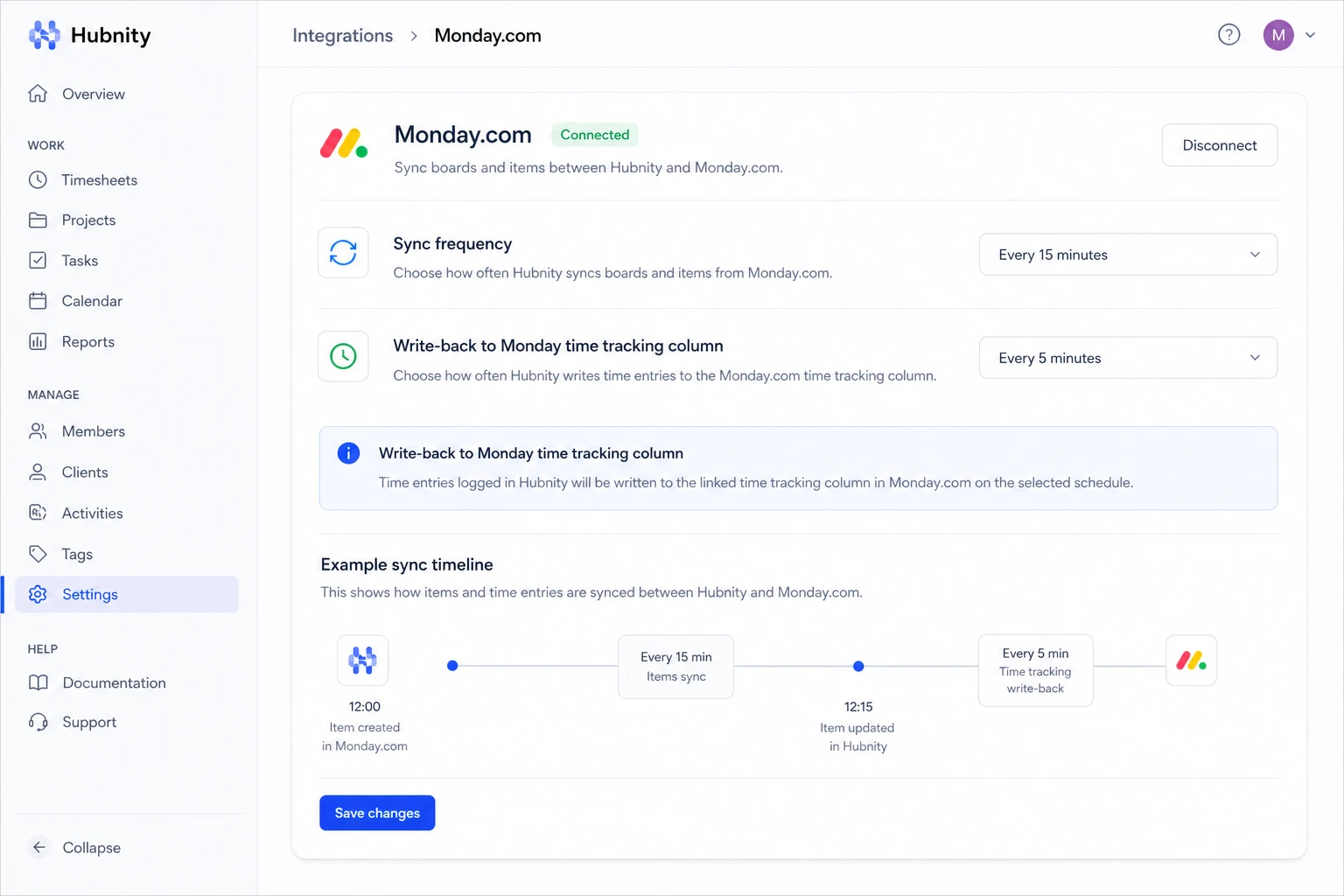
Boards and items sync every 15 minutes. Write-back to Monday time tracking column runs within 5 minutes of entry sync.
Common errors
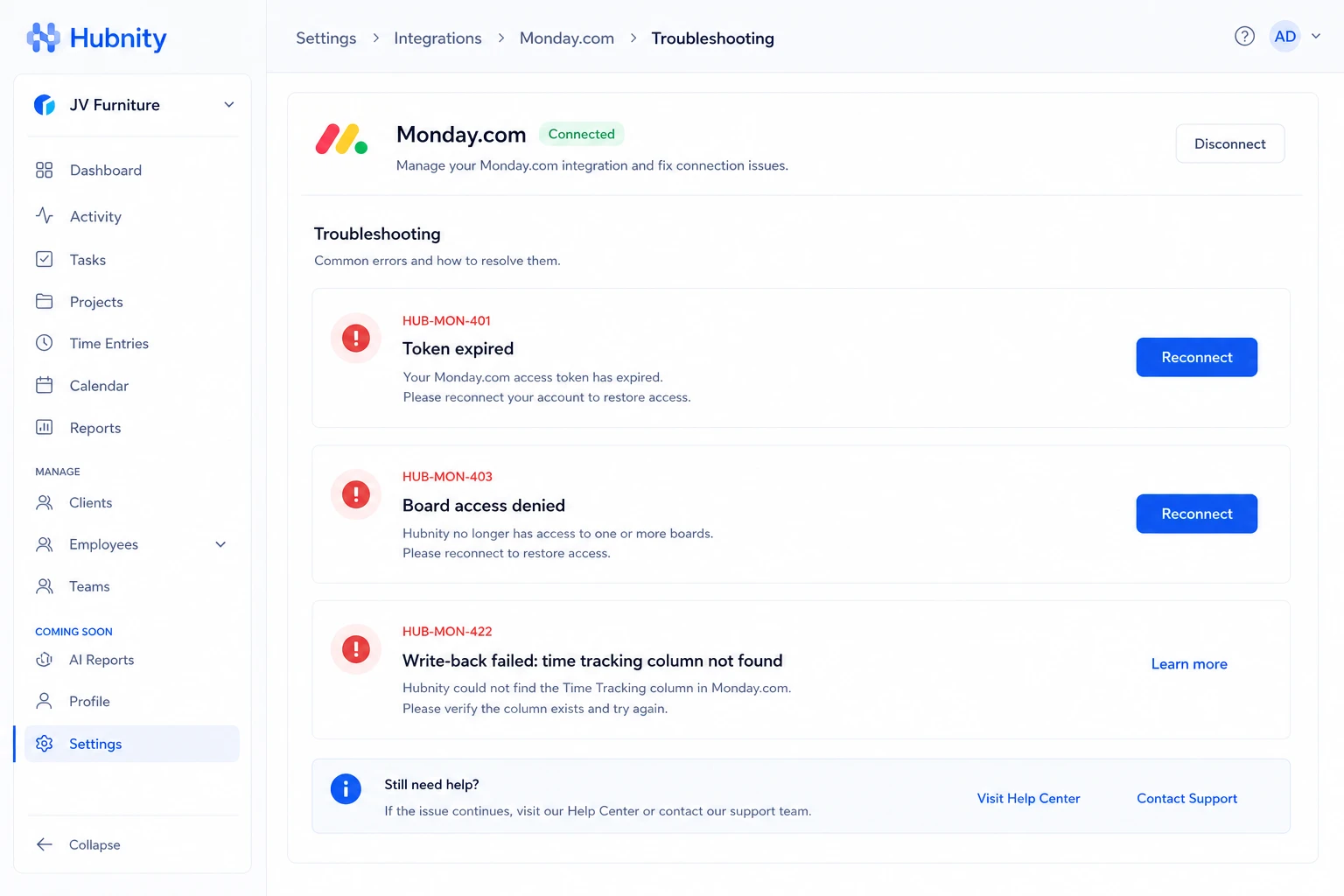
HUB-MON-401: Monday.com token expired. Reconnect from Settings → Integrations.
HUB-MON-403: Board access denied. Verify board sharing settings in Monday.com.
HUB-MON-422: Write-back failed — time tracking column not found. Verify column exists and mapping is correct.