Configure mobile location permissions on iOS and Android for GPS tracking and geofencing.
Why location permissions are needed
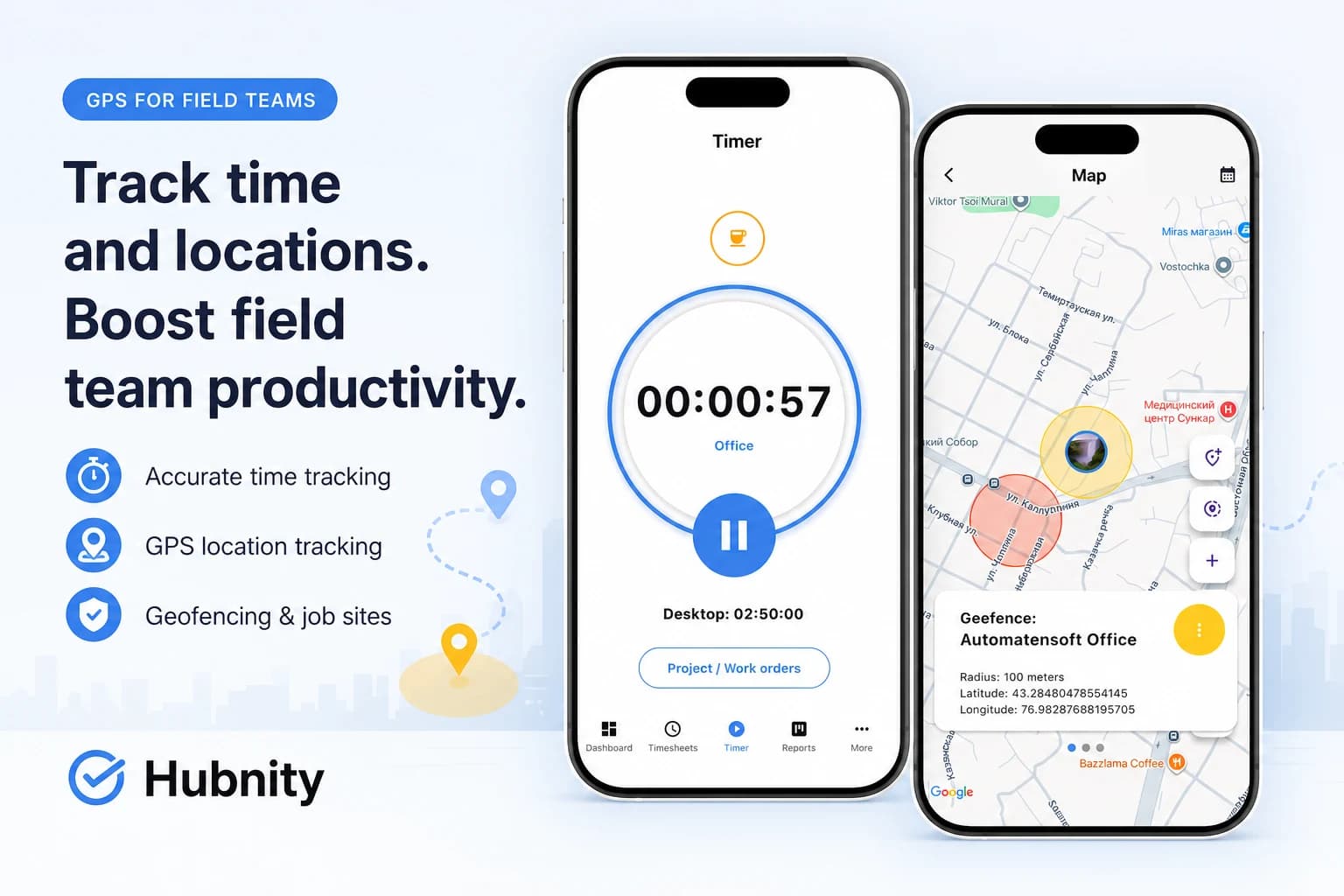
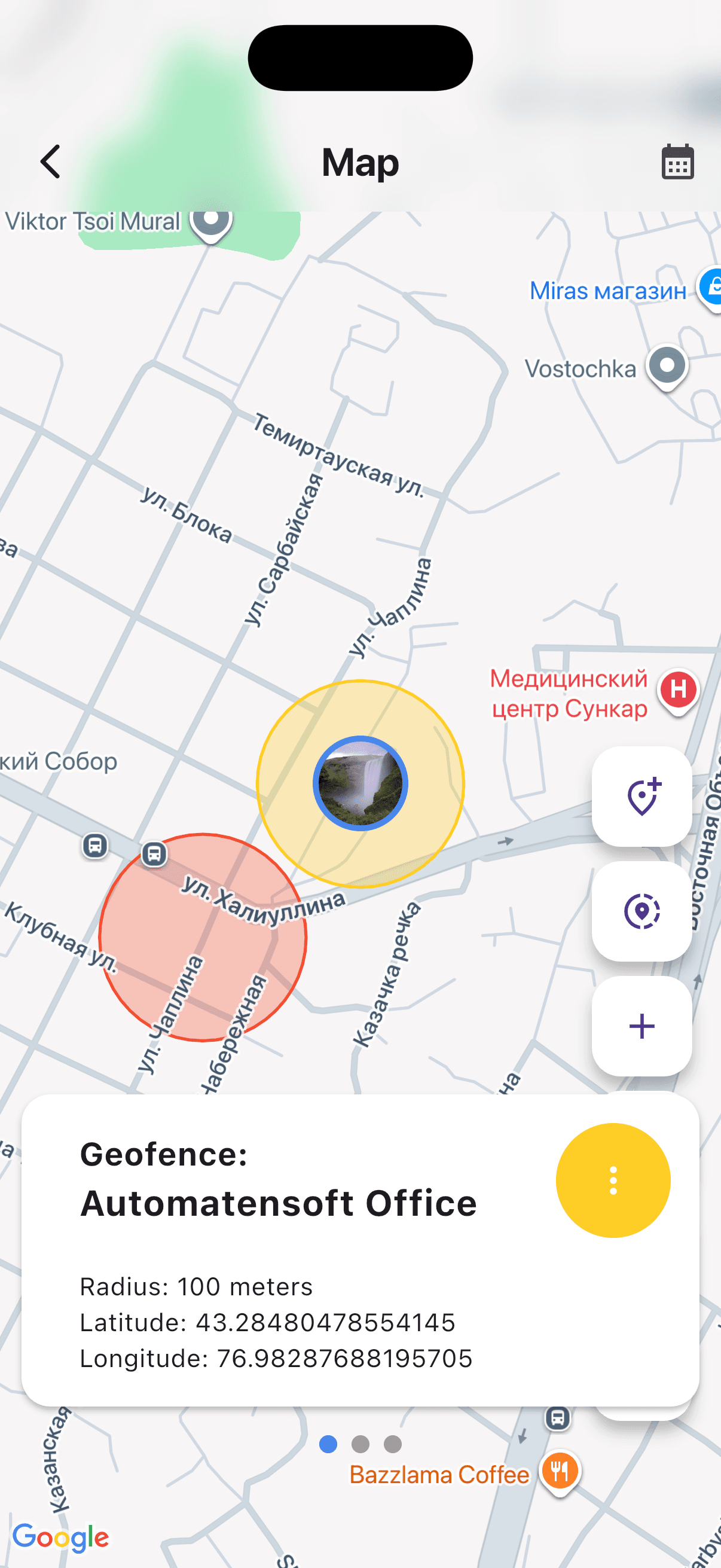
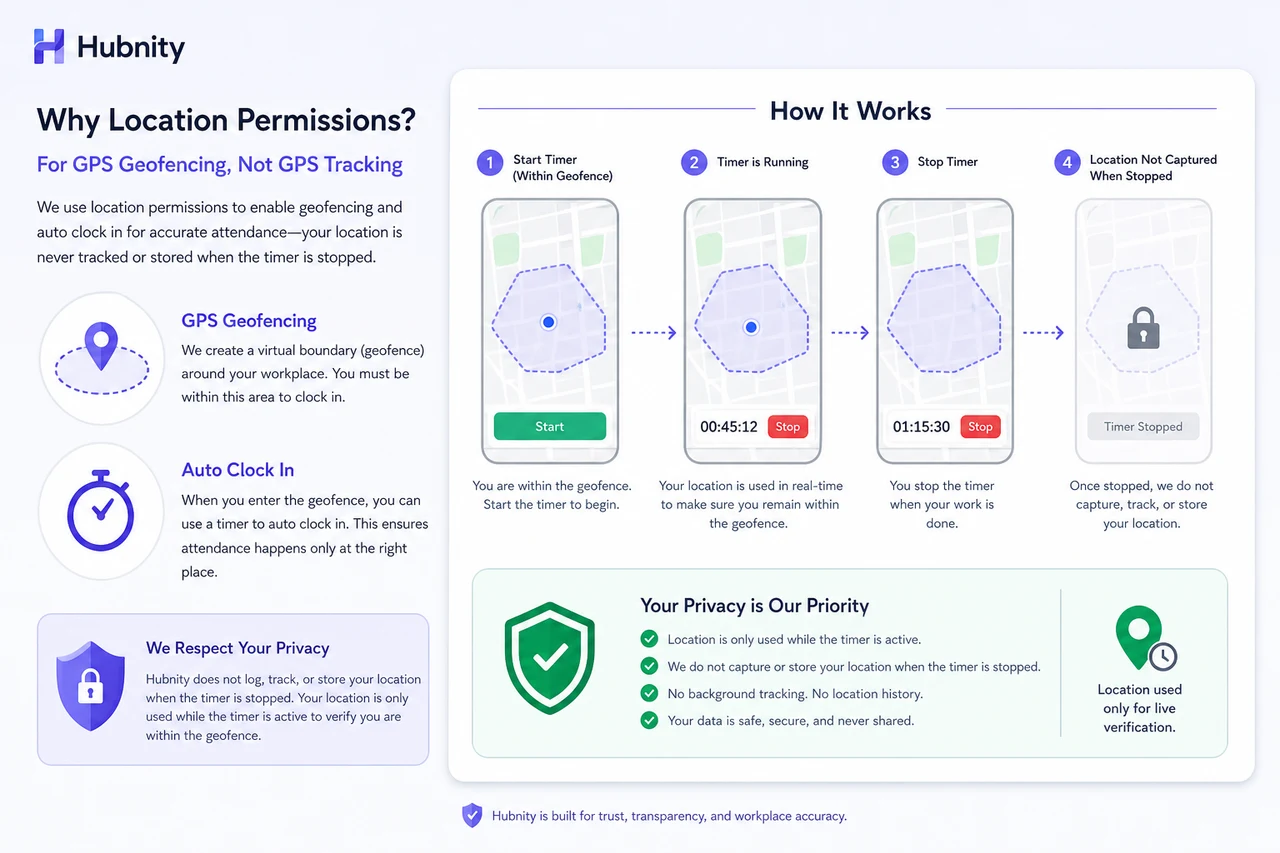
Hubnity uses location for GPS tracking during timers and geofence auto clock-in/out at job sites.
Location is never captured when the timer is stopped and no geofence is active (unless Always mode is set for scheduled shifts).
Enable location on iOS
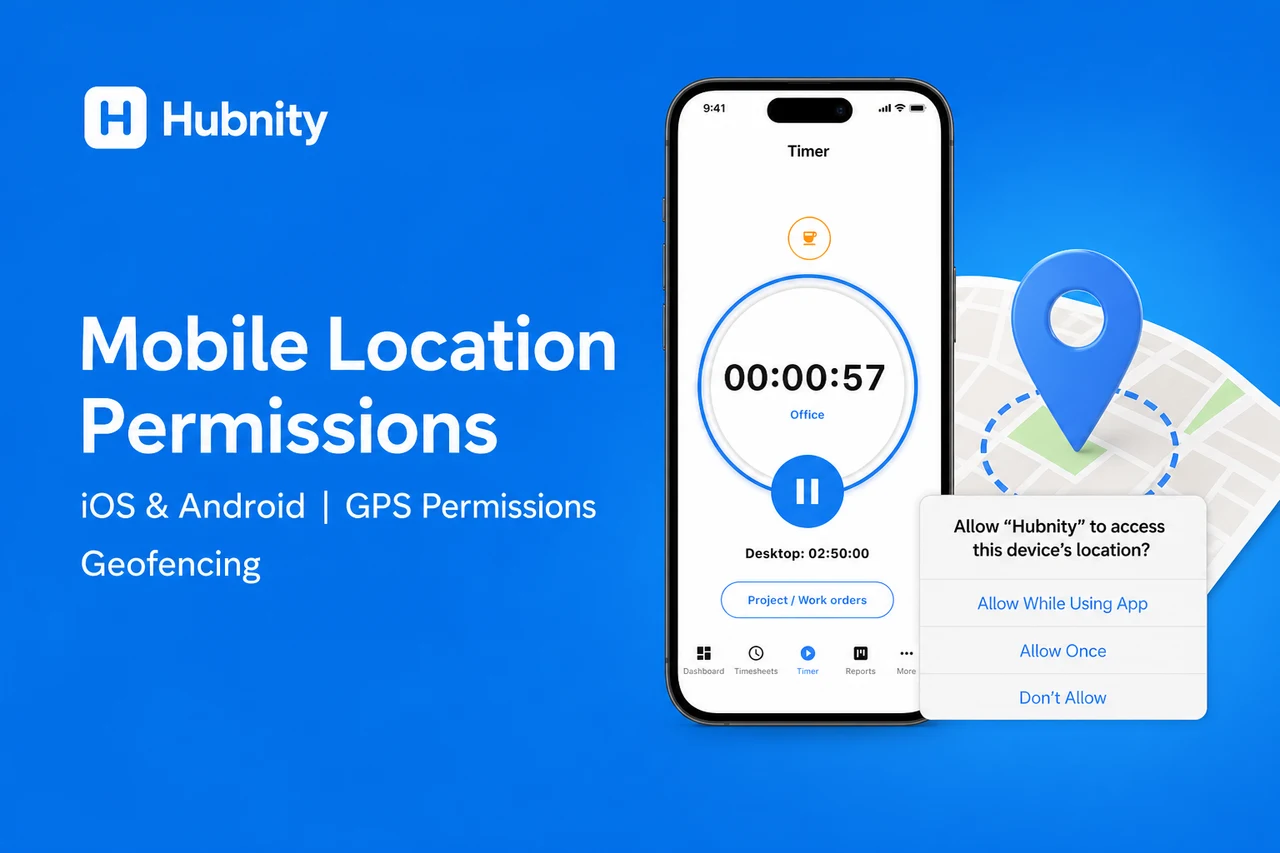
iOS requires Always permission for background geofence triggers.
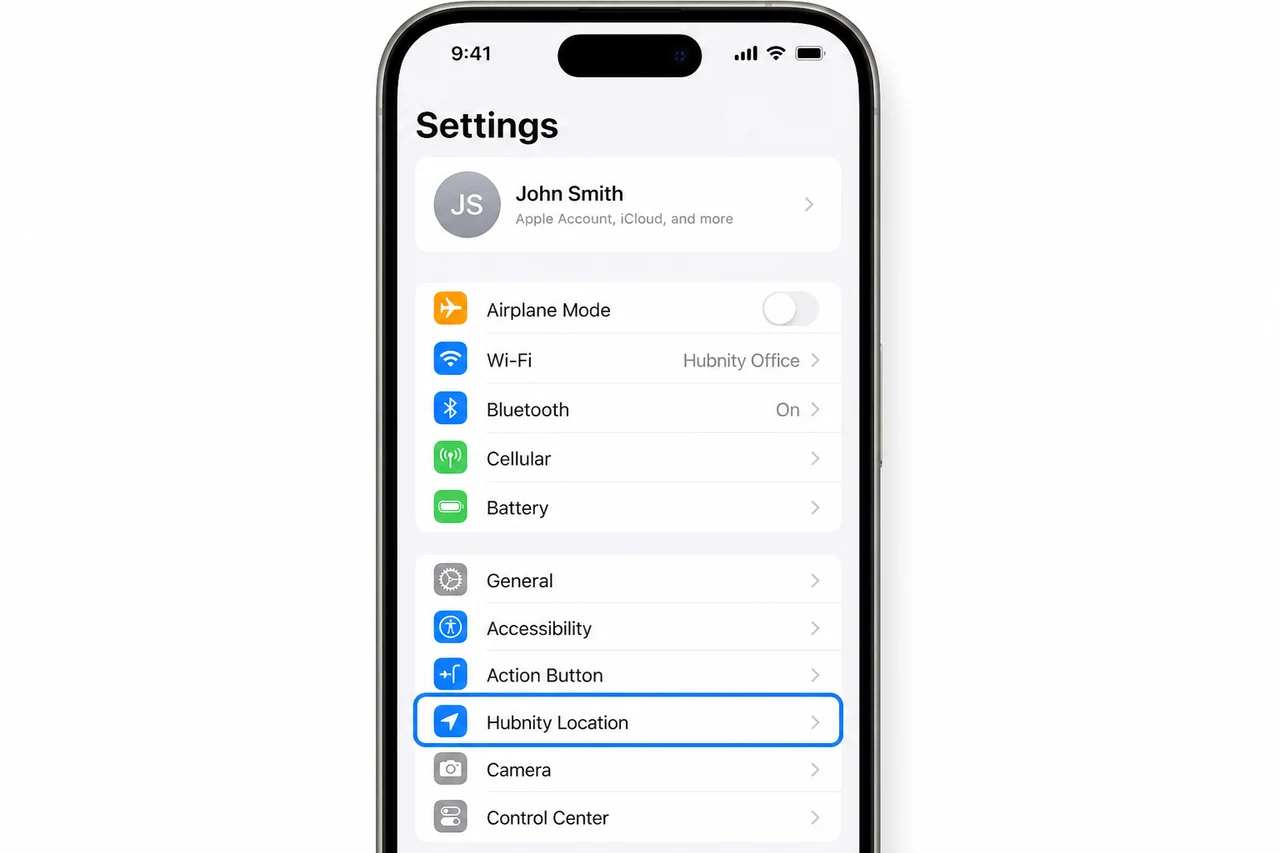
- 1
Open iOS Settings → Hubnity → Location
- 2
Select Always (required for geofencing) or While Using the App (GPS during active timer only)
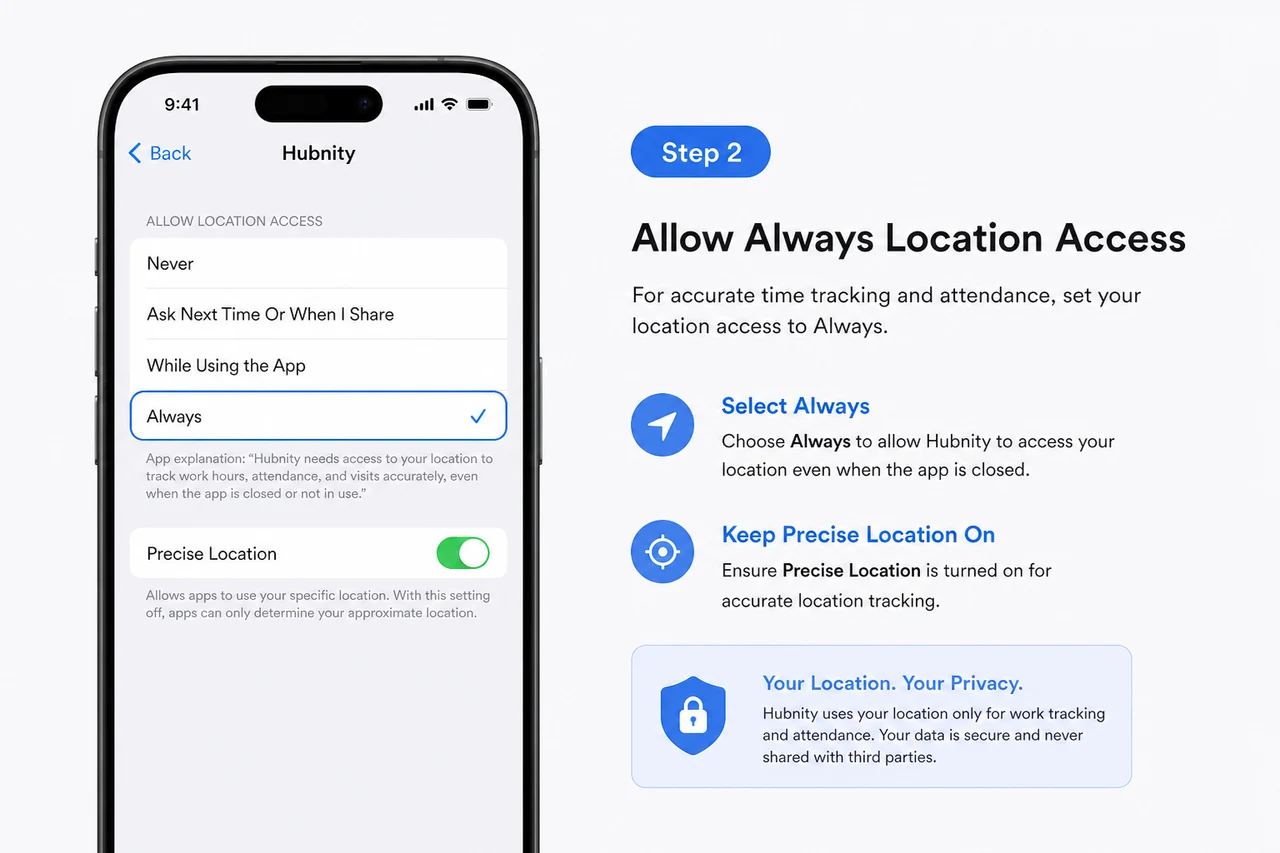
- 3
Enable Precise Location
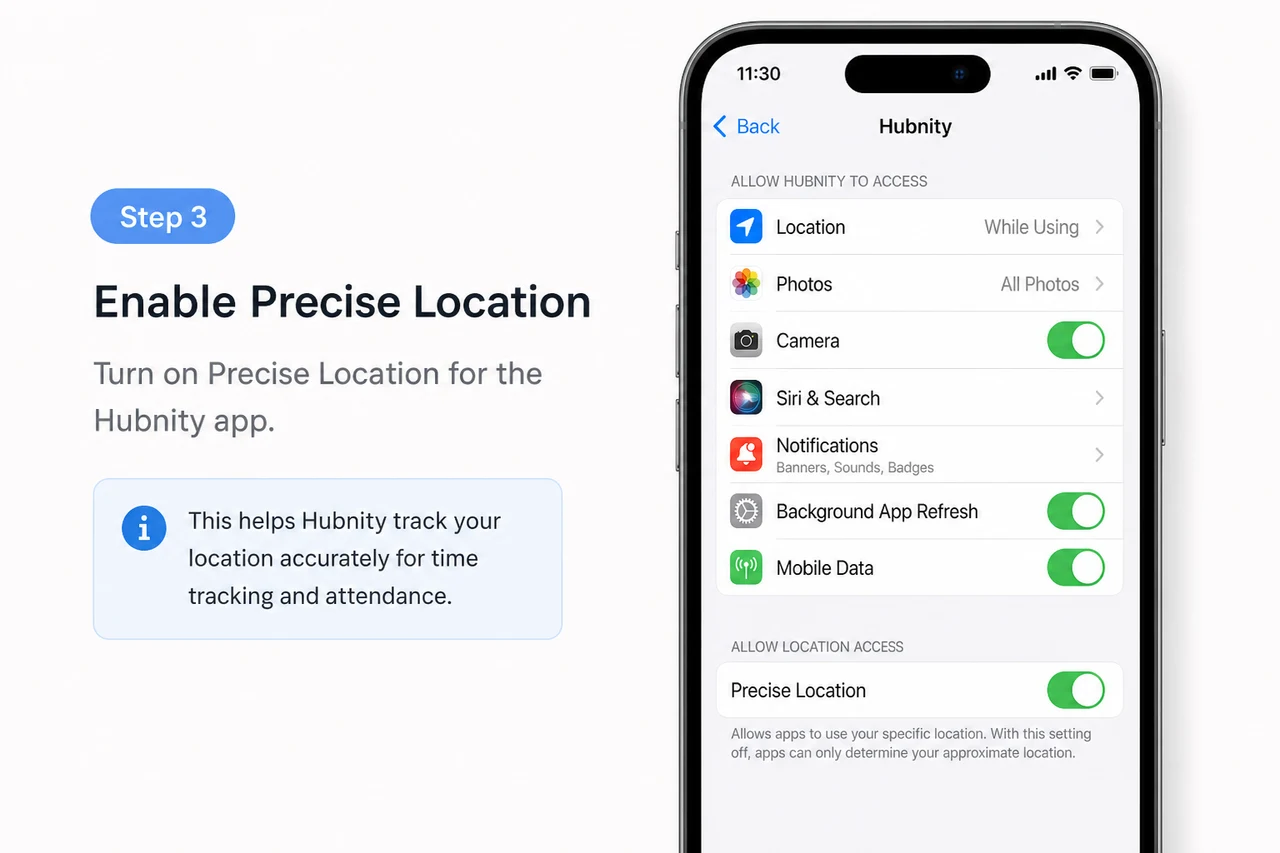
- 4
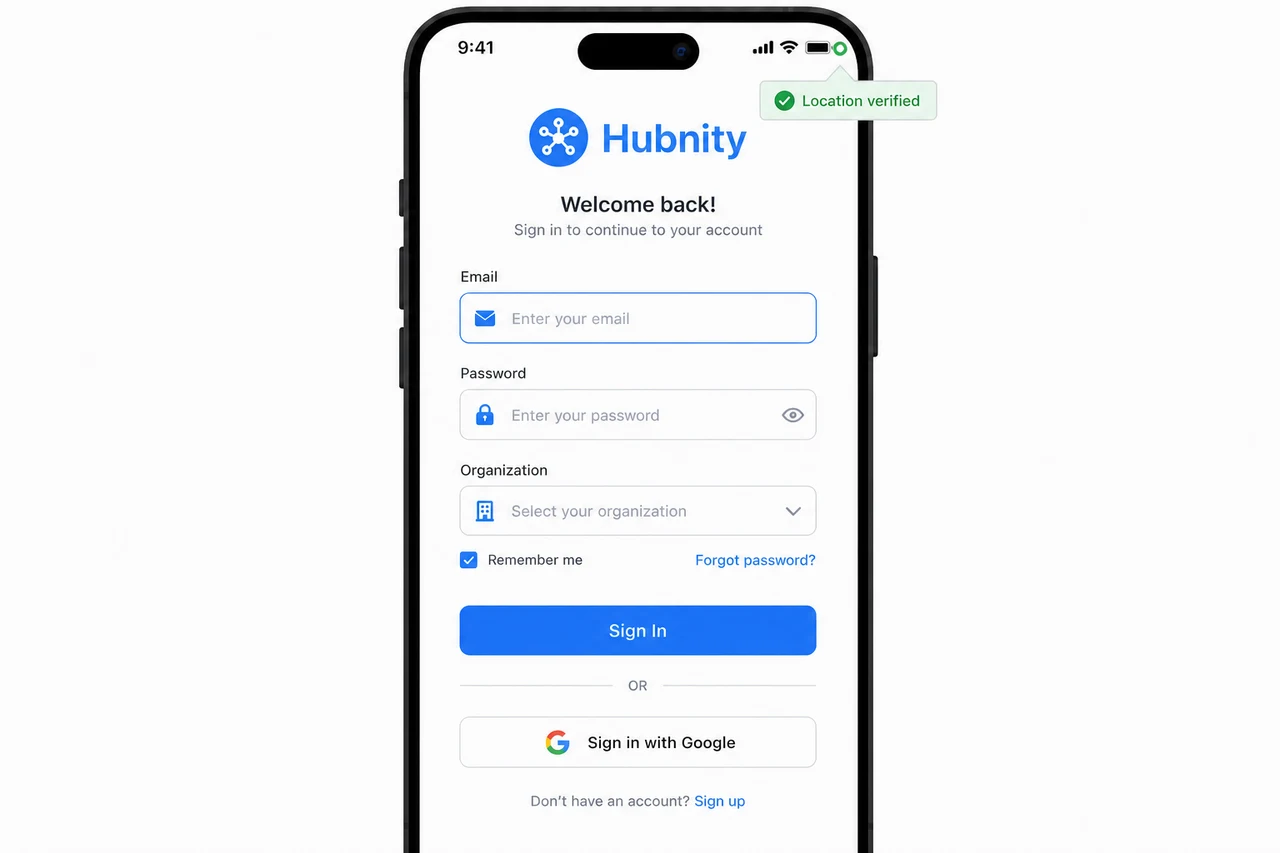
Return to the Hubnity app and verify the location status indicator shows green
Enable location on Android
Android 10+ requires background location as a separate permission.
- 1
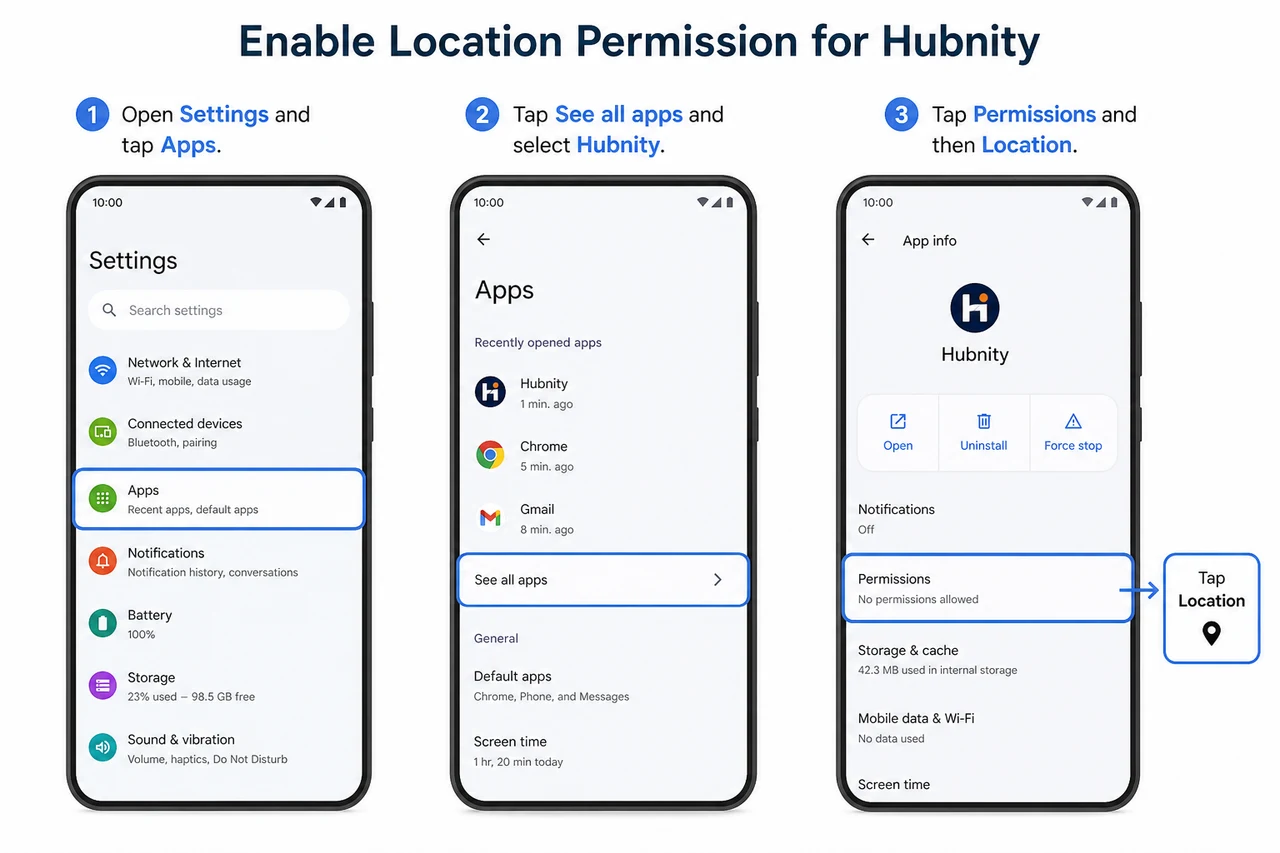
Open Android Settings → Apps → Hubnity → Permissions → Location
- 2
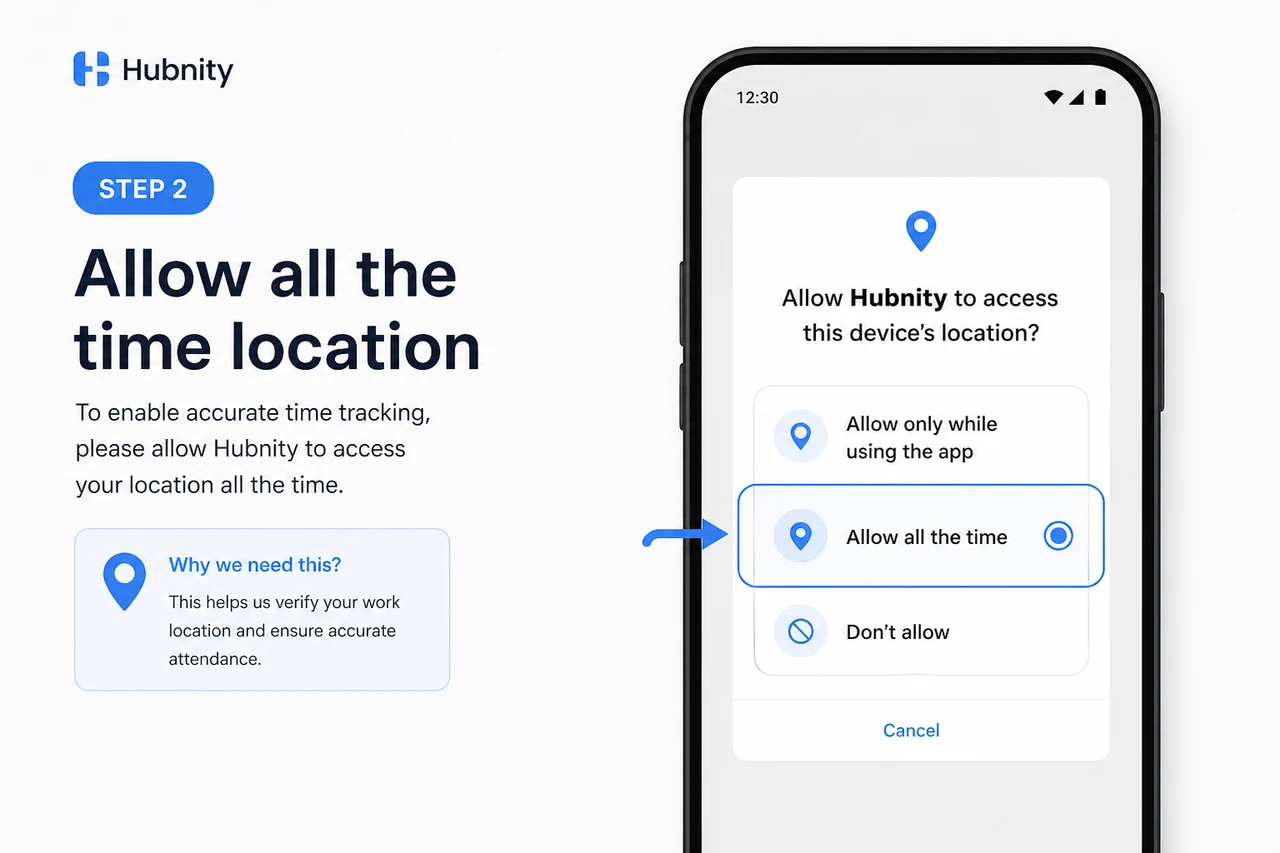
Select Allow all the time (geofencing) or Allow only while using the app (timer GPS only)
- 3
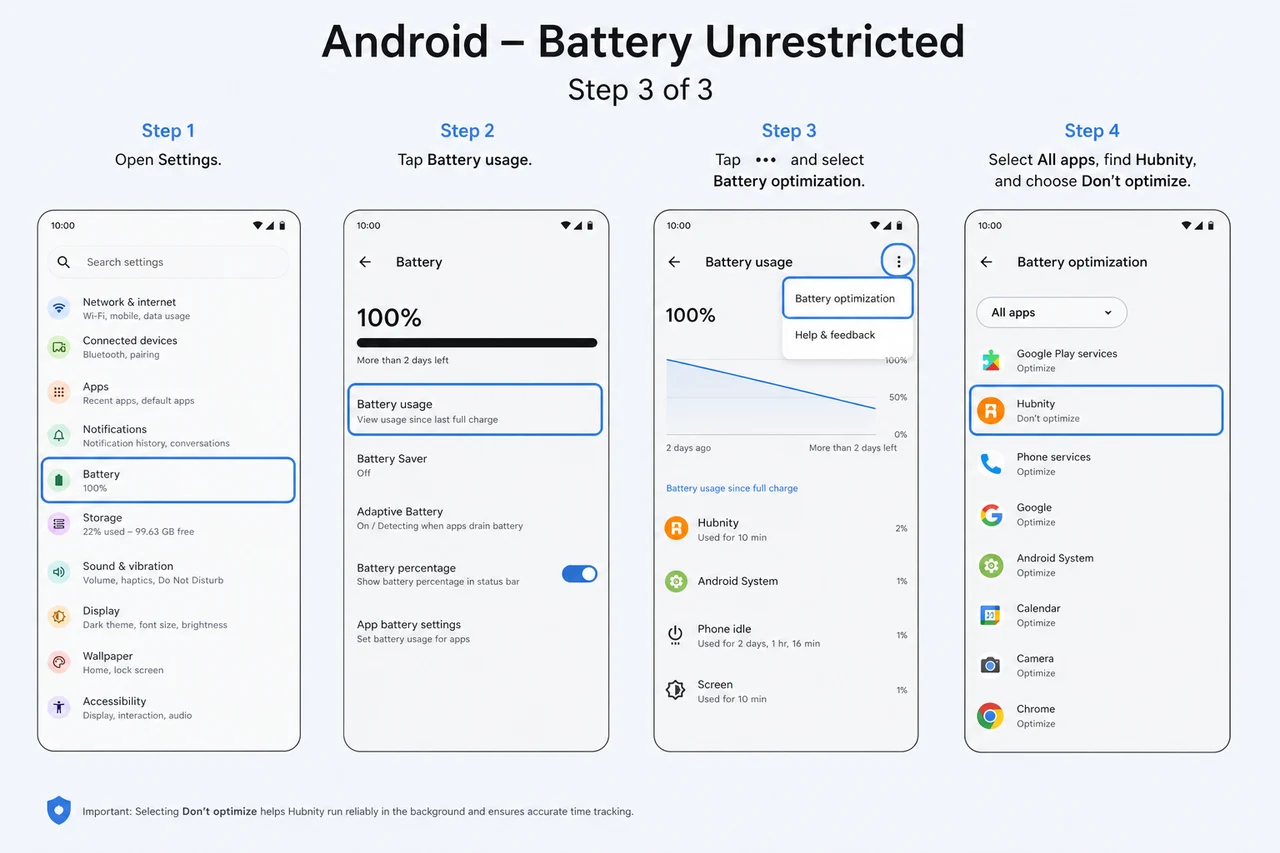
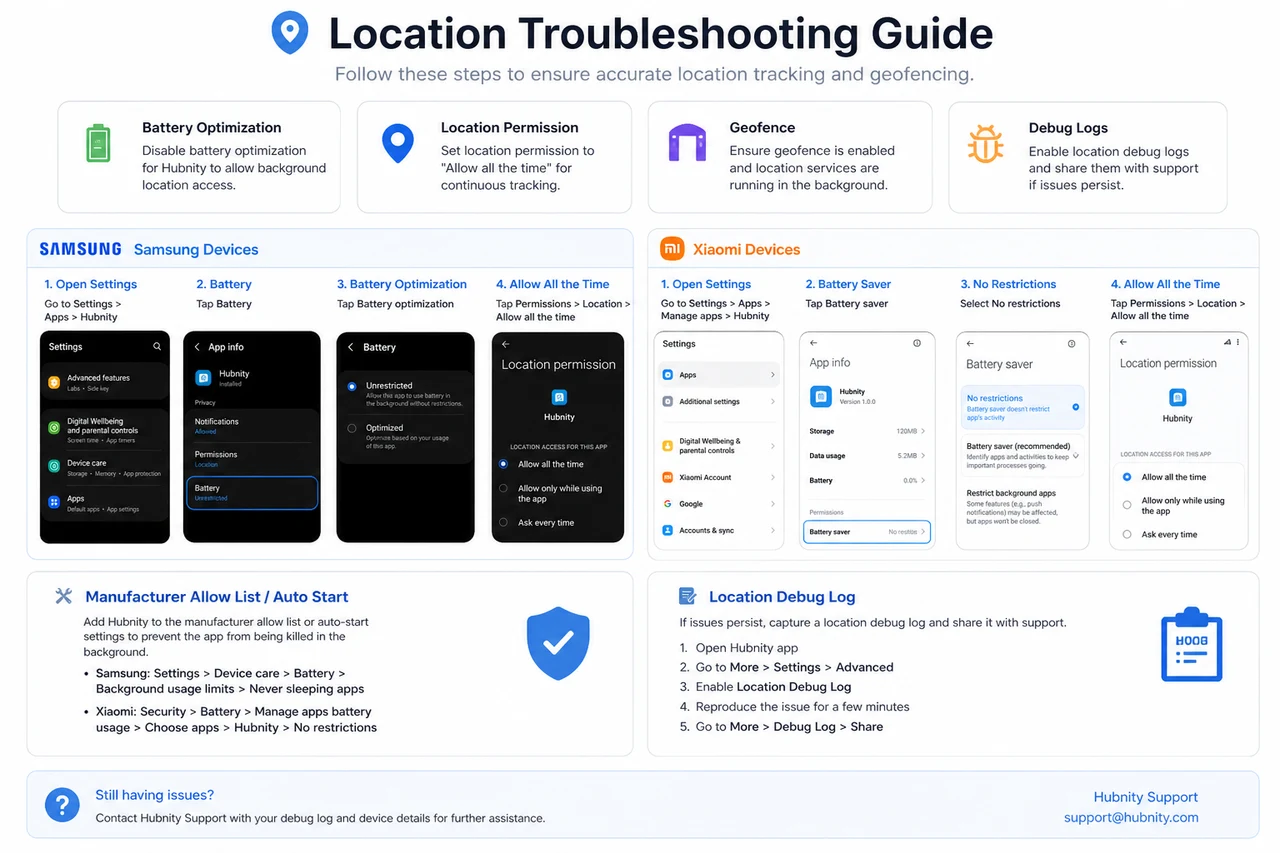
Go to Apps → Hubnity → Battery → Unrestricted
- 4
Disable battery optimization for Hubnity
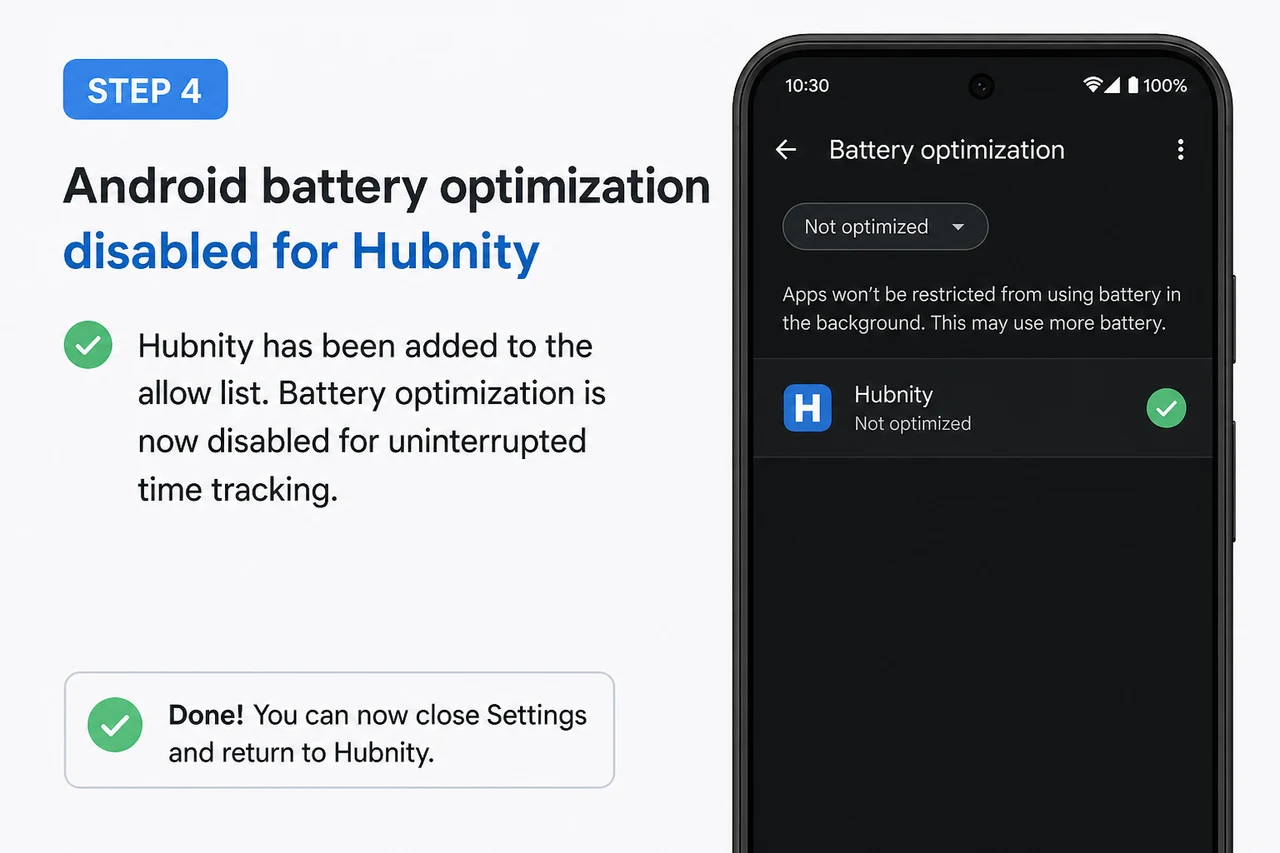
- 5
Return to the app and verify location status
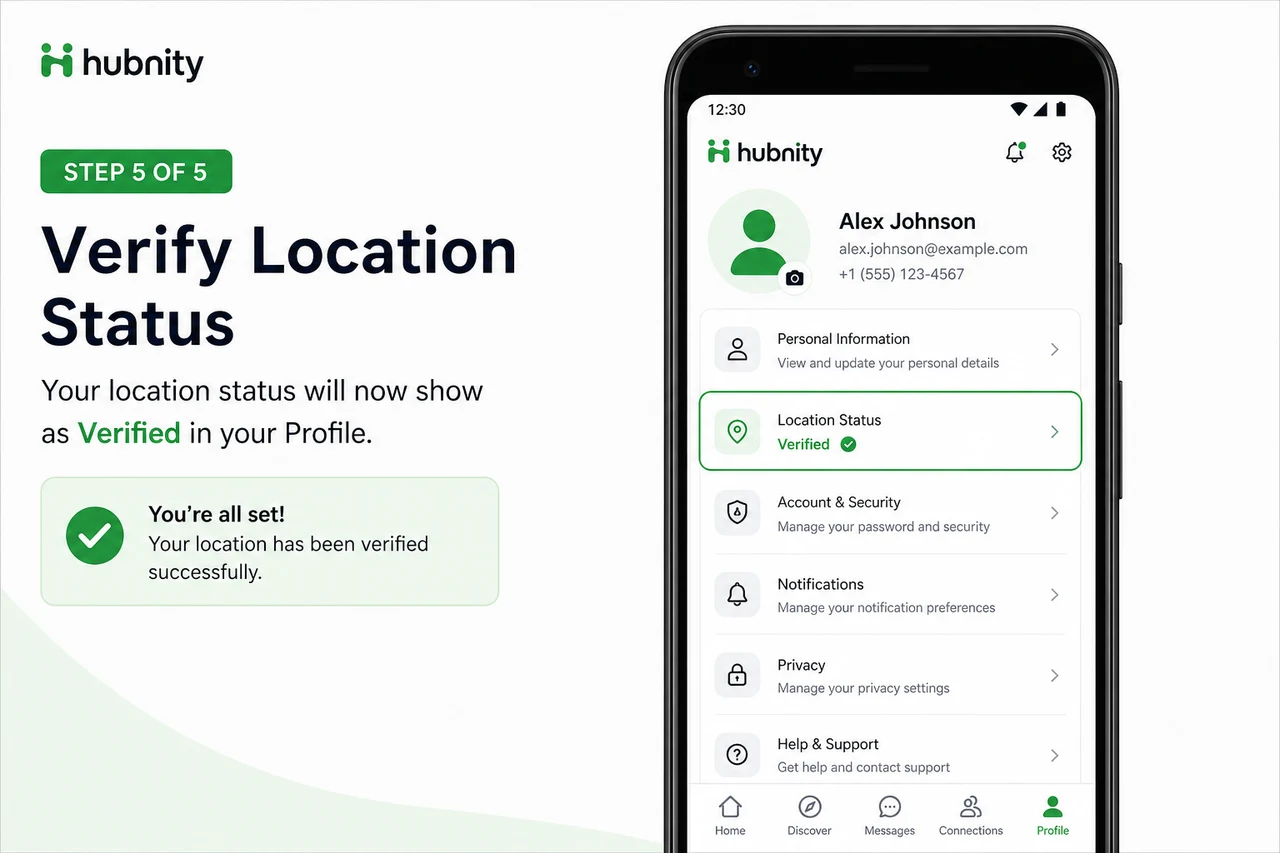
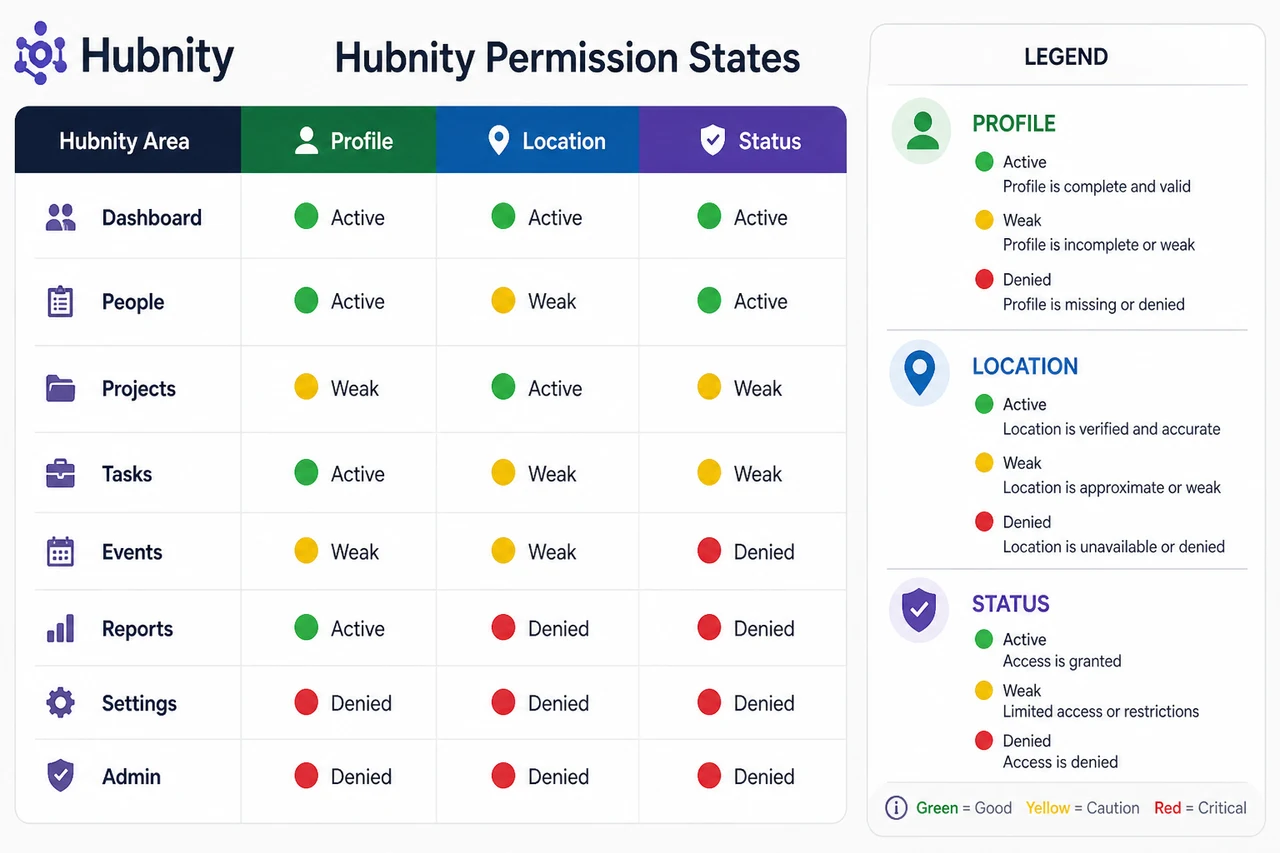
Permission states in Hubnity
Green: location active and capturing. Yellow: permission granted but signal weak. Red: permission denied or revoked.
Check status from the mobile app → Profile → Location status.
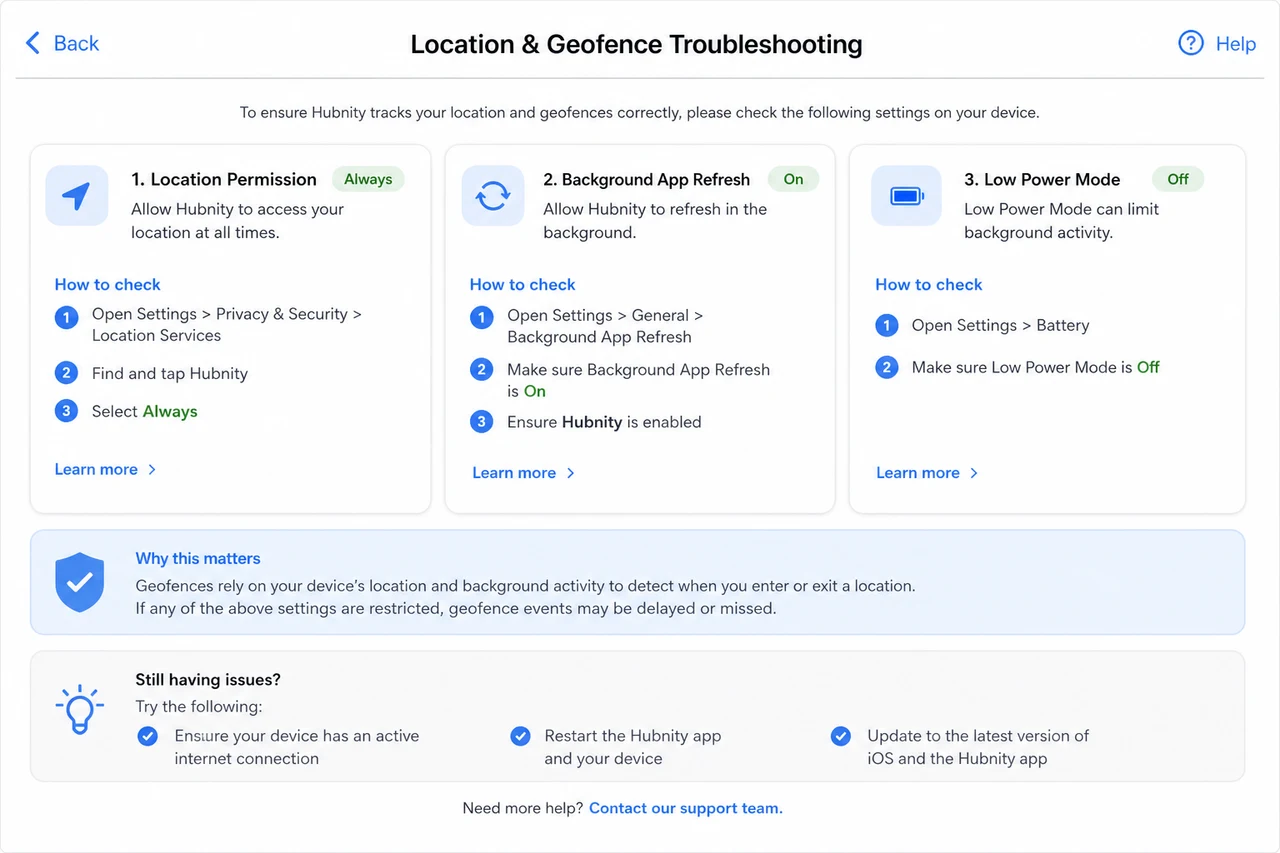
Troubleshooting iOS
Geofence not triggering: verify Always permission (not just While Using). Check that Background App Refresh is enabled.
iOS Low Power Mode disables background location. Disable Low Power Mode or accept reduced geofence reliability.
Reset: Settings → General → Transfer or Reset → Reset Location & Privacy, then re-grant permissions.
Troubleshooting Android
Geofence not triggering: verify Allow all the time permission. Check battery optimization is set to Unrestricted.
Manufacturer-specific battery savers (Samsung, Xiaomi, Huawei) may kill background location. Add Hubnity to the allow list.
Log location: Profile → Advanced → Location debug log. Share with support if issues persist.
Escalation to support
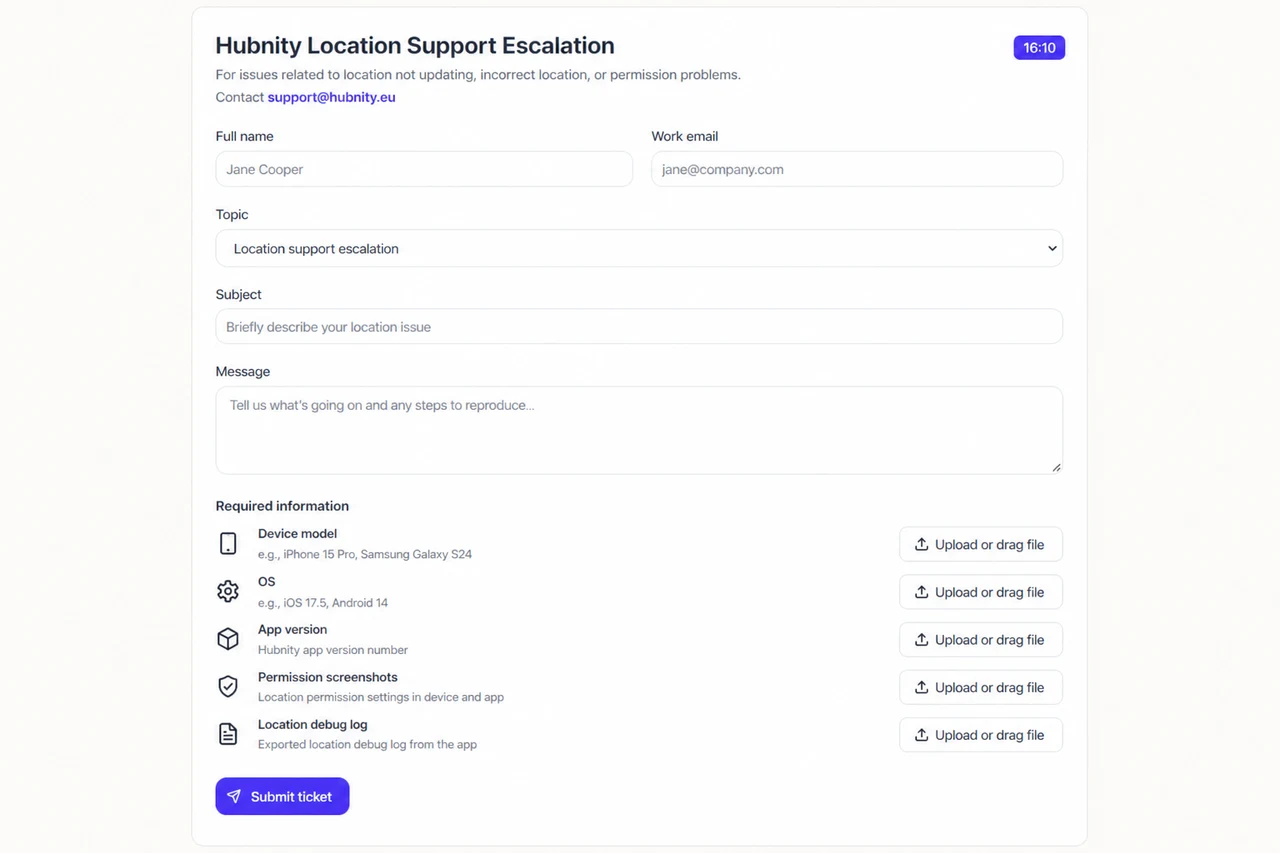
Contact support@hubnity.eu with: device model, OS version, app version, permission screenshots, and location debug log.