Set up geofenced job sites to auto clock-in/out members when they arrive at or leave a work location.
Geofencing overview
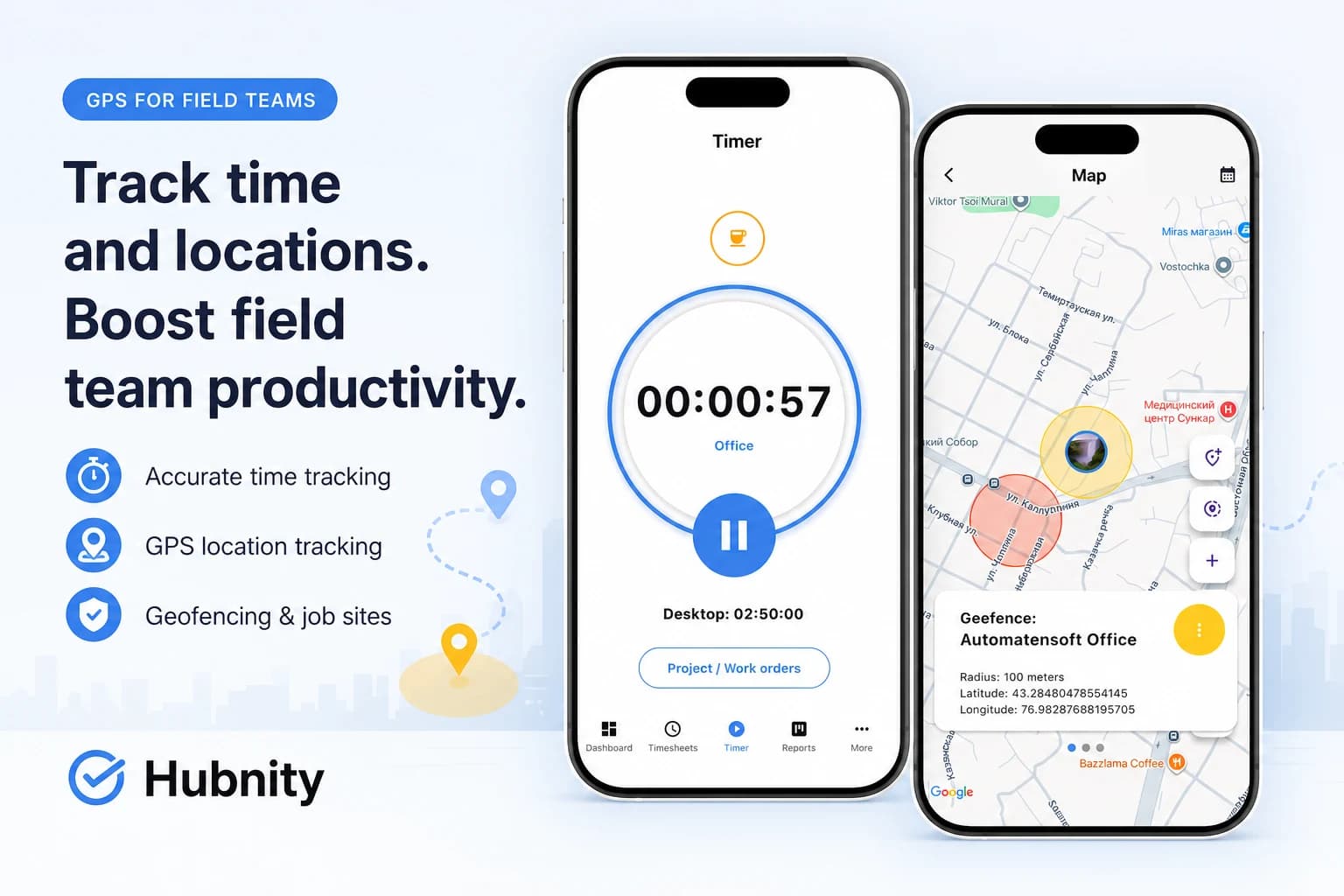
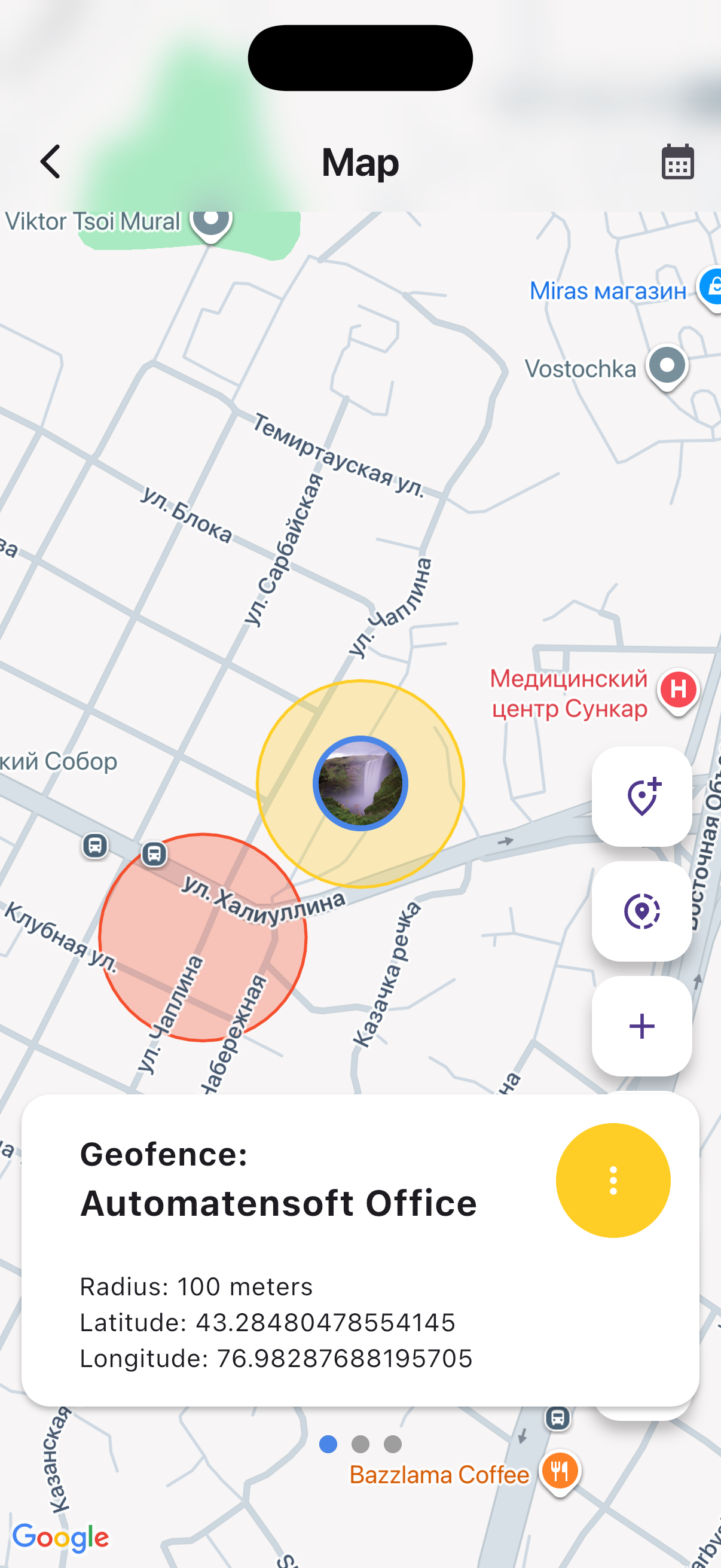
Geofences are circular boundaries around job sites. When a member's mobile device enters or exits, Hubnity can auto-start/stop the timer.
Requires GPS enabled and mobile app installed. Configure from Settings → Location tracking → Job sites.
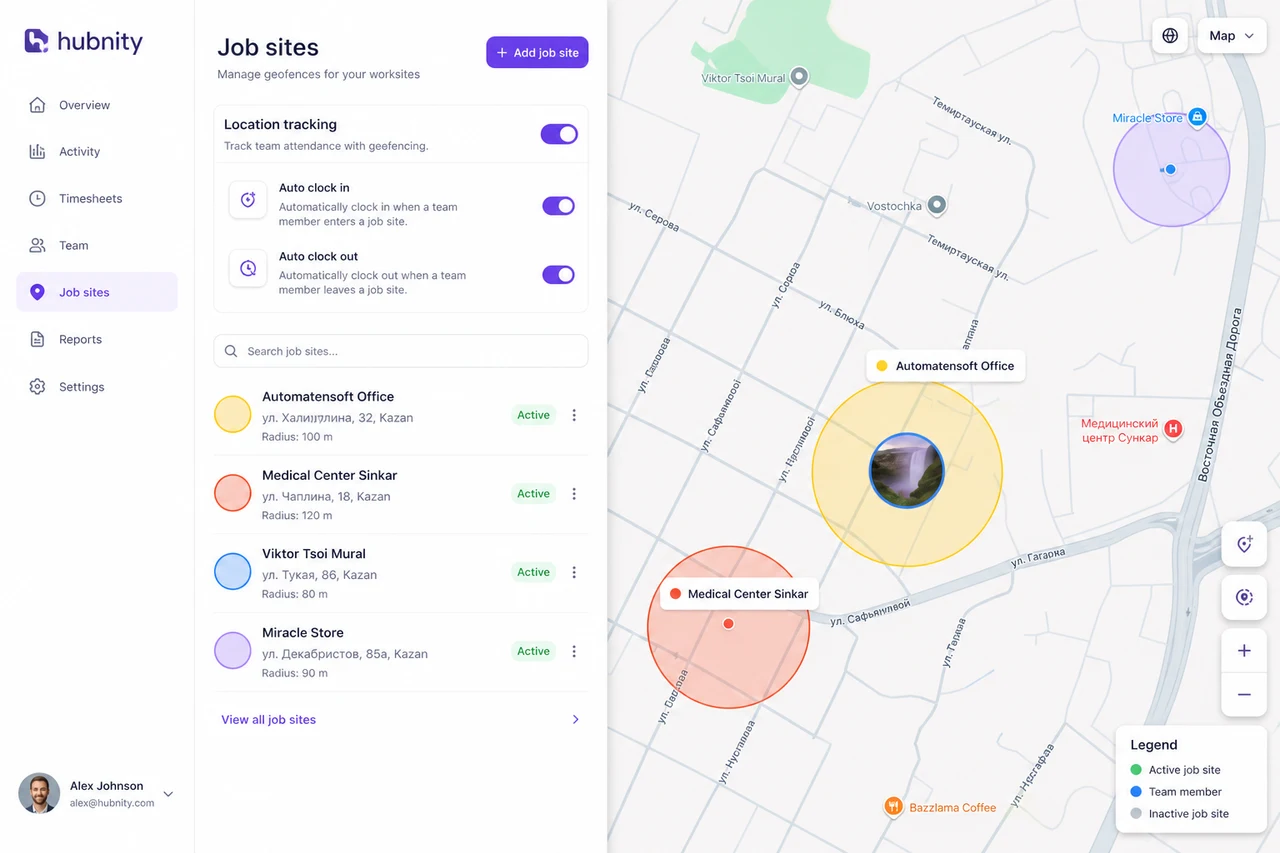
Create a job site
Job sites are visible on Reports → Location map.
- 1
Go to Settings → Location tracking → Job sites → New job site
- 2
Enter site name and address (or drop a pin on the map)
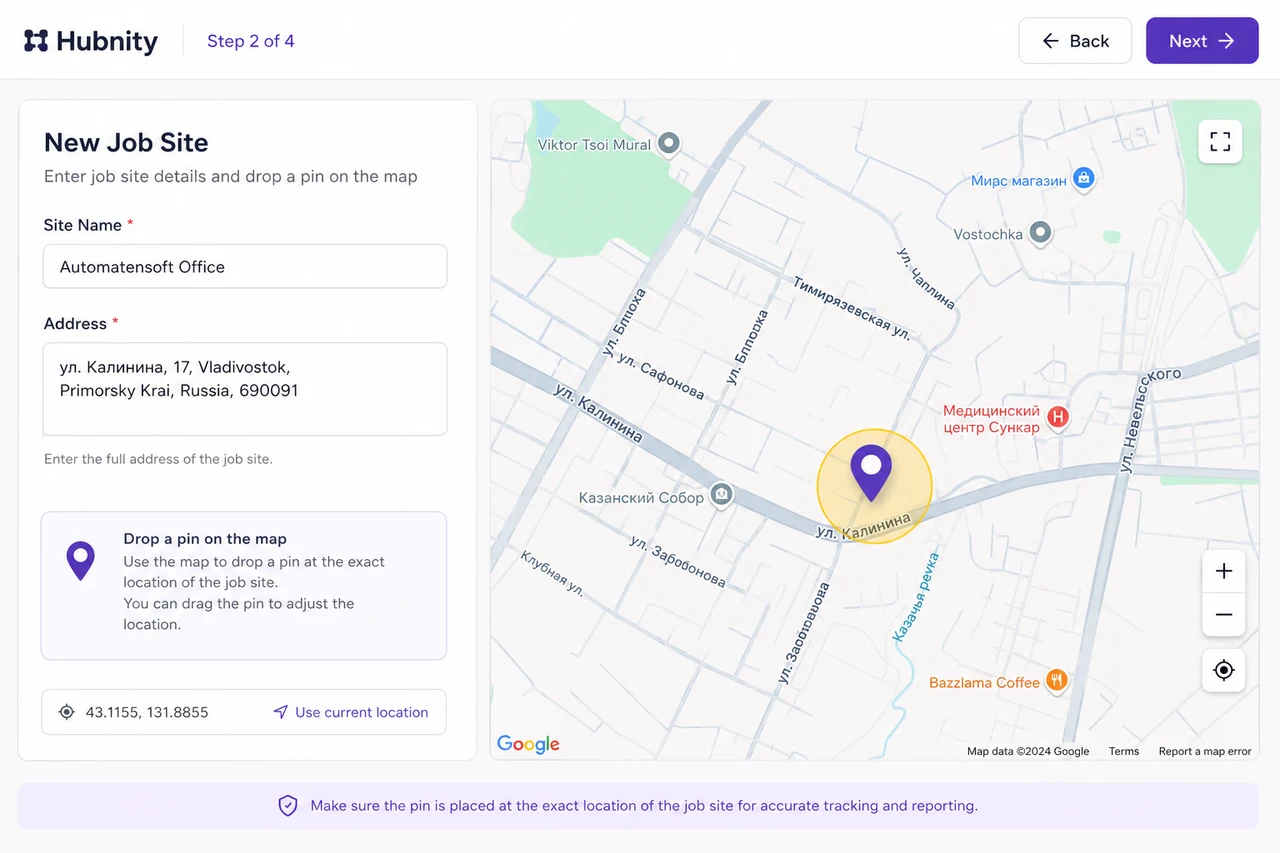
- 3
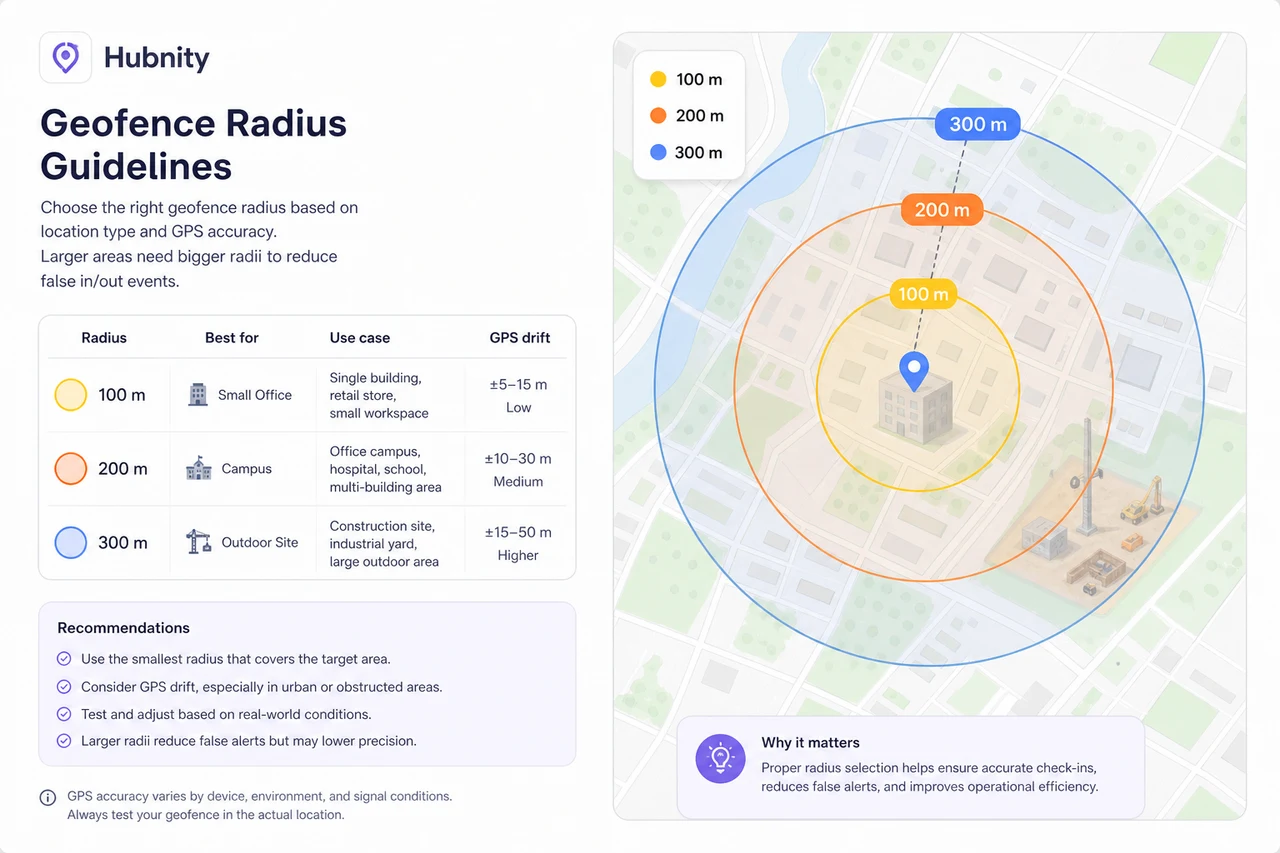
Set geofence radius (recommended: 100–300 meters)
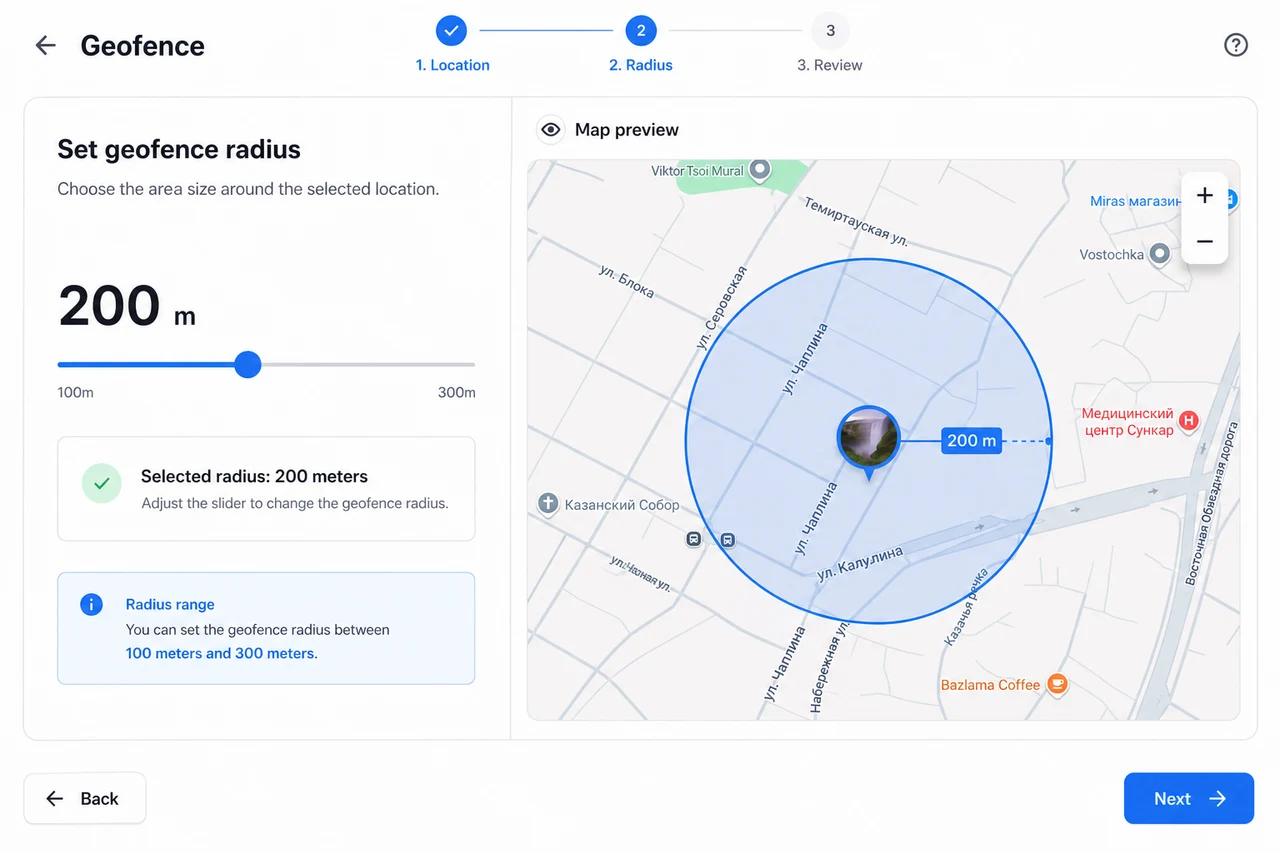
- 4
Link to a Hubnity project for auto-assigned time entries
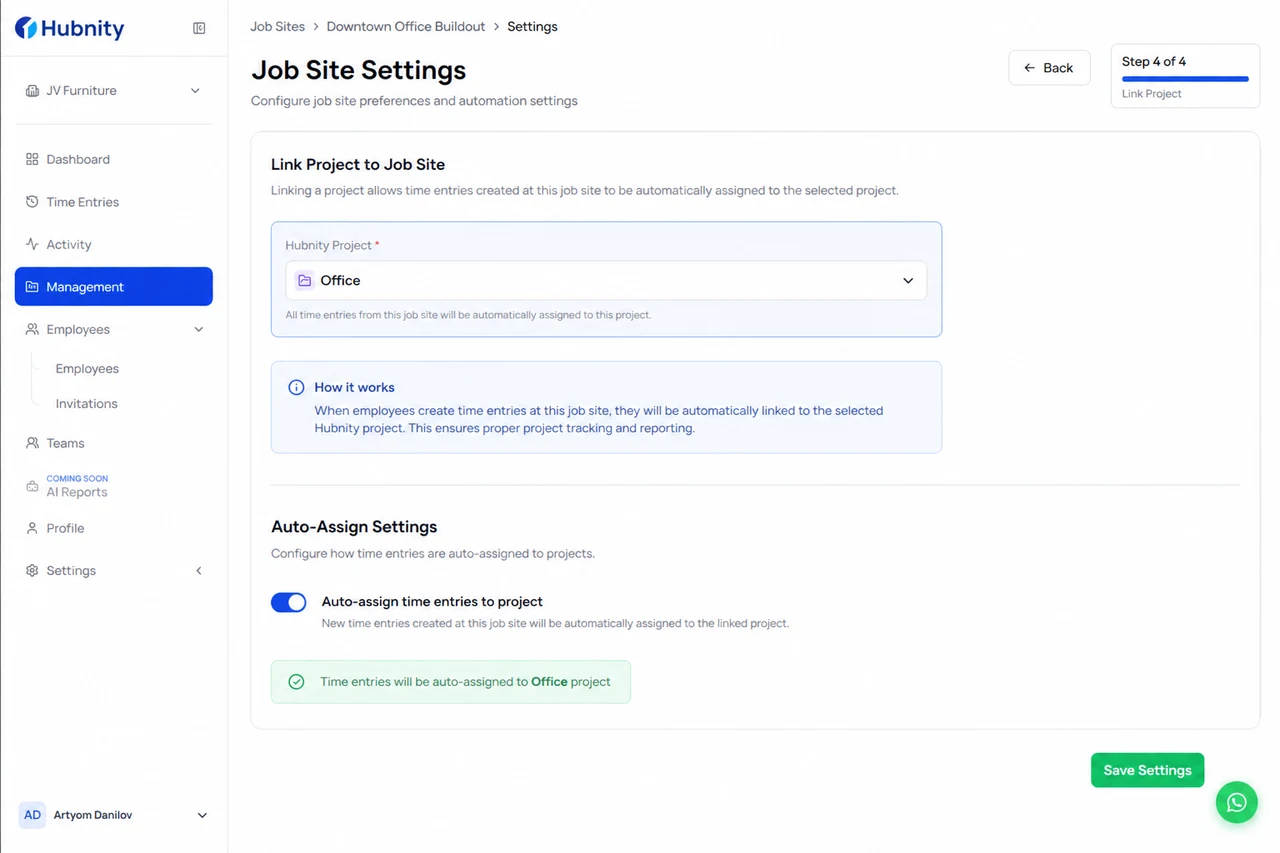
- 5
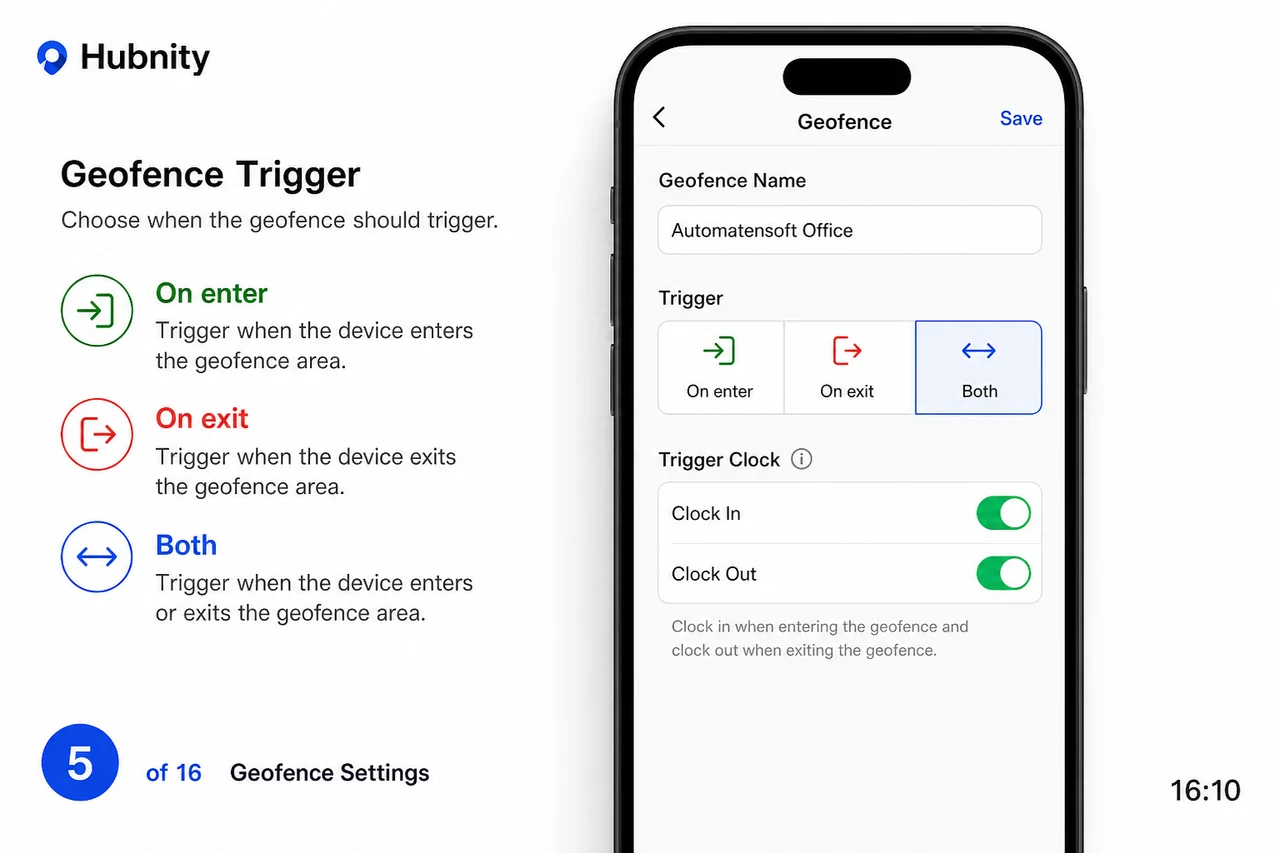
Configure trigger: On enter (clock in), On exit (clock out), or Both
- 6
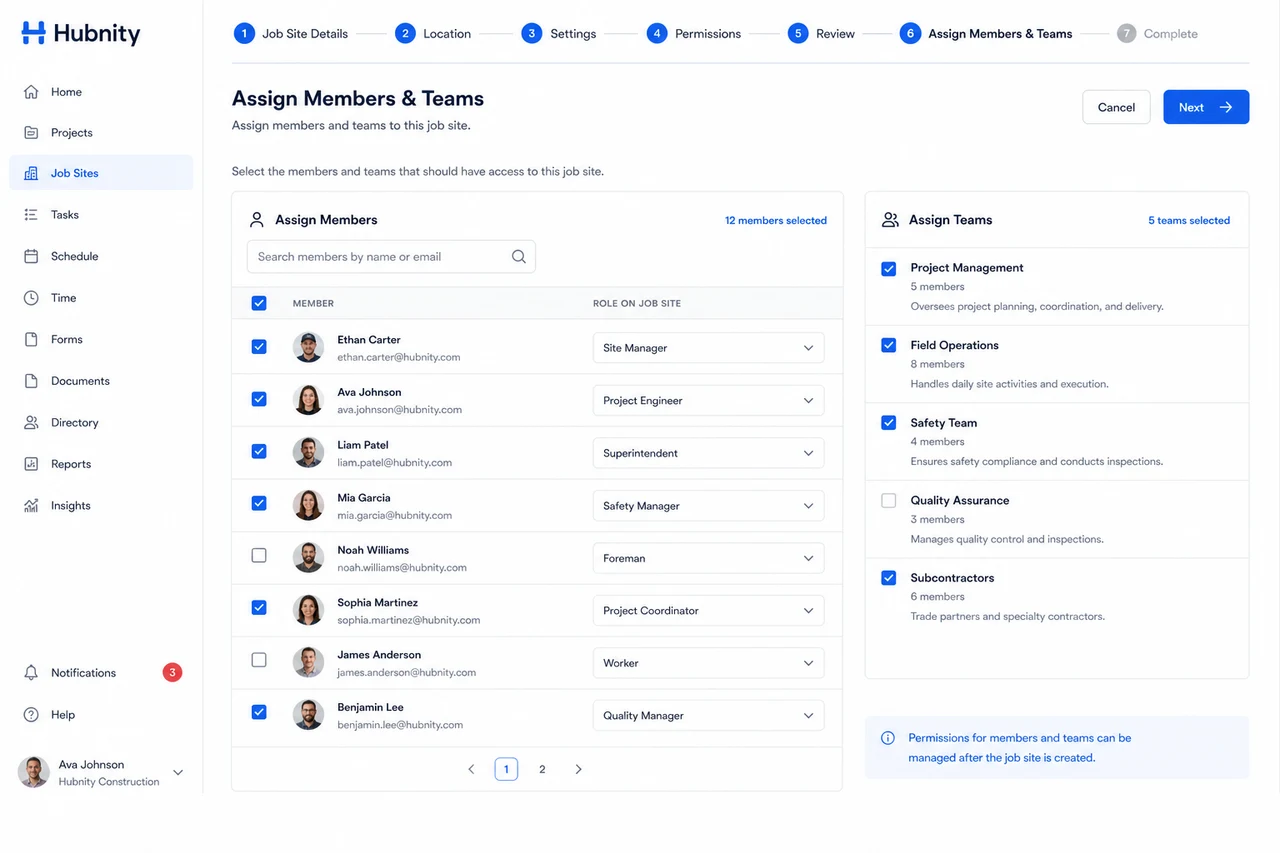
Assign members or teams to the site
- 7
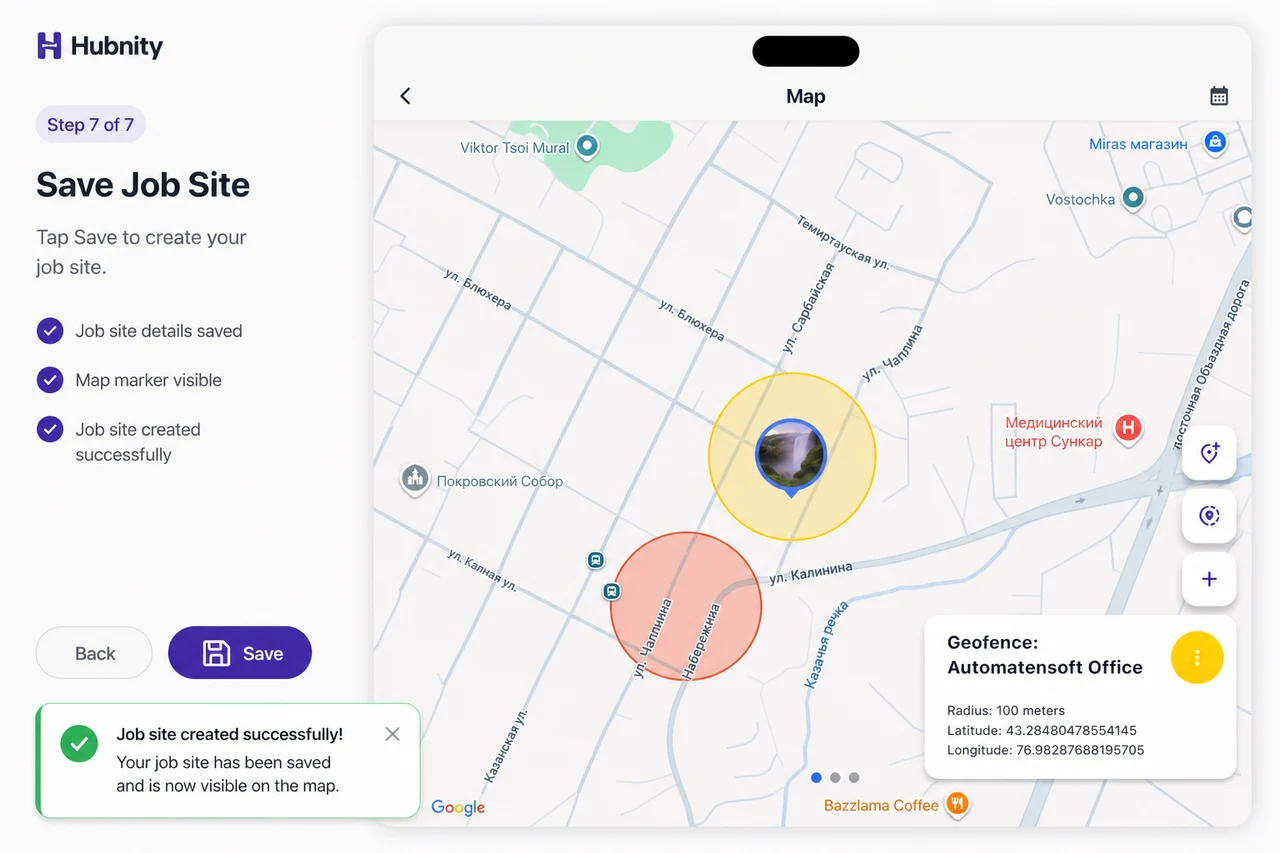
Save
Radius guidelines
100m: small office or single building. 200m: campus or multi-building site. 300m: large outdoor site.
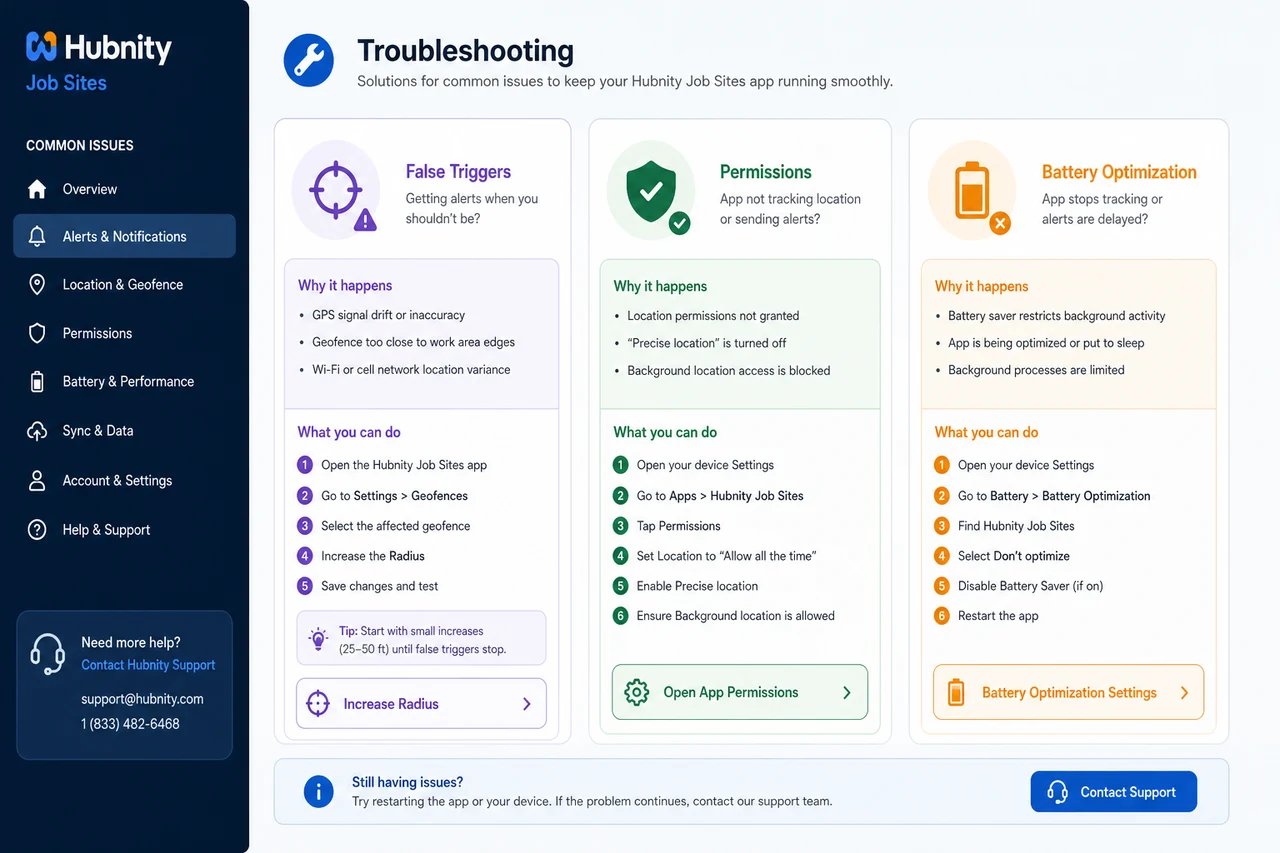
GPS accuracy is typically 5–50m outdoors. Set radius at least 2× expected GPS drift to avoid false triggers.
Member experience
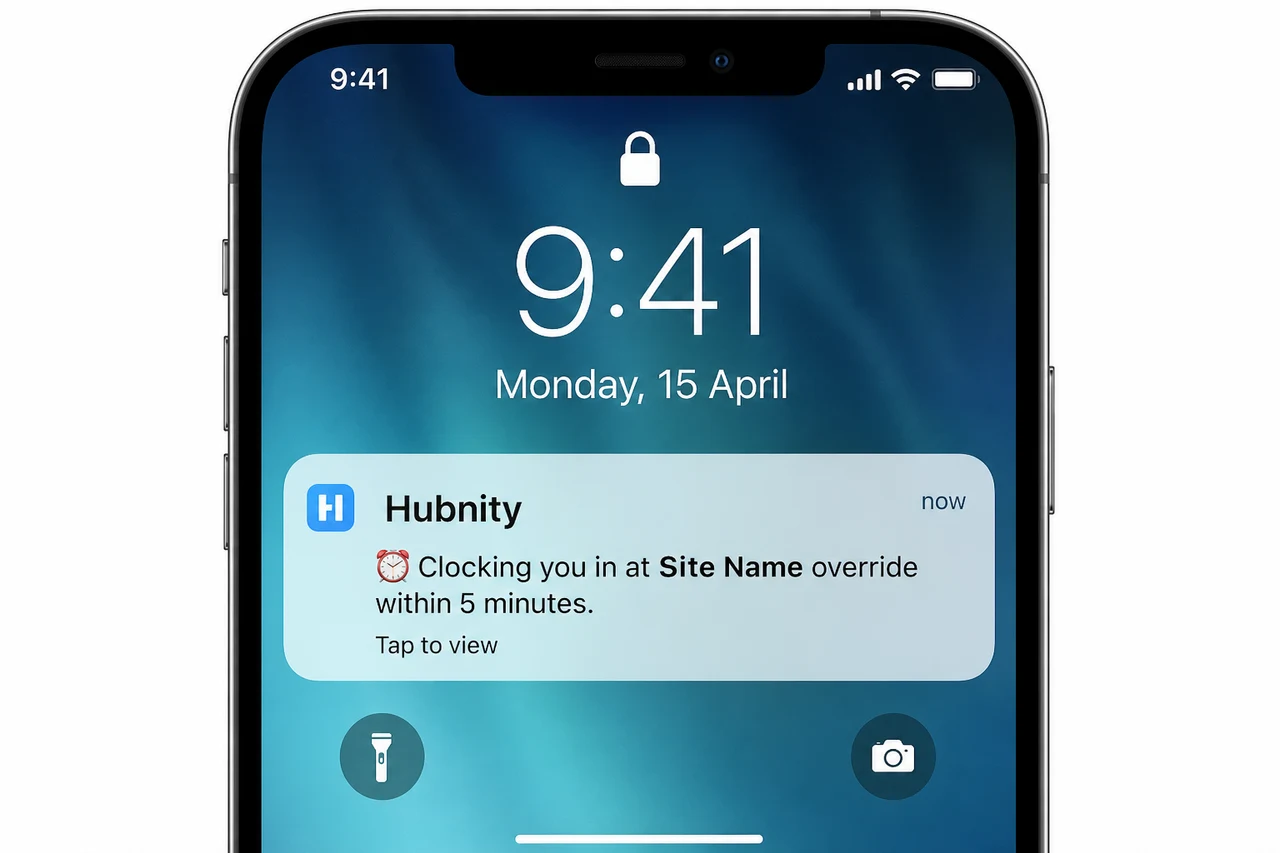
Members receive a push notification on geofence entry/exit: Clocking you in at [Site Name].
Members can override auto clock-in/out within 5 minutes if the trigger was incorrect.
Reporting
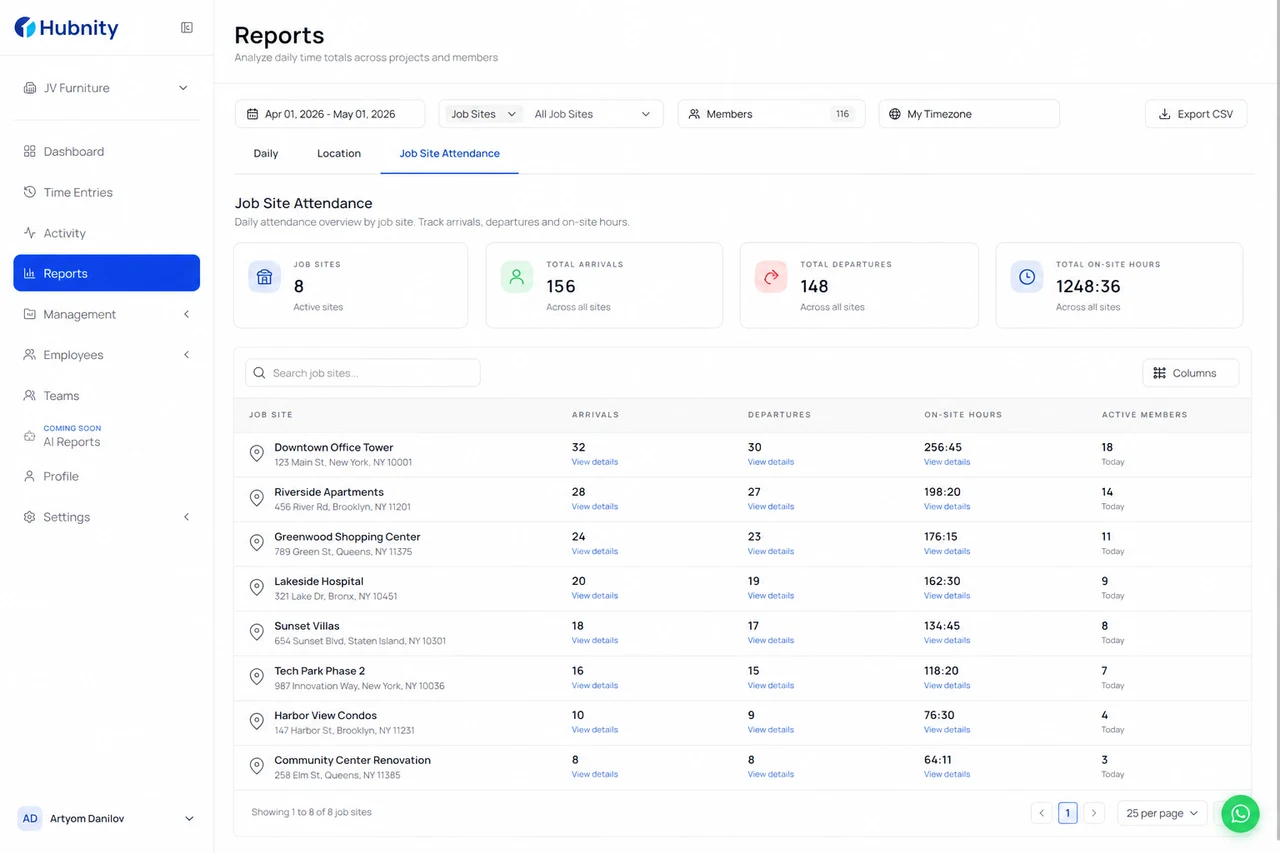
Reports → Location → Job site attendance shows arrivals, departures, and total on-site hours per member.
Export CSV for compliance and client billing verification.
Common issues
False triggers: increase radius or reduce GPS interval. See mobile-location-permissions.
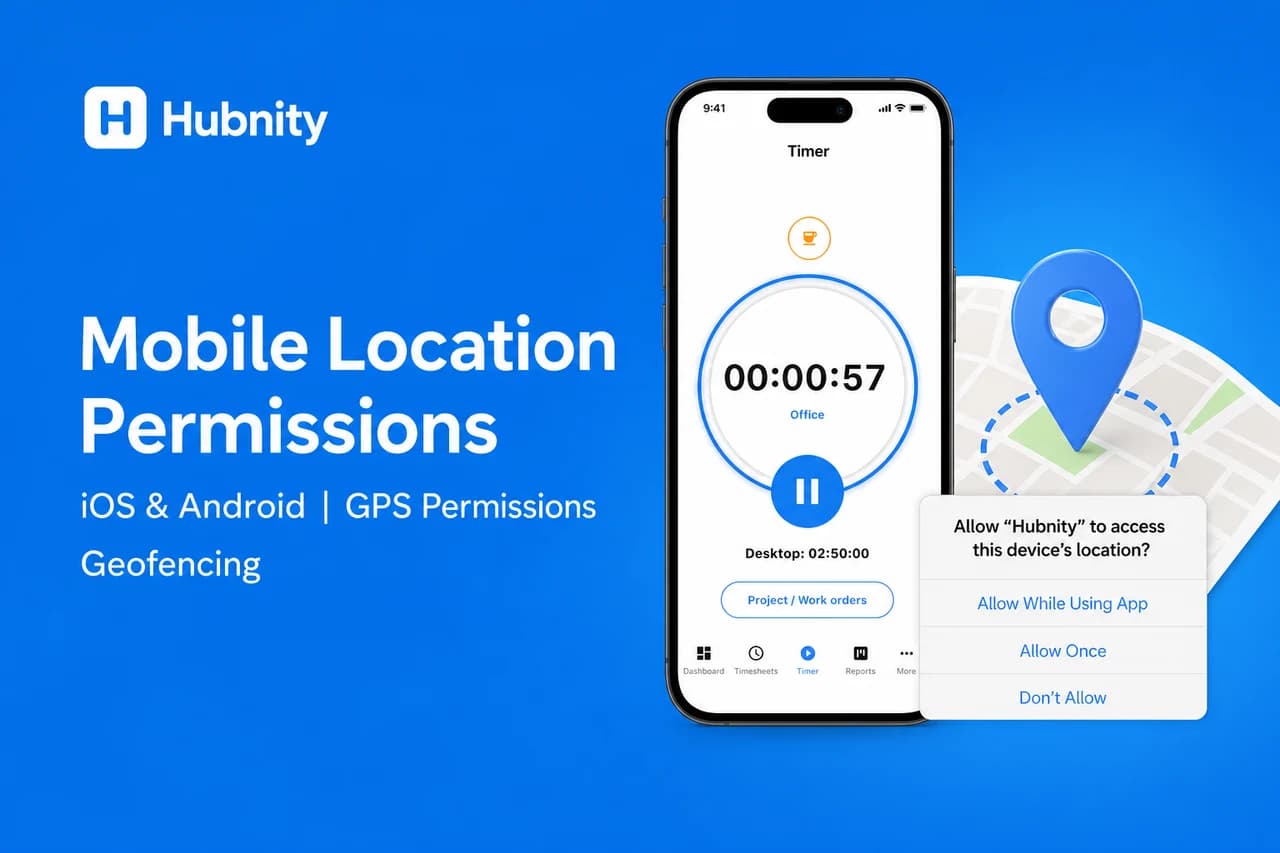
No trigger on arrival: verify location permissions, battery optimization disabled, and member is assigned to the site.