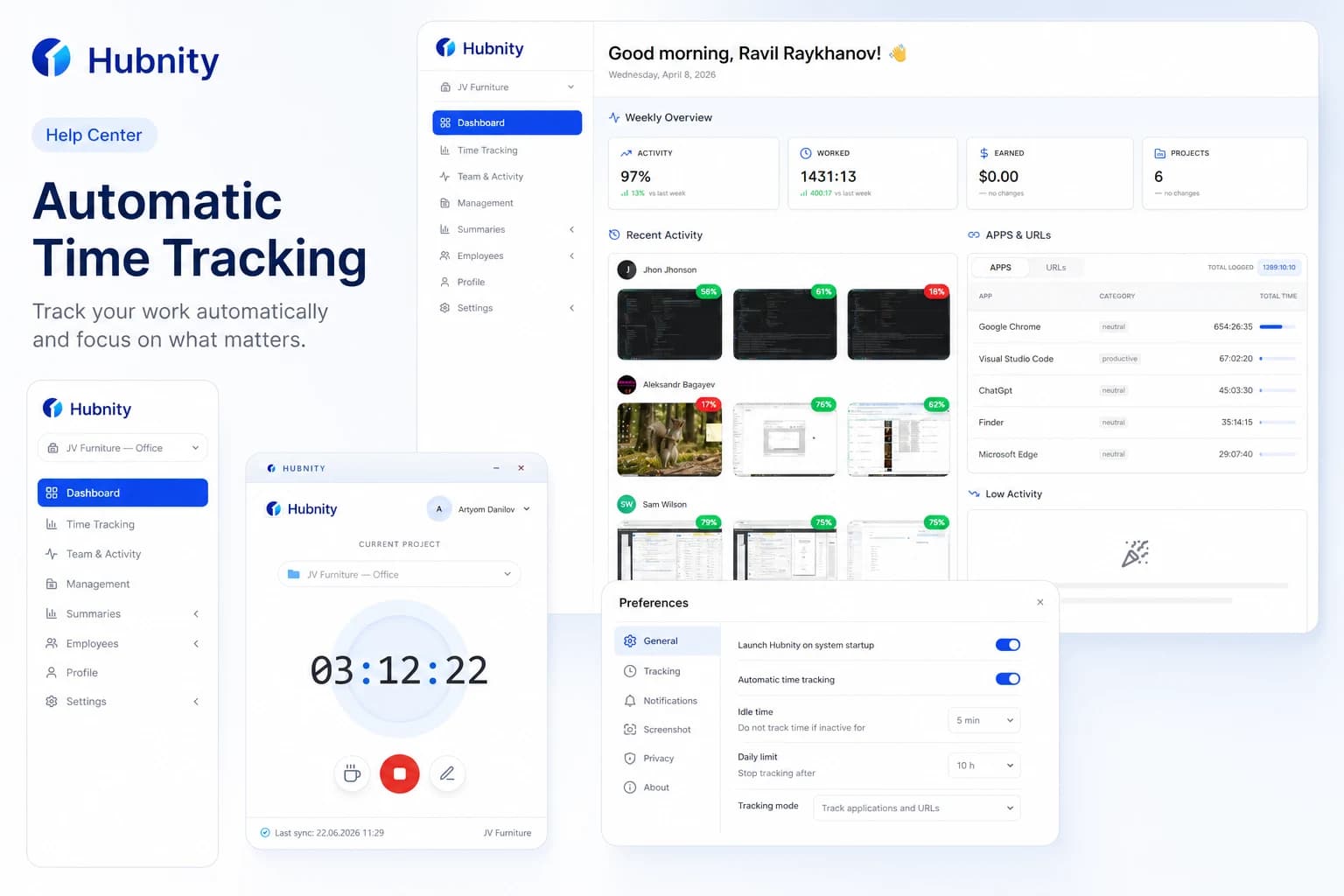
Configure idle detection to pause tracking when members step away and trim inactive time.
How idle detection works
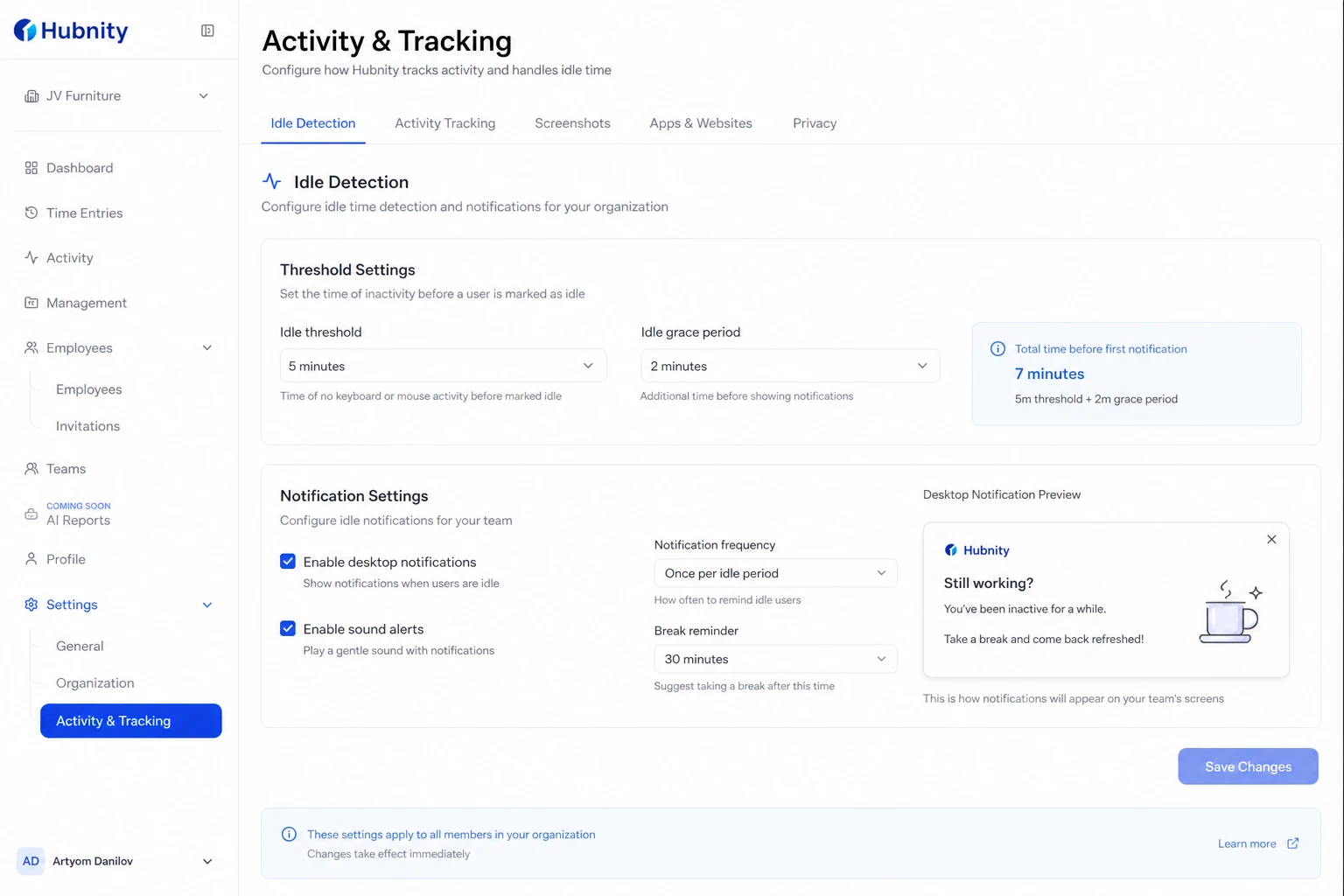
When no keyboard or mouse input is detected for the configured threshold, Hubnity marks the session as idle and pauses the timer.
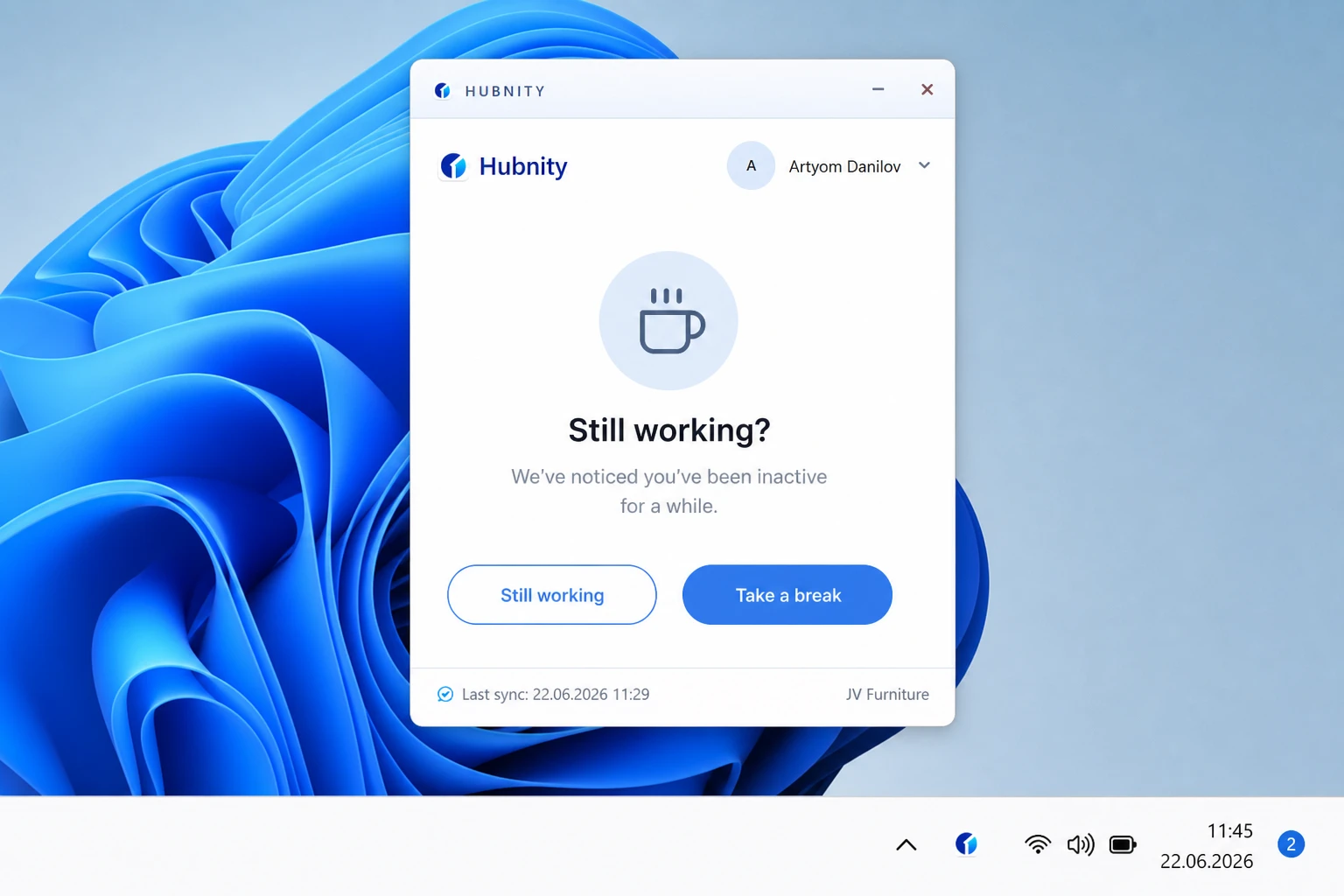
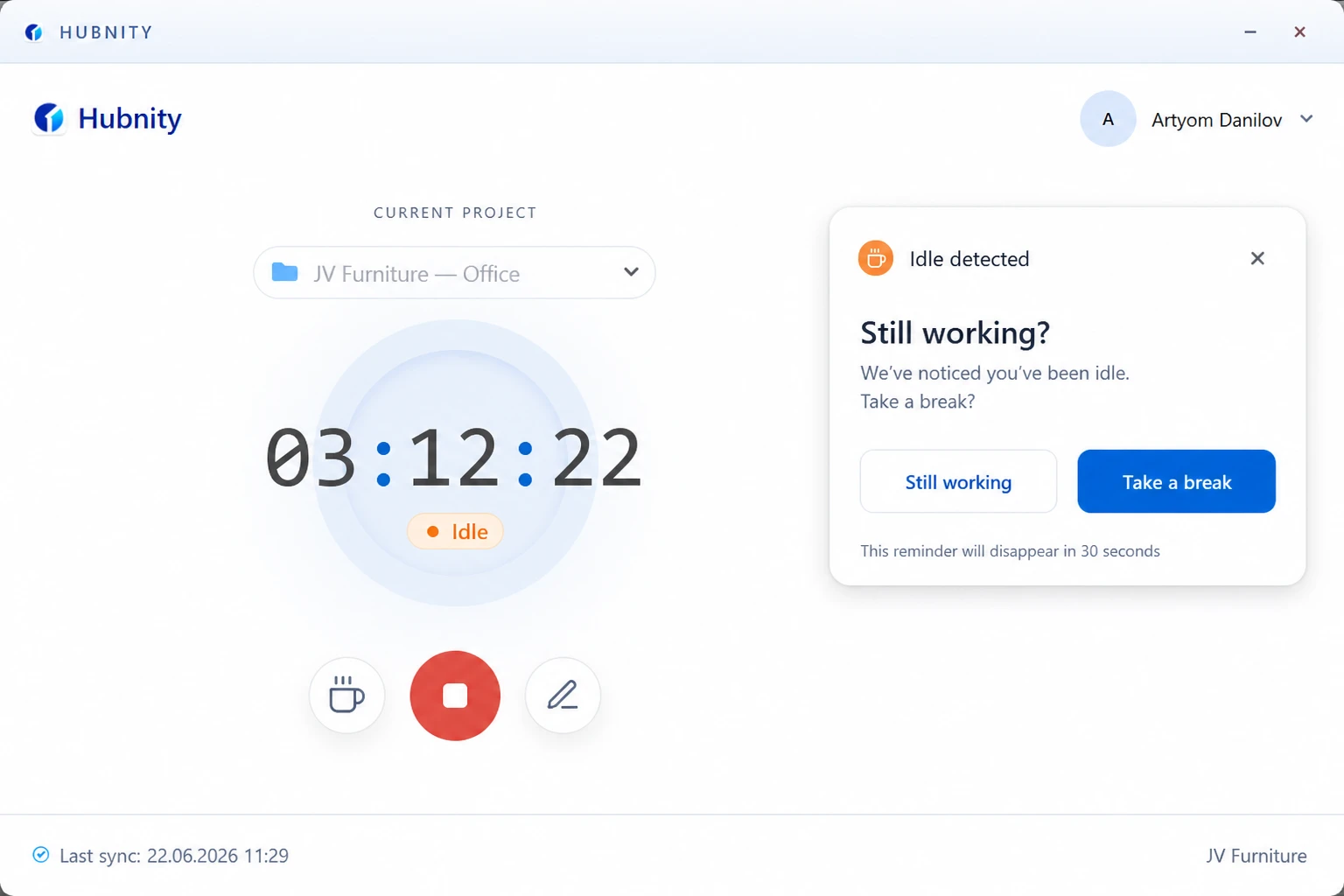
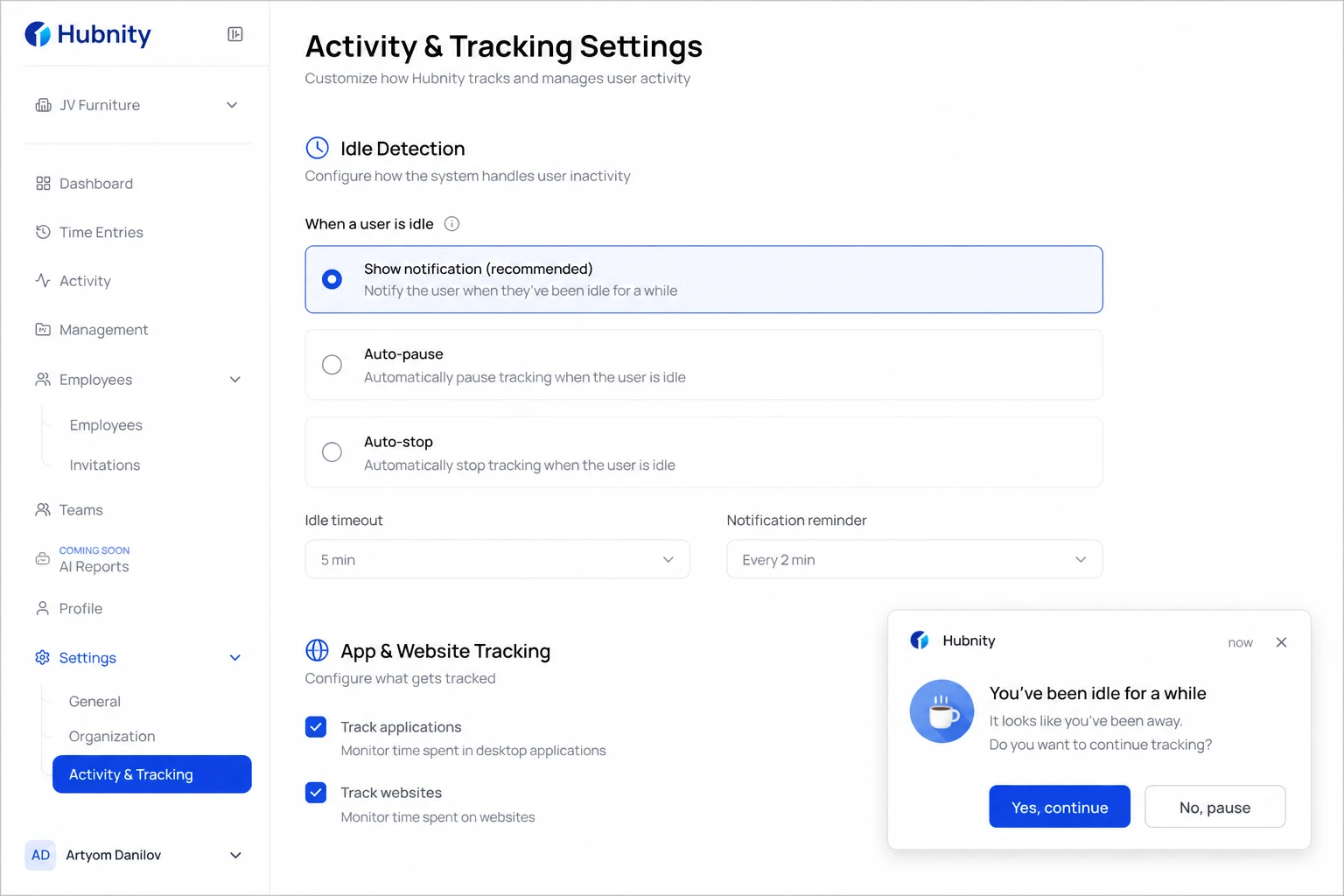
A desktop notification prompts the member: Still working? / Take a break. No response trims idle time after the grace period.
Configure idle detection
Organization defaults can be locked to prevent member overrides.
- 1
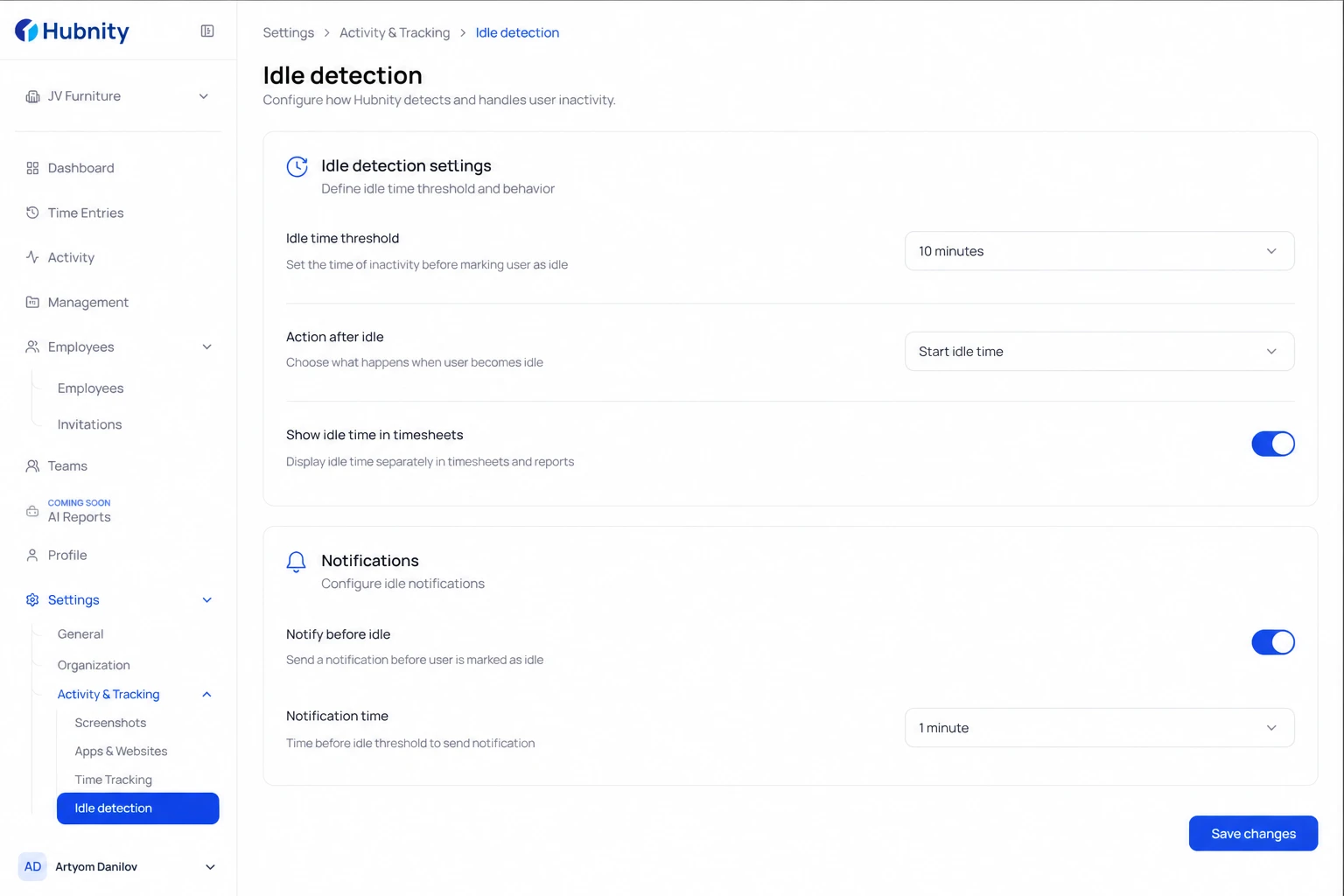
Go to Settings → Time tracking → Idle detection
- 2
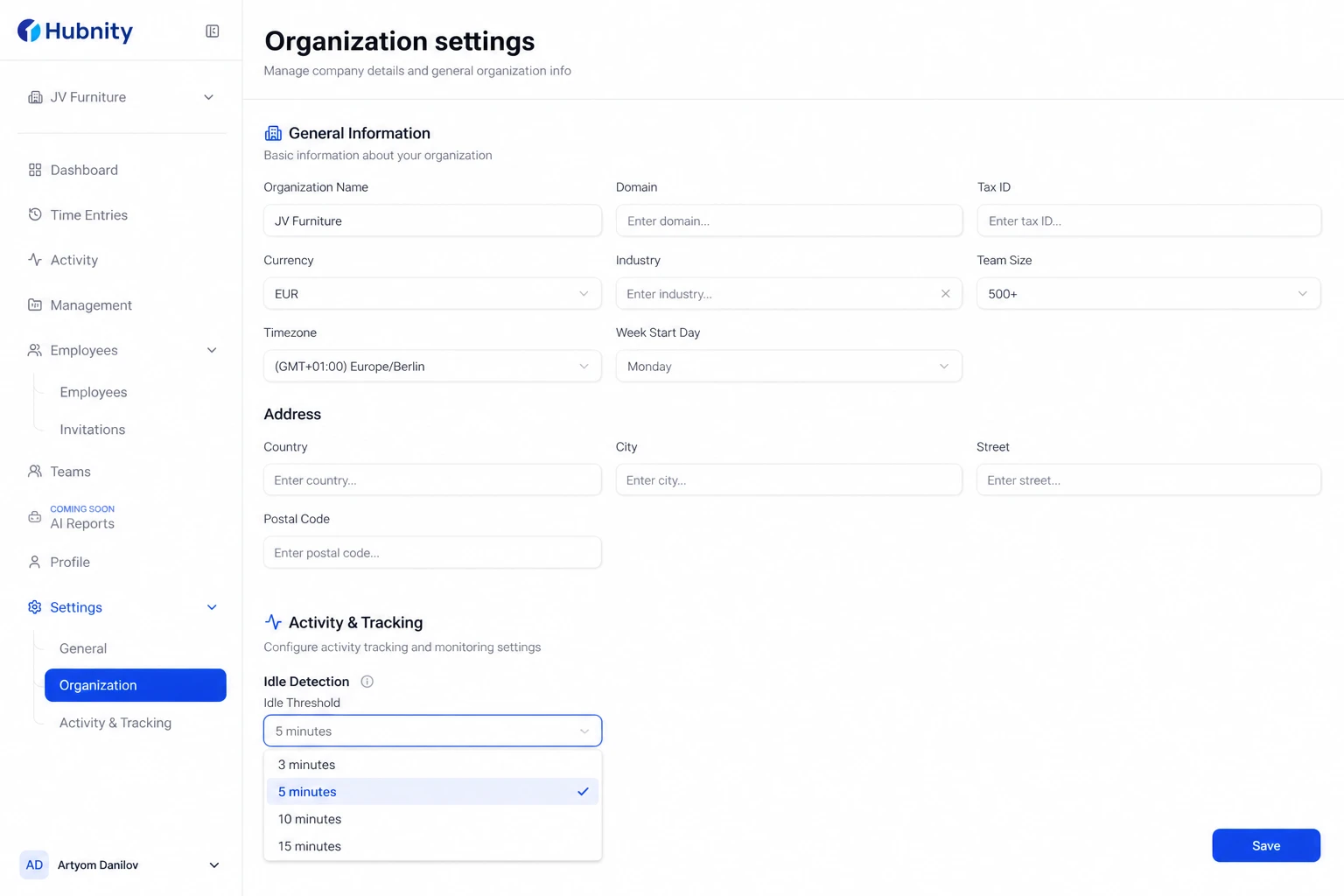
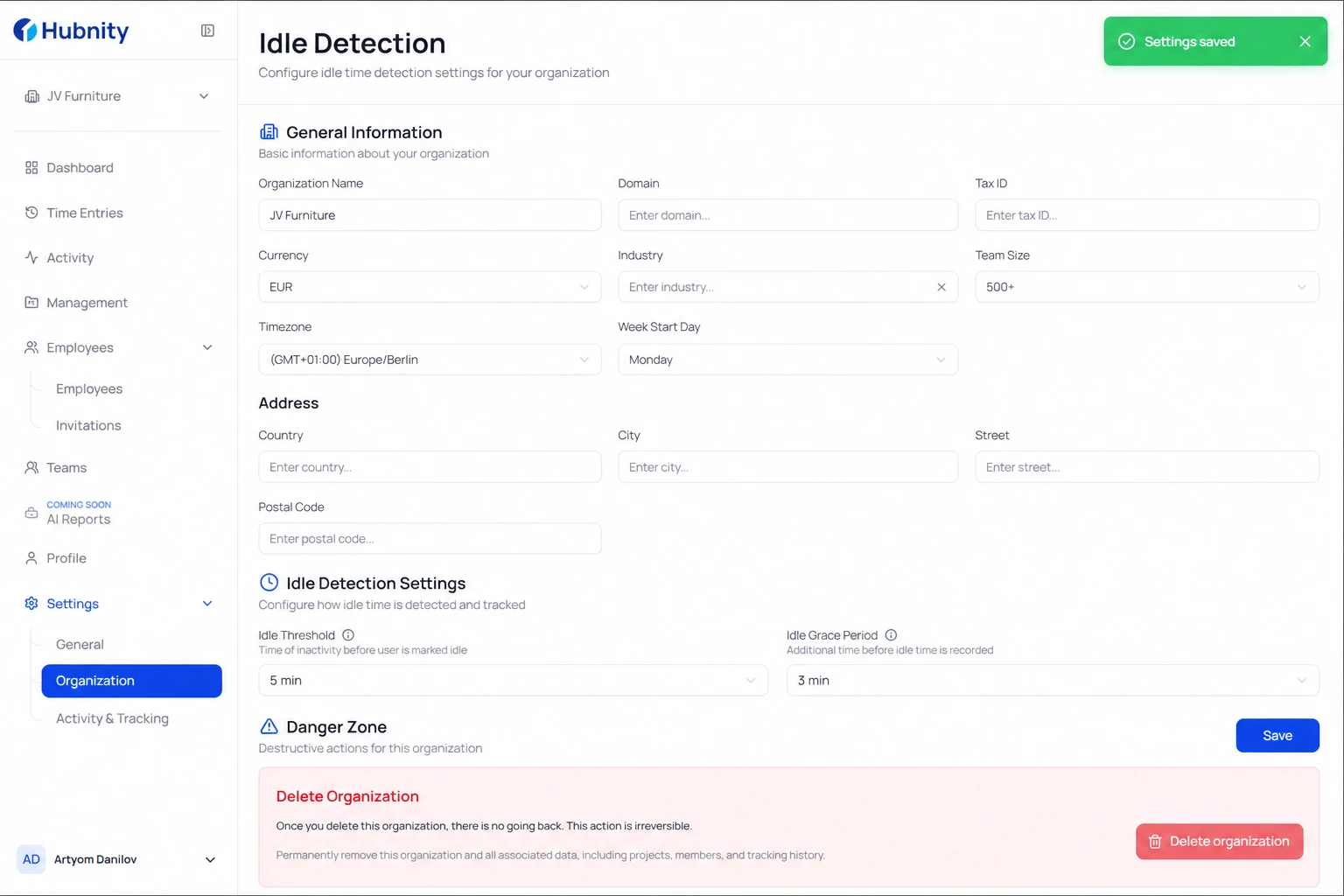
Set idle threshold (3, 5, 10, or 15 minutes)
- 3
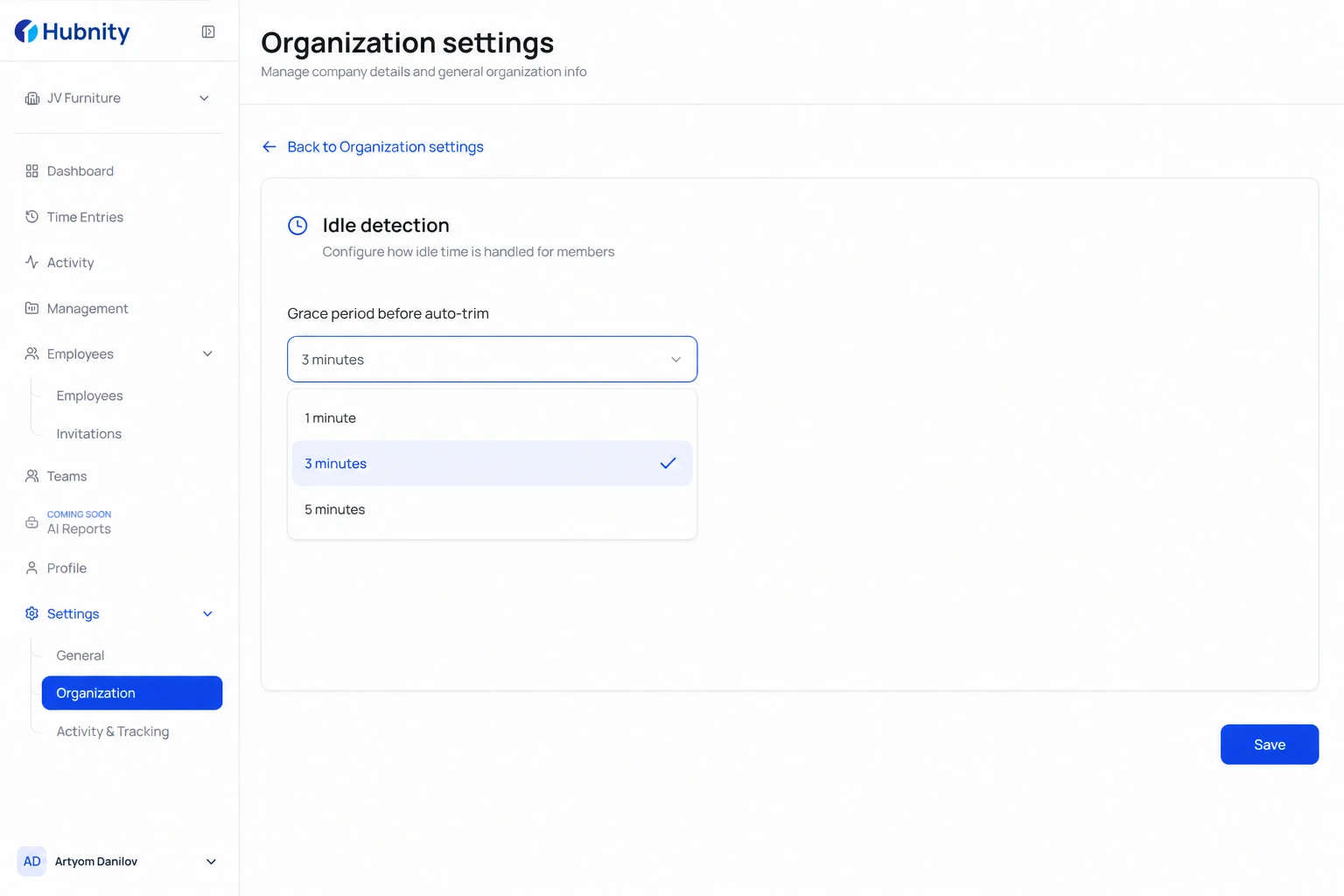
Set grace period before auto-trim (1, 3, or 5 minutes)
- 4
Choose prompt behavior: Show notification, Auto-pause, or Auto-stop
- 5
Save
Per-role overrides
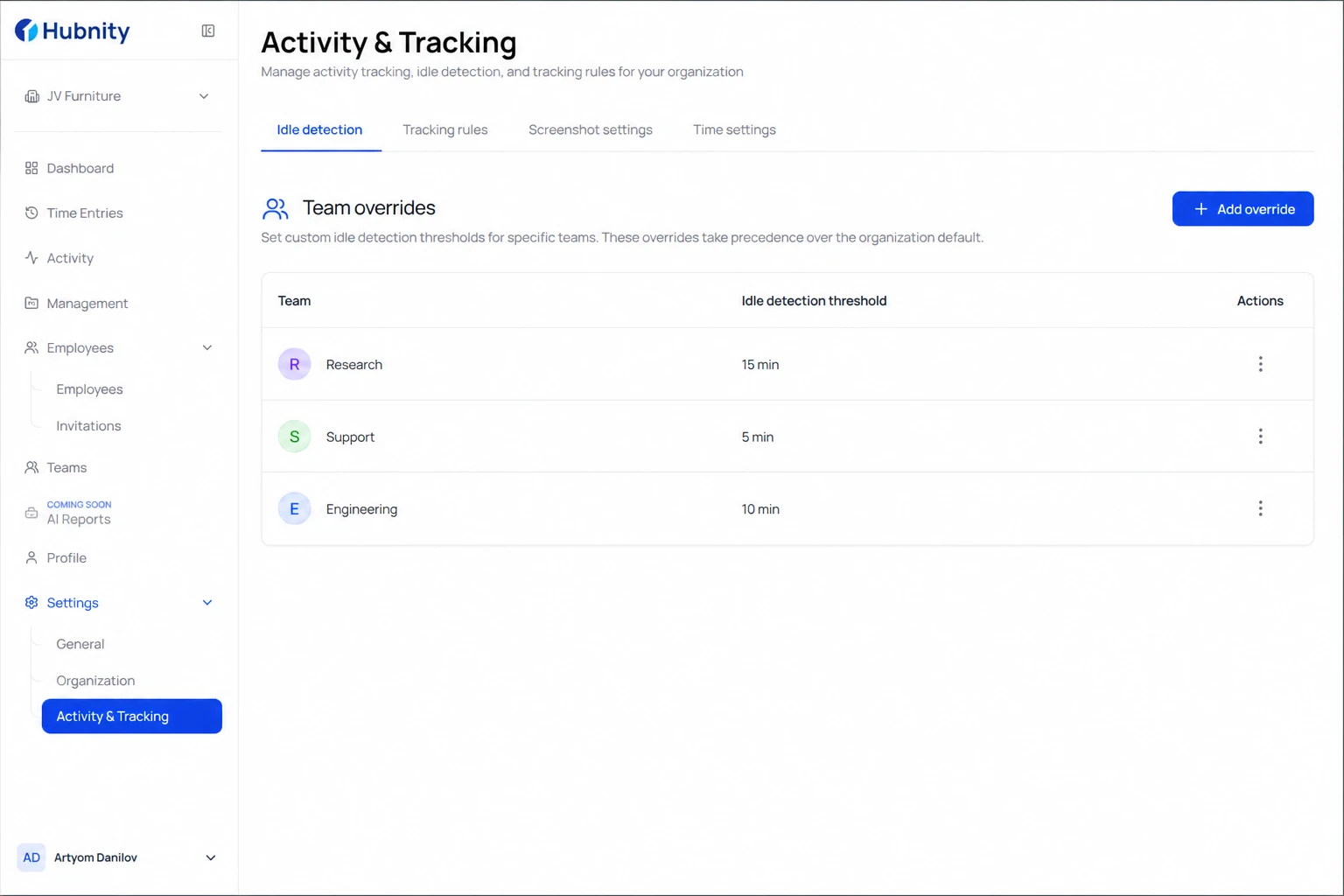
Set different idle thresholds by team from Settings → Time tracking → Idle detection → Team overrides.
Example: 15-minute threshold for Research team, 5-minute for Support team.
Idle vs break time
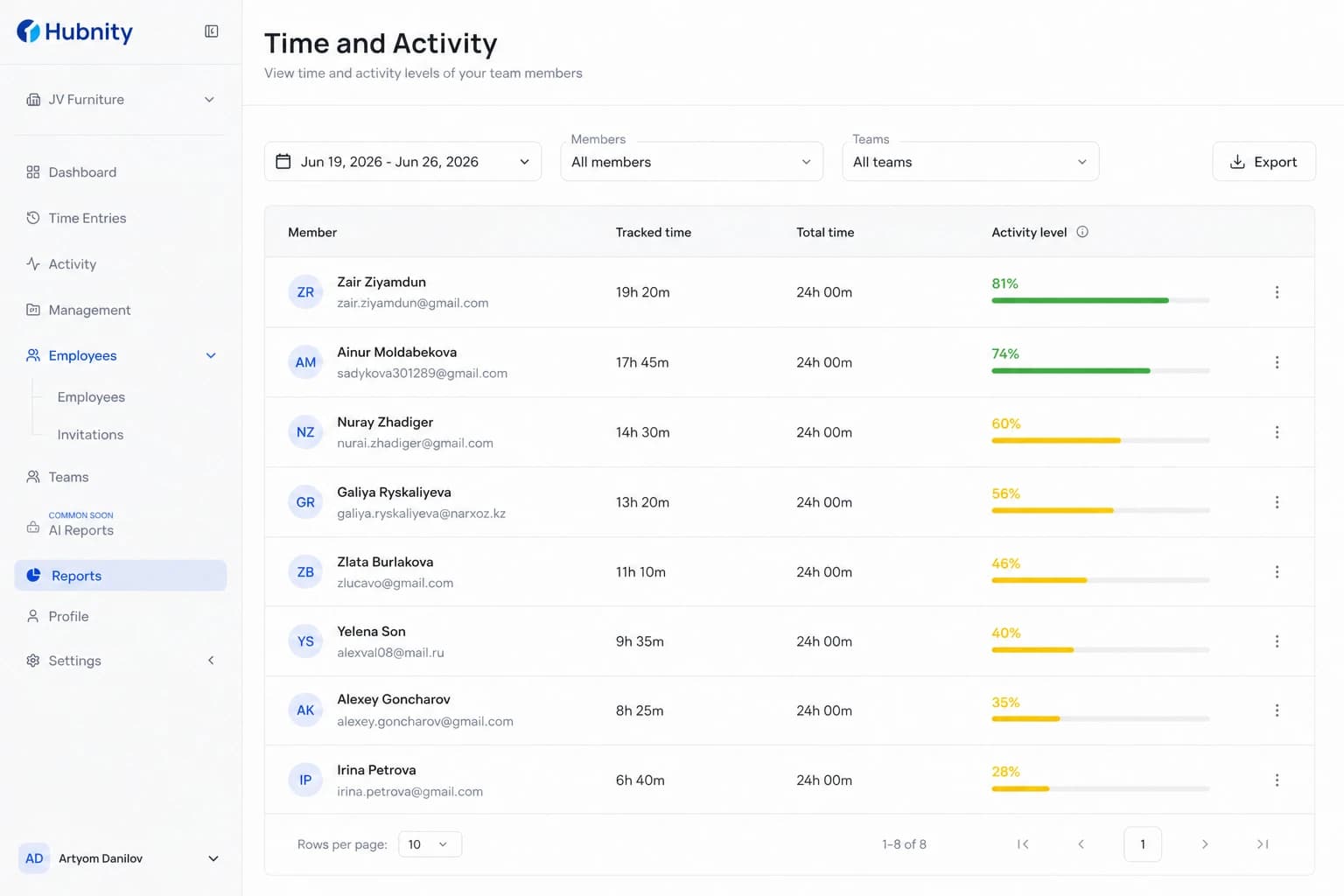
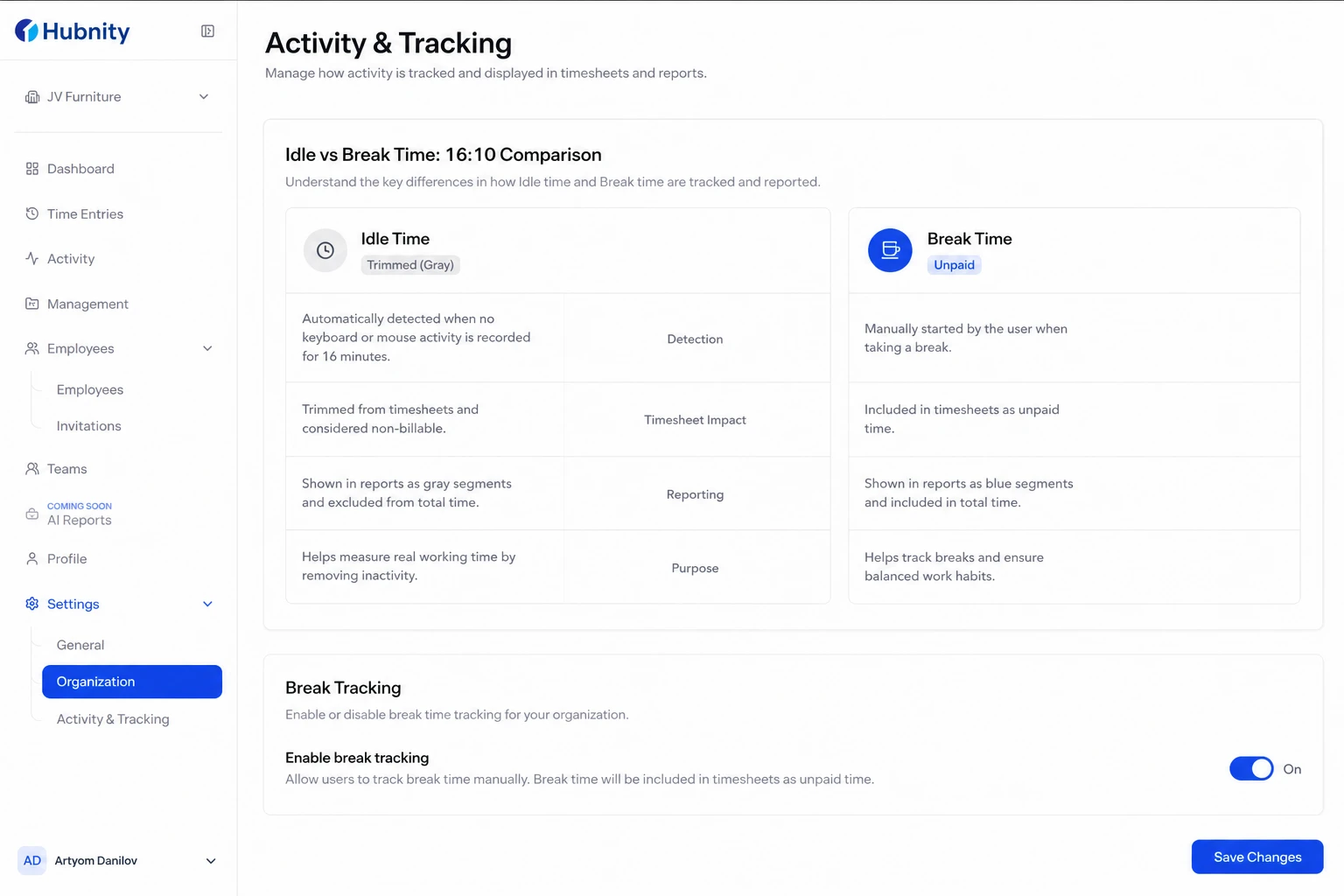
Idle-trimmed time is removed from the timesheet. Break time (if Break tracking is enabled) is recorded as unpaid non-work time.
Enable break tracking from Settings → Time tracking → Breaks.
Member experience
Members see idle prompts in the system tray (desktop) or push notification (mobile).
Responding 'Still working' resets the idle counter. 'Take a break' stops the timer.