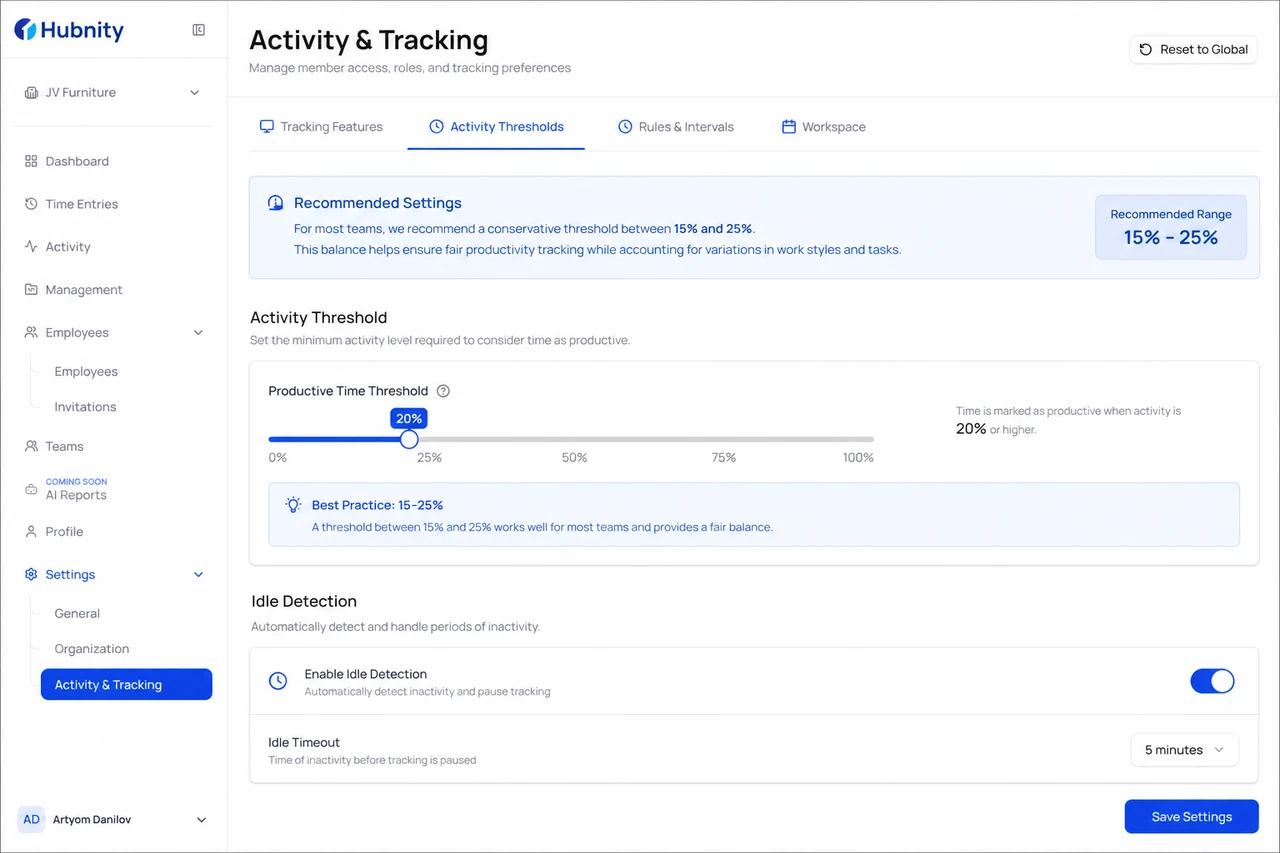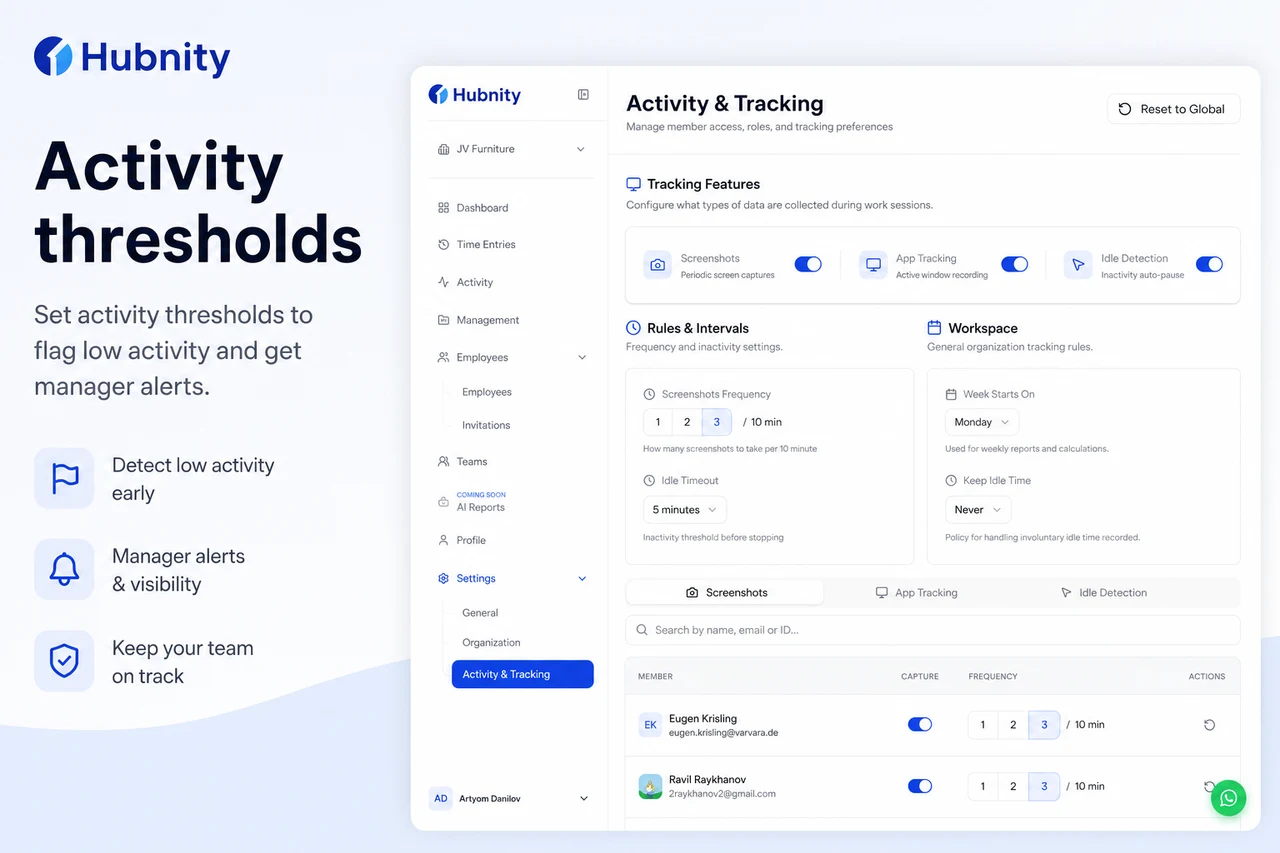
Set activity level thresholds to flag low-activity periods in reports and trigger manager alerts.
Threshold purpose
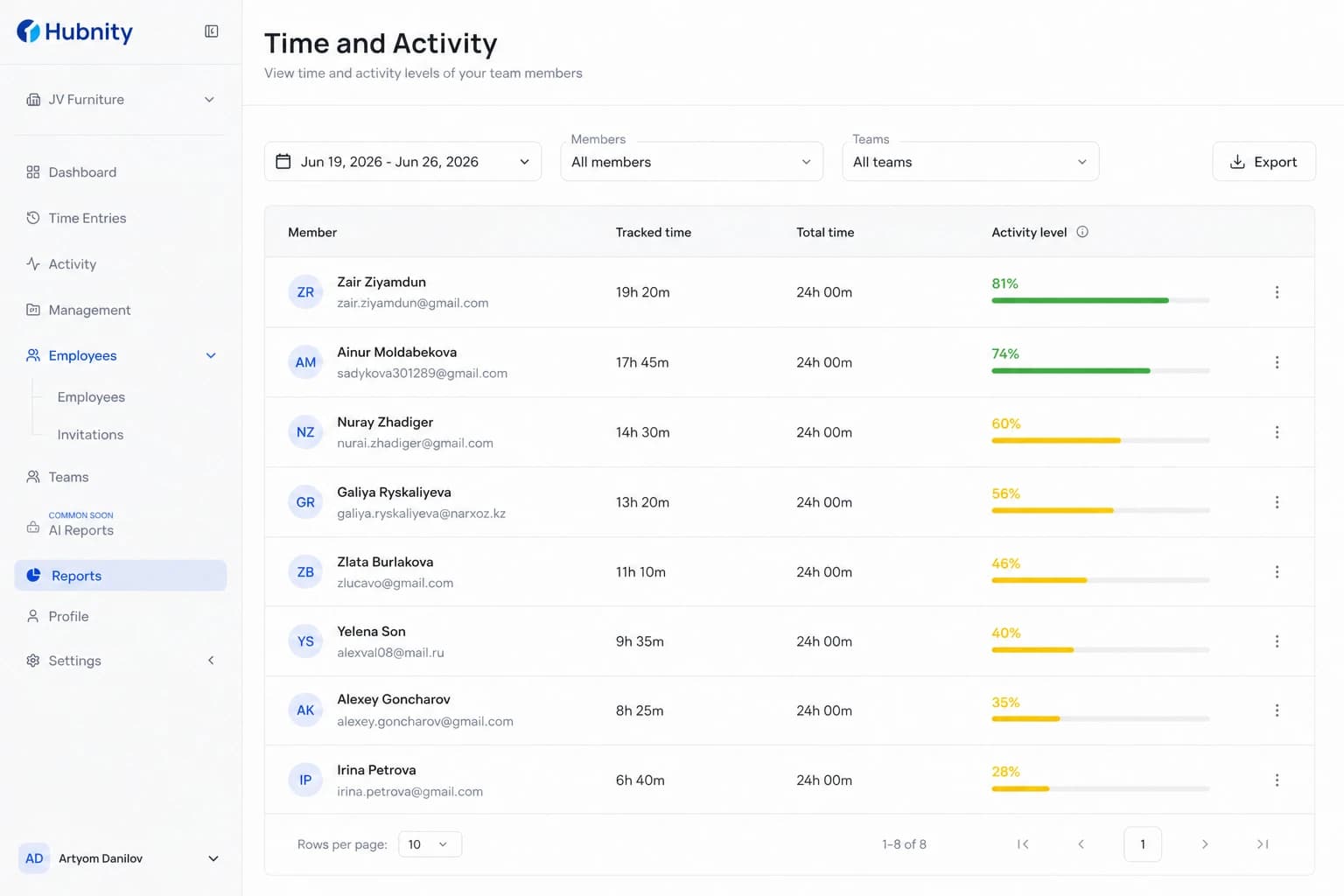
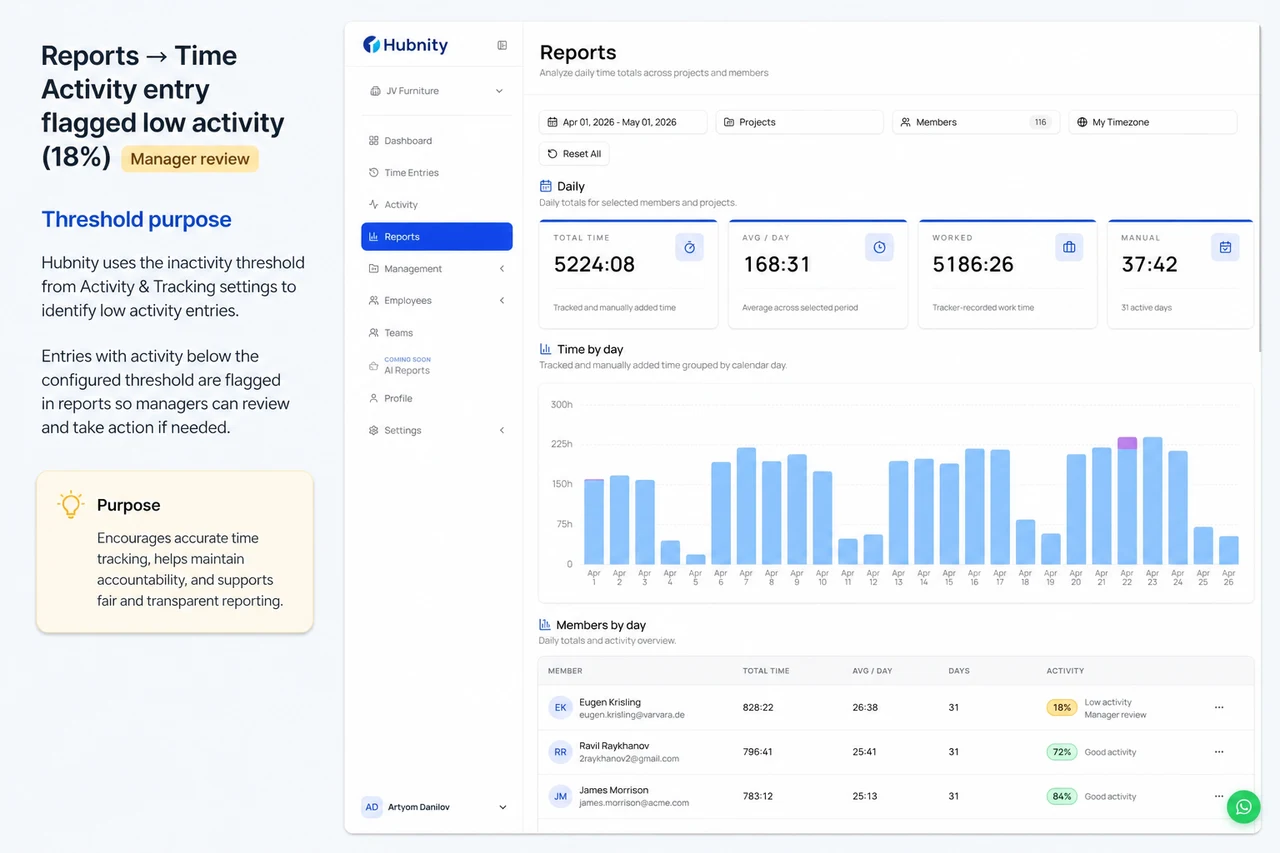
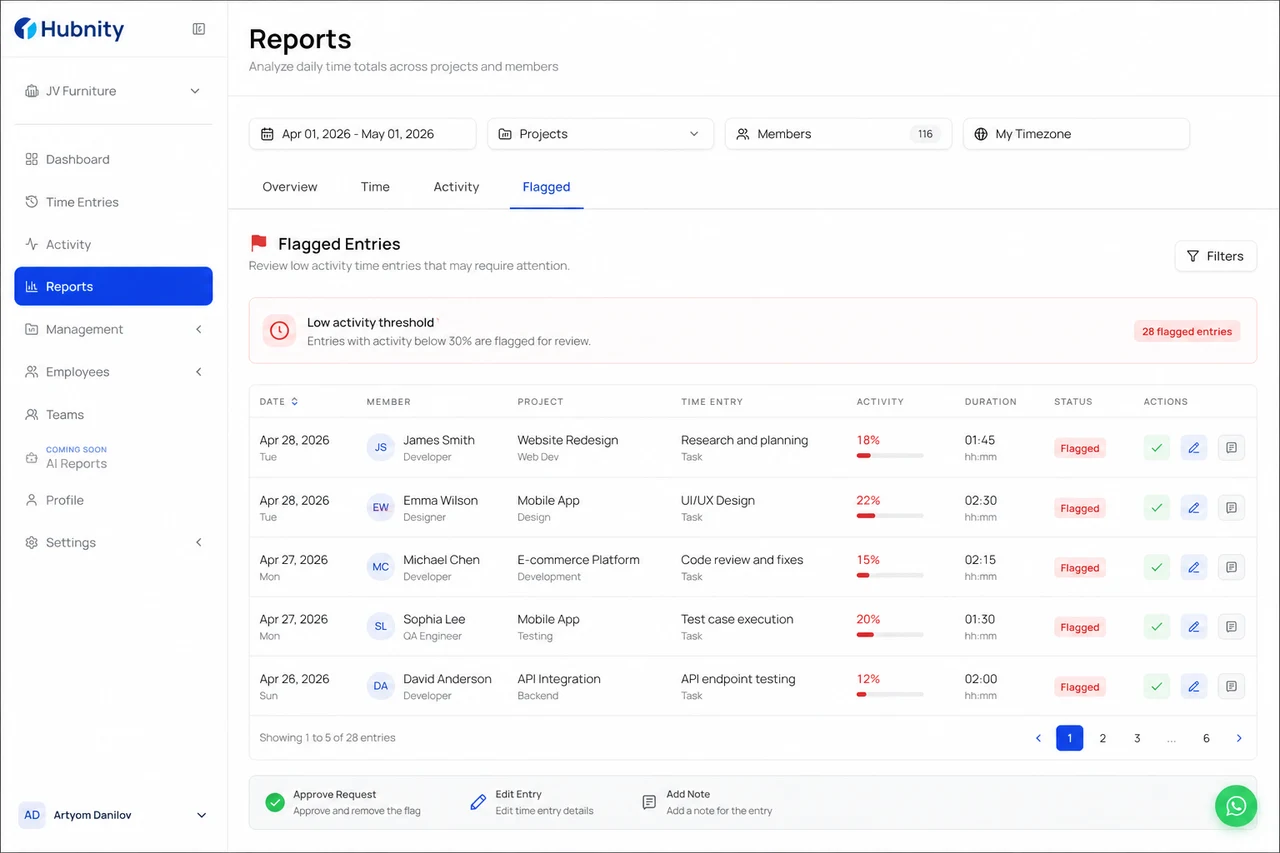
Activity thresholds flag time entries where activity level falls below a configured percentage. Flags appear in reports for manager review.
Thresholds do not auto-delete time. They highlight entries that may need conversation or correction.
Set organization thresholds
Thresholds apply to all members unless overridden per team.
- 1
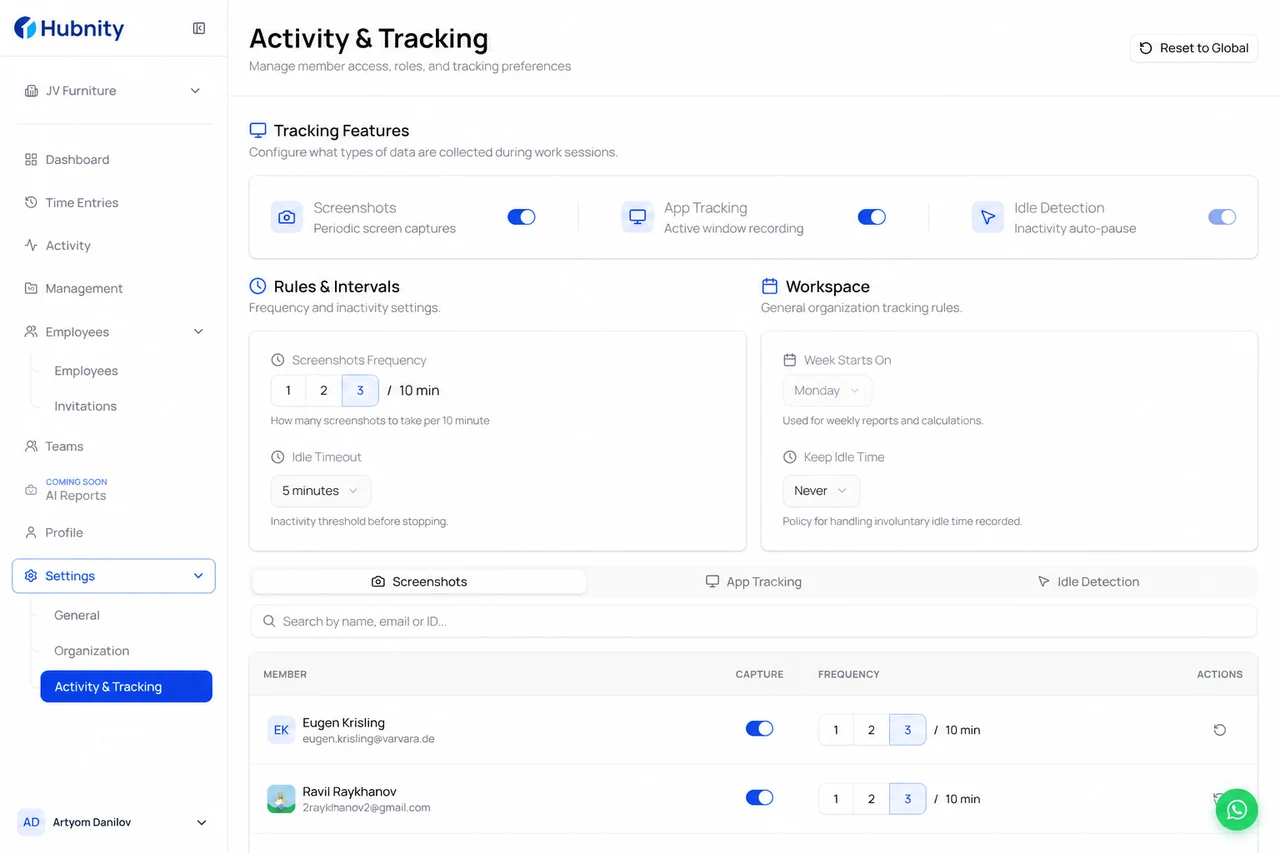
Go to Settings → Time tracking → Activity thresholds
- 2
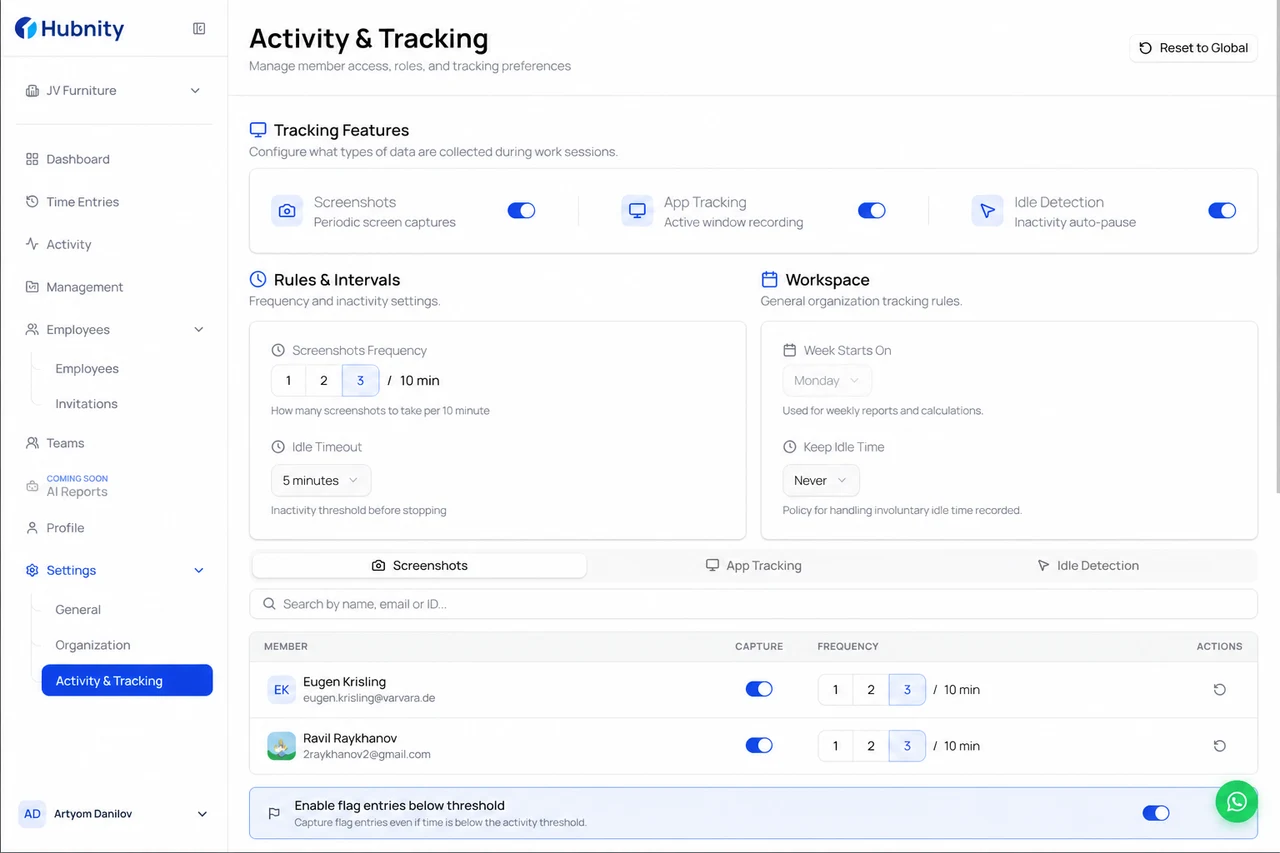
Enable Flag entries below threshold
- 3
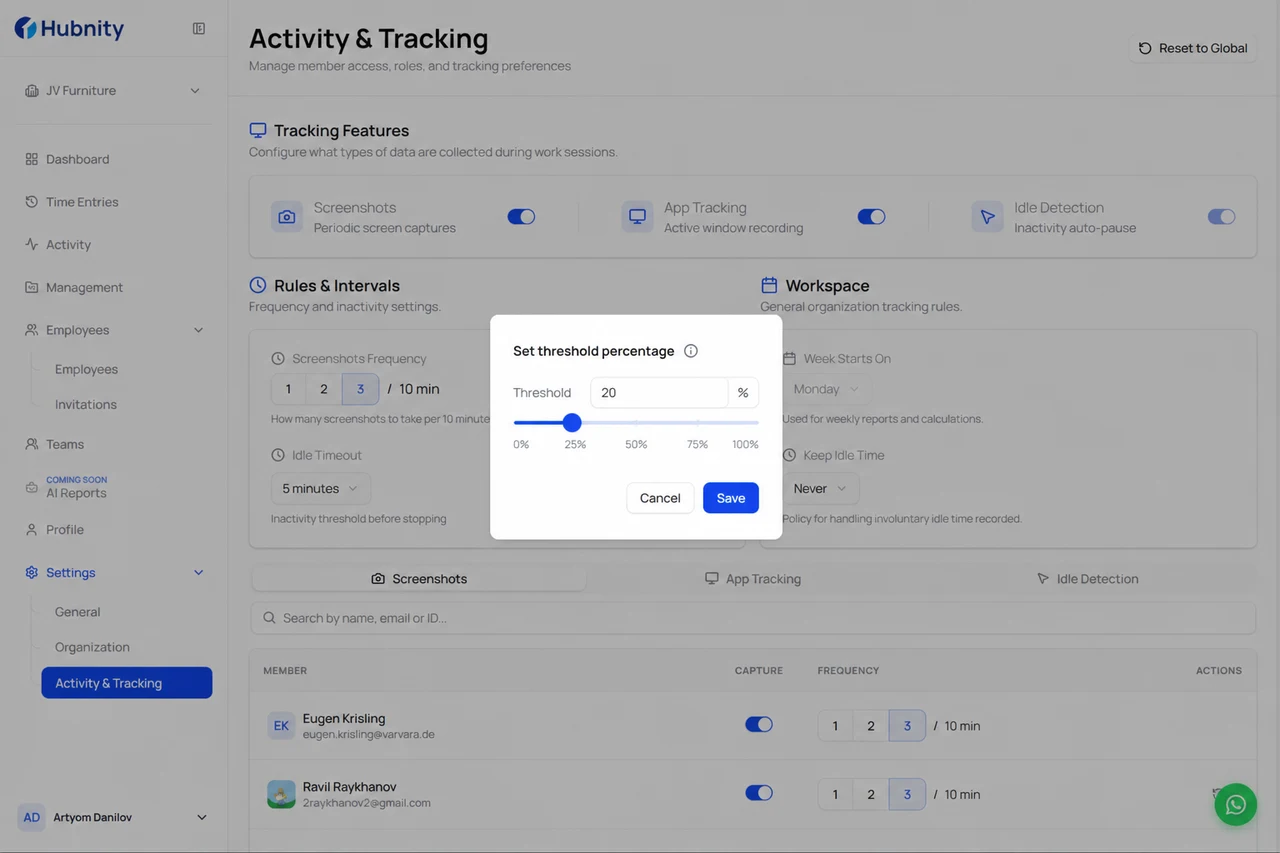
Set threshold percentage (default: 20%)
- 4
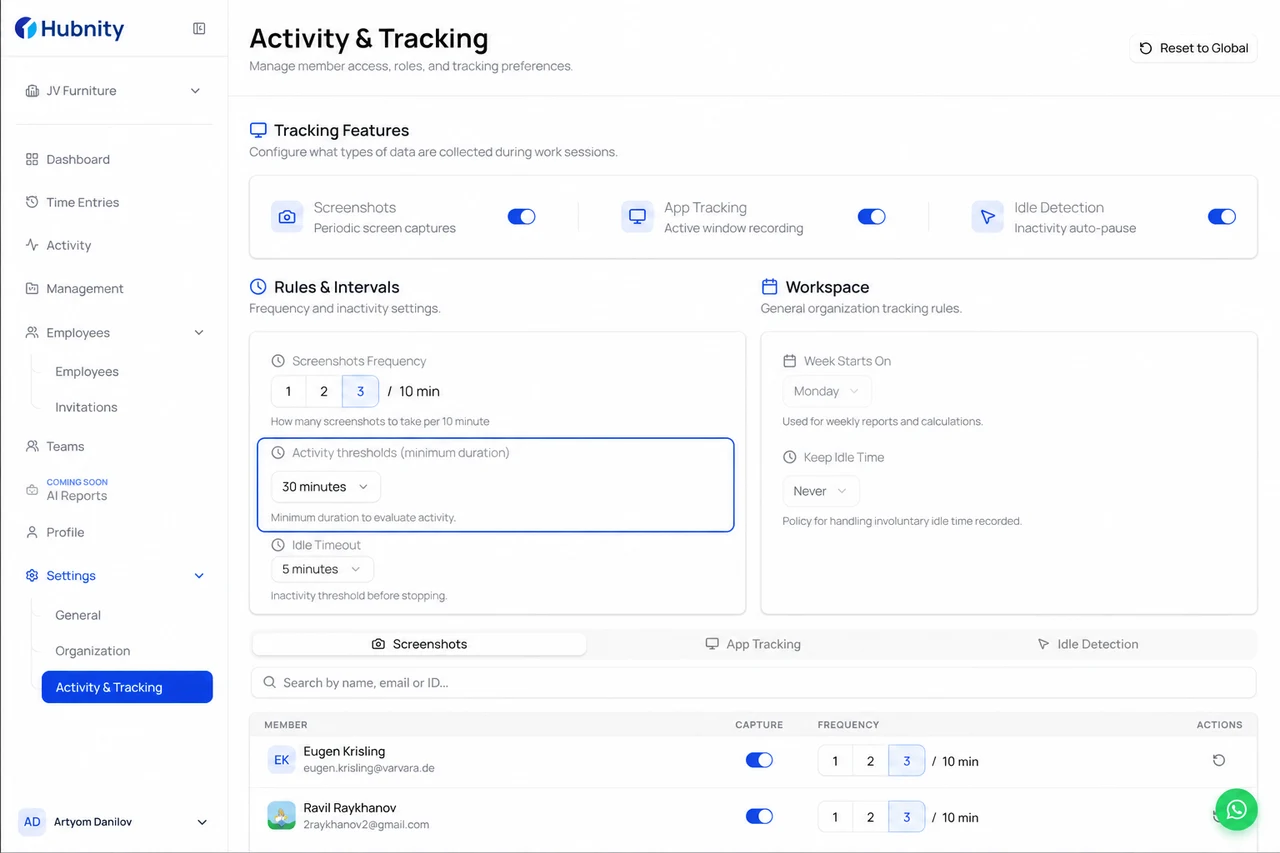
Choose minimum entry duration to evaluate (default: 30 minutes)
- 5
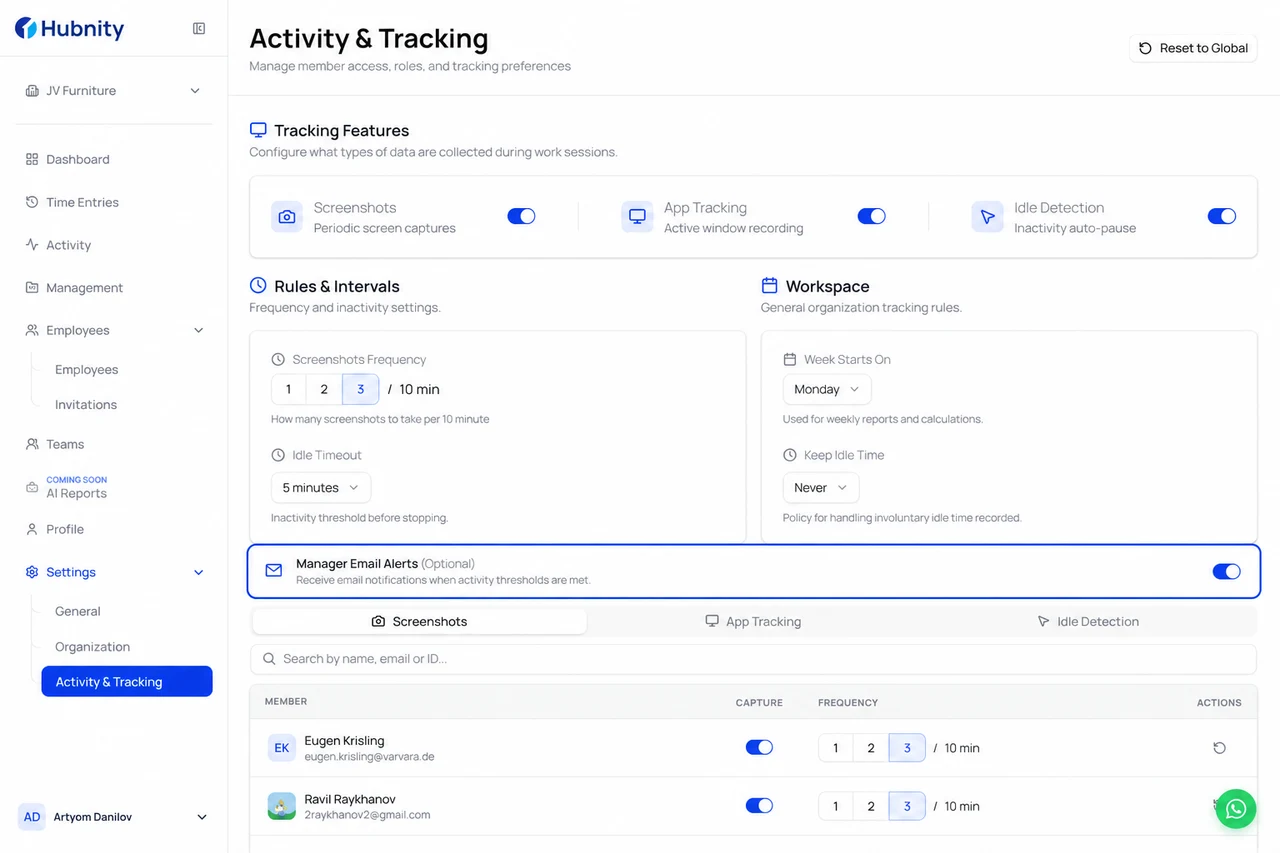
Enable manager email alerts (optional)
- 6
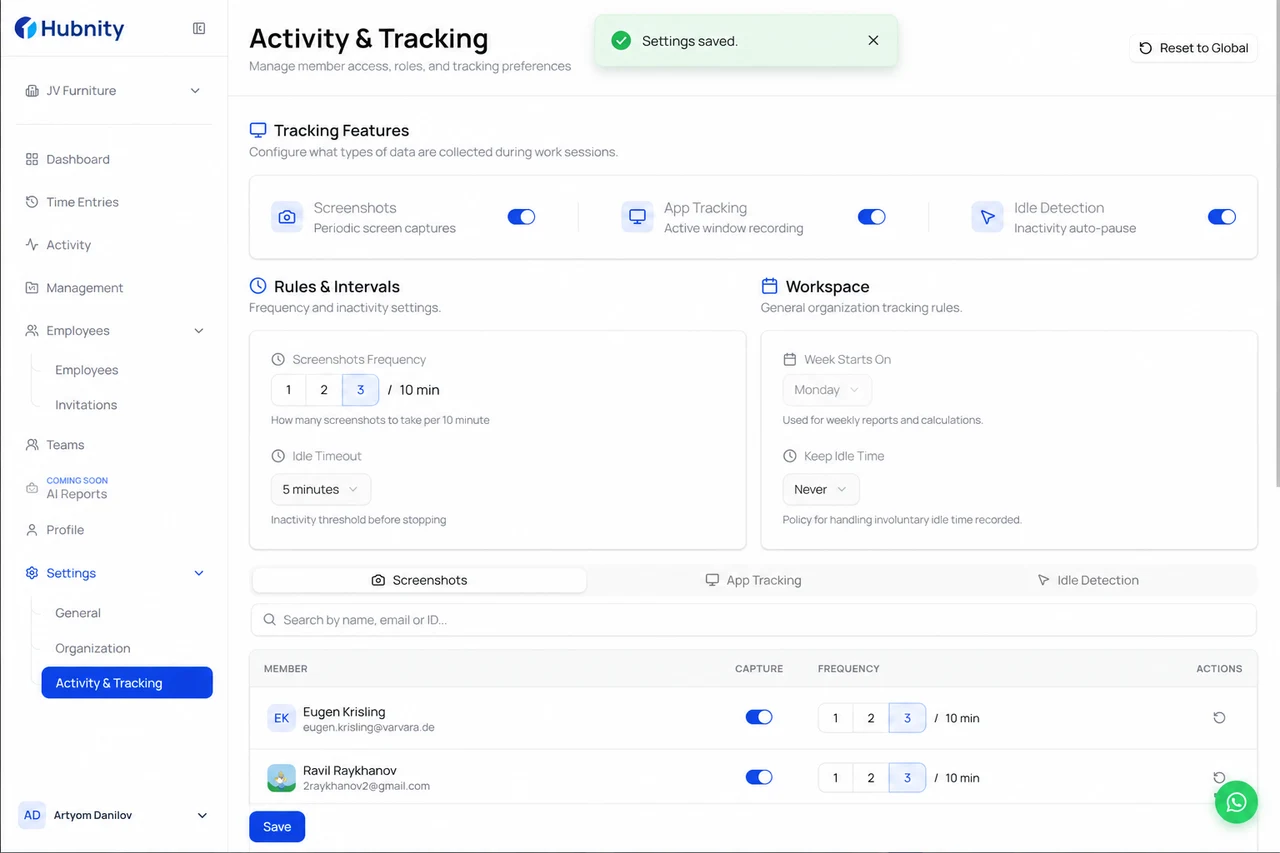
Save
Alert behavior
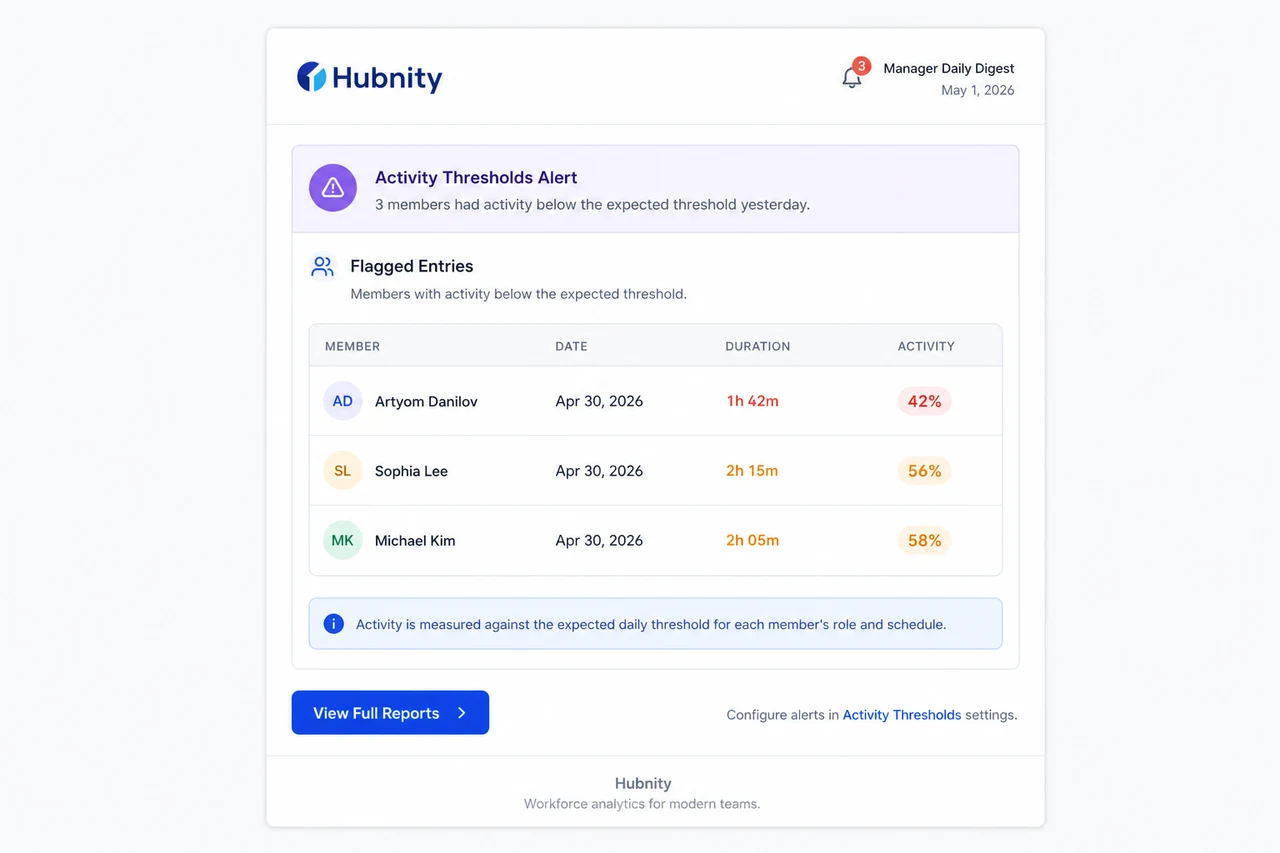
When enabled, managers receive a daily digest of flagged entries for their teams.
Alerts include member name, date, entry duration, and activity percentage.
Reviewing flagged entries
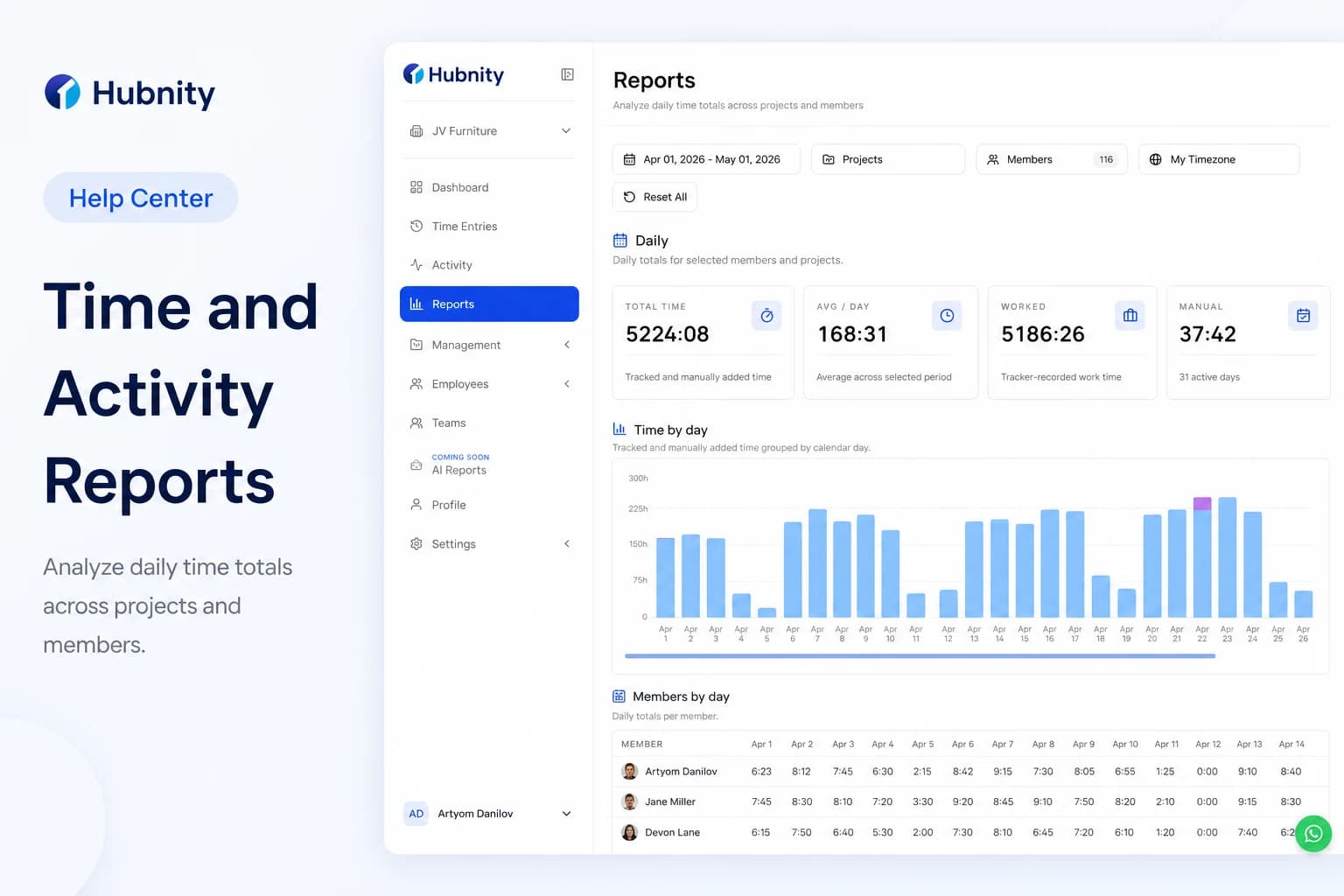
Open Reports → Time & Activity → Flagged tab to see all entries below threshold.
Managers can approve, request edit, or add a note. Members receive notification of requested edits.
Best practices
Set thresholds conservatively (15–25%) to avoid false positives for reading-heavy roles.
Combine with idle detection rather than relying solely on activity thresholds for accuracy.