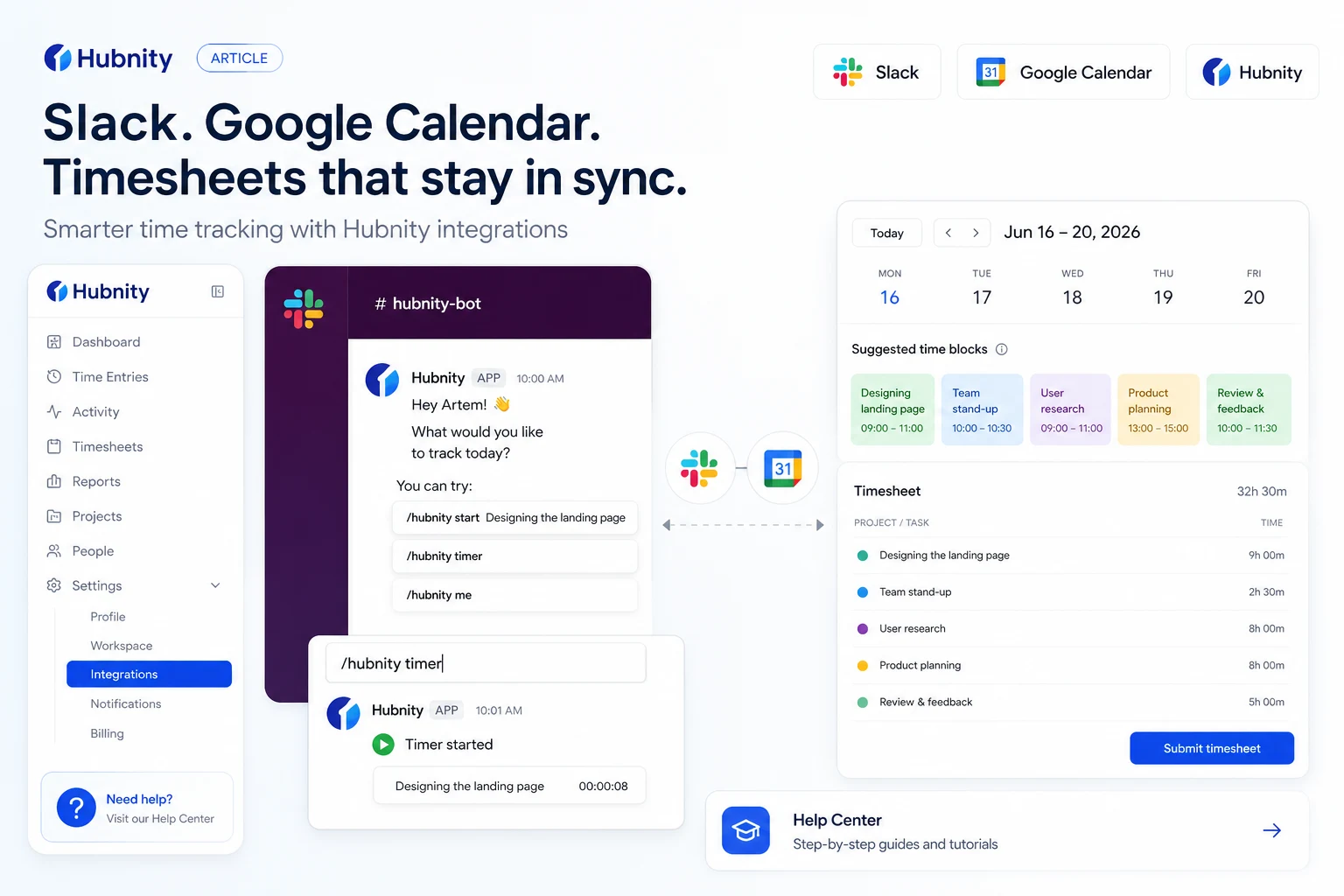
Connect Slack for timer commands and notifications, and sync Google Calendar events to auto-suggest tracked time blocks.
Why connect this tool
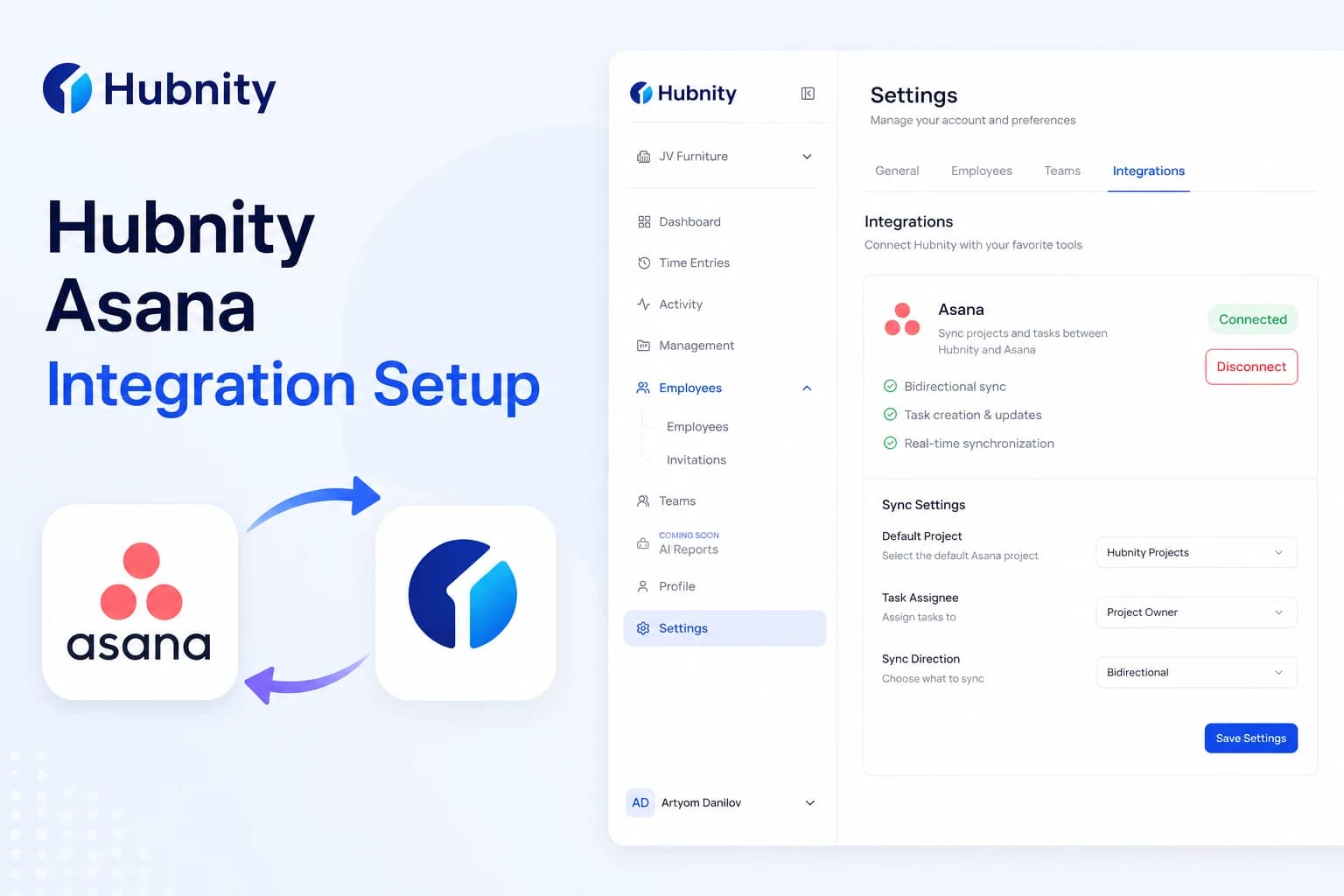
Yes, Hubnity seamlessly integrates with over 50 popular project management and communication tools, including Jira, Trello, Asana, Slack, and Notion.
Connecting slack google-calendar reduces duplicate entry—time syncs back to Hubnity timesheets.
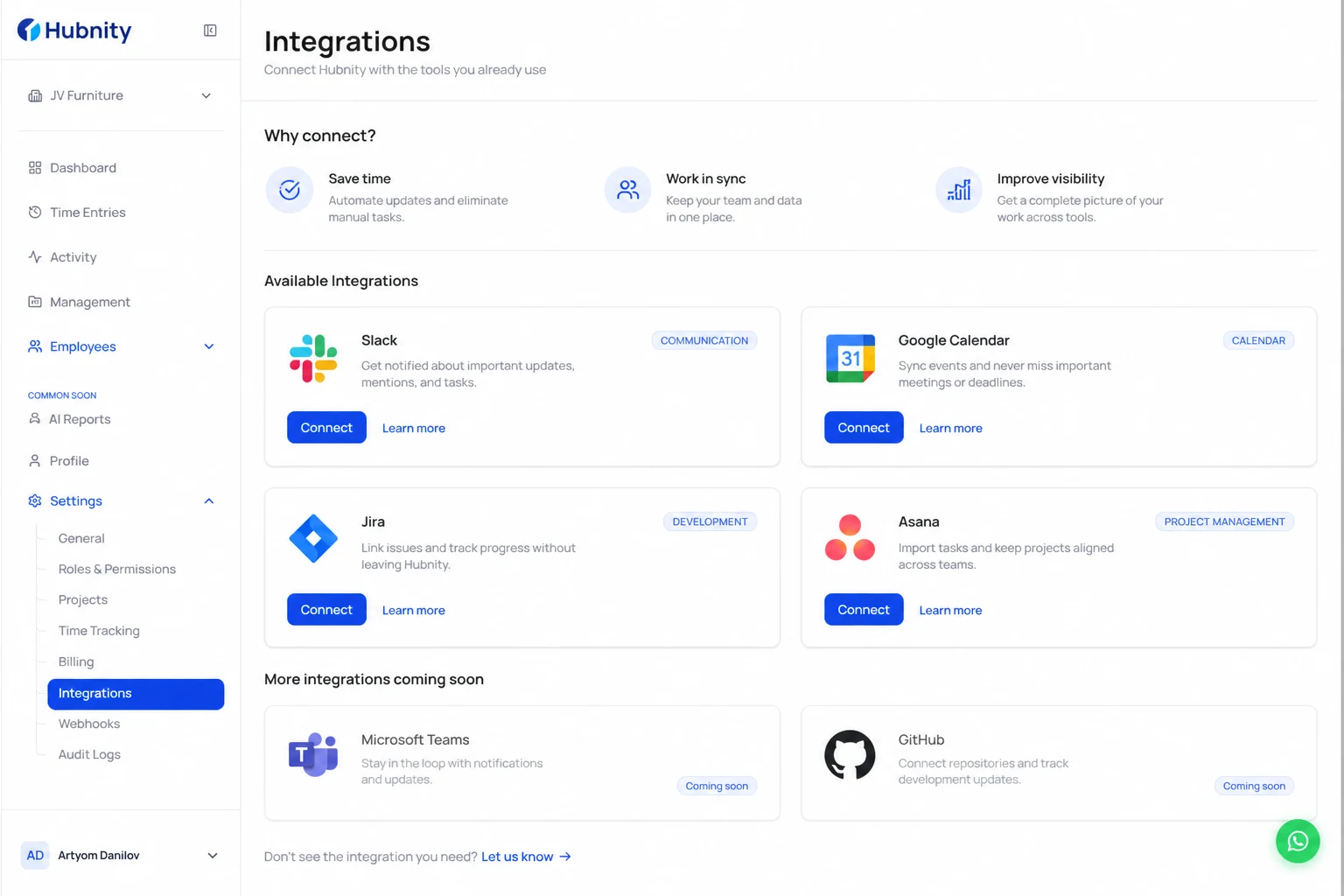
Connect Slack
The Slack integration adds a Hubnity bot to your workspace for timer control and notifications.
- 1
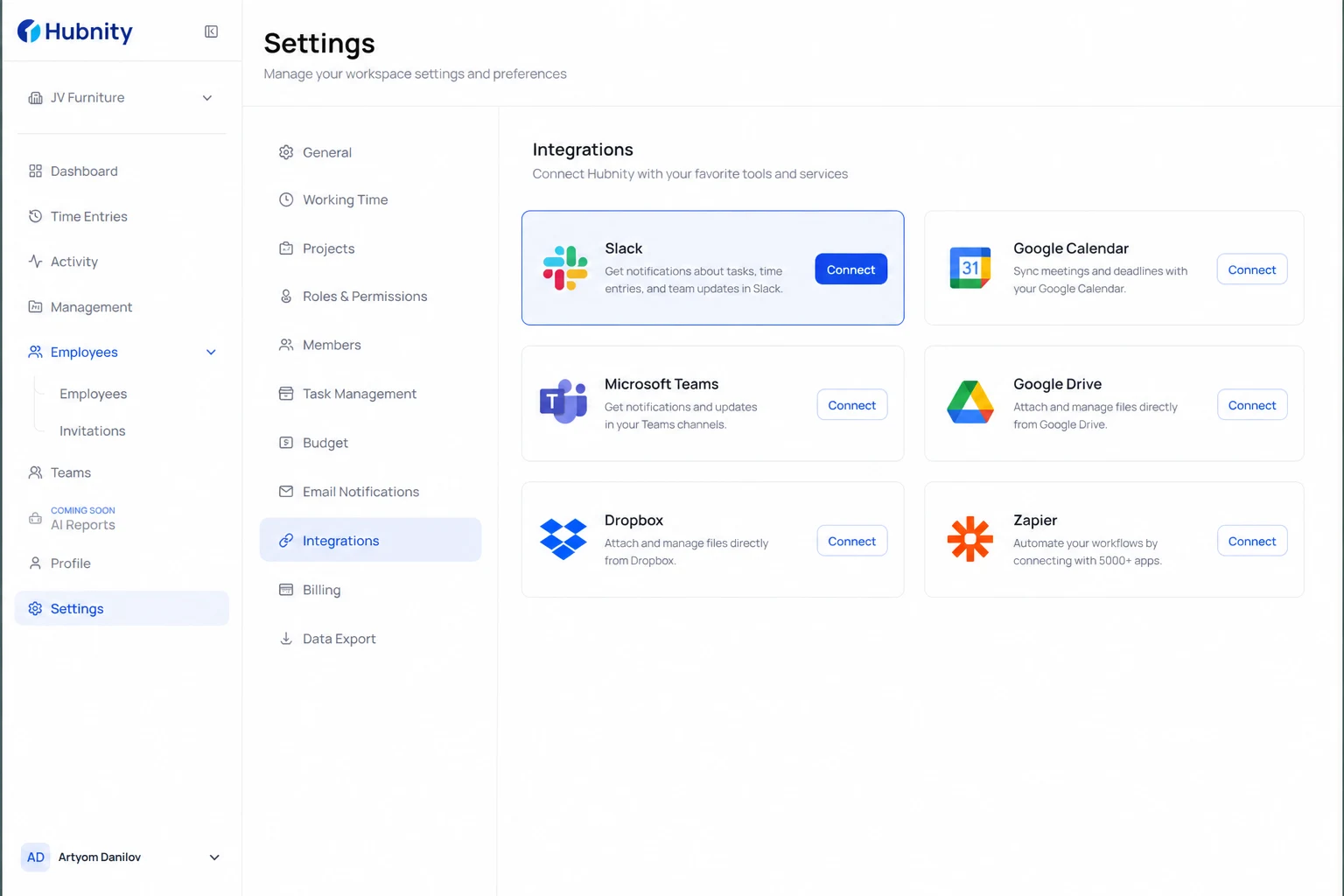
Go to Settings → Integrations → Slack
- 2
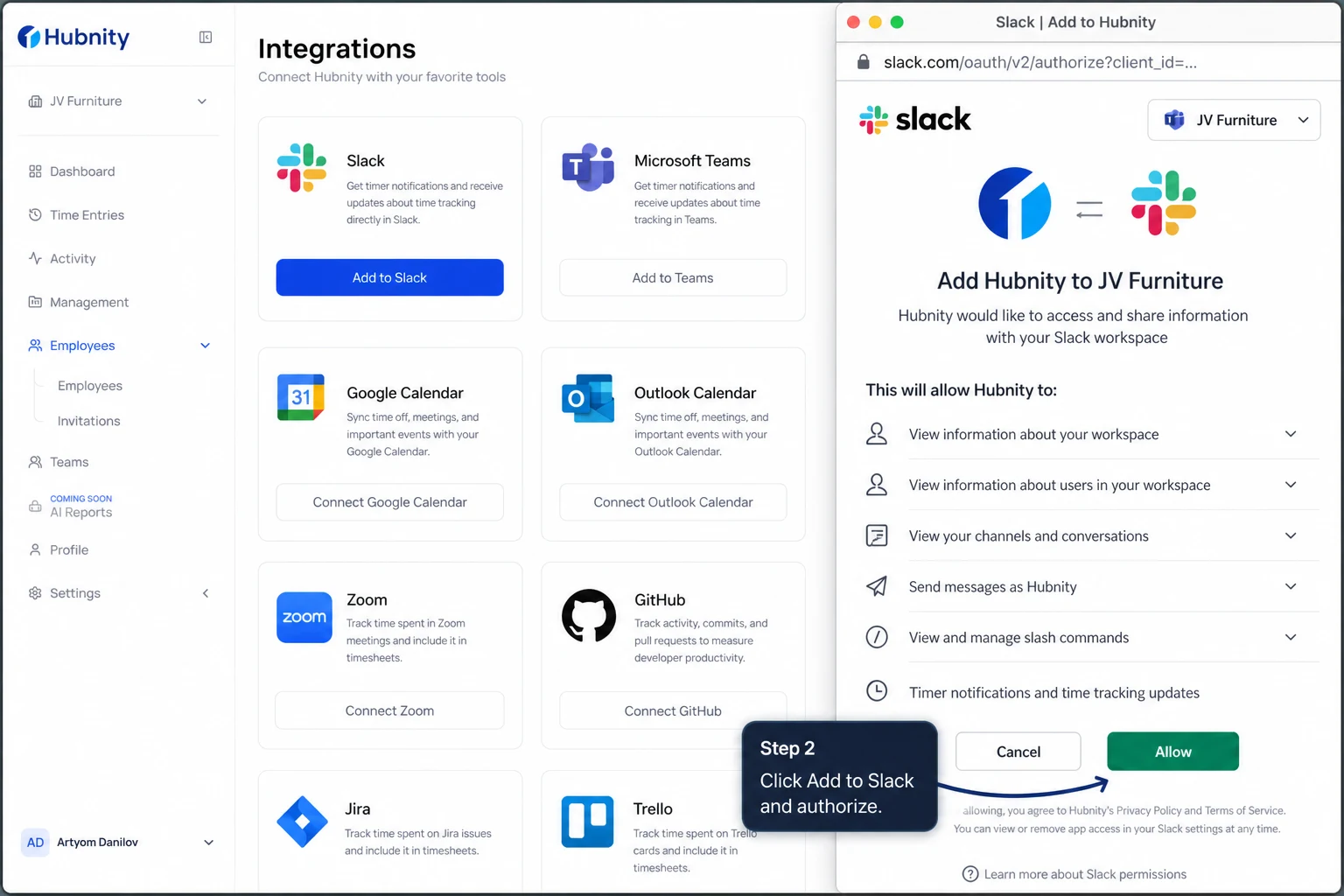
Click Add to Slack and authorize the Hubnity app
- 3
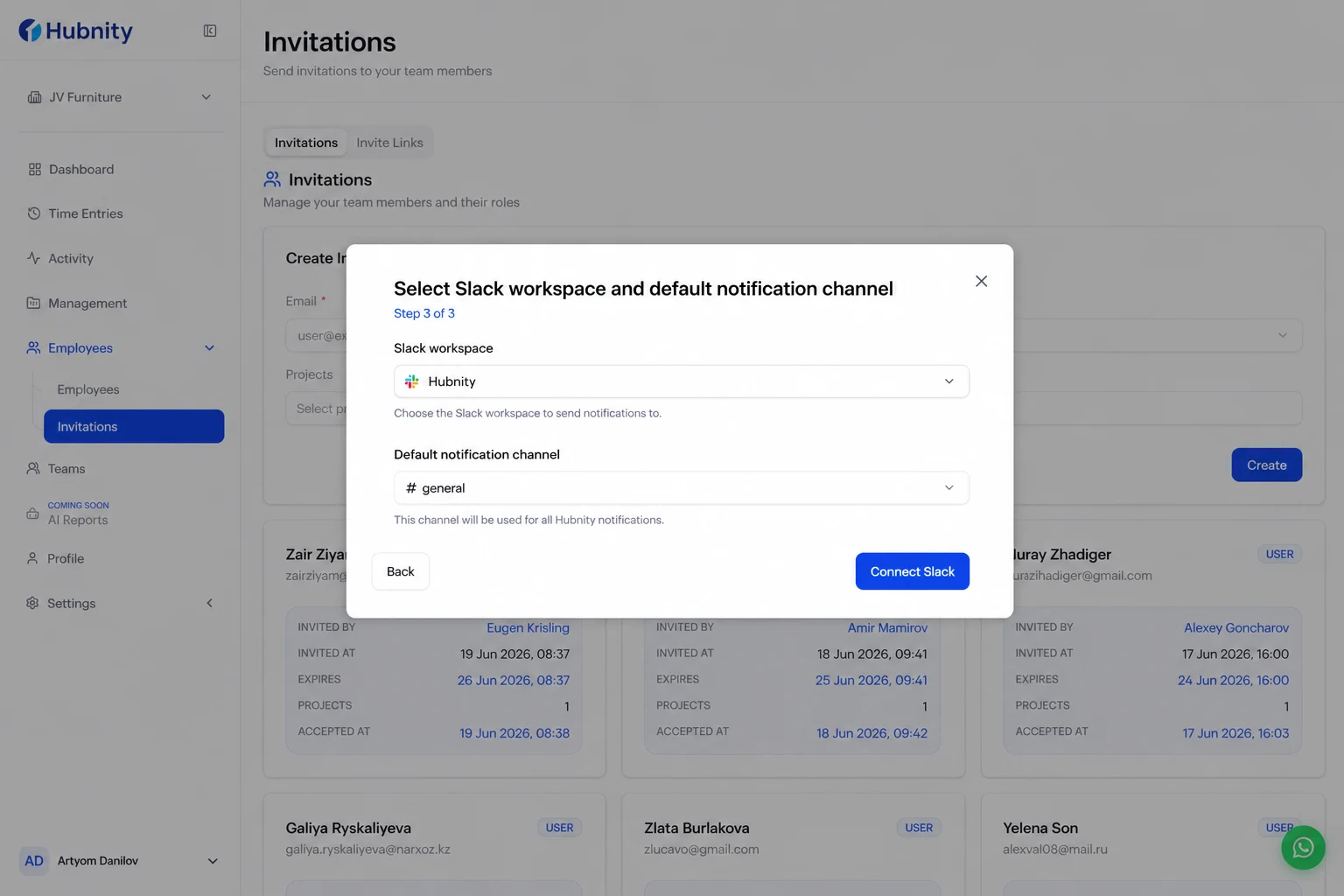
Select the Slack workspace and default notification channel
- 4
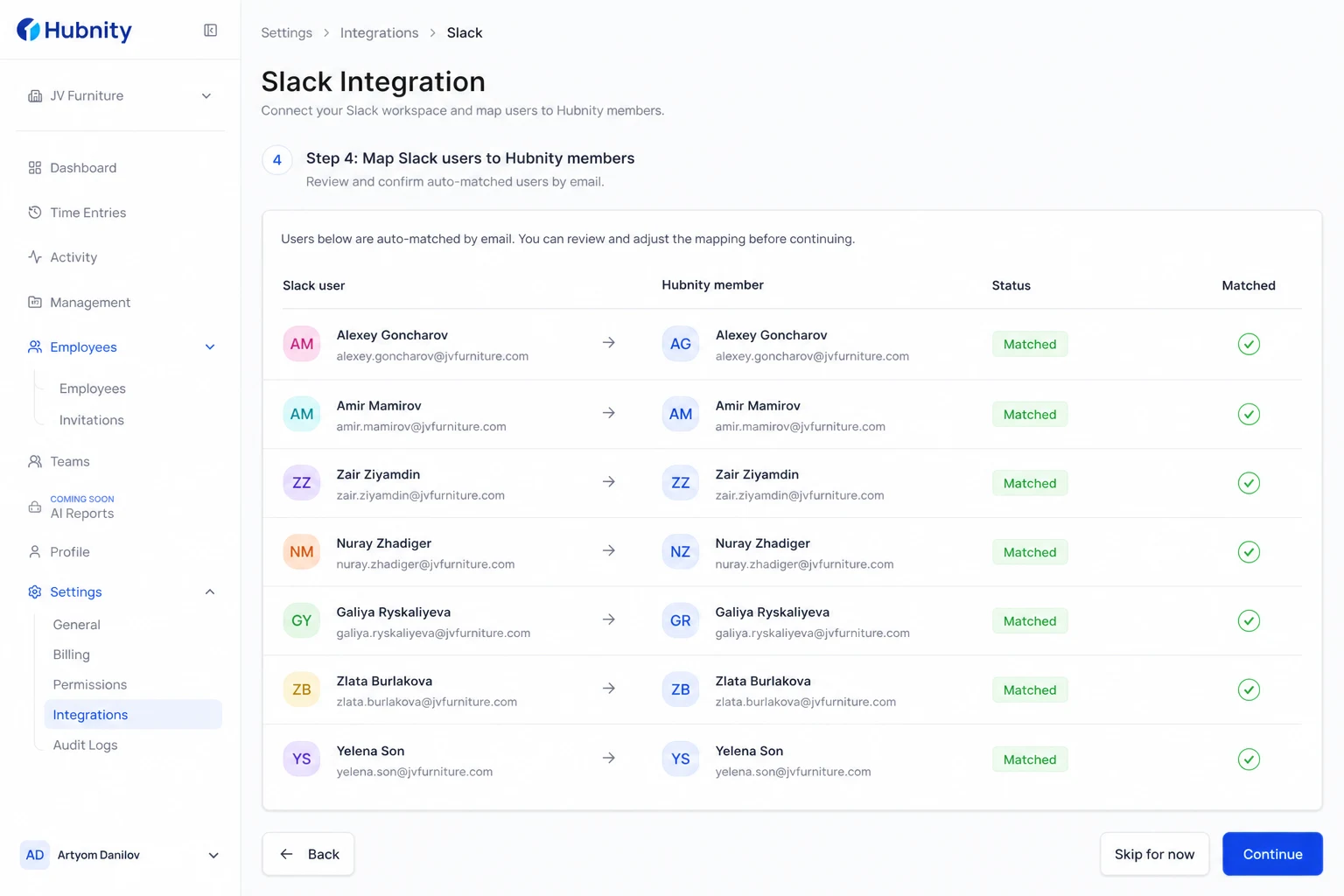
Map Slack users to Hubnity members (auto-matched by email)
- 5
Save and test with /hubnity start in any channel
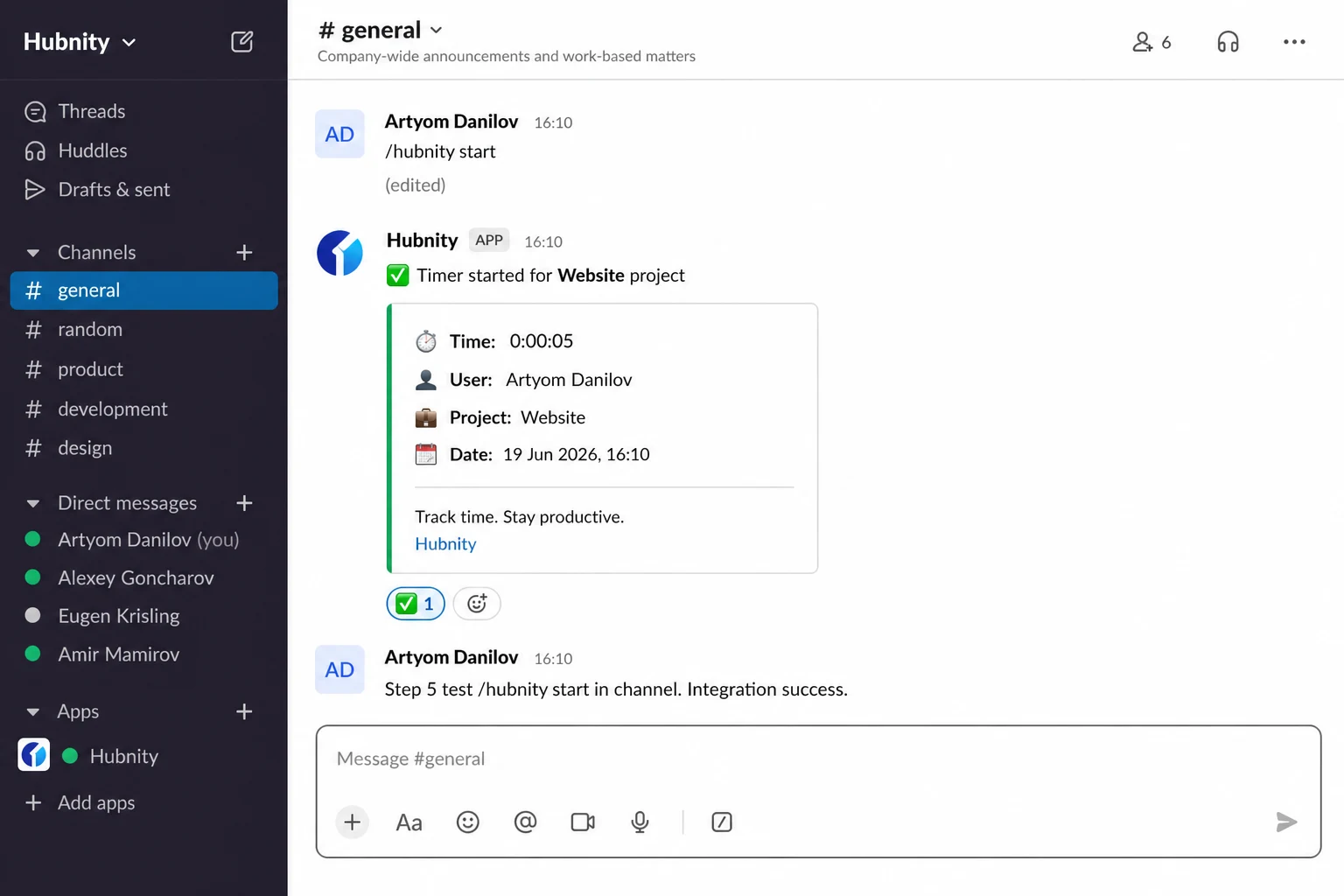
Slack commands
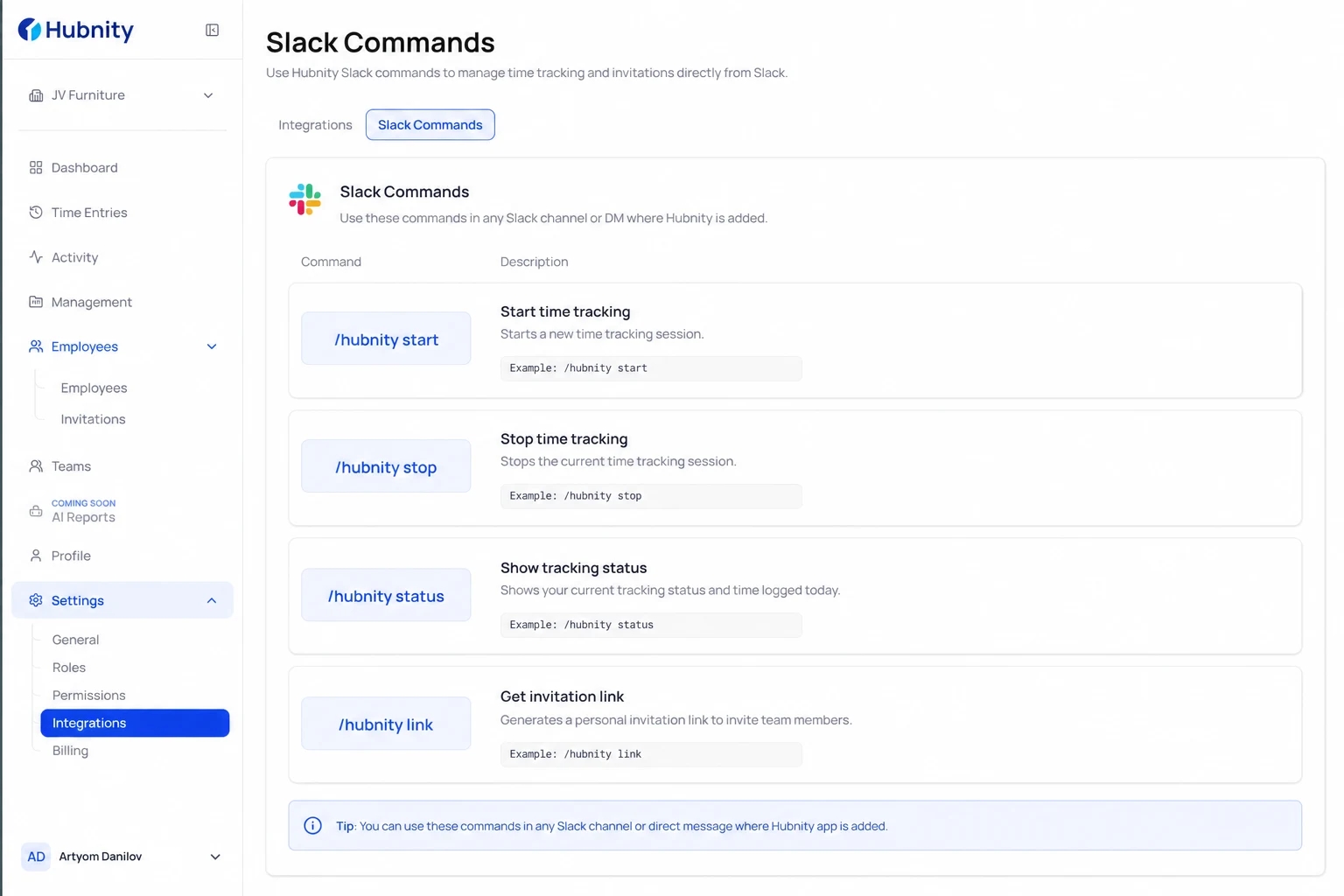
/hubnity start [project] — start the timer for the authenticated user.
/hubnity stop — stop the active timer.
/hubnity status — show current timer state and today's total hours.
/hubnity link — connect Slack identity to Hubnity account (for first-time users).
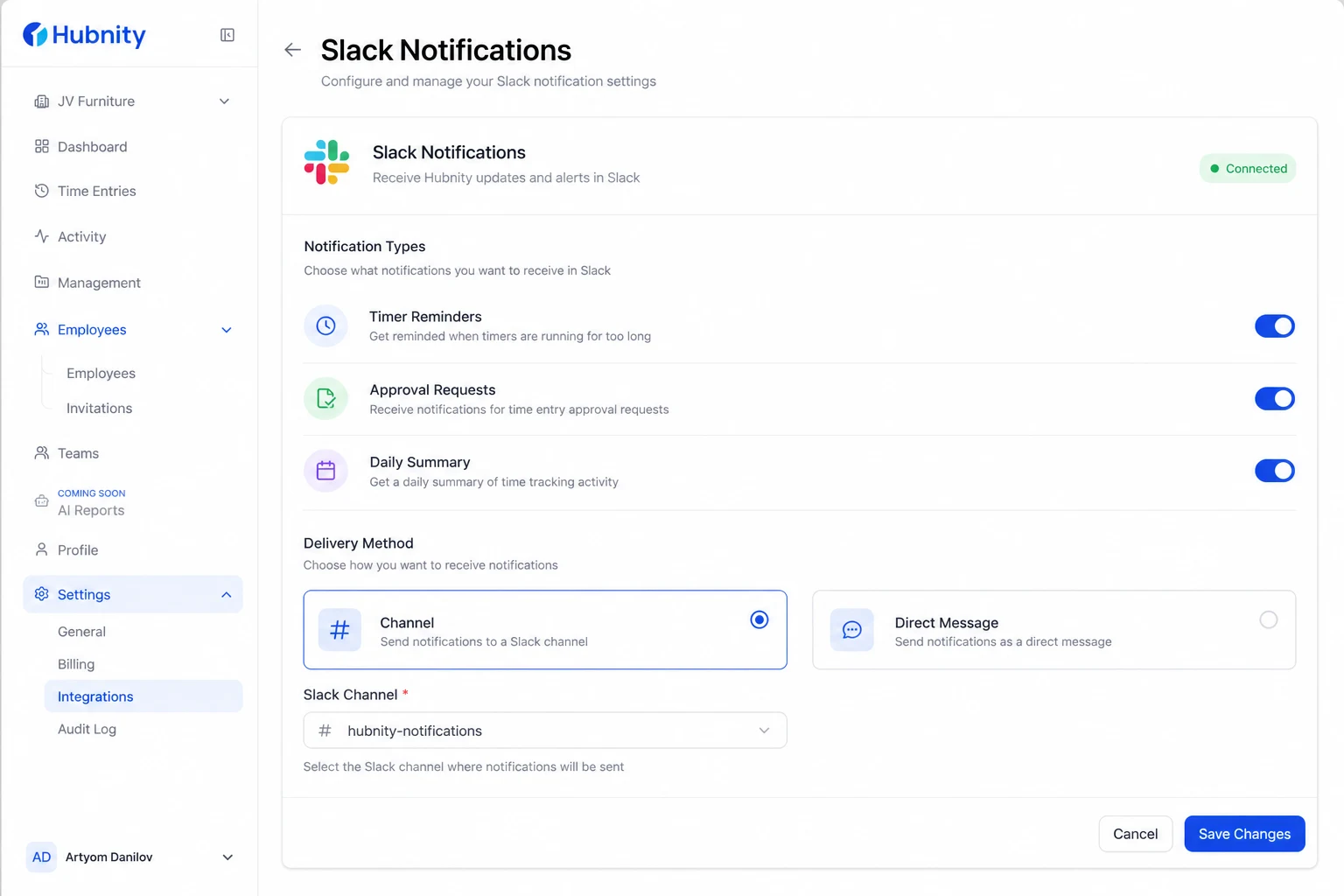
Slack notifications
Configure notification types from Settings → Integrations → Slack → Notifications: timer reminders, approval requests, daily summary.
Notifications post to the configured channel or as DMs based on your selection.
Connect Google Calendar
Calendar sync suggests time blocks based on meeting and focus events. It does not auto-track without member confirmation.
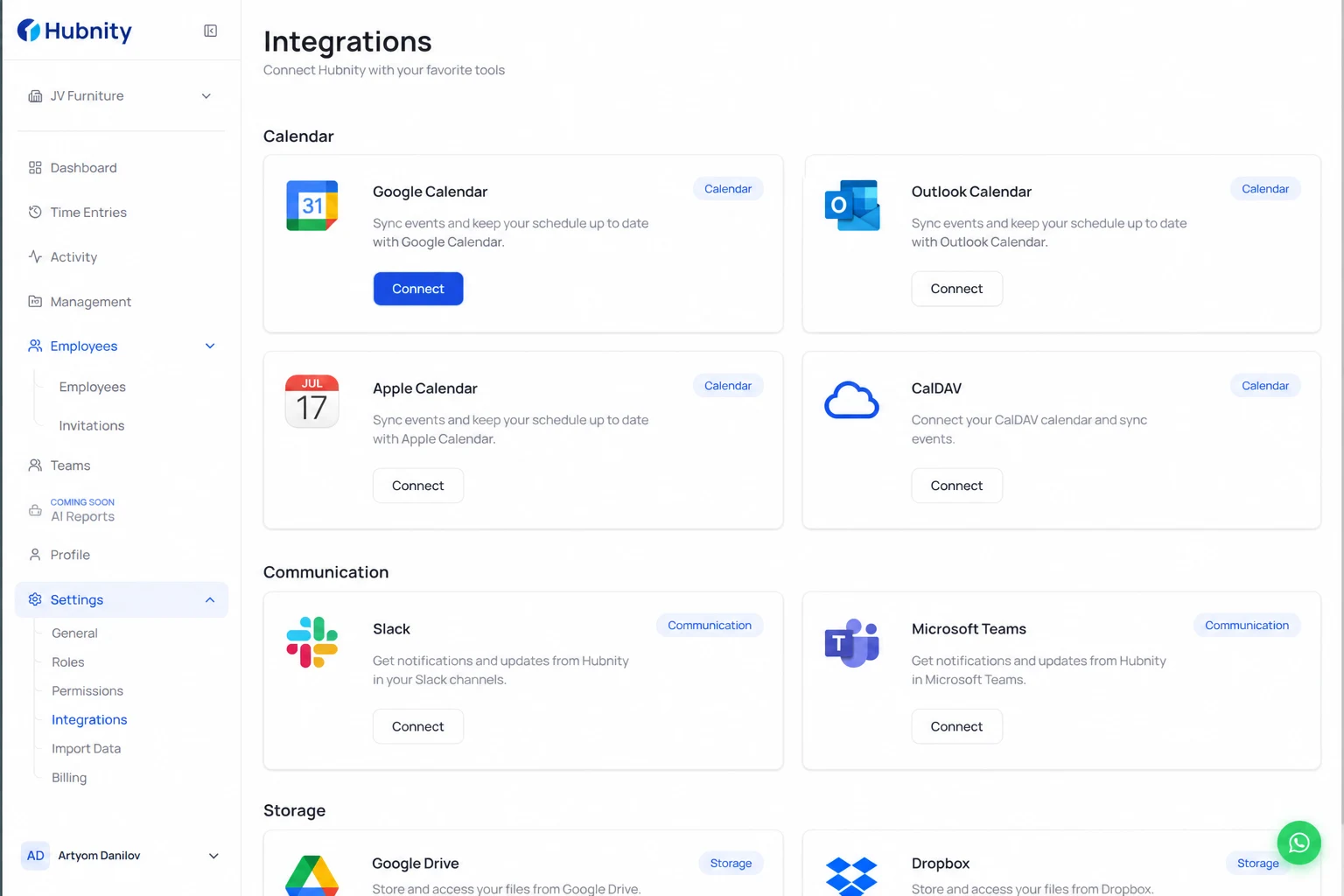
- 1
Go to Settings → Integrations → Google Calendar
- 2
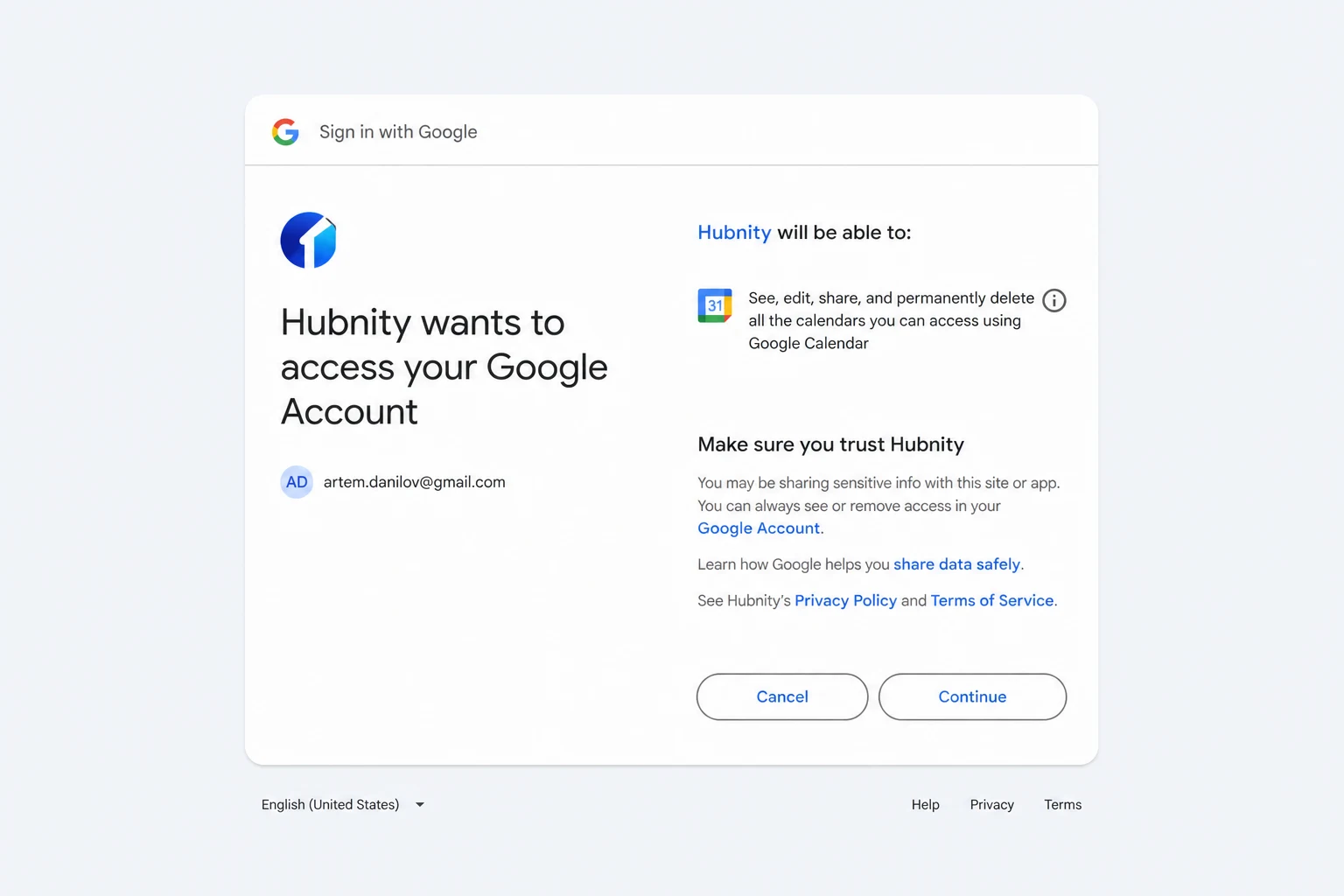
Click Connect and authorize with your Google account
- 3
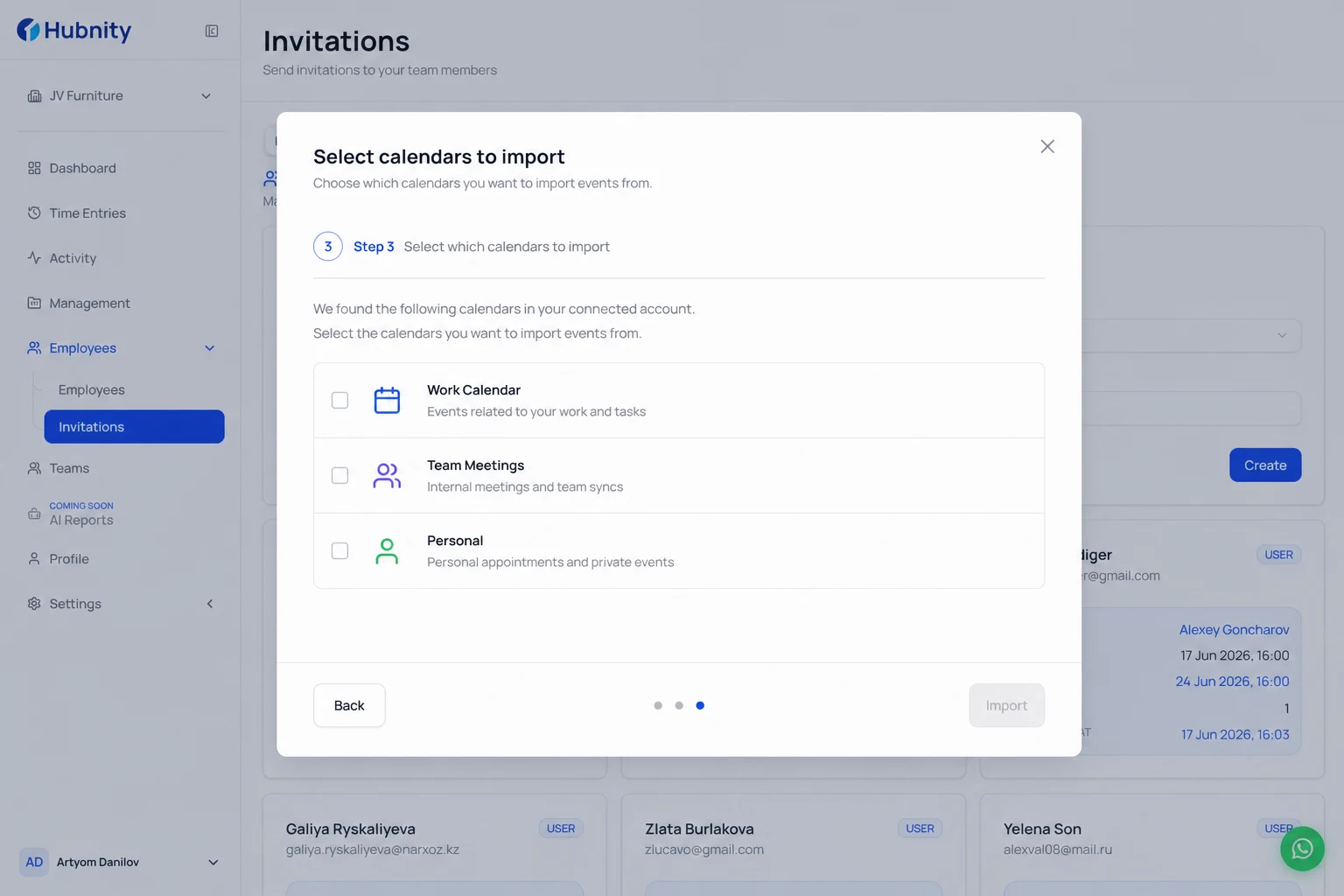
Select which calendars to import (work calendars recommended)
- 4
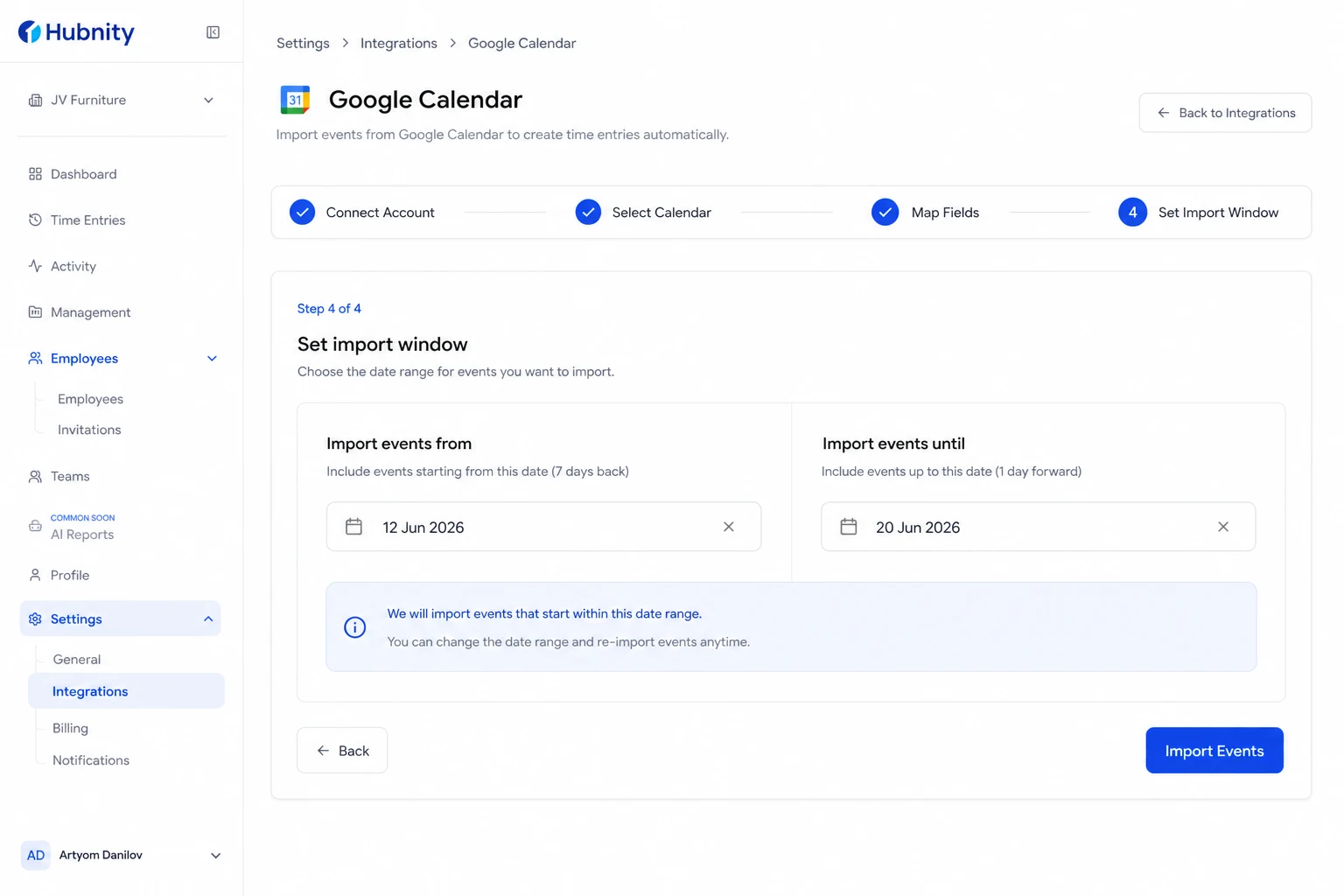
Set import window (default: 7 days back, 1 day forward)
- 5
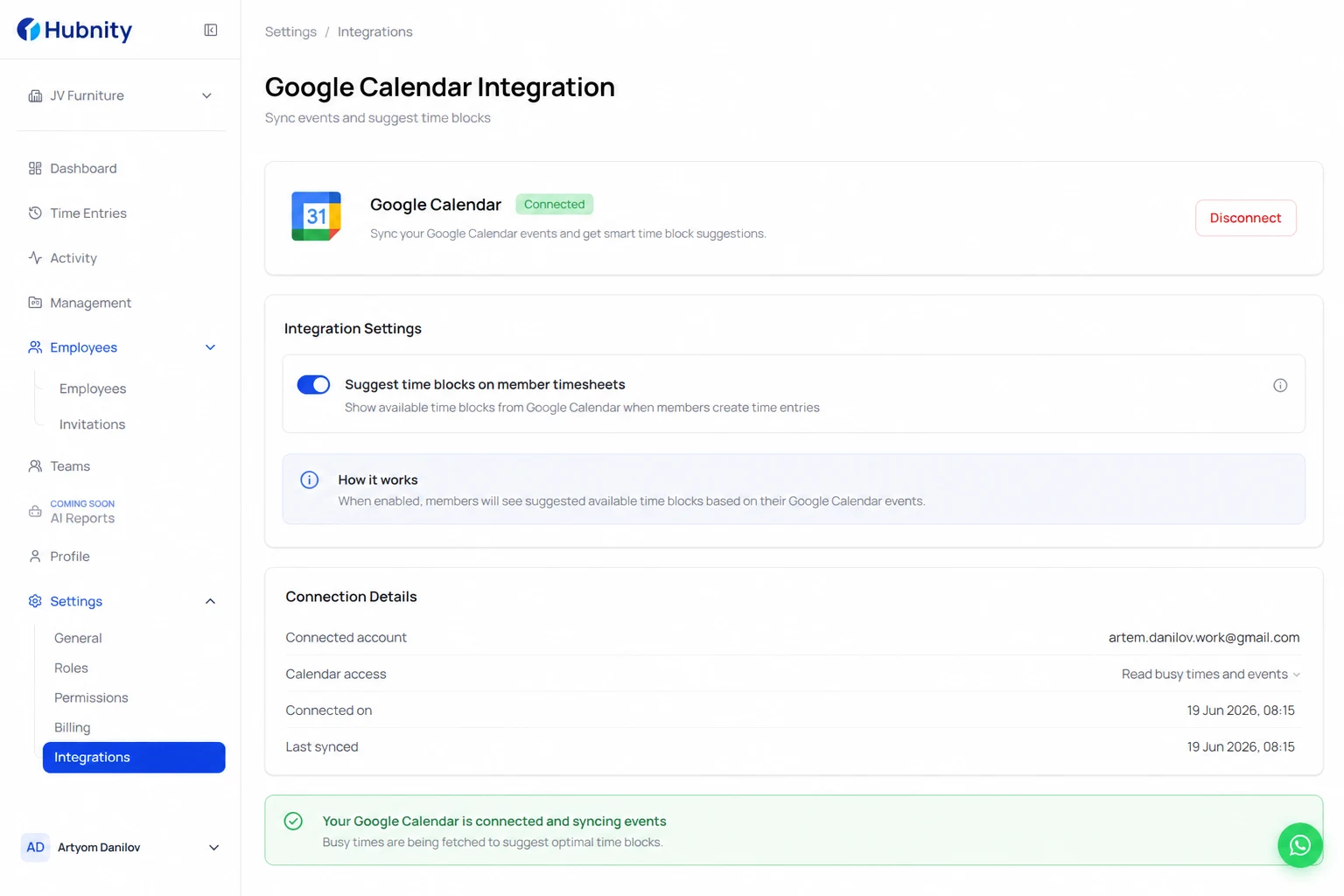
Enable Suggest time blocks on member timesheets
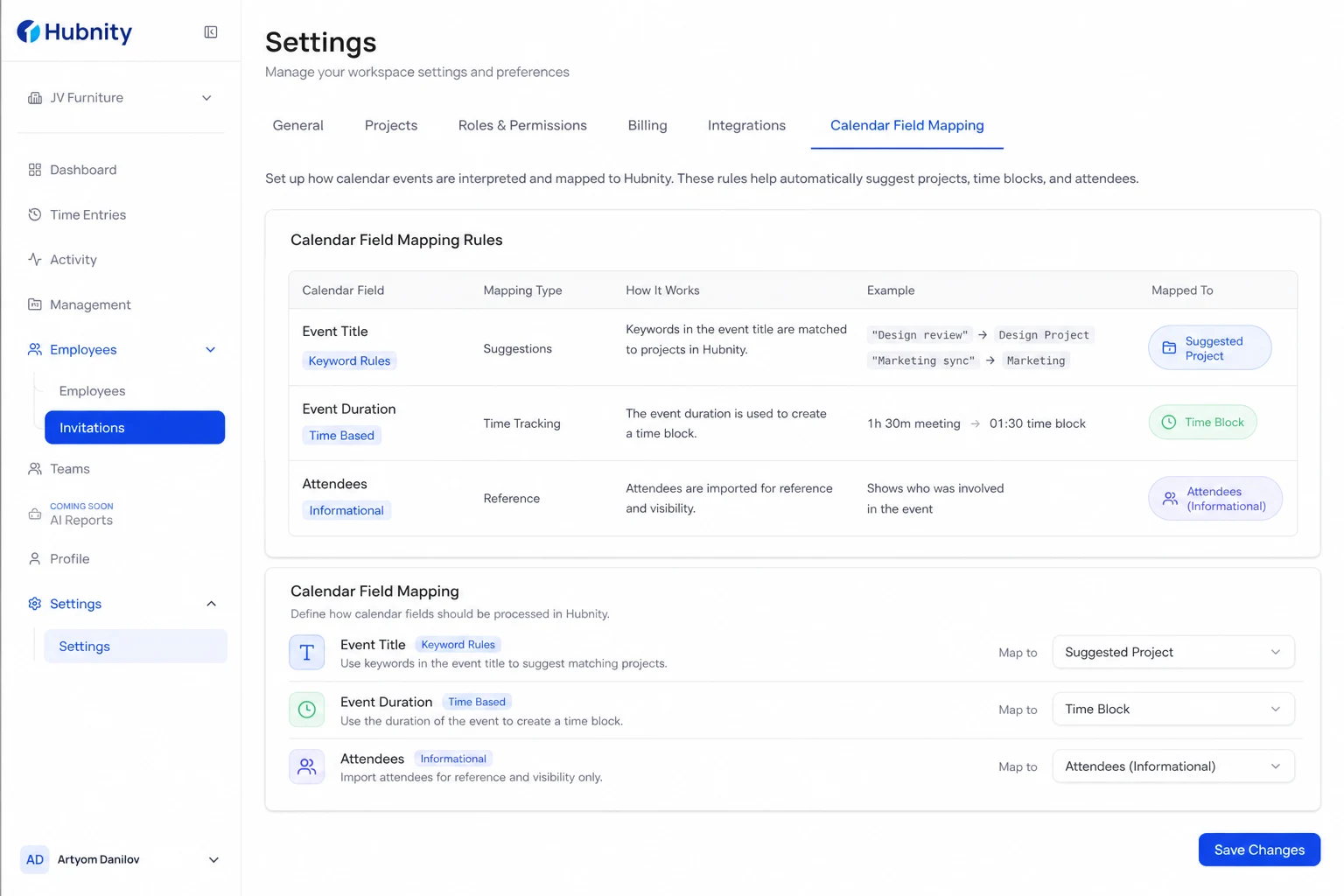
Calendar field mapping
Calendar Event Title → Suggested project (matched by keyword rules you define).
Event Duration → Suggested time block length.
Attendees → Informational only; not used for time allocation.
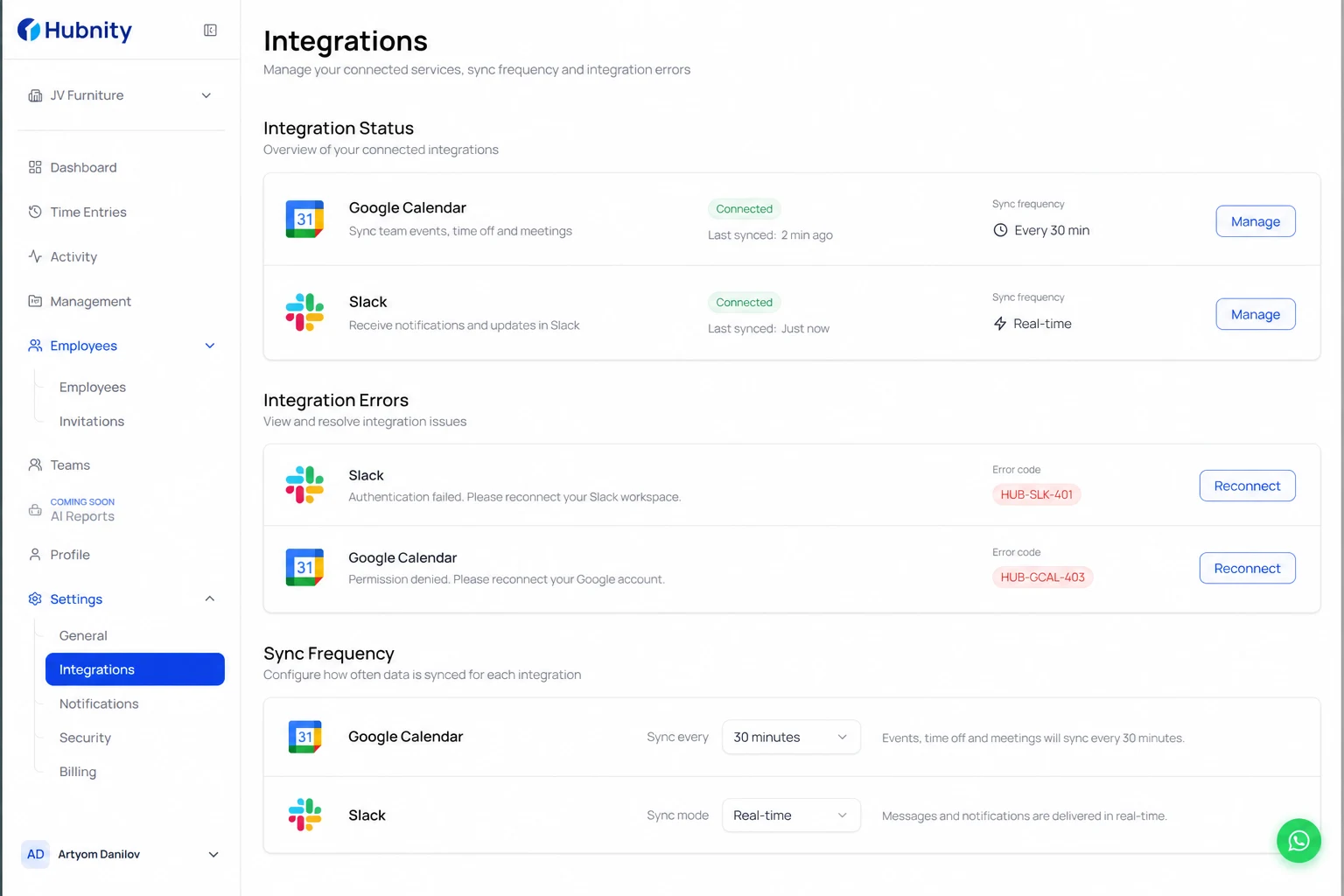
Sync frequency and errors
Calendar events sync every 30 minutes. Slack commands are real-time.
HUB-SLK-401: Slack token revoked. Reinstall from Settings → Integrations.
HUB-GCAL-403: Calendar access denied. Re-authorize with calendar read scope.