Our auto-tracking feature runs quietly in the background (via desktop app or browser extension), logging the apps and websites you use. It r
Auto tracking on hubnity.eu
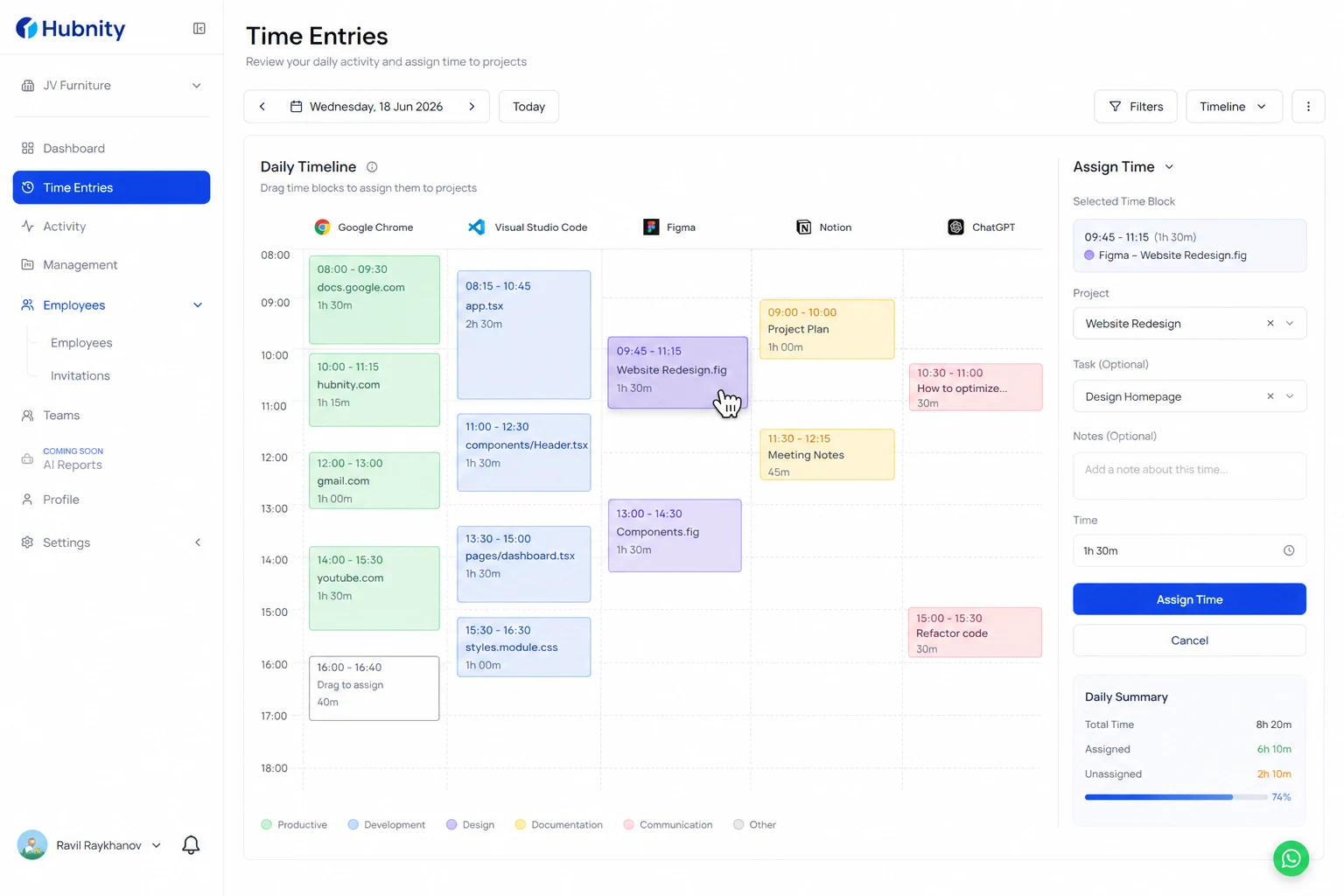
Our auto-tracking feature runs quietly in the background (via desktop app or browser extension), logging the apps and websites you use. It reconstructs your daily timeline so you can easily assign time blocks to specific tasks later.
The Hubnity desktop tracker runs silently in the background—logging hours, apps, and productivity without interrupting workflow.
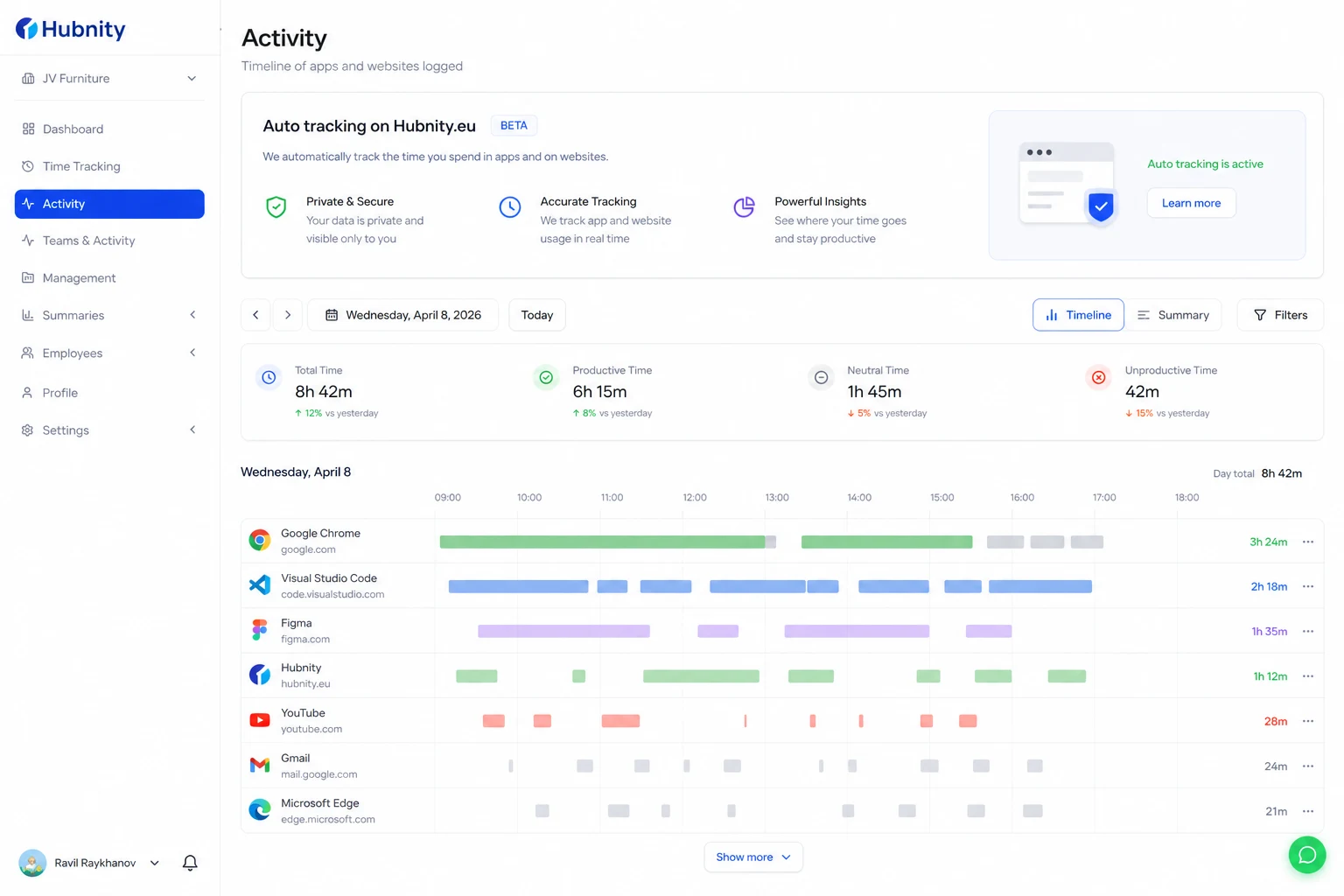
Silent background tracking
The desktop tracker captures billable seconds without interrupting workflow.
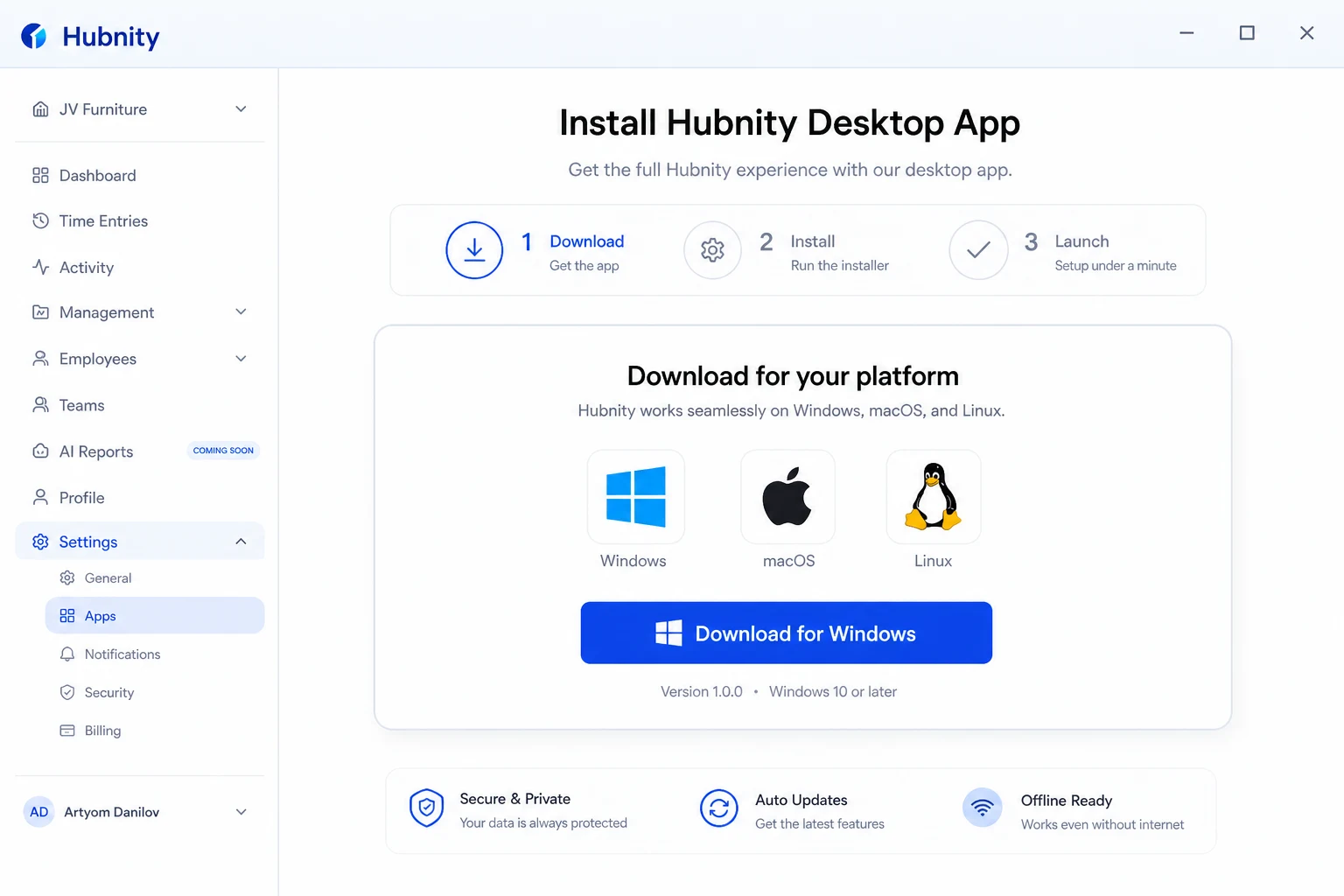
Install Hubnity for Mac, Windows, or Linux — setup takes under a minute on hubnity.eu's automated timesheets page.
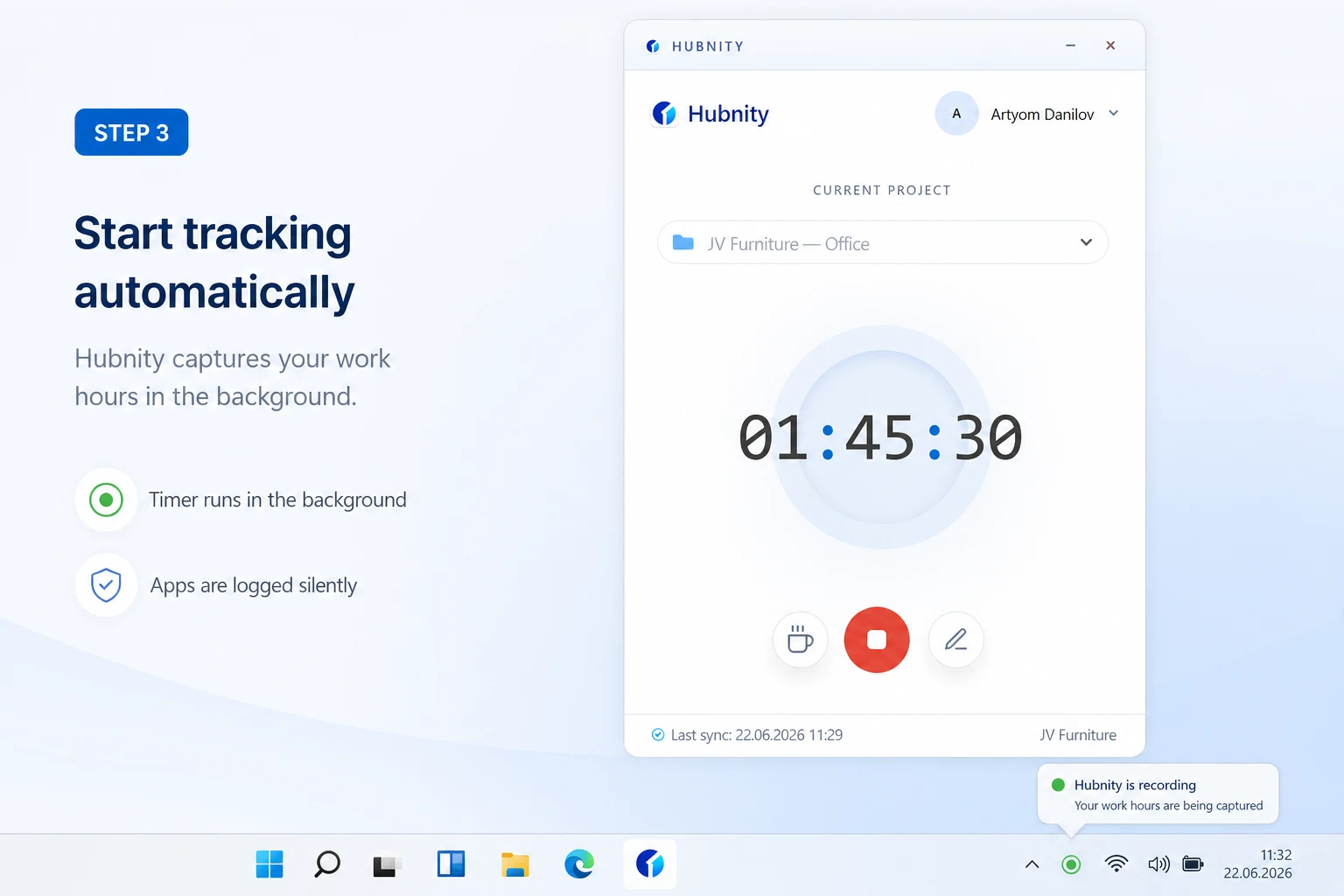
Start tracking automatically—Hubnity captures work hours and active apps in the background.
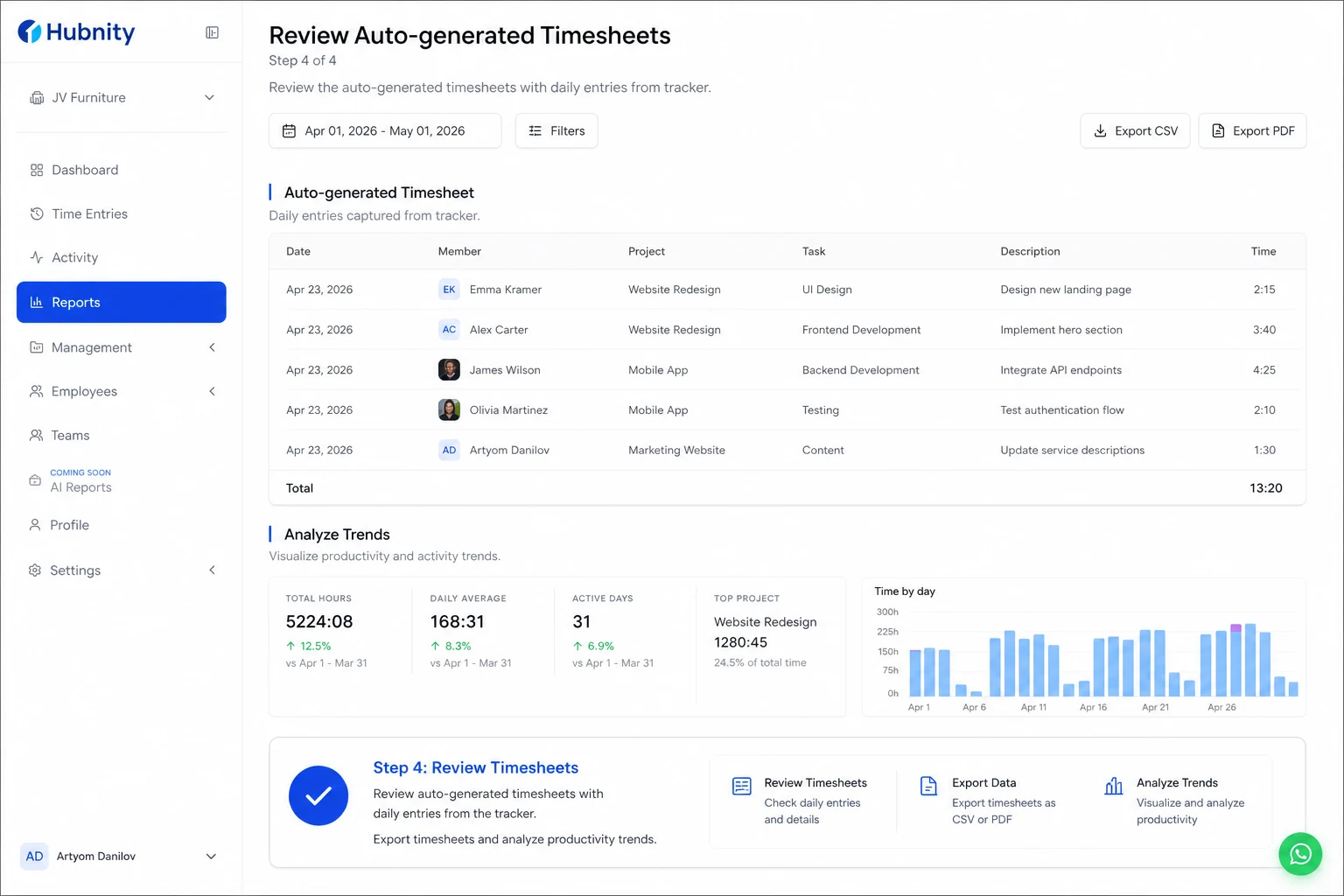
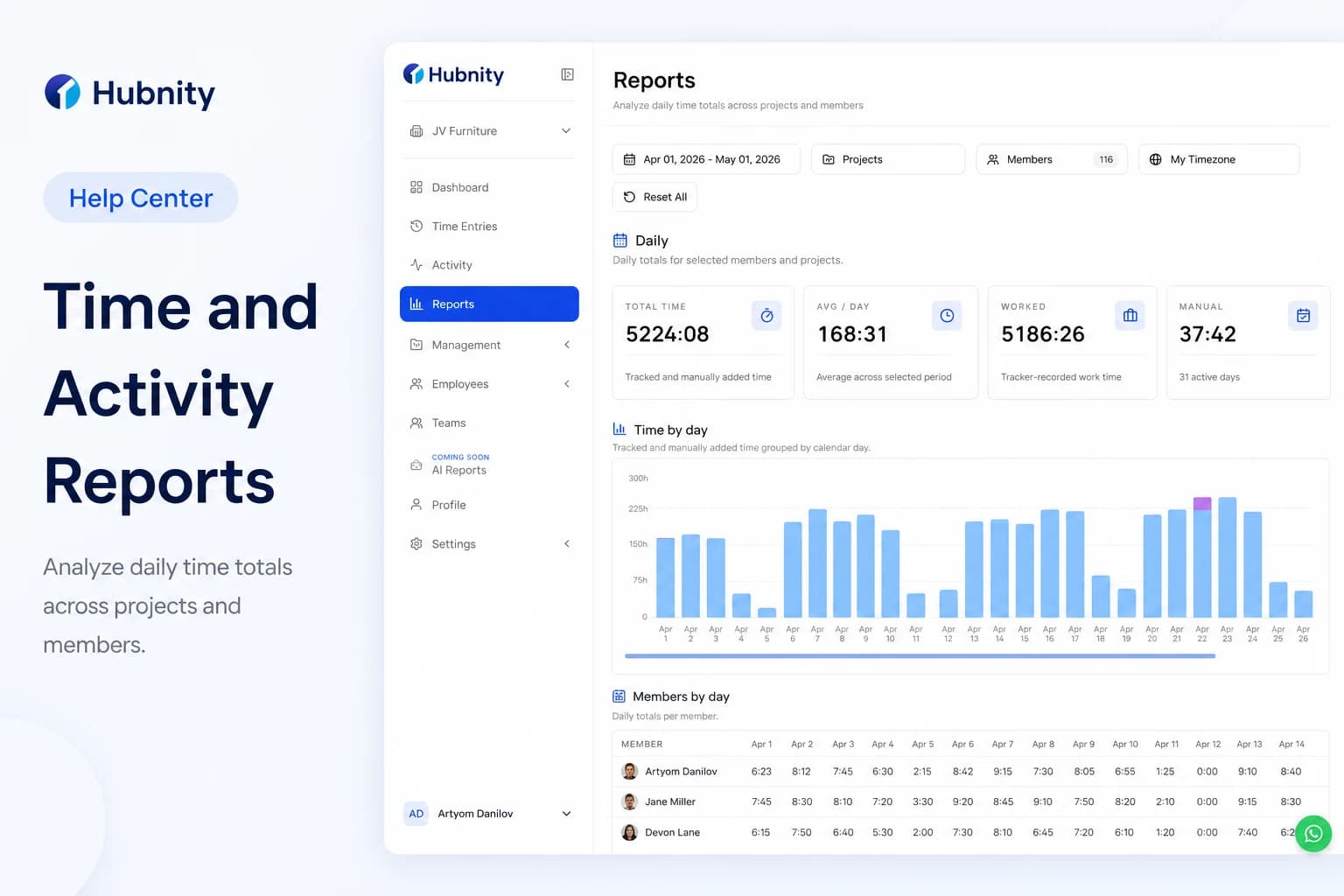
Review auto-generated timesheets, export reports, and analyze trends with real data.
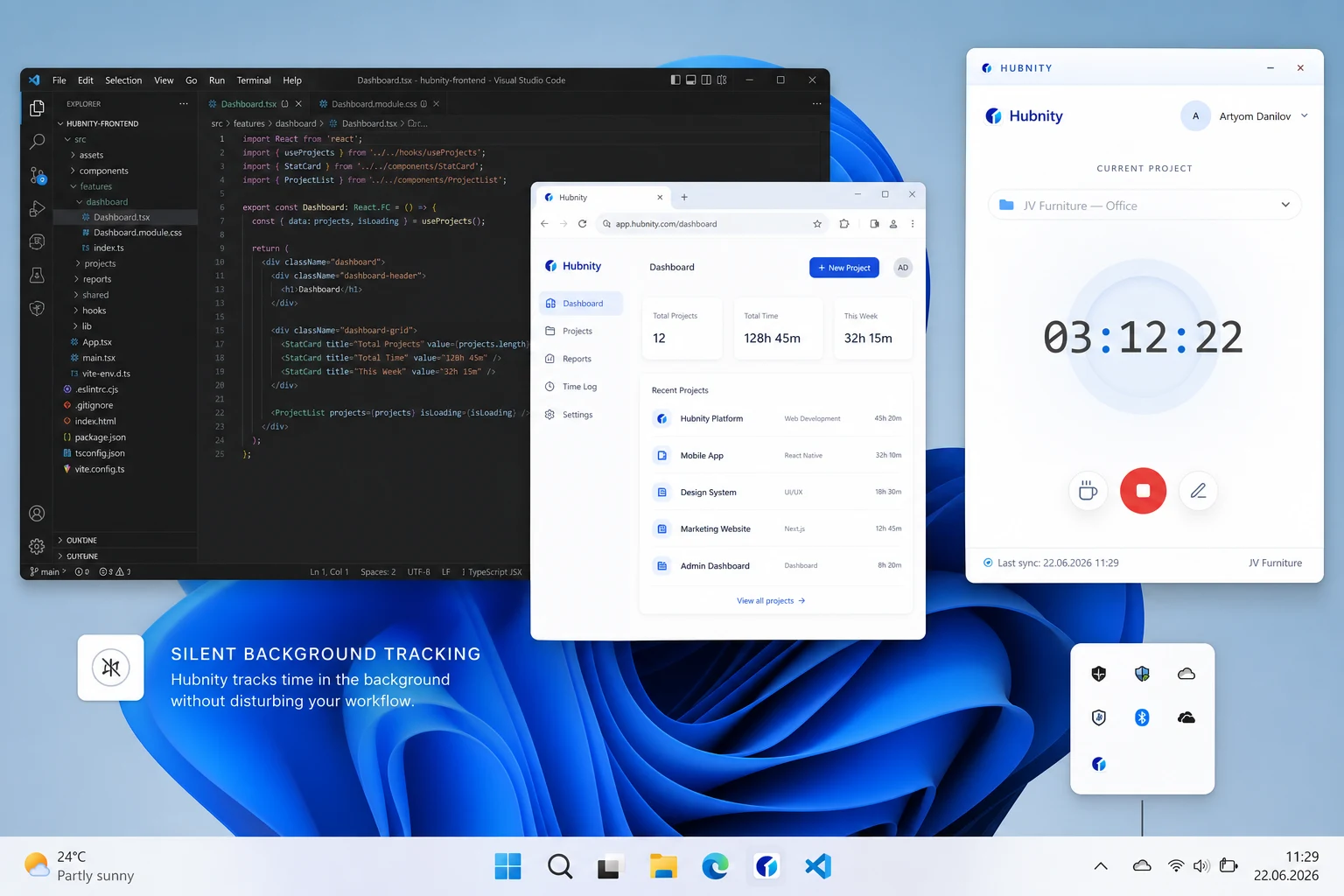
Assign time from your timeline
Review the auto-generated timeline and assign blocks to projects and tasks.
No problem! You can manually add, edit, or delete time entries after the fact. If you have auto-tracking enabled, you can also use your daily activity timeline to accurately fill in missing gaps.
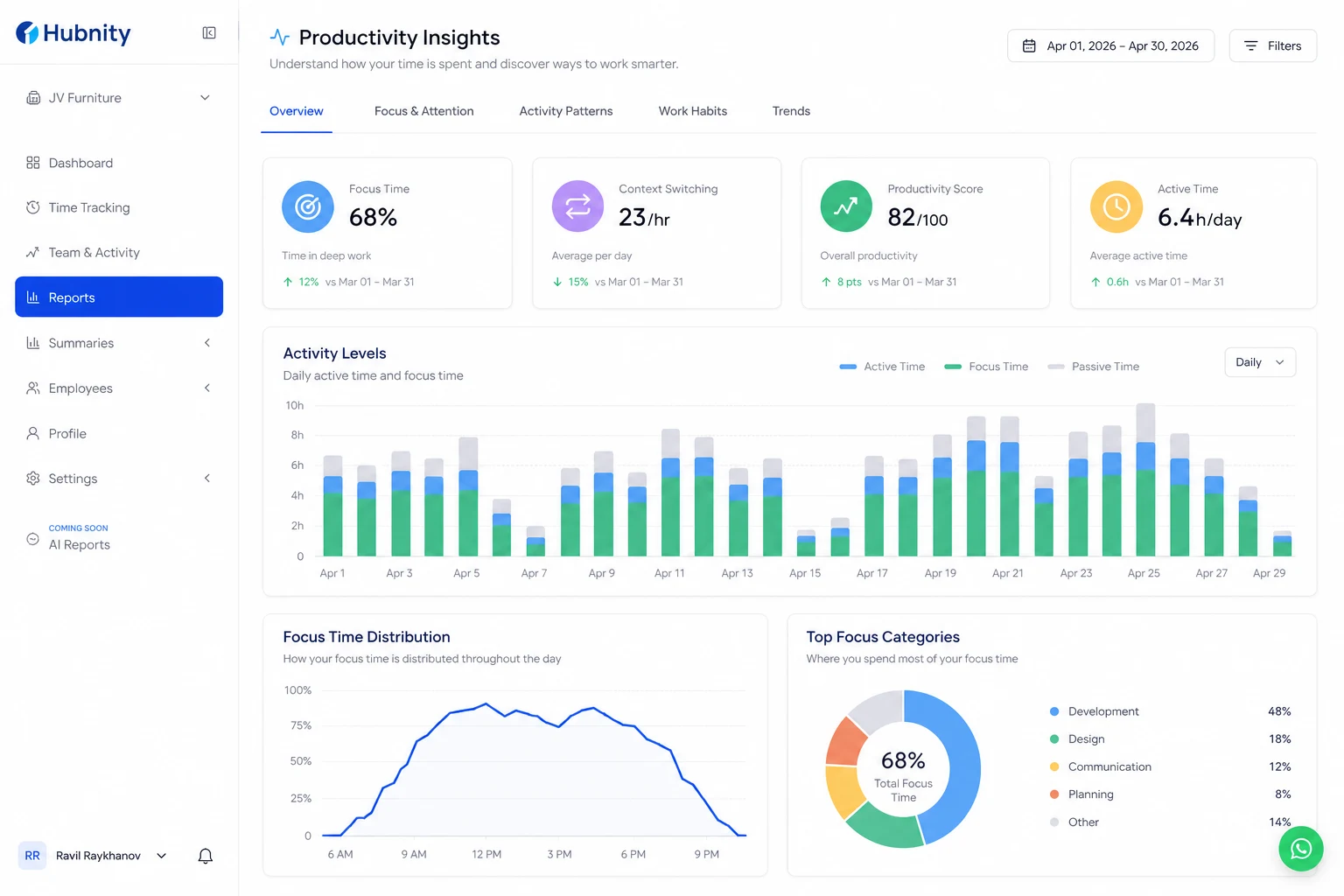
Productivity insights
Hubnity surfaces focus time, context switching, and productivity patterns to help teams improve—not micromanage.
Pair auto tracking with the online work timer when you need minute-level precision on a specific task.
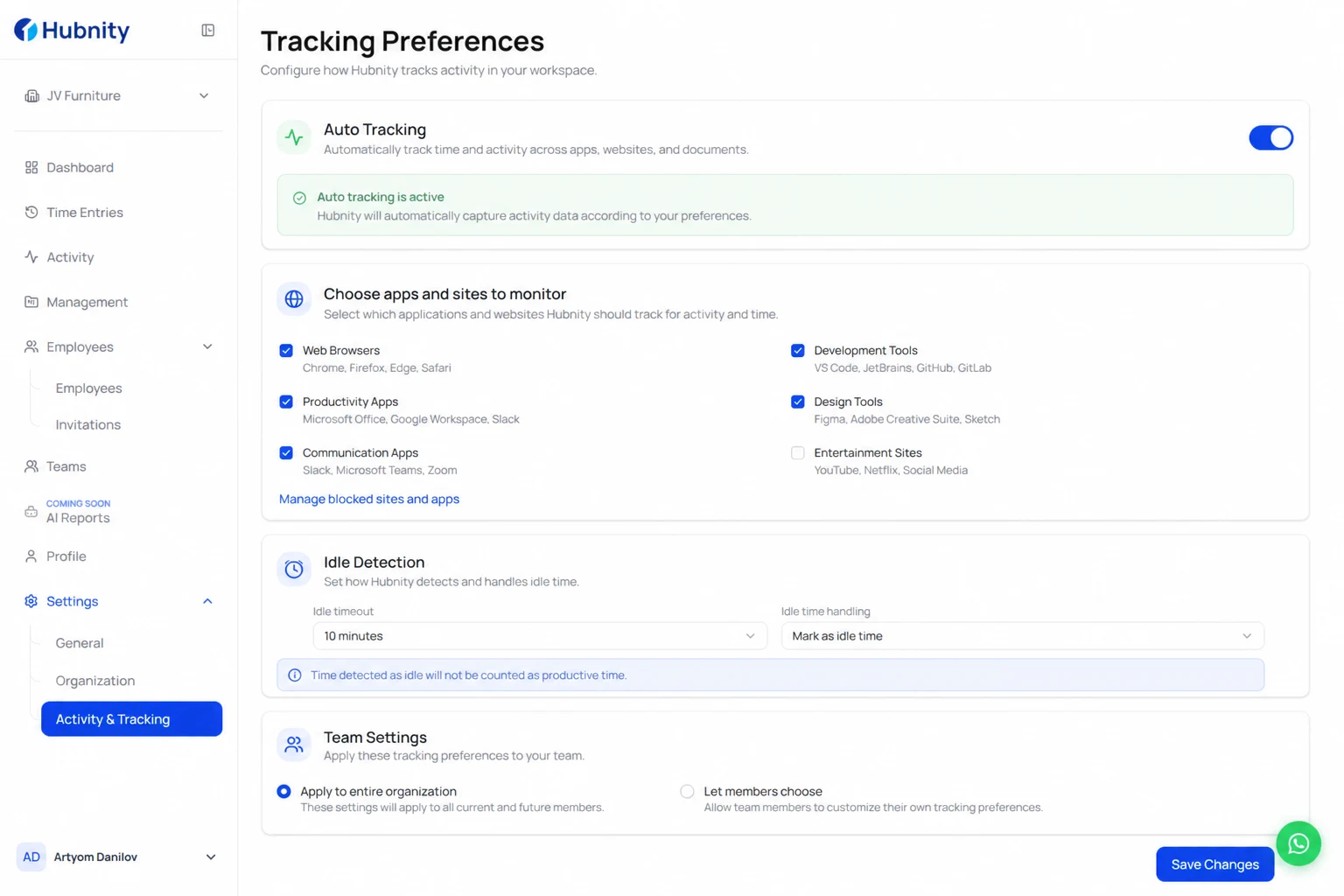
Enable auto tracking
Configure tracking preferences when you set up your workspace after signup.
- 1
Install the desktop app for Mac, Windows, or Linux (setup under a minute, no admin rights required).
- 2
Configure your workspace: add your team, set tracking preferences, and choose apps and sites to monitor.
- 3
Start tracking automatically—Hubnity captures work hours and active apps in the background.
- 4
Review auto-generated timesheets, export reports, and analyze trends with real data.